

AI Image Editor
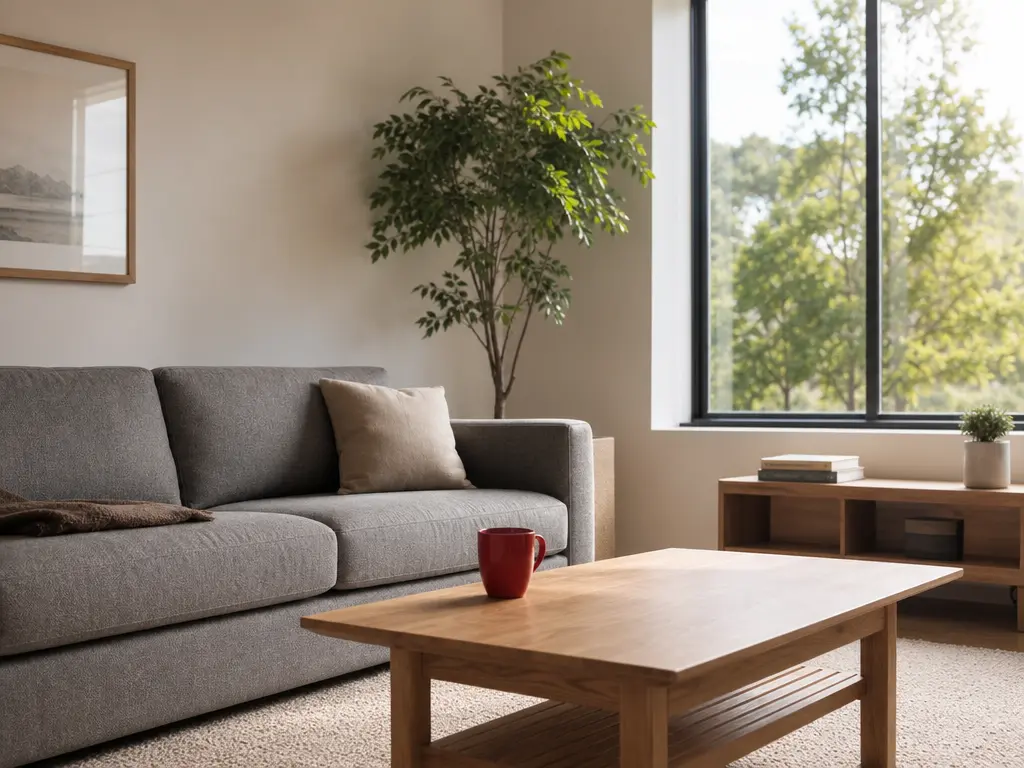
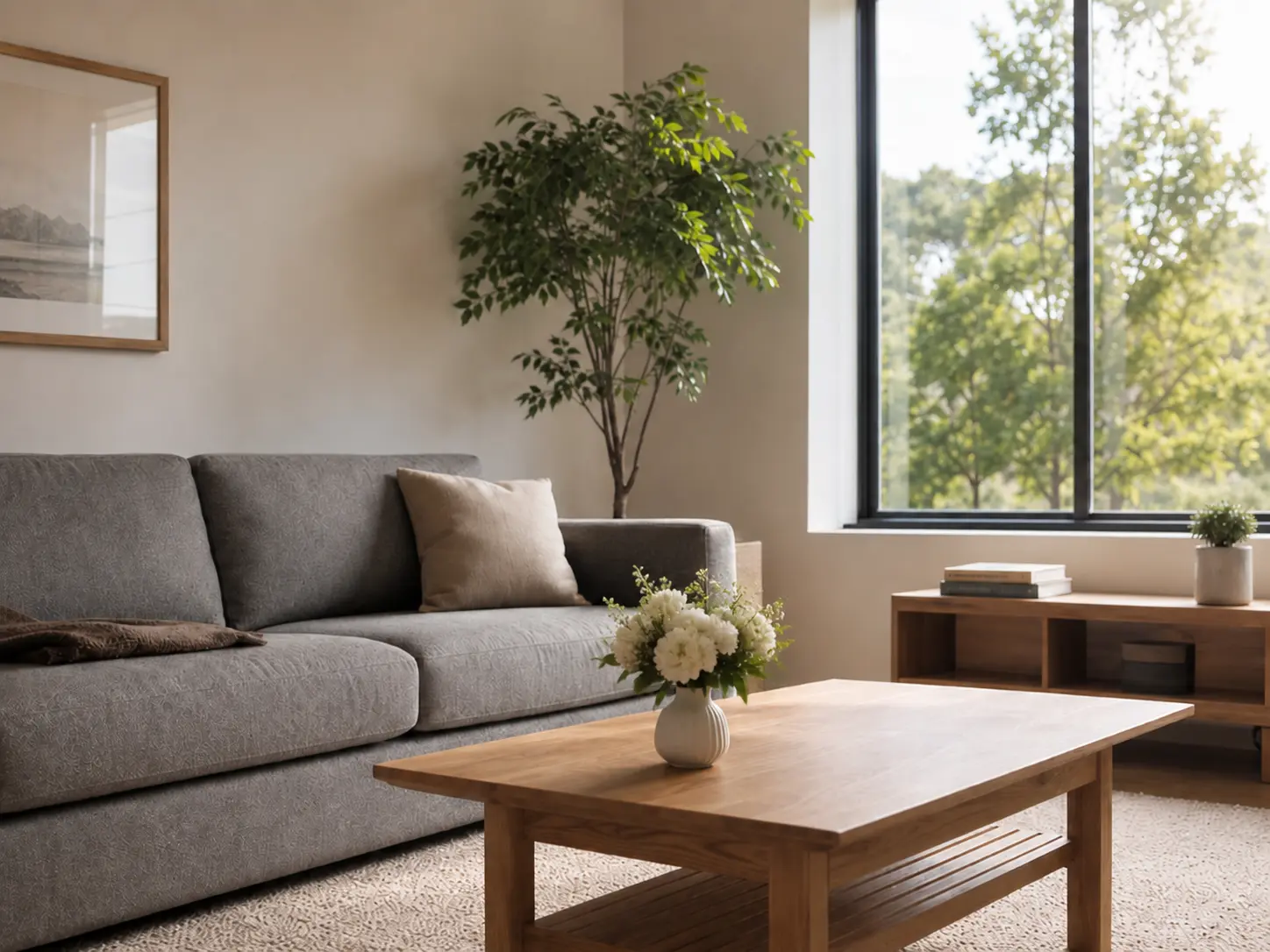
Your Photos, Refined by AI
Edit images with AI by writing a plain language prompt. The AI Image Editor identifies the target area and adjusts it while keeping the rest of the image intact. Retouch a portrait, remove background clutter, enhance image quality, or upscale a low resolution file.
Try It Now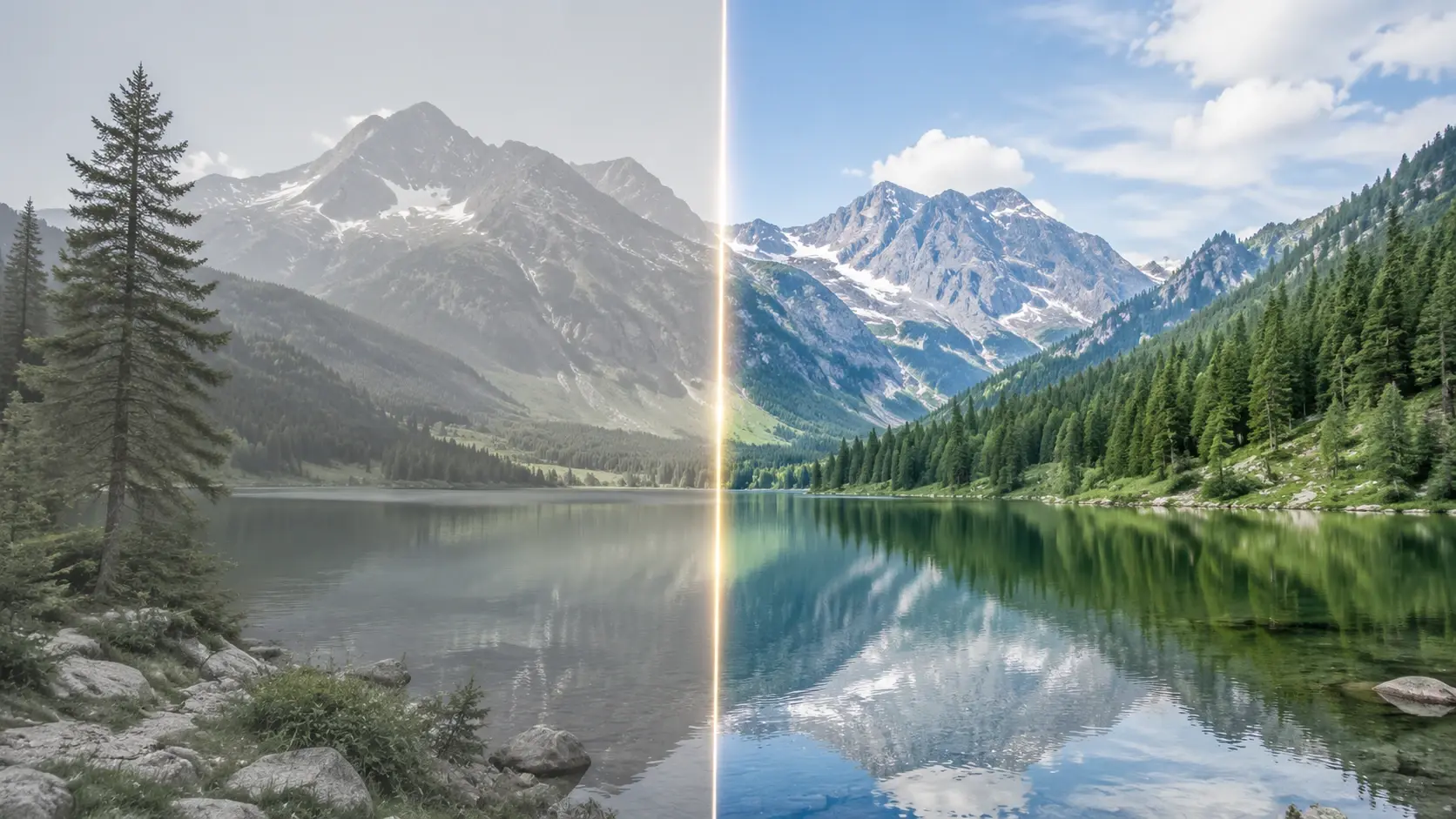
Built for Working Creators
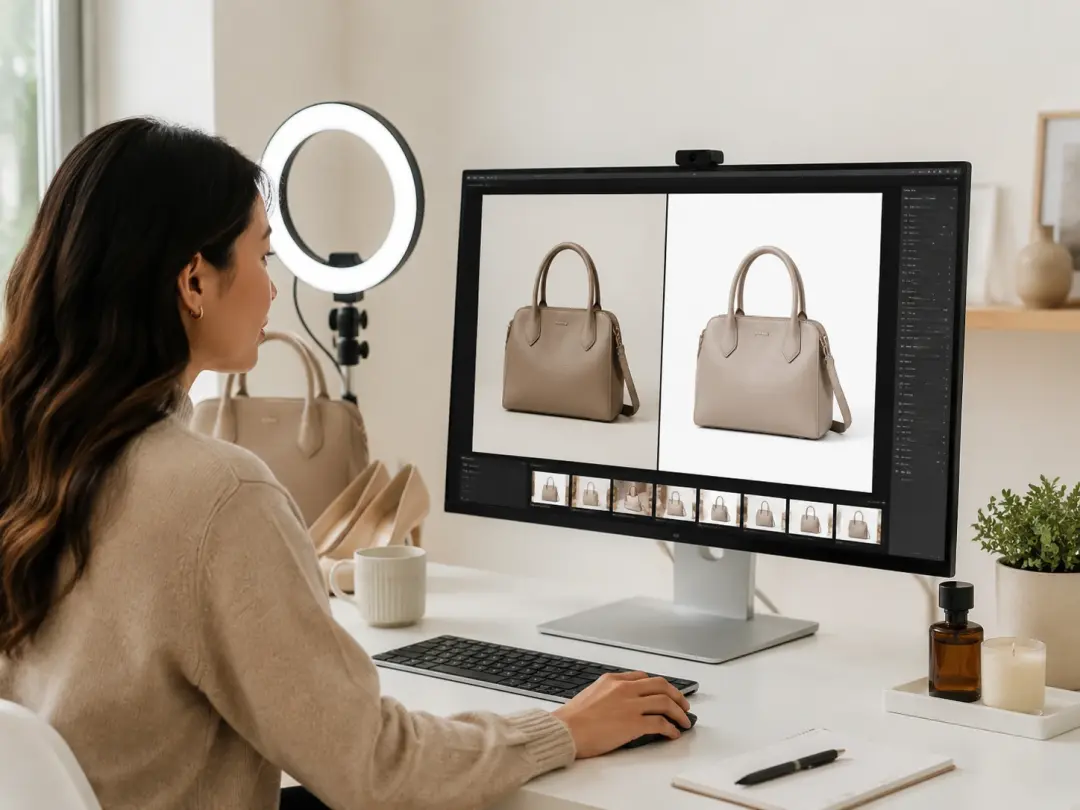
Ecommerce Product Manager
Product listings need clean, consistent visuals across dozens of SKUs. The AI Image Editor lets you remove background distractions, fix image lighting, and sharpen details in one pass. Upload the raw product photo, describe the cleanup, and export a polished version ready for your store.
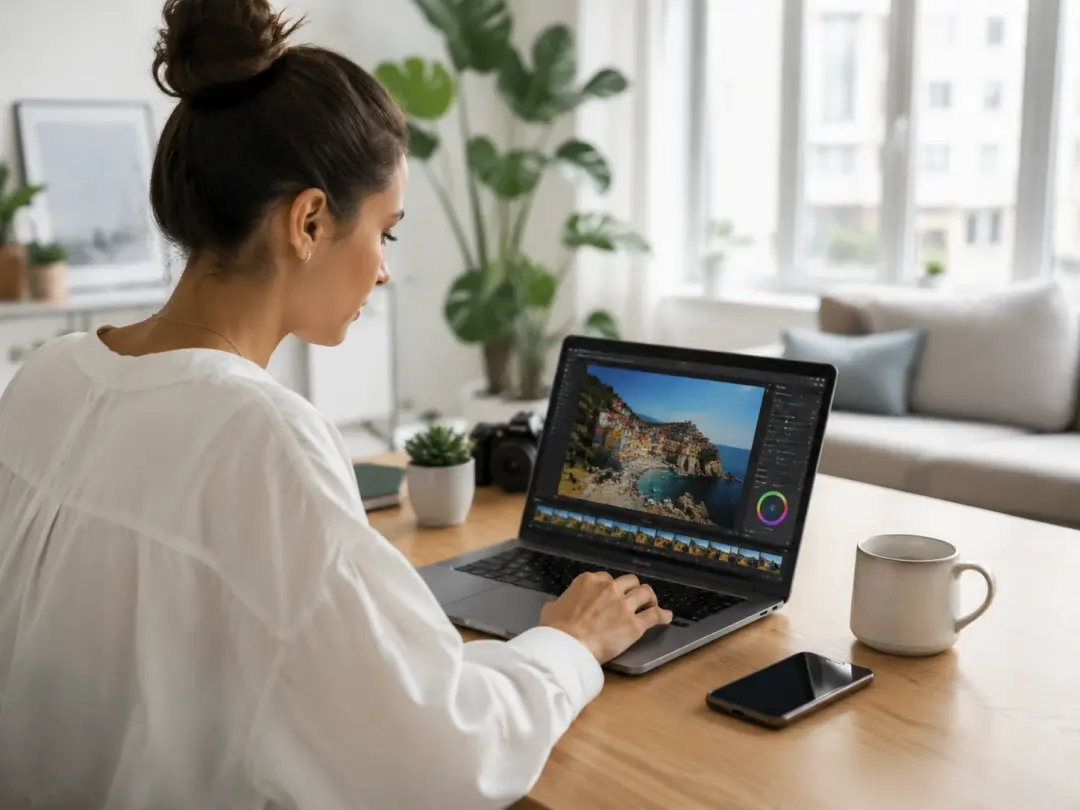
Social Media Content Creator
When your posting schedule demands fresh visuals daily, manual retouching slows the pipeline. Use the AI Image Editor to retouch photo color, swap a background, or generate image variations from one reference. Each output keeps the original composition so your feed stays visually consistent.
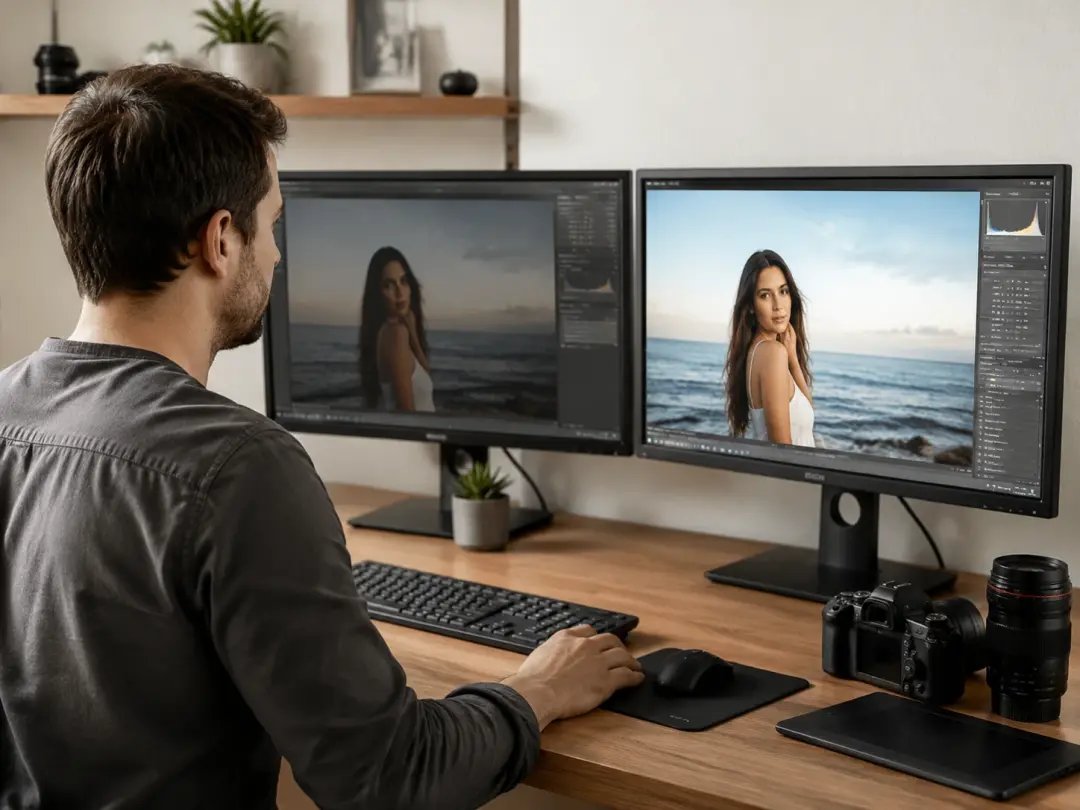
Freelance Photographer
Client revisions often involve small but specific changes. If the client wants a different background or a color correction on one section, the AI Image Editor isolates that area and applies the edit without touching the rest. The original shot quality carries through to the final delivery.
What You Can Do
Each scenario shows one practical way to use the AI Image Editor on a real project.
Remove Background Clutter
A clean subject on a clean background sells better than a busy frame. The AI Image Editor identifies the main subject, strips background elements, and fills the space with a solid or generated replacement. Works best with photos where the subject has clear edges.
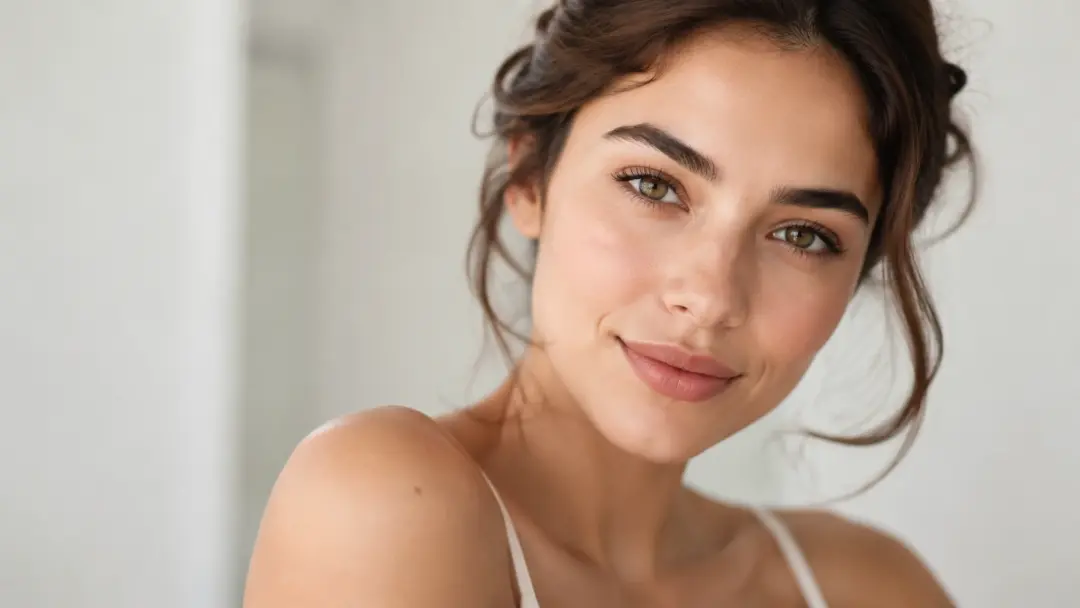
Retouch Portrait Details
Skin tone correction, blemish removal, and lighting adjustments on a single face take minutes with a text prompt. The AI Image Editor preserves the identity and expression while cleaning up the areas you specify. The result still looks like the same person, not a synthetic composite.
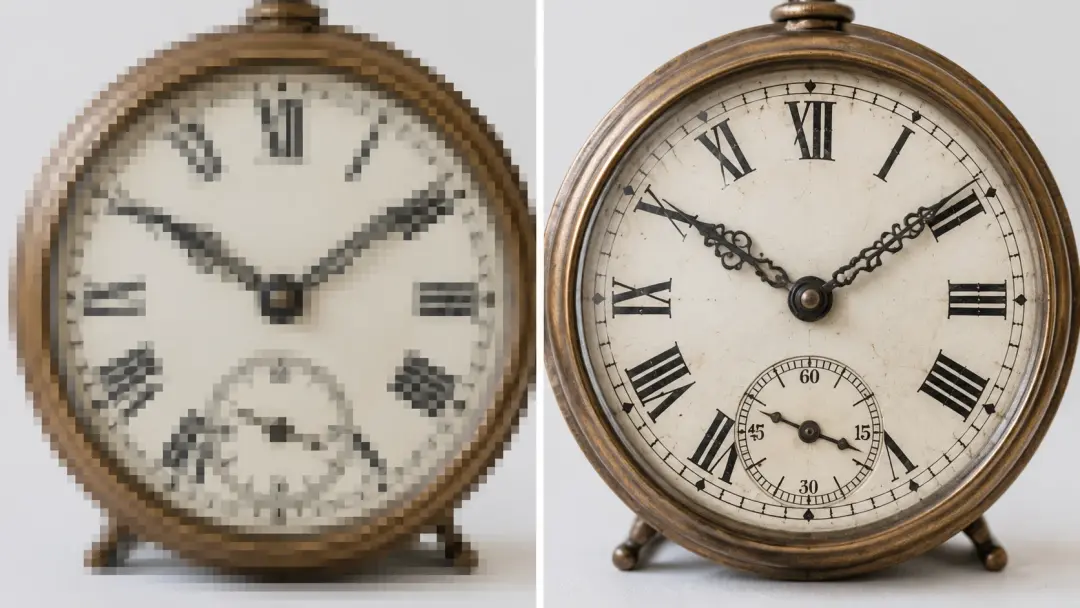
Upscale Low Resolution Files
Old screenshots, cropped photos, and web exports often lack the resolution for print or large displays. The AI Image Editor can upscale image files to higher resolution and sharpen image textures in one step. Fine text and small patterns recover better than with basic interpolation.
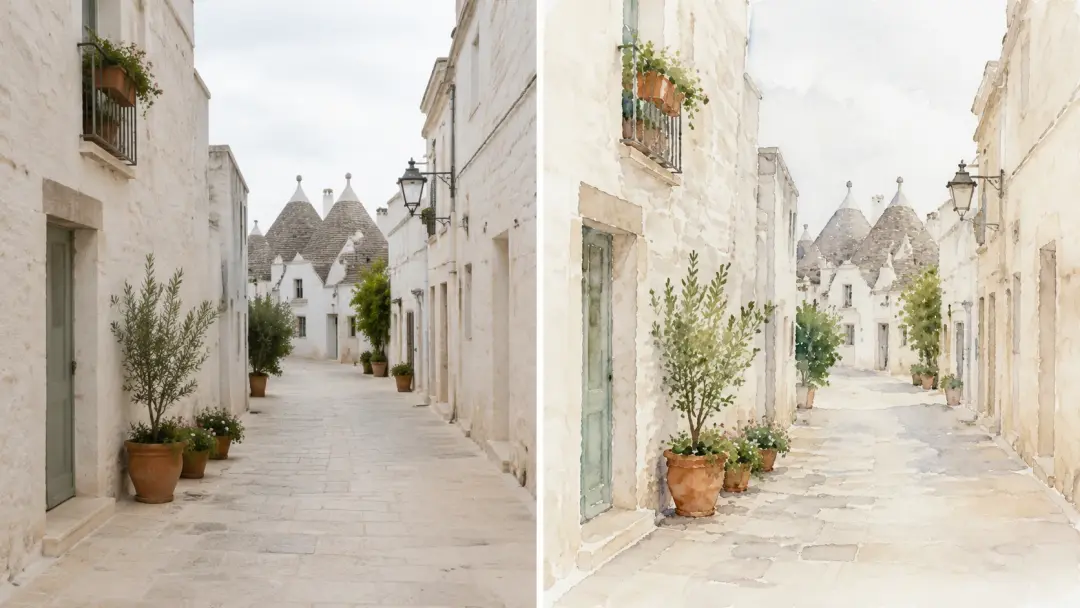
Apply Reference Styles
A single reference photo can become a vintage print, an illustration, or a cinematic still. The image to image AI workflow reads your reference and reinterprets the composition in the target style while keeping the original structure. Useful for testing creative directions before committing to a final look.
AI Image Editor vs Manual Retouching
Three common tasks compared to a traditional Photo Editing Tool.
Background Removal Speed
Manual masking in a desktop photo editor takes 10 to 30 minutes per image depending on edge complexity. The AI Image Editor isolates and removes the background in seconds. When edges are clean and well lit, the cutout is ready to use without post cleanup.
Batch Consistency
Editing 50 product photos by hand means each image gets slightly different treatment. The AI Image Editor applies the same prompt across every file, so lighting, crop, and color stay uniform. Consistent output reduces review cycles for catalog teams.
Local Edit Precision
Traditional clone and heal tools require careful brush control. The AI Image Editor reads your text prompt, identifies the target region, and blends the correction into surrounding pixels. A specific description produces a clean result on the first pass.
Common Questions
Try Your First AI Image Edit
Upload a photo, describe what you want changed, and see the result. The AI Image Editor applies your prompt and delivers a clean output ready to use.
Get Started