



Step 01
Choose a built in presenter
Select one digital narrator, write the message it should deliver, and start from your own content, a template, or available stock material.

Choose built in ai actors in VideoAI, plan what they say, shape each timed scene, set voice direction, and generate an MP4 you can keep refining.


Use VideoAI when a video needs a visible presenter, controlled scene timing, and references that guide the result.

Product explainers need a steady screen presenter. Pick a built in narrator, write the message, attach product images or audio direction, and plan an AI actors video around the intended pace.
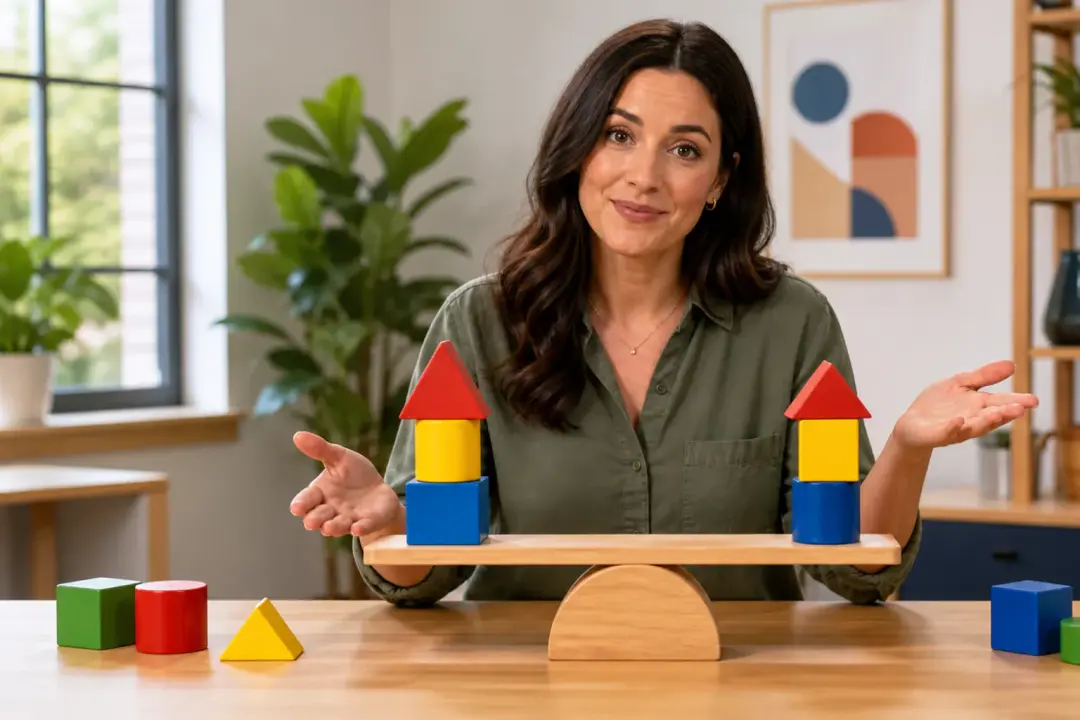
Course creators can arrange each teaching beat by seconds, so the presenter, narration, and reference visuals stay tied to the point being explained.

Brand teams with product photos, campaign references, and sound ideas can turn those assets into a presenter led draft in VideoAI before polishing the direction with text changes.

Short form creators working in 9:16 can set the presenter, camera feel, and rhythm themselves, then review a focused clip before expanding the concept.

When the information order matters, educators and tutorial makers use ai actors to present each point. They write each timed segment and guide the visuals around the lesson.
VideoAI keeps the presenter workflow concrete, from built in narrator choice to media references and final MP4 output.

If your video needs on screen delivery, choose from VideoAI built in digital presenters. The ai actor generator workflow starts with a narrator you select, then connects that presenter to your script idea.
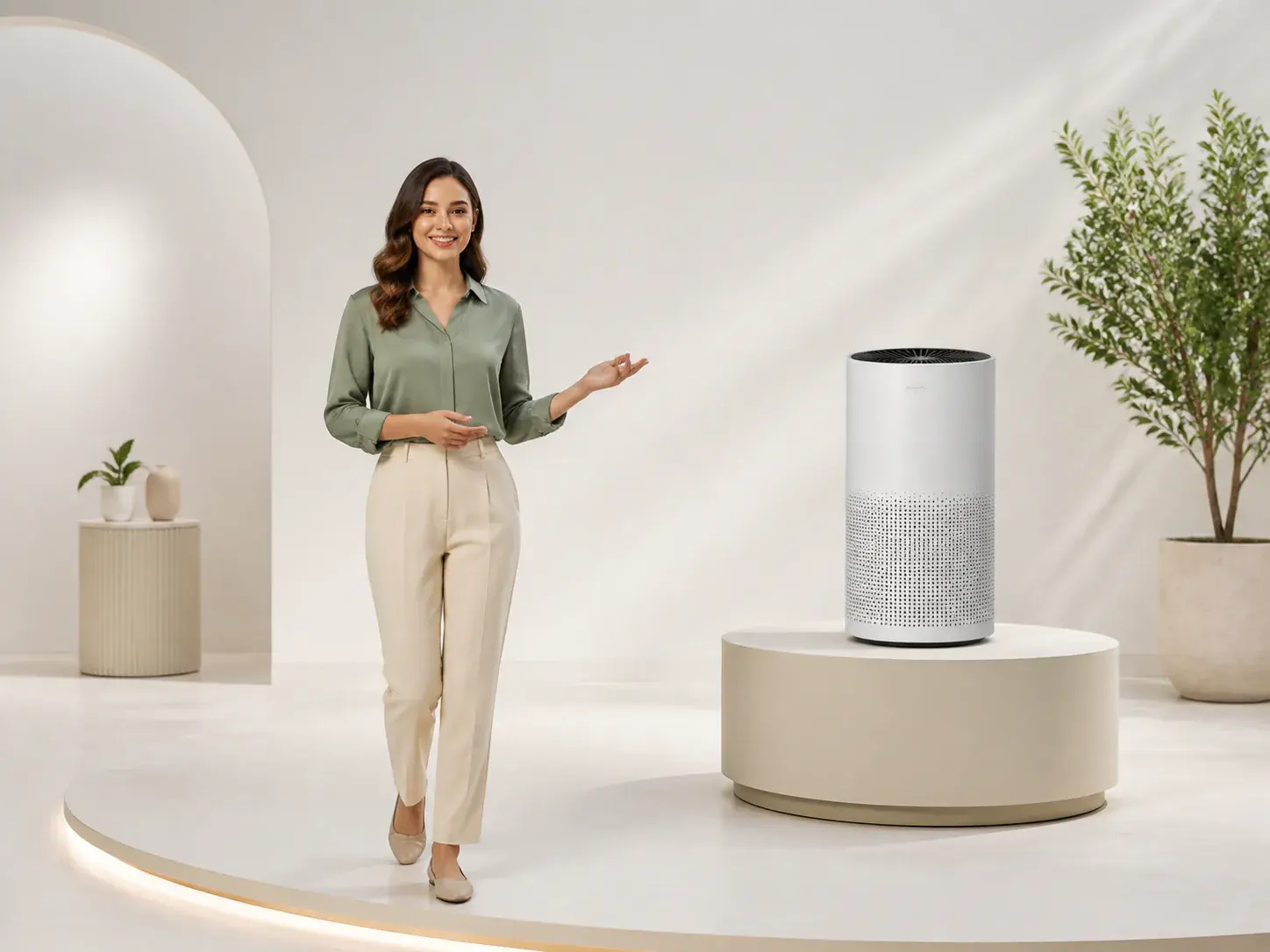
Write the picture and action for each time segment yourself. This gives ai actors a clear structure for explainer clips, client concepts, and social videos.
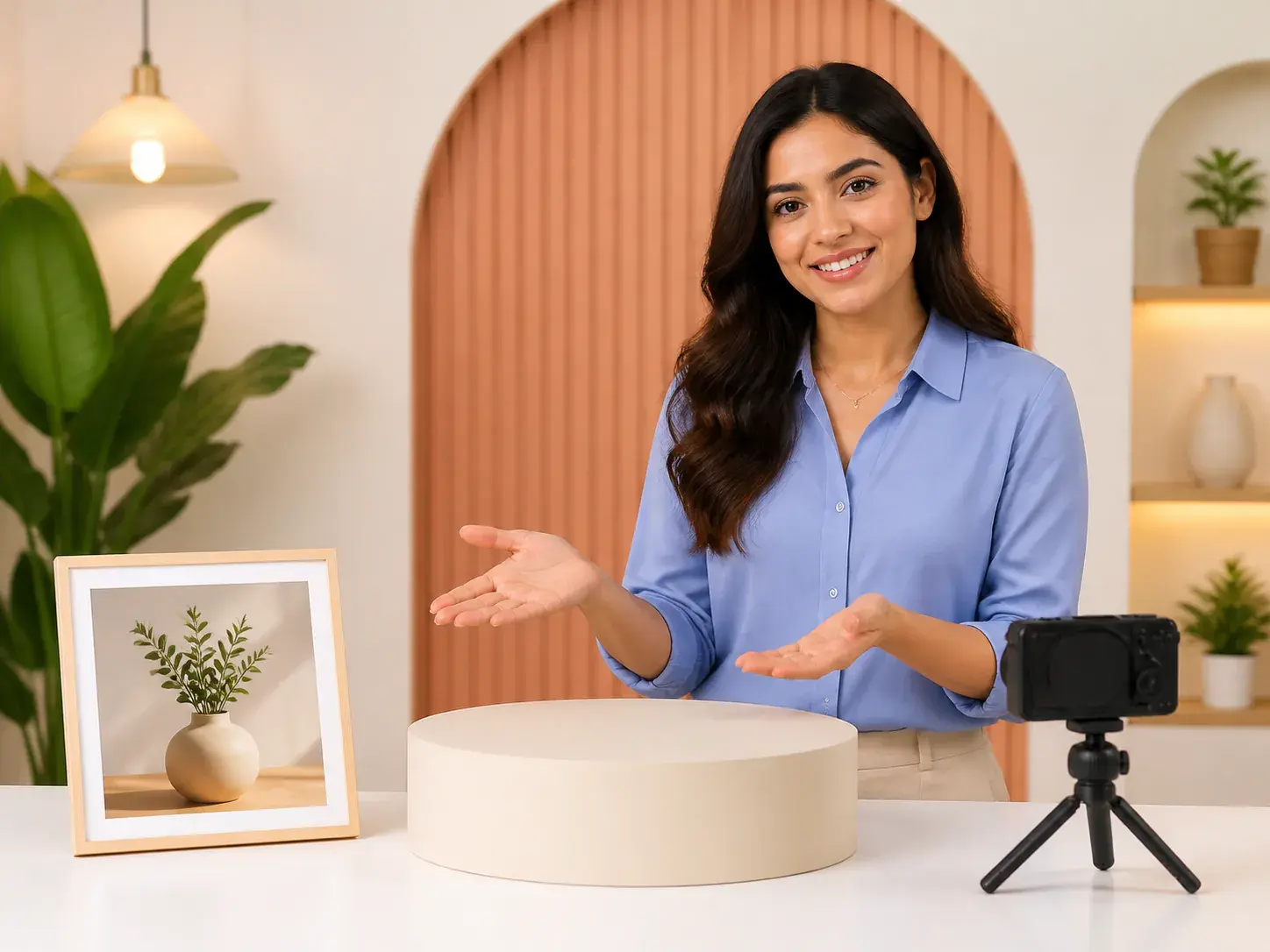
Combine text, image, video, and audio references, then use @ to mark each asset as a first frame, subject, camera guide, music cue, or scene reference.

Preview the generated video, adjust it with text prompts, and export an MP4 up to 4K in 16:9, 9:16, 1:1, or 4:5 with no watermark.
Start with the presenter, arrange the scenes, then refine the generated result inside the same VideoAI workspace.
Step 01
Select one digital narrator, write the message it should deliver, and start from your own content, a template, or available stock material.
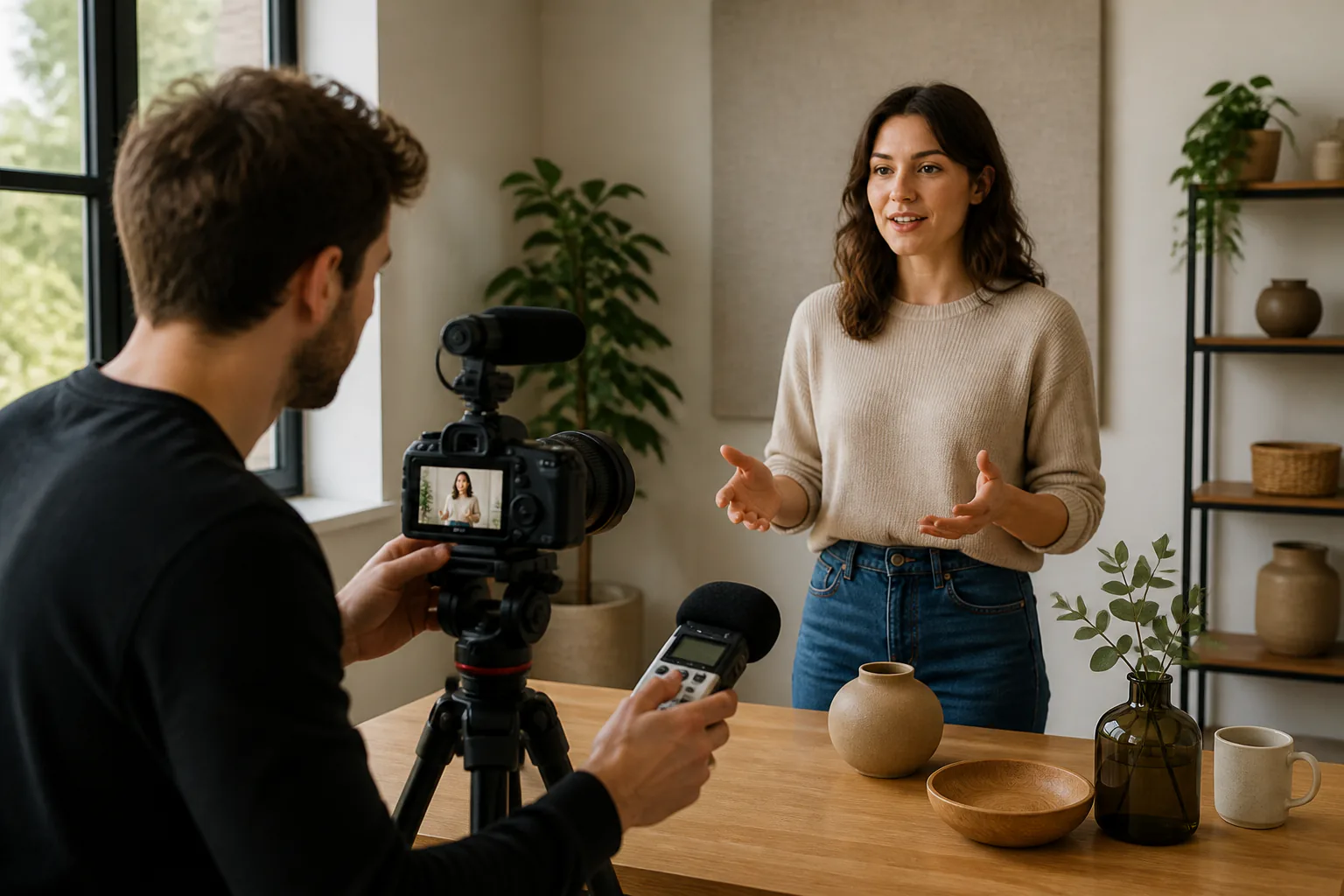
Step 02
Add image, video, and audio references, assign their roles with @, then describe each timed segment with action, narration direction, BGM, effects, and music beats.
Step 03
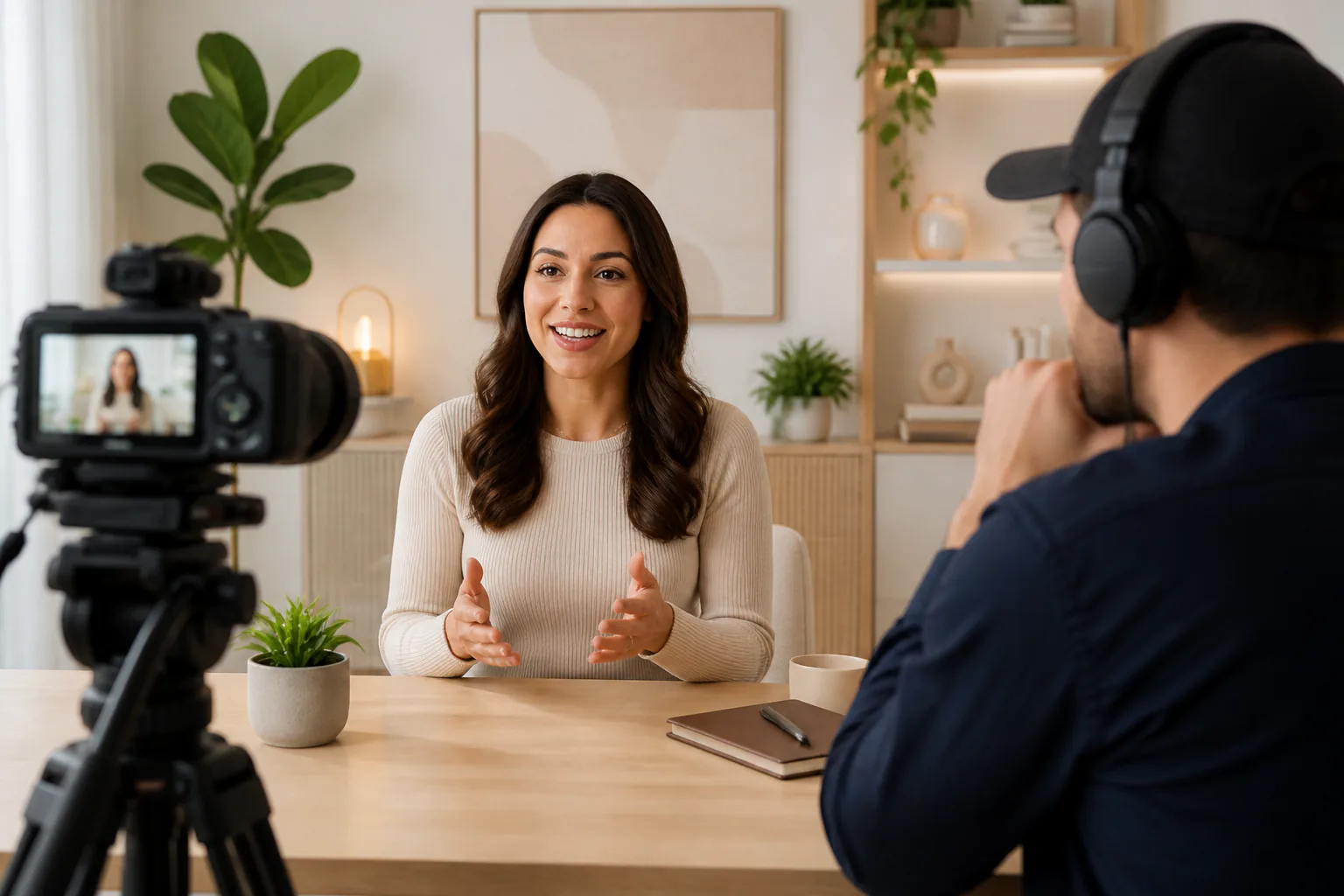
Preview the generated clip, describe the changes you want, extend from the current video when needed, and download the finished MP4 up to 4K.

Choose a VideoAI presenter, plan the timed message, guide the sound and references, then generate a video ready to refine.
Get Started