

Image Extender
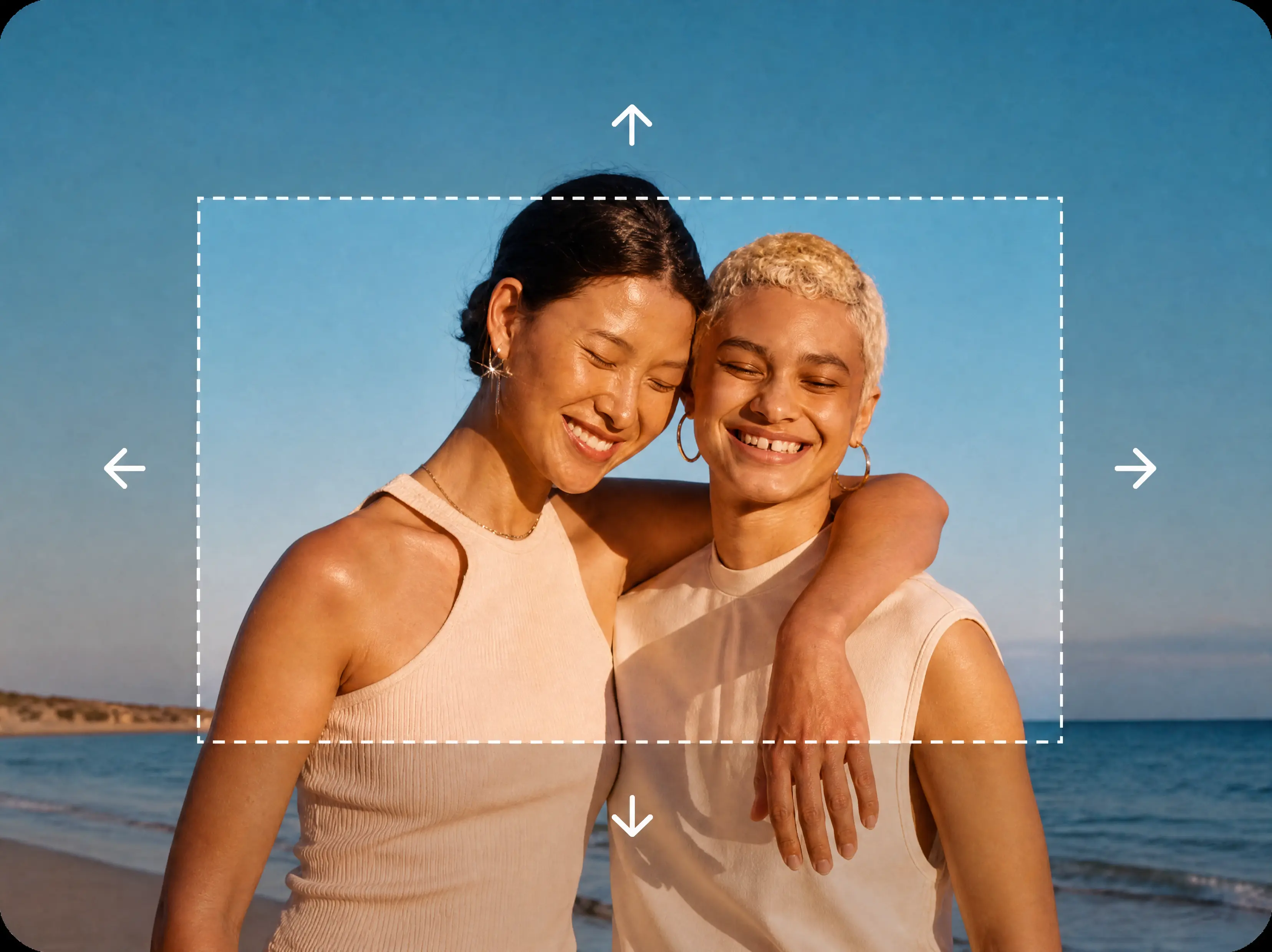
The image extender in VideoAI paints new scenery past a photo's edges, so you reshape the frame while the original pixels stay exactly as you shot them.
One Image Extender, Many Framing Jobs
Pick the situation that matches your photo, and the image extender fills the new canvas to match, working as a photo extender for any layout.
Change Aspect Ratio Of Image
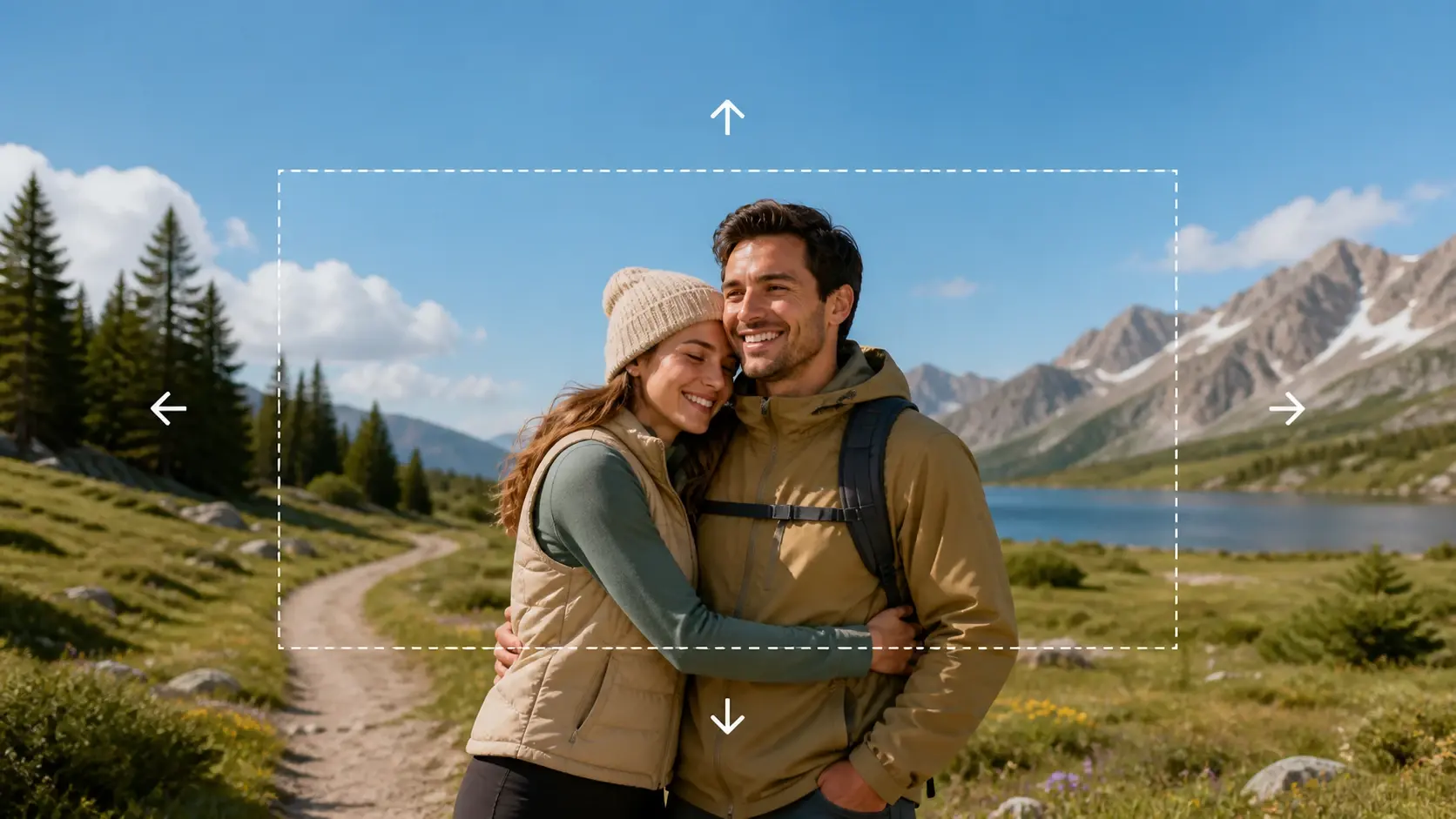
A vertical shot needs to run wide on a landscape banner, and cropping would clip the subject while stretching would warp it. Choose the target ratio and the image extender builds the missing scene beyond the frame, so the picture only grows. It is the quickest way to change aspect ratio of image files headed for several placements at once.
Extend Wallpaper
The background you found stops short of filling a wider screen, and a second monitor has a different ratio again. Feed it in, set the screen shape you want, and the image extender grows matching scenery outward until one source covers each display. This makes it simple to extend wallpaper without hunting for a larger file.
Clean Backgrounds For Storefronts
Marketplace listings ask for one ratio on the main tile, another on the banner, and a third on the detail page. The image extender adds room around the product so every placement shares the same calm background, leaving open space where a headline or price can go later in whatever layout tool you already use. The item itself stays untouched at the center of each export.
Room Above A Cramped Cover
A thumbnail feels tight when the subject presses against all four borders. The image extender grows the scene outward to open breathing room over and beside it, giving headline text a settled place to sit. The new area carries the same light and grain as the frame it came from.
Who Reaches For This Image Extender
Post one still to every feed
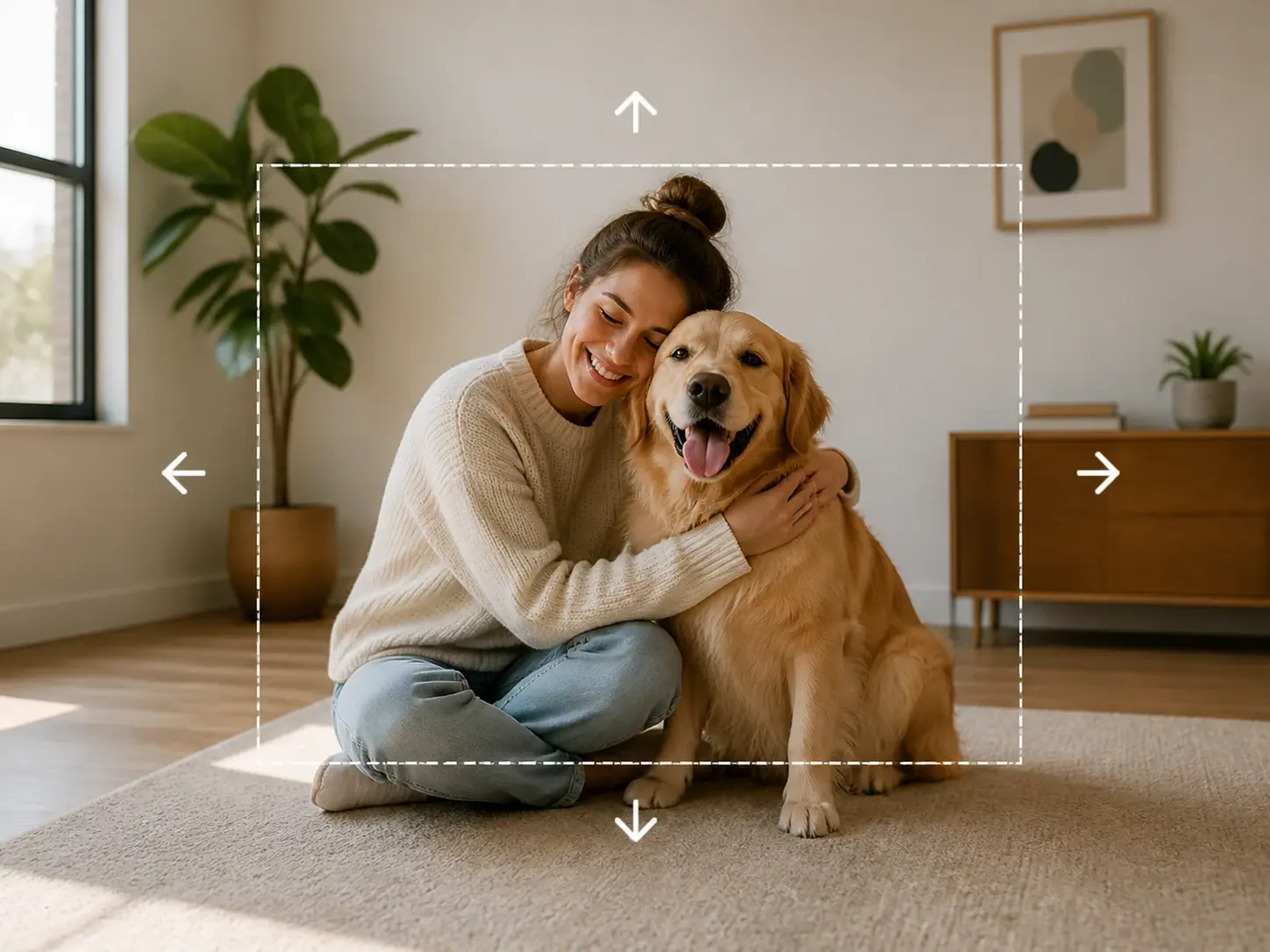
You shoot once but publish to feeds that each demand a different shape, and reshooting for each is not realistic. Set the ratio a platform wants and the frame grows to fit, so a single still travels from a square post to a wide thumbnail. The image extender keeps the subject centered while the surroundings fill in.
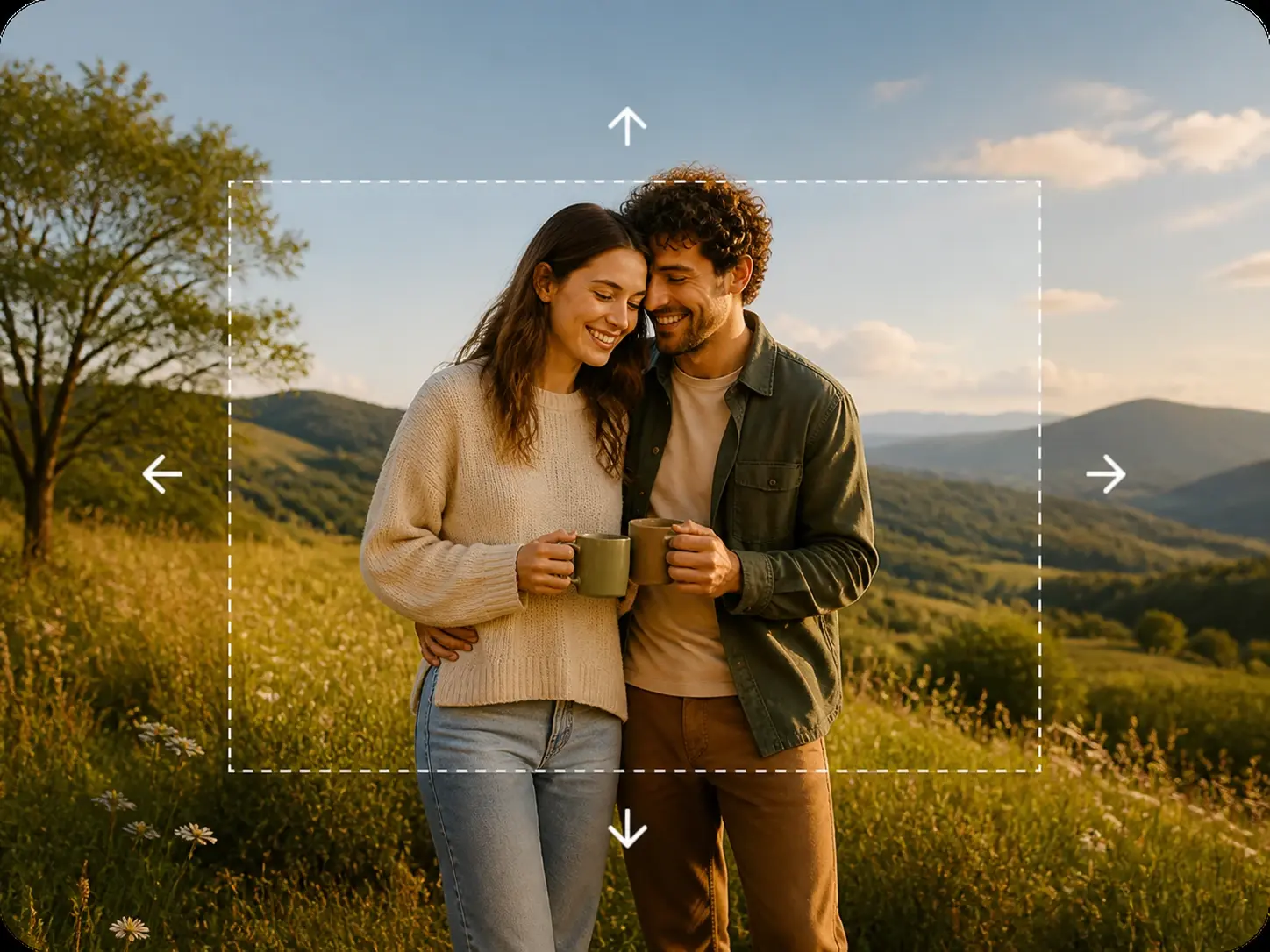
Controls That Make The Image Extender Work
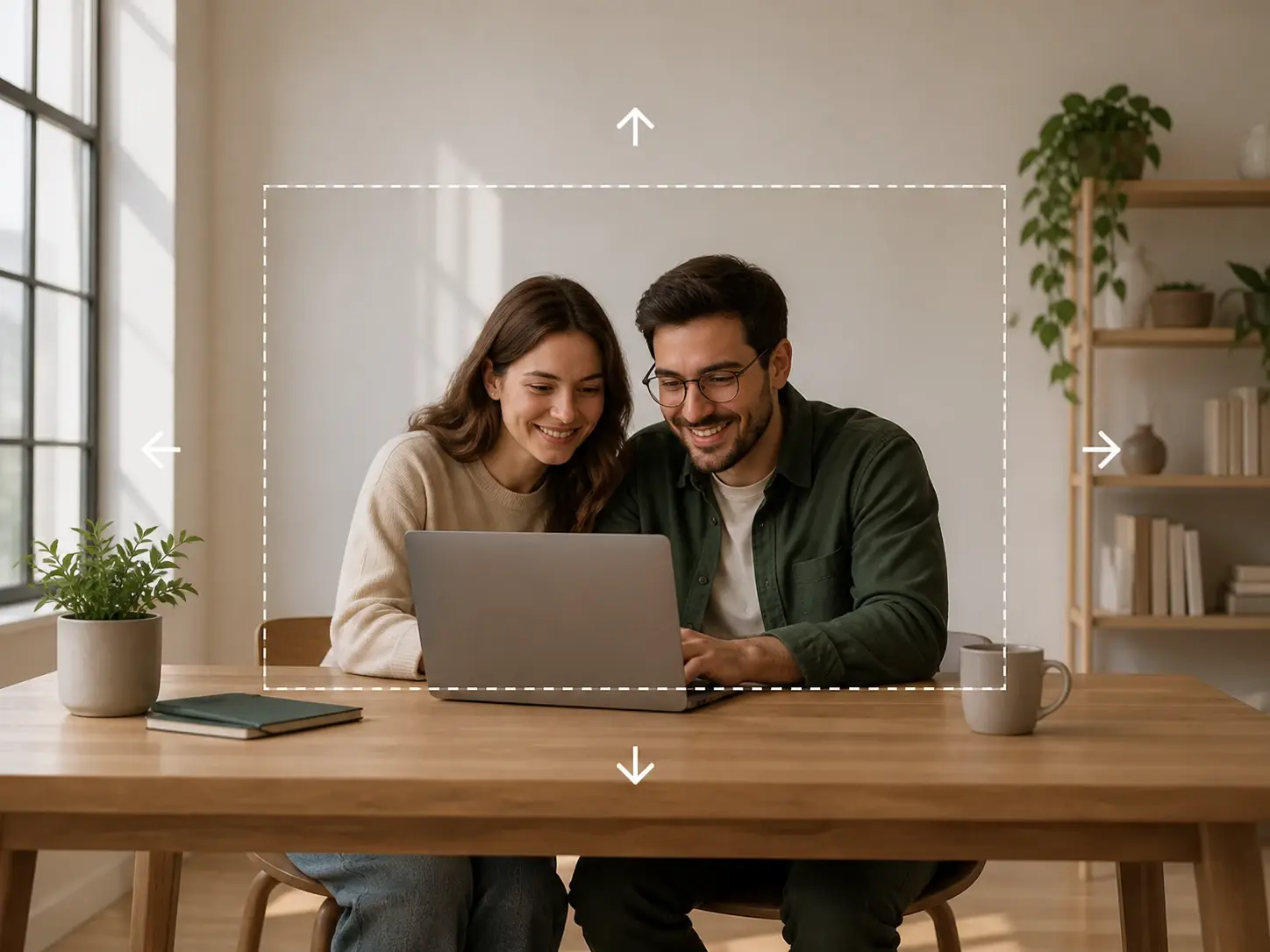
Each control shapes the new canvas in VideoAI, from the ratio you target to the way this image expander reads your edges.
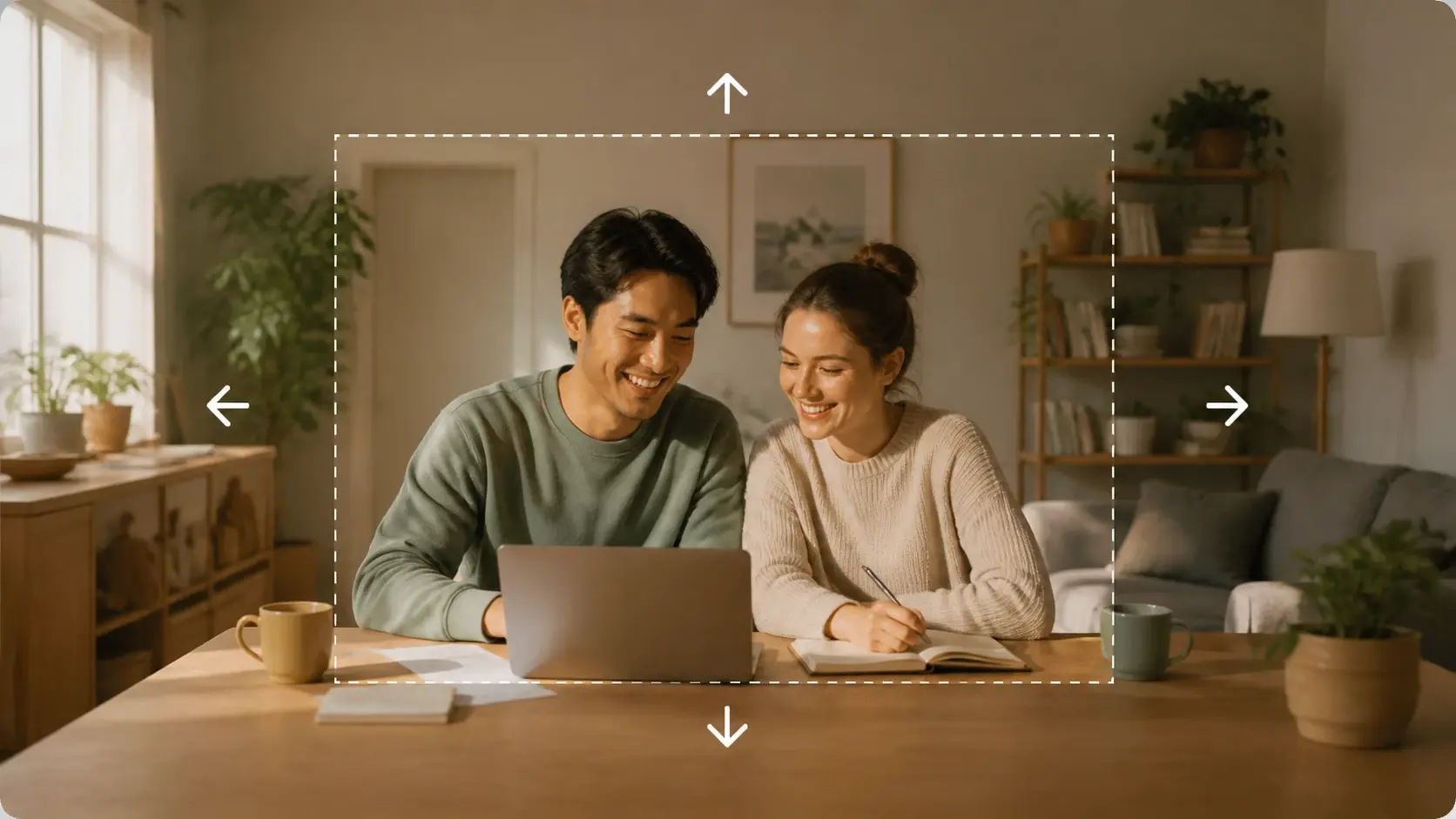
Reframe Without Cropping Or Stretching
Turn a tall shot wide or a square one panoramic by adding scene, not by slicing the subject or pulling it out of shape. The image extender only adds area, so faces and products keep their real proportions. It is the difference between an honest widen image result and a distorted one, and when you just need to make image wider for a banner, that is the whole job.
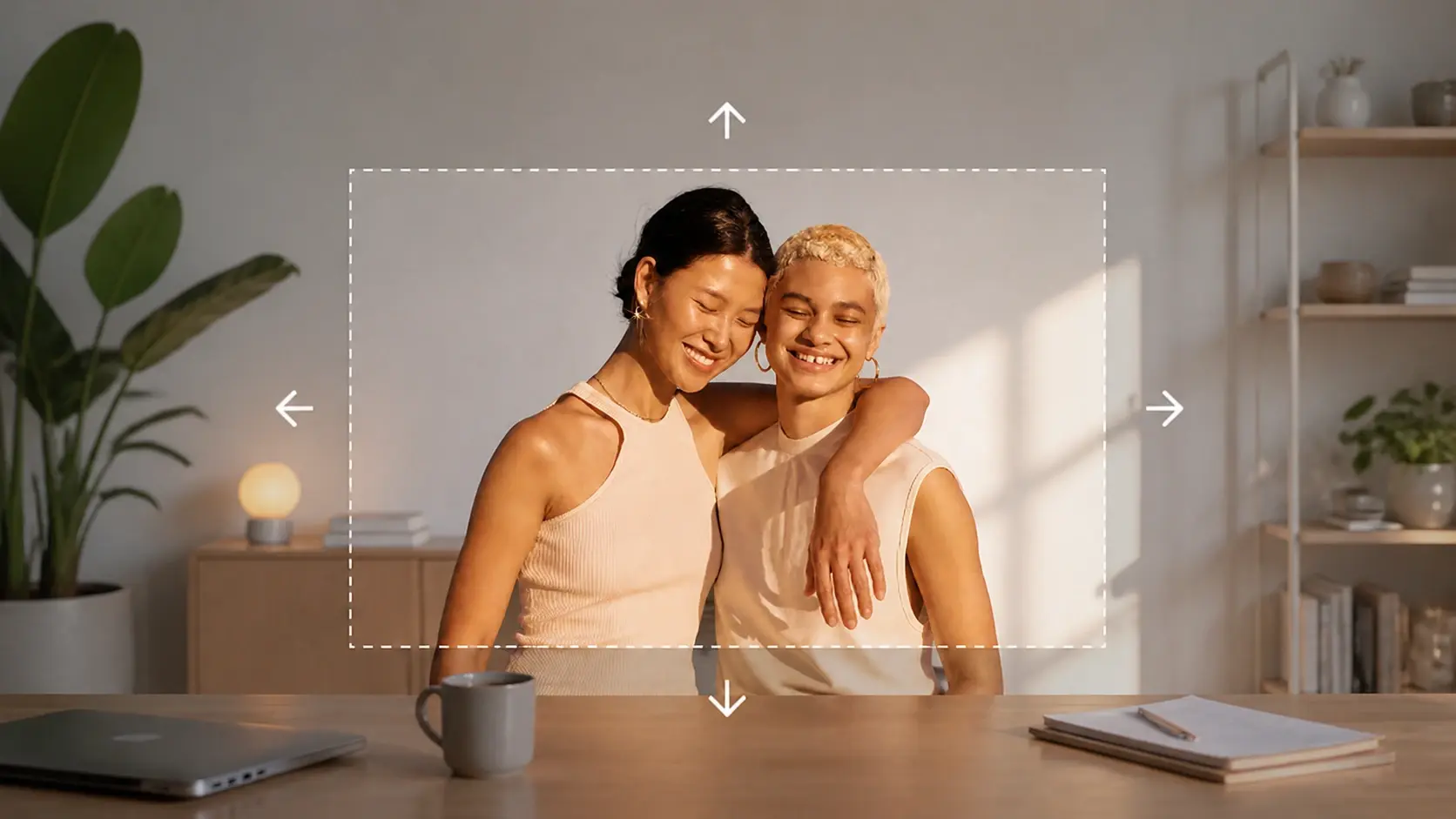
The Original Stays Exactly As Shot
The image extender adds only beyond the border, so every pixel you uploaded stays put with no reshaping of the subject. You get the same photo you shot, now sitting inside a larger frame. As an image extender ai, it grows the surrounding scene to match the edge it extends from.
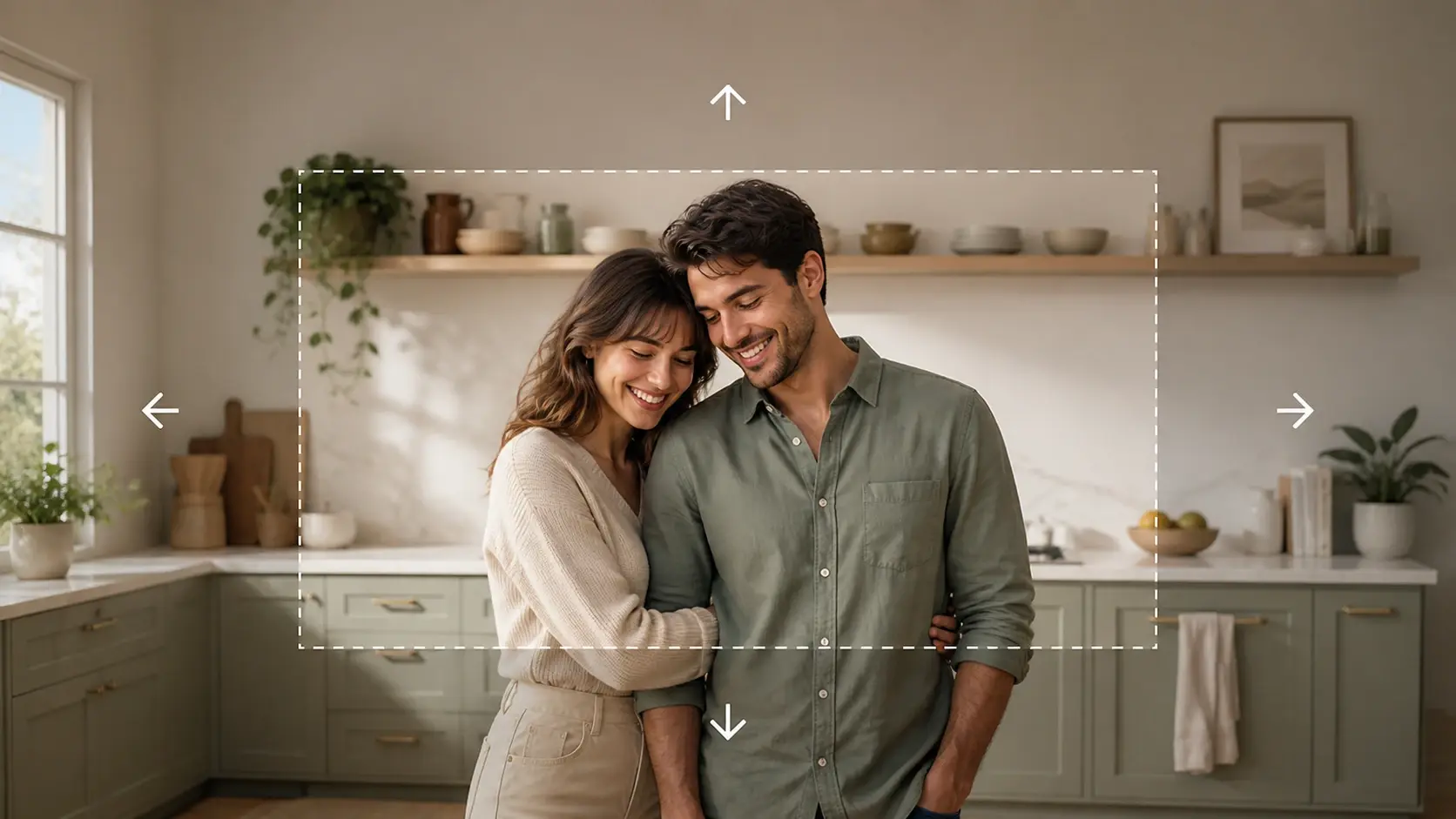
Describe What Fills The New Space
Type a short line describing what should sit beyond the edge, like a wider beach or an open sky, and the fill follows your words. Leave it blank and the scene continues on its own read of the border. This ai image extender with prompt gives you a say without touching sliders.
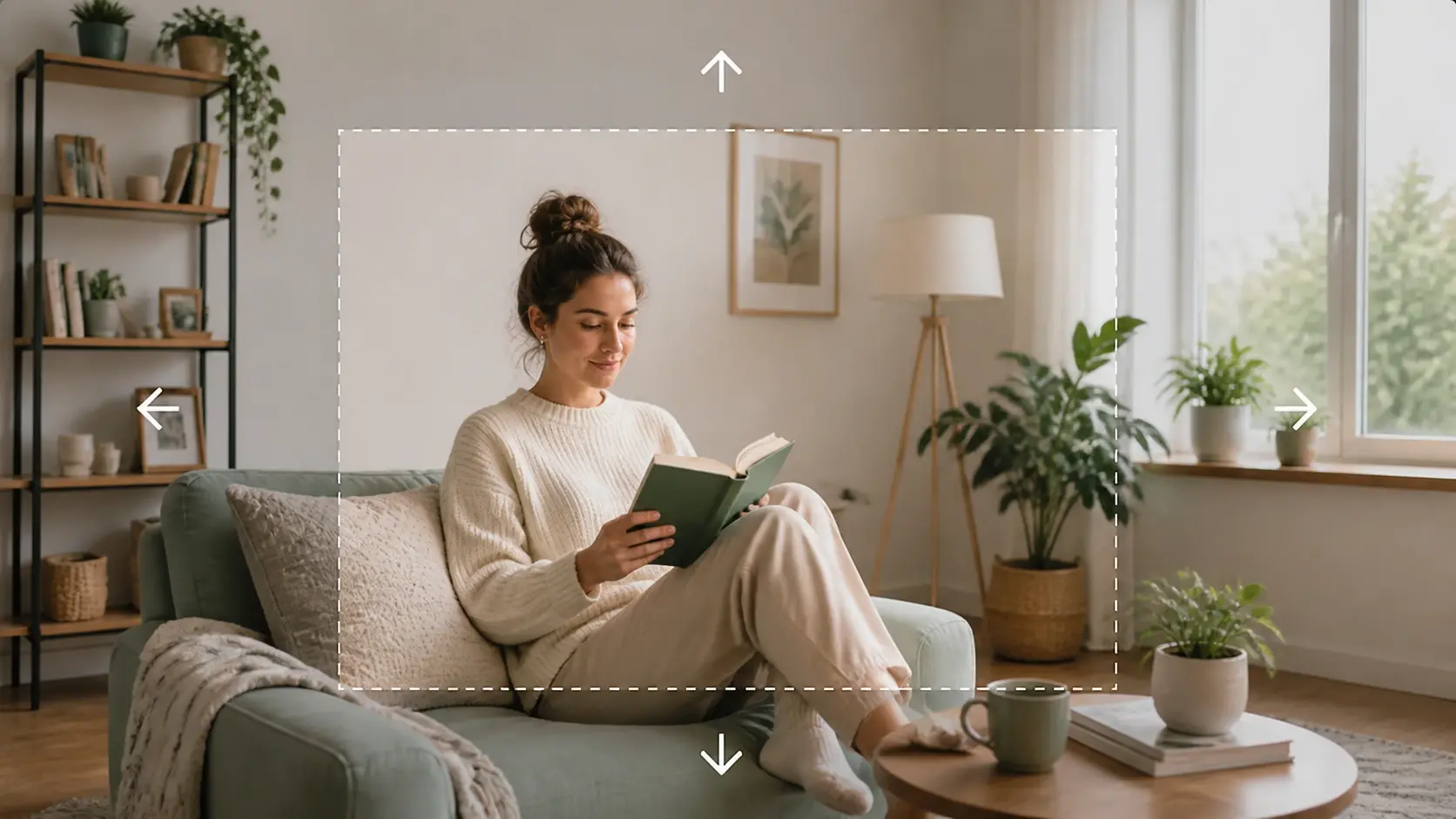
Several Fills To Choose Between
The image extender returns more than one version of the extended scene in a single run, so you compare options instead of settling for the first. Pick the fill that reads most naturally against the original, or run it again for a fresh set. Ratio presets for common social platforms let you start from the shape you already need.
Extend A Photo In Three Steps
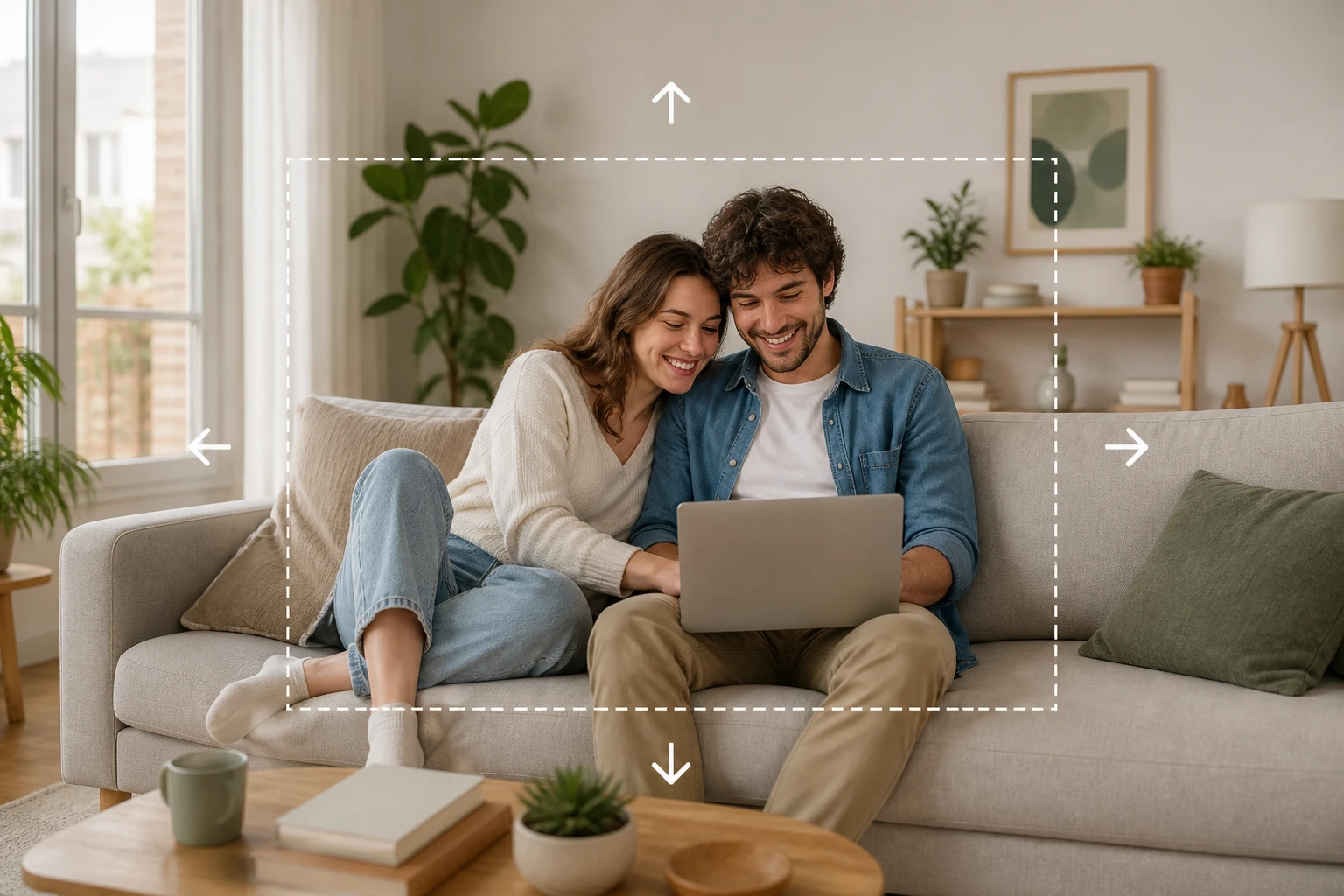
From upload to download, this photo expander keeps you in control of the shape and the story of the new edges.
Questions Before You Widen Your Photo
Give Your Photo More Room
Upload one image, choose the shape you need, and watch the image extender in VideoAI build the rest of the scene.
Get Started