
Step 01
Describe The Space
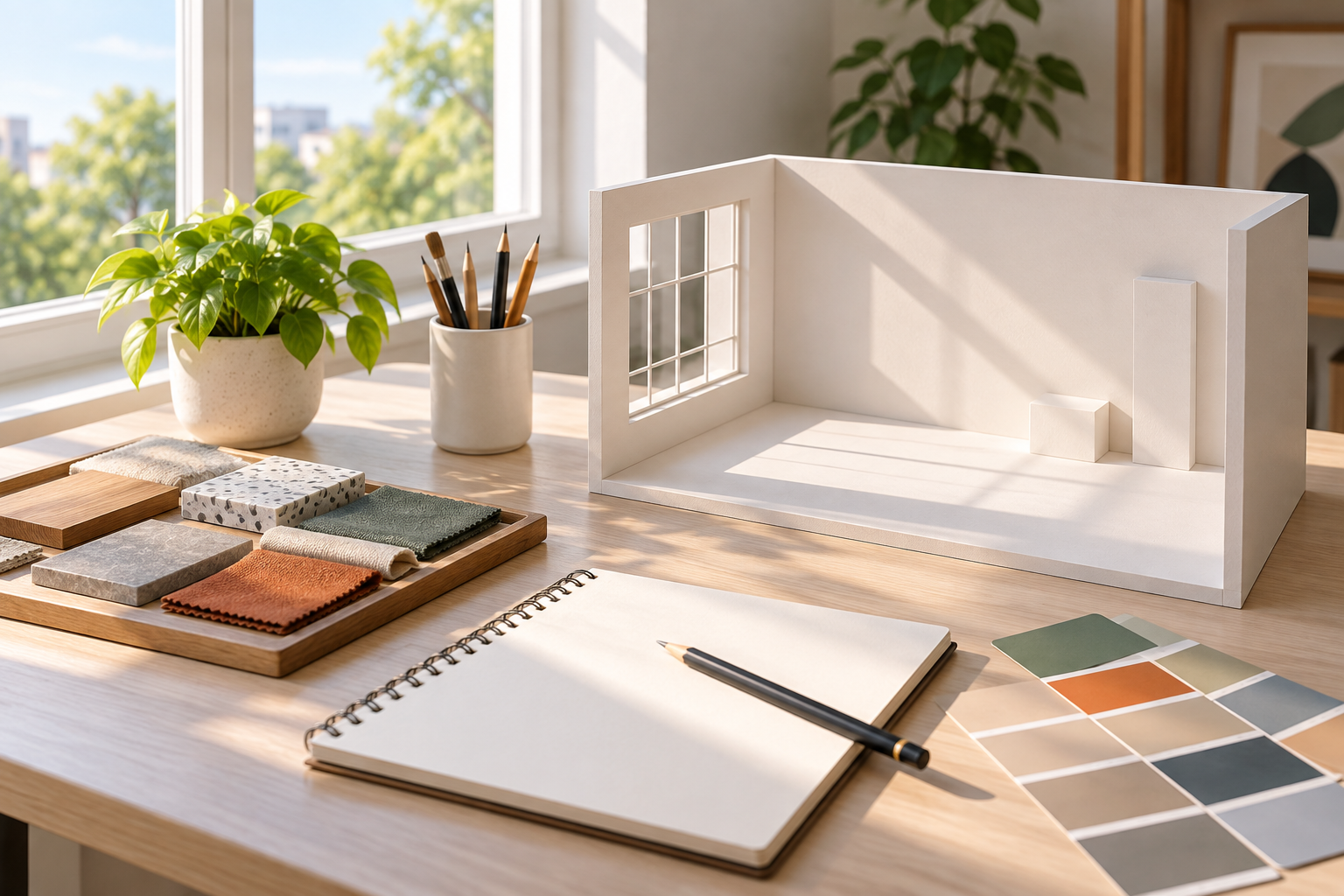
Write the setting, materials, colors, lighting, camera angle, and feel. Mention the space you need around the subject so the ai background generator leaves room for the final composition.

Generate A New Setting
This ai background generator turns a written scene into a complete backdrop, and an optional reference image helps the result preserve your subject, product, or visual direction. Describe the surface, the light, and the camera angle rather than the mood alone, because those details decide whether the subject sits convincingly in the new scene. Generate a few versions at the final crop before you settle on one.
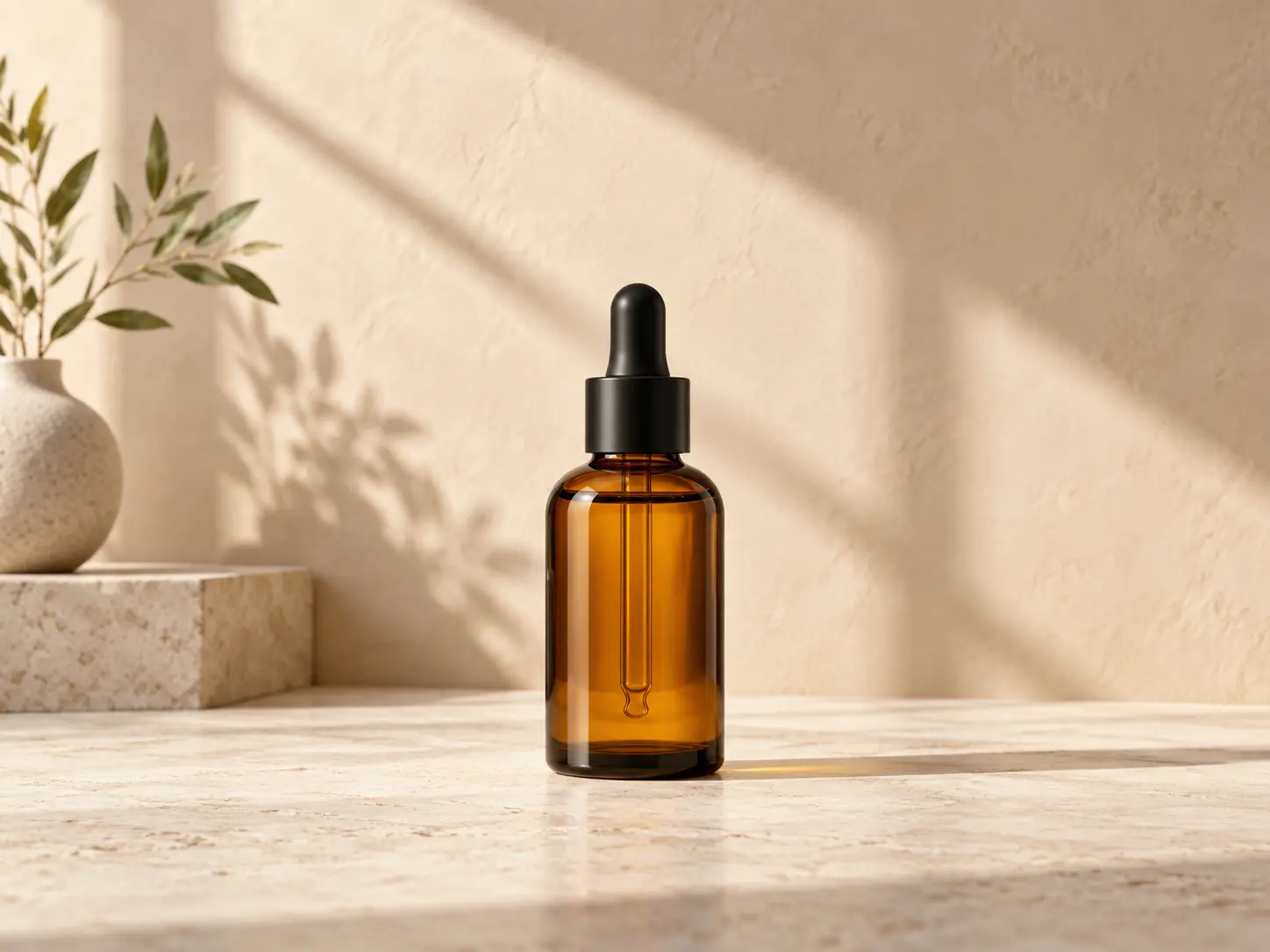
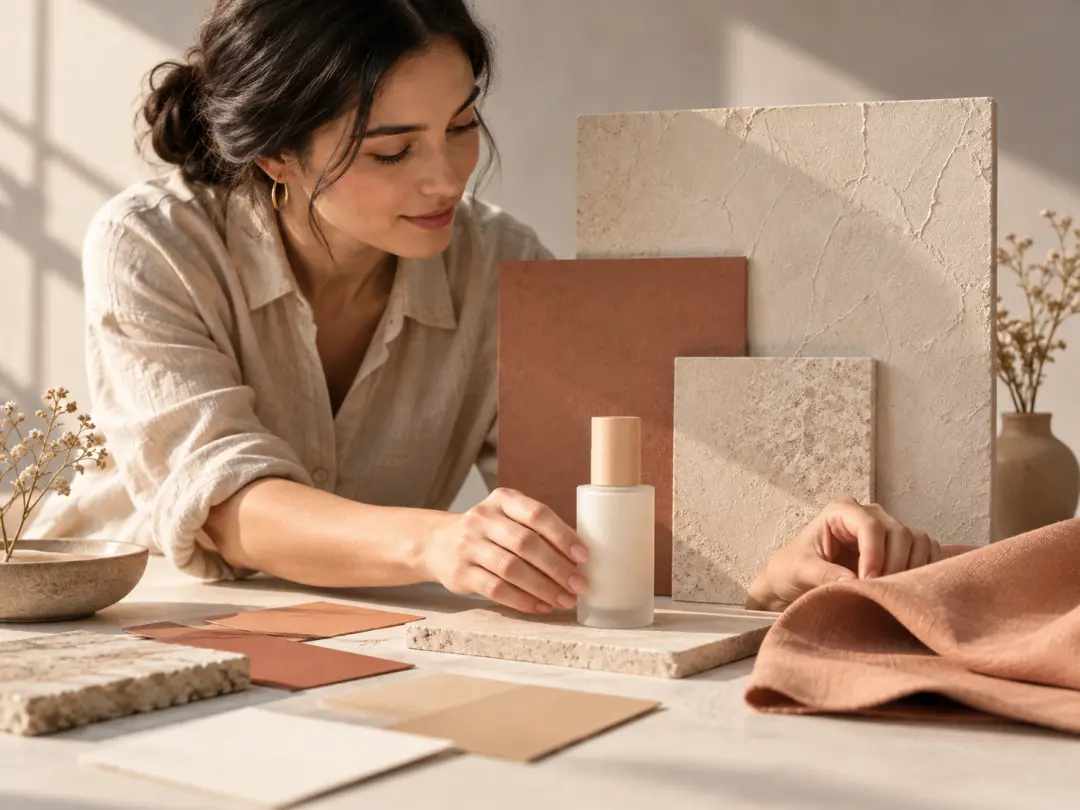
Create seasonal, editorial, or channel-specific settings without booking a full set for every product. An ai background generator helps a team test several directions quickly, then keep the lighting and composition consistent across a campaign.

Use a written scene to build thumbnails, covers, social posts, and shop visuals that feel more intentional than a stock background. Use an ai background generator when you need the result to stay close to the original product or person, and upload the clearest subject reference available.
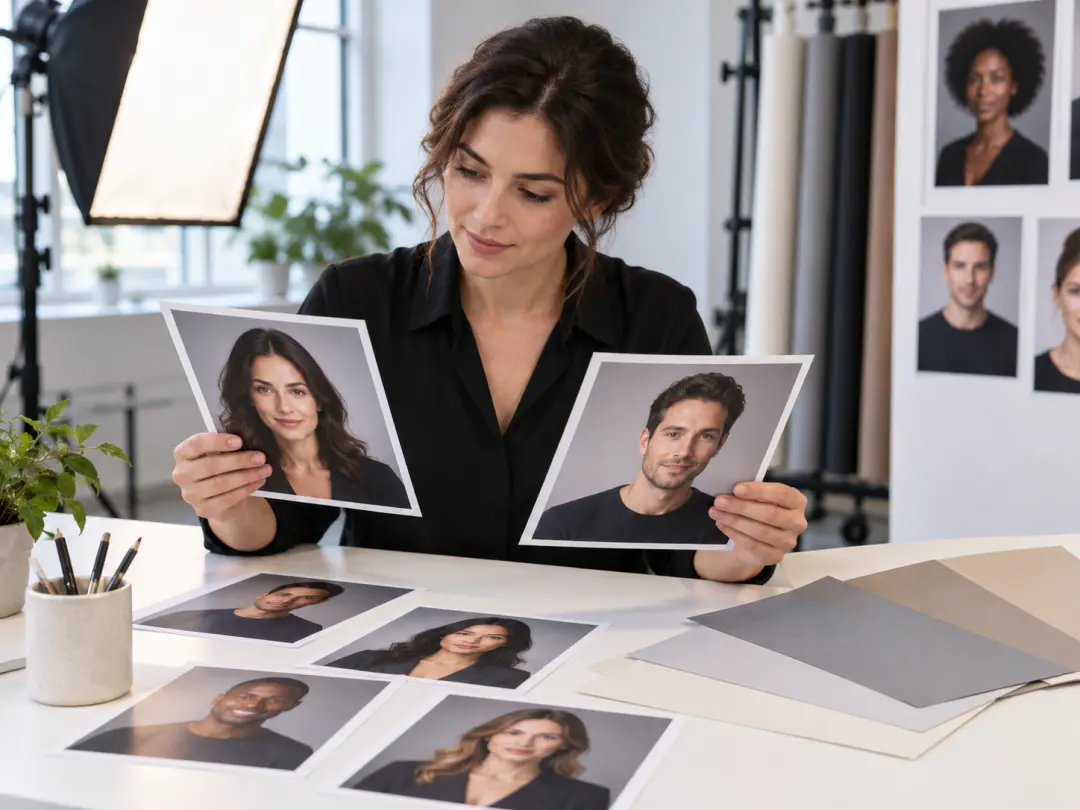
Replace a distracting room with a studio wall, outdoor scene, or graphic setting while retaining the subject and natural expression. Review hairline edges, shadows, and perspective before exporting the final image; the ai background generator should make the new setting feel natural rather than pasted on.
The workflow combines scene writing, optional references, and visual consistency so the background supports the subject instead of competing with it.
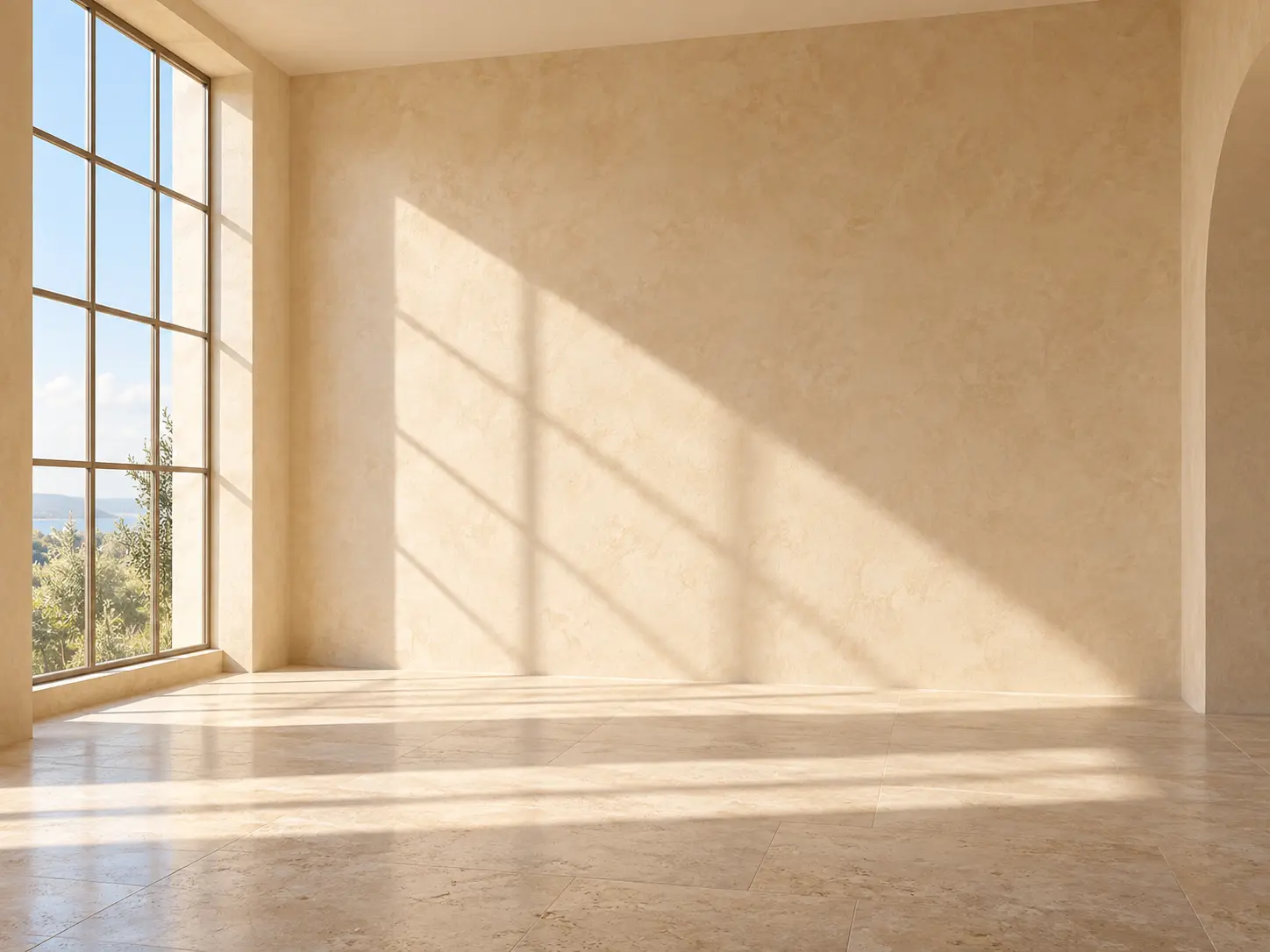
Describe the room, landscape, material, time of day, camera height, and mood you want. The ai background generator can turn those details into a coherent setting rather than a flat pattern or a generic gradient. Concrete nouns do most of the work here: weathered oak, brushed steel, wet asphalt, or dry grass gives the model a surface to light, while vague praise words leave too much to chance. Add one camera note such as low angle or eye level so the horizon and floor line land where your subject needs them.
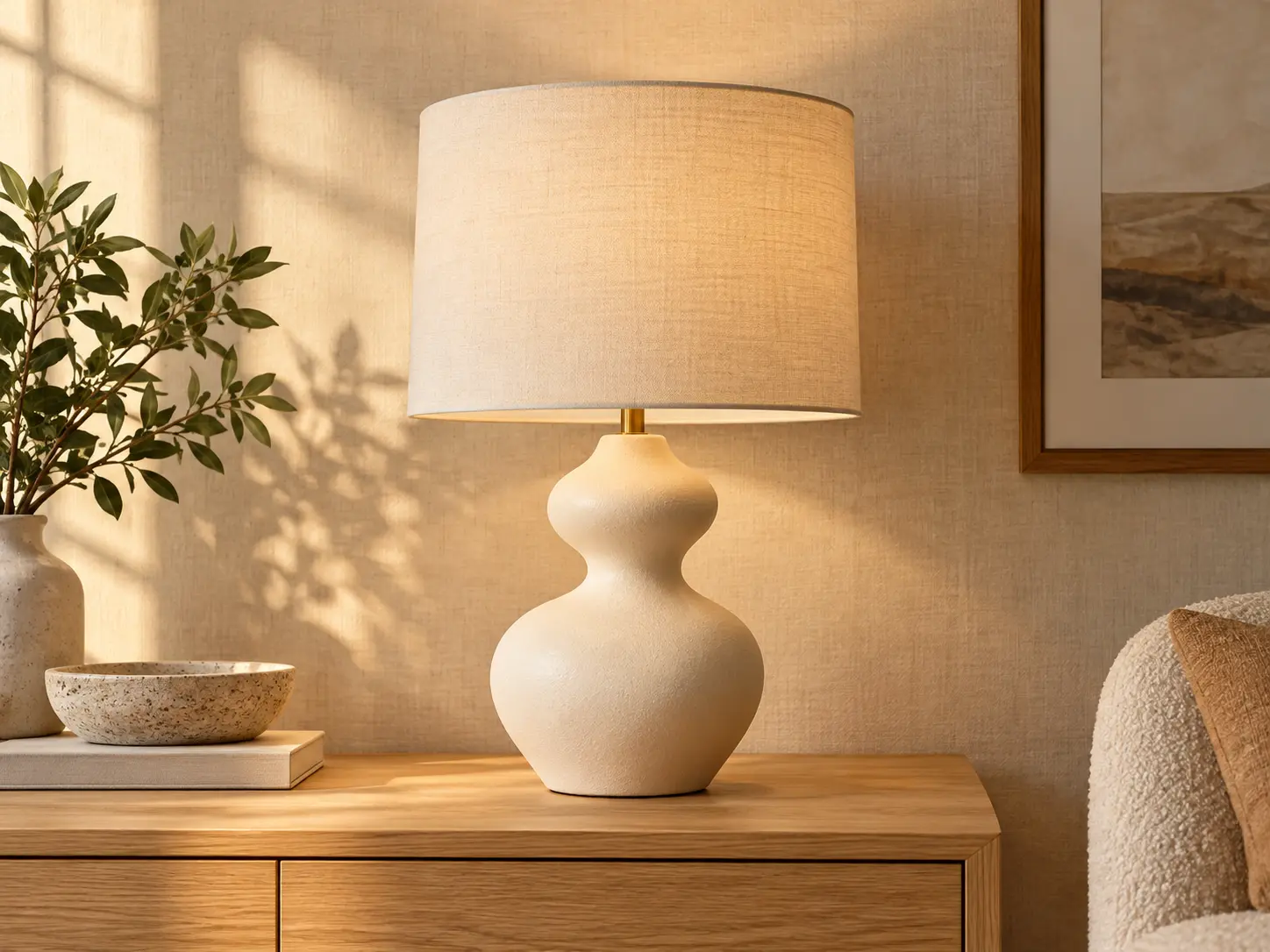
Upload a product, portrait, or mood reference when the result must stay close to an existing subject. The reference guides the generated scene while the prompt controls the setting, spacing, and visual tone, giving the ai background generator a clearer result to preserve. Keep the reference free of clutter and shoot it against a simple surface so the tool reads the silhouette instead of guessing at a busy edge.
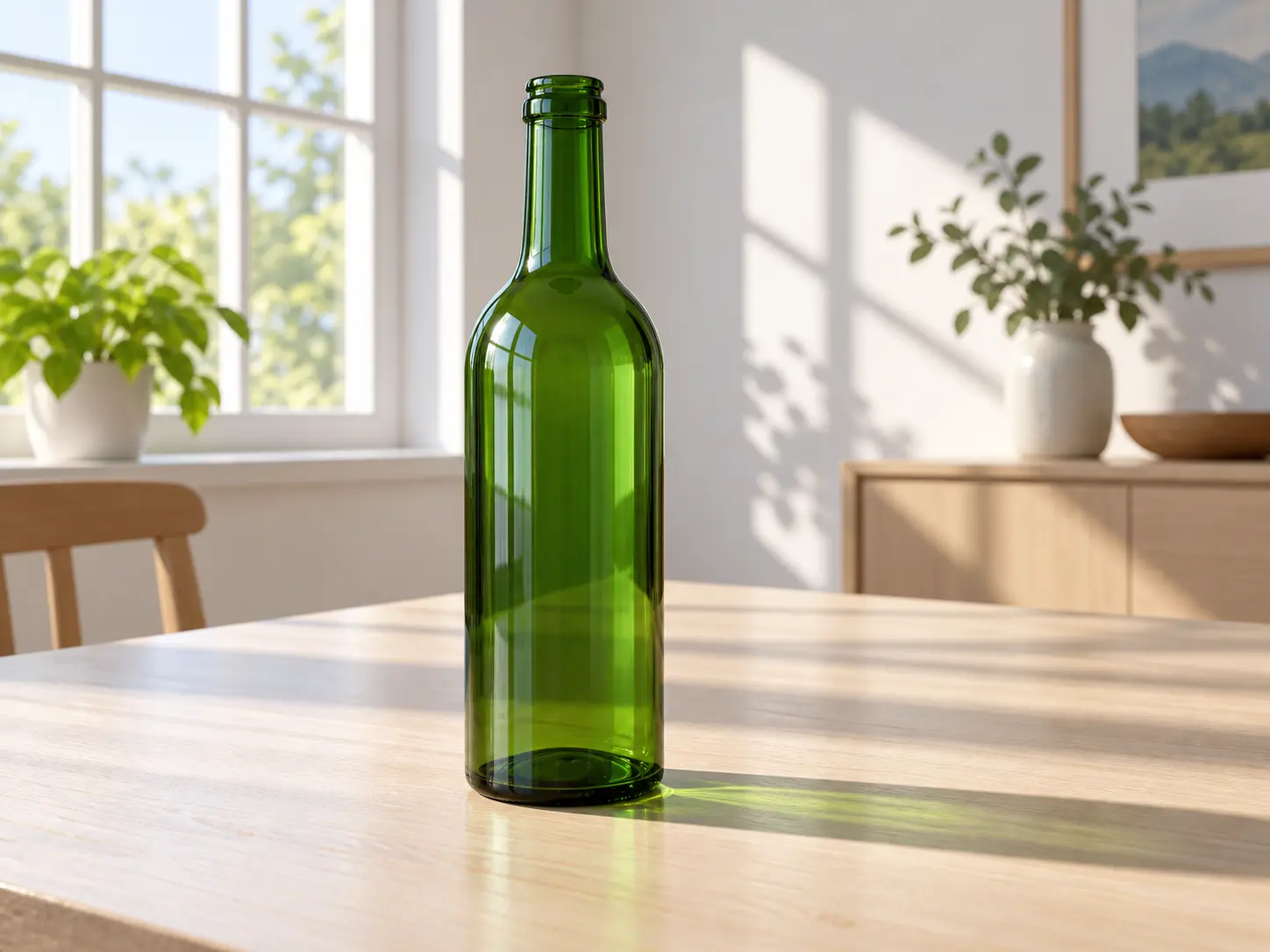
A convincing result needs more than a new color behind the subject. The generated setting should carry believable light direction, contact shadows, floor lines, and camera perspective that agree with the object or person in front, because an ai background generator produces a more convincing image when those cues match. Name the light source and the side it comes from, then re-check where the subject meets the ground, since a floating silhouette exposes a mismatched angle faster than a color difference does.
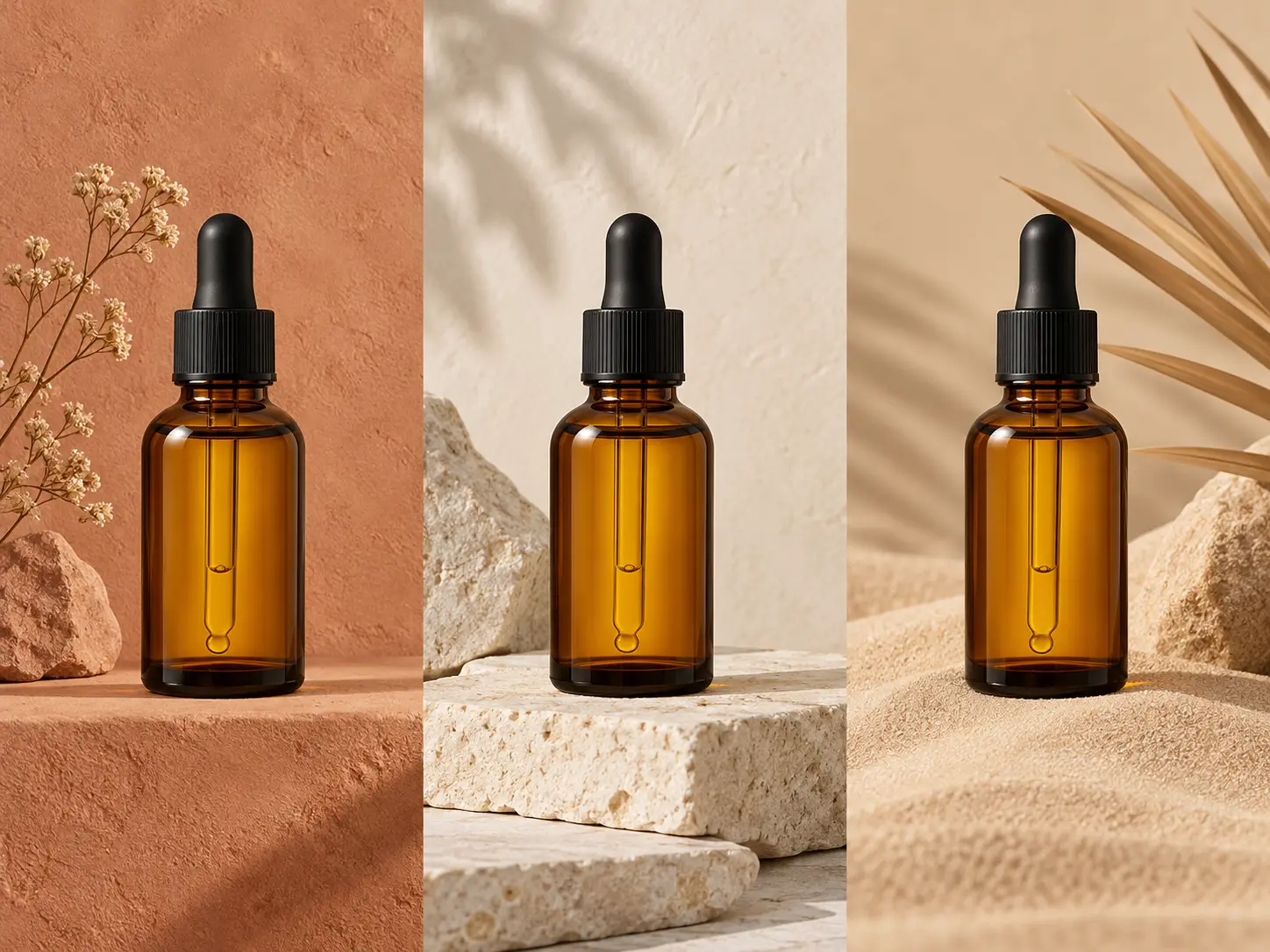
Generate a family of backgrounds for catalog, social, and web use while keeping the same visual language. Change the crop or scene without making the product look like it was photographed on a different day. Lock the light direction, surface, and palette first, then vary only the framing, and save the prompt behind an approved image so the next batch in the series starts from the same recipe instead of a fresh guess.
Go from a written scene to a finished image with three clear steps.
Step 01
Write the setting, materials, colors, lighting, camera angle, and feel. Mention the space you need around the subject so the ai background generator leaves room for the final composition.
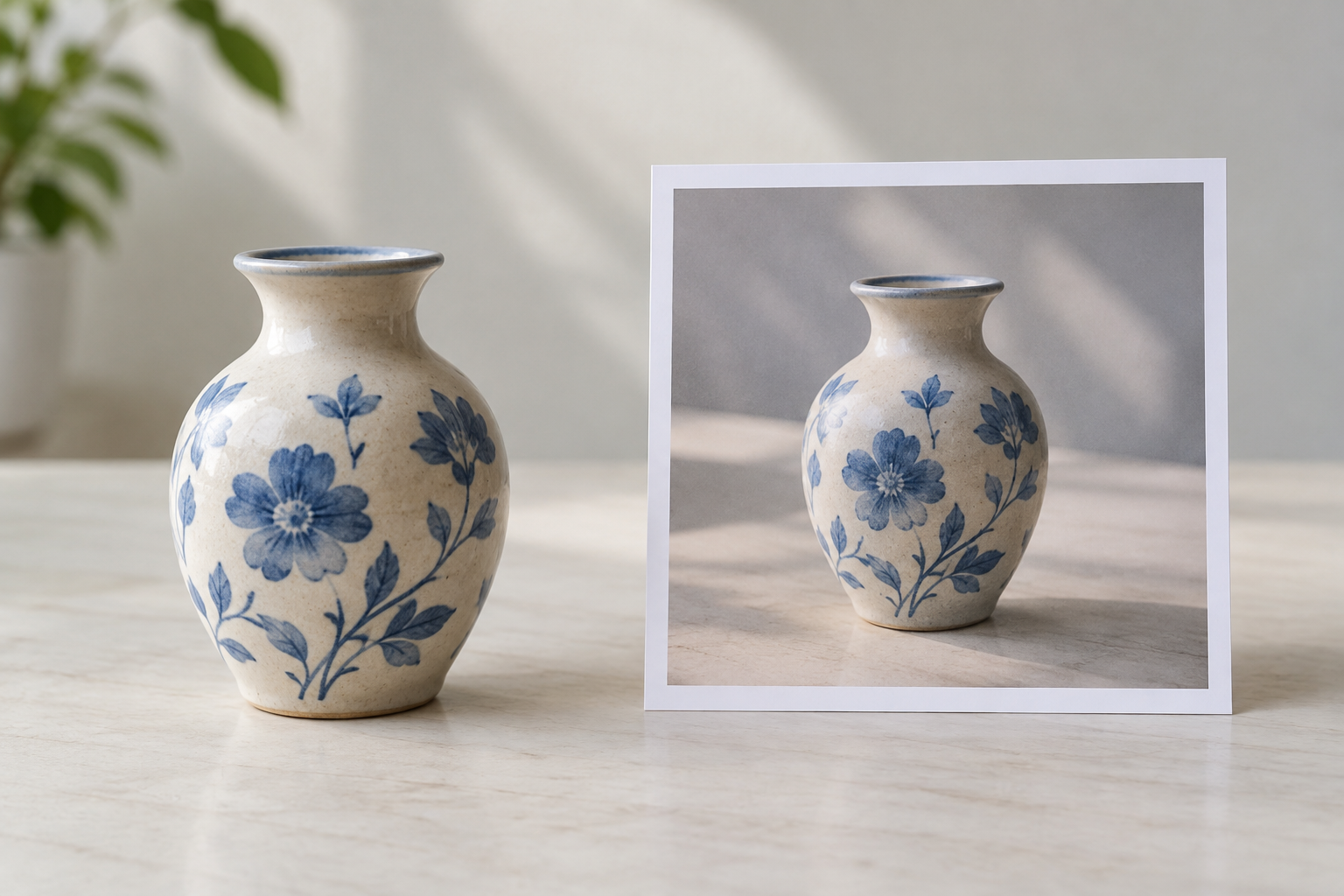
Step 02
Upload a product, portrait, or existing image when the new background must support a specific subject. Keep the reference clear and uncluttered so the ai background generator can read the silhouette, proportions, and important subject details.
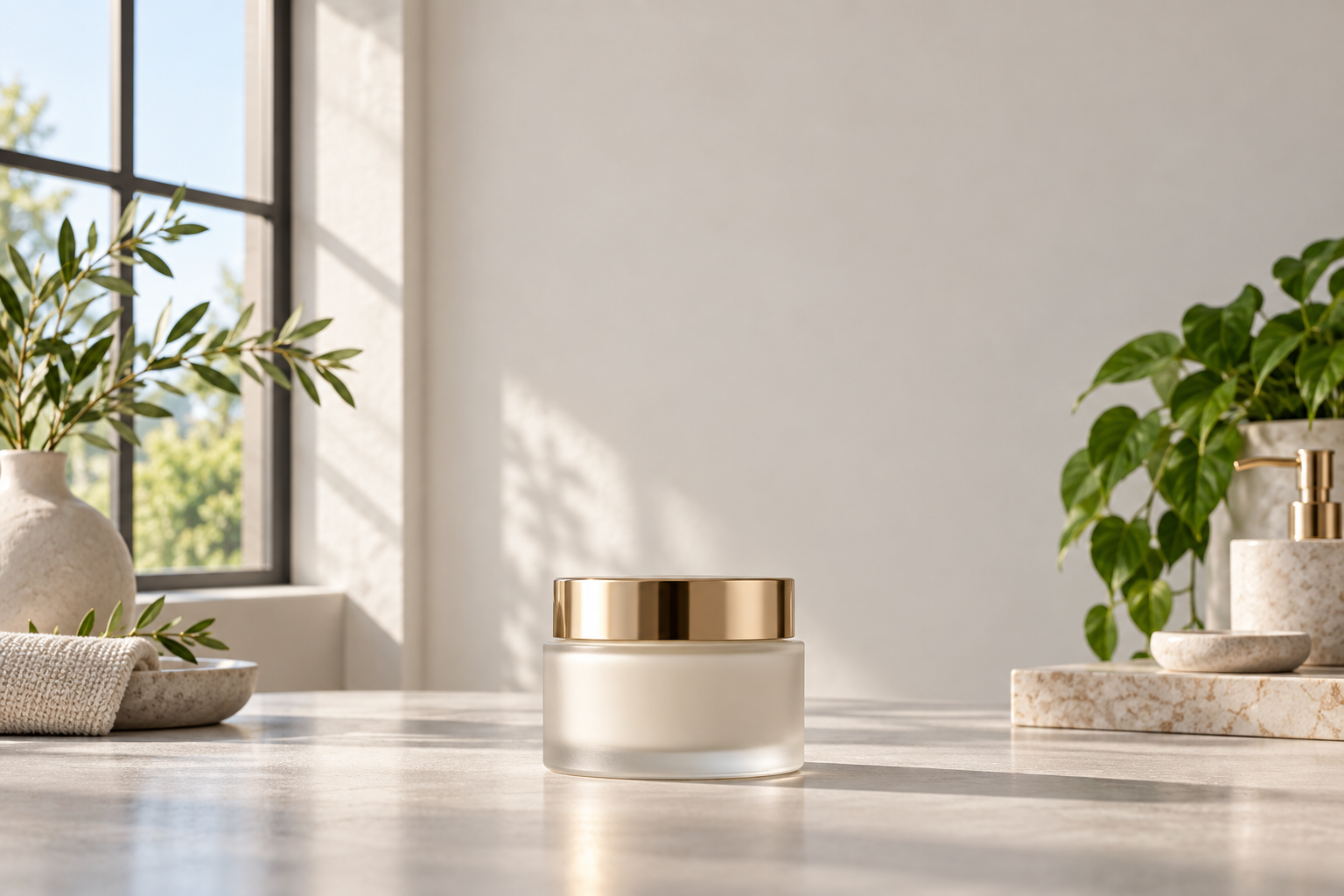
Step 03
Check the subject edge, light direction, floor contact, and empty space around the composition. Refine the description if the scene feels too busy, then download the version that fits your target layout.
Create settings for commercial images, social content, and personal portraits without rebuilding the subject each time.
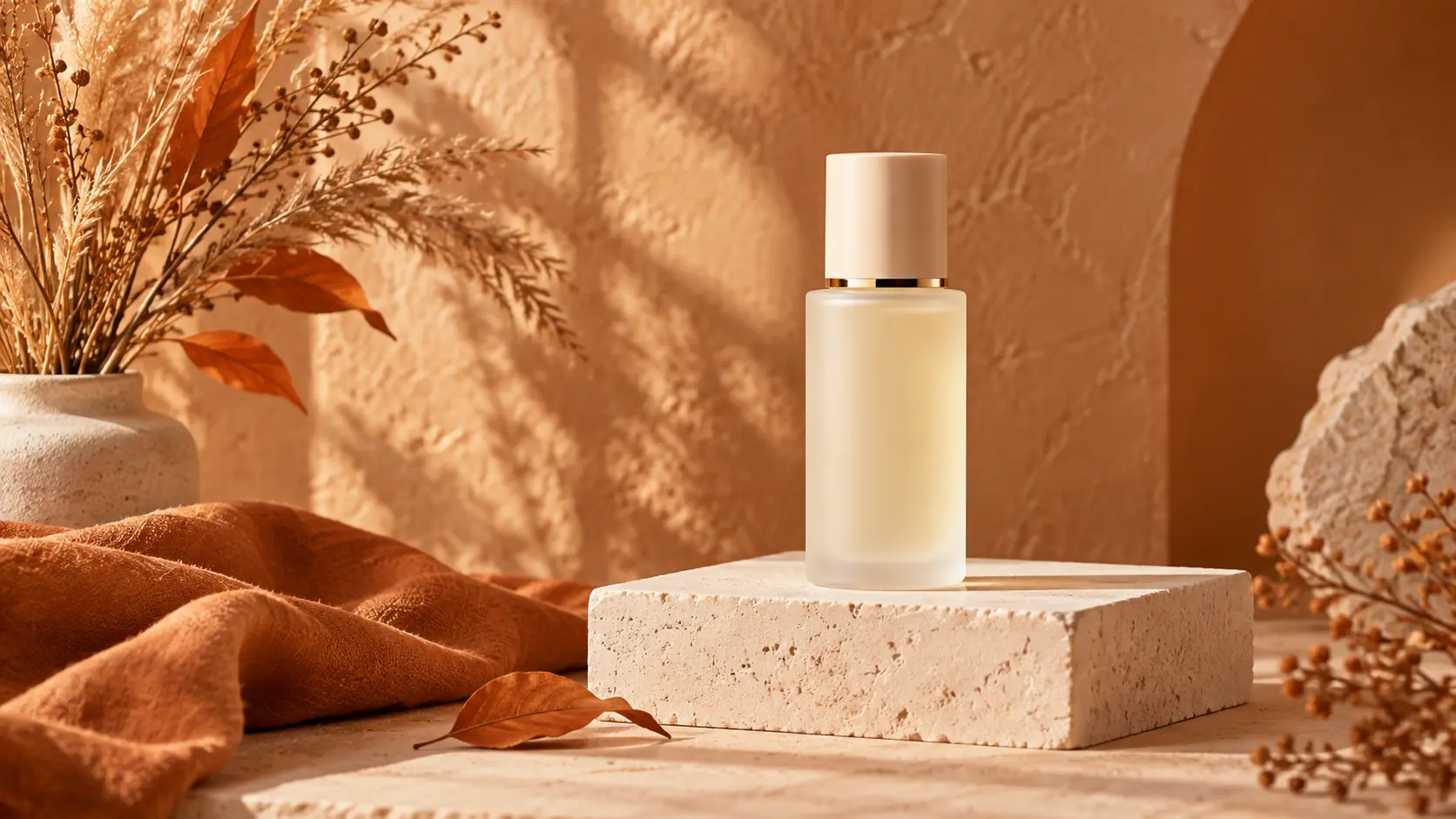
Place one product in several seasonal rooms, color stories, and editorial surfaces for listing and campaign variations.
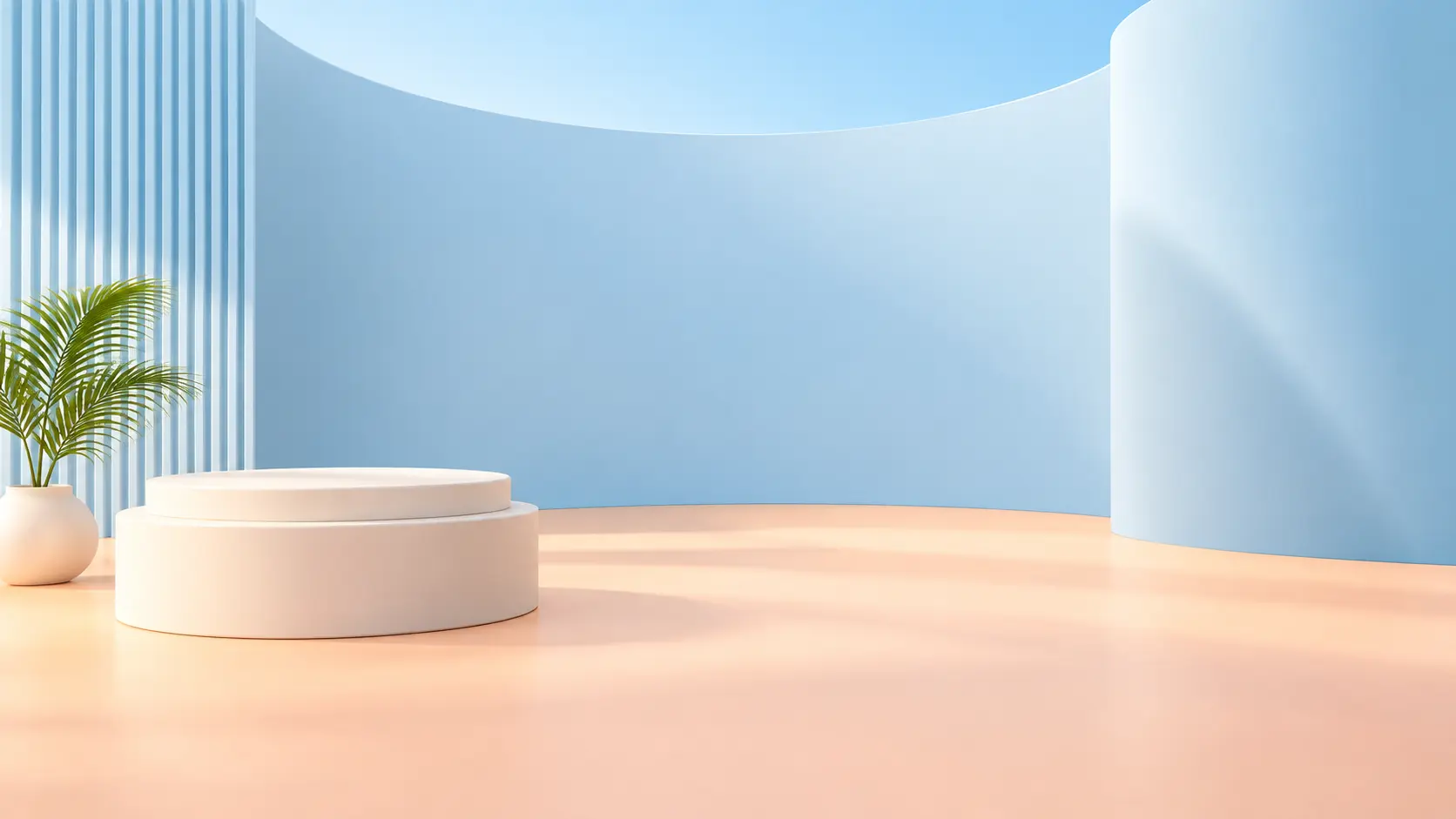
Generate a distinctive setting that gives a product, quote, or creative idea a stronger visual identity across a feed.
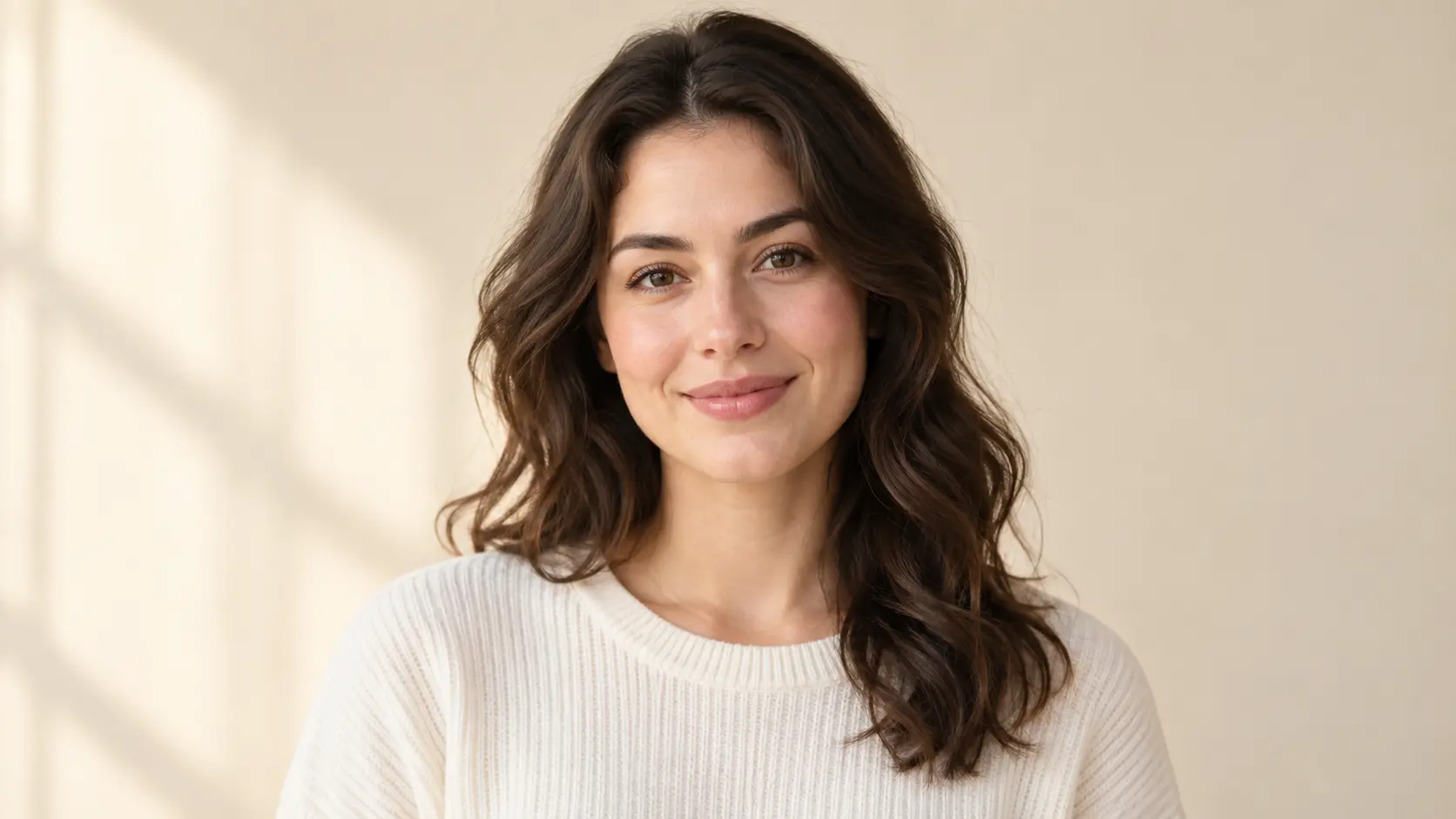
Replace a distracting room with a calm studio, outdoor environment, or color-led set while keeping the person central.
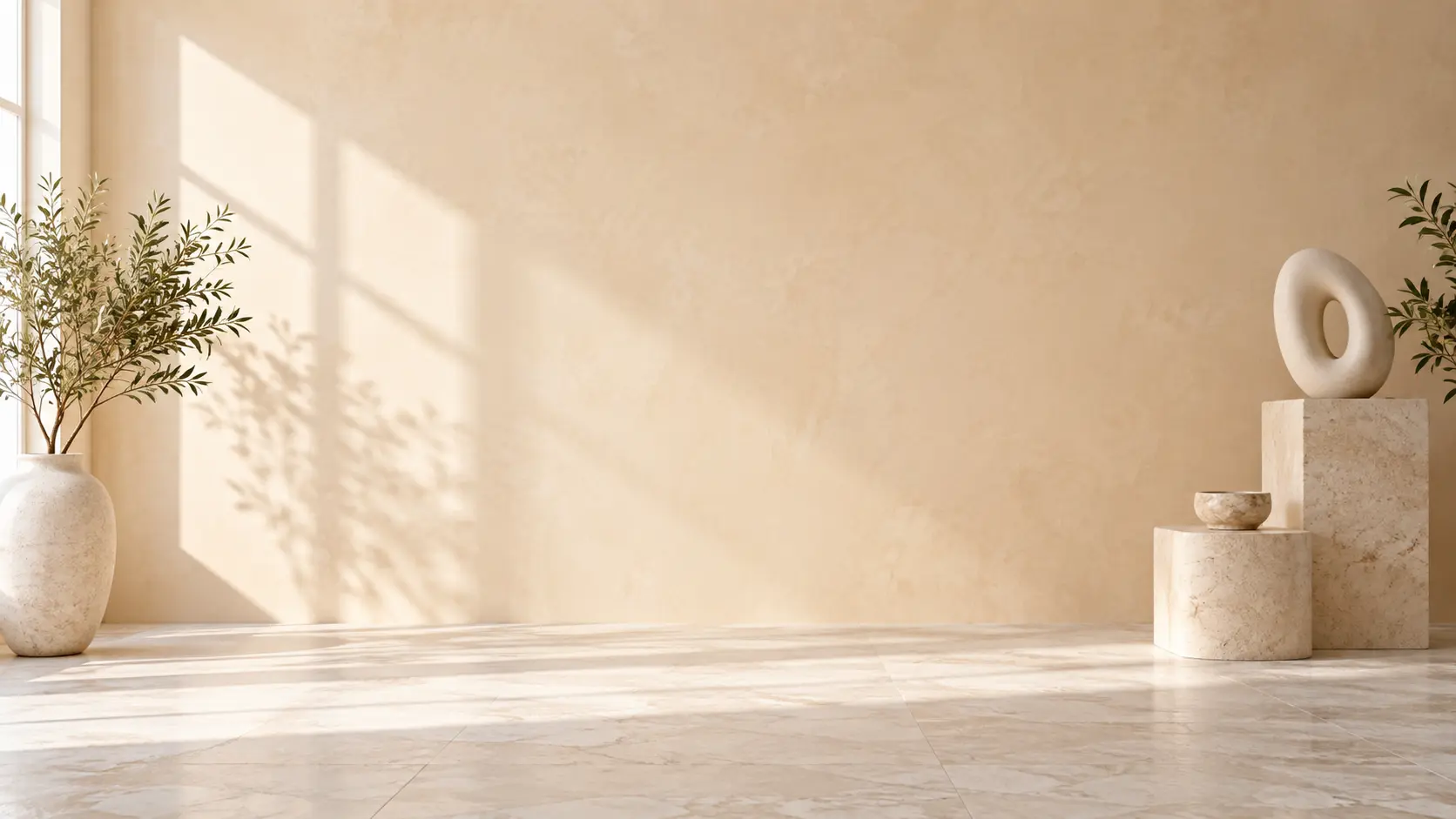
Describe the setting, add a reference when needed, and generate an image with light and space prepared for the final layout.
Get Started