
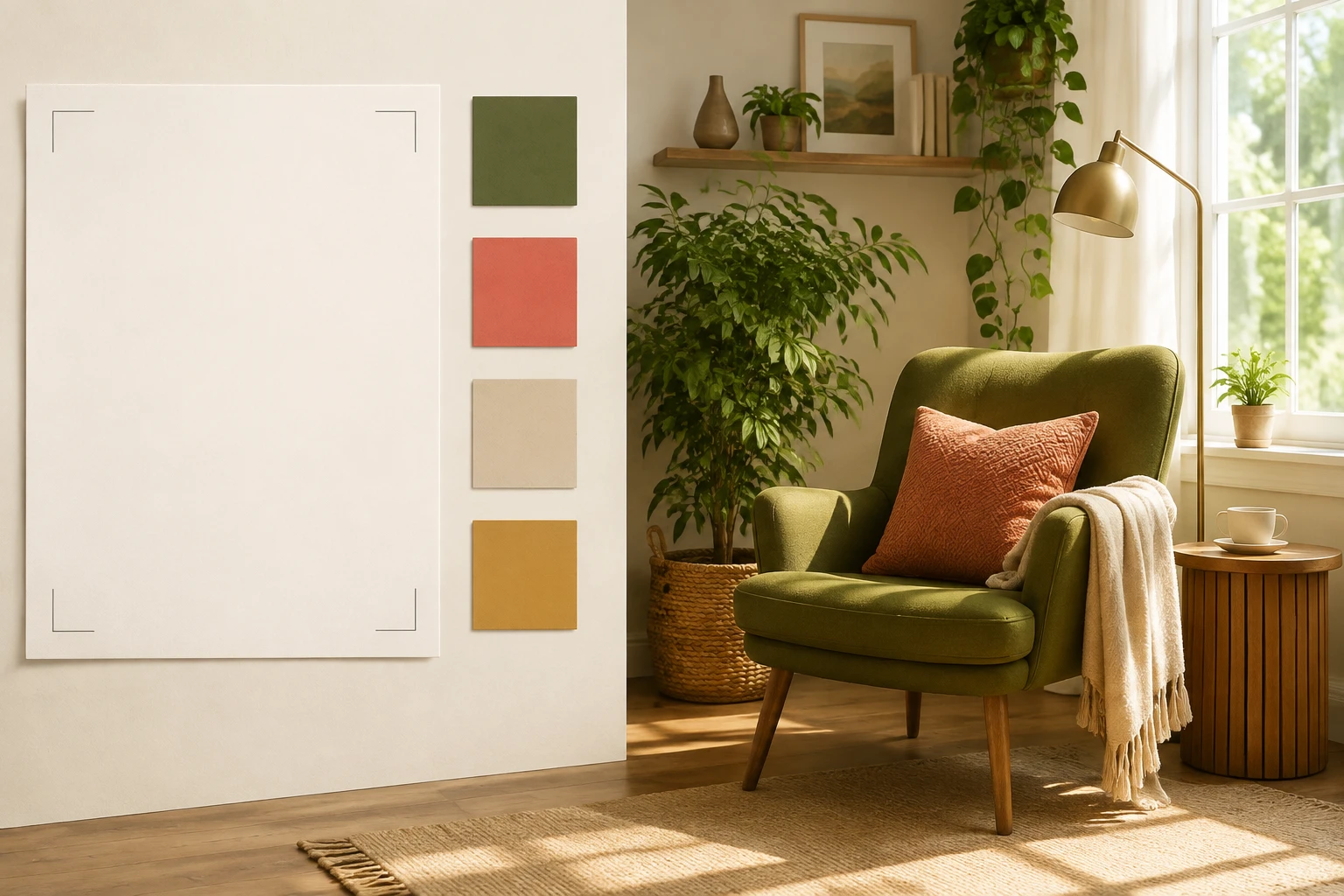
Step 01
Describe the picture or add a reference
Add a reference image when the ai photo generator should follow an existing visual direction.

VideoAI turns a scene description or reference photo into four new image options while you choose the style, ratio, and next edit.
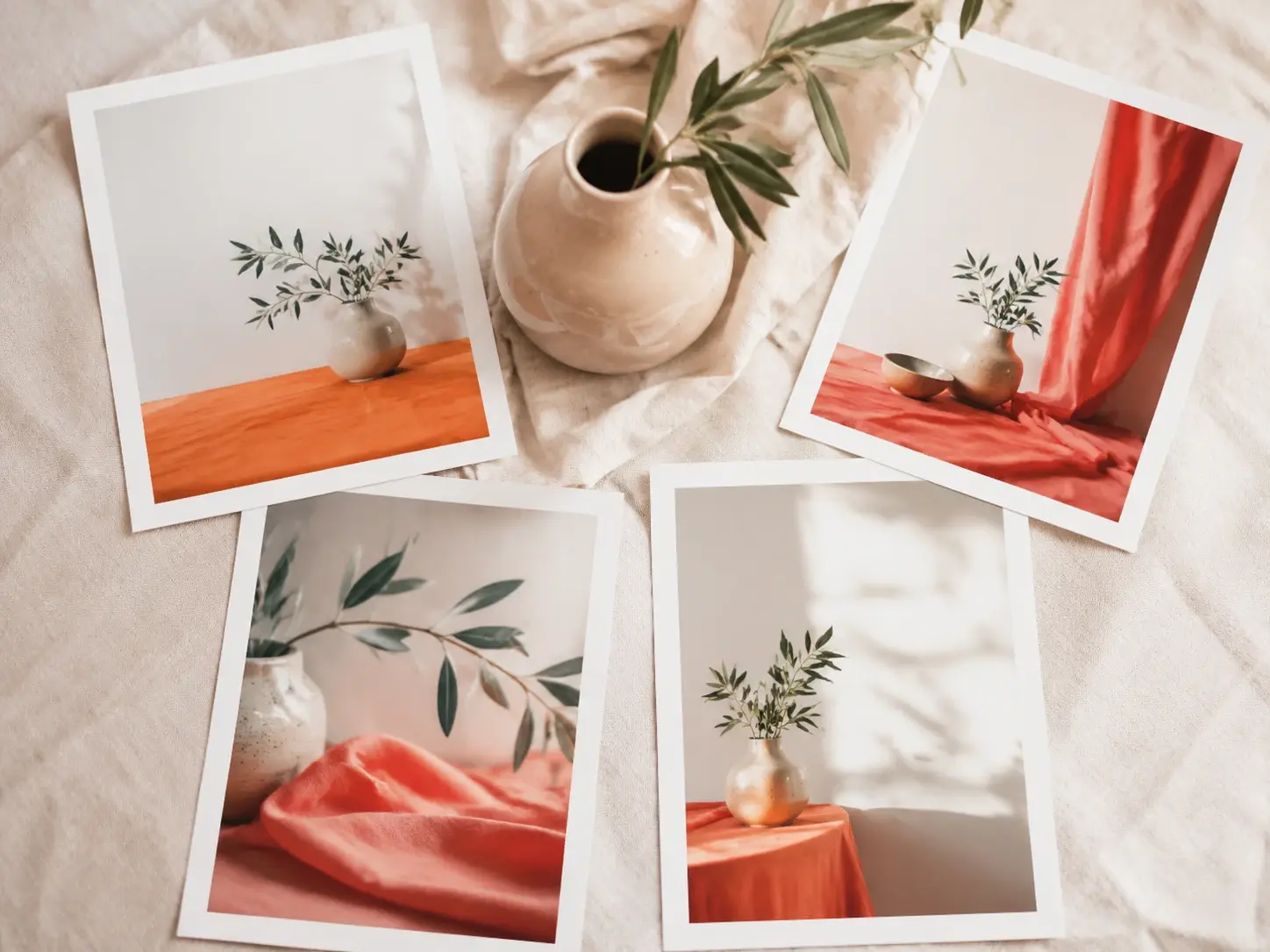
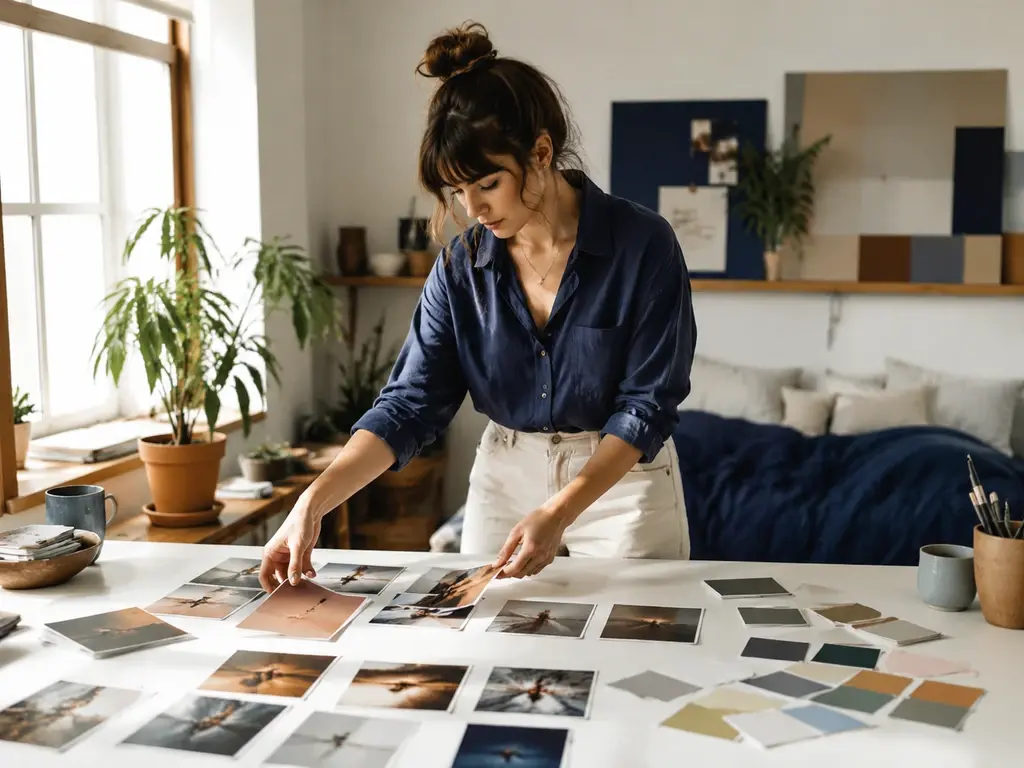
When a post, cover, or thumbnail needs a visual that matches the topic, write the subject, mood, and framing. VideoAI gives creators candidate images they can compare before choosing one for the next piece of content.
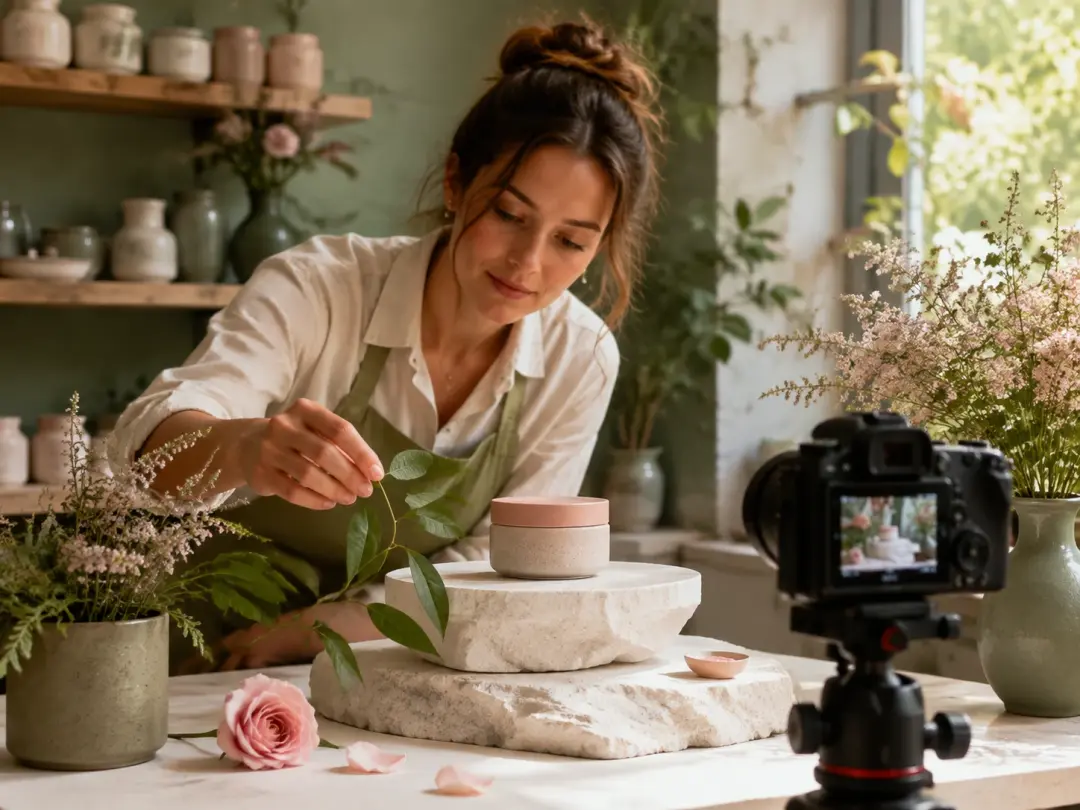
For campaign banners or product scene concepts, describe the product setting, light, and composition. The ai photo generator returns four options, so a seller can test a visual direction before building the final promotion.
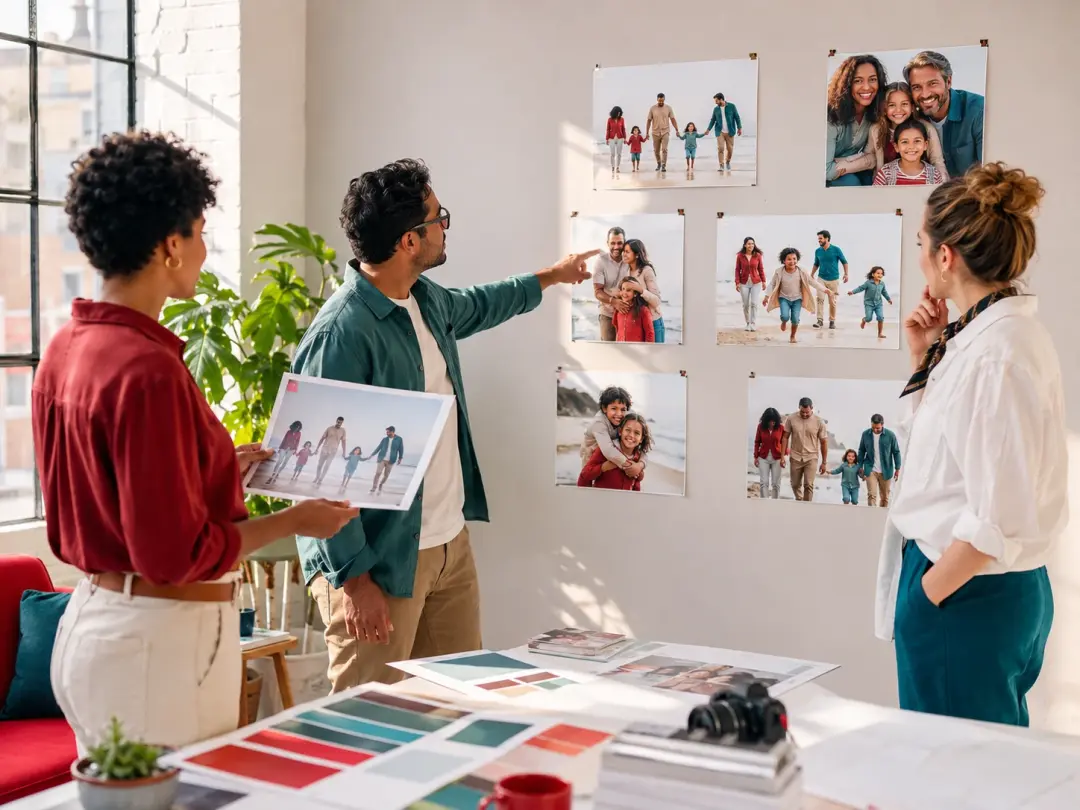
This ai photo generator workflow helps teams settle on tone, layout, and visual direction before moving into production.
Start from words or an image, then guide the look with style, ratio, and follow up edits in VideoAI.
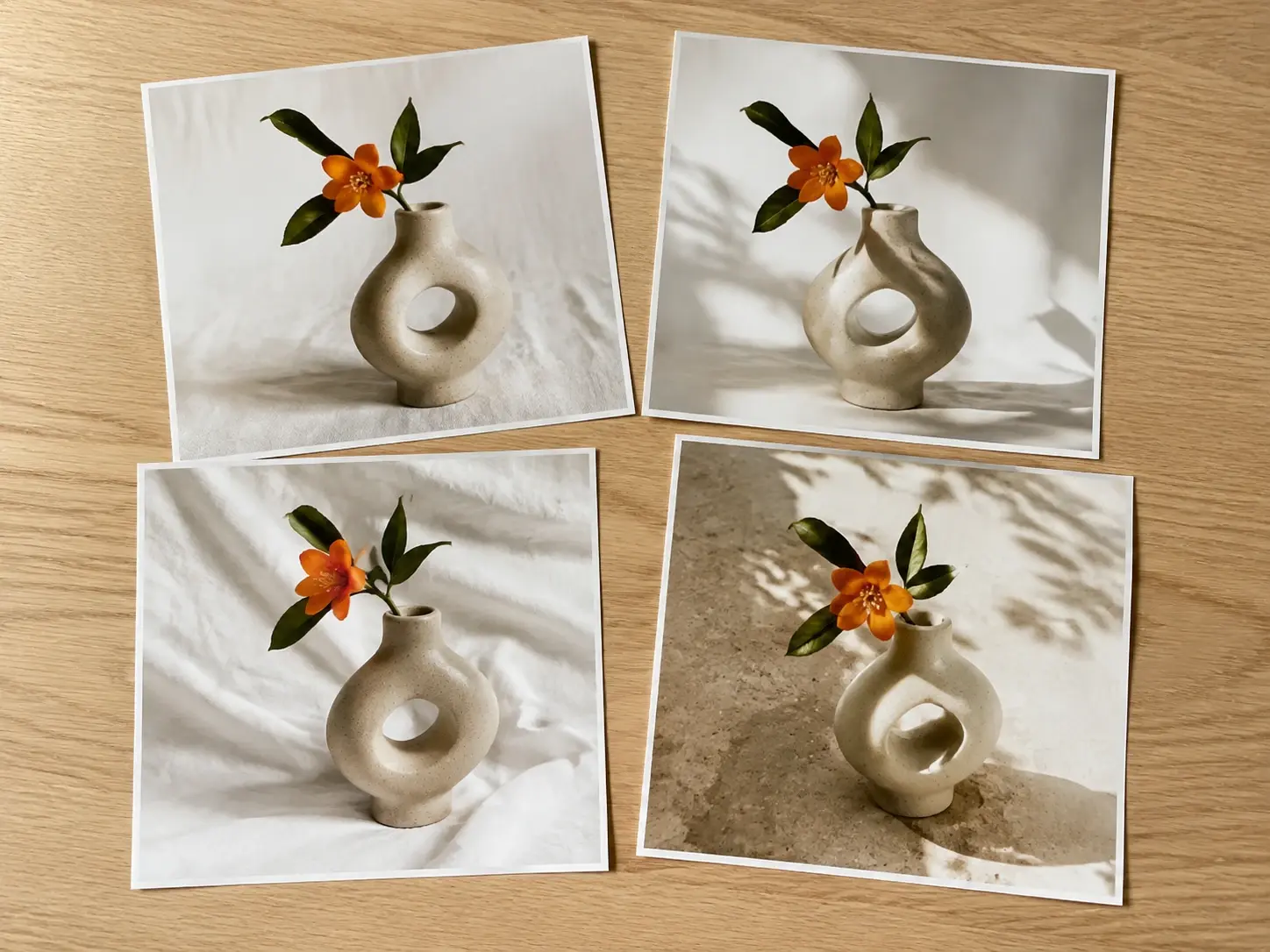
Describe the subject, scene, lighting, composition, and mood. The photo ai generator uses those choices to create a new image, so your first decision is the picture you want people to see.
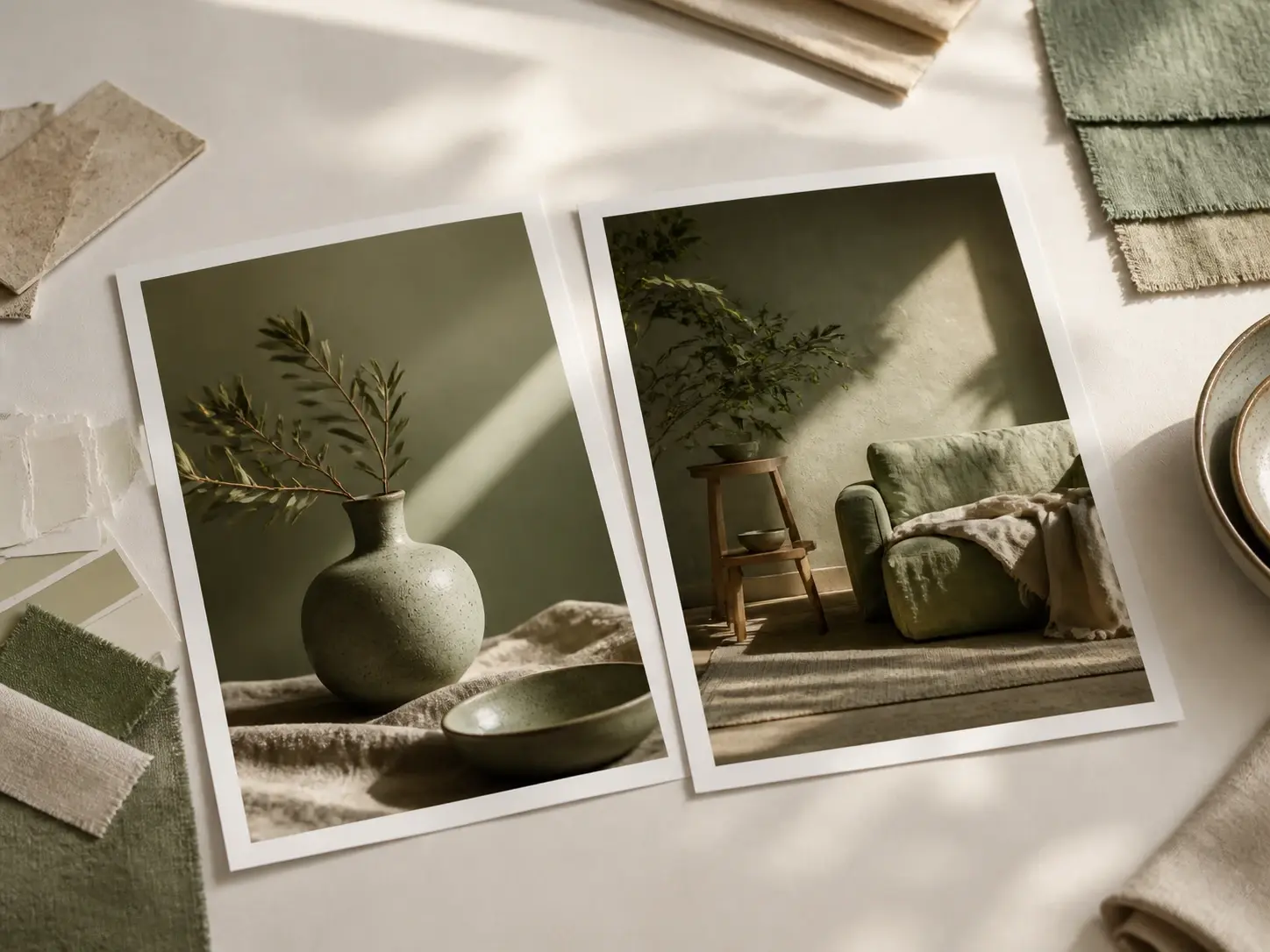
Upload a photo or image when you already know the style, beauty, or composition you want to echo. This upload photo ai generator path supports ai image generation from photo for a fresh result guided by your reference.
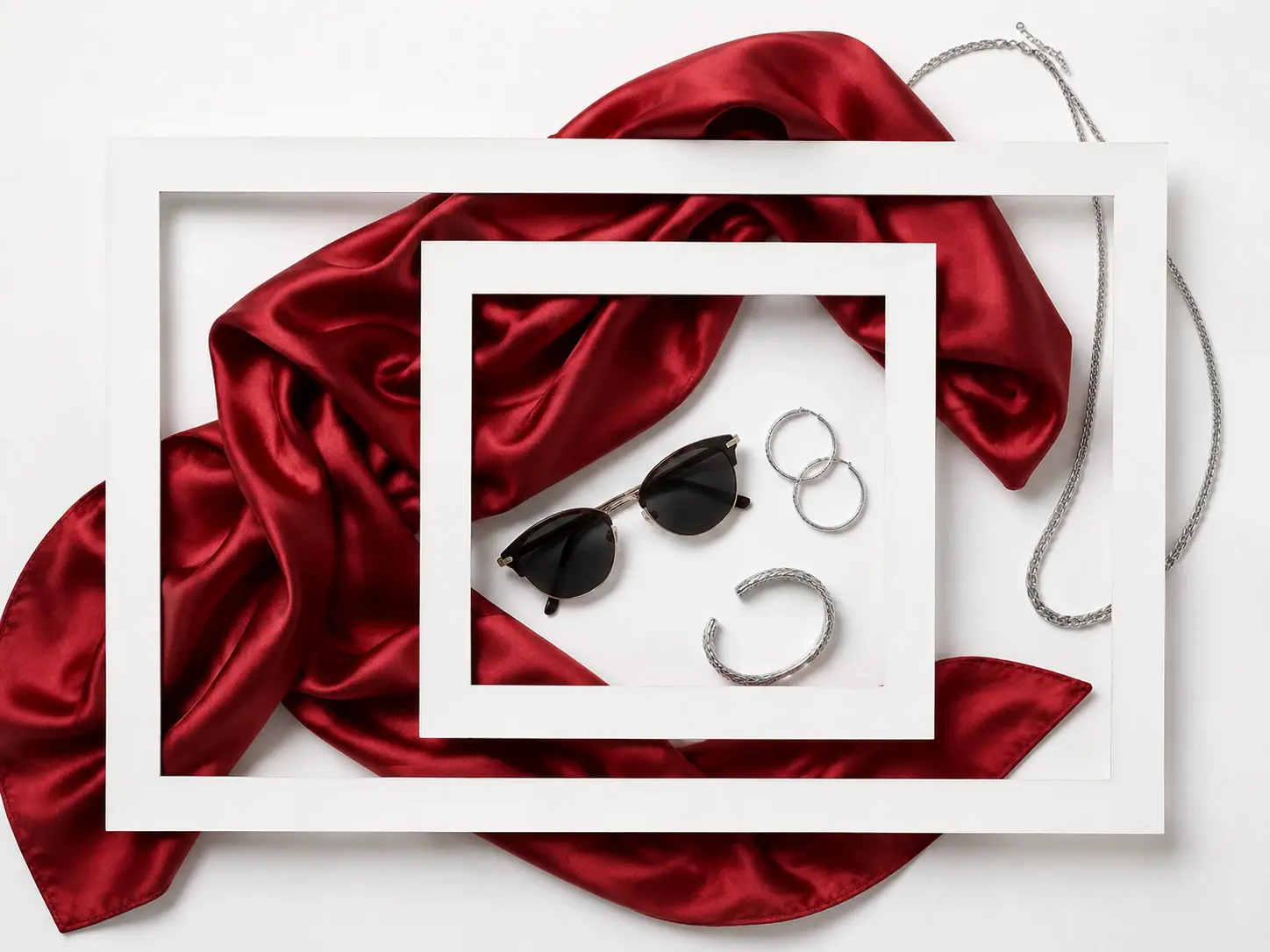
One prompt creates four candidates, making comparison part of the workflow. You can judge the subject, light, and framing before saving the strongest ai generator photo for the project.
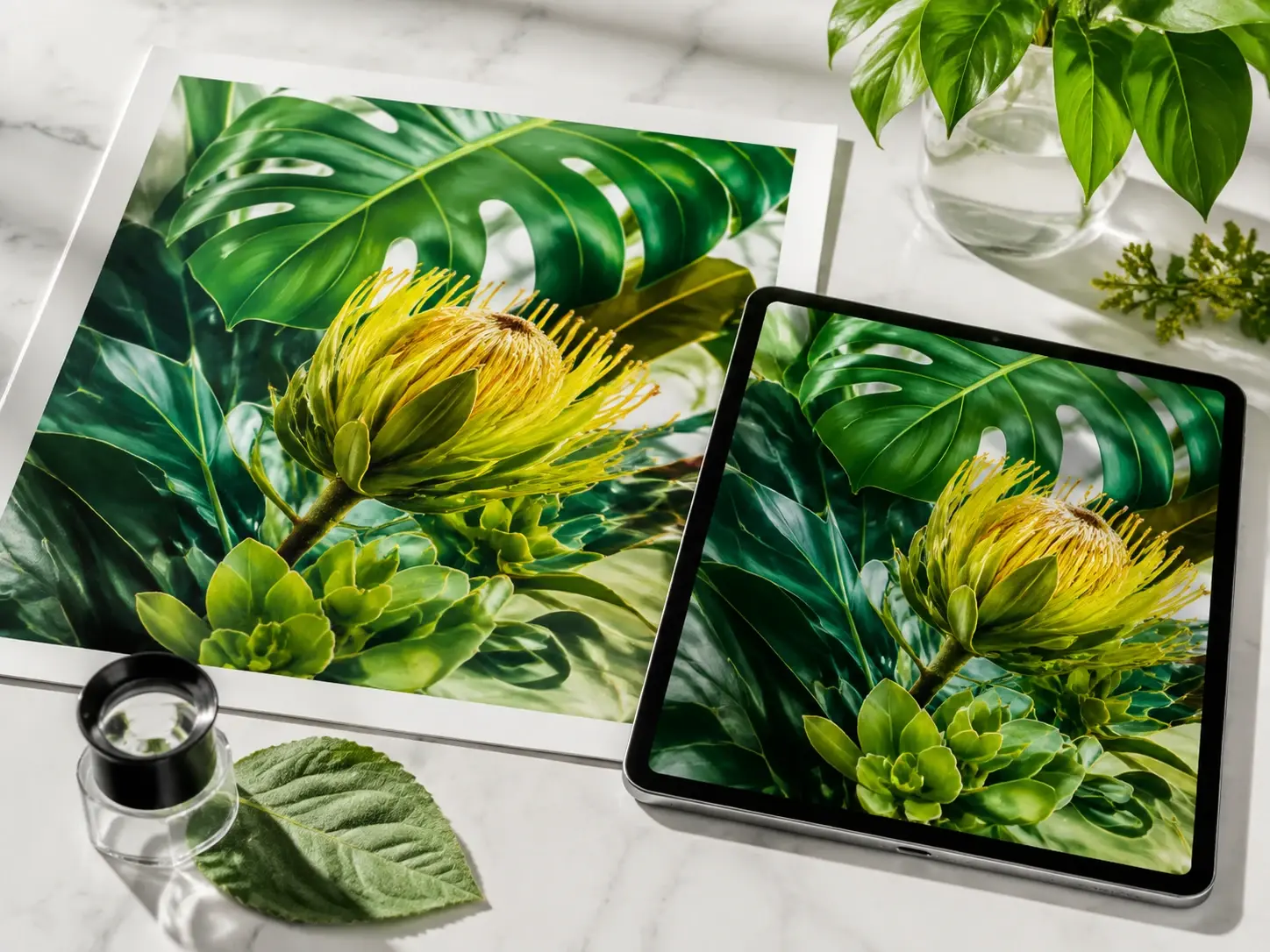
Finished images can be downloaded up to 4K, without a watermark, and with transparent background PNG when the design needs it. VideoAI keeps saved work available for later edits and reuse.
The path stays simple because each step keeps the creative decision with you.
Step 01
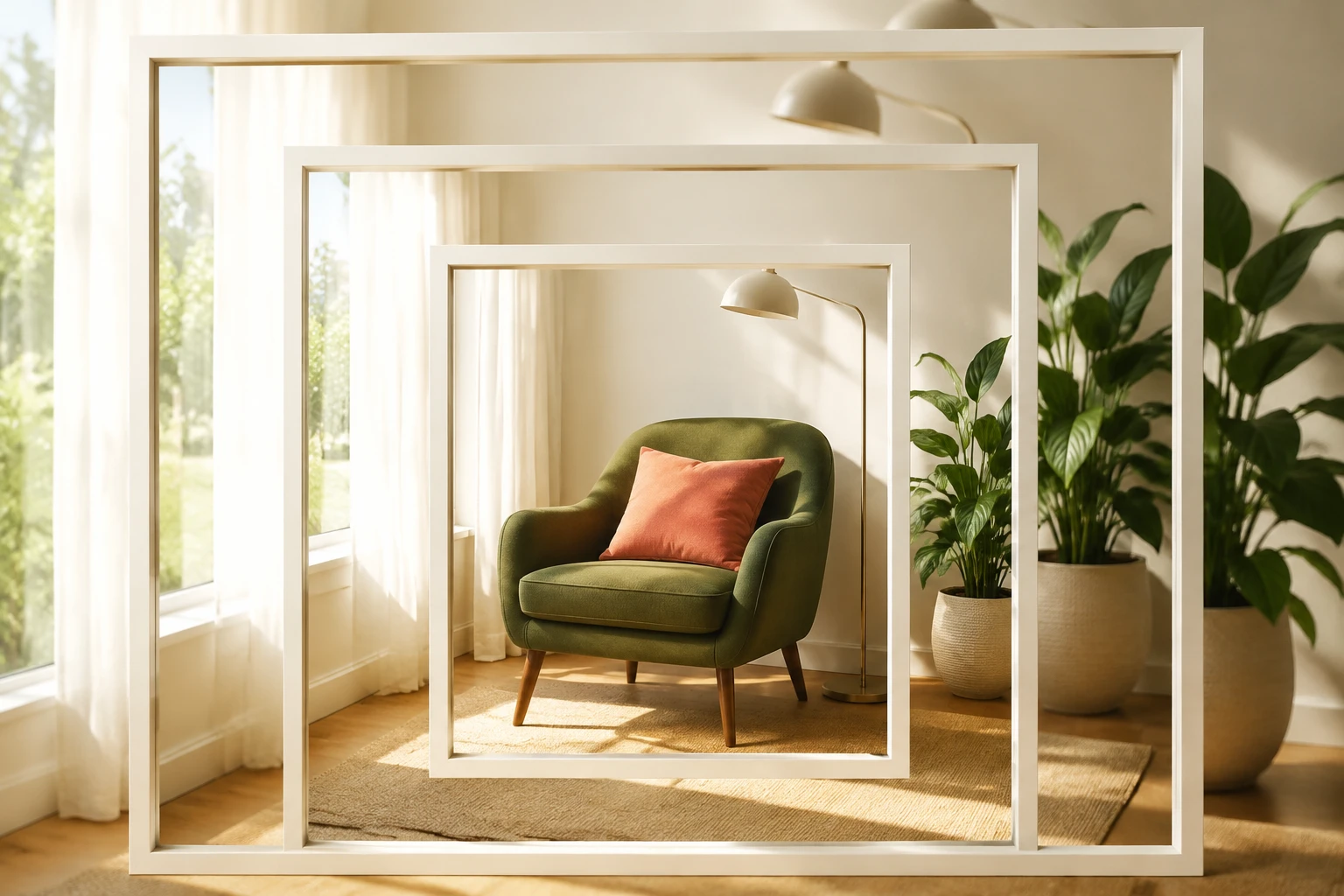
Add a reference image when the ai photo generator should follow an existing visual direction.
Step 02
Pick a preset style and choose 1:1, 16:9, 5:2, or 4:1 based on where the image will appear. Then generate photo ai options and compare the four results.
Step 03
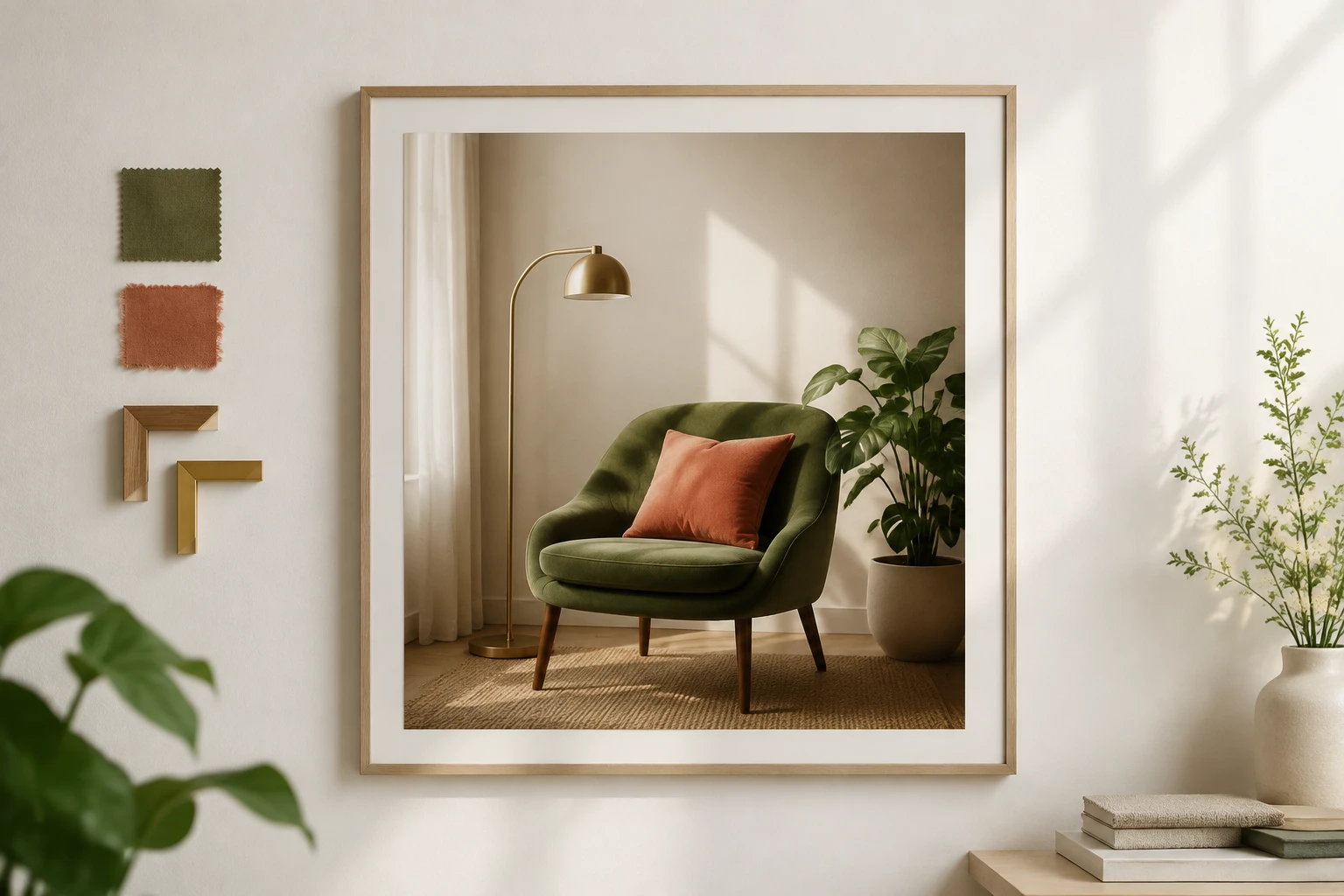
Choose the strongest result, download it, or return to the workspace to revise the prompt. Saved images can also move into the visual editor for text, color, and layout changes.
Use it for image needs that are more specific than stock search can handle.
When a work account needs a fresh profile visual, describe the look, background, and light. Generate ai photo options that fit the channel style without claiming an exact selfie match.
If a new product page needs scene ideas before the campaign is built, describe the object, setting, and frame. Use the photo generator to compare directions without promising pixel level product reproduction.
A blog post or presentation may need a visual that fits a precise topic. Generate photo with ai from a specific scene description, then choose the image that supports the point. This keeps ai photo generation tied to the message instead of a generic stock result.
A creator posting every week needs related visuals with a consistent tone. Reuse the same preset style or reference direction to keep a series visually aligned.
Start with a prompt or reference image, compare four options, and shape the result inside VideoAI.
Get Started