
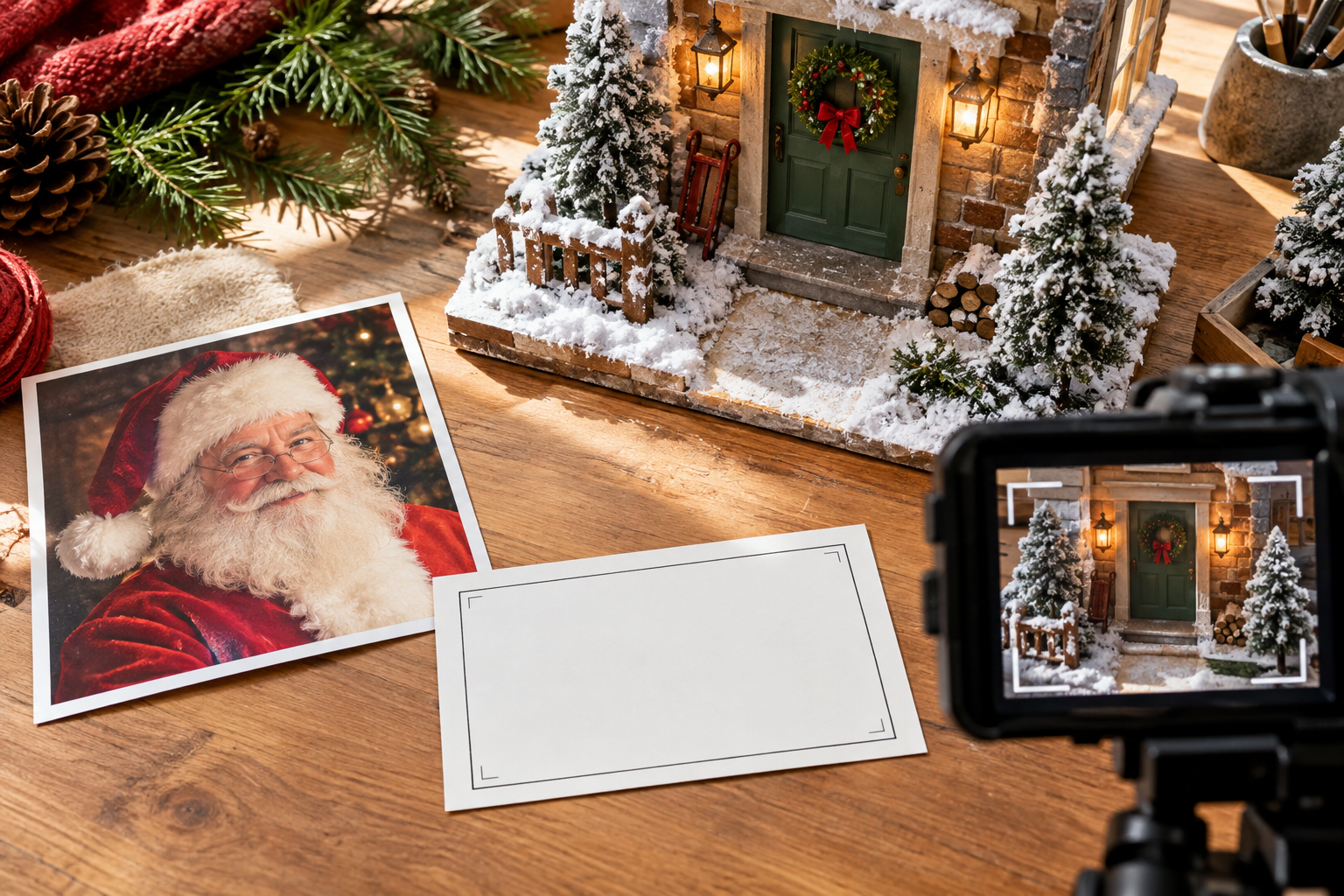
Step 01
Define Santa and the scene
In VideoAI, describe Santa's appearance, movement, holiday setting, and video goal. Add a reference image when you need a specific subject, first frame, or scene cue, then use @ to assign its role.

With VideoAI, describe Santa or add a reference image, write the holiday message, direct each scene, and revise the first video before downloading it.
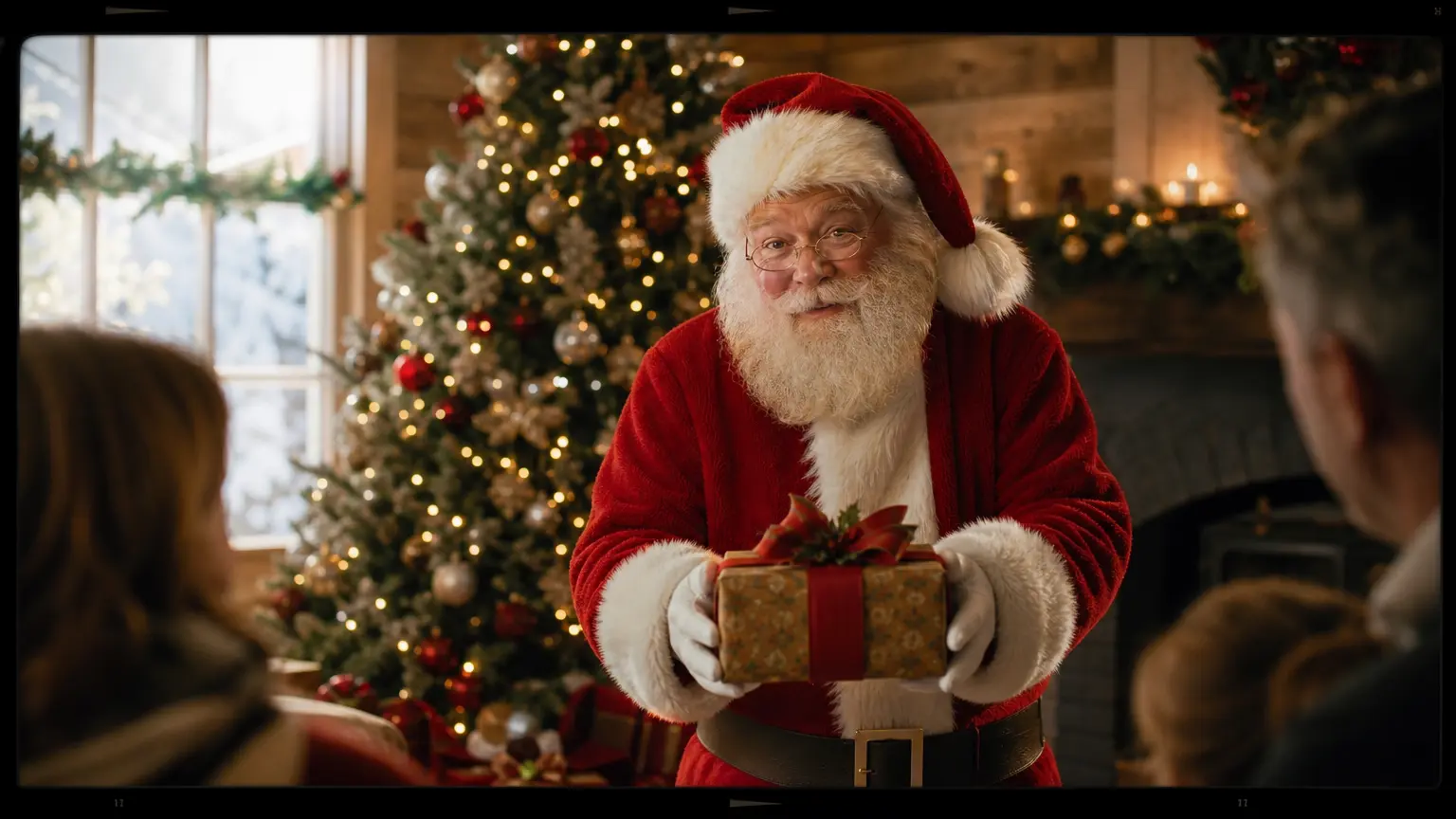

An ai santa greeting can start with a described character, a name, and a holiday message written by the family. VideoAI lets parents and family members decide the words, scene, and voice direction before reviewing the result.
A creator planning a Christmas Short or Reel can shape an ai santa video with chosen camera beats, reference images, music direction, and vertical framing. The scene plan stays tied to the message they want to share.
A santa ai video generator helps a marketing team combine a Santa role, brand reference, event details, script, and holiday sound direction into a focused video plan, then create versions for different audiences.
VideoAI lets you set the role, scene, timing, voice direction, and output, then adjust the result with text.
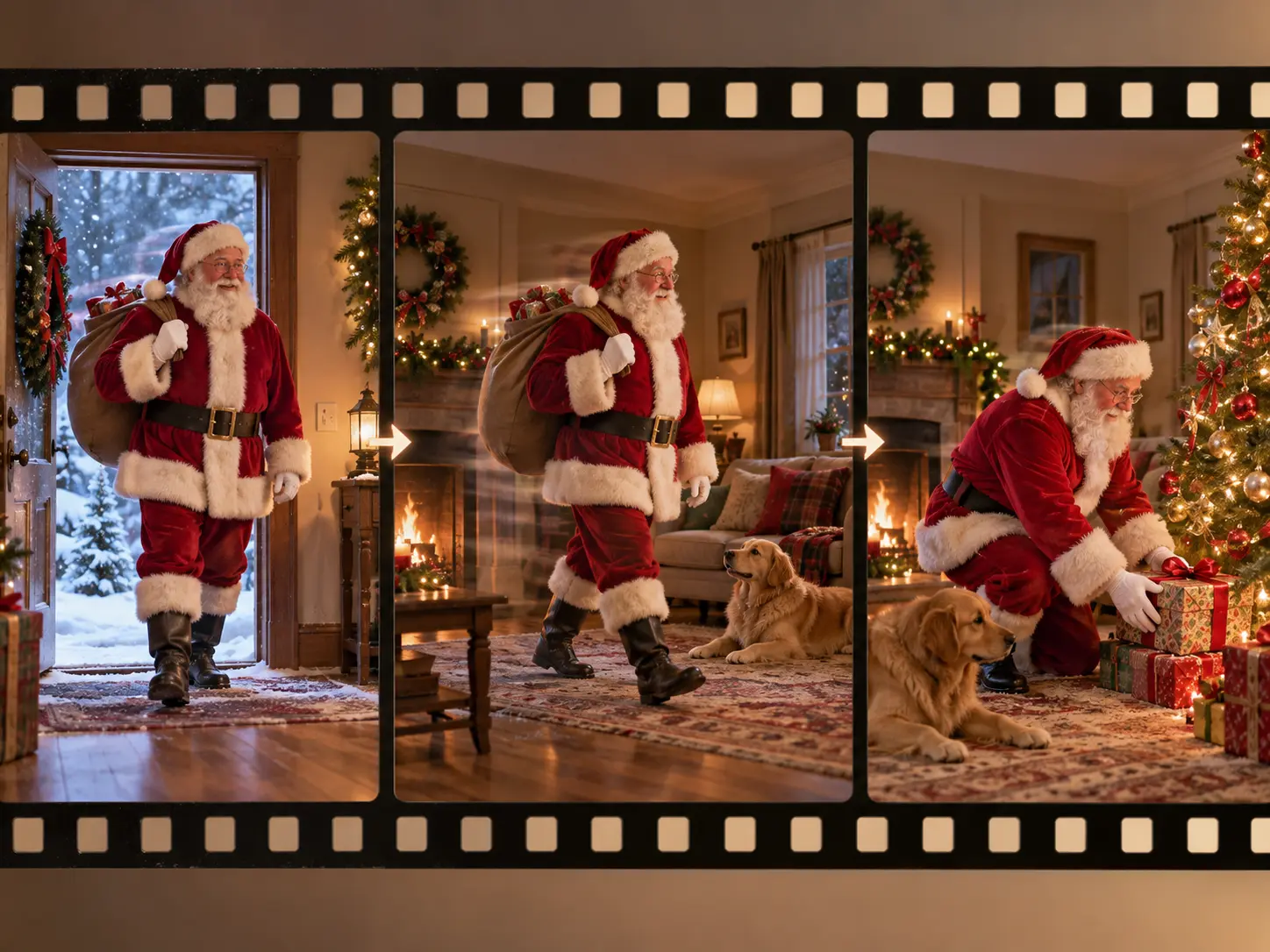
Set time ranges for Santa's action, camera view, and setting, and attach a reference image to a specific scene. VideoAI follows the structure you write, so the first version reflects your intended pacing.
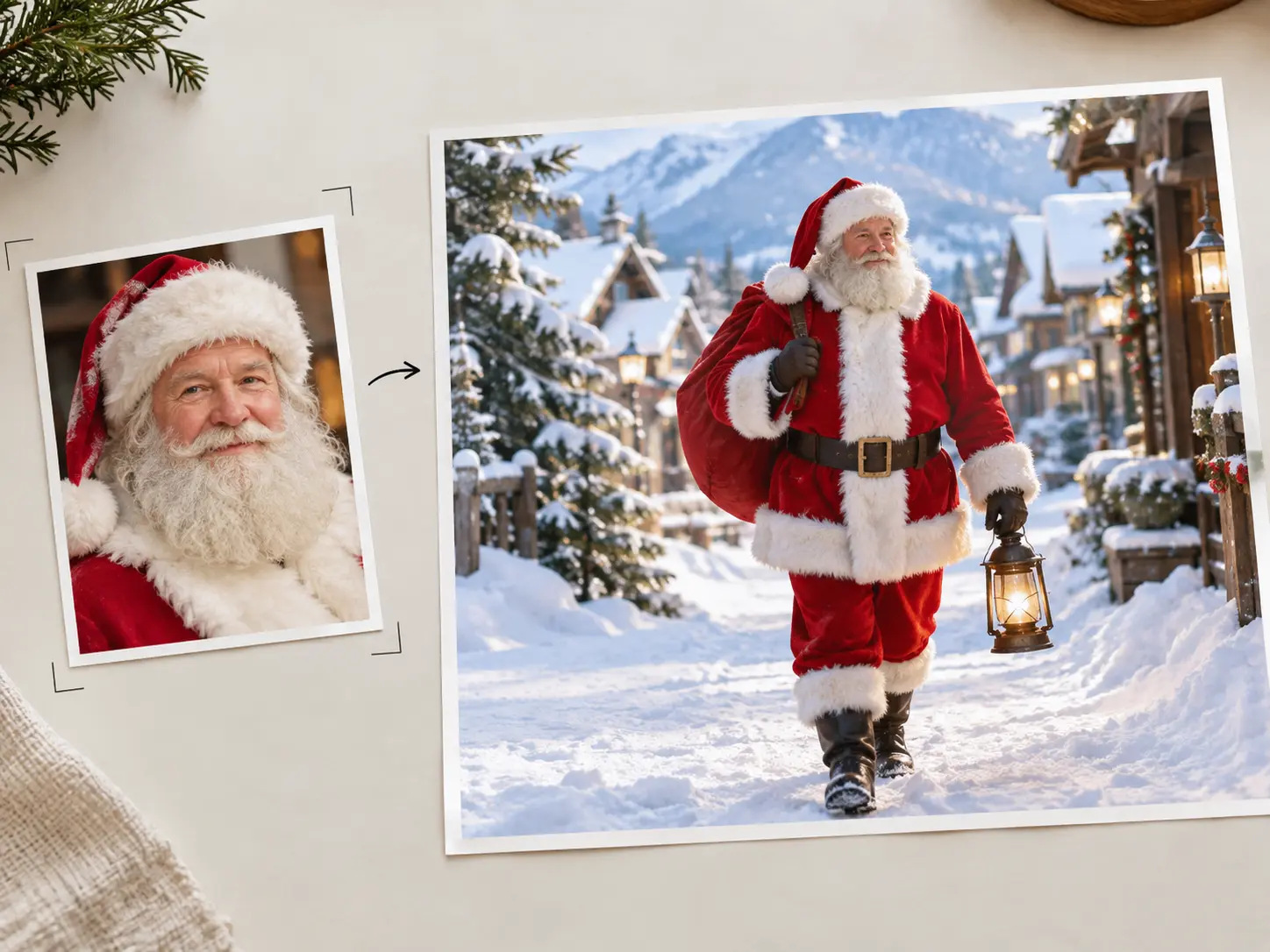
Describe Santa's look, motion, and holiday setting in text, or add a reference image as the subject, first frame, or scene reference with @. The generated video starts from the character direction you provide.
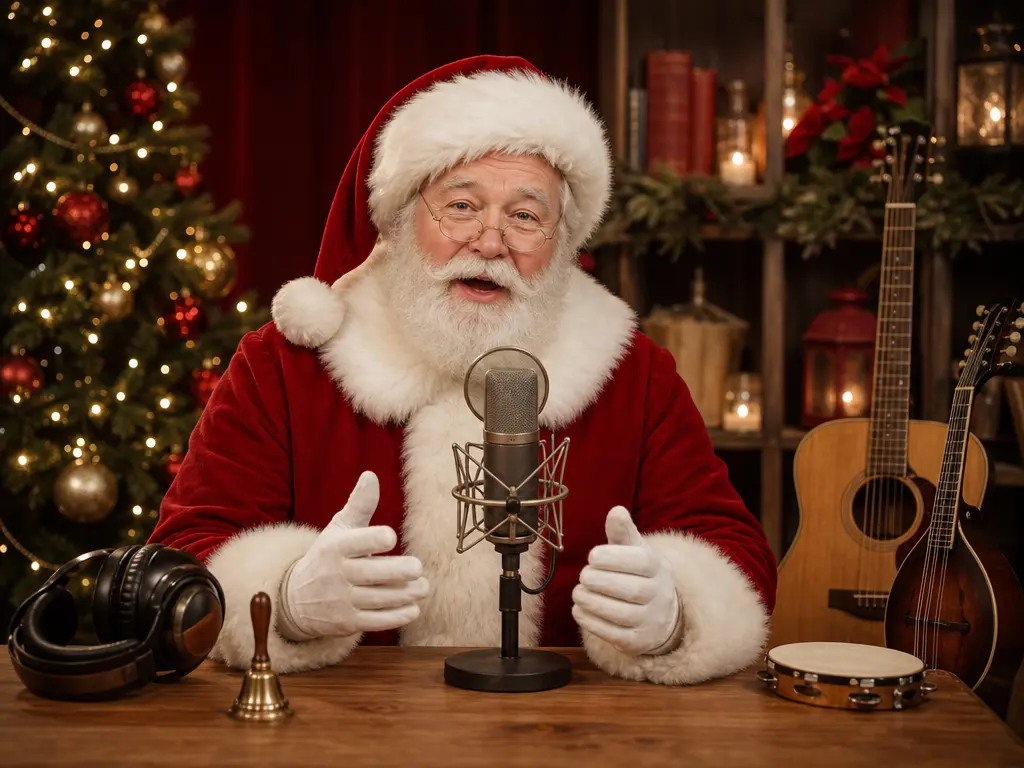
Put a name, greeting, brand line, or classroom message into the script. Add narration, an uploaded audio track, a voice reference, BGM, or sound cues so the spoken and musical direction matches the moment.
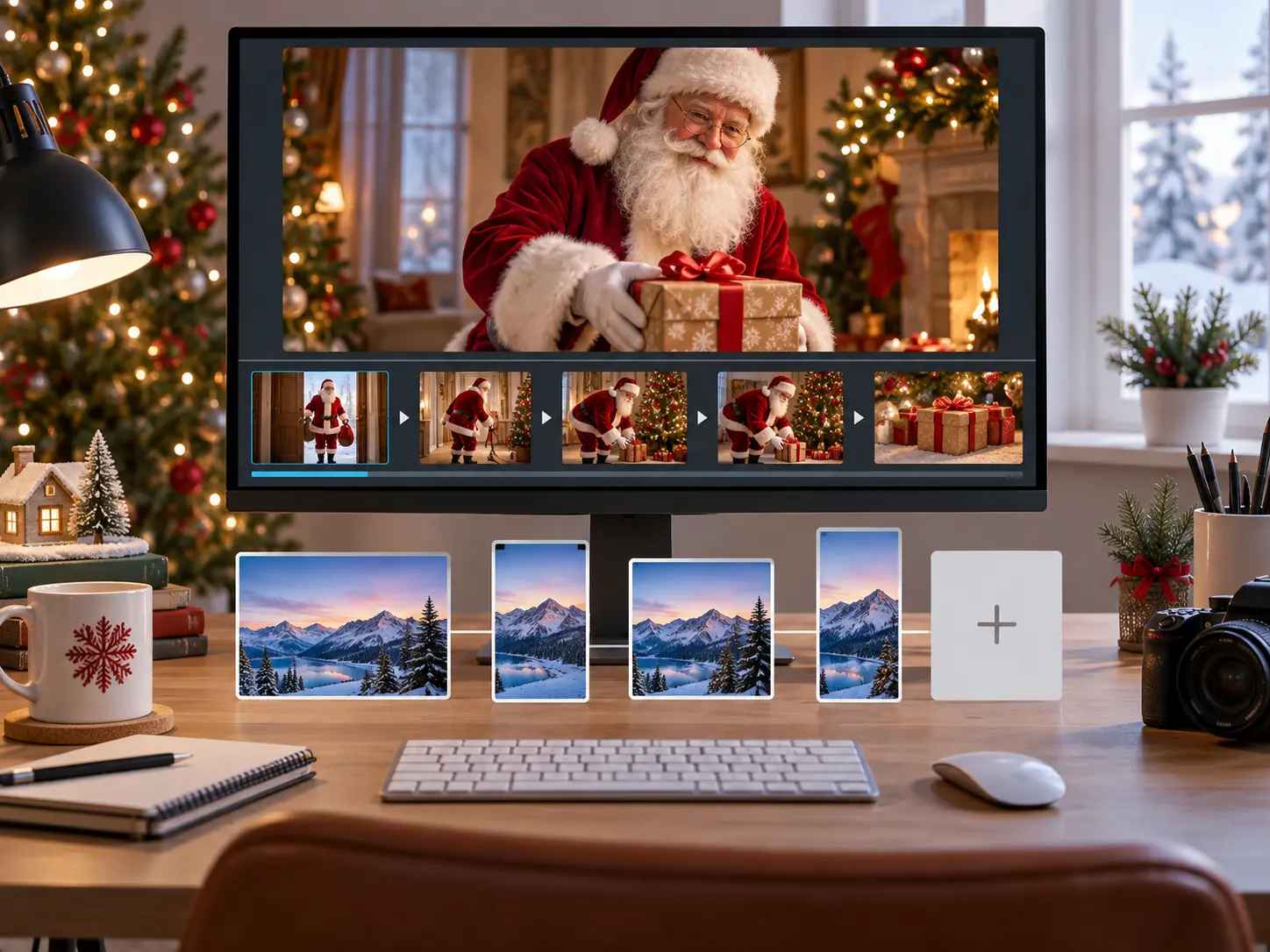
After the first version, use a text instruction to change Santa's action, scene, or pacing. A single generation can run up to 30 seconds, which suits a focused greeting; then continue from the result and prepare MP4 delivery in 16:9, 9:16, 1:1, or 4:5 with 4K and no watermark.
Start with the role and references, decide what Santa says and does, then inspect the result before downloading or expanding it.
Step 01
In VideoAI, describe Santa's appearance, movement, holiday setting, and video goal. Add a reference image when you need a specific subject, first frame, or scene cue, then use @ to assign its role.
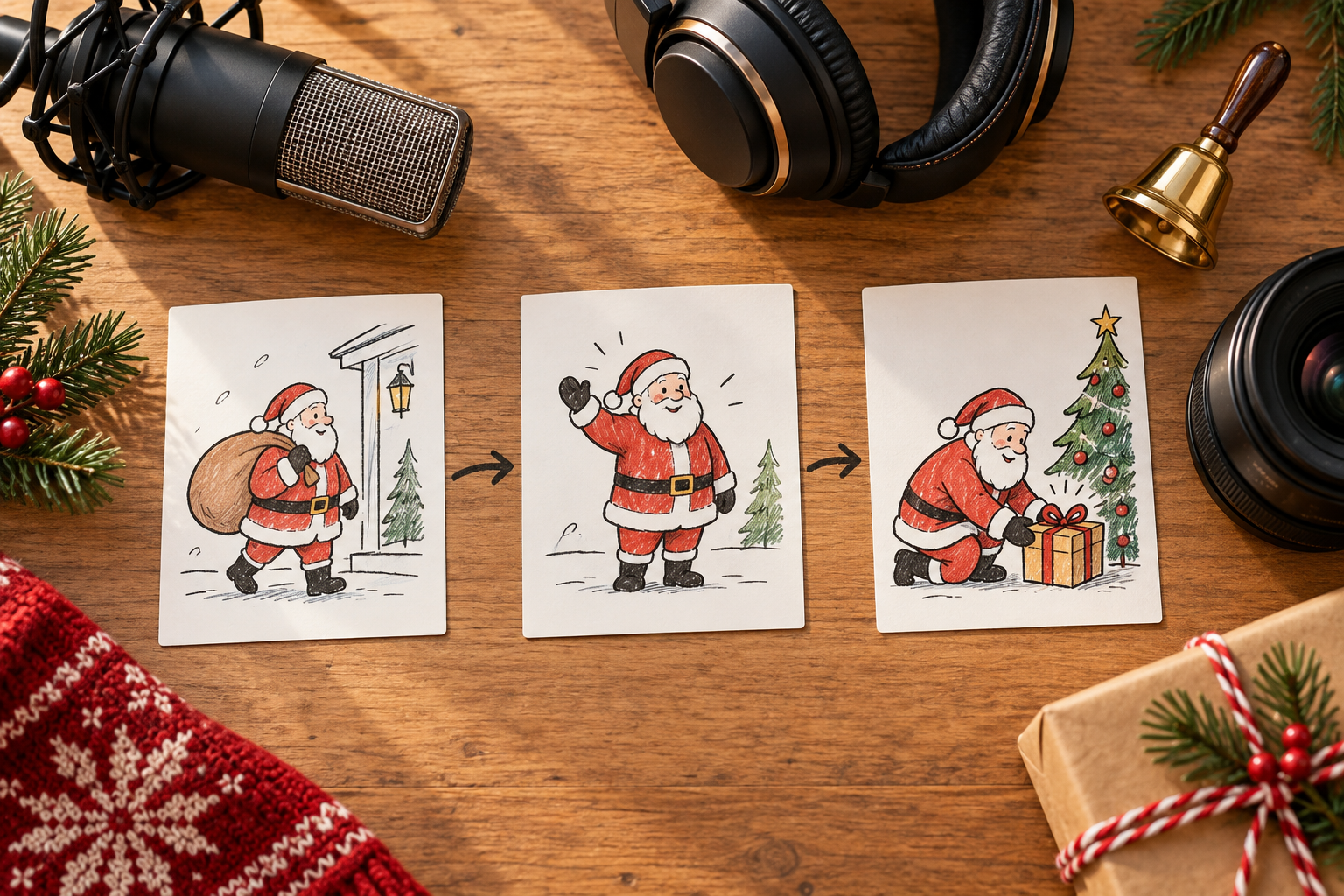
Step 02
Enter the name, greeting, brand message, or classroom note in the script. Break the video into time ranges for actions and camera views, then choose narration, uploaded audio, BGM, or sound cues for the scene.
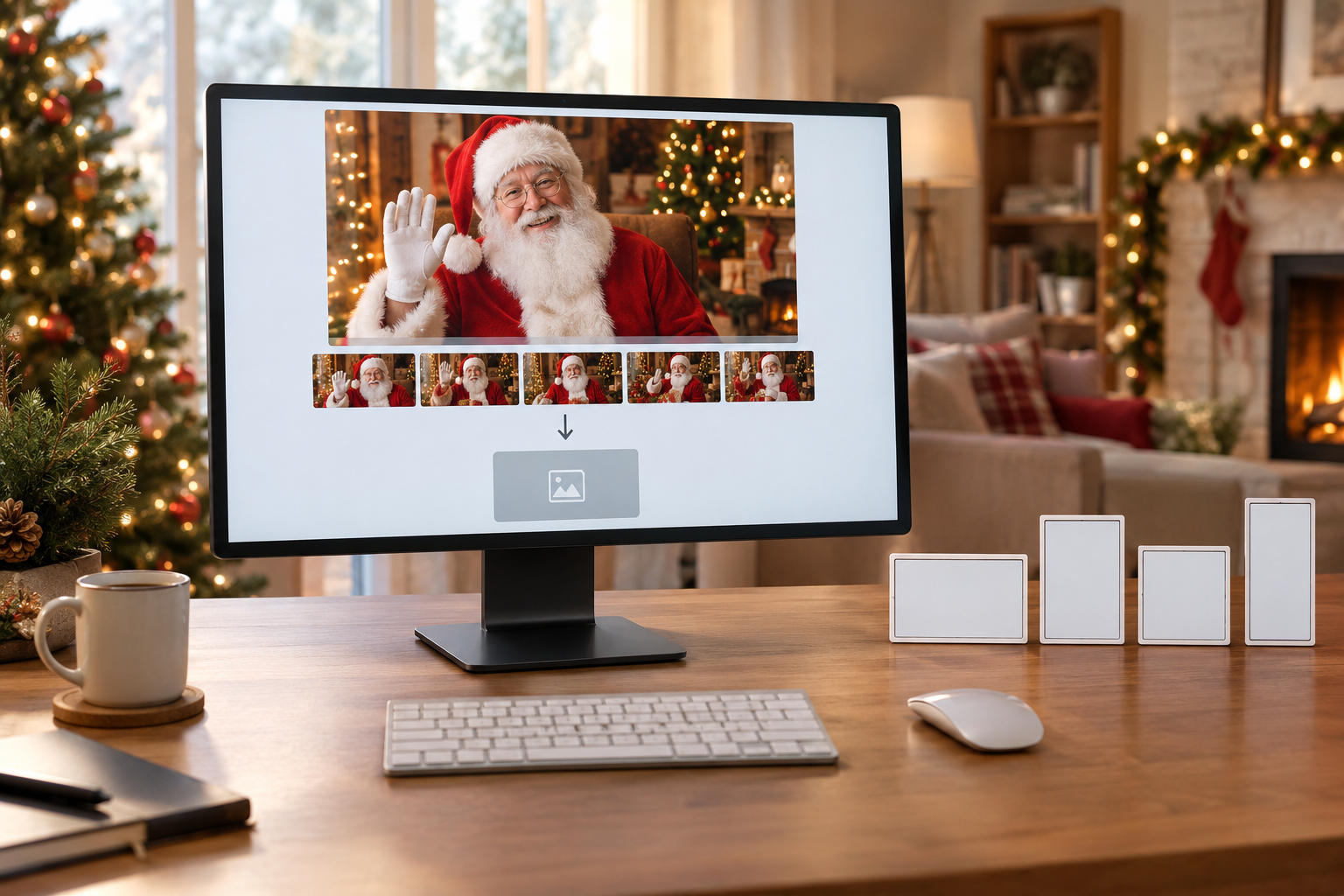
Step 03
Generate a first version and check the character, message, pacing, and sound. Use a text instruction to adjust the scene, action, or rhythm, then choose 16:9, 9:16, 1:1, or 4:5 and 4K before downloading MP4 or continuing the project.
Different audiences can keep their own message, scenes, references, and delivery choices while following the same creative workflow.
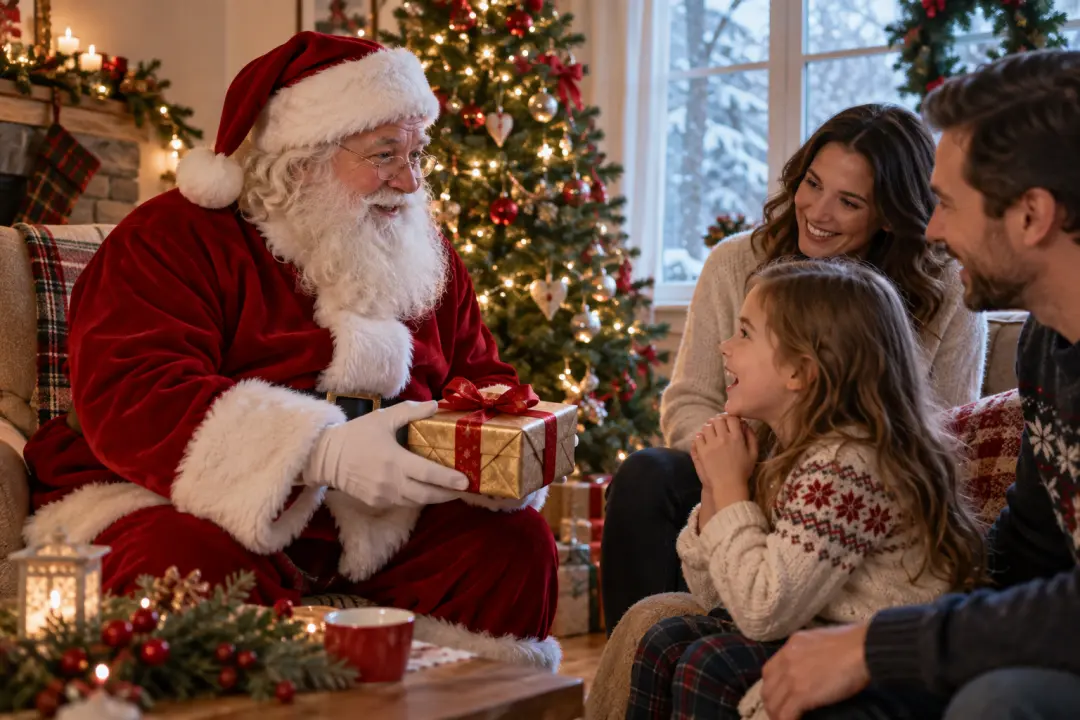
A parent wants Santa to say a child's name and a clear holiday wish without arranging a live shoot. They write the message, describe the character and scene, and inspect the first result in VideoAI. The finished greeting carries the exact words they chose.

A creator plans a Christmas Short or Reel and needs a santa ai video with chosen camera beats, music direction, and vertical framing. They use the ai santa video generator to define the role, write the message, and revise the pacing. The result is ready to download as MP4 for sharing in their own channels.
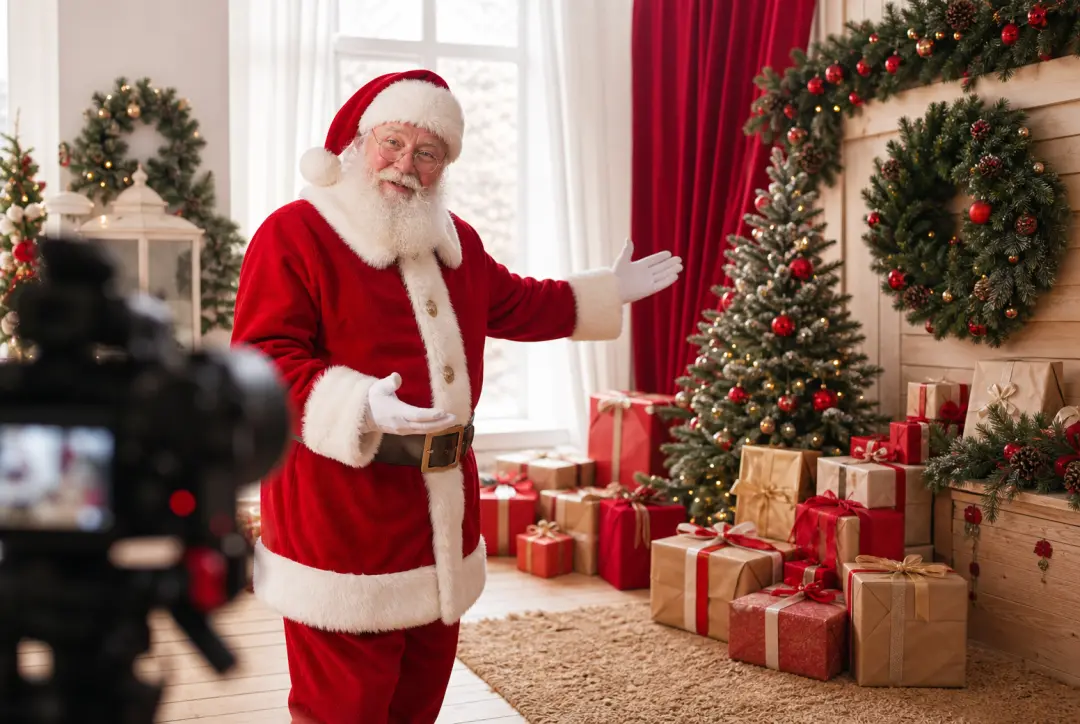
A marketing team has a seasonal offer, logo reference, or event announcement to communicate. They combine those inputs with a Santa role, script, scene plan, and sound direction in VideoAI, then create versions for different audiences. Each version keeps the campaign message visible.
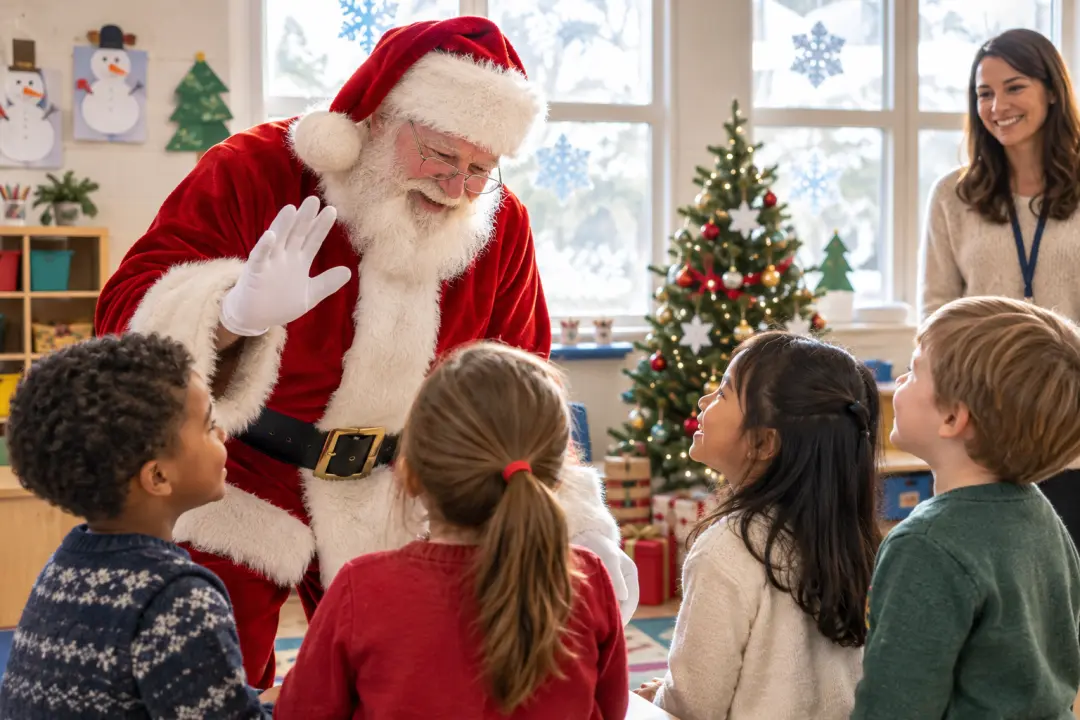
A teacher needs a festive introduction, school reminder, or community greeting. The teacher writes the words, directs Santa's actions by time, and selects voice or music cues with the ai santa video generator. The downloaded MP4 gives the class a focused message with the teacher's chosen content.
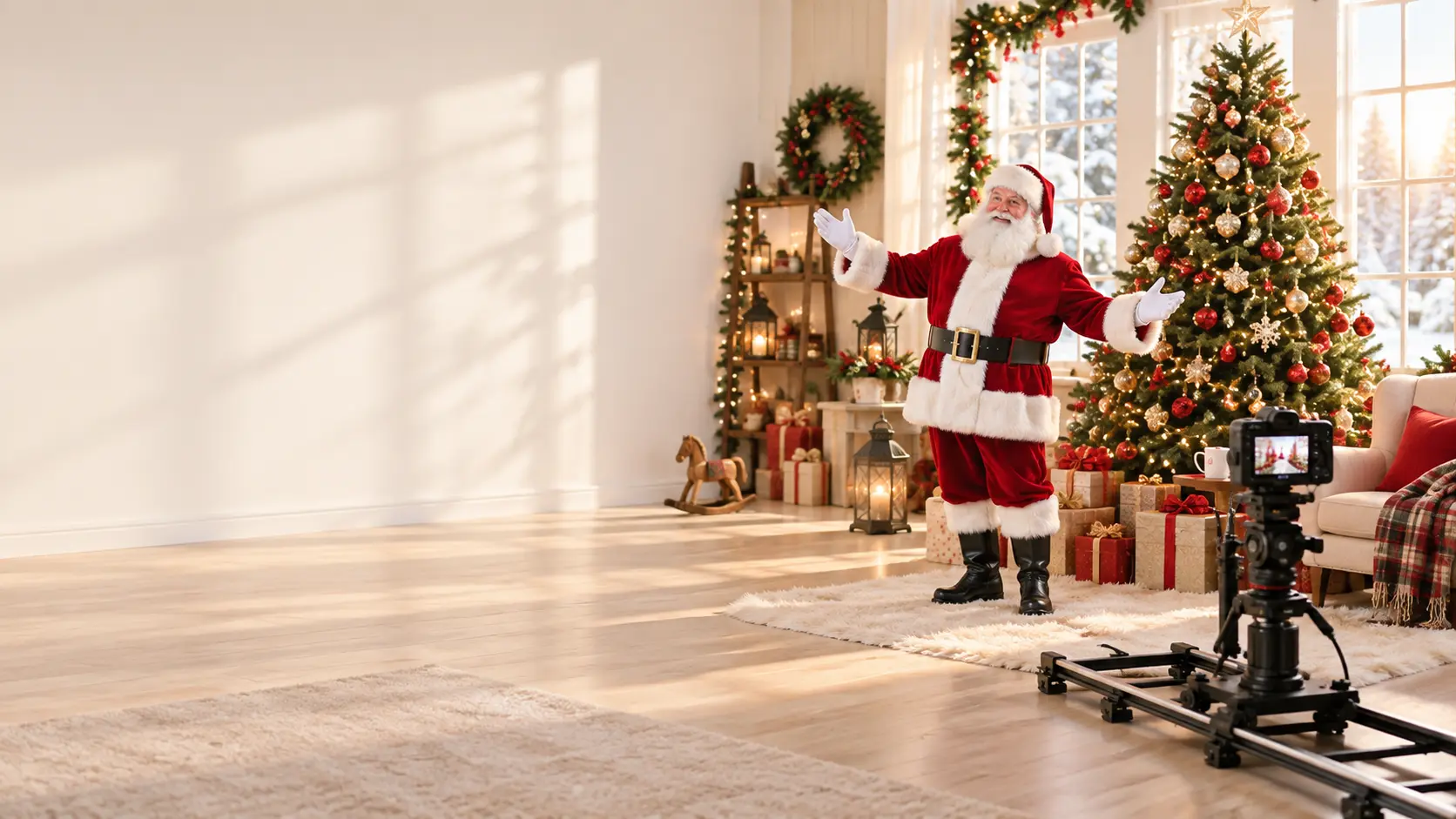
Start in VideoAI with a Santa description or reference image, write the message, and build the first version around your direction. New users receive 10 starting credits for a first project.
Get Started