
Step 01
Open A Saved Work
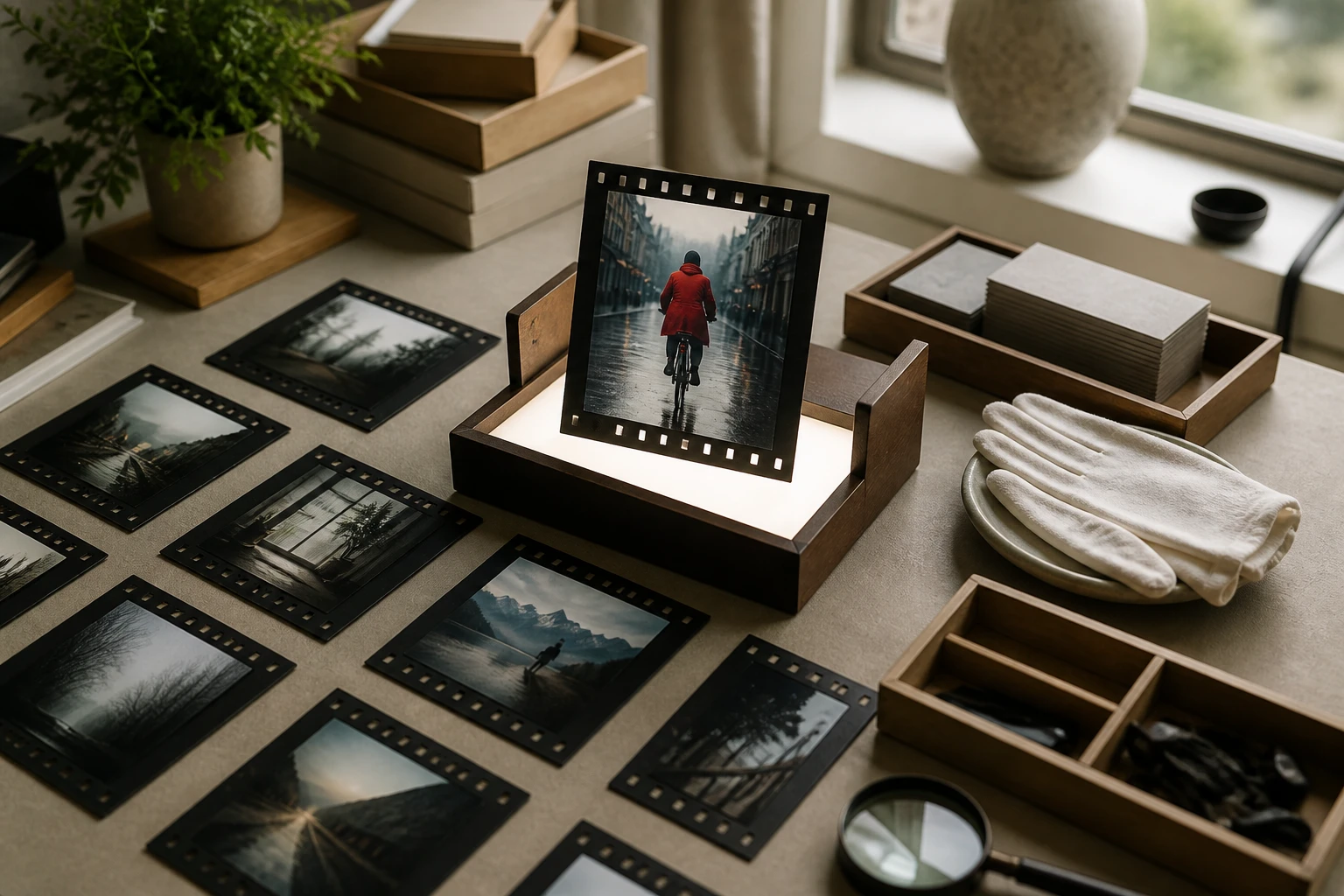
Choose a generated video from your VideoAI workspace or works area. The saved work stays available for continued iteration, so you can keep shaping the same project with new instructions.

VideoAI's AI video editor helps you revise a saved generated video by describing the scene, action, style, or sound you want in the next version.

Shape the visible result first, then let VideoAI regenerate a version that follows your prompt, references, and output needs.

Change the scene direction, motion, style, or sound in a saved VideoAI project with text. When you describe the next result, this AI video editor tool creates a new version from your instructions, so AI assisted video editing stays tied to your creative goal.
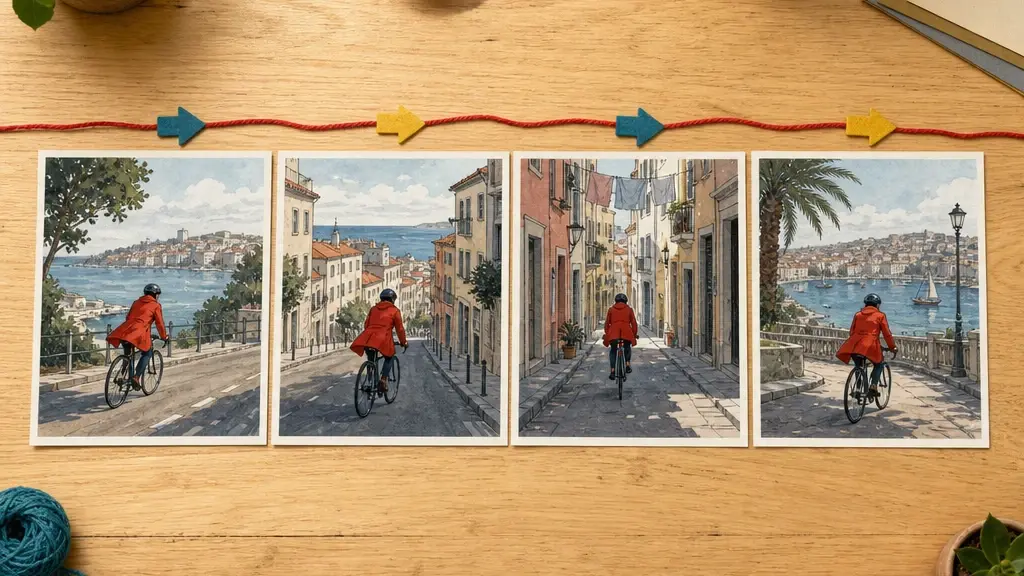
A video editor AI uses clear segment notes to understand what happens at each moment. Use this path when AI for video editing needs your shot order, action timing, and visual direction before regeneration.
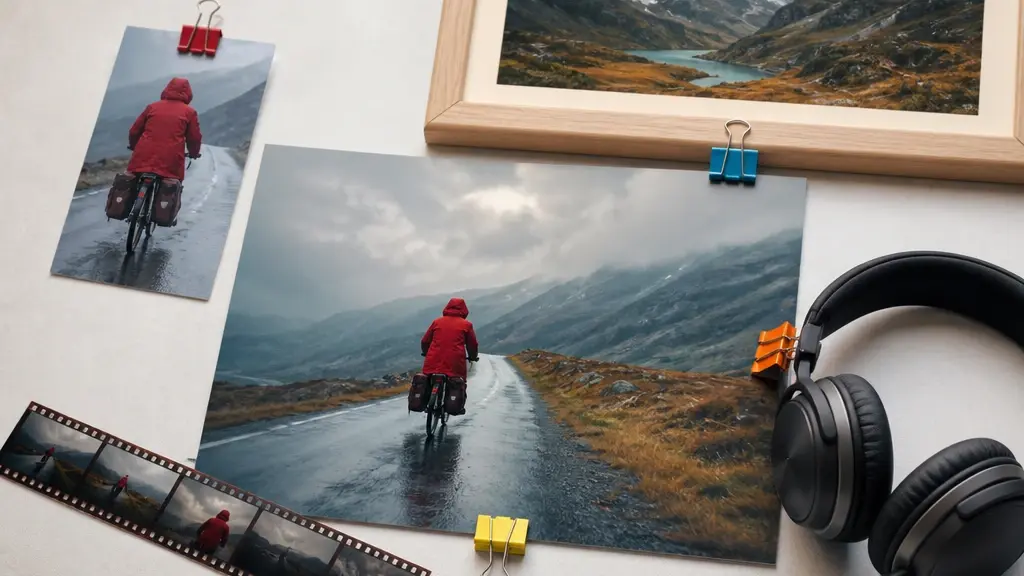
Reference images, videos, and audio can be named with @ so VideoAI knows whether they guide a first frame, final frame, subject, scene, camera movement, action, voiceover, BGM, or sound effect. That makes video editing with ai more specific.
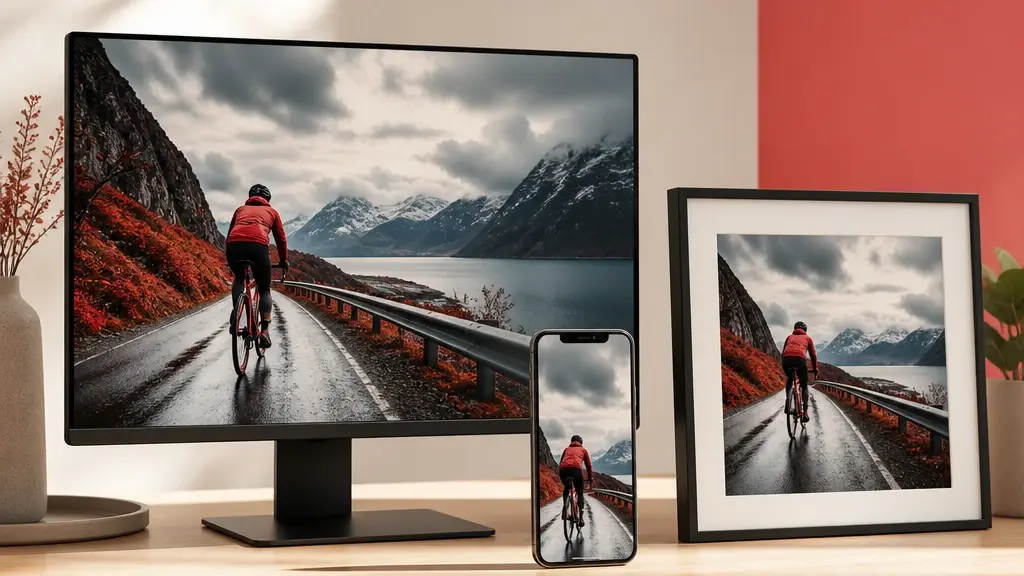
Finished versions download as MP4, up to 4K, with 16:9, 9:16, 1:1, or 4:5 framing. The ai powered video editor also supports no watermark output for videos made in the generation flow.
Start from a saved VideoAI work, describe the change, review the new result, and continue only when the direction needs another pass.
Step 01
Choose a generated video from your VideoAI workspace or works area. The saved work stays available for continued iteration, so you can keep shaping the same project with new instructions.
Step 02
Write what should change in the image, movement, style, or sound. This is how you edit video with AI while keeping the creative direction explicit. If the direction depends on a specific image, video, music track, voiceover, or sound cue, add it as an @ reference.
Step 03
VideoAI generates a new version for review. Continue adjusting the description when needed, then export MP4 in the ratio that fits the placement, with 4K available when the project calls for it.
Use the same workflow for channel videos, social versions, streamer assets, and client review changes.
Channel videos often need a clearer opening shot or a calmer ending frame. Describe the next version and export 16:9 with space for later platform elements.
Social teams can reuse the same campaign idea in vertical, square, and feed friendly versions. Choose the ratio and guide each visual change.
Streamer channel assets, preview clips, and highlight packaging need a strong scene setup before viewers press play. Use the workflow to shape a saved generated version with new action, style, or audio direction.
When client notes ask for a different product mood, character action, scene detail, or music feel, return to the saved VideoAI work and write the revision clearly. VideoAI then generates a review version that reflects the new direction.
Creators planning social, campaign, or explainer videos can use a video ai editor when the idea is clear but the version needs another pass. VideoAI keeps the decision in the prompt, references, and aspect ratio choice.

Campaign teams can turn one saved concept into several controlled versions by changing scene notes, reference use, and sound direction. This gives practical ai solutions for video editors working across channels.

The artificial intelligence video editor helps the visual version follow the lesson sequence.
Open a saved VideoAI video, describe the change, attach useful references, and generate a version shaped for your next placement.
Get Started