ai video generation you can direct

Bring text, image, video, and audio references into video generation AI, assign roles with @, direct each scene, preview, revise, and export an MP4 up to 4K.

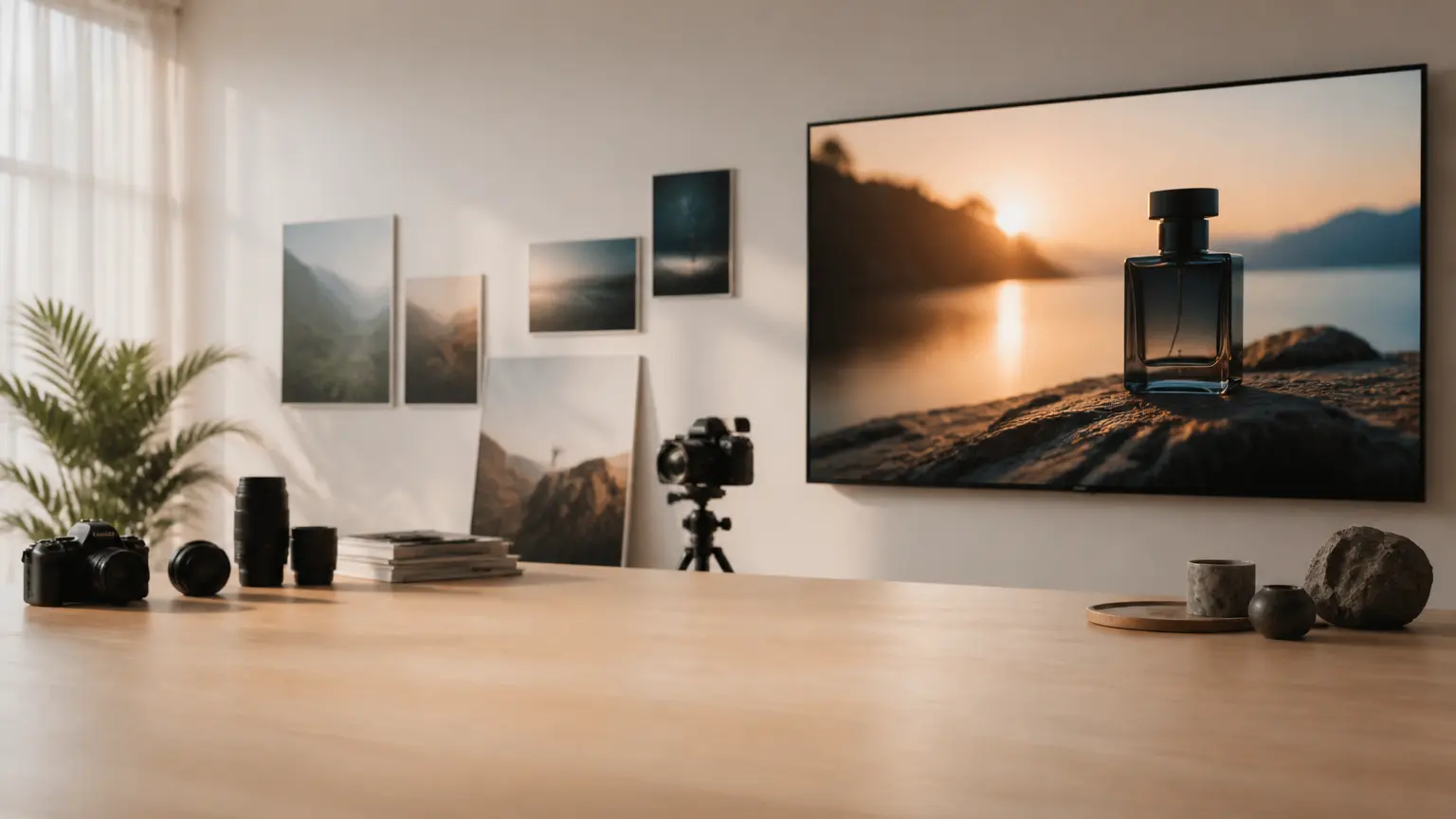
Cinematic tabletop product scene moving through a bright three-shot video sequence

Try an example

Control ai video generation before preview

Use generative AI video tools with clear AI video generation capabilities, so references, segment choices, motion notes, sound direction, and output settings stay visible before you preview.

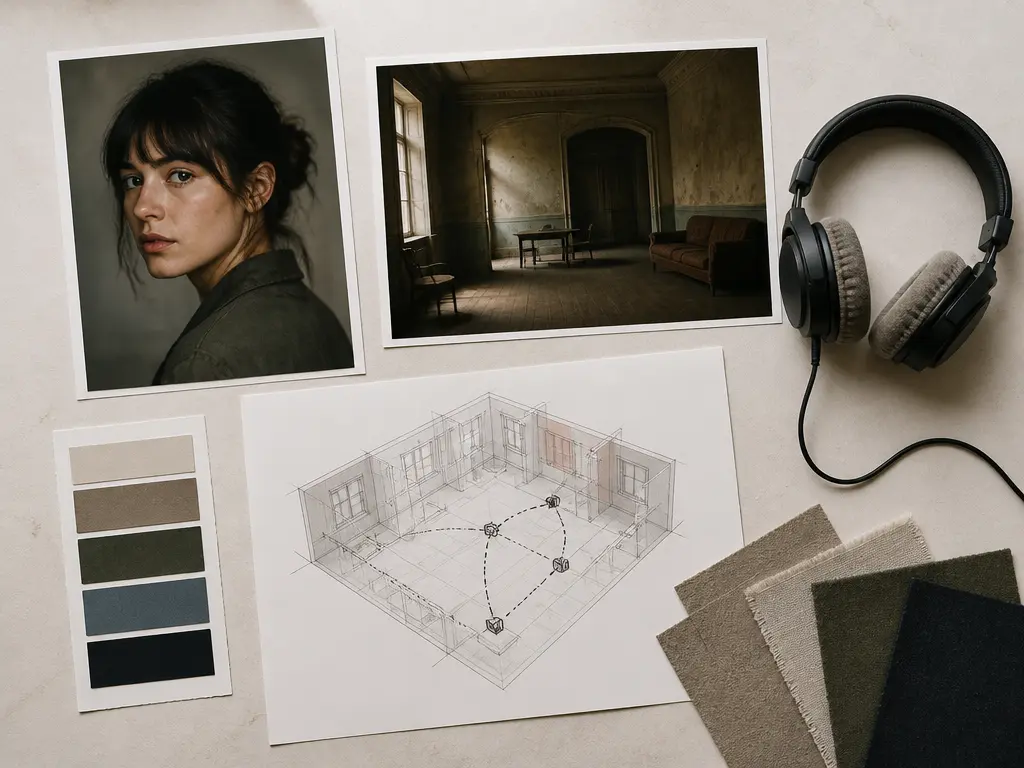
Asset panel with text, image, video, and audio references assigned by role

Multimodal references with clear roles

Combine text, images, video, and audio in one workflow to generate AI videos from the materials you already have. Use @ to assign each reference as a first frame, subject, camera movement guide, scene reference, or music cue before generation begins.

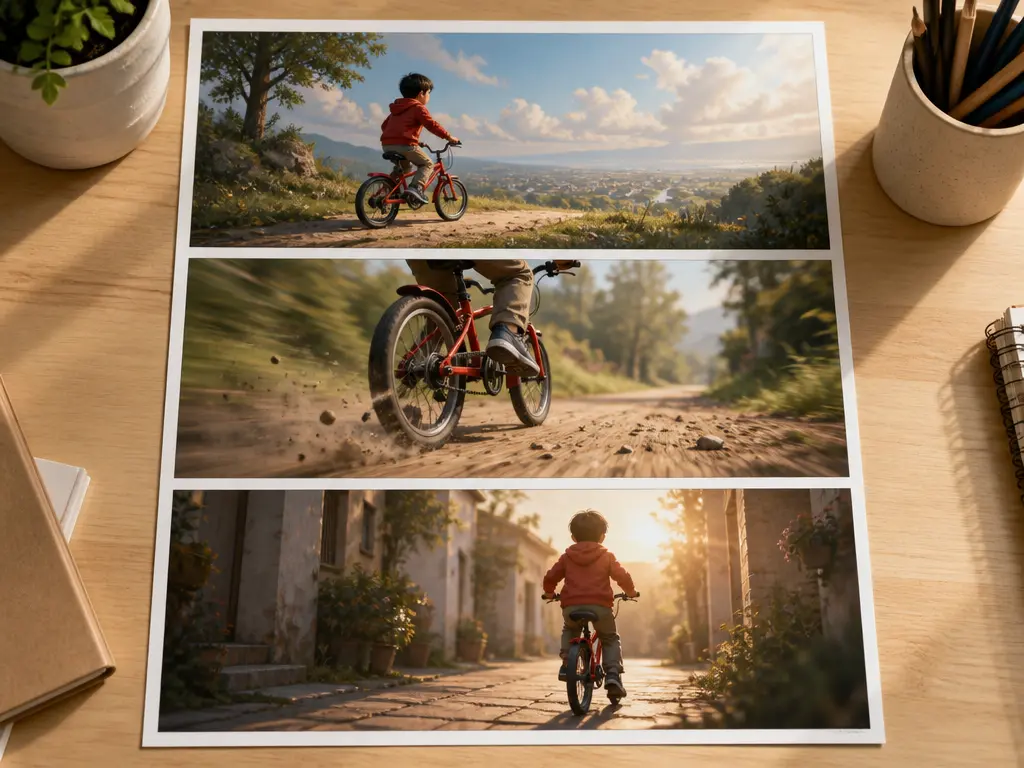
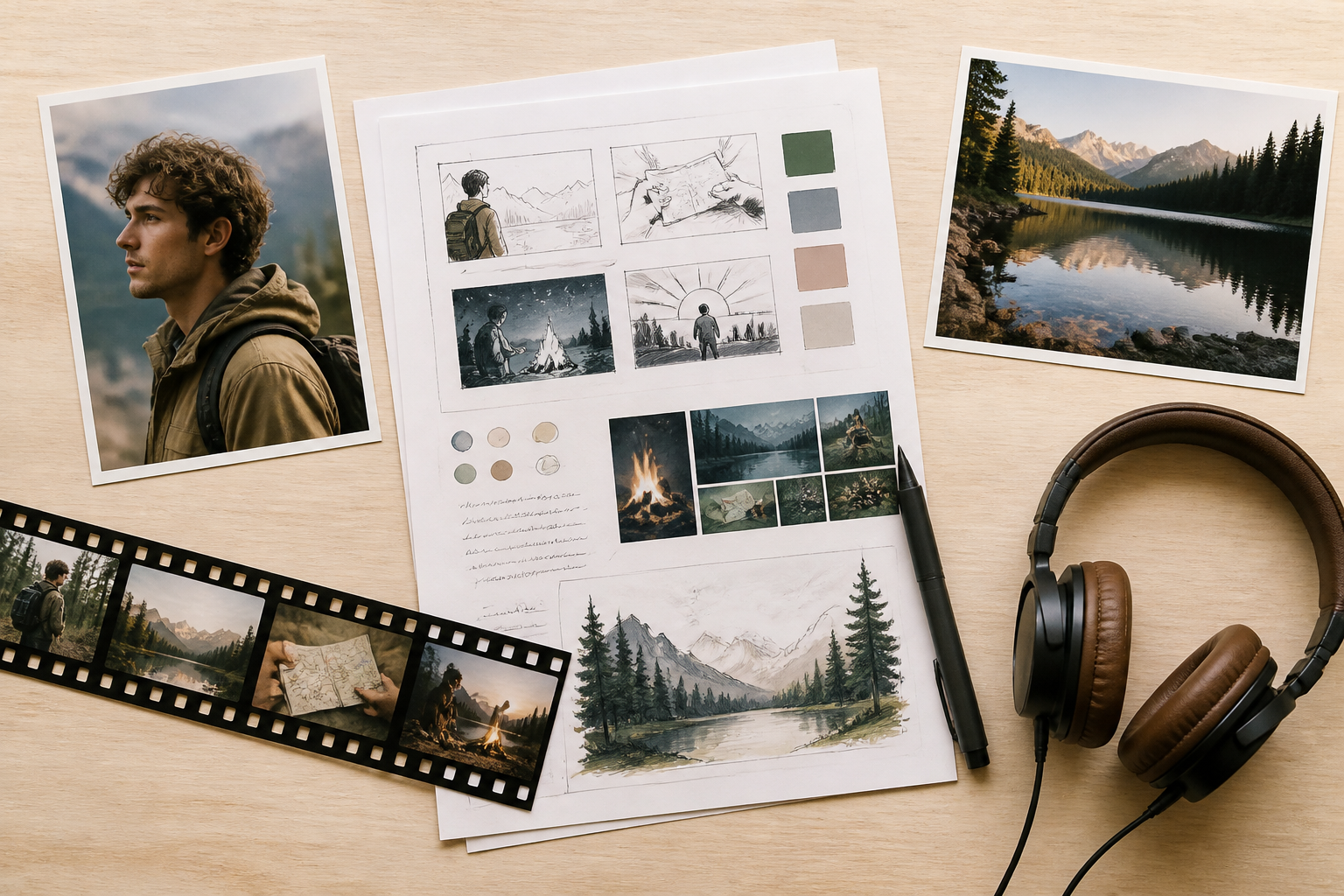
Paper fox moving through three connected landscape scenes with changing light

Segment by segment control

Write what happens in each time segment, attach a reference image to a single section when needed, and keep the shot rhythm clear before you generate videos with ai.

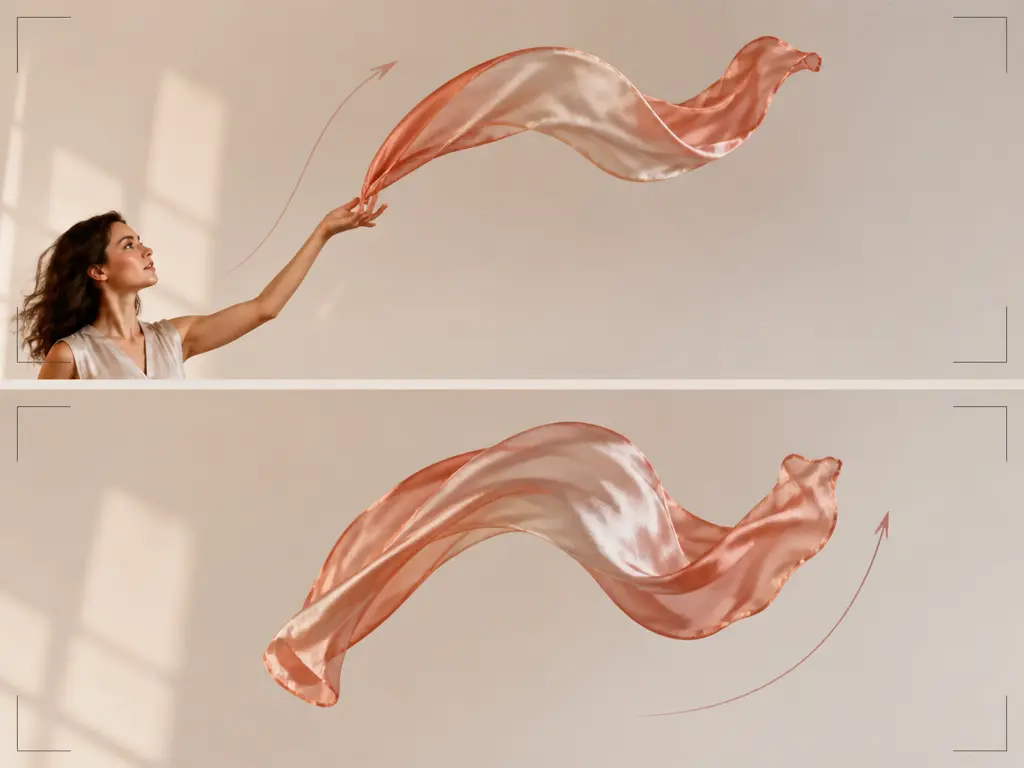
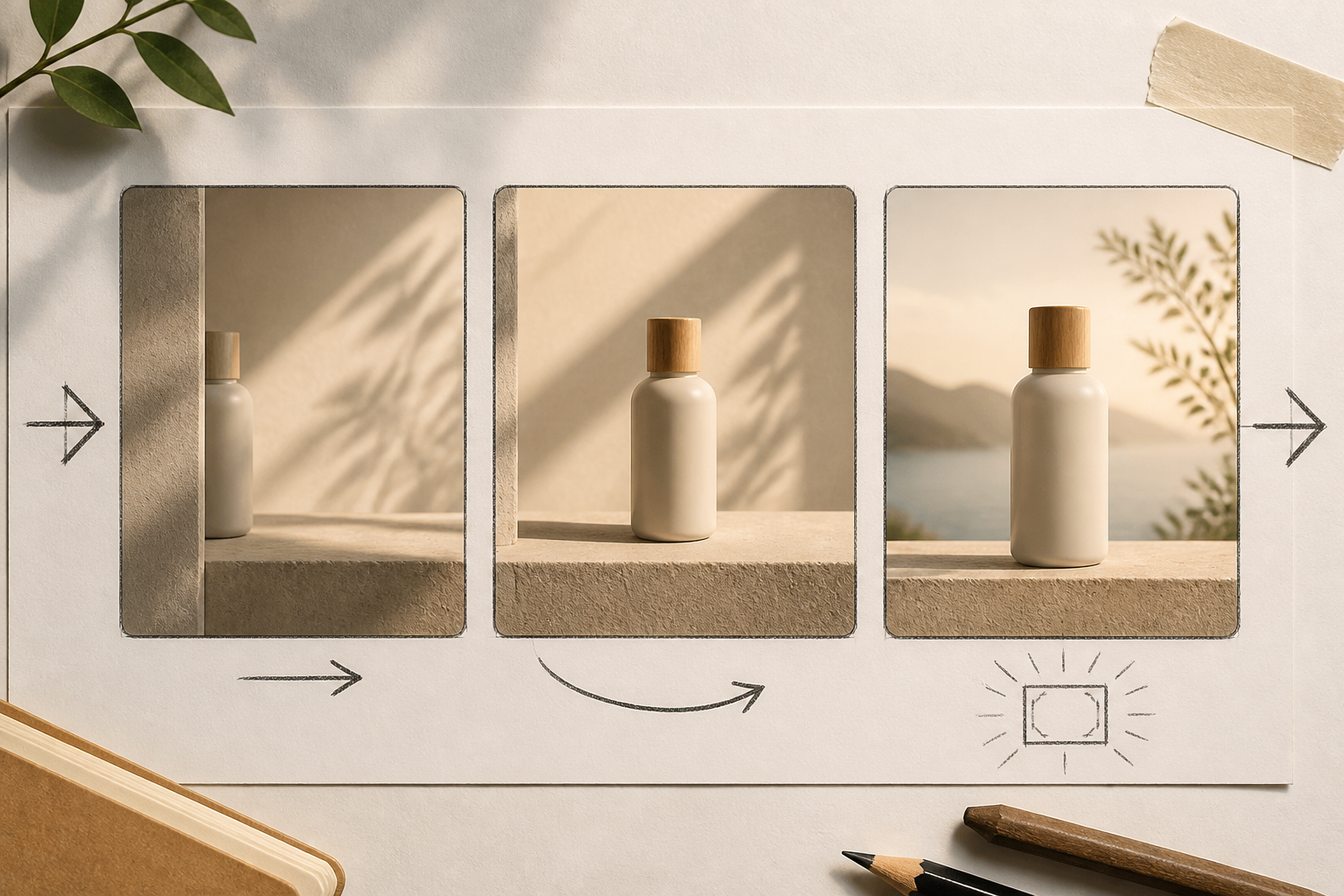
Start frame, end frame, and motion reference guiding a generated transition

Frames and motion direction

Choose a start image and an end image, then guide AI for video generation with text plus motion or camera references. This keeps text to video generation tied to the visual path you choose without editing every frame.

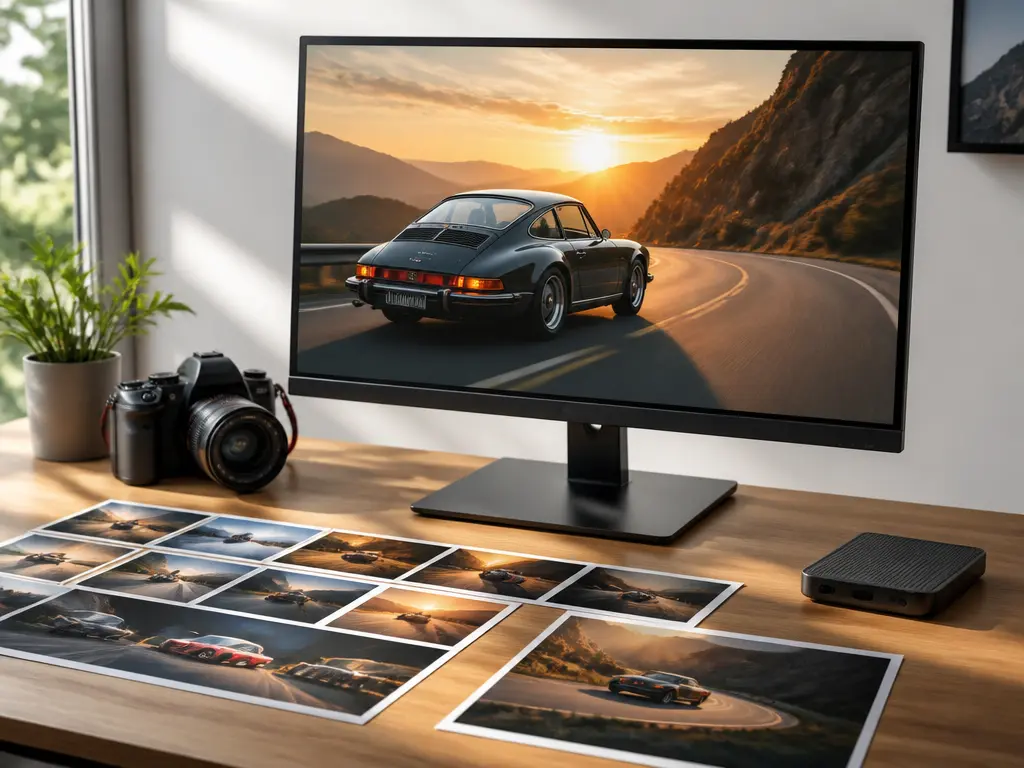
Finished citrus drink scene shown across several video frame formats

Revise and export MP4 results

Refine a result with text instructions, then download an MP4 without a watermark at up to 4K. VideoAI supports AI video synthesis for 16:9, 9:16, 1:1, and 4:5 outputs.

Plan ai video generation by segment

Move from ideas and reference assets to segment control, preview, revision, extension, and MP4 export while source assets and each AI video generated from them stay available in the workspace.

Prompt box with image, video, audio references, and assigned asset roles

Step 01

Add ideas and references

Start with a text idea, upload image, video, or audio references, or begin from a template or stock asset. Use @ to assign uploaded or reference assets as a subject, scene, first frame, camera move, or music cue. Set voice direction separately for generative ai for video when needed.
Miniature city staged as three connected scenes along a planned route

Step 02

Control each time segment

Choose the aspect ratio and style, then describe the visuals and actions for each segment. Add segment references, start and end frames, motion guidance, voice direction, BGM, sound style, and music beat notes. These choices guide how the AI made video handles motion and sound.

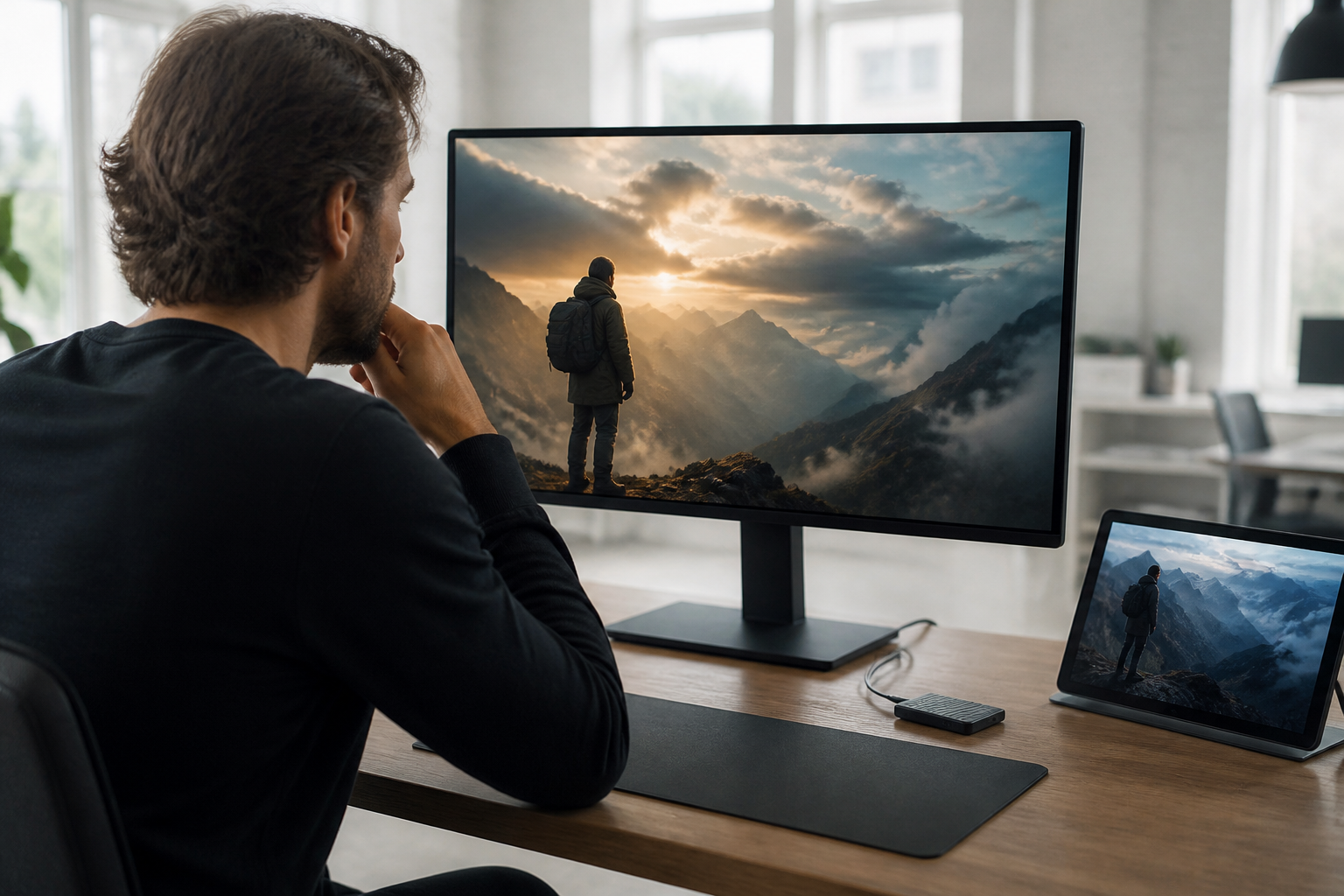
Finished city film frame beside scene stills and a portable drive

Step 03

Preview, revise, and export

After generation, preview the video, revise it with text instructions, extend the result when you need more story room, download it as an MP4, or keep it in the workspace. A single generation can be up to 30 seconds, and you can extend the result when you need to generate videos with AI for a longer narrative.

Where AI video helps production

Use ai powered video workflows for social versions, campaign drafts, explainers, and story tests when you need visible direction before heavier production work.

Social video variations video scene

Social video variations

Video gen AI workflows can help a creator use the same subject, visual references, and audio direction across vertical, square, and landscape versions. Creators can work from the same inputs and request text revisions for each version after preview.

Campaign concept clips video scene

Campaign concept clips

Campaign teams can organize product images, brand references, segment notes, and sound direction before using generative AI for video. The preview makes ai video generated content easier to review and refine before MP4 export.

Explainer sequences video scene

Explainer sequences

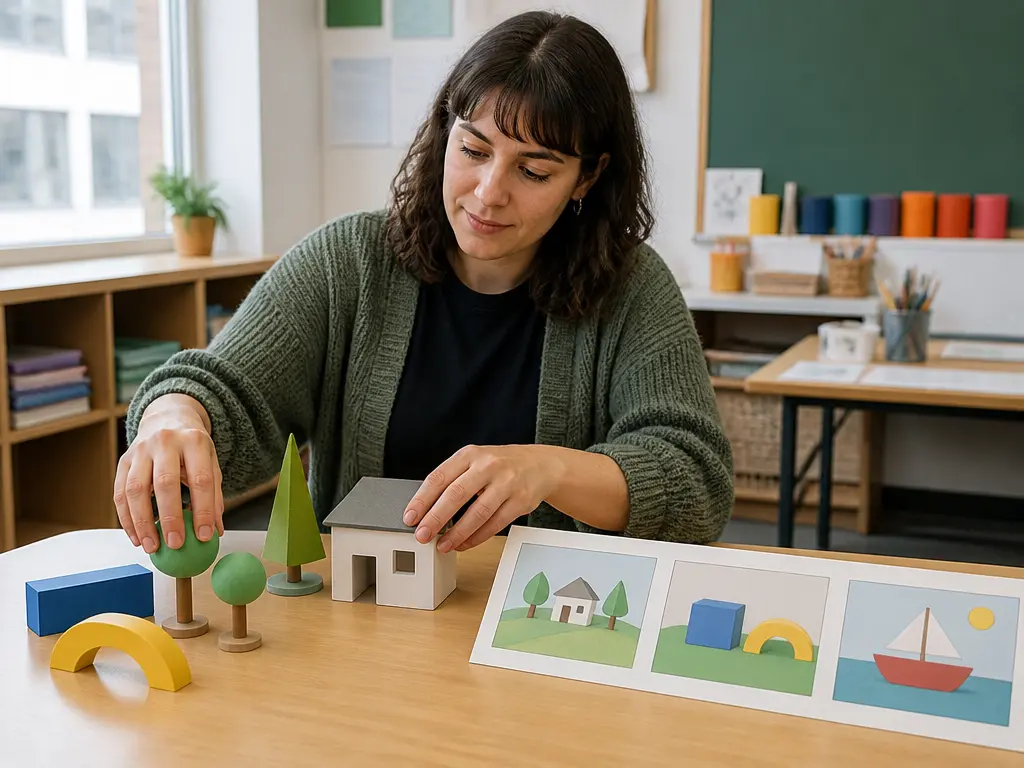
An educator can arrange information order, narration direction, and action timing for videos created by ai. The workflow keeps ai creating videos focused on the message instead of unnecessary effects.

Story idea previews video scene

Story idea previews

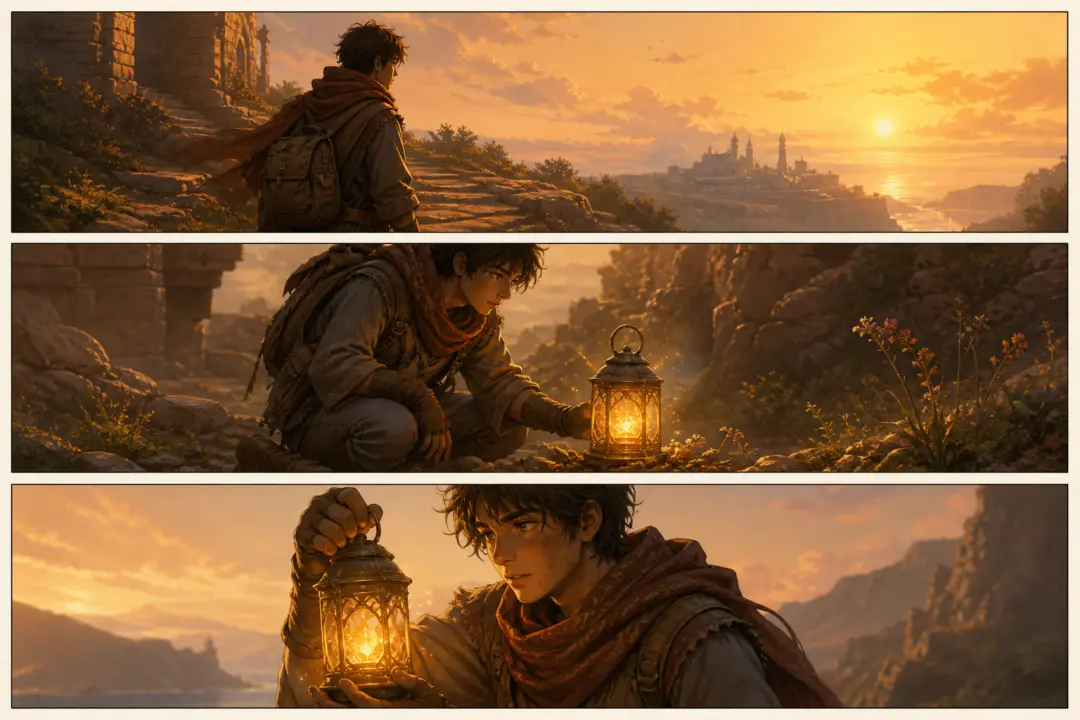
AI video generation examples can help a director expand a one line idea into script text. The director then chooses each time segment, reference image, and motion direction before generating a preview for early story review.

Creators who direct each result

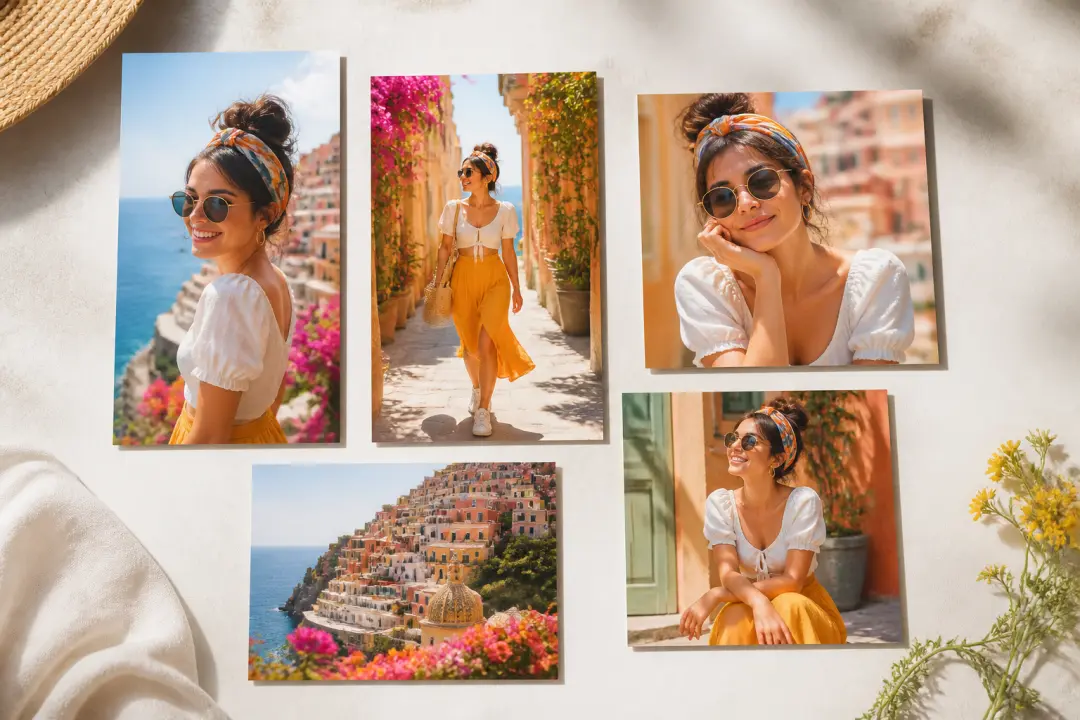
Short video creator reviewing vertical and square clips from shared references

Short video creators

When frequent visual testing is part of the job, VideoAI helps creators plan with generative AI for videos using subject references, scene timing, and format choices. It fits social workflows where each version can be revised without losing intent.

FAQ

Questions about ai video generation

ai video generation creates moving video from prompts and references. In VideoAI, you provide text, image, video, and audio inputs, decide the scene timing, preview the result, and export MP4 files.

The workflow starts with your idea and references, then uses @ role assignment and segment notes to guide each scene. After ai video generation runs, you preview, revise with text, extend when needed, and download the video.

You can make social clips, brand concept videos, explainer sequences, campaign drafts, and story previews. These ai video generation outputs can use text to video generation plus image, video, and audio references.

Yes. You can generate video with ai in VideoAI by starting from text or reference assets, then guiding scenes, motion, and sound direction before exporting an MP4 up to 4K.

VideoAI accepts text, images, video, audio, templates, and stock assets as starting points. This helps creators plan generative ai videos, test generative video ideas, and shape ai video synthesis from their own direction.

One generation can be up to 30 seconds, and you can continue extending the result afterward. The finished video can be exported as MP4, kept in the workspace, or refined with more text instructions.
Start ai video generation creative result background

Start ai video generation

Bring your idea, references, scene notes, and sound direction into VideoAI, then preview and refine the ai made video before export.

Get Started
AI Video Generation - Generative AI Video - VideoAI