


Step 01
Upload Source Video Files
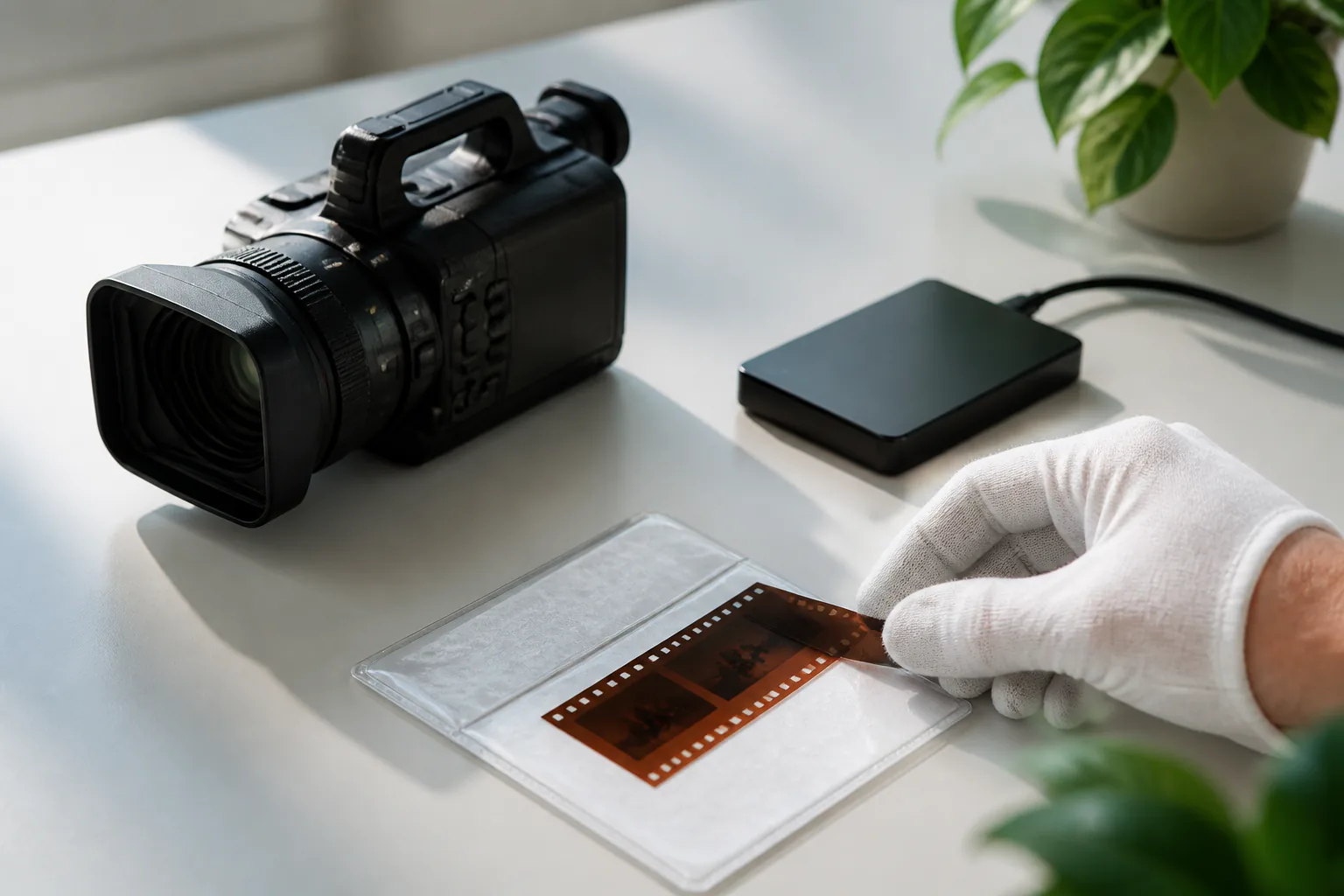
Upload an existing low resolution or compressed clip in a common video format. When several files need enhancement, submit them through the AI Upscale Video Online workflow in your browser.

Use VideoAI to upscale an existing video with AI frame by frame, reduce noise, correct color, and download clearer 2K or 4K output.

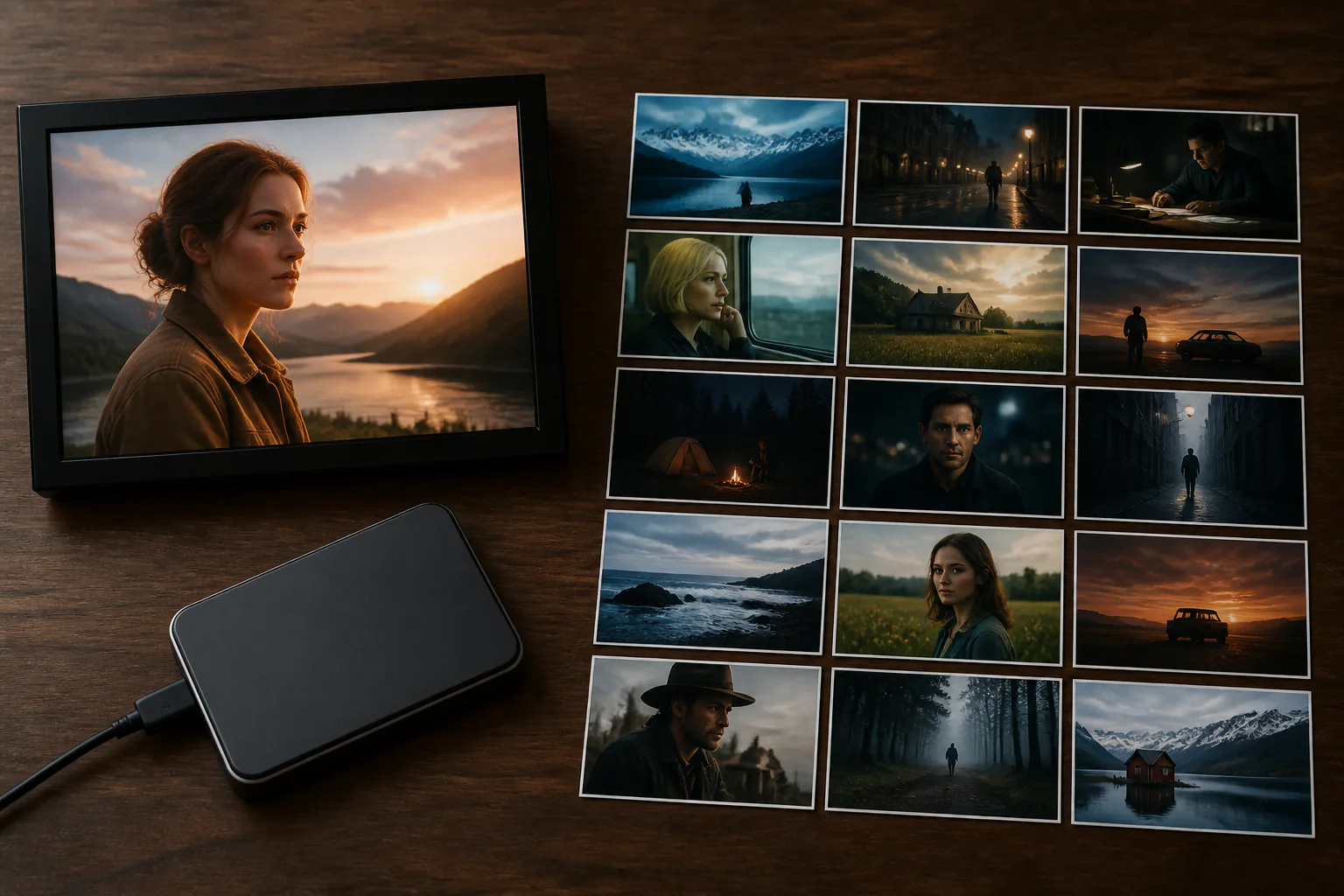
No picture on hand? Try with one of these
The ai video upscale workflow prepares existing footage for publishing, editing, presentations, or client delivery.

Repeated exports can leave social clips with blocky edges, visible noise, and uneven gradients. Use VideoAI to upscale social video before the next post with frame by frame analysis, detail reconstruction, and noise reduction.

A useful client clip may arrive below the target delivery size. For teams evaluating a video 4K upscaler, VideoAI can output 2K or up to 4K while reducing noise and correcting color before editing continues.

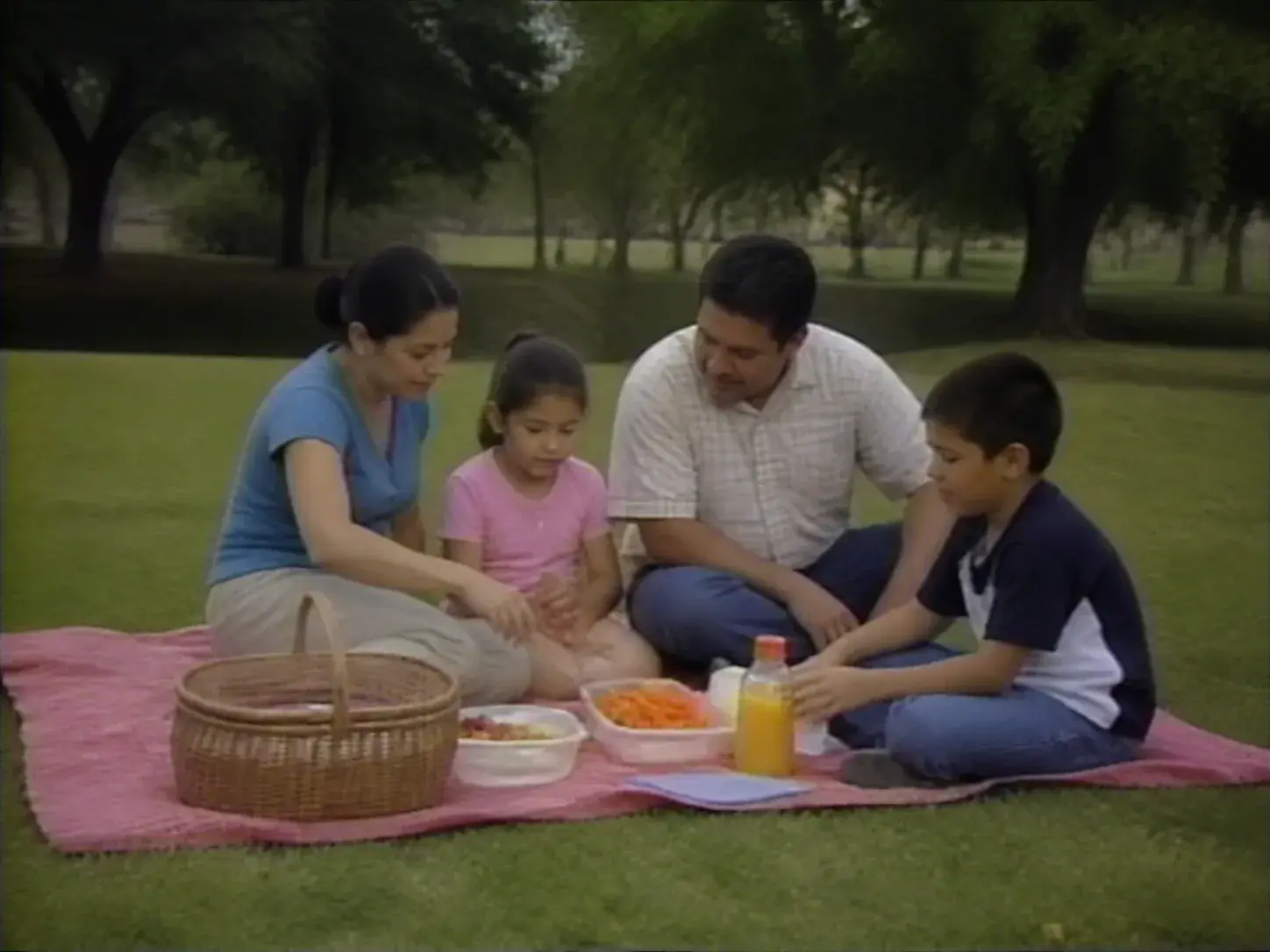
Family video files can look soft, noisy, and dull on modern screens. AI video upscaler reconstructs edges and detail, reduces noise, corrects color, and prepares clearer output up to 4K for modern viewing.

Game captures and quick camera moves can feel choppy after compression. Use VideoAI as a video ai upscaler first, then choose 30fps or 60fps smoothing when motion needs a more even cadence.

Social creators often already have the right moment in hand. VideoAI uses AI based reconstruction to improve resolution, reduce noise, and correct color so compressed clips look clearer before publishing.
To upscale video, AI focuses on sharper edges, cleaner frames, smoother motion, and corrected color.

For teams comparing a video 4K upscaler, VideoAI works as an AI video resolution upscaler that outputs 2K or up to 4K while reducing noise and correcting color.
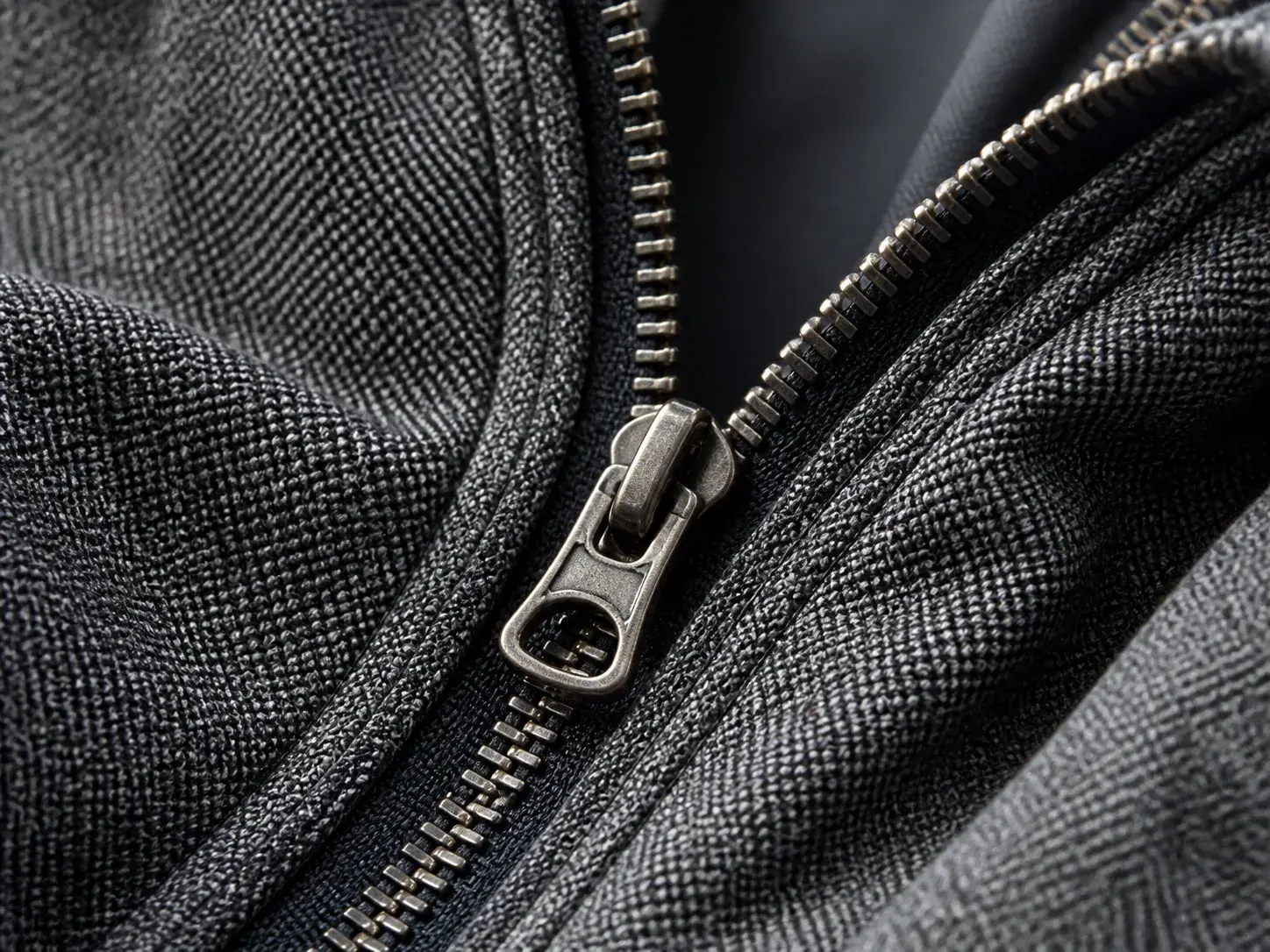
For video upscaling, AI reconstructs visible edges and detail from source frames instead of recovering original pixels. The same reconstruction supports VideoAI's AI 4K video upscaling output.
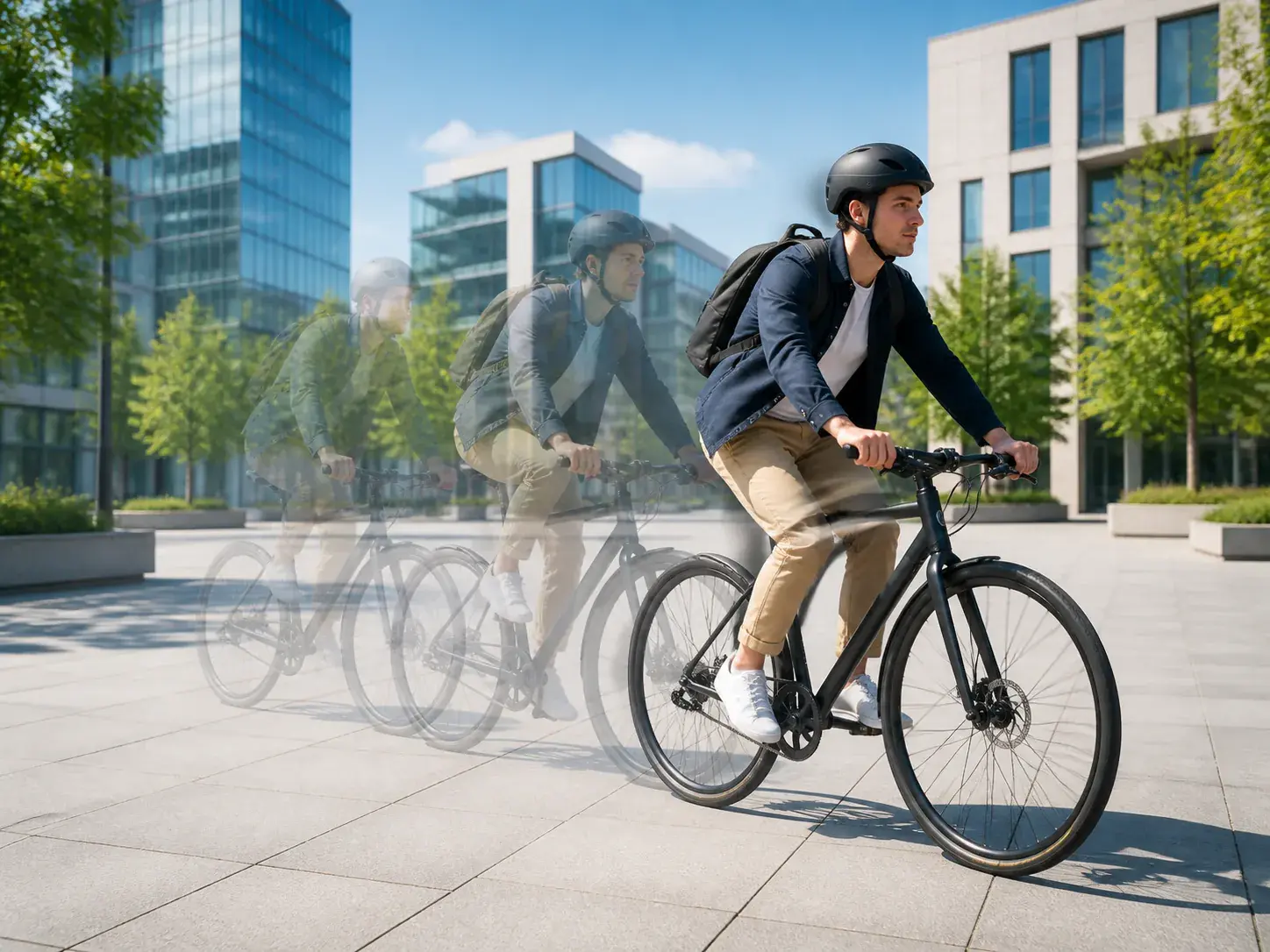
For fast scenes, choose 30fps or 60fps interpolation when movement needs a smoother cadence. This adds frames between frames and stays separate from improving blur within a single frame.

Use VideoAI as an AI video upscaler online to upload common video formats in the browser and submit multiple files when needed. AI video upscaling then keeps creator, campaign, and client enhancement queues organized.
Move from source clip to frame analysis to finished output, with ai video upscaling tools focused on clearer resolution, cleaner frames, and smoother motion when needed.
Step 01
Upload an existing low resolution or compressed clip in a common video format. When several files need enhancement, submit them through the AI Upscale Video Online workflow in your browser.

Step 02
AI video upscaler identifies motion blur, focus softness, compression artifacts, and low light areas, then targets the affected parts after upload.
Step 03
Choose optional 30fps or 60fps smoothing when motion needs a more fluid cadence. After reconstruction, denoise, and color correction, upscale video with ai for 2K or up to 4K output for delivery, client review, or further editing.

Upload an existing clip to VideoAI, let AI reconstruct each frame, and use AI to upscale video into a clearer 2K or 4K result for your next edit.
Get Started