

Step 01
Provide video and direction
Open a generated or saved video in your VideoAI workspace, then describe the change you want in plain language. Add image, video, or audio references with @ when they help define the result.

This online clip editor lets you provide a video, describe the change in plain language, and generate a revised version you can preview, refine, and export.

The clip editor online workflow moves from a source video to a reviewed revision without a traditional timeline workflow.
Step 01
Open a generated or saved video in your VideoAI workspace, then describe the change you want in plain language. Add image, video, or audio references with @ when they help define the result.
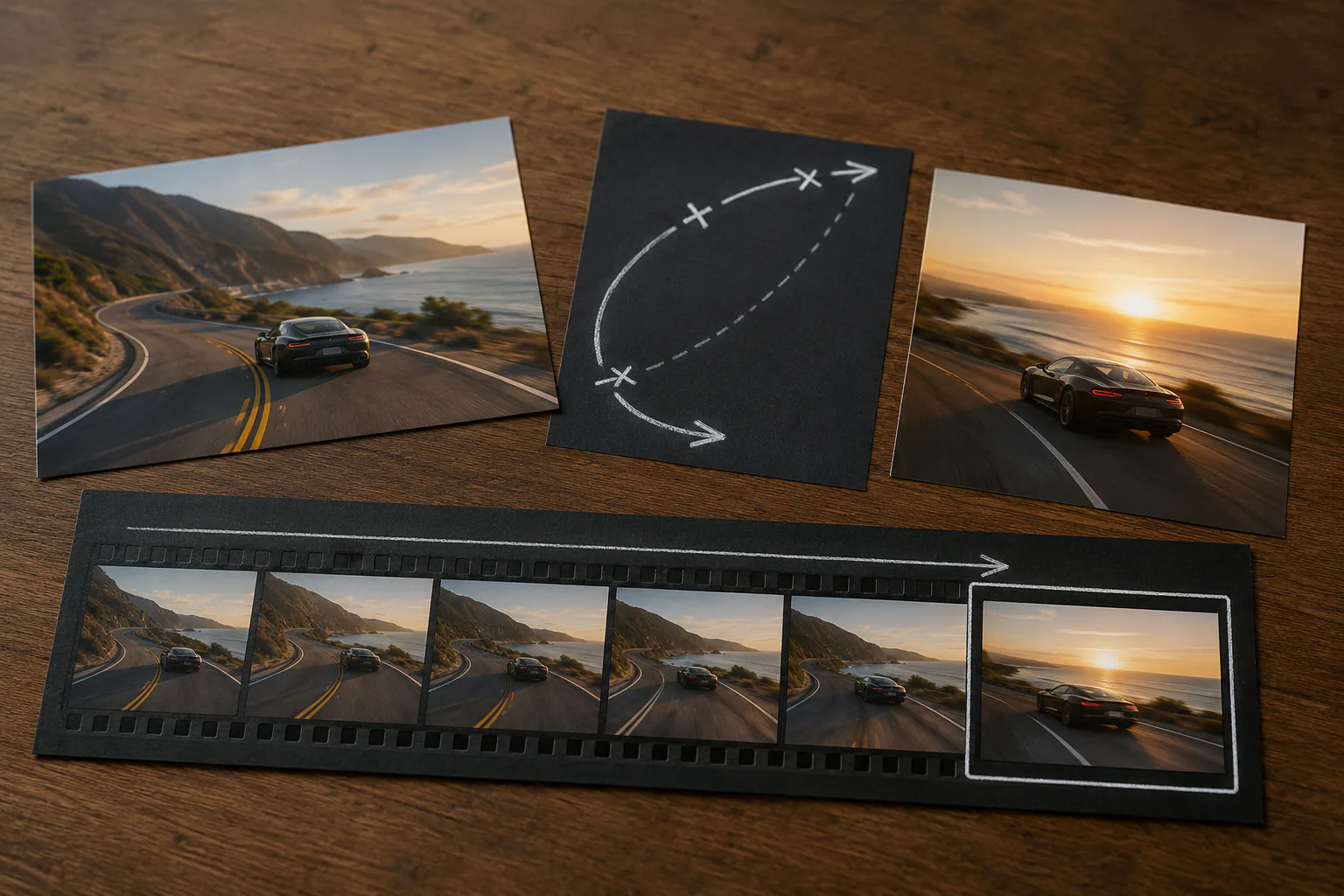
Step 02
VideoAI uses your prompt and references to generate a revised version. Preview the result and judge the action, scene, pacing, or sound against your original note.
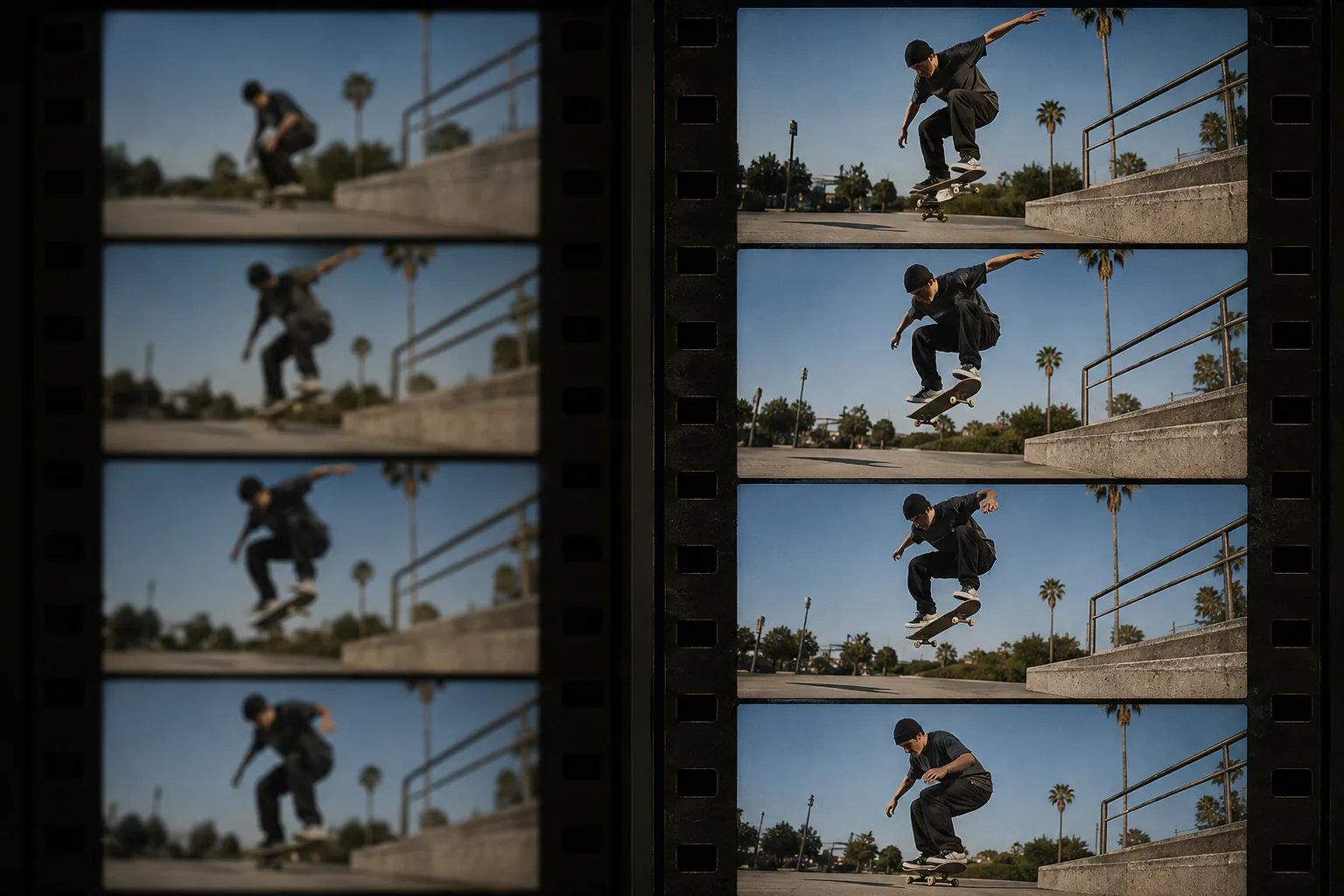
Step 03
If the first result needs another change, write a new prompt and generate another version. Continue until the preview is ready, then download the final video as MP4.
Use the clip editor when feedback is easier to describe than rebuild with manual timeline controls.

When a finished short needs a different action, setting, or visual emphasis, the clip editor helps creators edit clips by describing that change and generating a new version for review.

The clip editor turns a clear review note into a revised campaign clip while keeping the source project, creative direction, and references together in VideoAI.

If an explainer scene does not support the point, state what should happen instead and preview a revised version before you export.

Create another version with a new prompt to compare a different scene, action, camera direction, or sound mood without restarting the project.
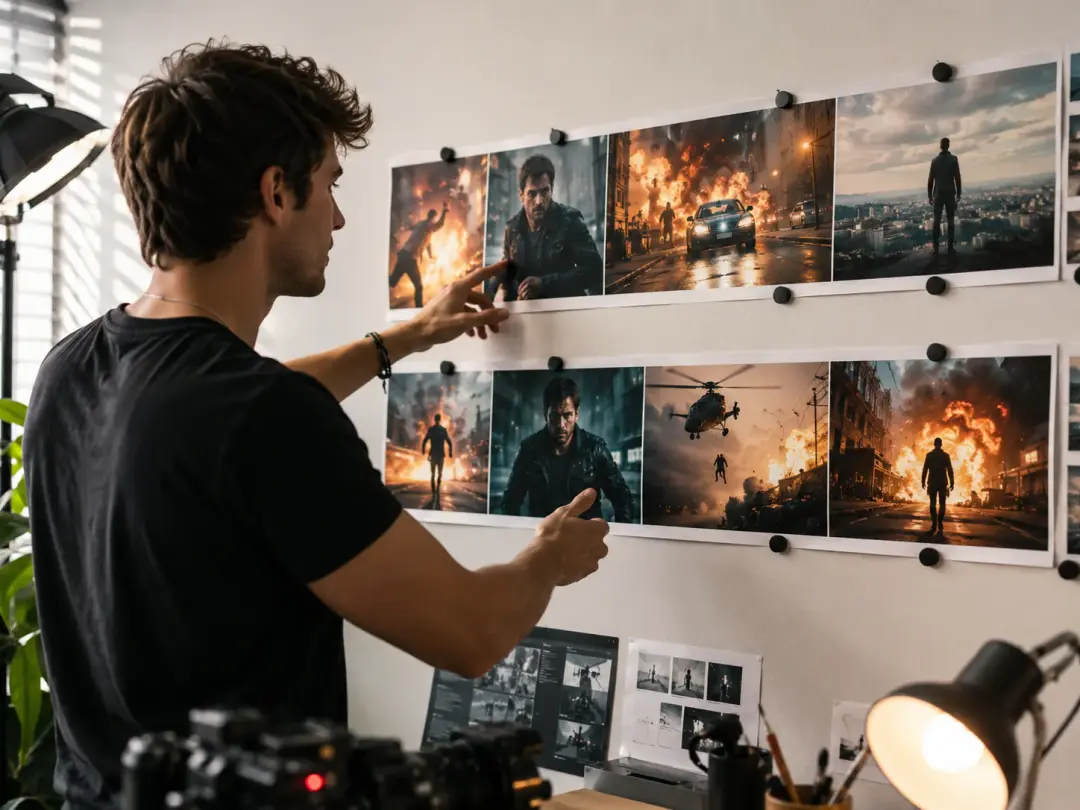
The clip editor lets creators bring a generated or saved short back into VideoAI, describe the next change, and compare a new version before posting.

Teams can translate campaign feedback into plain language revision prompts and review another version without a traditional NLE handoff.
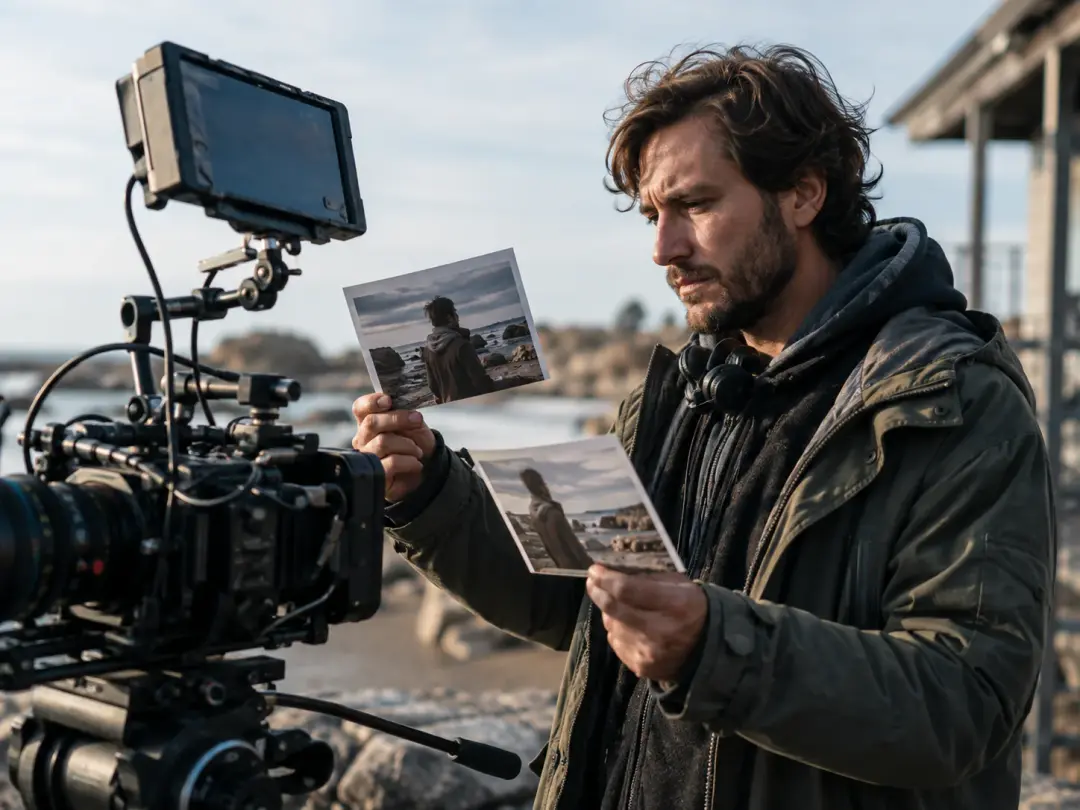
Education and training makers can revise a scene, action, or pacing direction by prompt while keeping the lesson goal clear through each preview.
Direct the revision in plain language, inspect the generated result, and keep refining through generated versions instead of manual timeline controls.
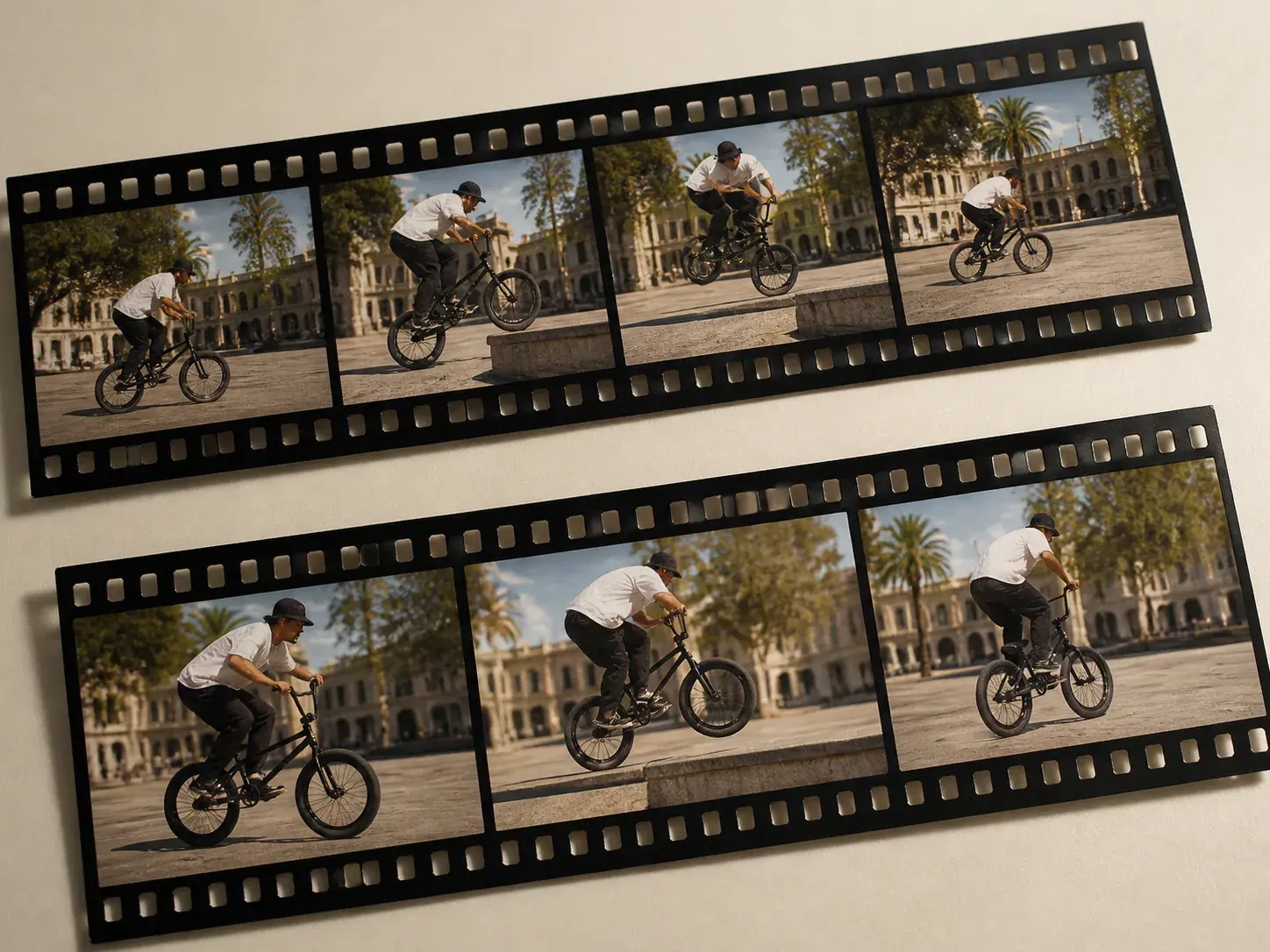
Write what should look, move, or sound different in plain language. The clip editor uses that instruction as the creative direction for the next generated version.
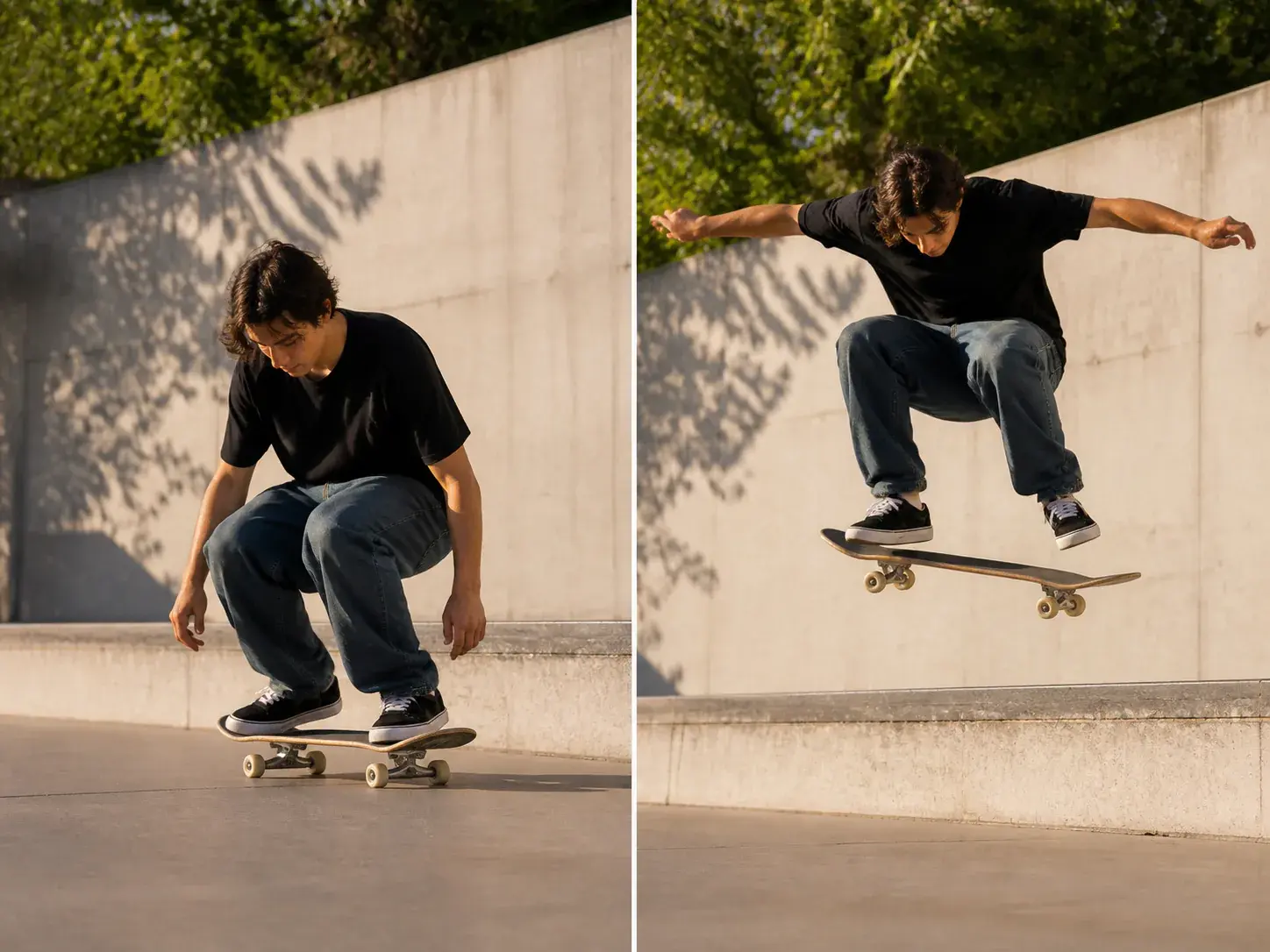
VideoAI follows the prompt and any assigned references to create another pass. The clip editor returns a generated clip edit rather than a set of manual trim, split, or track controls.
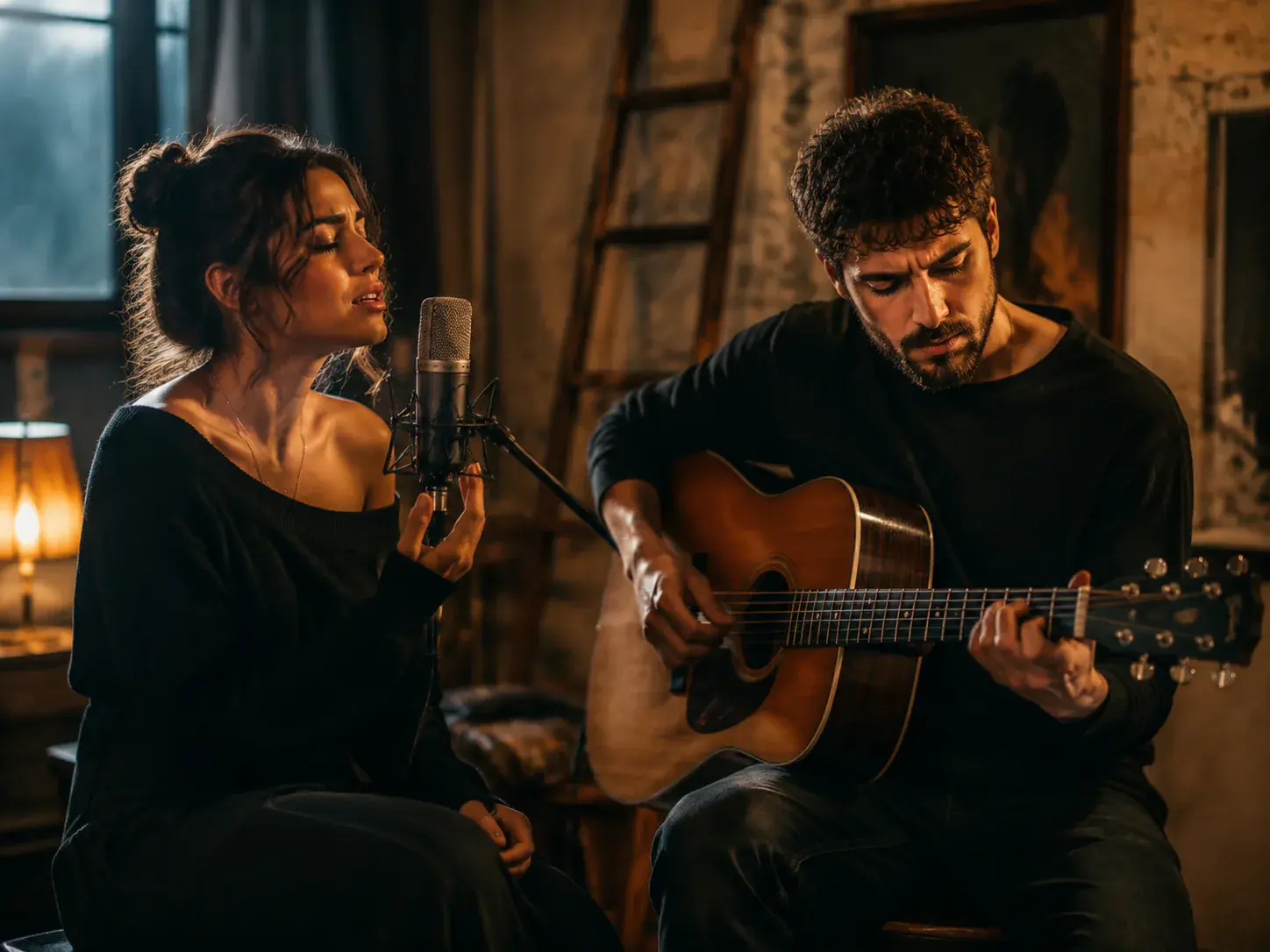
Review the output, compare it with your request, and describe the next adjustment. Clip editing stays prompt based, so a new instruction can revise the action, camera direction, scene, or sound intent again.
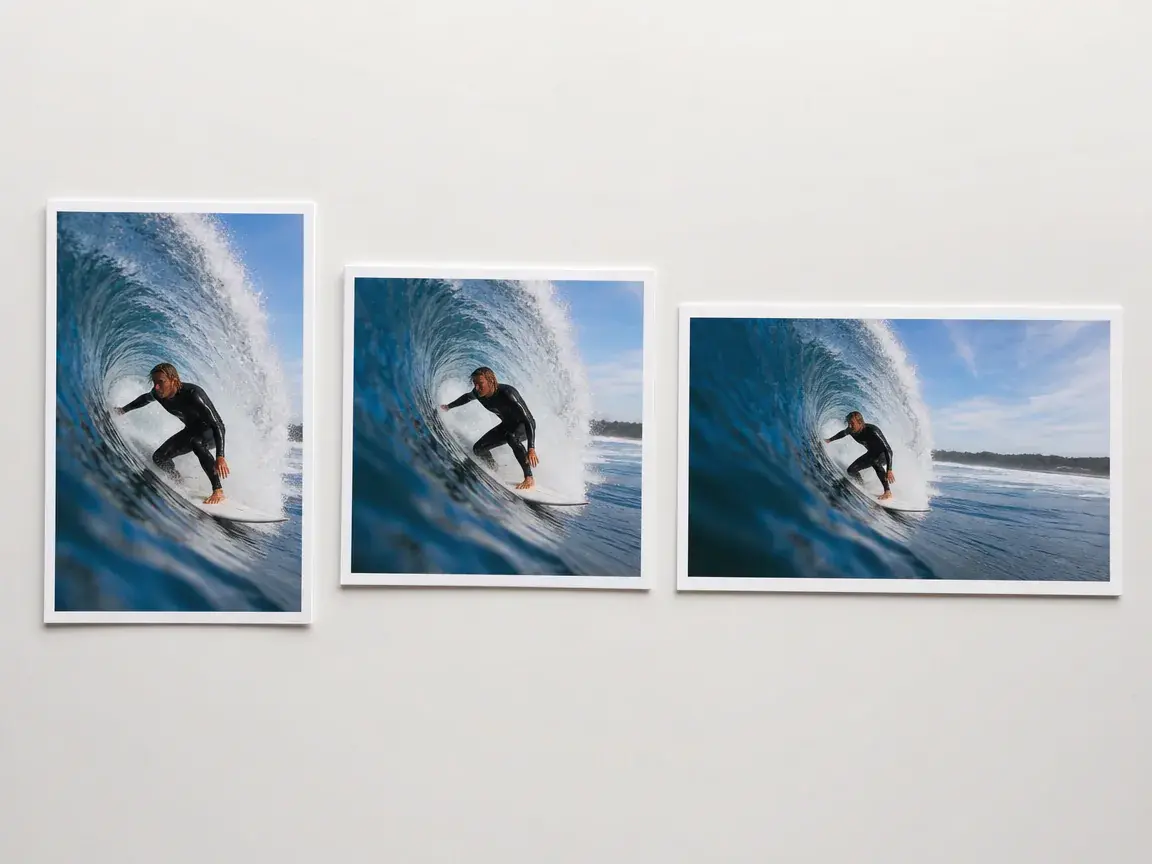
Keep revising until one preview is ready, then download that version as an MP4 with no watermark. VideoAI supports 16:9, 9:16, 1:1, and 4:5 choices with output up to 4K.

Provide a video, describe the change, preview the new version, and keep refining until the final MP4 is ready.
Get Started