Photo Collage Maker

Make a photo collage from the pictures you already have, then arrange, balance, and blend them into one finished image that feels collected rather than crowded. The workflow is designed for families, travelers, event hosts, and social creators, with whether the layout still reads at thumbnail size and whether faces or important details have been cropped as the final check before the asset is reused.

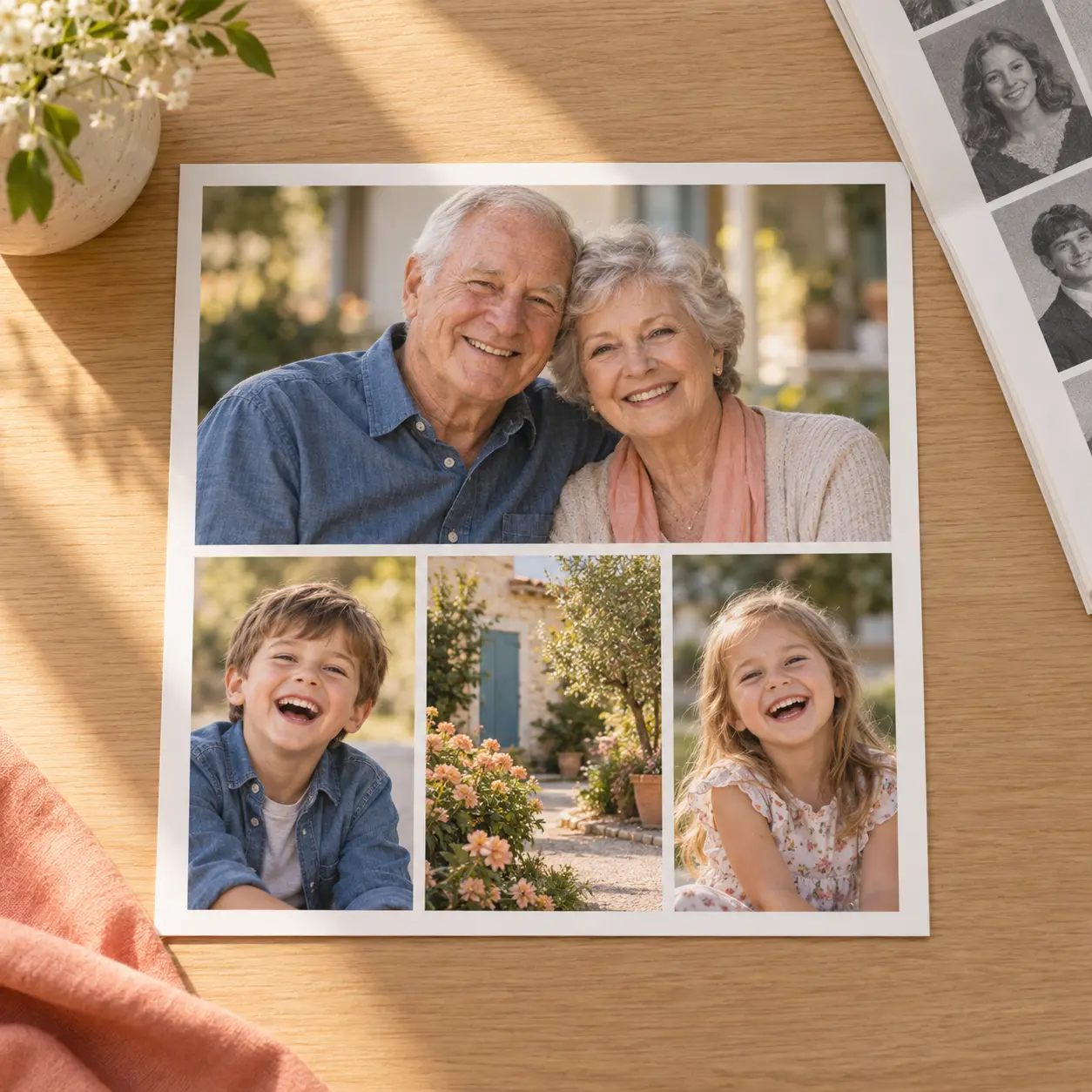
A warm family photo collage arranged as one balanced yearbook page

What the Photo Collage Maker Handles

Each card explains one part of building a photo collage that stays readable when the source pictures come from different places, formats, and moments.

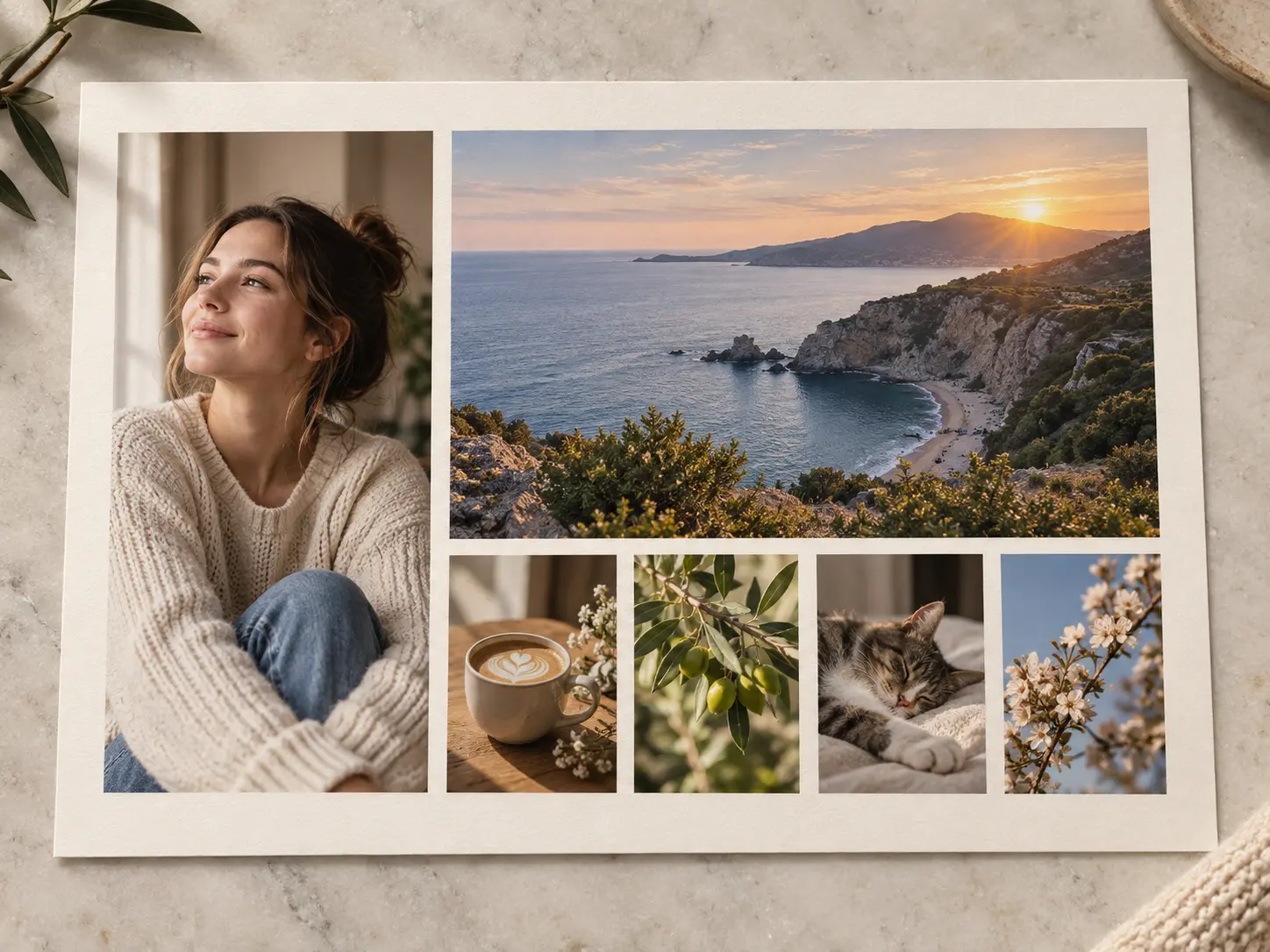
One balanced photo collage print with varied picture shapes and calm spacing

Layouts That Find Their Balance

The photo collage maker reads the shape, subject, and visual weight of each picture, then places them so focal points do not collide. A clean grid keeps a large set orderly, an airy mosaic leaves more breathing room, and a looser scrapbook arrangement can make the result feel handmade. As pictures are added or removed, spacing and alignment stay coherent instead of leaving one crowded corner or an accidental empty gap.

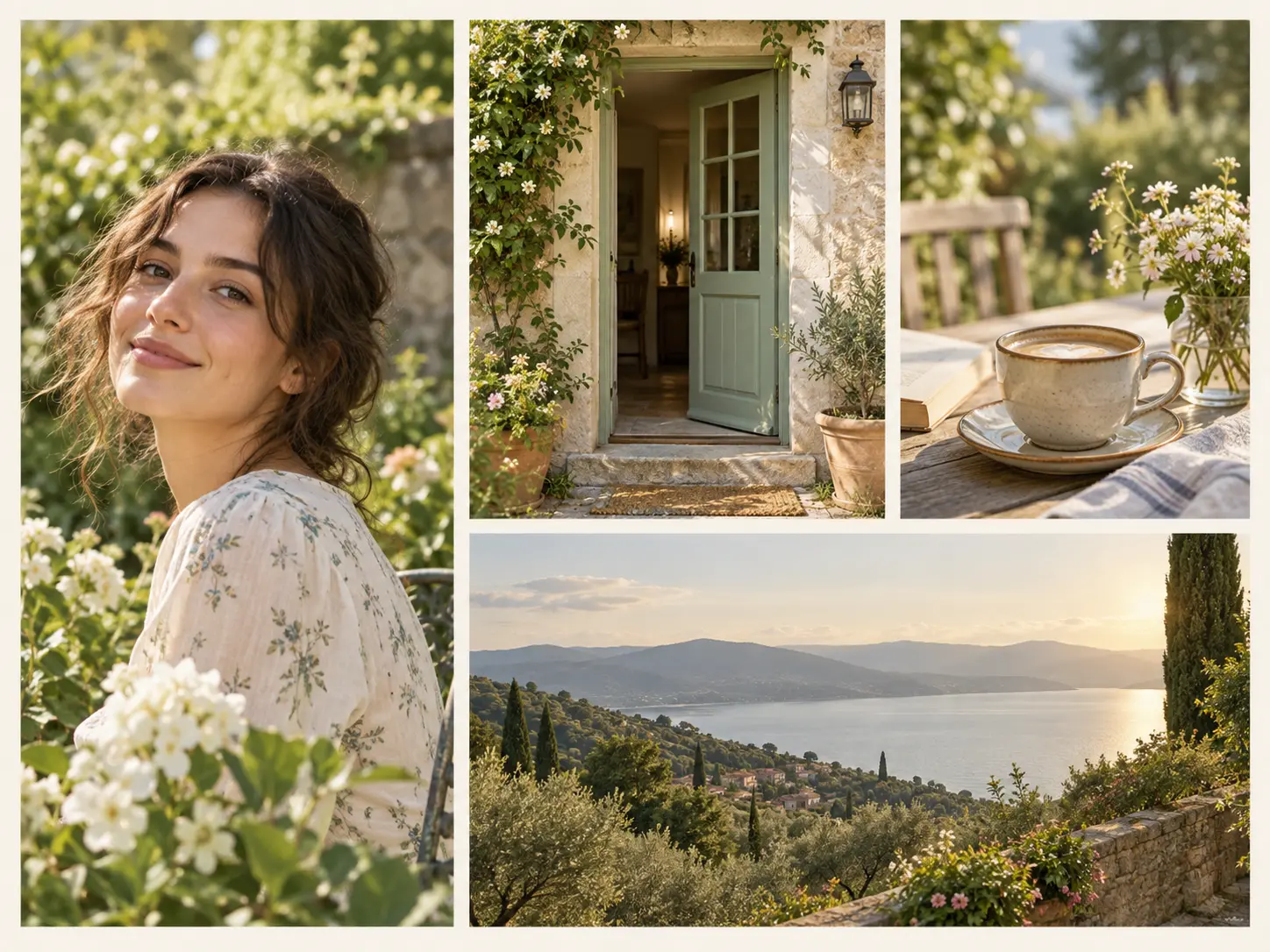
A color-balanced photo collage with warm daylight carried across every picture

Tone That Pulls Together

Photos from different days rarely share the same light. The photo collage maker balances warmth, exposure, contrast, and color casts so the finished collage feels intentional instead of pieced together from unrelated shots. Skin can stay natural beside a bright landscape, and a dim interior can sit comfortably next to a sunlit portrait. You can still choose a bolder treatment when a shared mood matters more than a neutral match.

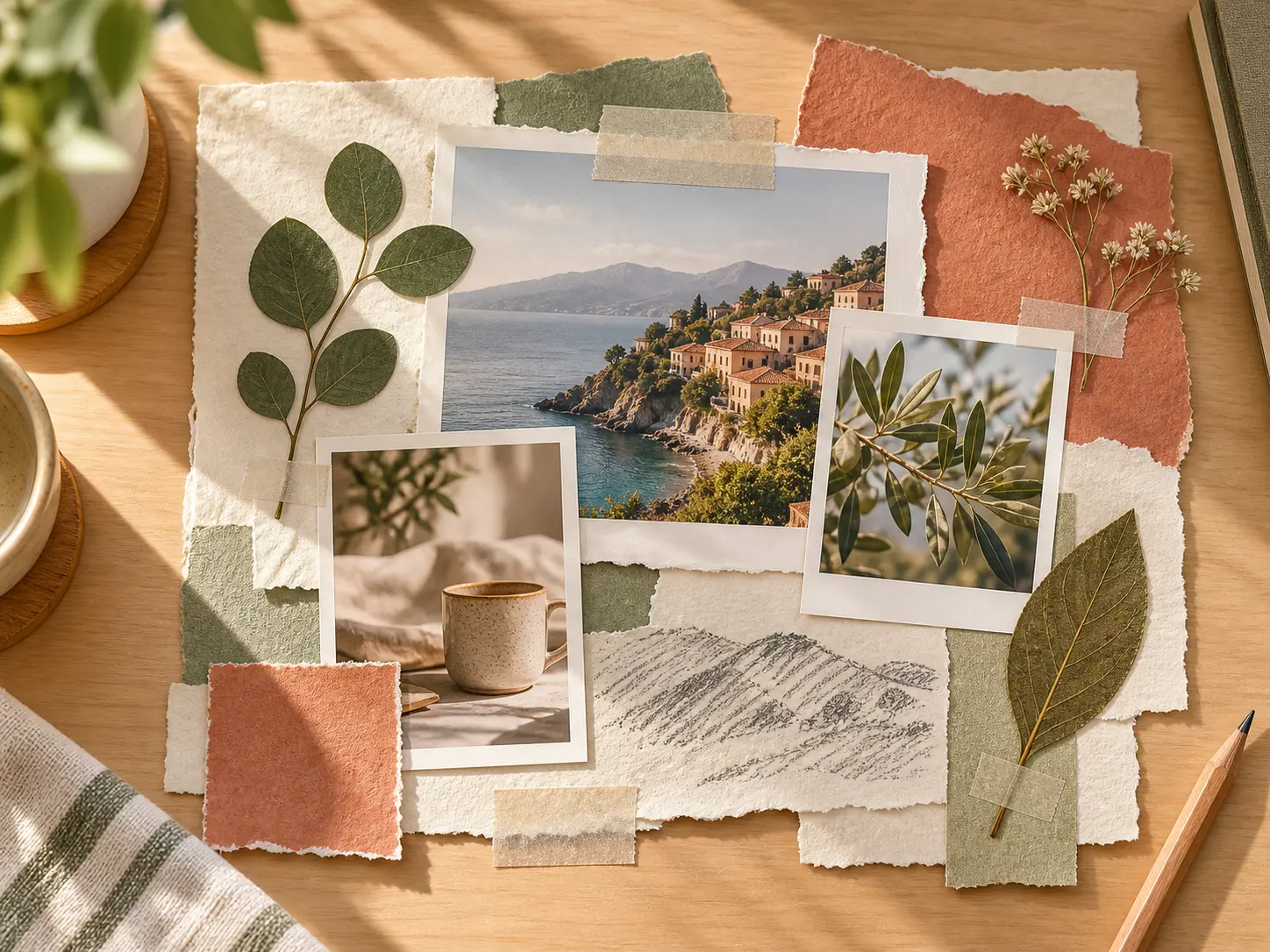
A paper-inspired photo collage with layered prints, tape, and soft shadows

A Style for Every Story

Move between clean editorial grids, paper-inspired scrapbooks, filmstrip stories, and soft overlapping frames. Each direction changes how the photo collage reads while keeping every selected image visible. Structured layouts work well for products and family groups, while layered prints, tape, and handwritten-looking paper textures give personal photos a warmer character. Choose a style first, then adjust the order if one image deserves more attention.

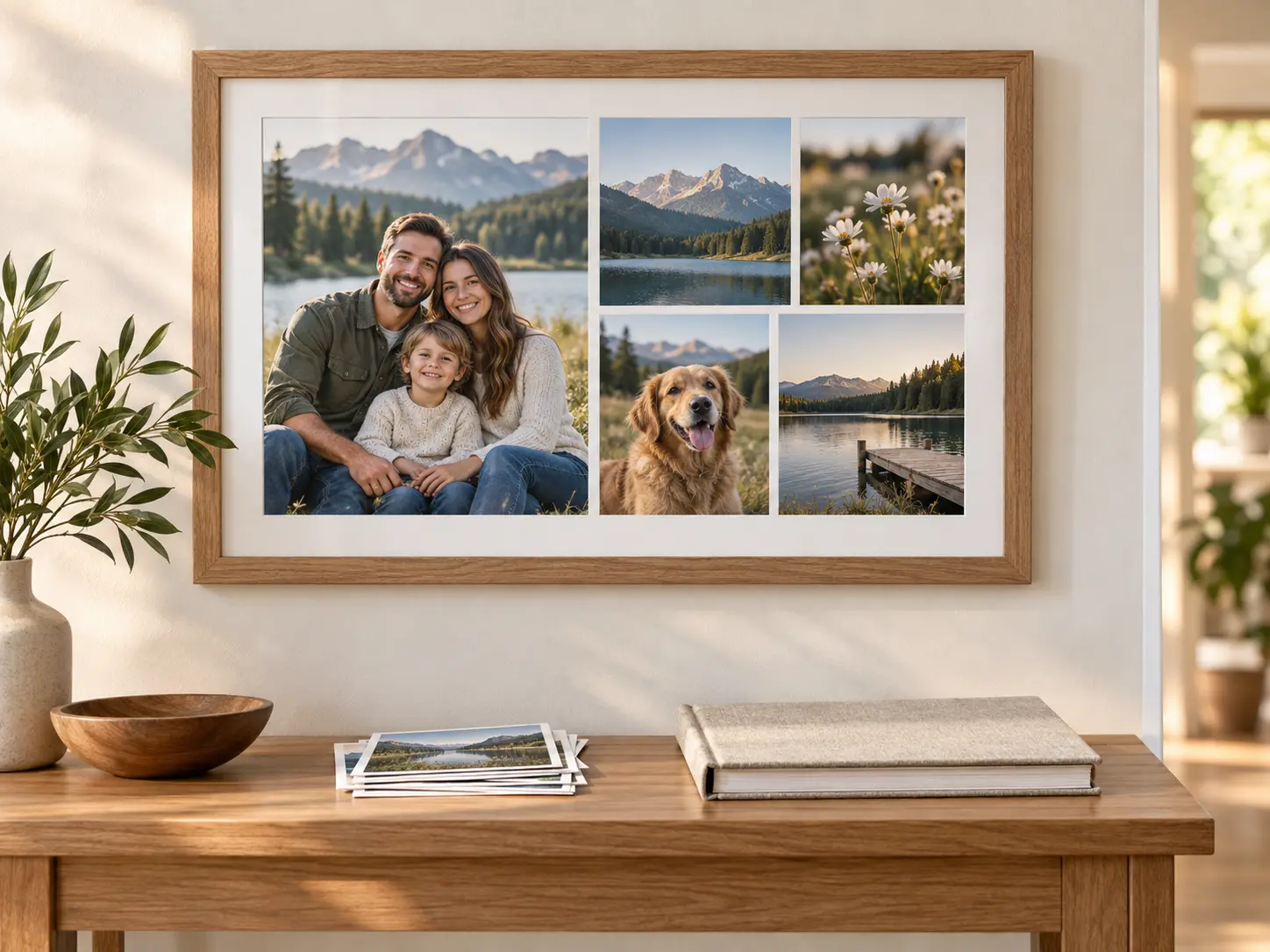
A framed photo collage hanging in a bright room beside a small stack of prints

Ready for Sharing or Print

Finish a photo collage for a social post, an invitation, a family archive, or a wall print. The composition stays crisp at full size, with useful space around faces and important details. Before downloading, review the outer edges, the balance between portrait and landscape photos, and the smallest elements you expect people to read. Exporting one strong master image also makes later reuse simpler across screens and printed formats.

How to Create a Collage

Three clear moves take the collection from loose pictures to one finished photo collage.

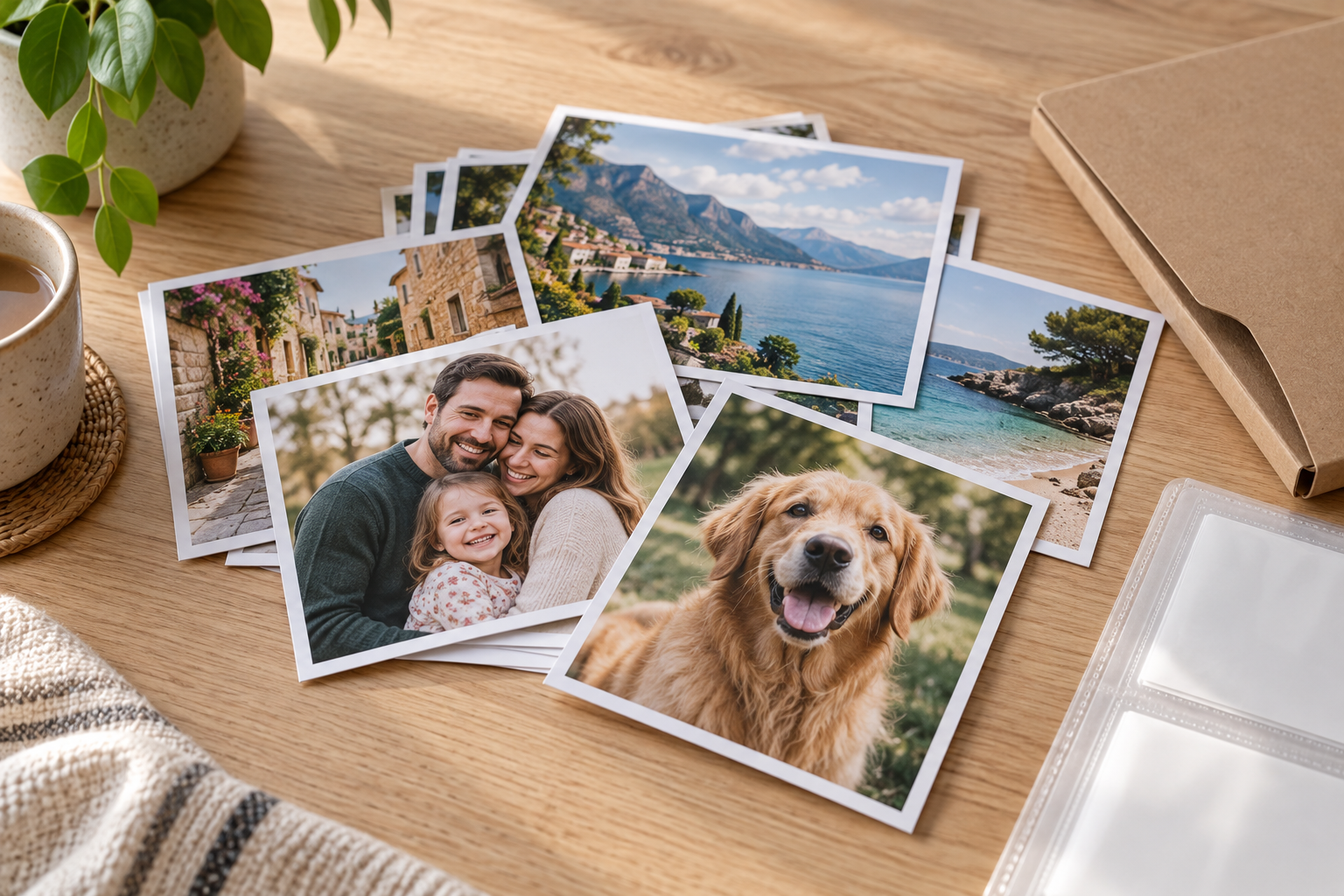
A loose stack of family, travel, and pet photo prints on a pale table

Step 01

Add Your Pictures

Bring the photos you want to compare or preserve. Mixed phone shots, camera files, and scanned prints can all start the same photo collage. Choose a focused set first, then add supporting images when the main story still has room to breathe.
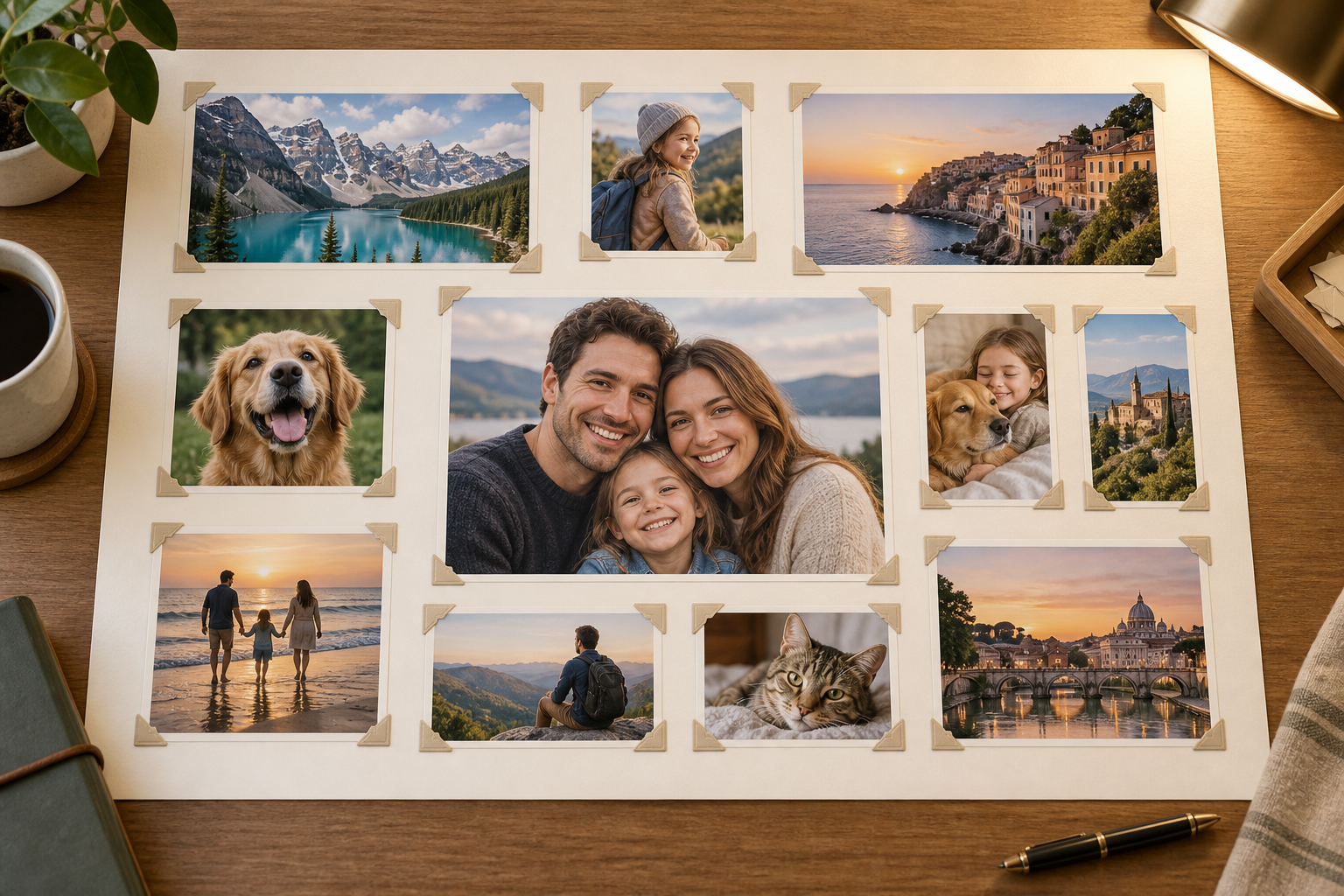
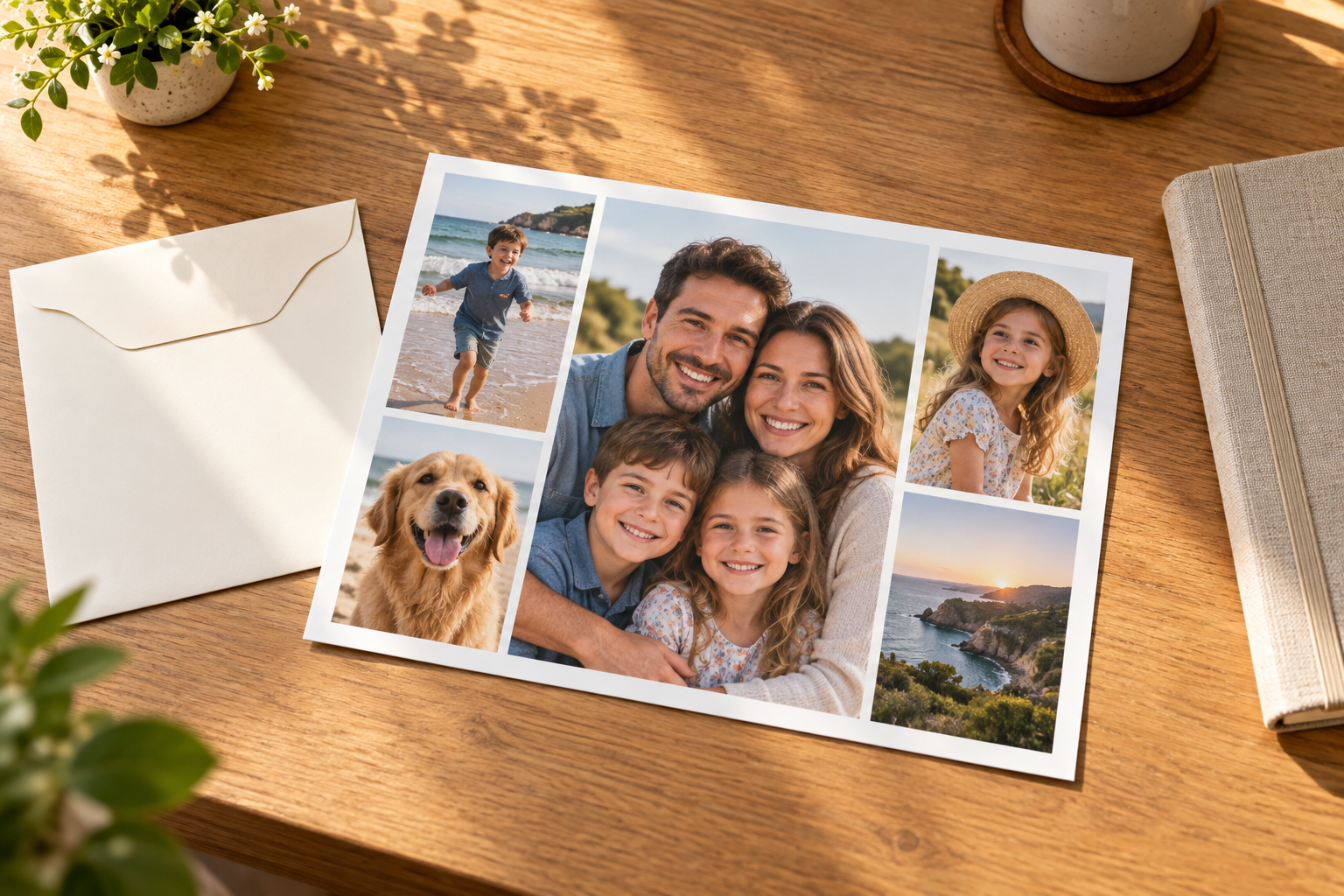
Photo prints arranged in a careful grid on paper with soft tape markers

Step 02

Choose the Arrangement

Pick a structured grid, an irregular mosaic, or a scrapbook direction, then let the photo collage maker place subjects and spacing into a readable whole. Reorder a picture if it feels too dominant, or add space around a face, product, or important detail before continuing.

A finished photo collage print resting on a bright wooden desk

Step 03

Review and Download

Check the balance, crop, color, and storytelling order across the finished photo collage. Look for repeated gestures, awkward overlaps, or a bright picture that pulls attention away from the main subject. Download the result when the composition reads clearly from edge to edge.

Who Uses a Photo Collage Generator

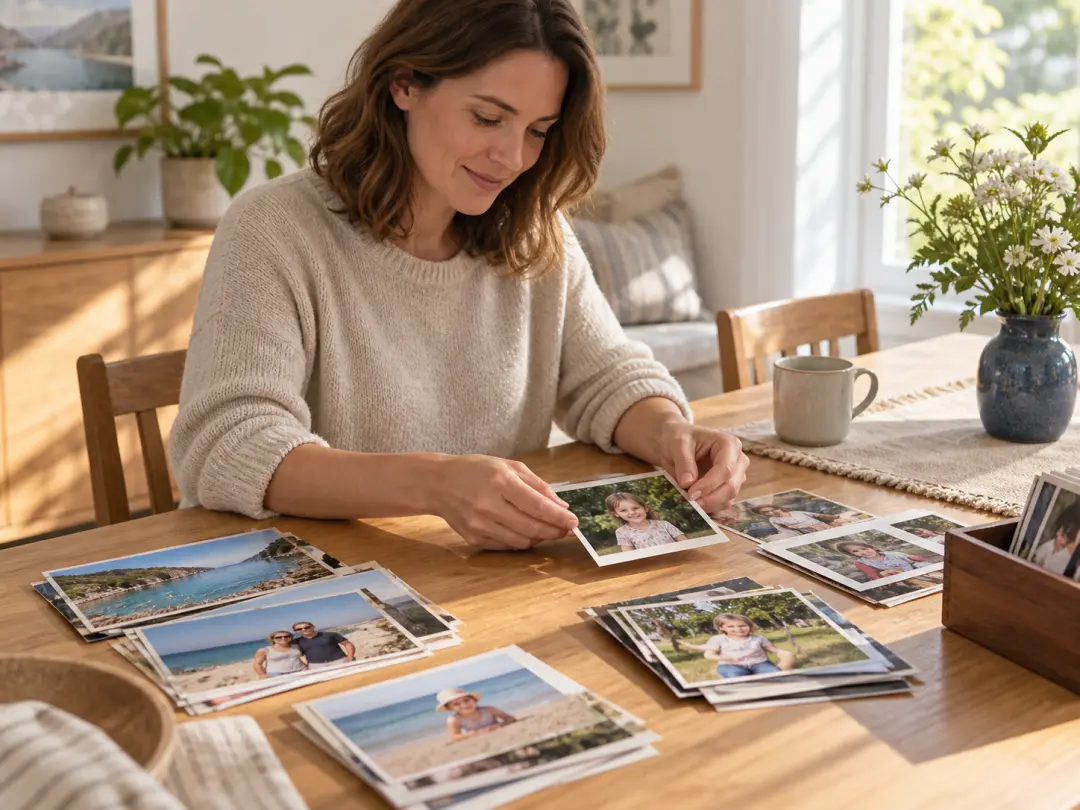
A parent sorting family photo prints at a sunlit dining table

Memory Keepers

Turn birthdays, holidays, and everyday family pictures into a photo collage that belongs together. The result gives old moments a new place without hiding the expressions that matter. Keep a mix of wide scenes, close portraits, and small details so the finished piece has both context and personality.

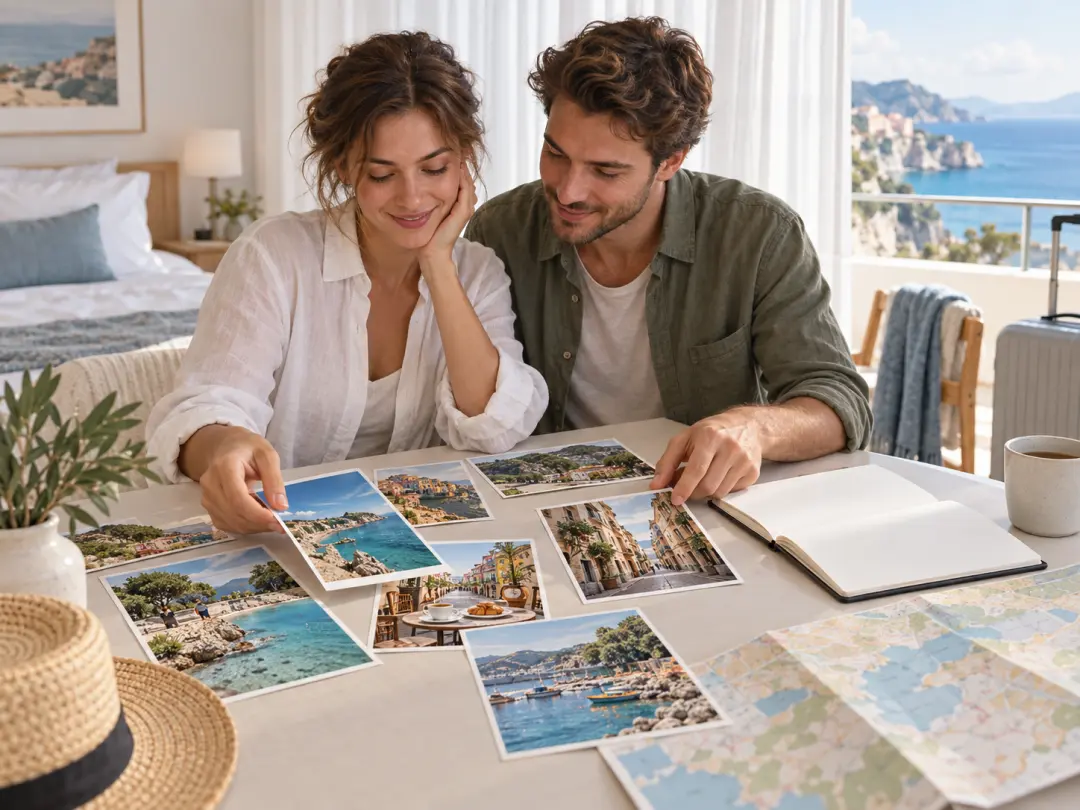
Travelers arranging coastal and city photo prints on a hotel room table

Couples and Travelers

Combine coastlines, streets, meals, and candid portraits from one trip. A photo collage can tell the whole journey in one frame instead of spreading it across a long album. Arrange the destination first, then add people and details that explain what the experience felt like, not only where it happened.

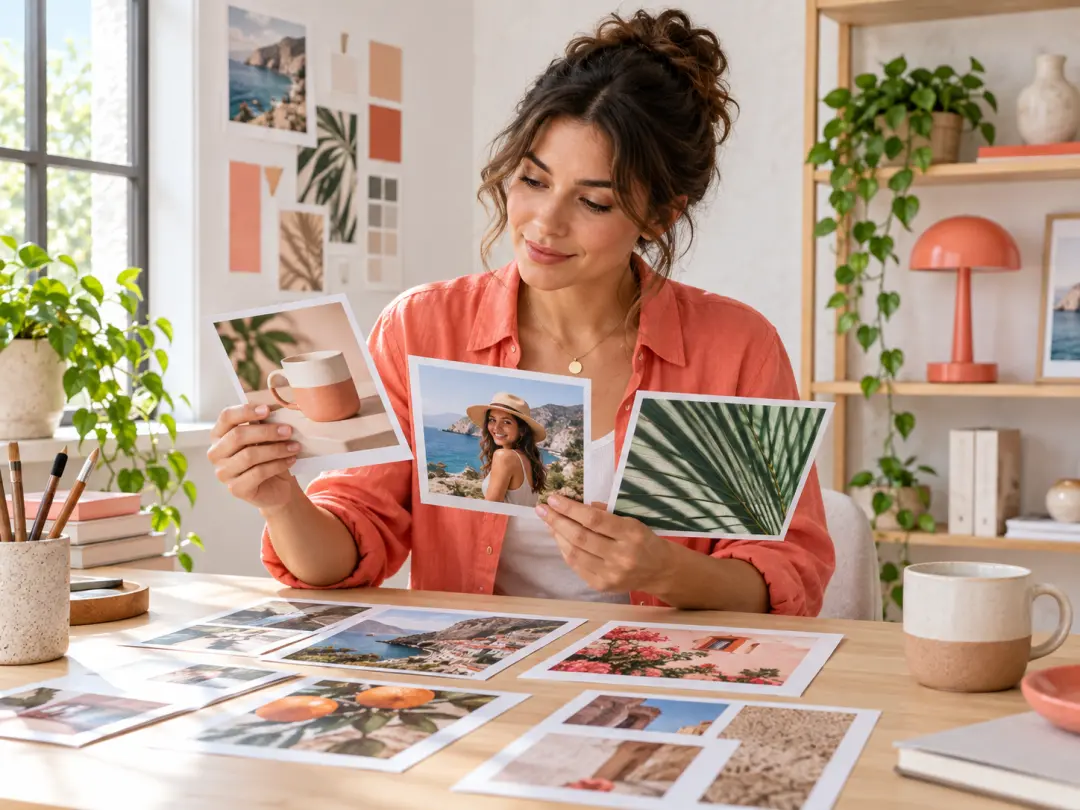
A content creator reviewing colorful photo prints in a bright home studio

Social Creators

Build a photo collage for announcements, recaps, mood boards, and product stories. A clear layout turns a set of related pictures into one post people can read at a glance. Keep the main message image large, support it with two or three details, and use color or spacing to guide attention before you publish.

Popular Photo Collage Ideas

Use the same workflow when a group of pictures needs one shared story.

01

Birthday Keepsake

Gather portraits, celebration details, and candid reactions into a photo collage that feels like the day, not just a collection of images. Put the guest of honor near the visual center and use smaller pictures for decorations, favorite moments, and expressions that tell the story around them. Keep AI blending may trim edges or shift small details, so important faces and dates should be checked. That check matters before the asset moves into portrait and landscape JPG, PNG, or WebP images.

02

Travel Recap

Pair a wide landscape with close details and people shots. The photo collage gives a whole trip one visual summary and lets the destination, activities, and shared moments support one another. Keep the strongest view large, then use smaller frames to preserve the small observations that make the journey specific. For travel recap, choose the strongest image first, then arrange supporting pictures around one clear visual rhythm. Check whether the layout still reads at thumbnail size and whether faces or important details have been cropped before treating the result as finished.

03

Wedding Memories

Arrange ceremony, family, and quiet in-between pictures with enough space for each moment. A photo collage can hold the day without feeling busy when one portrait leads and the remaining images follow a clear rhythm. Favor meaningful gestures over near-identical frames, then balance formal pictures with candid ones. Start with a selection of related pictures, then keep grid balance, focal image, tone, scale, and spacing consistent while you compare directions. The final test is whether the layout still reads at thumbnail size and whether faces or important details have been cropped.

04

Social Media Set

Create a photo collage for a launch, seasonal recap, or product story, then use the same image across a post, story, or planning board. Build the sequence around one clear message, keep important packaging or product details readable, and check that the layout still works when the image appears at a smaller size. Export one master collage first, then resize copies for each social placement instead of rebuilding the same layout repeatedly.

FAQ

Photo Collage Questions

It combines several pictures into one layout while keeping faces, products, and defining details readable. You can use a photo collage for gifts, family archives, travel stories, social posts, and print projects. A strong result usually includes one main image, a few supporting views, and enough spacing to show where each moment begins and ends. This matters for families, travelers, event hosts, and social creators, especially when the result will appear in birthday keepsakes, travel recaps, wedding memories, and social sets.

There is no single right number. Three to five pictures keep a simple story focused, while larger sets work better with a structured grid or generous spacing. Start with the images that carry the strongest moments, remove near duplicates, and add more only when the new picture contributes context, contrast, or a missing point of view. Keep the decision practical: a selection of related pictures.

Yes. Mixed shapes can add rhythm when the layout gives each image enough room. The photo collage maker can place tall and wide pictures together without forcing every frame into the same crop. For a calmer result, balance one dominant orientation with several smaller pictures, then check that faces and product edges still have space around them. Leave a small gutter between frames so subjects do not merge at the edges.

The photo collage maker is designed to keep important content visible, but an extremely narrow source frame may still need a different crop. Review the result after placement and replace any source that loses a key subject. If a photo contains several important people, a looser layout or a wider source version usually protects more of the composition. The useful check is whether the layout still reads at thumbnail size and whether faces or important details have been cropped. portrait and landscape JPG, PNG, or WebP images.

Common photo formats such as JPEG, PNG, and WebP are the best starting point. Clear files with normal exposure give the layout more detail to work with than heavily compressed copies. Keep transparent PNG only when the background is part of the composition; otherwise, a clean photograph is often easier to blend into the finished photo collage. For this workflow, portrait and landscape JPG, PNG, or WebP images. The final choice should also fit portrait and landscape JPG, PNG, or WebP images.

No. Choose the pictures and a preferred direction, and the photo collage maker handles arrangement, spacing, and color balance. You can still review the finished composition before downloading it. If you want more control, change the photo order, switch the layout style, or replace an image that competes with the main subject. Start with a selection of related pictures, then compare the output with that source. choose the strongest image first, then arrange supporting pictures around one clear visual rhythm.

Yes. Shared spacing, a restrained border treatment, and balanced color can make pictures from different sources feel related without erasing their individual character. Decide whether you want a clean editorial look, a warm memory-book feel, or a playful social layout before you arrange the set. This matters for families, travelers, event hosts, and social creators, especially when the result will appear in birthday keepsakes, travel recaps, wedding memories, and social sets.

Review the main subject, edge cropping, empty gaps, and the reading order of the smaller pictures. Make sure no face or product detail is hidden, confirm that the color balance feels consistent, and view the result at the approximate size where people will see it before you download the final photo collage. Keep the decision practical: portrait and landscape JPG, PNG, or WebP images.
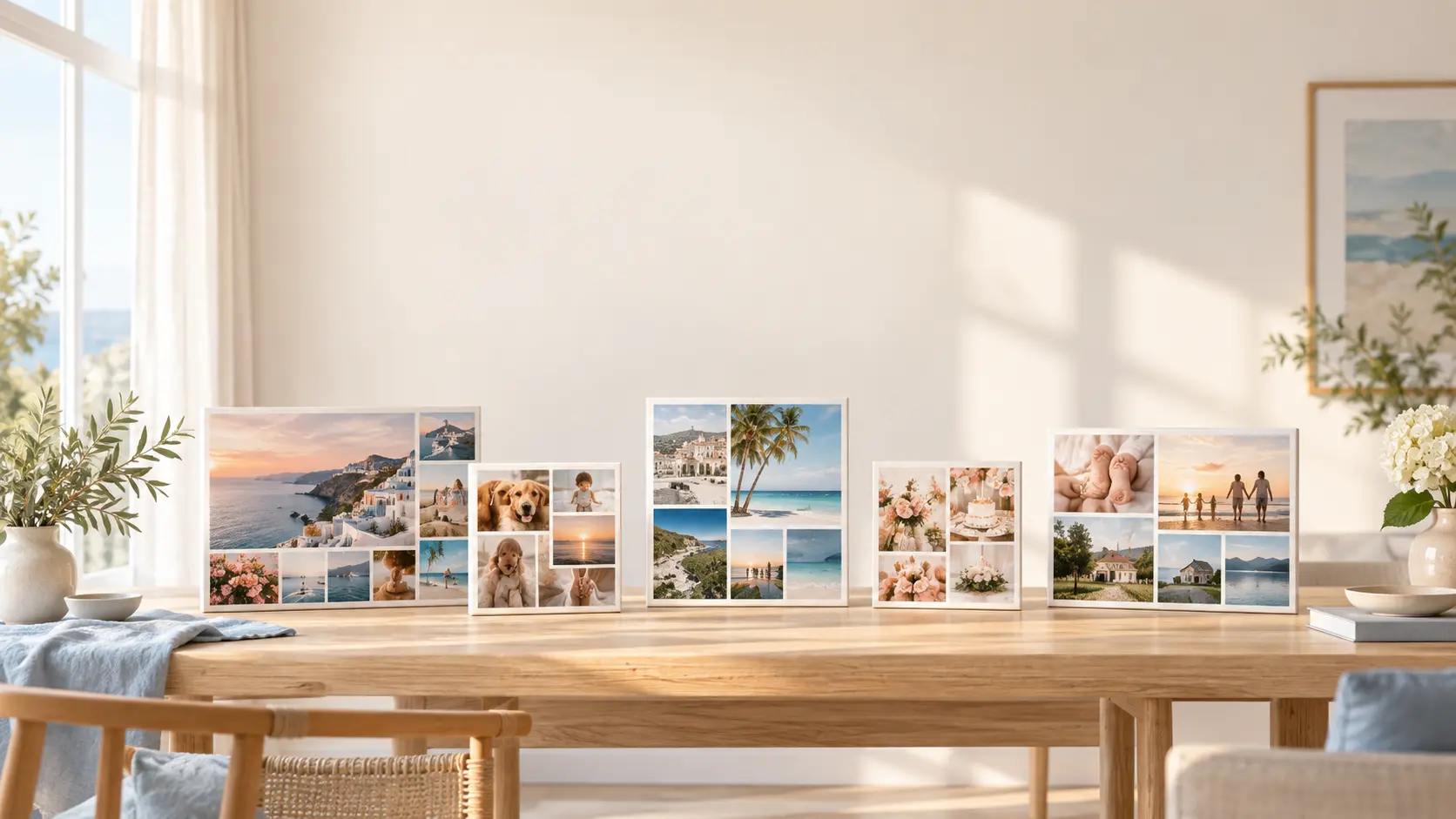
A bright room with several finished photo collage prints resting on a long table

Turn Your Photos Into One Story

Add the pictures, choose an arrangement, and create a photo collage that is ready to share, print, or keep as one complete visual memory.

Get Started
Photo Collage Maker - Create a Collage Online | VideoAI