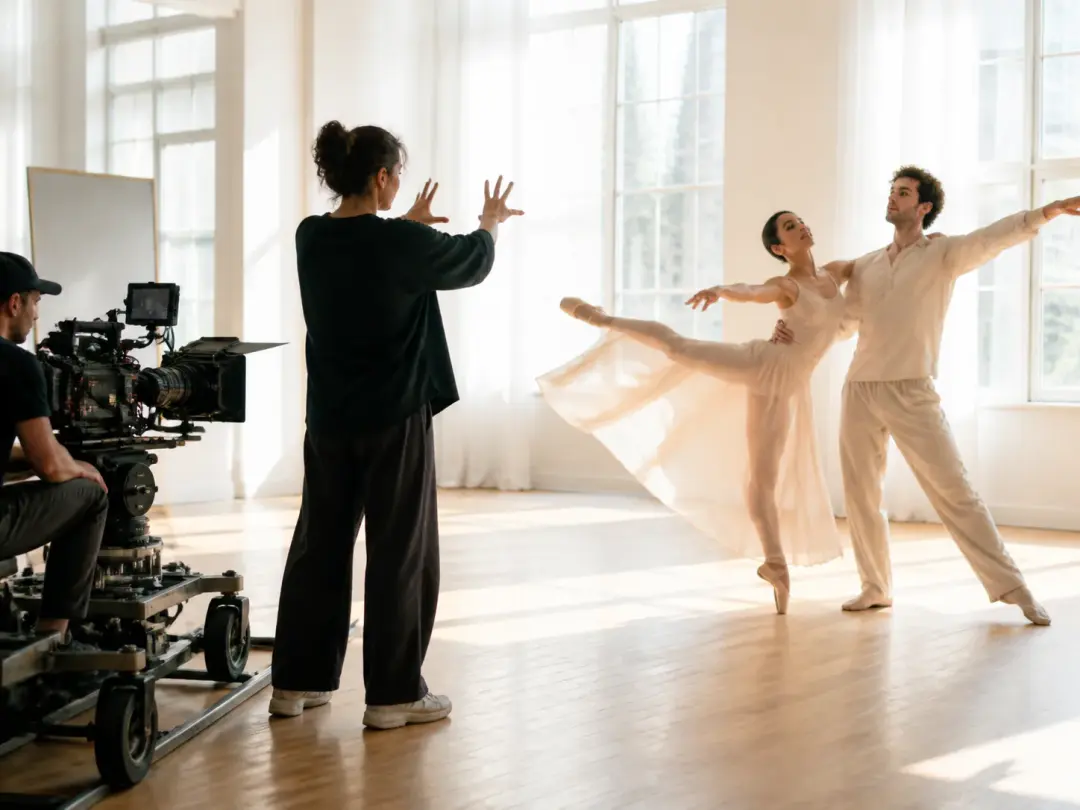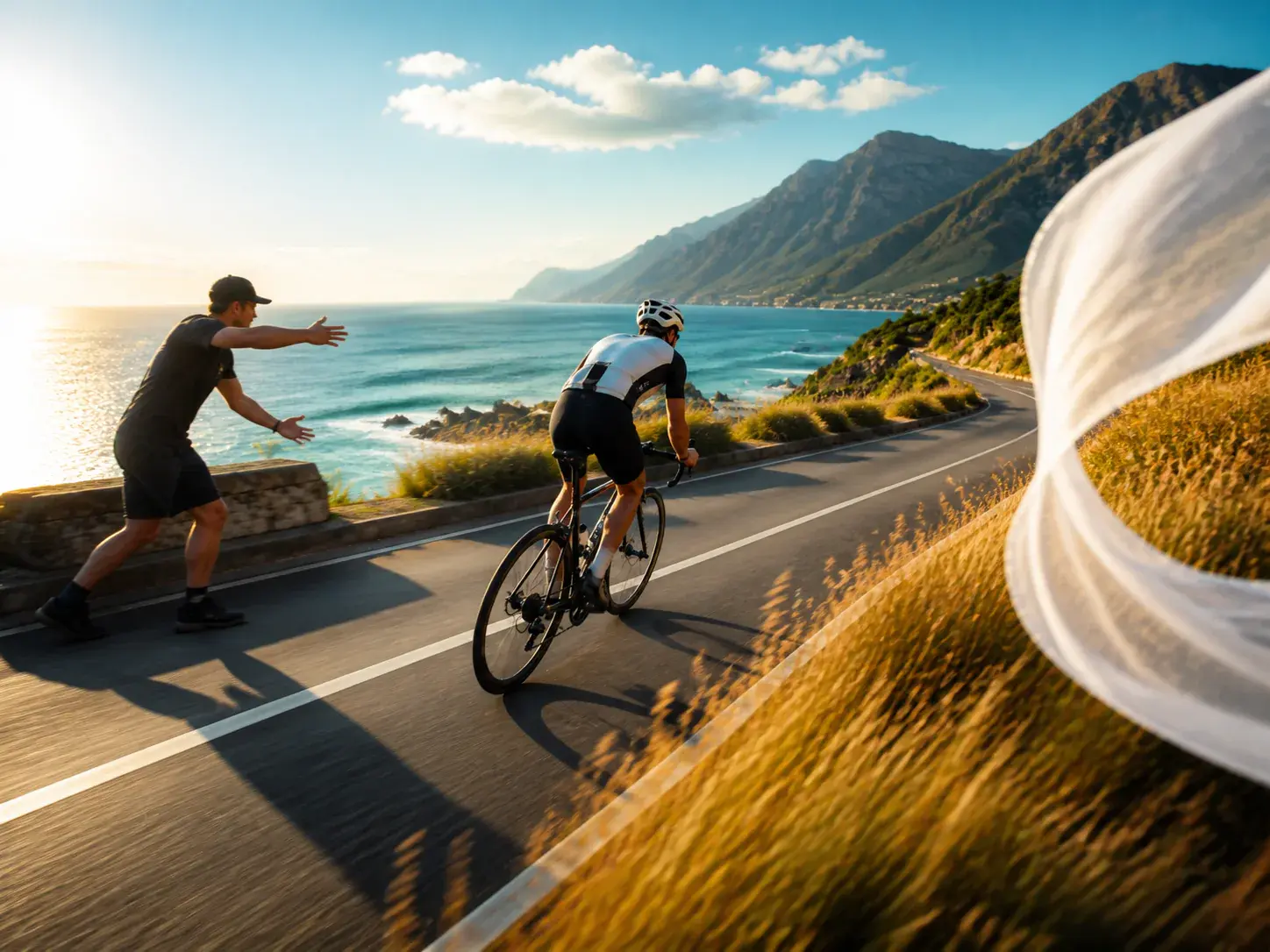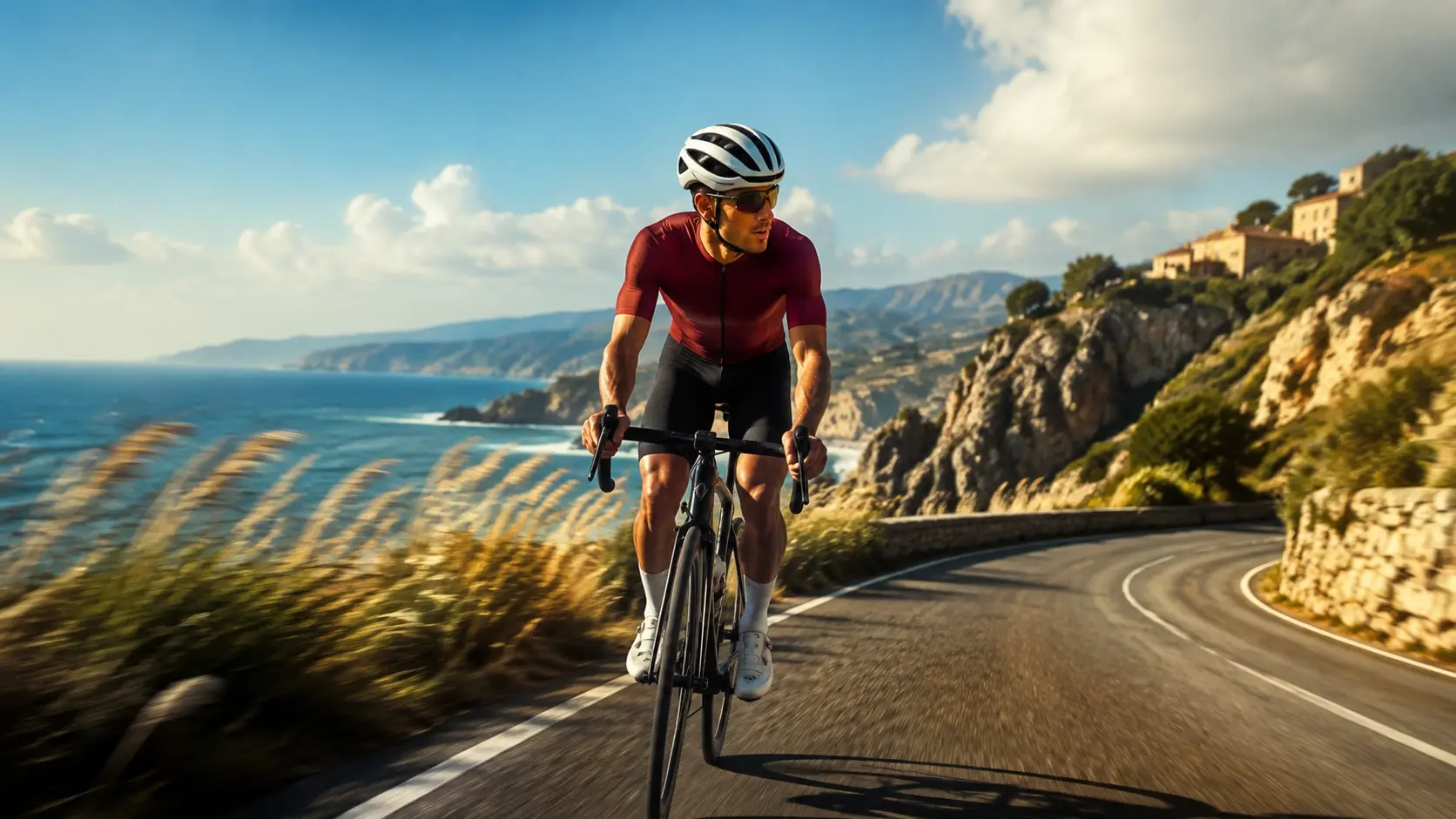
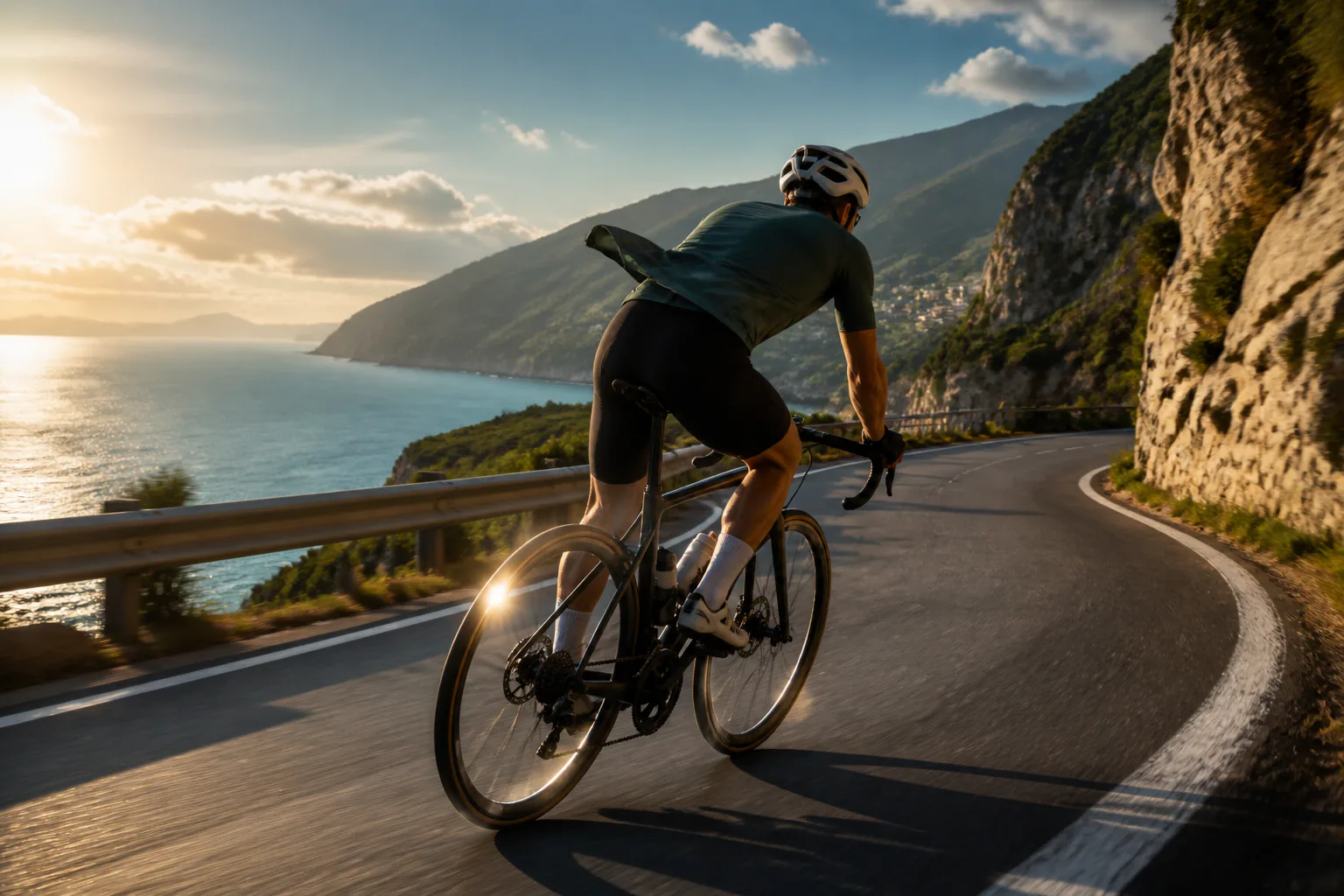
Wide cinematic AI video scene of a cyclist moving along a sunlit coastal road

Create AI Videos

VideoAI helps you create ai videos from an idea or reference media while you decide the scenes, motion, sound, and final MP4 direction.

Partnering with global industry leaders to power your creativity output

  • Veo
  • Nano Banana
  • Kling
  • Upscale
  • Seedream
  • Ideogram
  • ChatGPT
  • Flux
  • Qwen
  • Midjourney

Plan before you create ai videos

Start with creative intent, assign each asset a role, then guide VideoAI through easy video creation decisions that shape the result.

Prompt field with image, video, and audio references marked by source roles

Step 01

Add ideas and references

Type a line, upload images, video, or audio, or begin from templates and stock assets. Use @ to mark a first frame, subject, camera reference, music, or scene reference so ai video creation starts with clear source roles.
Timed storyboard rows with frame references, motion notes, and audio direction

Step 02

Arrange each time segment

Choose aspect ratio and style, then write what happens in each time segment. Add a segment reference image, start and end frames, motion guidance, camera direction, voice direction, BGM, or sound effect notes when the video creation needs tighter control.

Generated MP4 preview with text revision prompt and workspace project area

Step 03

Preview, revise, and export

Generate the video, review the result, and keep adjusting with text prompts in VideoAI. A single generation can run up to 30 seconds, and finished work can download as MP4 up to 4K or stay in your workspace for creating videos with ai later.

Places to create ai videos

Use VideoAI when the goal is a visible draft you can steer, compare, and create ai videos from.

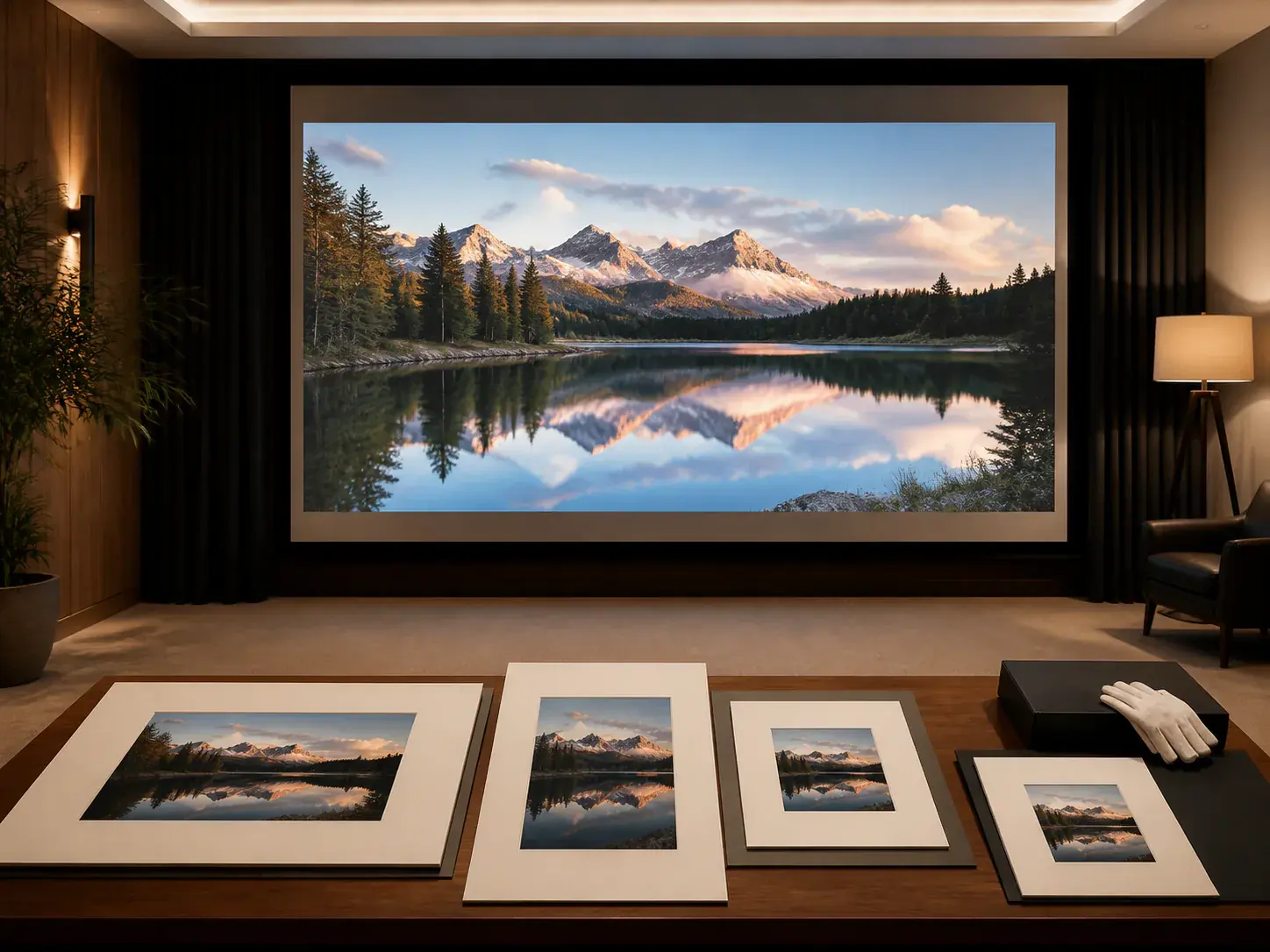
Social video versions shown as a finished VideoAI video scene

Social video versions

A creator may need one idea in 16:9, 9:16, 1:1, and 4:5. VideoAI keeps the subject, style, and sound direction tied to the same brief while you make videos with ai for different placements.

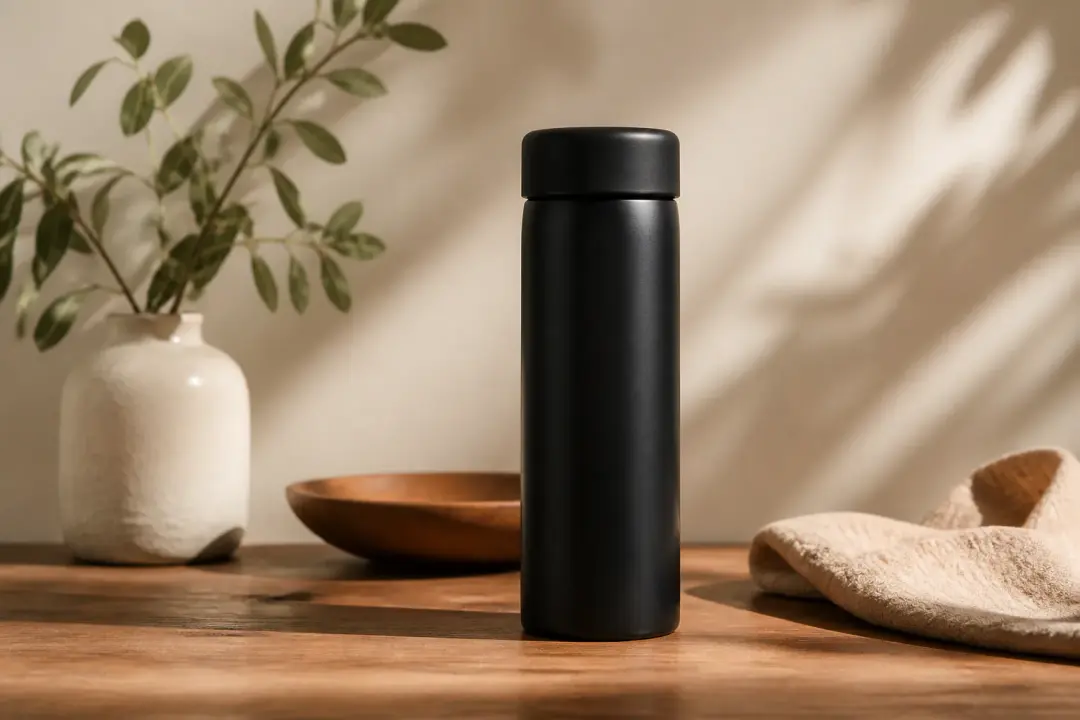
Product motion drafts shown as a finished VideoAI video scene

Product motion drafts

When product images, brand references, and scene notes are ready, use video making ai to create a video that shows movement, framing, and atmosphere before a longer production decision.

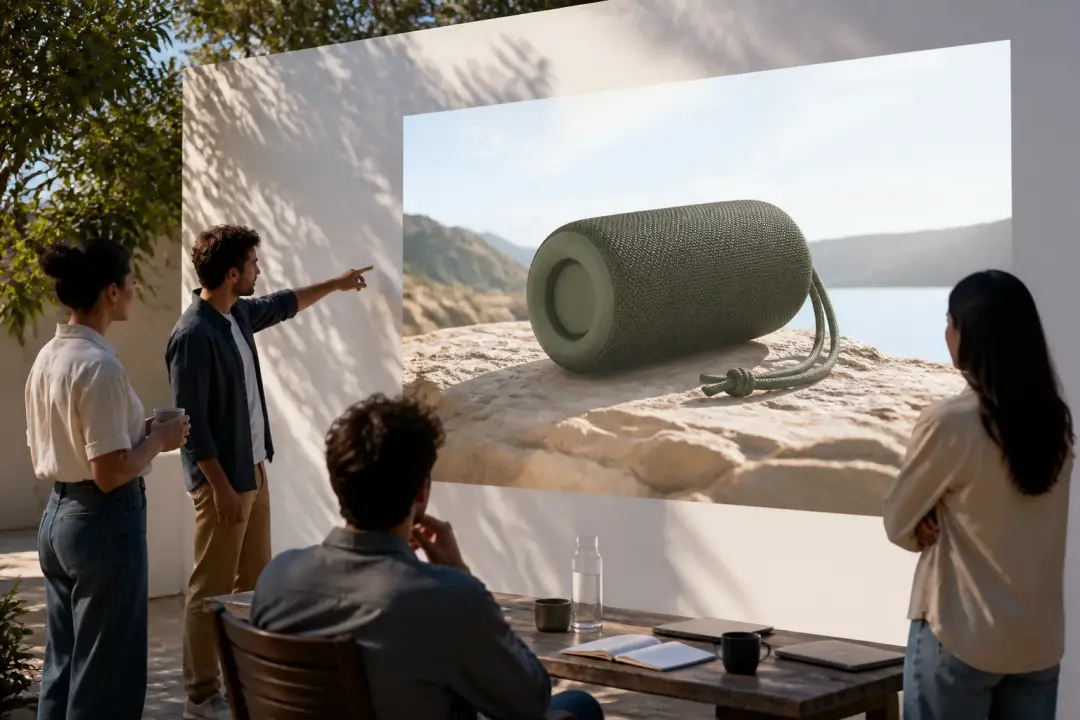
Campaign concept previews shown as a finished VideoAI video scene

Campaign concept previews

Marketing teams can test several visual directions by making videos from reference assets and timed instructions. Prompt based revisions help narrow the version without rebuilding the whole request.

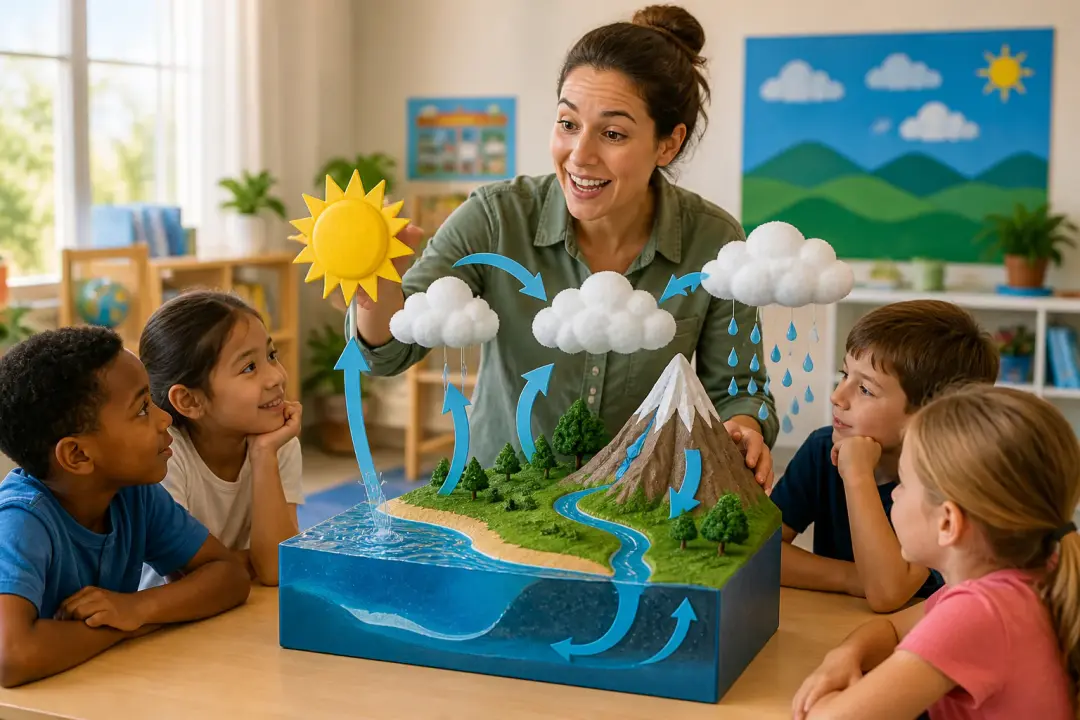
Story and explainer starts shown as a finished VideoAI video scene

Story and explainer starts

For story ideas or teaching content, VideoAI can help draft story text, then you decide the segment order, action, narration, music, and references for clearer video content creation.

Roles that shape video ideas

Social creator arranging vertical and square video versions from one concept

Social creators

Social creators need quick format decisions and repeatable style direction. VideoAI supports ai video making with ratio choices, reference roles, and text revision so each version follows the same creative intent.

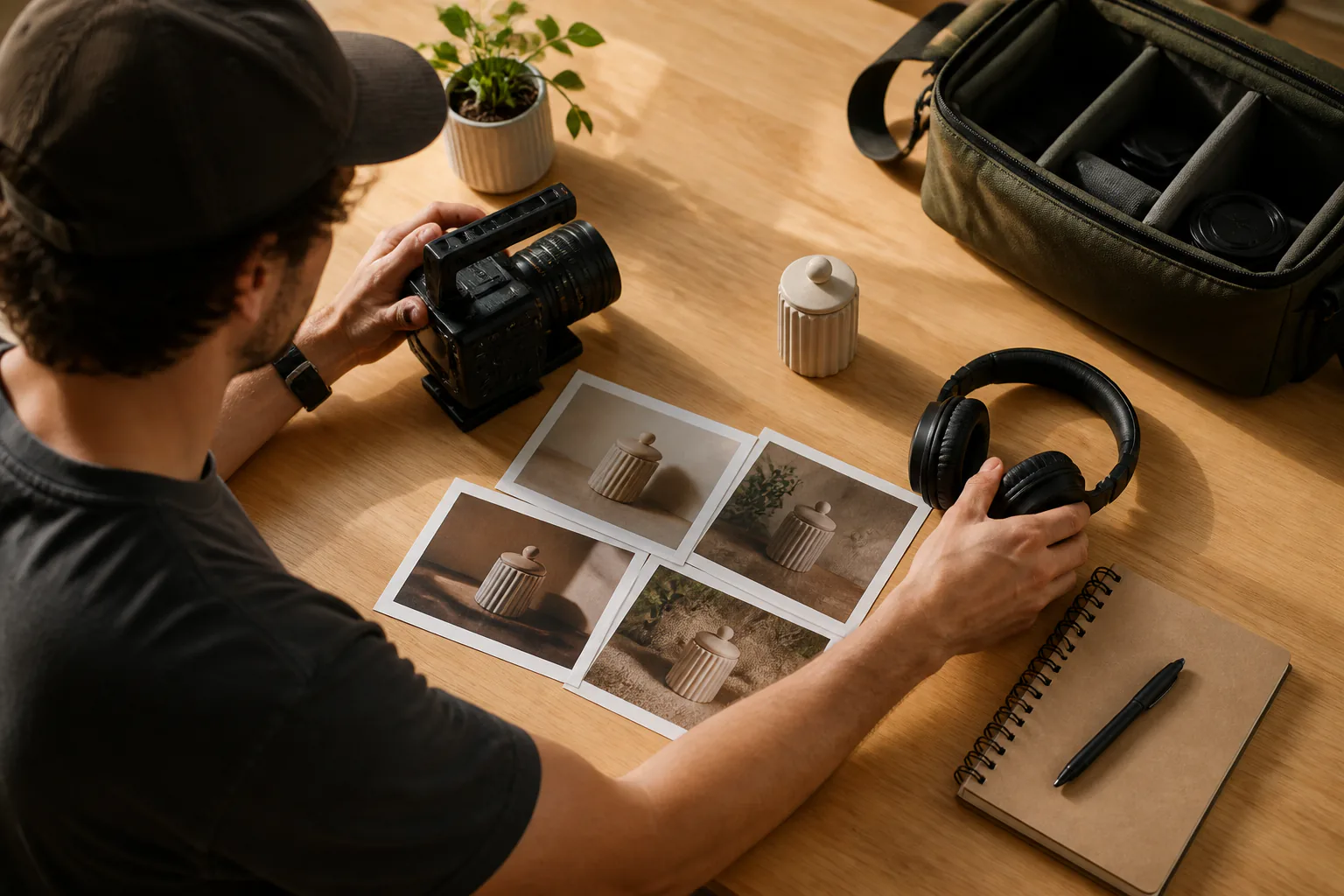
Brand team workspace with product image, audio reference, and scene notes

Brand teams

Brand teams often bring product shots, audio, and visual references into one video decision. VideoAI turns those inputs into a guided task for creating video content with consistent scenes and sound direction.

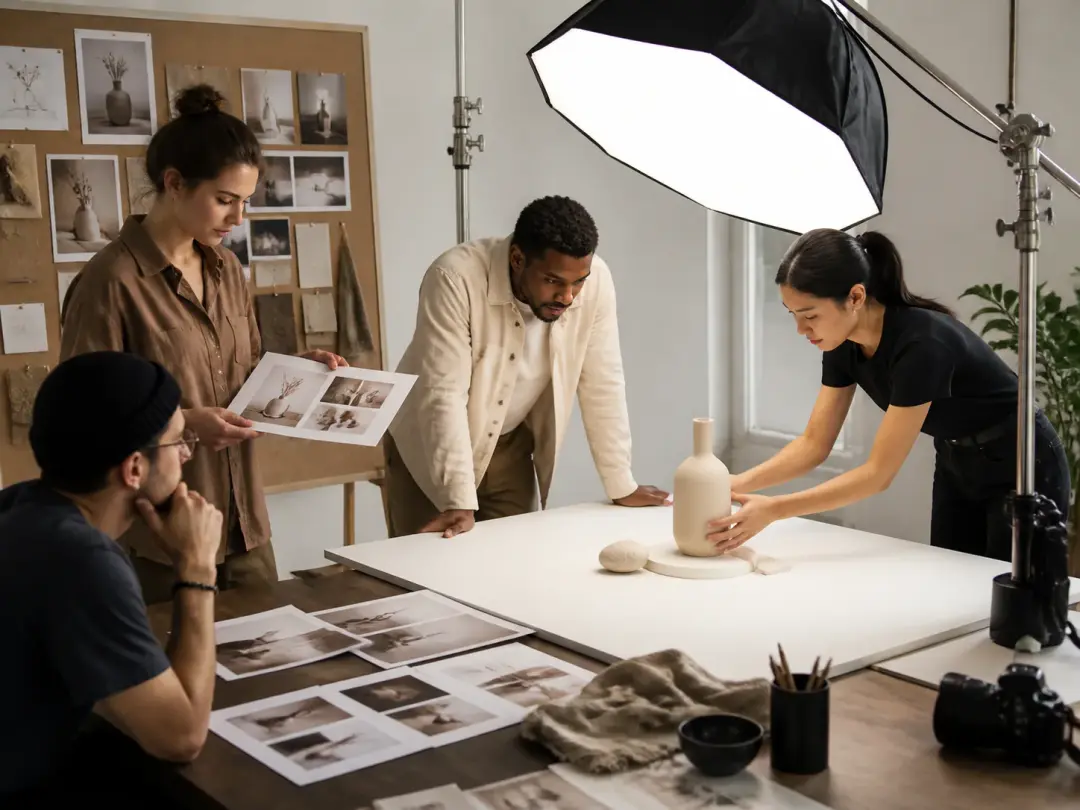
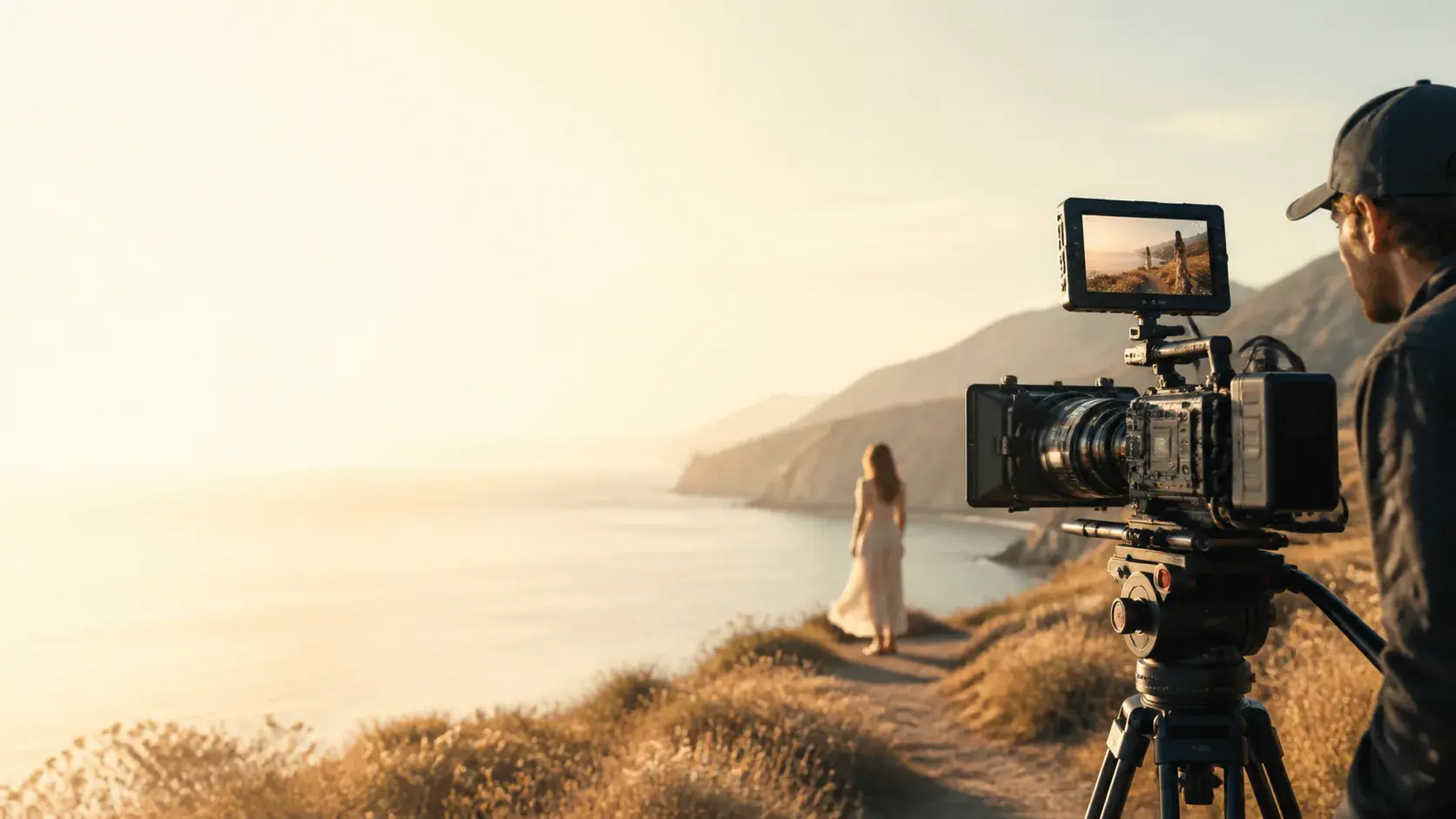
Concept filmmaker planning start frame, end frame, and camera movement reference

Concept filmmakers

Concept creators can use start frames, end frames, motion references, and camera notes to create your own video draft before committing to a bigger production pass.

Controls that create ai videos

Each VideoAI control changes what the viewer sees or hears, from frame roles to final export.

Reference tray showing @ labels for subject, first frame, camera, scene, and music

Reference roles with @

Text, images, video, and audio can work together in ai powered video creation. Mark each source with @ so VideoAI knows whether it guides the subject, first frame, camera movement, scene, or music.

Timeline with separate scene blocks, action notes, and segment reference image

Timed scene control

Write each time segment with the visual action you want. This gives ai video production a clear order for creating a video, while segment reference images help specific moments follow your plan.

Video preview beside a text prompt asking for motion and scene changes

Prompt based revisions

After generation, describe what should change in the existing result. VideoAI uses your text to revise the video with ai, which supports ai in video production when a draft is close but needs another pass.

Export panel with MP4, 4K, aspect ratios, no watermark, and workspace options

MP4 delivery options

Export MP4 up to 4K with 16:9, 9:16, 1:1, or 4:5 framing. Outputs have no watermark, support commercial use, and fit create ai videos needs for reusable project work.

FAQ

Questions before you create ai videos

Yes. You can create ai videos from text, images, video, or audio references, then guide the result by assigning source roles and writing the timed scene direction yourself.

Start with a written idea, uploaded images, uploaded video, uploaded audio, templates, presets, or stock assets. Use @ labels so the AI reads each source by its intended job.

VideoAI can expand a simple idea into story text, and you still shape each time segment, visual action, reference frame, motion cue, and sound direction when you create ai videos.

One generation can be up to 30 seconds. For a longer piece, continue extending from the existing video while keeping the project available to create videos in the workspace.

You get an MP4 video up to 4K, with 16:9, 9:16, 1:1, and 4:5 aspect ratios available for create ai videos projects.

Describe the change you want in text, then run another prompt based revision on the generated video. This suits ai to create video drafts that need visible iteration.

Video generation includes 10 credits to start, so people searching for ai video creation free can run a first try and decide how the workflow fits their project.

Exports are delivered without a watermark, and finished videos can be used commercially. That makes create ai videos useful for client drafts, brand content, and creator publishing workflows.

Uploaded video stays in your workspace, and generated video enters your works area. Reuse those assets when you produce video variations, produce a video extension, or continue ai video content creation.
Start to create ai videos wide VideoAI creation scene

Start to create ai videos

Bring an idea, assign reference roles, plan each scene, and let VideoAI generate an MP4 you can keep refining.

Get Started
create ai videos - AI Video Creation - VideoAI