
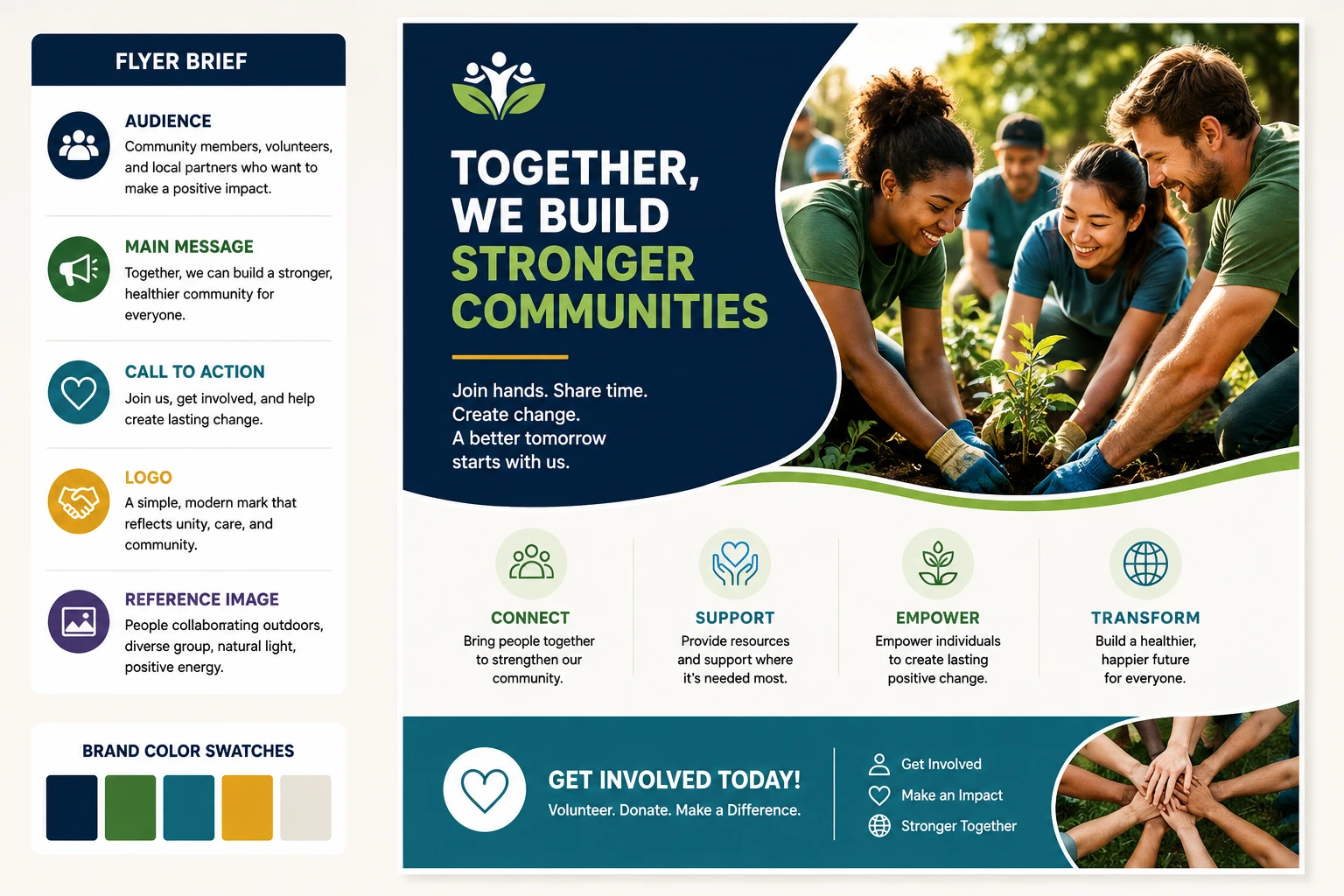
Step 01
Enter the message and audience
Add the flyer topic, target audience, main information, and call to action. Upload a logo or reference image when those assets should guide the first visual direction.

Turn event, offer, recruiting, or notice details into editable flyer options in VideoAI, with control over message, style, color, and size.


VideoAI keeps the workflow practical: you give the message, compare directions, then refine the chosen design for the channels you need.
Step 01
Add the flyer topic, target audience, main information, and call to action. Upload a logo or reference image when those assets should guide the first visual direction.
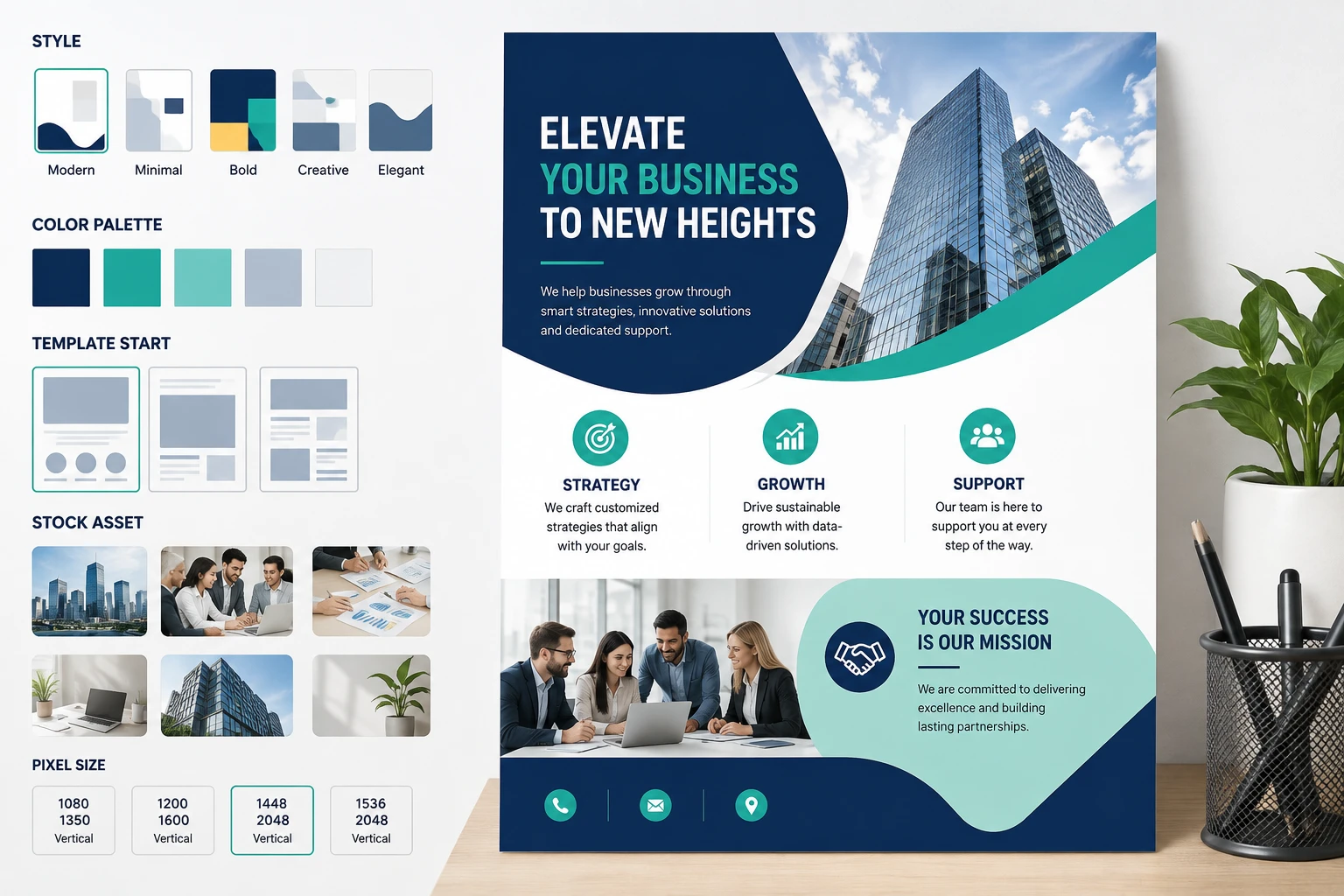
Step 02
Describe the look, pick a color direction, start from a template or stock asset, and set exact pixel dimensions so the flyer design fits its intended digital placement.
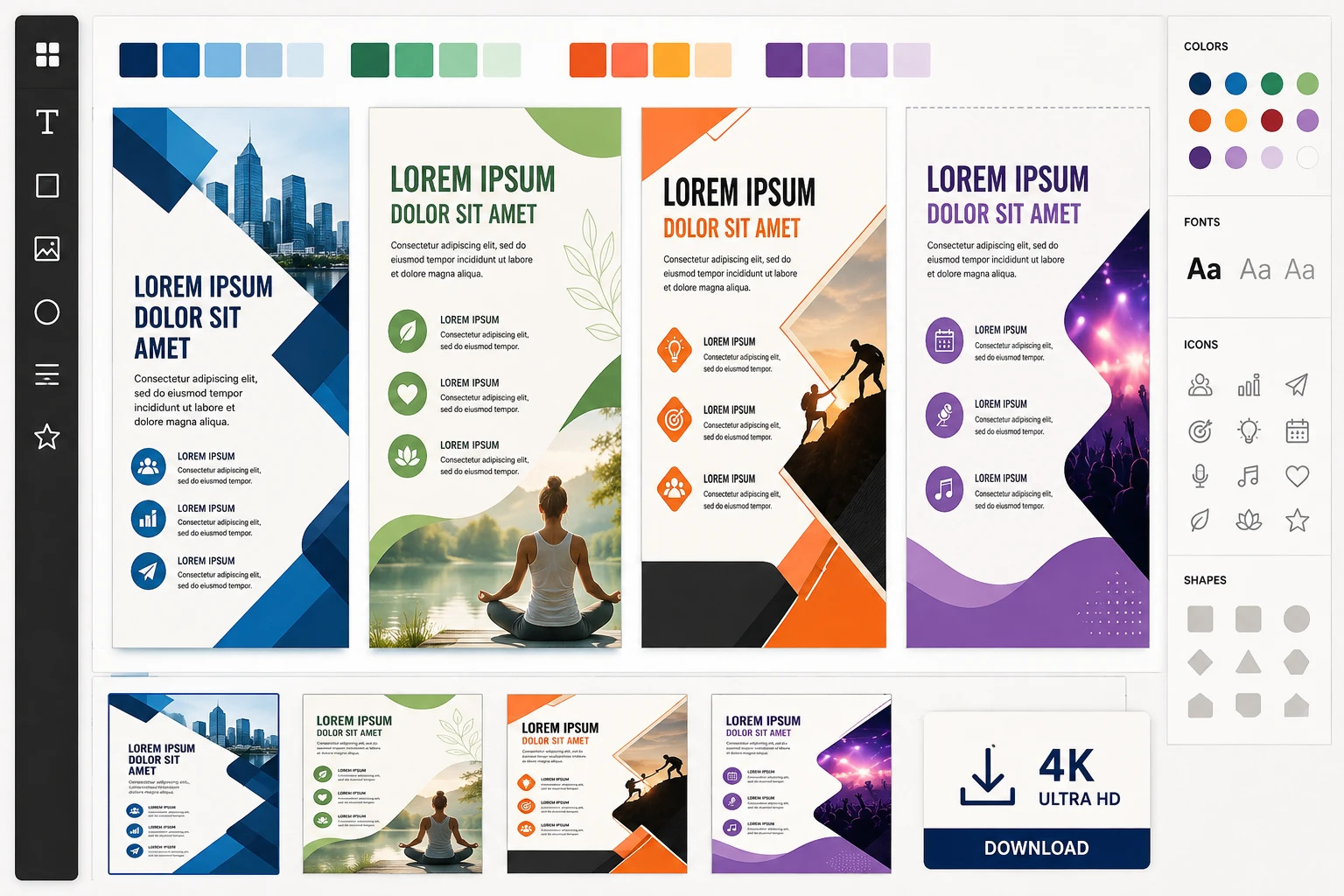
Step 03
Review multiple layout candidates, choose the strongest hierarchy, then adjust text, fonts, icons, colors, and layout before downloading up to 4K with no watermark.
Each project starts with a clear communication job, then VideoAI helps you turn that information into a visual option you can keep editing.
A workshop, sale day, or community meetup needs the date, place, and sign up action to read quickly. Generate several flyer design directions, then choose the layout that makes the next step clear.
Discounts, deadlines, service details, and contact information can crowd a flyer. Use VideoAI to draft the composition, then move text and icons until the offer has a clear order.
Property photos, open time, address, and contact CTA need a clean single page structure. A flier can start from those details and become a polished digital announcement.
Job title, requirements, location, and application steps work better as distinct zones. Build a flyer design draft, refine the hierarchy, and prepare a version for online posting.
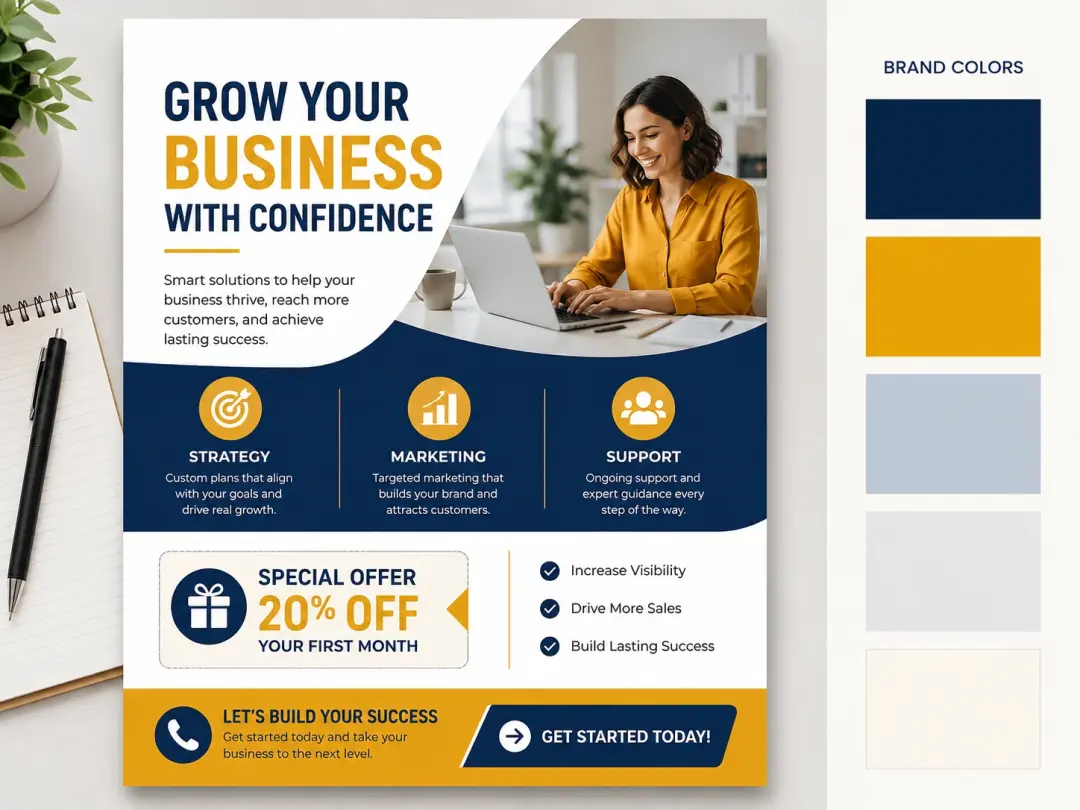
When a promotion, class, or service update needs a branded flyer, start from your message, logo, colors, and CTA instead of a blank canvas.
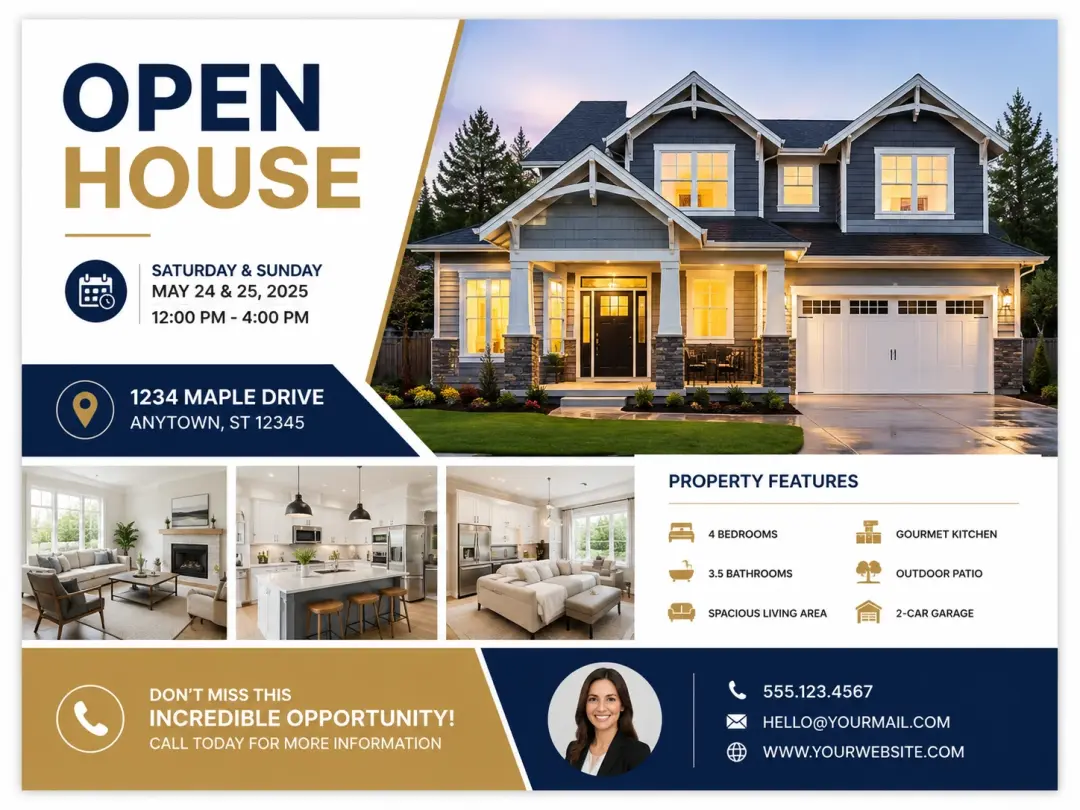
If a property photo, open house time, address, and contact CTA need quick scanning, turn those details into a clear flyer design.
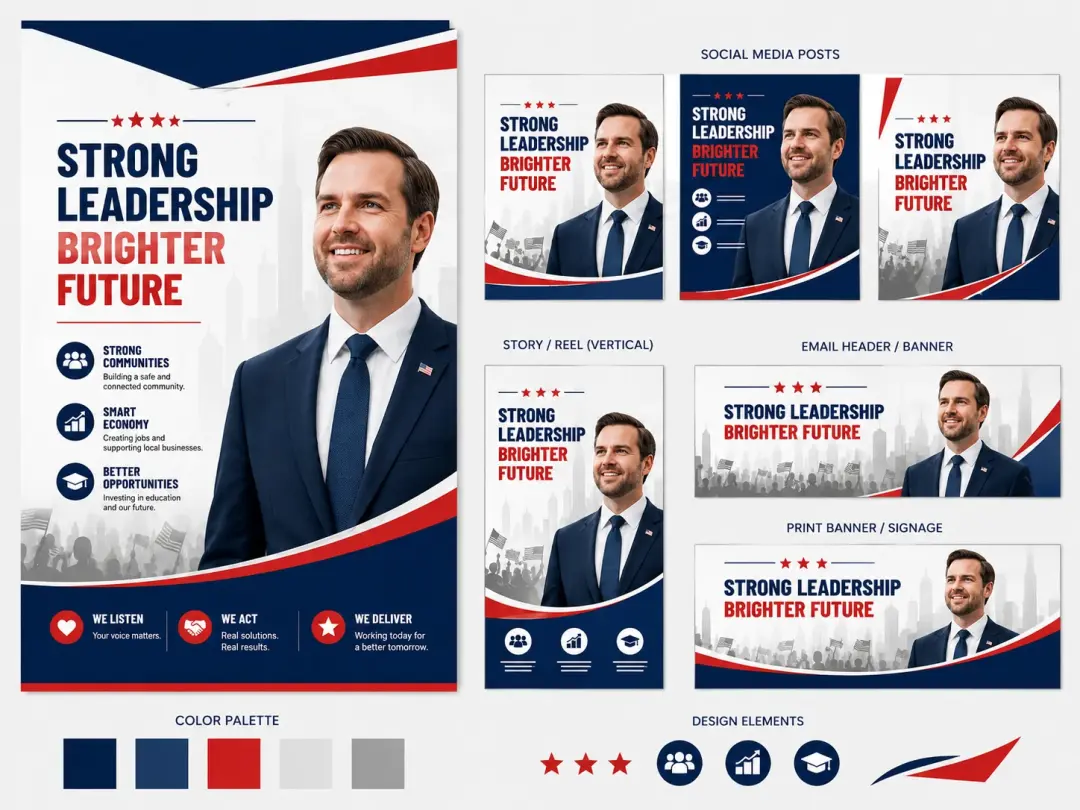
When one campaign needs several digital placements, resize the main flyer design and keep the colors and message consistent.
VideoAI focuses on the decisions creators actually make: message priority, visual direction, brand cues, and digital output size.
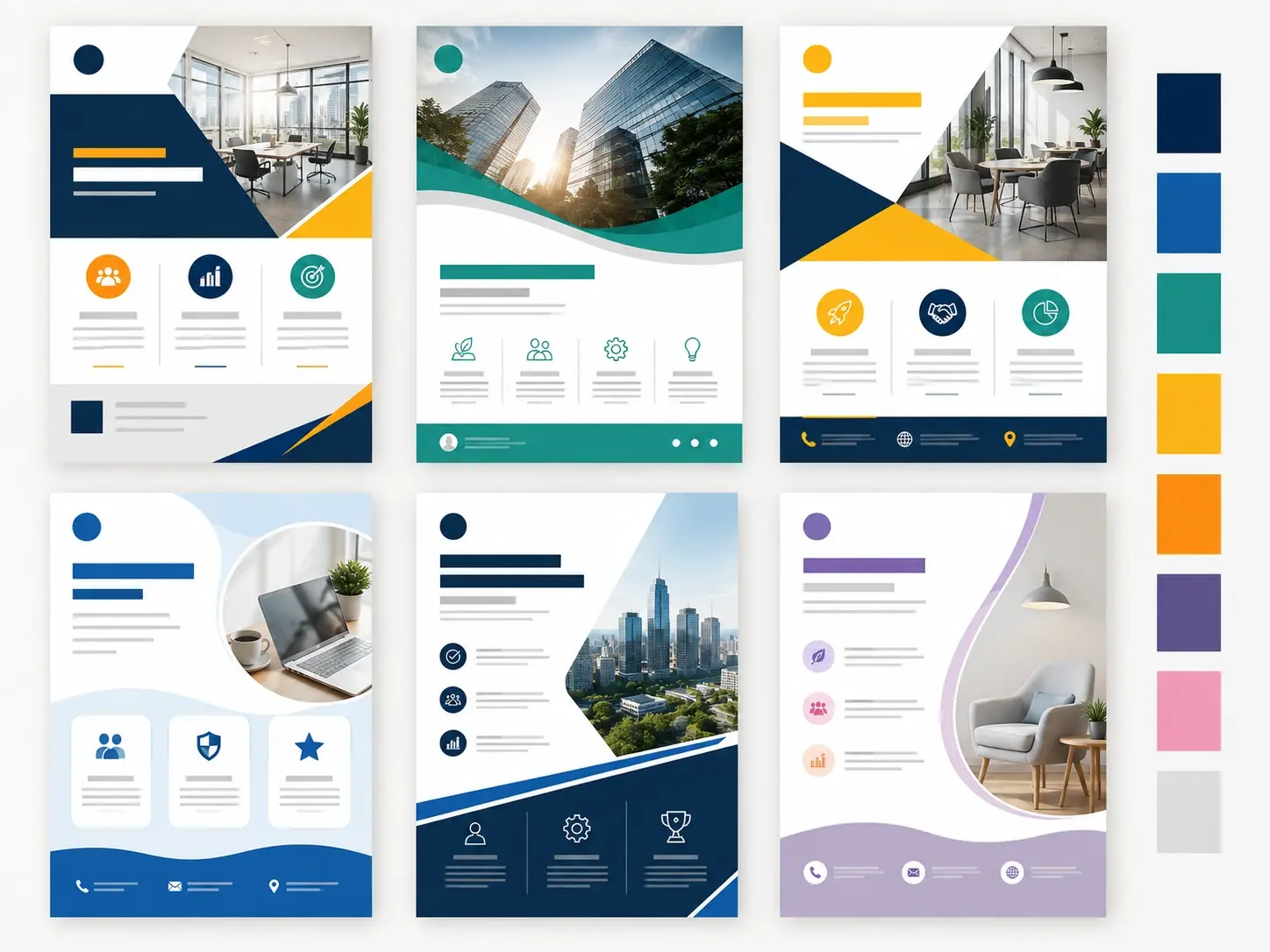
Your event details, offer copy, or notice text can produce several flyer design candidates in one pass, so you compare composition and message hierarchy before editing.
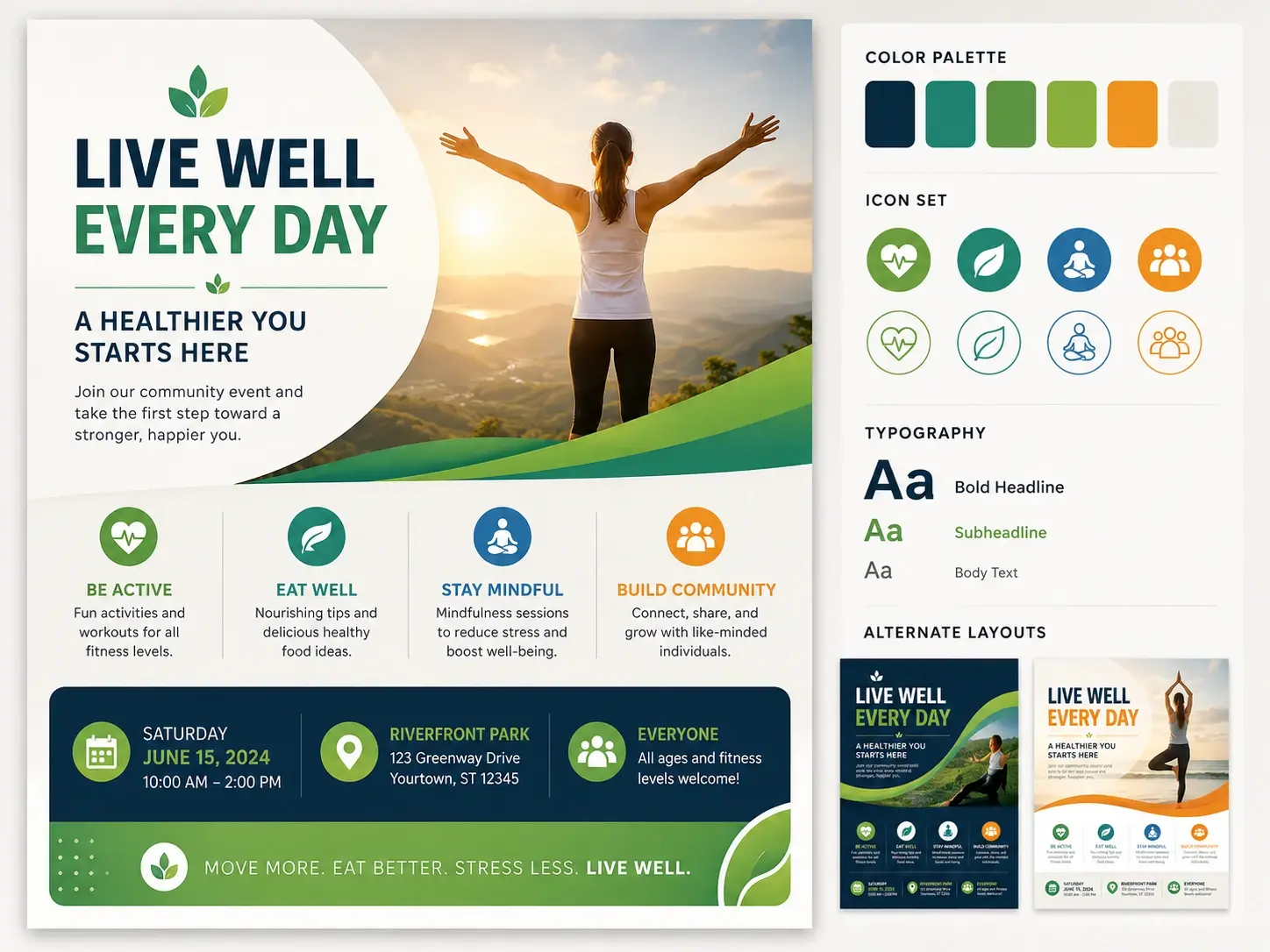
After generation, adjust short text, fonts, icons, colors, and layout in the visual editor. For longer copy, split the message into smaller iterations for cleaner results.
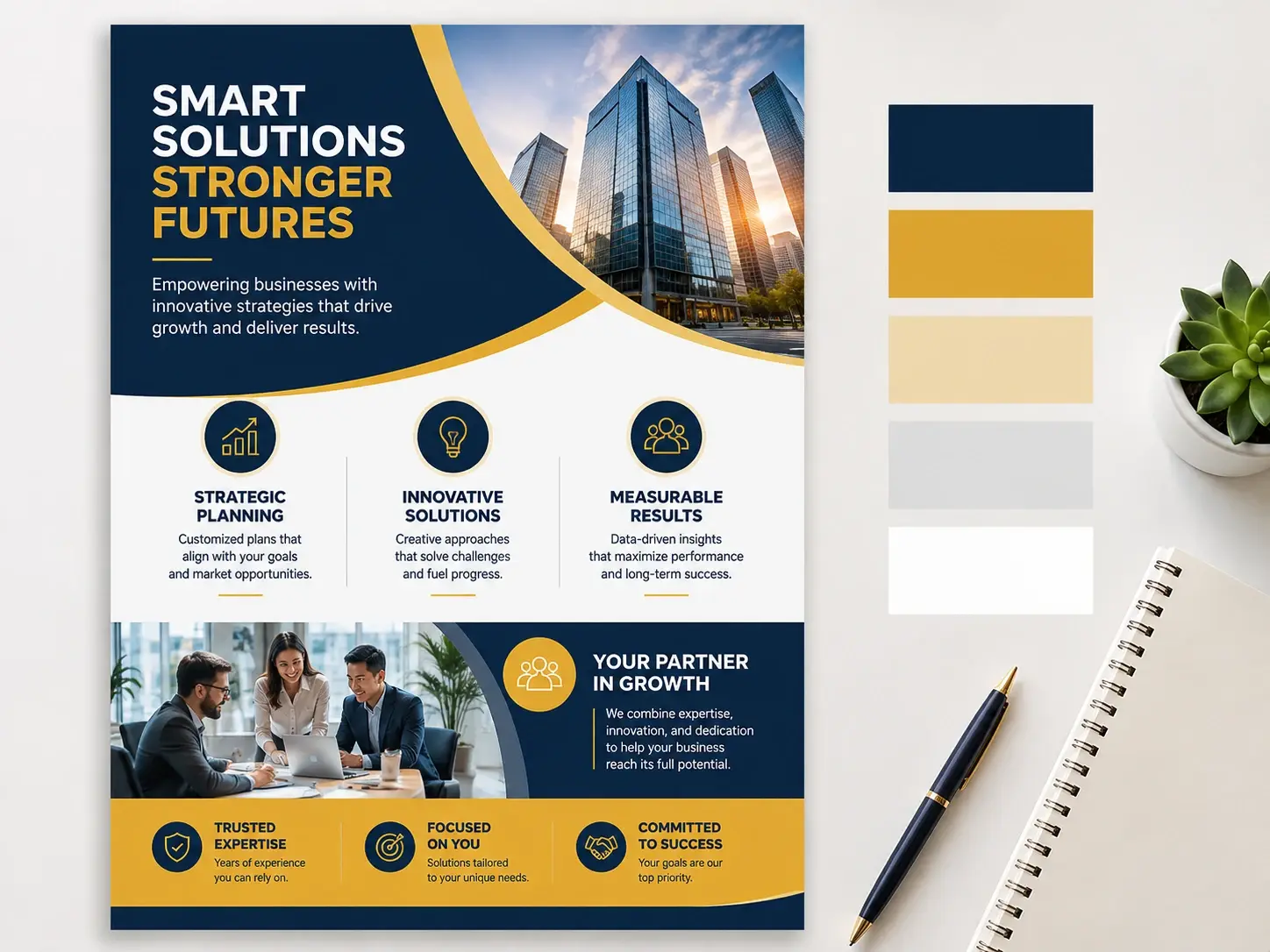
Upload a logo so VideoAI can place it in the flyer design and use extracted brand colors as part of the overall visual direction.
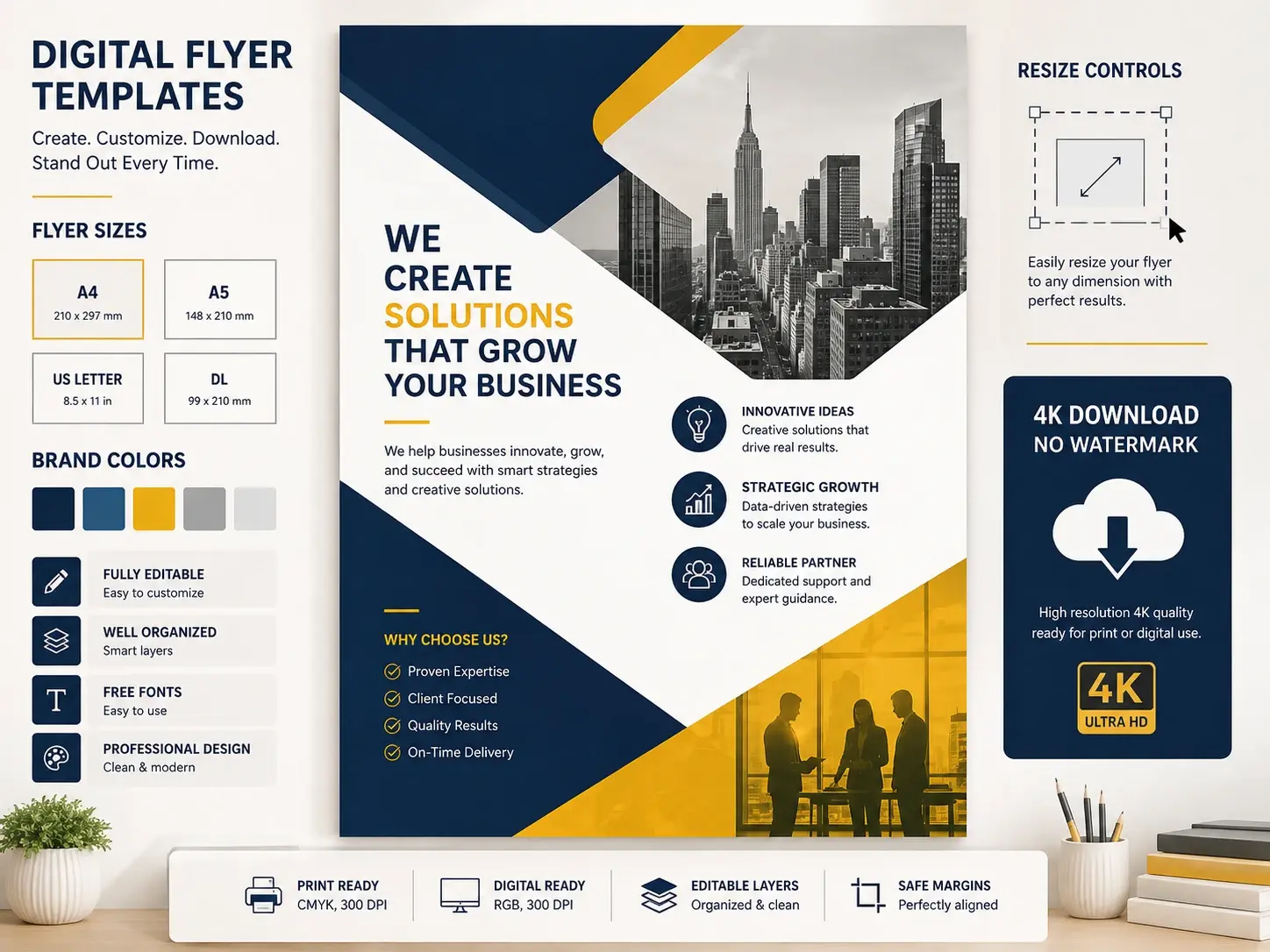
Set exact pixel dimensions, resize one approved design into other placements, and download up to 4K files with no watermark for your own publishing workflow.
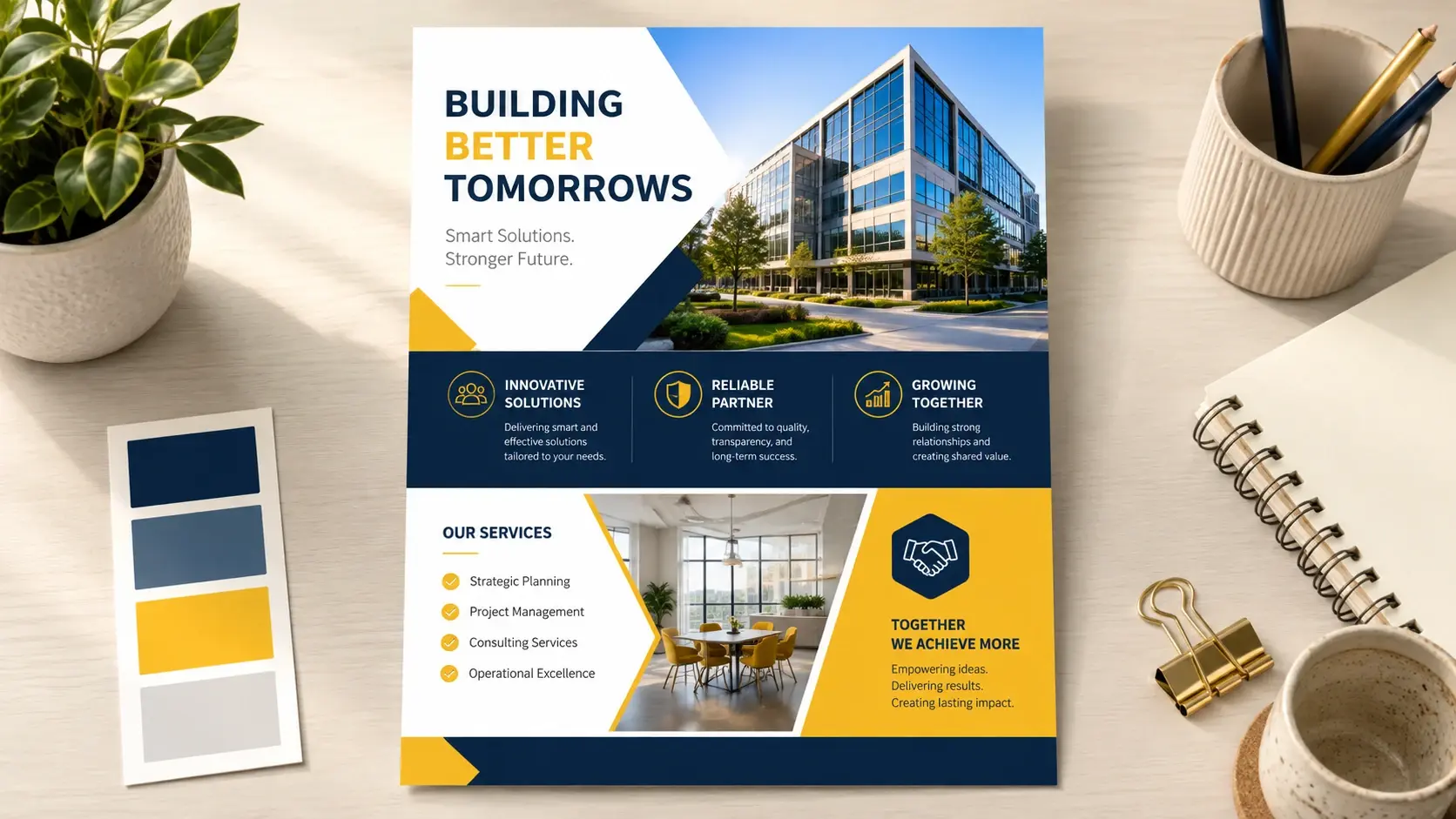
Open VideoAI, enter the message your audience needs to act on, and turn it into an editable flyer with clear visual direction.
Get Started