

Step 01
Describe The Opening
Enter the game theme, channel title, or intro idea, then choose a preset intro template if you want a starting point. Add a logo image or other picture, video, and audio references for VideoAI to use.

Plan Your Gaming Opening
Use VideoAI to turn a game theme, title, and references into a short video while you set the timing and scene order.
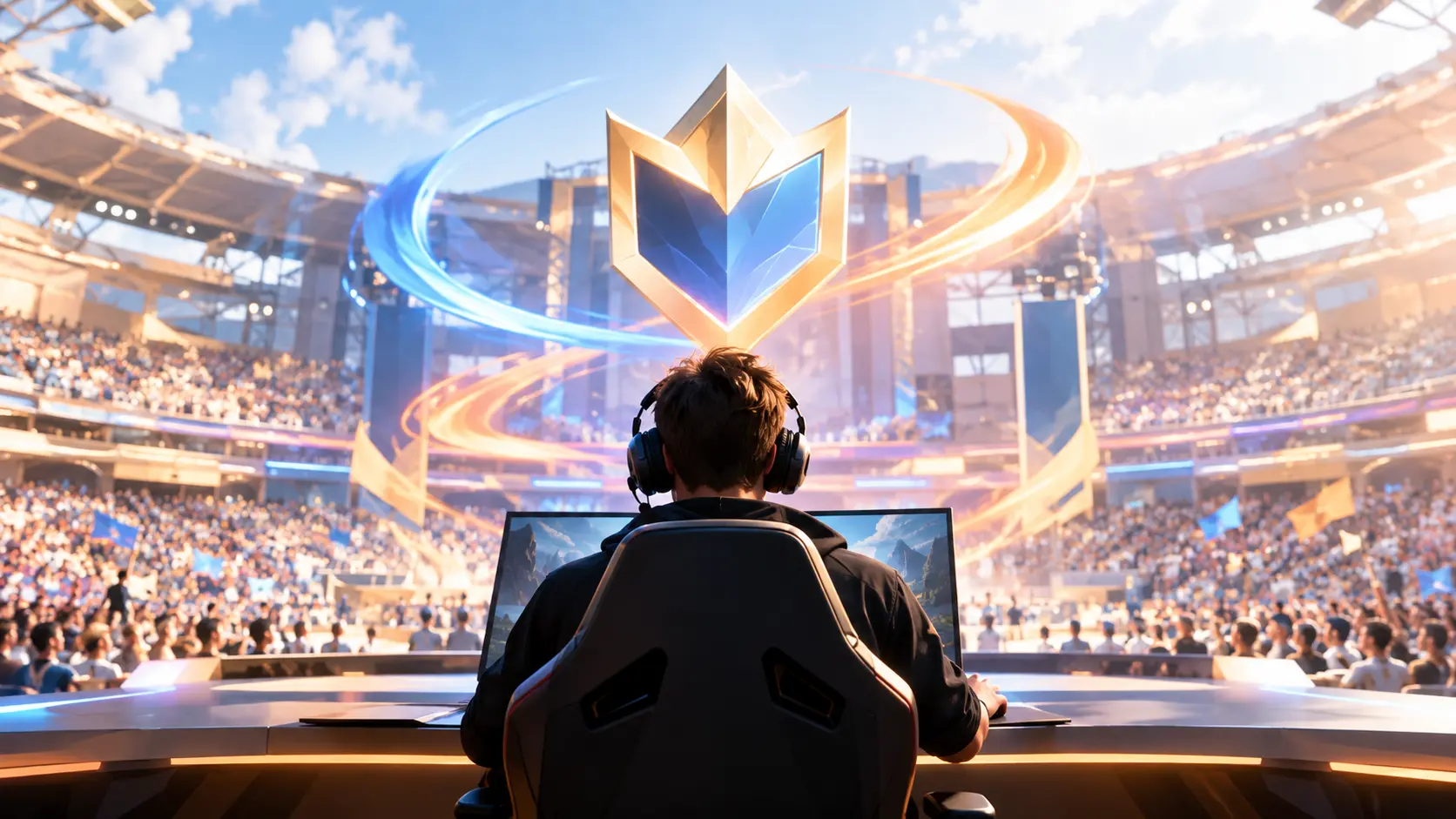
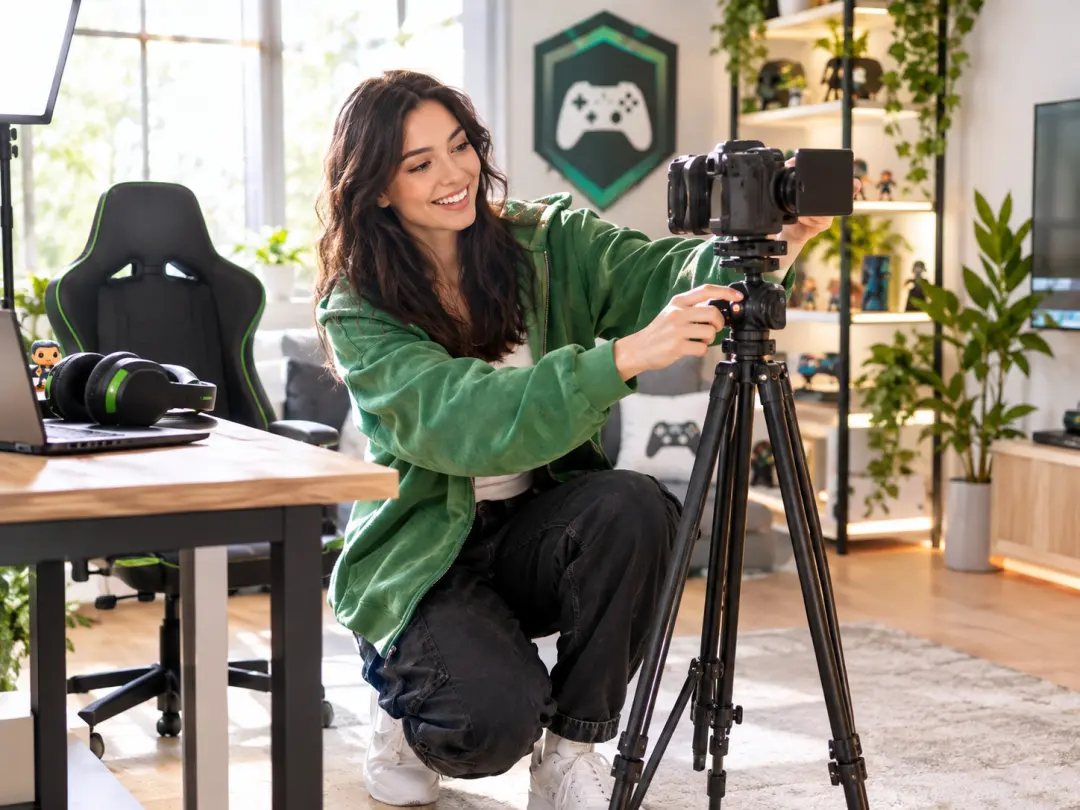
A gaming YouTube creator starts with the game title, opening action, and logo reference. VideoAI turns those choices into a gaming YouTube intro through a gaming intro maker workflow you can preview and adjust for each upload.

An independent game channel can describe a theme, add gameplay references, and write the pace for each time segment. The gaming intro maker keeps the plan in your hands while VideoAI generates a short opening to review.
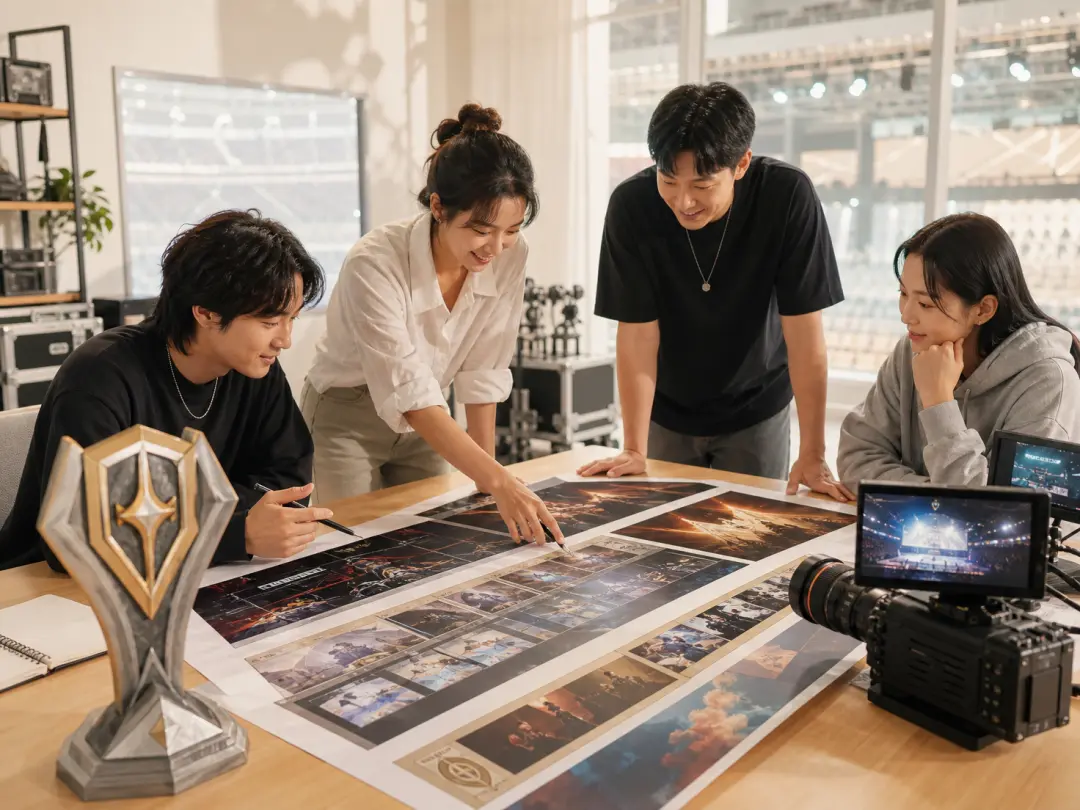
An event content team can bring an event logo and reference clips into a focused opener. With the gaming intro maker, the team assigns each asset a purpose, checks the generated frame, and prepares a clear lead in for a tournament or launch.
Decide what appears, when it appears, and how the finished MP4 fits each channel.
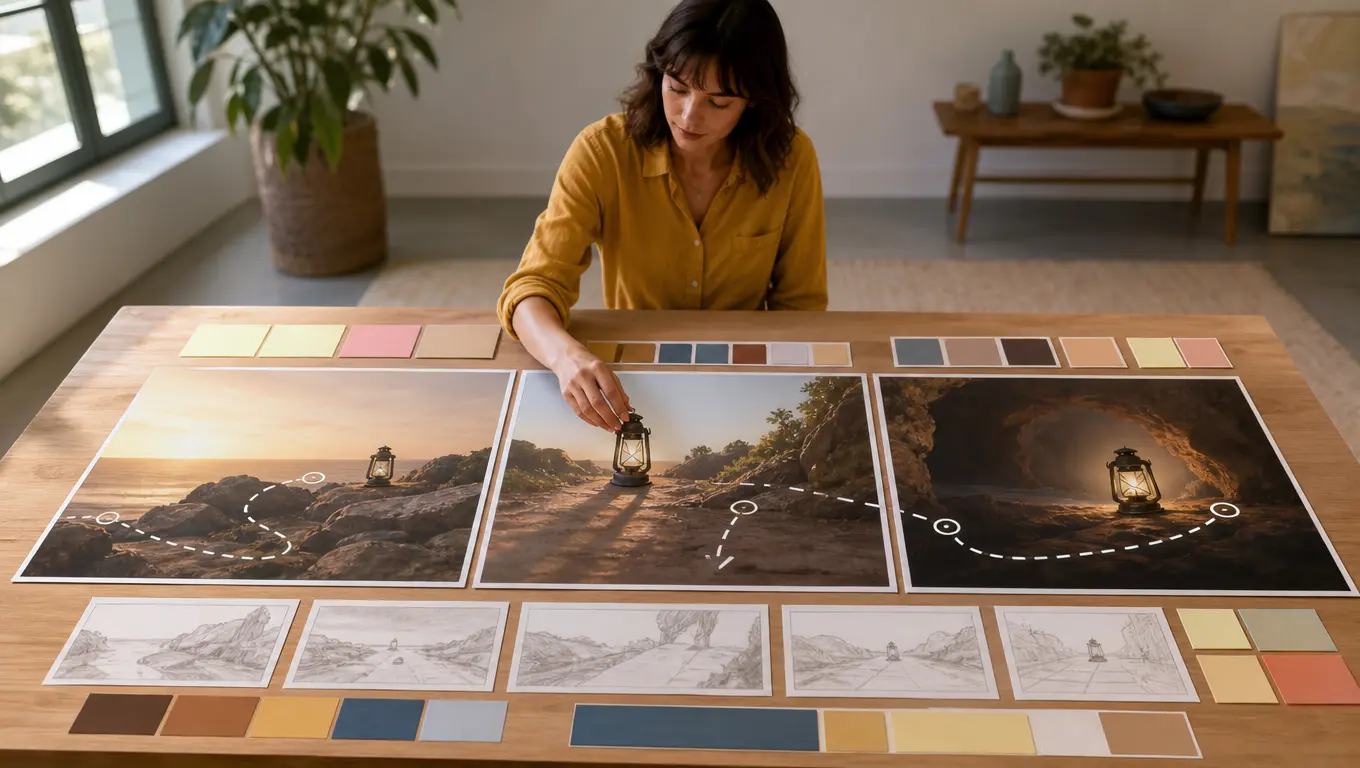
Write the opening, game title, action, and ending by time segment so the gaming intro maker follows the pace you planned. VideoAI uses your sequence to shape a short clip you can review.
Upload image, video, or audio references and use @ to state what each one should guide. The gaming intro maker then brings the chosen visual or sound direction into the generated scene.
Begin with a gaming intro description when the concept is clear, or open a preset intro template when you want a starting structure. VideoAI takes either route into the same gaming intro maker workflow.
Add your own logo as a reference, then mention the channel name or game title in the prompt. The gaming intro maker carries those choices into the video frame for a branded opening.
Generate a first cut, watch the pacing, and guide the next version with plain language.
Step 01
Enter the game theme, channel title, or intro idea, then choose a preset intro template if you want a starting point. Add a logo image or other picture, video, and audio references for VideoAI to use.
Step 02
Break the plan into time segments for the opening, game title, action, and ending. Use @ before a logo, soundtrack reference, or clip to clarify its role, and select 16:9, 9:16, 1:1, or 4:5 for the output.
Step 03
Submit the prompt, preview the gaming intro video, and decide what needs to change. Give VideoAI a text instruction for another pass, then download the confirmed result as an MP4, with an available option up to 4K and a single generation up to 30 seconds.
Use the same creative direction across channel, event, and format needs.
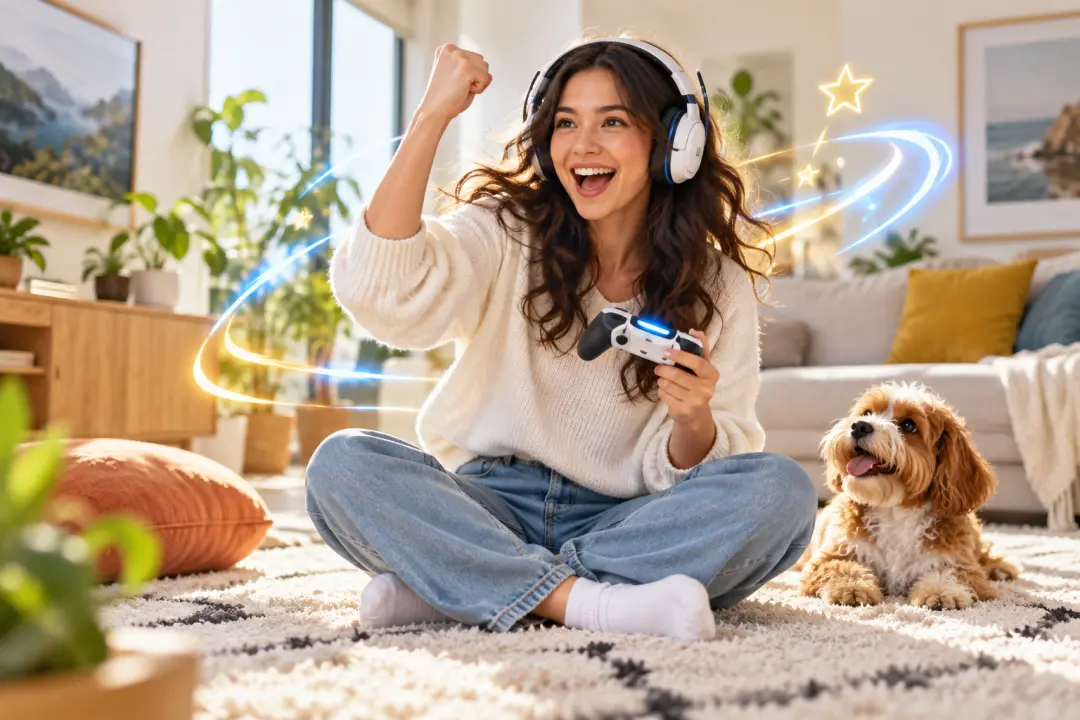
A new game series needs a short opener for each upload. Set the game title, logo reference, and one opening action in the gaming intro maker, then preview a focused gaming intro that gives viewers a clear starting cue.
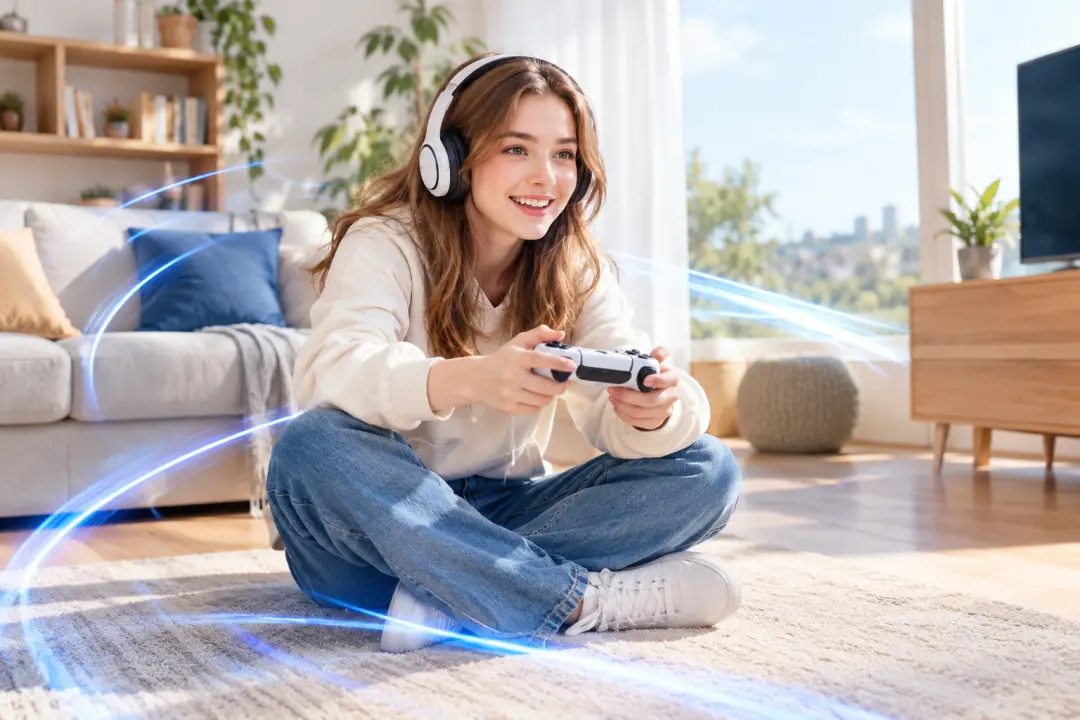
A YouTube channel is refreshing its opener for vertical clips and long form uploads. Use the gaming intro maker to place the channel title, logo reference, and timed action into a gaming YouTube intro, then prepare the chosen aspect ratio for each placement.

A tournament team has an event mark and a reference clip but needs a concise lead in. Upload both, describe the event beat by beat, and let VideoAI generate a gaming intro maker draft that keeps the event context visible.
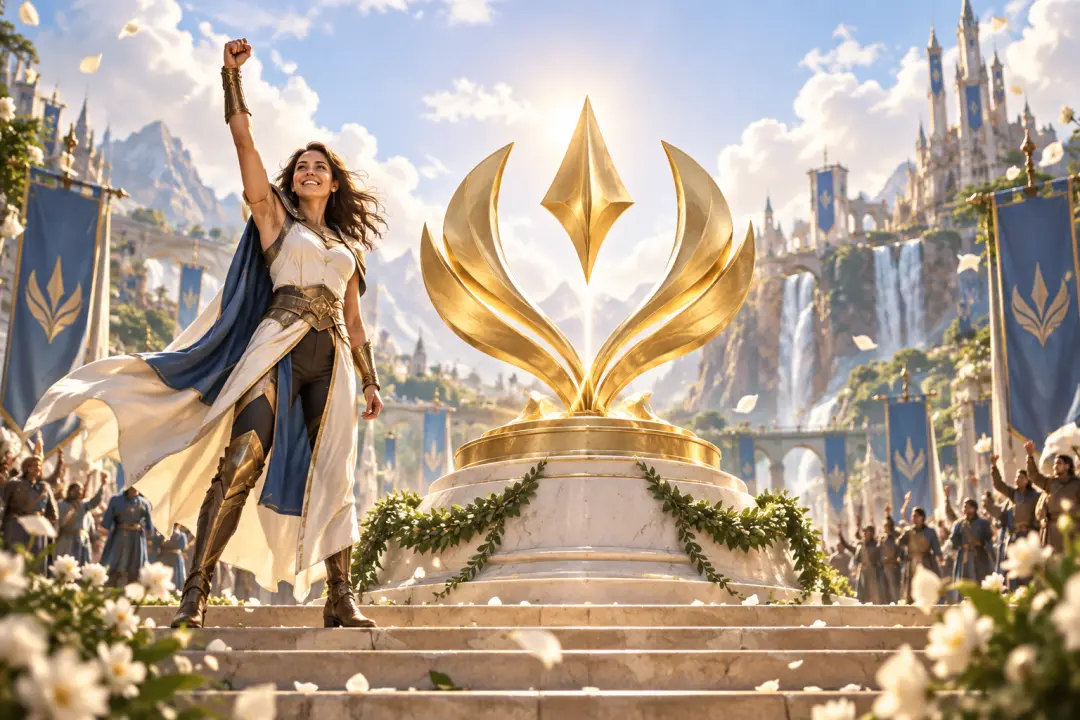
A creator is posting the same game on wide and tall feeds. Build one direction, choose 16:9 or 9:16 in the gaming intro maker, and download MP4 versions that match each placement.
Bring your game theme, title, logo, and references to VideoAI, then refine the pacing until the MP4 fits your channel.
Get Started