
Step 01
Describe the goal or add materials
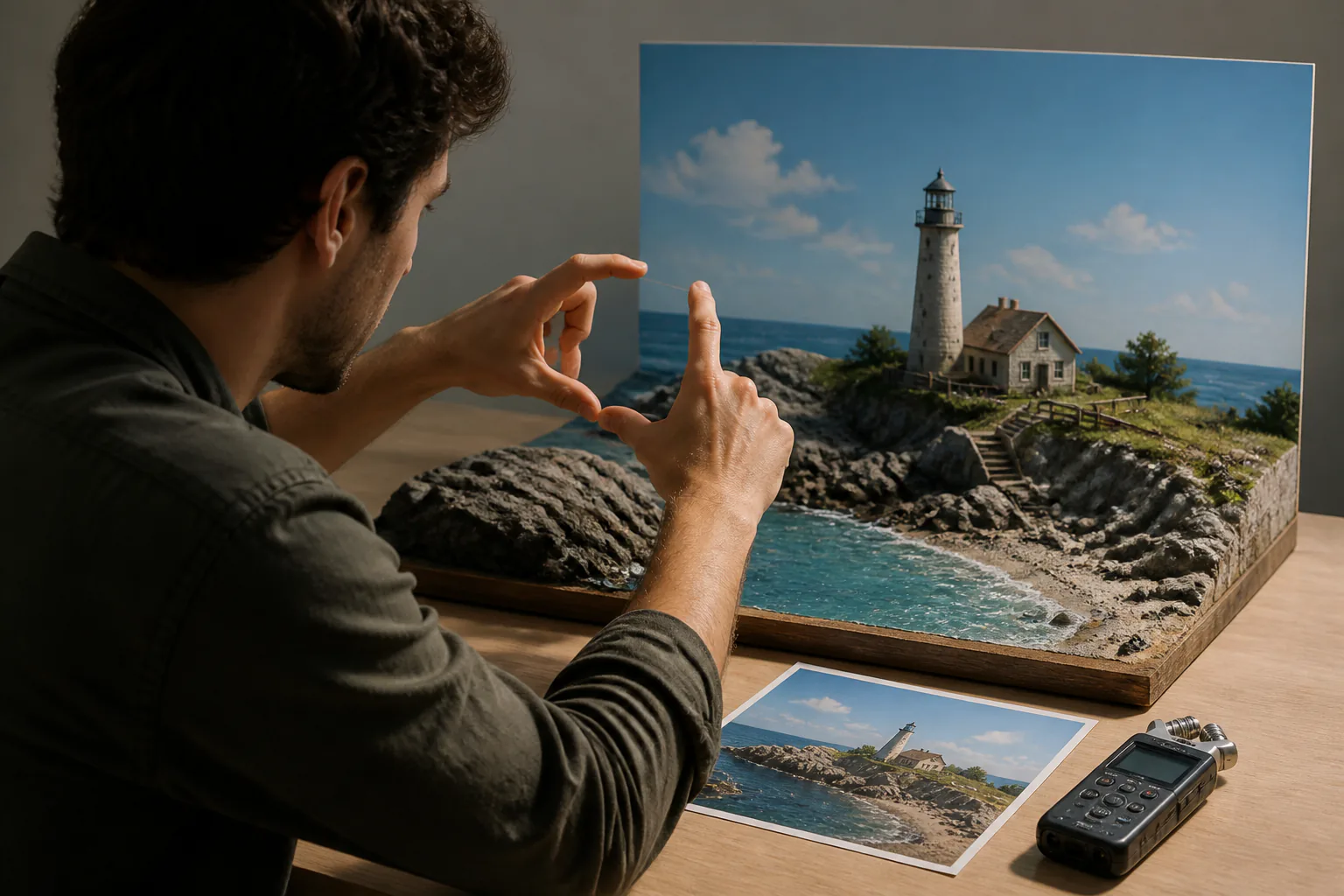
Type the video idea, or upload text, images, video, and audio references. If you are deciding how to create ai videos from existing assets, assign each useful material with @ so VideoAI knows its role.

VideoAI turns your prompt or references into a directed video project where you plan the scenes, format, motion, sound, and revisions.


Use VideoAI when you want to make ai videos from a clear idea, existing materials, or a structured scene plan that stays under your direction.
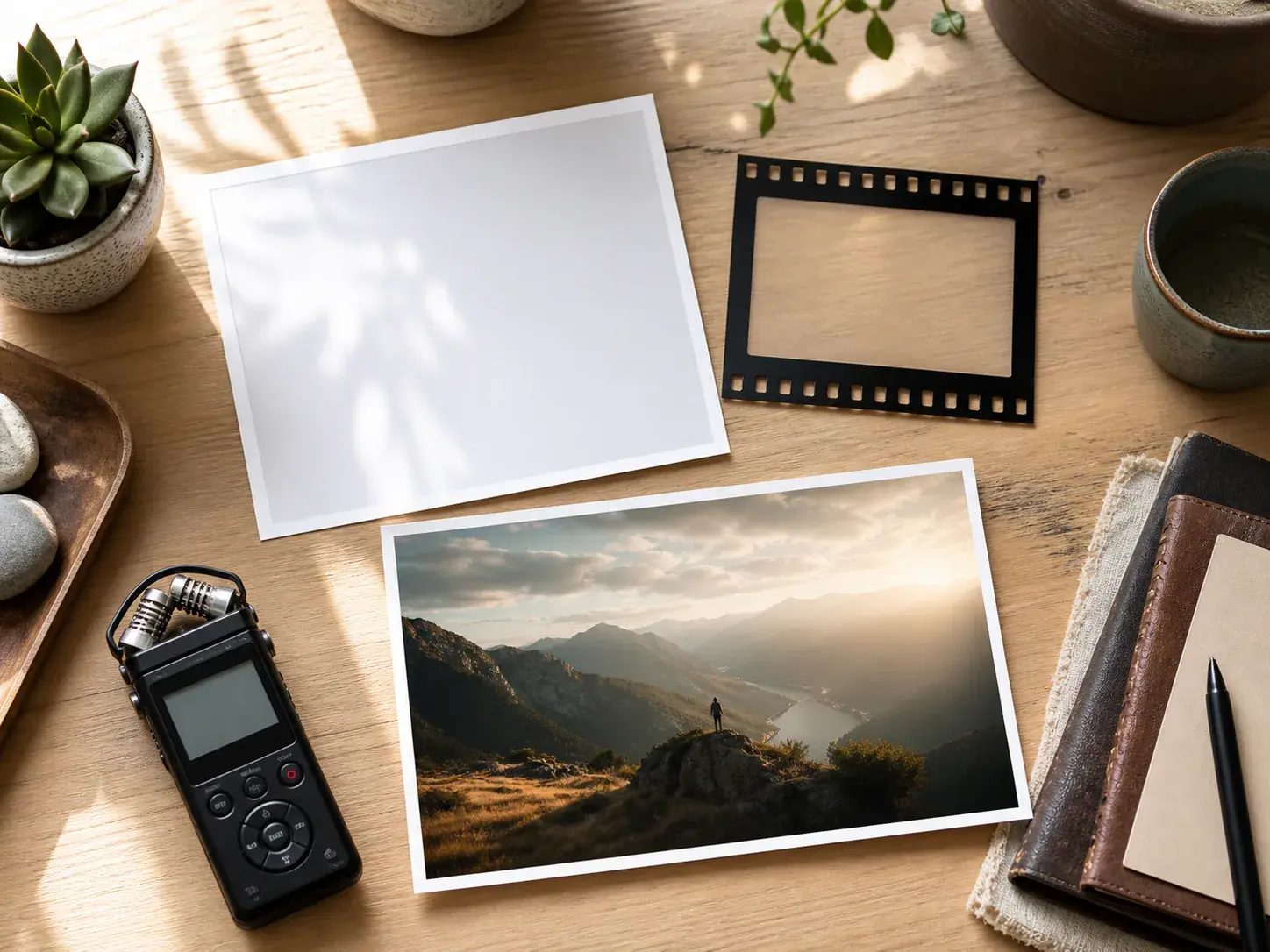
Start with text, or combine text, images, video, and audio references. Use @ to mark a first frame, subject, camera reference, soundtrack, or scene reference when you want to make ai video output from specific material.
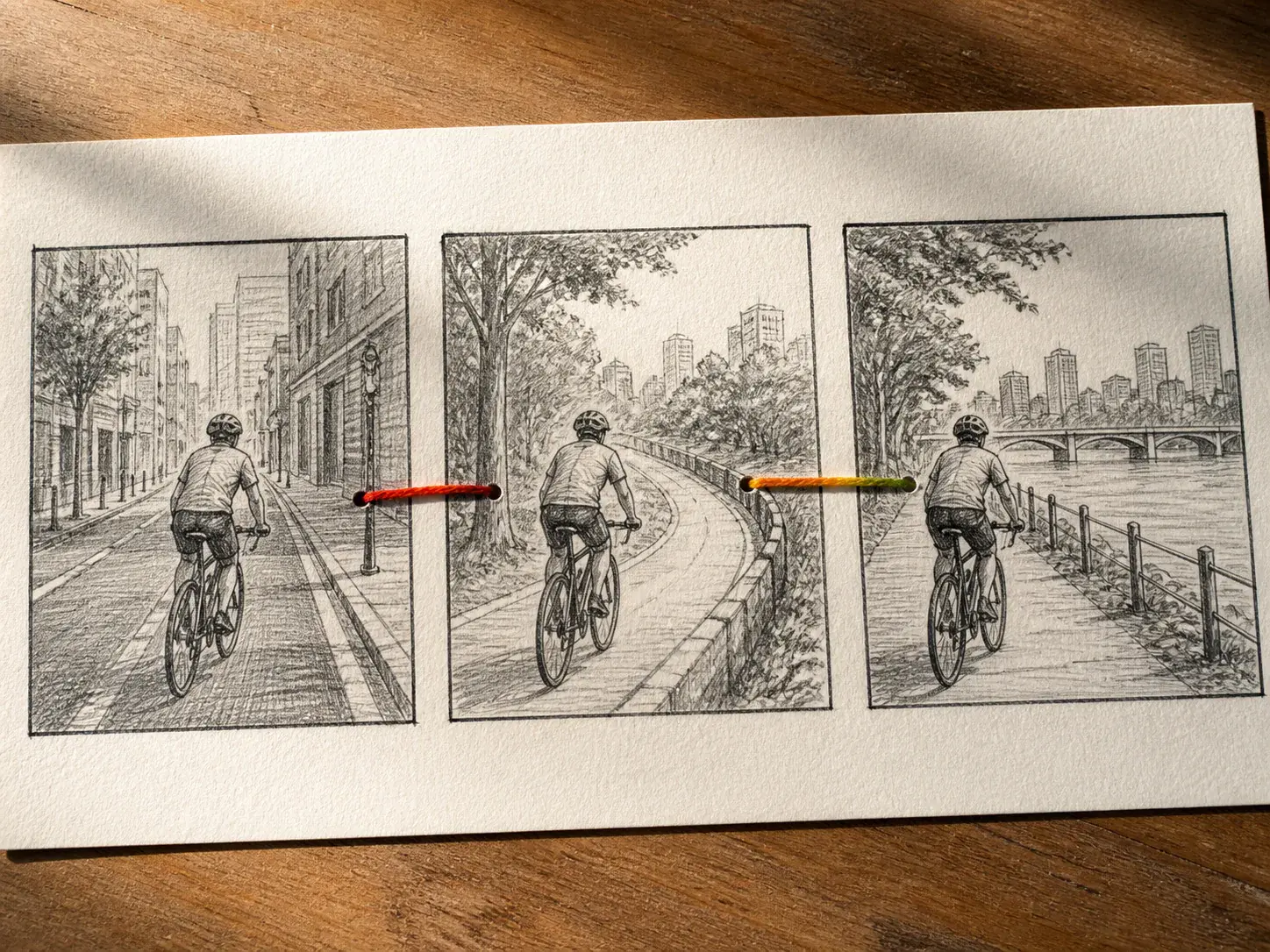
Plan time based sections yourself, then describe the visuals and action in each part. This is how to make ai video projects that follow your story instead of a vague single prompt.
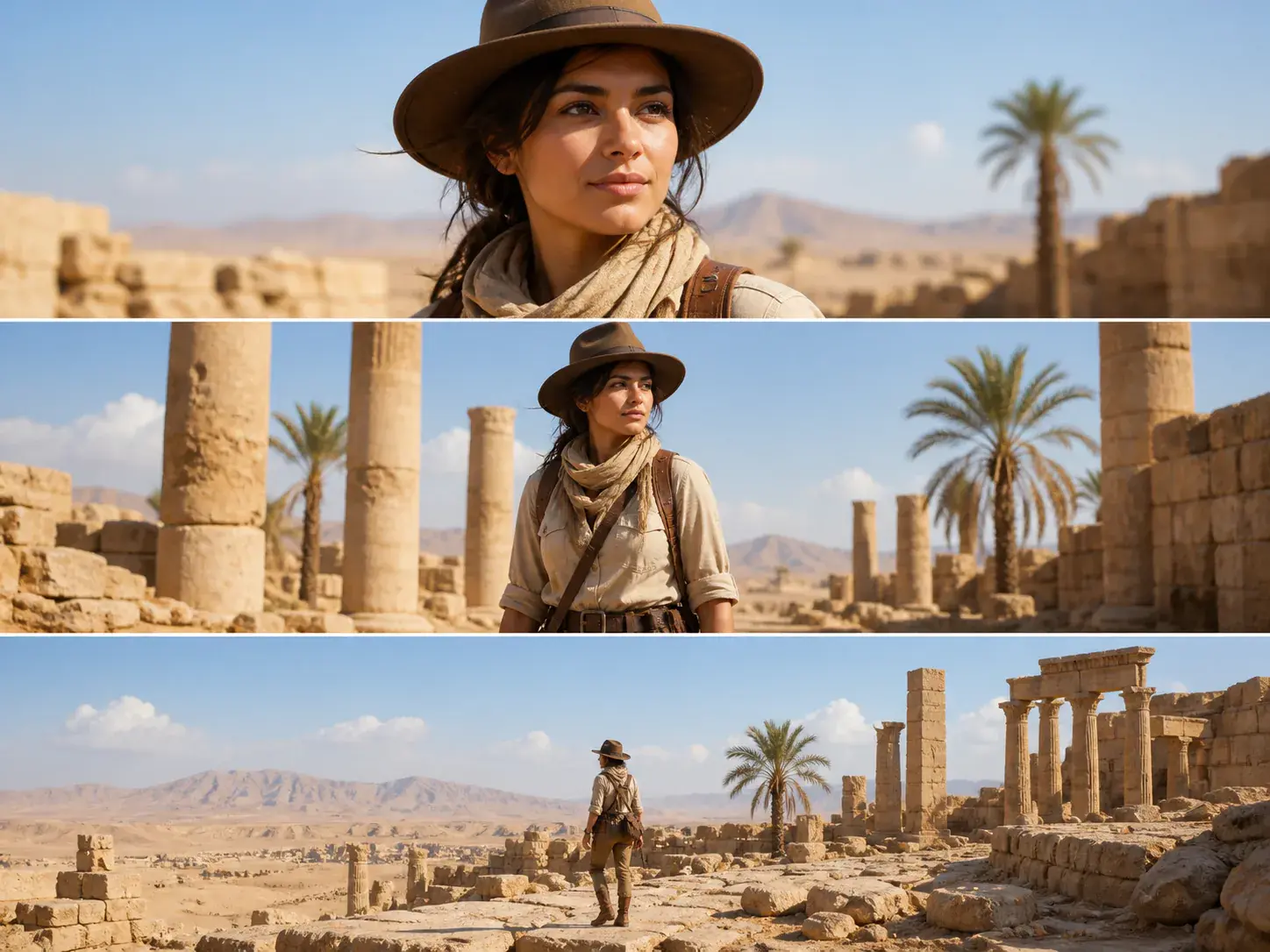
Attach a different reference to each scene when the shot needs its own look. VideoAI also supports multi reference character consistency, which helps when making ai videos with repeated subjects.
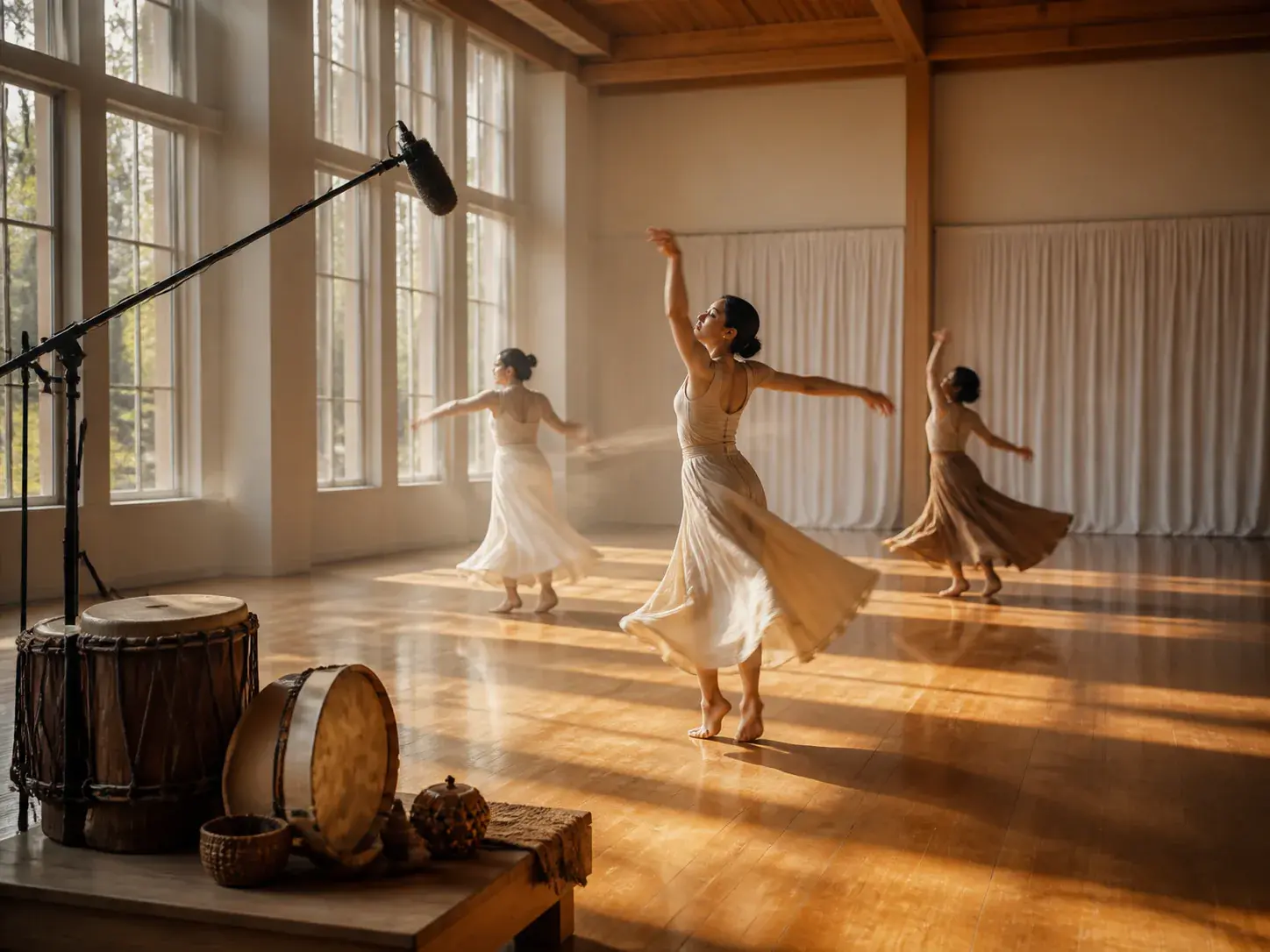
Add direction for voiceover, referenced voices, background music, sound effects, music beats, camera moves, and transitions. Those choices help answer how do you make ai videos with mood and pacing in mind.
The practical way to learn how to generate ai videos is to define the result first, then guide VideoAI with inputs, scene structure, and review notes.
Step 01
Type the video idea, or upload text, images, video, and audio references. If you are deciding how to create ai videos from existing assets, assign each useful material with @ so VideoAI knows its role.
Step 02
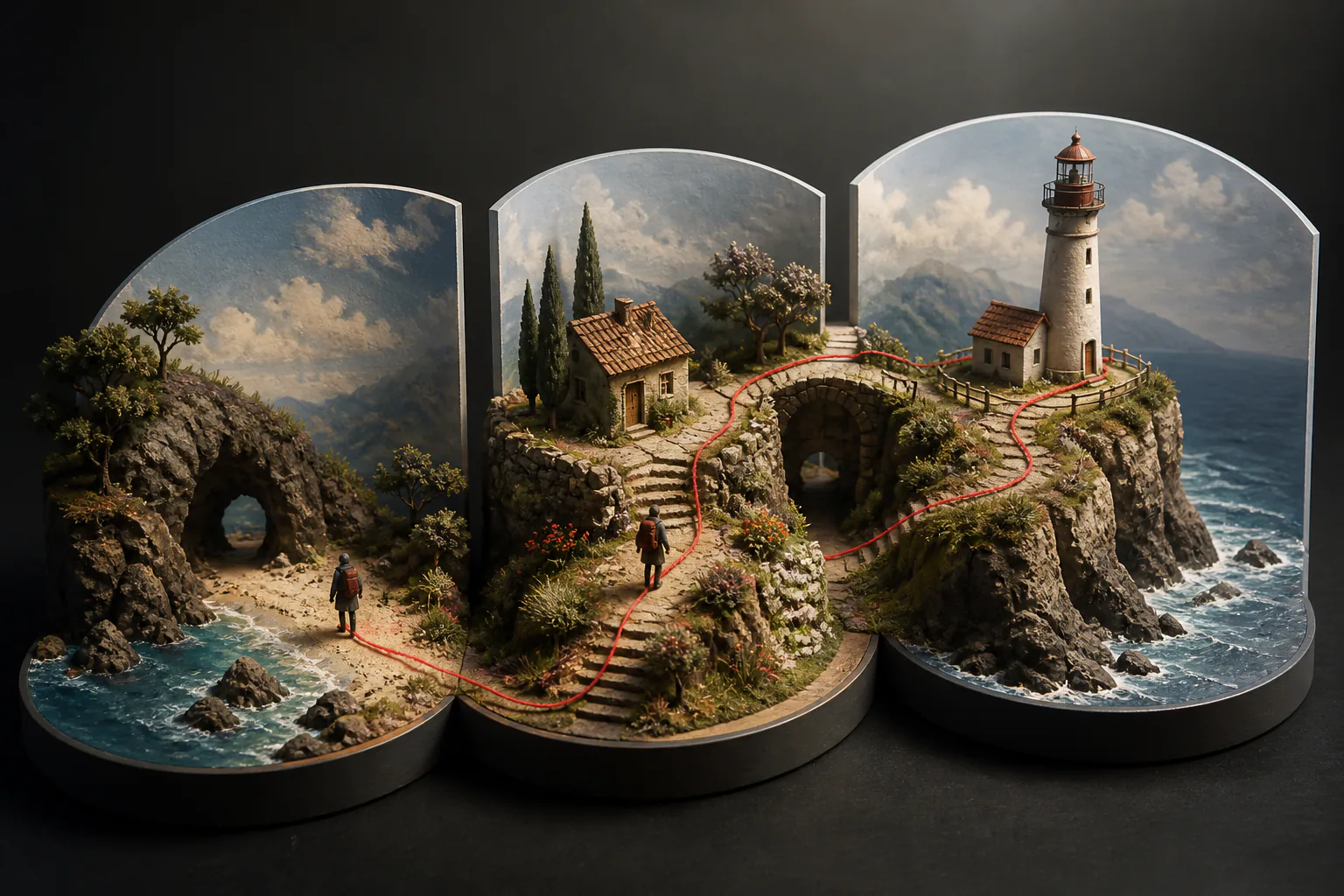
Choose the intended format, then write what happens in each time section. Add scene references, voiceover, music, sound, camera, or transition direction when those details explain how to create an ai video that matches your intent.
Step 03
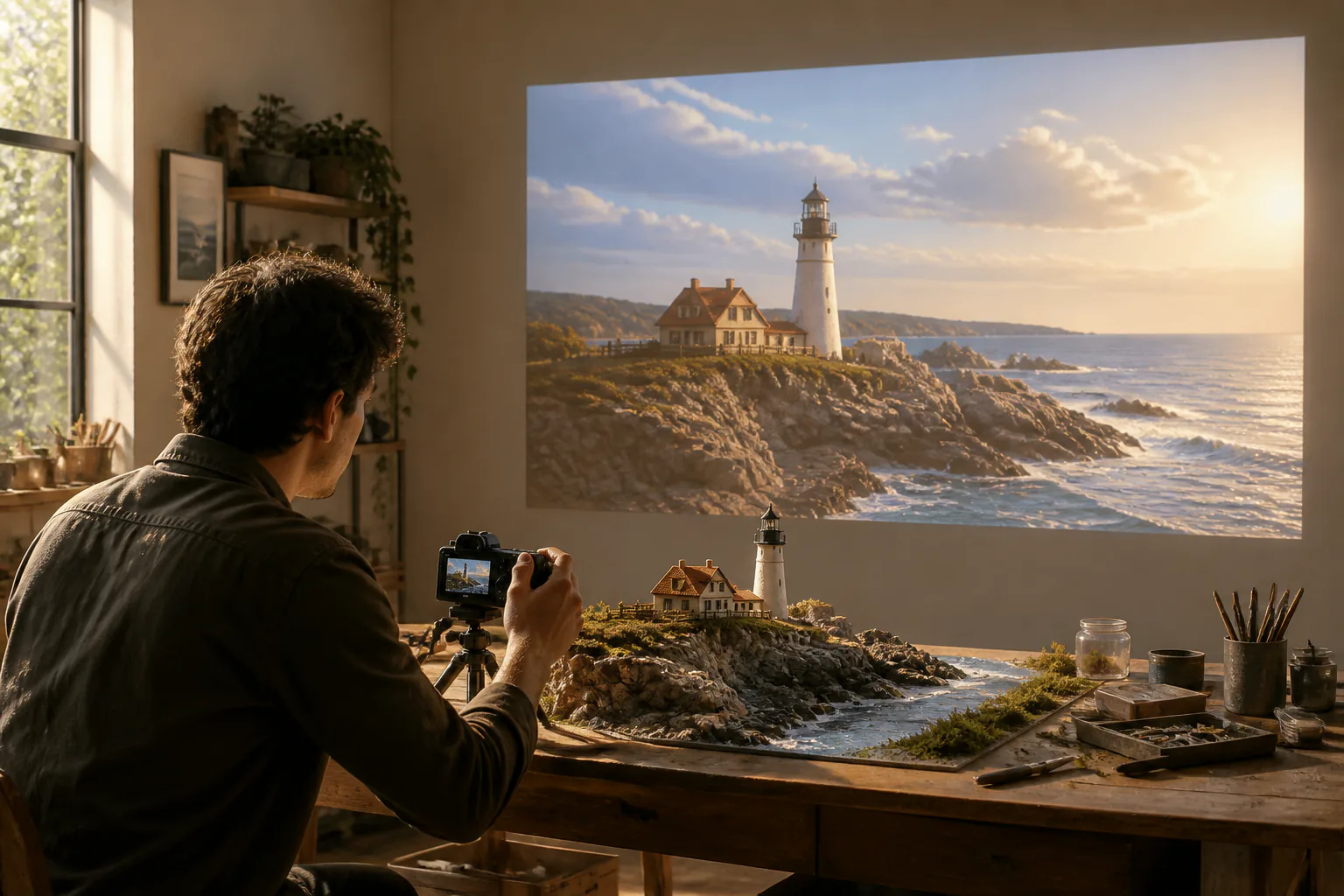
When your scene plan is ready, VideoAI generates the clip from your directions. Review the saved result, then use a new text instruction to refine it for a cleaner second pass.
These situations show how do people make ai videos when the goal is a usable clip without building a heavy production project.
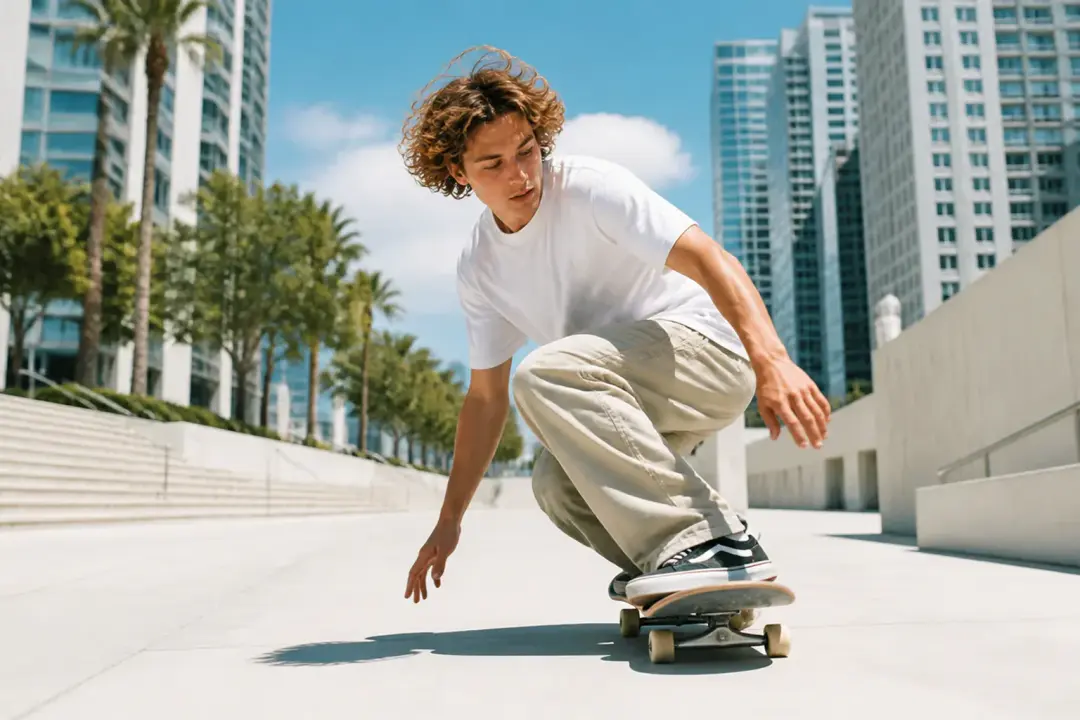
A creator needs a vertical or square post with a clear visual hook. They set the format, describe the opening action, and guide the next scene so the final clip is ready for the channel concept.

When a campaign needs an early concept, a marketer can start from brand images, product footage, or audio references. VideoAI turns those inputs into a directed video that keeps the campaign idea visible from scene to scene.
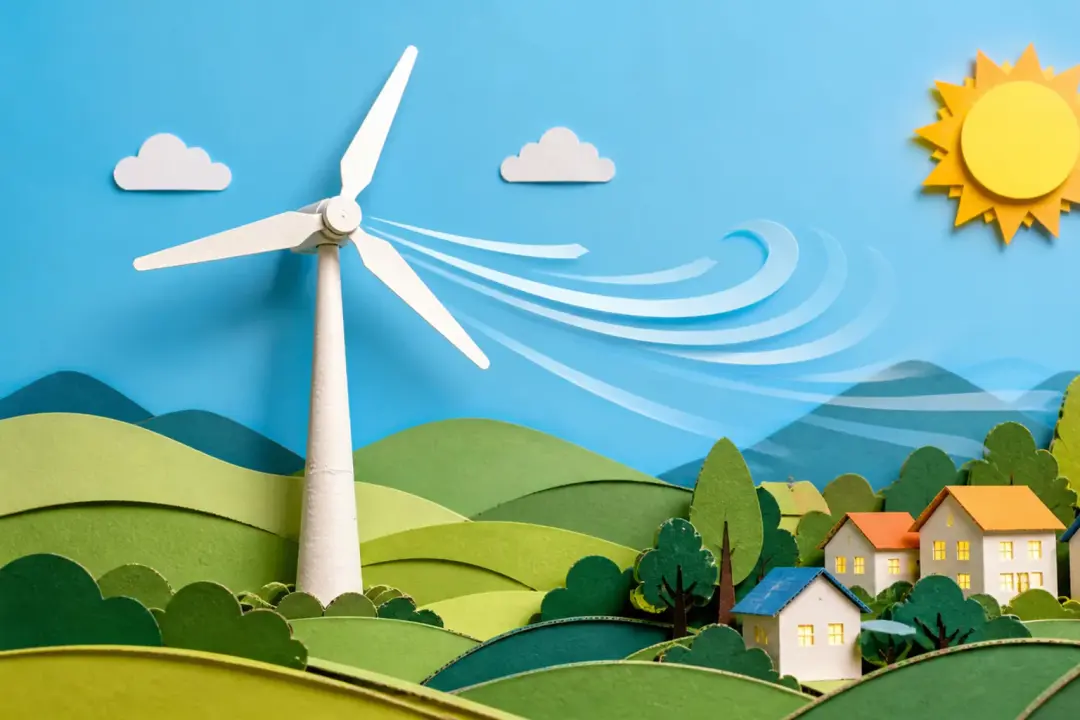
An educator breaks a topic into simple sections and writes what each scene should show. That structure helps when asking how to make videos with ai for instruction rather than decoration.
A producer can create ai video concepts from references, save generated work in the workspace, and revise with text instructions after feedback. The project stays available for reuse.
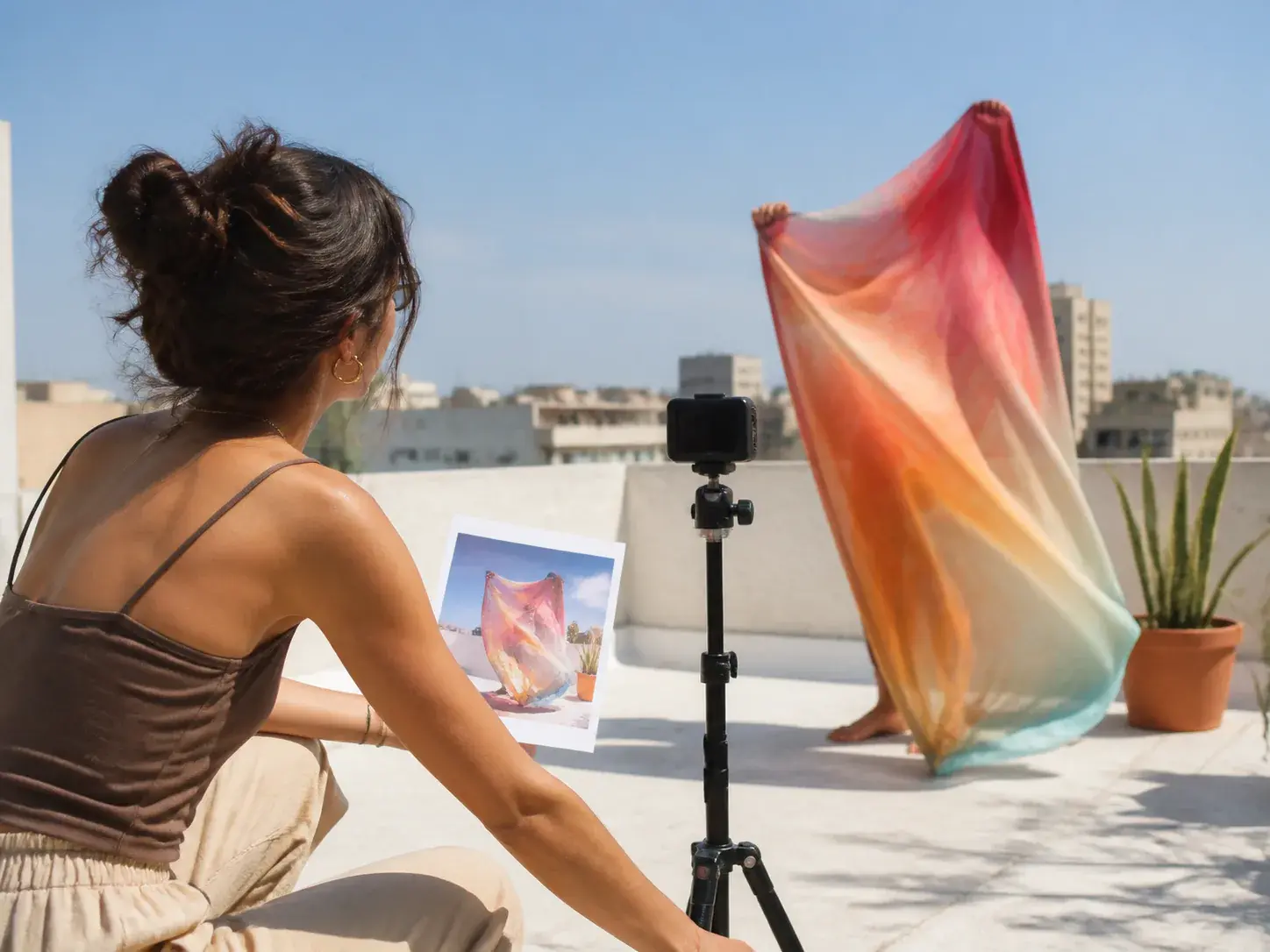
Social creators use VideoAI to shape short clips around a visual hook, a chosen ratio, and scene notes. It fits creators learning how to make ai generated videos with more control over the first result.
Open VideoAI with a prompt or references, then decide how to make a video with ai by planning the scenes, format, sound, and revisions yourself.
Get Started
