
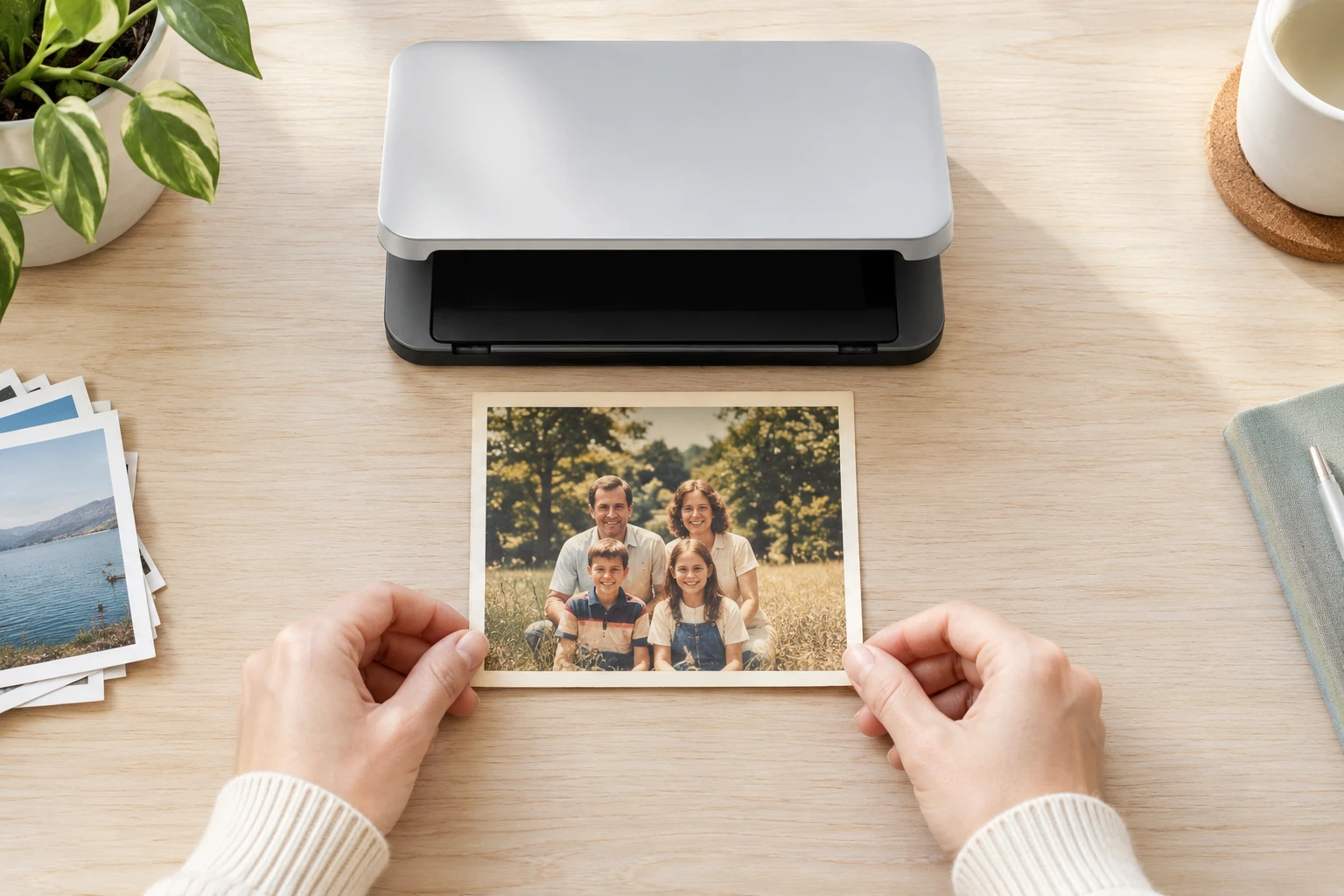
Step 01
Scan Or Photograph The Print
Place the paper photo flat, scan it when possible, or take a clear picture from above in a phone browser. Upload the image to your workspace so you can reuse it later or remove the uploaded material yourself.

Upload a scanned or clearly photographed old picture to VideoAI, sharpen faces and edges first, repair selected marks, add color if needed, then download a 4K result.
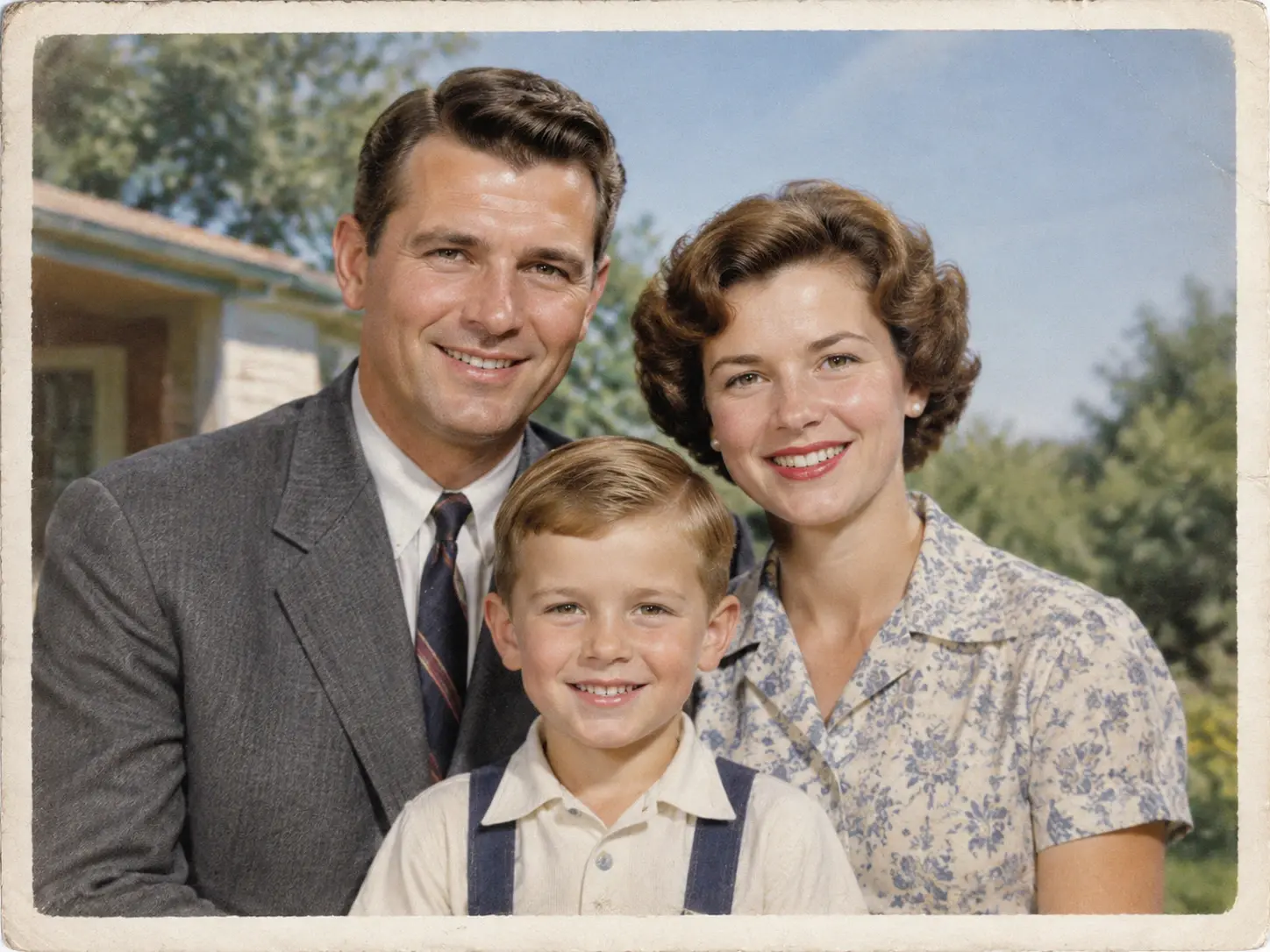
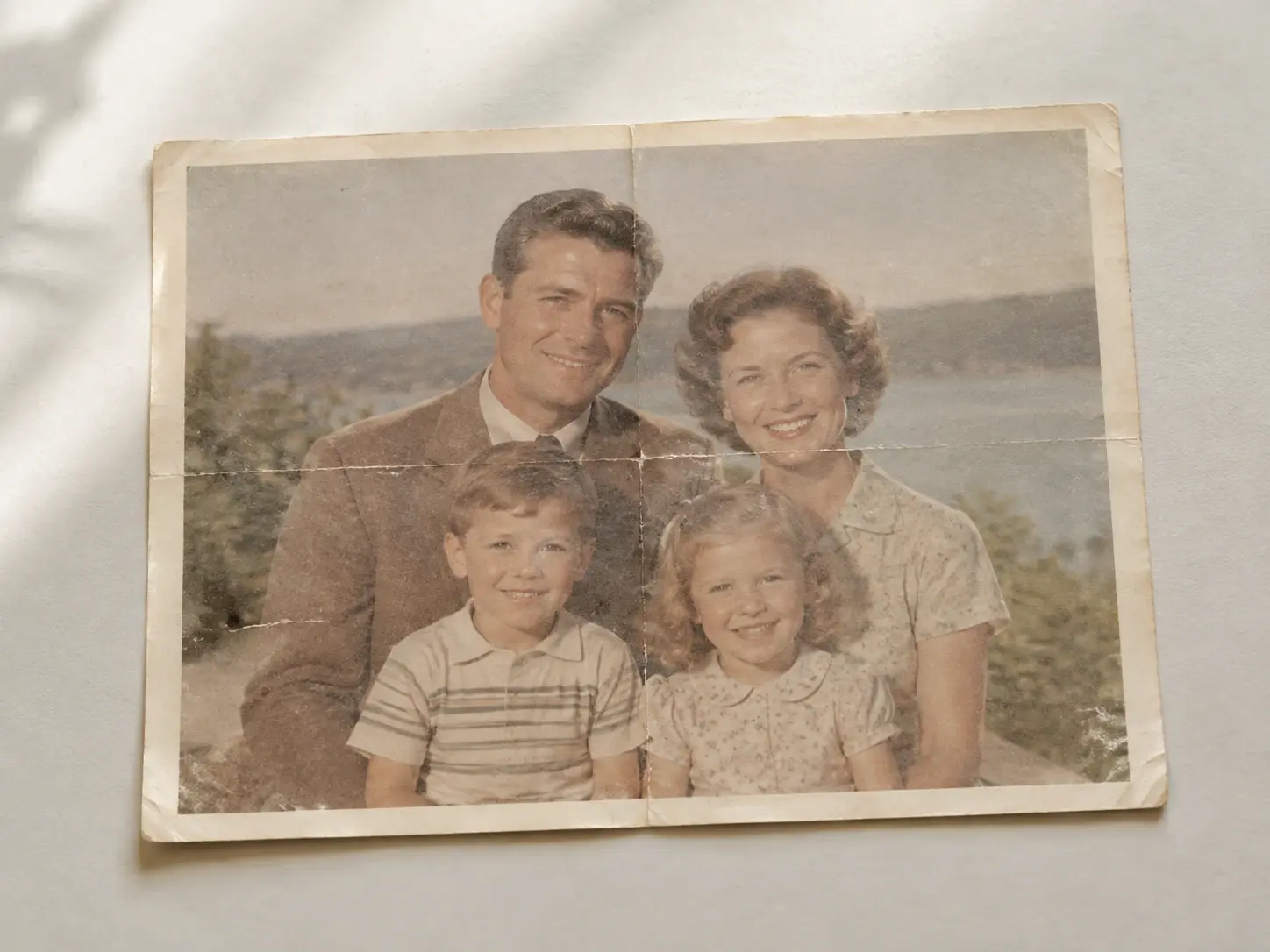
Start with the best capture you can make, then let VideoAI improve clarity before you choose any local repair or color work.
Step 01
Place the paper photo flat, scan it when possible, or take a clear picture from above in a phone browser. Upload the image to your workspace so you can reuse it later or remove the uploaded material yourself.
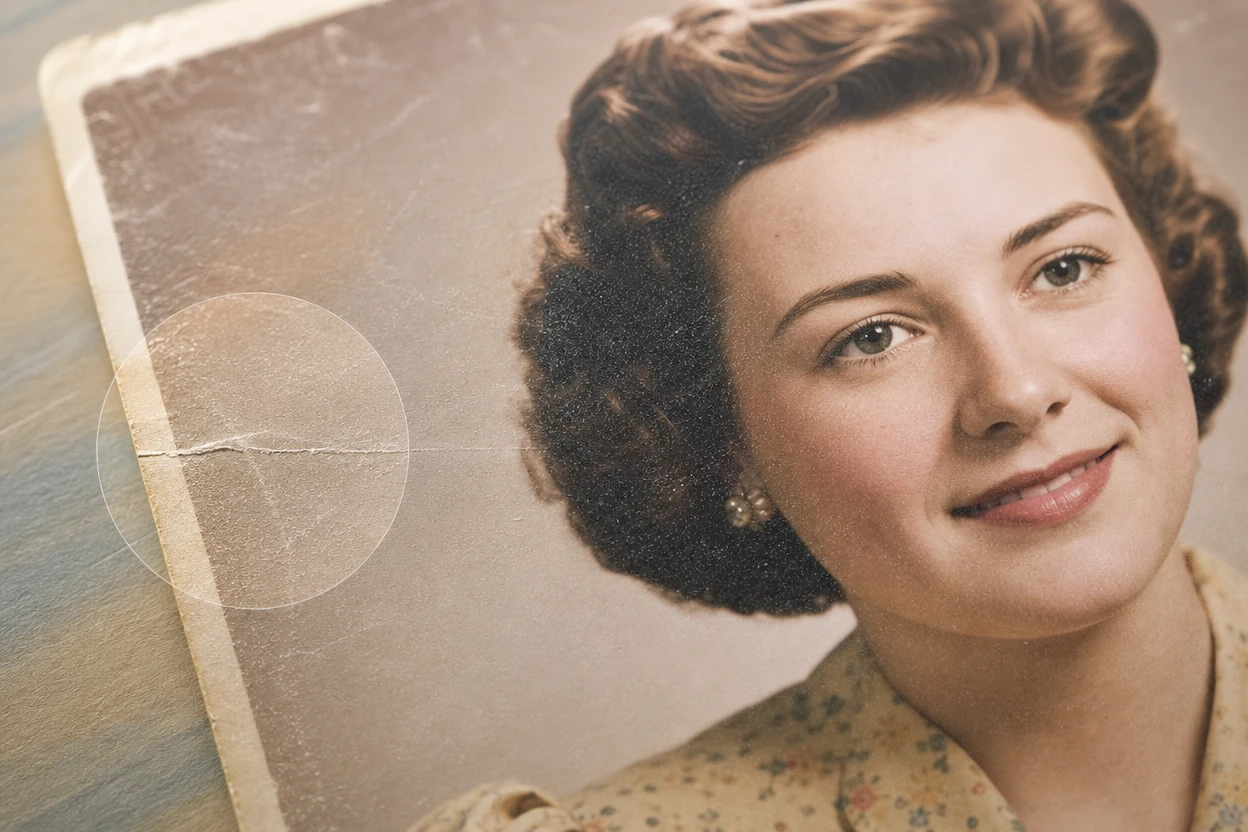
Step 02
Sharper eyes, cleaner hairlines, and steadier edges come first as AI handles blur, noise, low light, and soft detail. For scratches, stains, or folds, brush the damaged area or describe what should be removed.
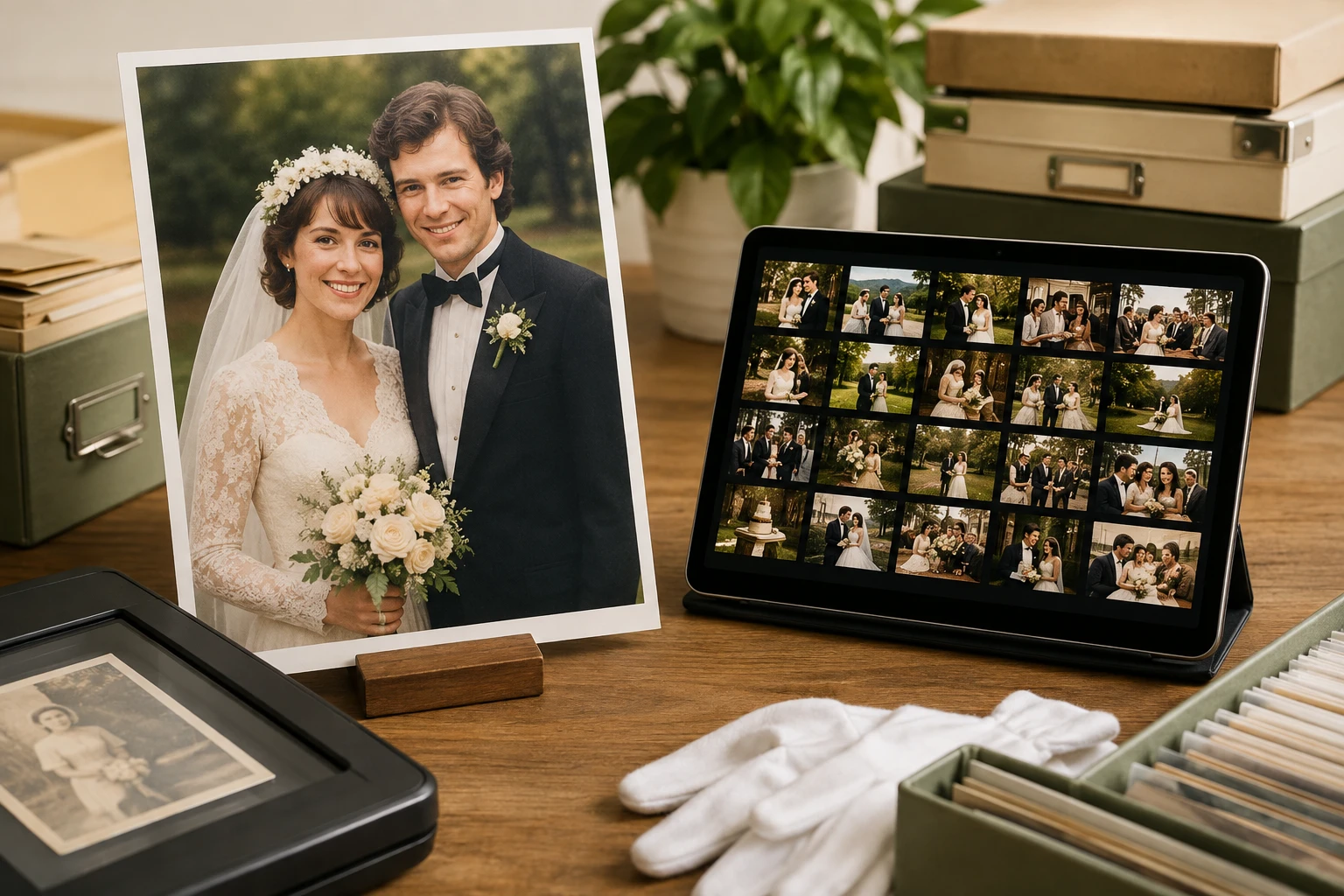
Step 03
Check that the people, objects, and composition still match the original photo. Choose color only when it helps a black and white or faded image, then download the enhanced 4K result.
Pick the path that matches the picture you have and the result you need to keep, share, or place into a creative project.
A paper snapshot can become a workable upload when you photograph it flat from above and open VideoAI in the browser. This is the practical route for how to restore a picture when the original print is already in your hand.
Boxes of yellowed portraits often need the same first pass, with blur reduced, noise cleaned, and edges sharpened before anyone decides which pictures deserve color. Use this flow when learning how to restore old pictures for saved digital copies.
Older group photos matter because the faces still matter. VideoAI helps you clean old photos, repair selected spots, and keep the original people and scene recognizable for sharing or reprinting.
Campaigns, explainers, and client videos sometimes need historical images that look clear enough to use on screen. Restore the photo, review the AI reconstruction, then continue editing text, color, or layout in the workspace.
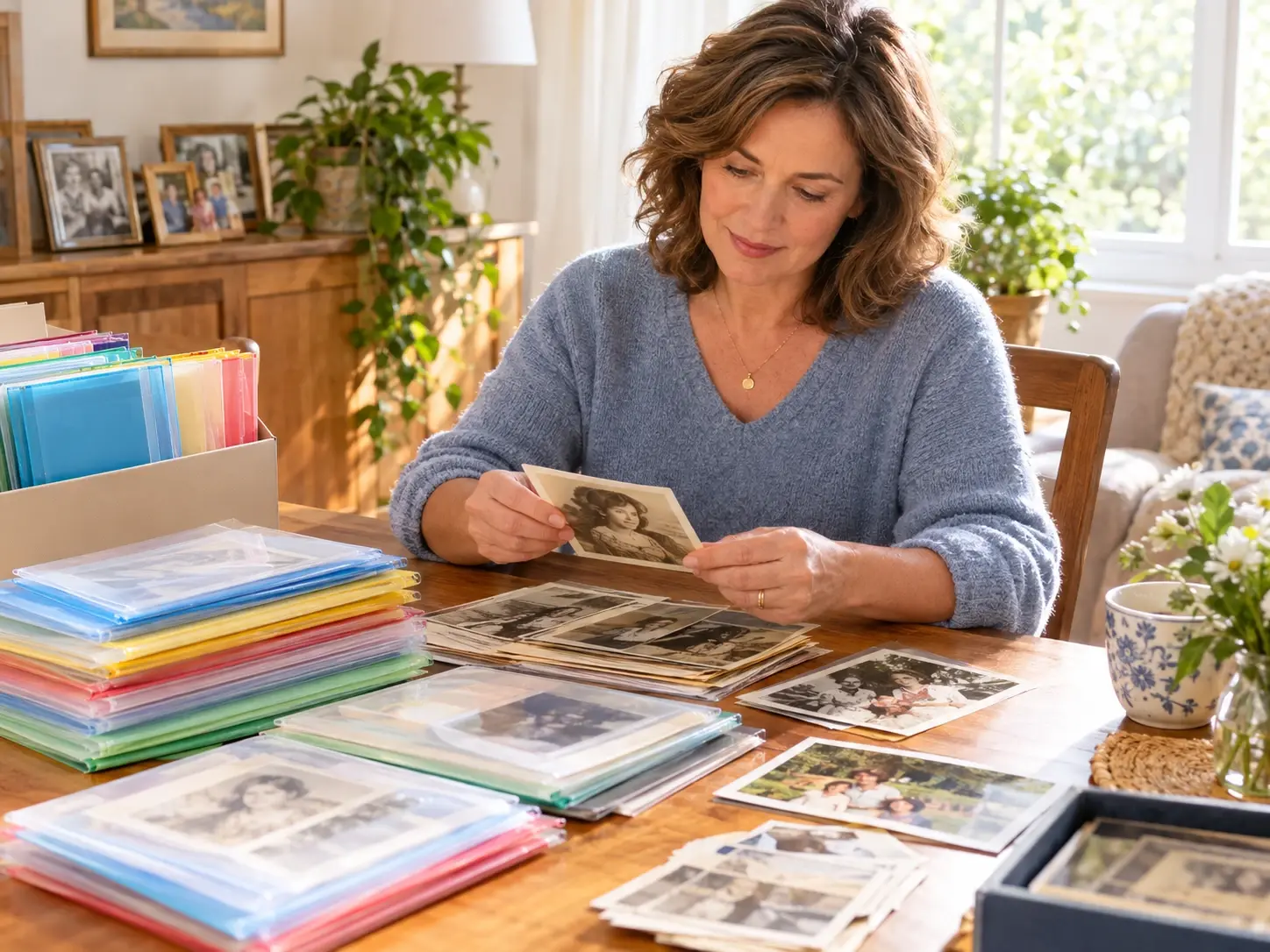
People sorting inherited prints can turn paper photos into clearer digital copies. VideoAI supports how to clean old pictures without asking the user to set repair parameters first.
Each feature starts with what you see in the result, then gives you the control needed to shape the final image.
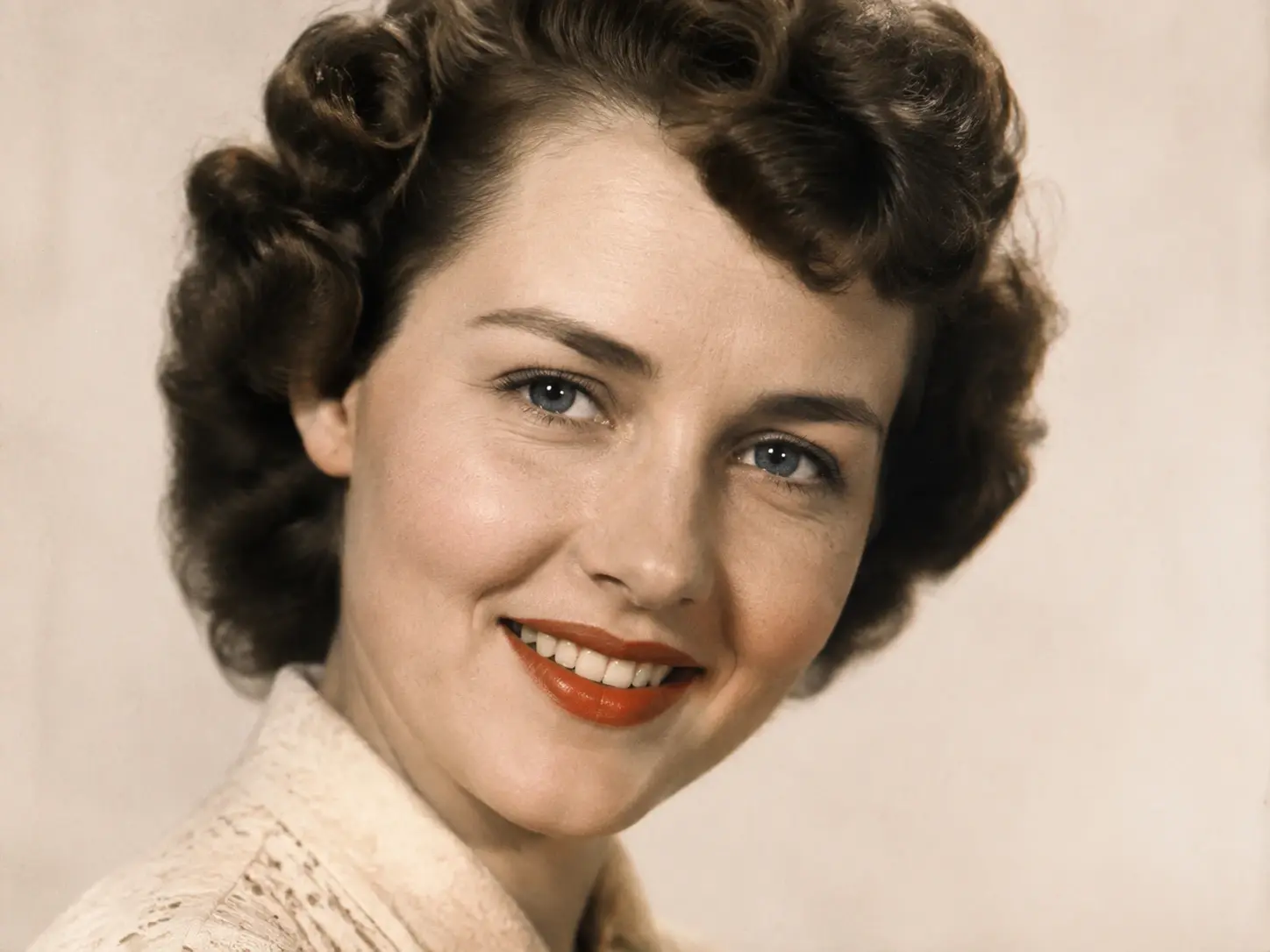
Sharper outlines, reduced noise, and cleaner low light areas come before manual repair. VideoAI detects blur and soft detail automatically, which helps when deciding how to sharpen old photos without setting technical sliders.
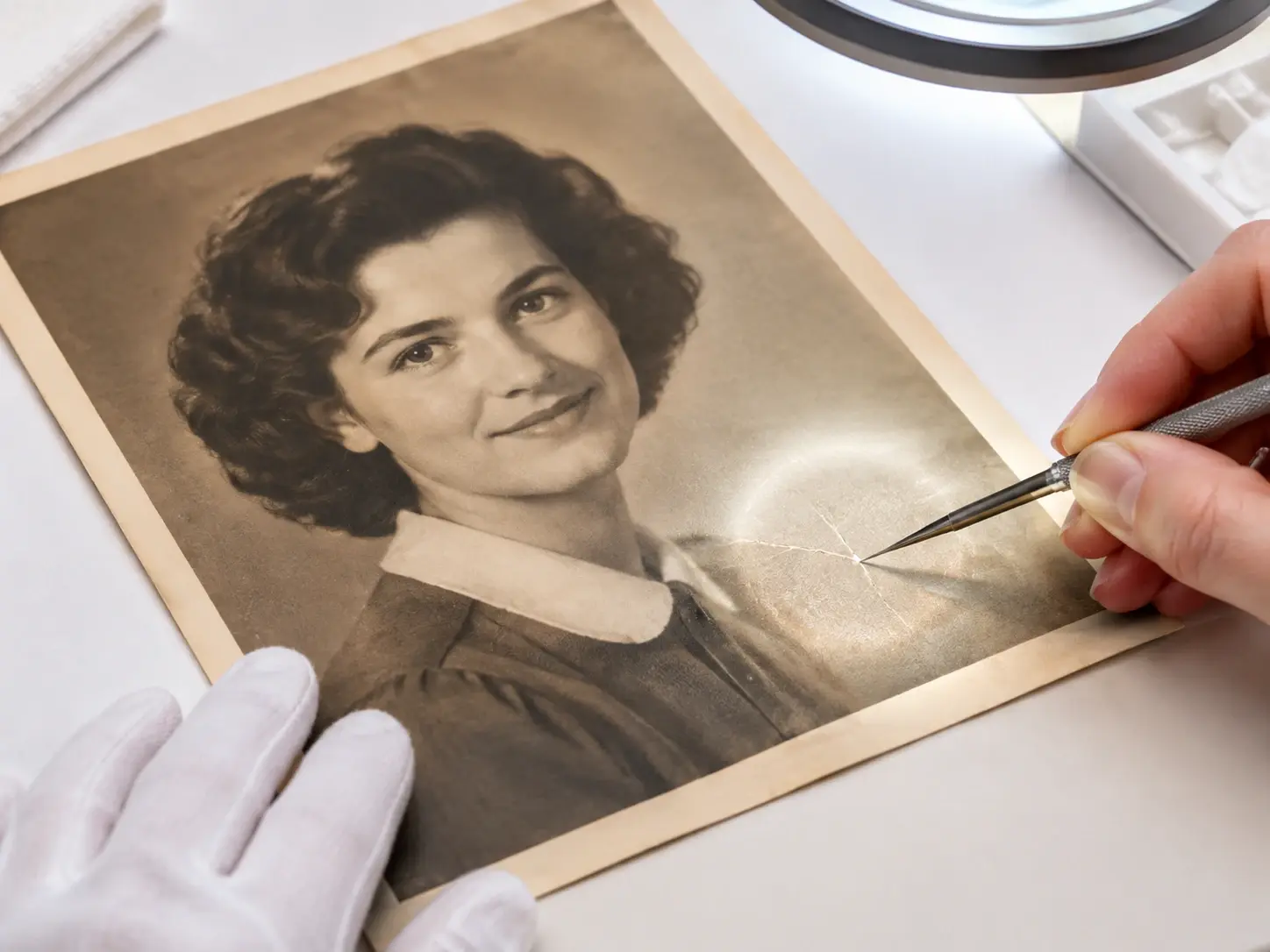
Clean backgrounds and repaired paper marks happen after you select the scratch, stain, or fold with a brush or a prompt. This is the controlled answer to how to restore old damaged photos and how to clean up old photos.
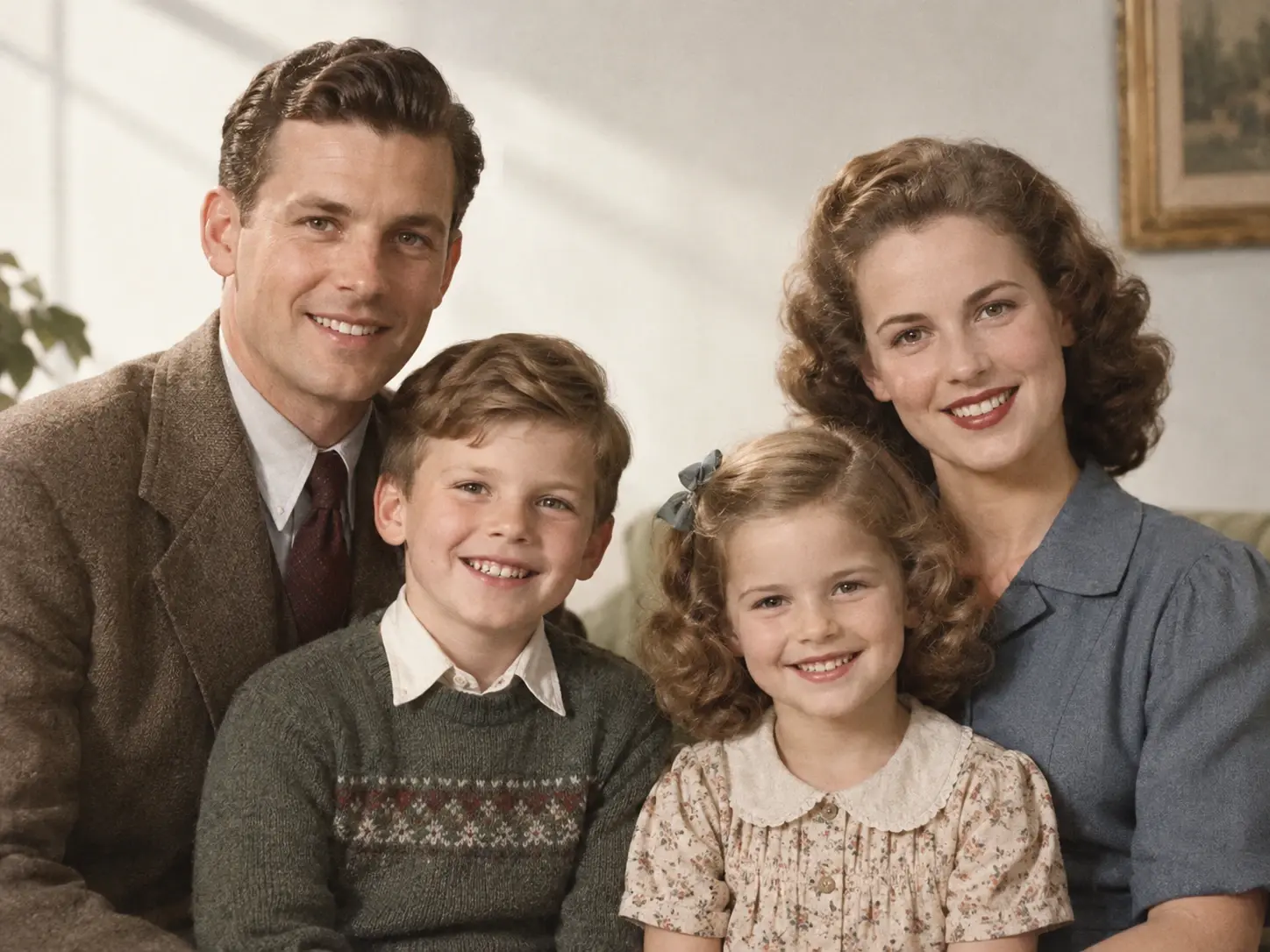
A faded or black and white portrait can receive natural color when you choose that path. The colors are AI estimates, so review the result as a creative version rather than a verified historical original.
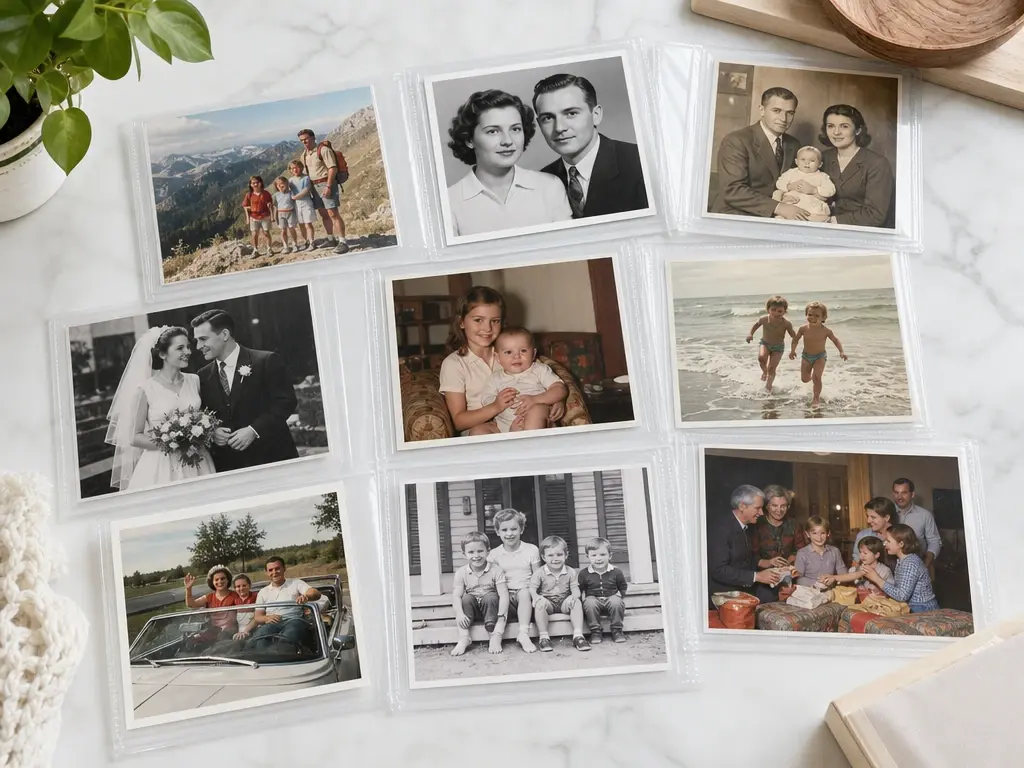
Downloadable 4K results give creators a clean image for reuse in layouts, posts, and videos. Up to 30 photos can be submitted at once when you need to restore photos from a whole album and review them one by one.
Upload a scan or clear phone photo to VideoAI, restore the visible detail, choose any local repair or color work, and download the finished image.
Get Started
