
Step 01
Upload common image files
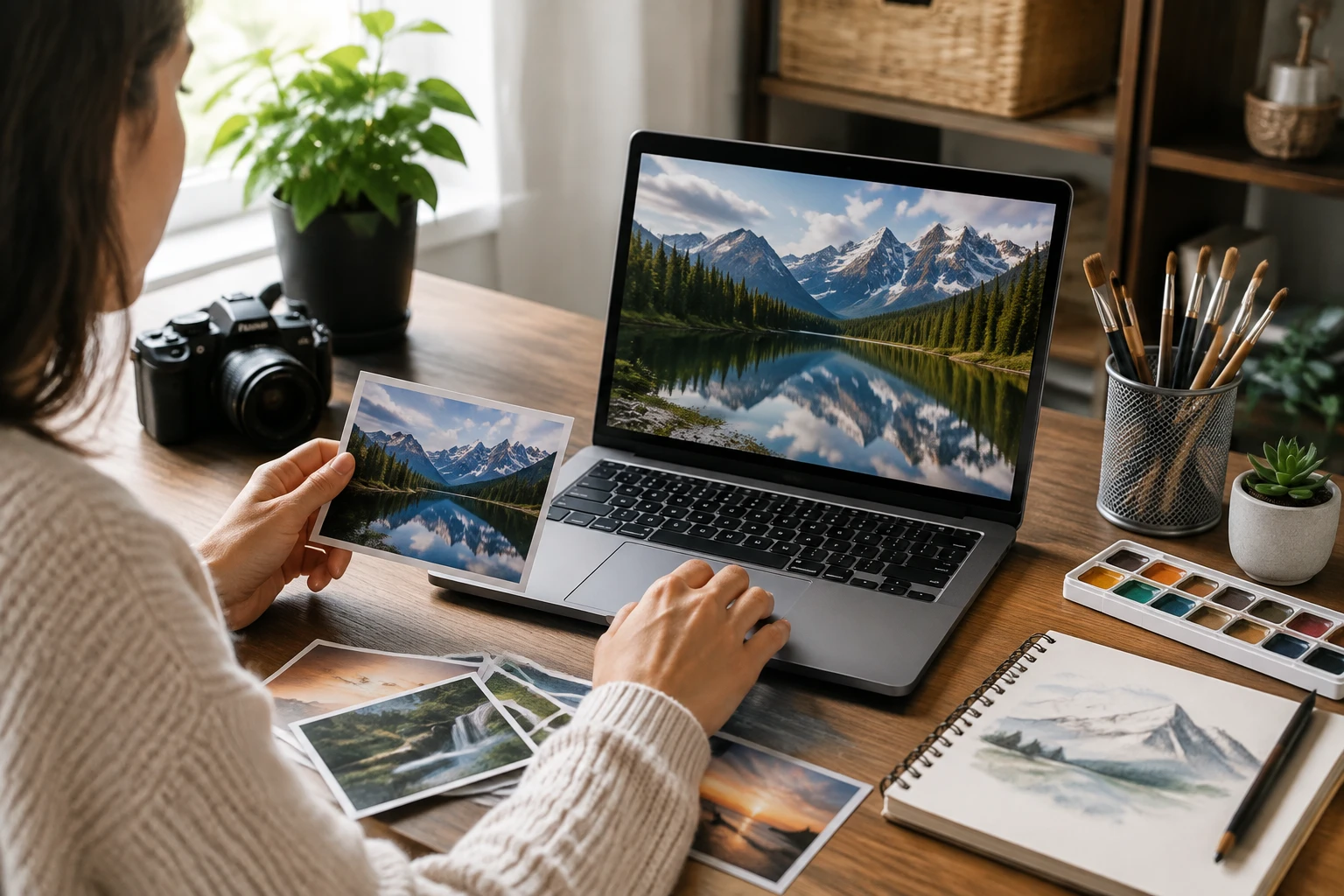
Add one image or submit up to 30 at once. Your uploaded material enters the VideoAI workspace, where you can process individual visuals or a full batch.

Sharper Images For Creators
Upload a small image, choose 2x, 4x, or 8x, and let VideoAI rebuild cleaner detail while keeping the original subject and composition.


No picture on hand? Try with one of these

Turn older thumbnails, campaign stills, and social assets into cleaner working material. VideoAI helps you upscale image online so the original idea can keep moving into a new edit or layout.

Product photos often arrive too small for a store page or display slot. Use the image upscaler online path to process up to 30 images and keep each product framed as uploaded.

A chart, reference photo, or report image can look soft when placed on a larger slide. The image upscaler gives you clearer visuals for presentations and study material.
When you pick a scale, AI handles the cleanup without extra prompts or model settings.
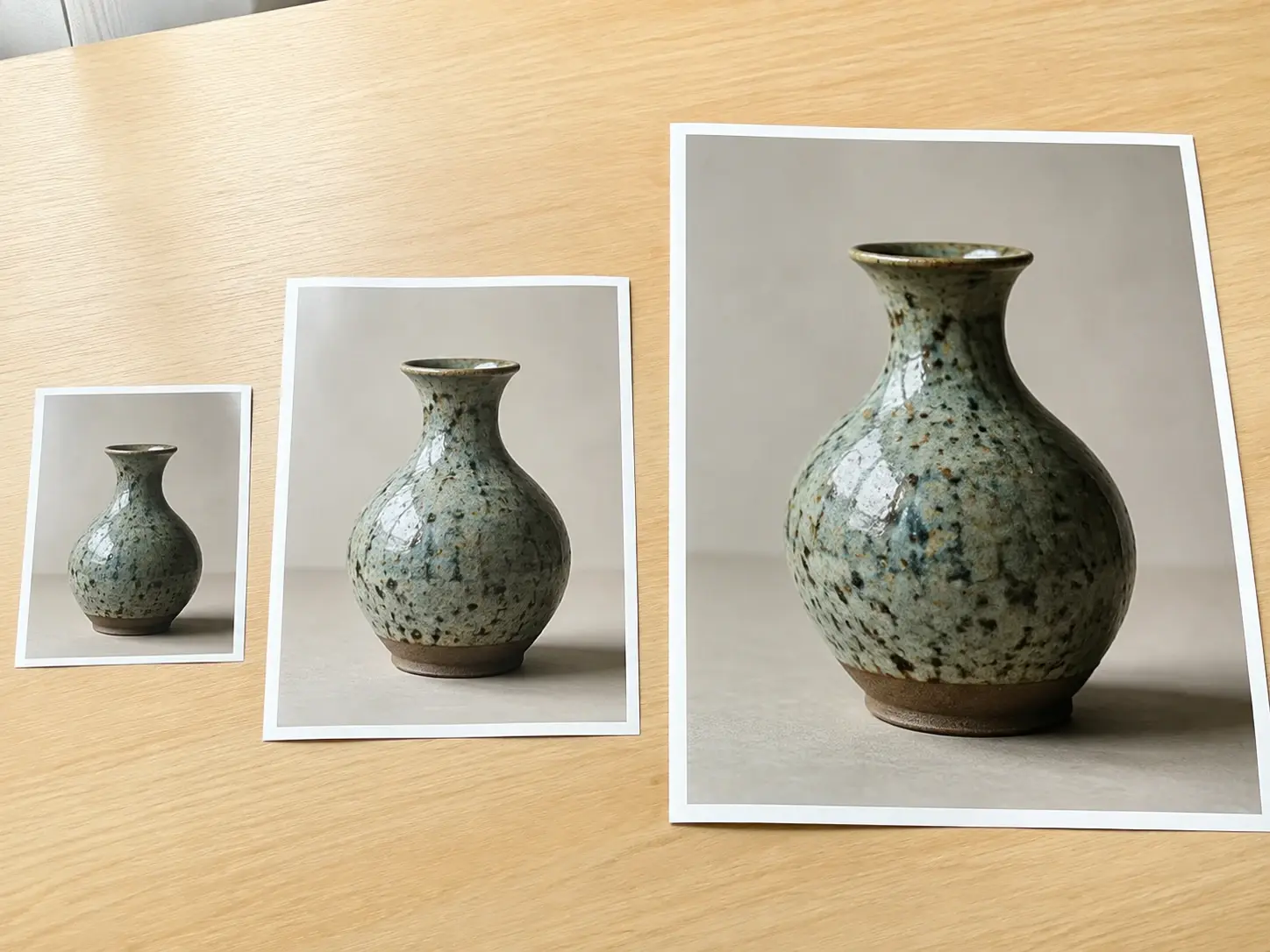
Pick the enlargement level before processing so the image upscaler fits a thumbnail refresh, a page asset, or a larger display need without extra controls.

Cleaner faces, crisper product lines, and readable textures come first. VideoAI uses AI upsampling and enhancement to rebuild detail in low resolution or soft images.

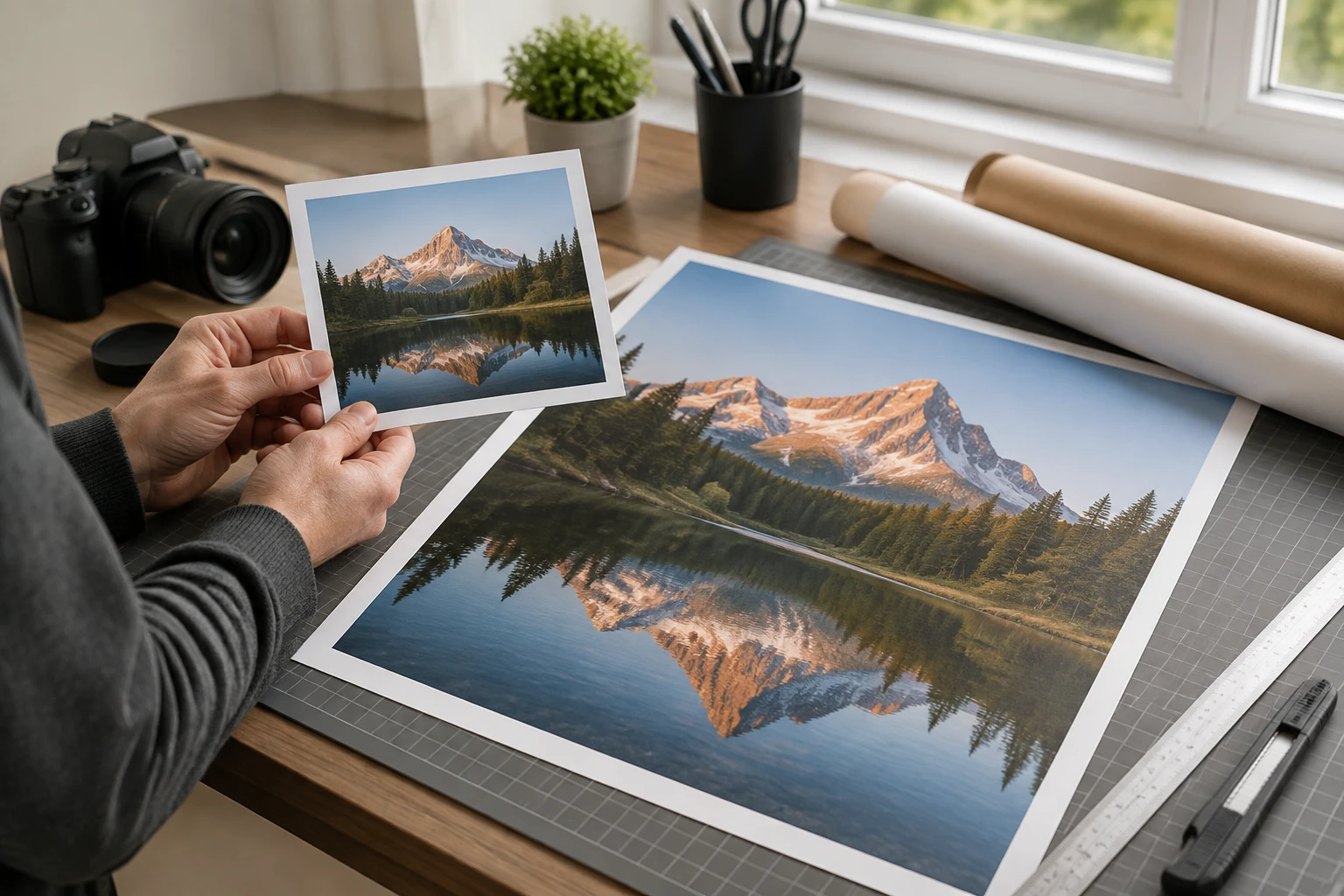
The image upscaler can output up to 4K, which helps when a creator needs posters, canvas prints, or large display material from a smaller source image.

Submit up to 30 images at once when a product set, site refresh, or client package needs consistent enlargement. Results stay in your workspace for reuse and download.
The workflow stays simple because the creative decision is the scale, not a long list of settings.
Step 01
Add one image or submit up to 30 at once. Your uploaded material enters the VideoAI workspace, where you can process individual visuals or a full batch.
Step 02
Select 2x, 4x, or 8x based on where the image will be used. The AI image upscaler free search intent is simple here: you choose scale, then AI rebuilds detail.

Step 03
Export an enlarged image up to 4K with no watermark. The result remains in your workspace so you can return, reuse it, continue editing, or delete it yourself.
Use it when the image is right, but the size and clarity are holding the project back. When the original frame still works, VideoAI helps it hold up in the next layout.
A seller has small product shots from an older catalog. They choose a scale in VideoAI, process a batch, and get cleaner images for store pages and displays.
A designer wants to reuse a past campaign still in a new format. The image upscaler keeps the subject and composition while adding clearer detail for the next layout.
A site owner needs images that hold up in larger page areas. Uploading them through an image upscaler online workflow helps preserve the original framing while improving clarity.
A student, manager, or researcher has a small visual that must fill more space. Upscaling gives the slide or report a cleaner image without rebuilding the material.

Upload a photo, choose the scale, and let VideoAI return a clearer image for your next page, post, print, or client deliverable.
Get Started