
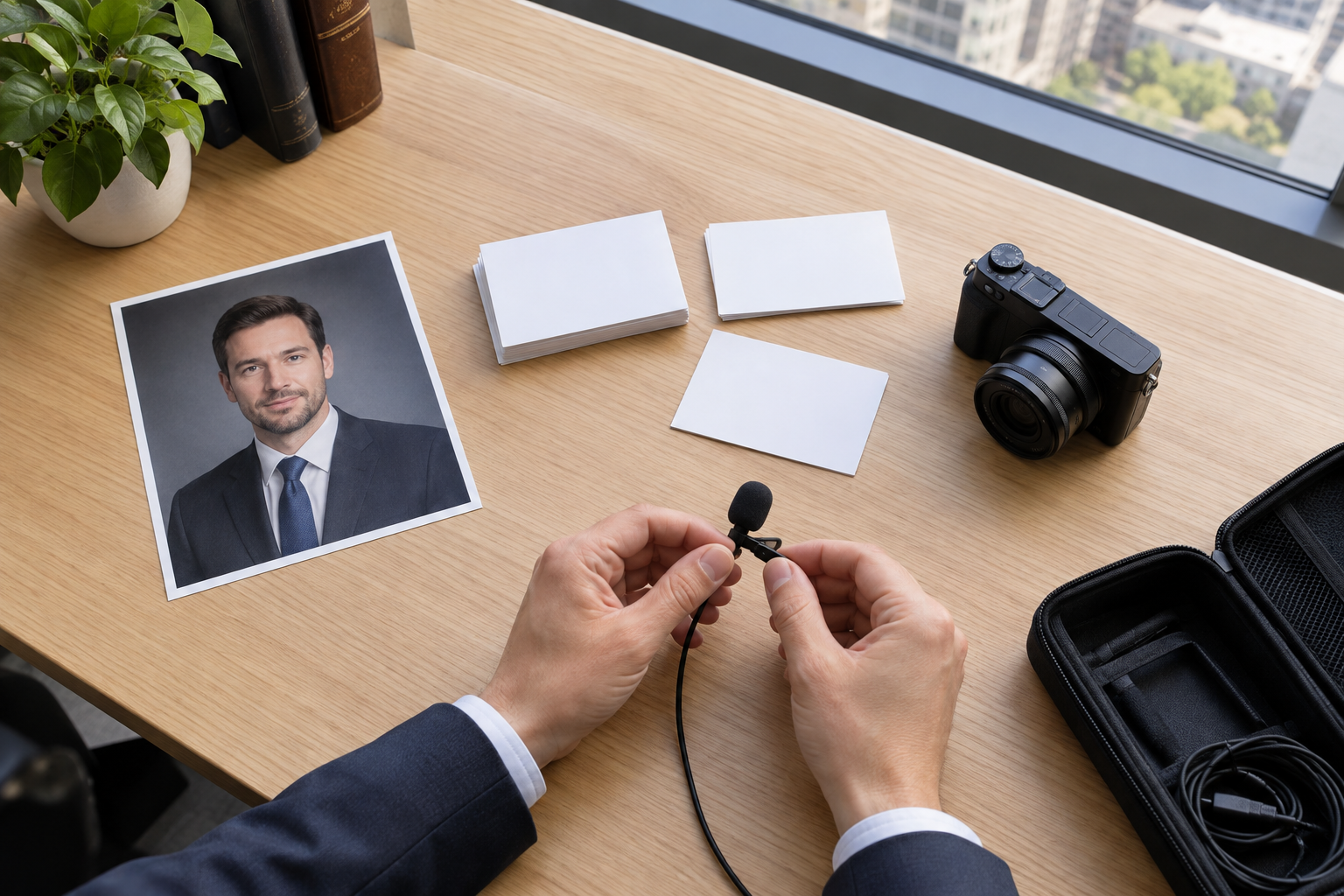
Step 01
Write Your Video Goal
Start with a text brief for an attorney introduction, explainer, or client process video. Add approved image, video, or audio references that show the people, setting, or sound you want.

Your Firm, Your Video Direction
Create a reviewable MP4 draft in VideoAI, with your message, references, and scene timing shaping the result.

Build video for attorneys around a specific viewer need, from meeting an attorney to understanding what comes next.

A new attorney profile needs a clear point of introduction. Pair an approved portrait and biography with voiceover, then direct the scene order. The resulting draft presents the attorney's practice focus for review.
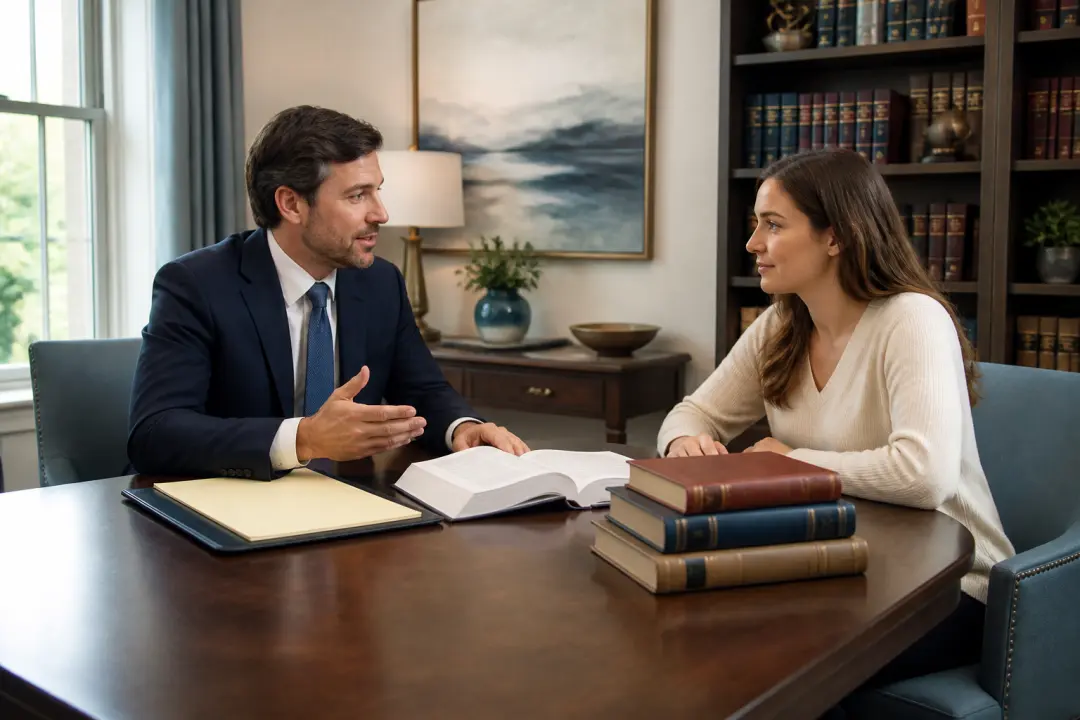
When a practice area feels unfamiliar, focus on one question a prospective client might ask. Turn your approved topic outline into ordered scenes with voiceover and onscreen text. The draft gives viewers a visual explanation to follow.

An open role calls for a concrete view of the workplace. Use approved office and team references to shape scenes about the role and environment, creating a recruiting draft with a defined message.

Clients preparing for an initial meeting need to know what comes next. Supply your approved process information and set the sequence of scenes to create an onboarding video they can follow.

Make your practice focus clear before a first conversation. With VideoAI, video production for attorneys starts from your message and approved materials, with scene contents and timing left to you.

Keep attorney profiles and firm updates connected to your brand. Direct law firm video production with approved imagery, an uploaded logo, and voice direction so each draft reflects the message you want to present.

For client projects, video production for law firms often begins with choosing a concept. Develop several drafts through batch generation, then compare the wording, visual treatment, and pacing before selecting a version.
Shape lawyer video production around the details viewers notice: who appears, what each scene says, and how the story moves.
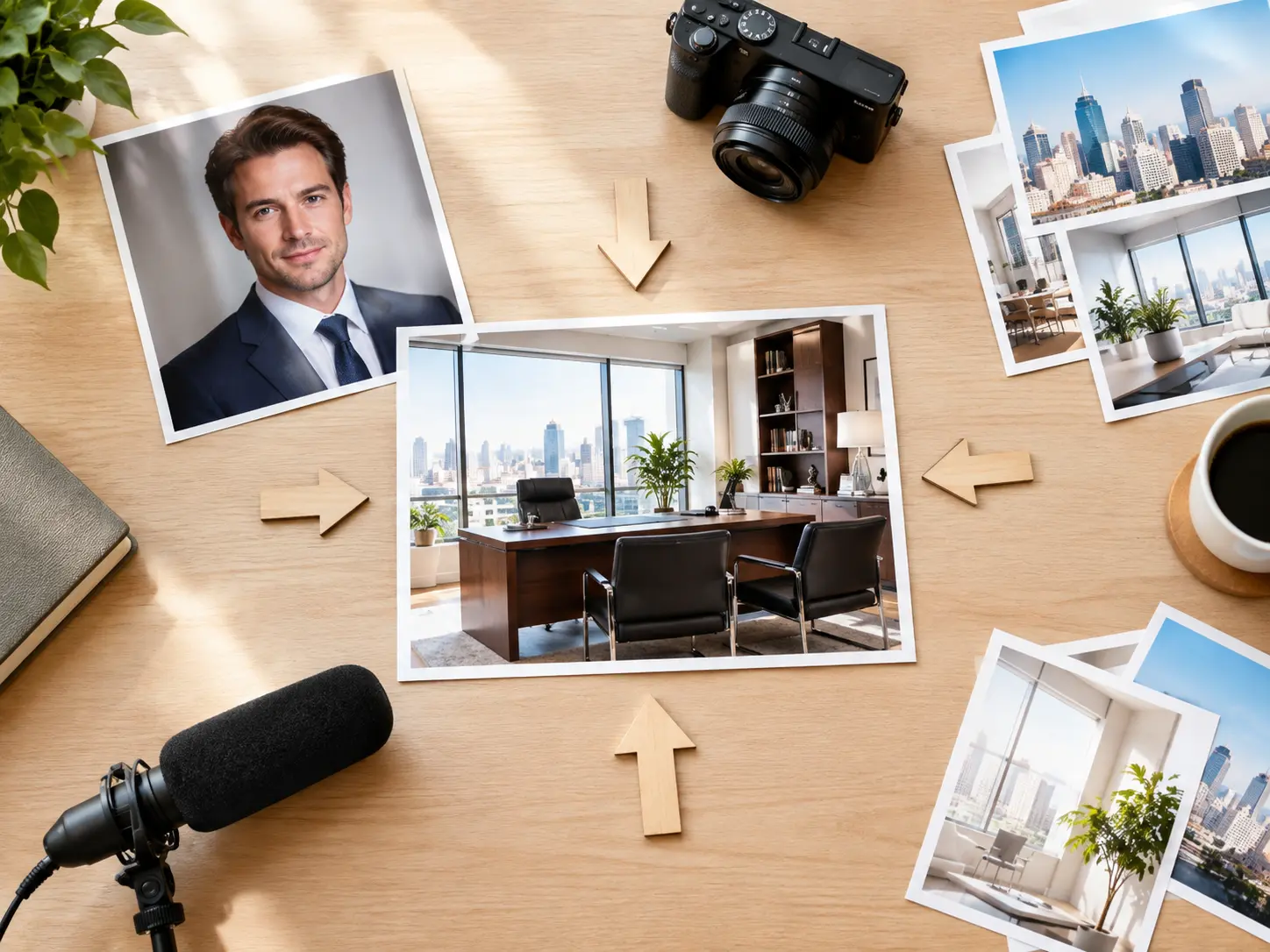
Give an attorney introduction a visual starting point with approved portraits and office imagery. Assign each reference a subject, scene, or camera movement role in VideoAI to direct how it informs the draft.
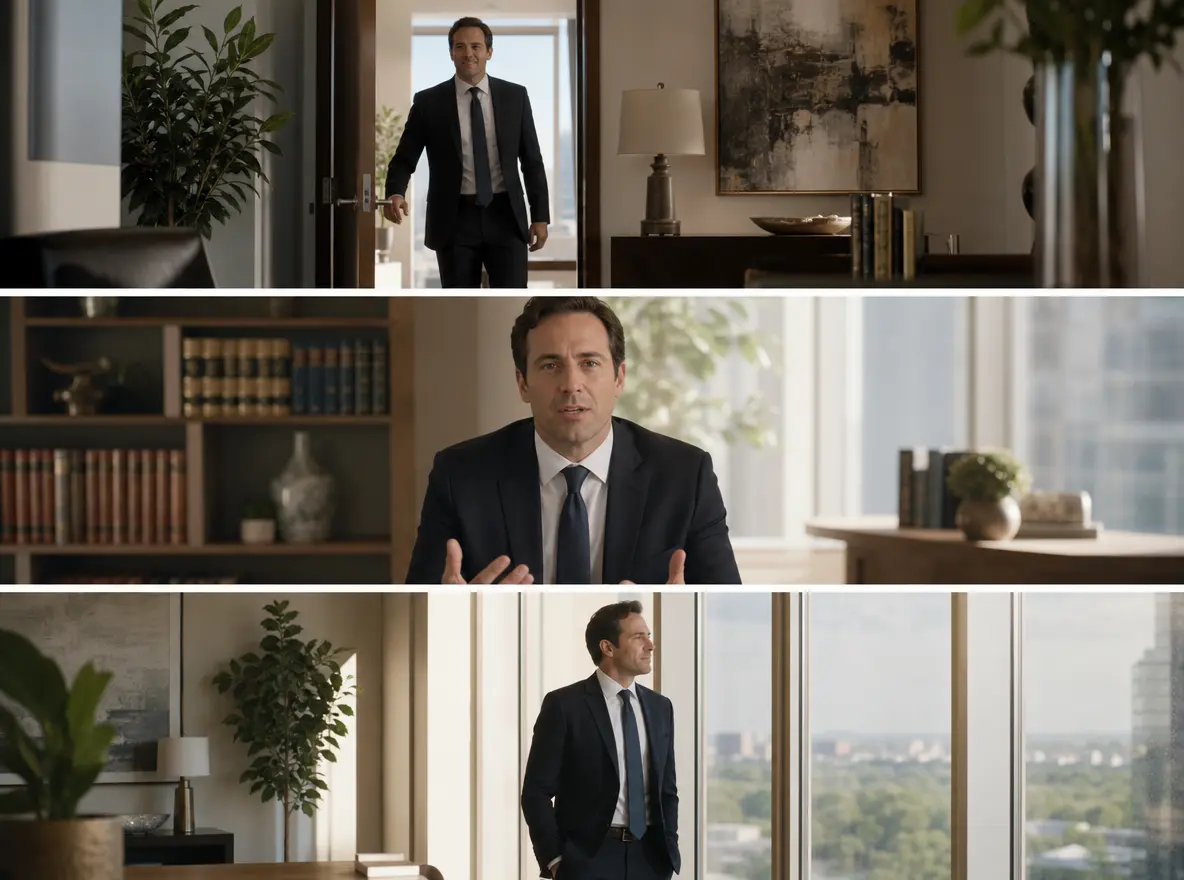
Keep the opening, explanation, and closing in your chosen order. Set scene timing and attach references to individual segments so attorney video production follows the structure you have in mind.
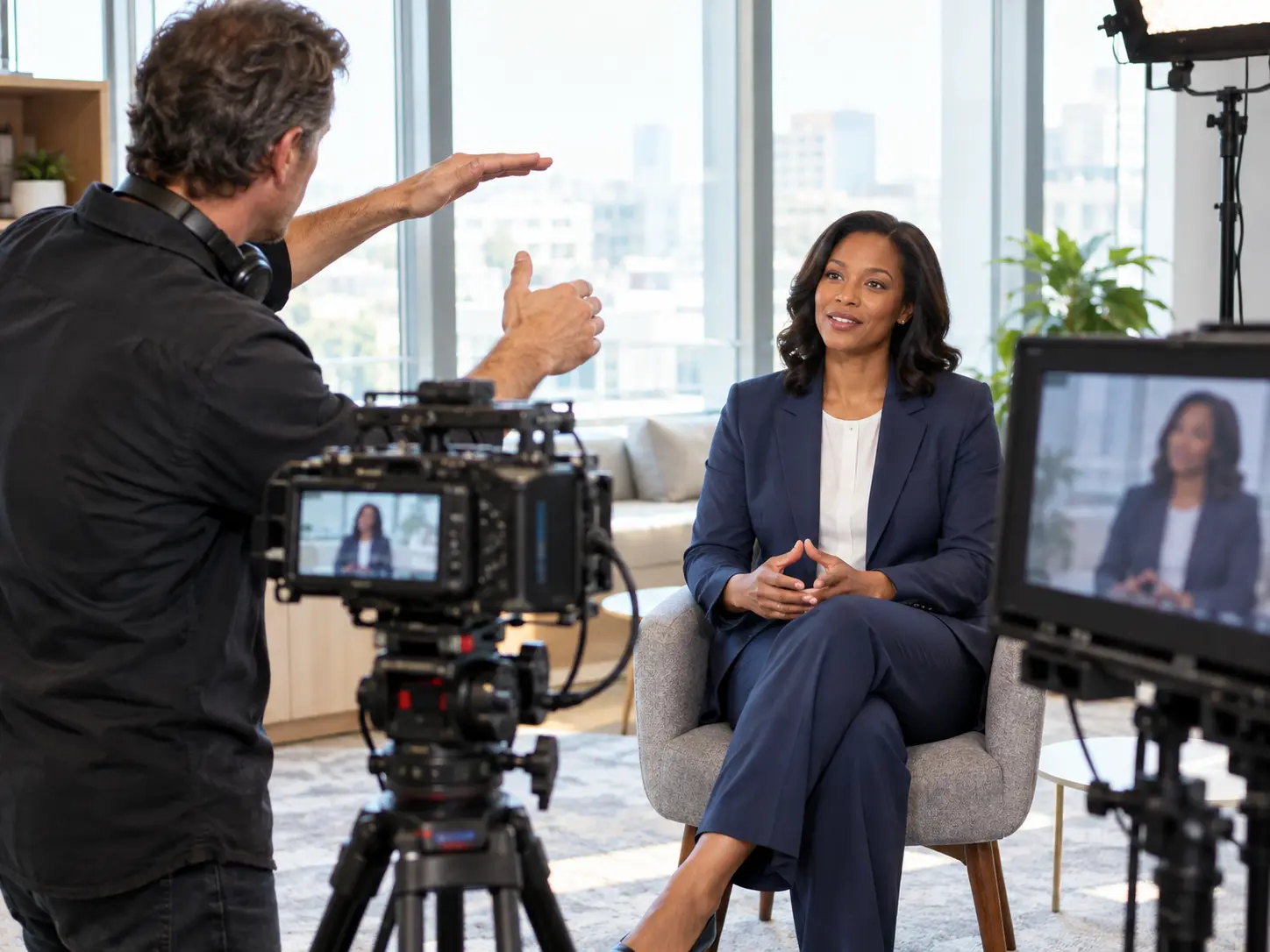
Bring the next draft closer to your intent by describing what should change. After reviewing the wording, likenesses, and pacing, enter the revision in the existing workspace and regenerate.
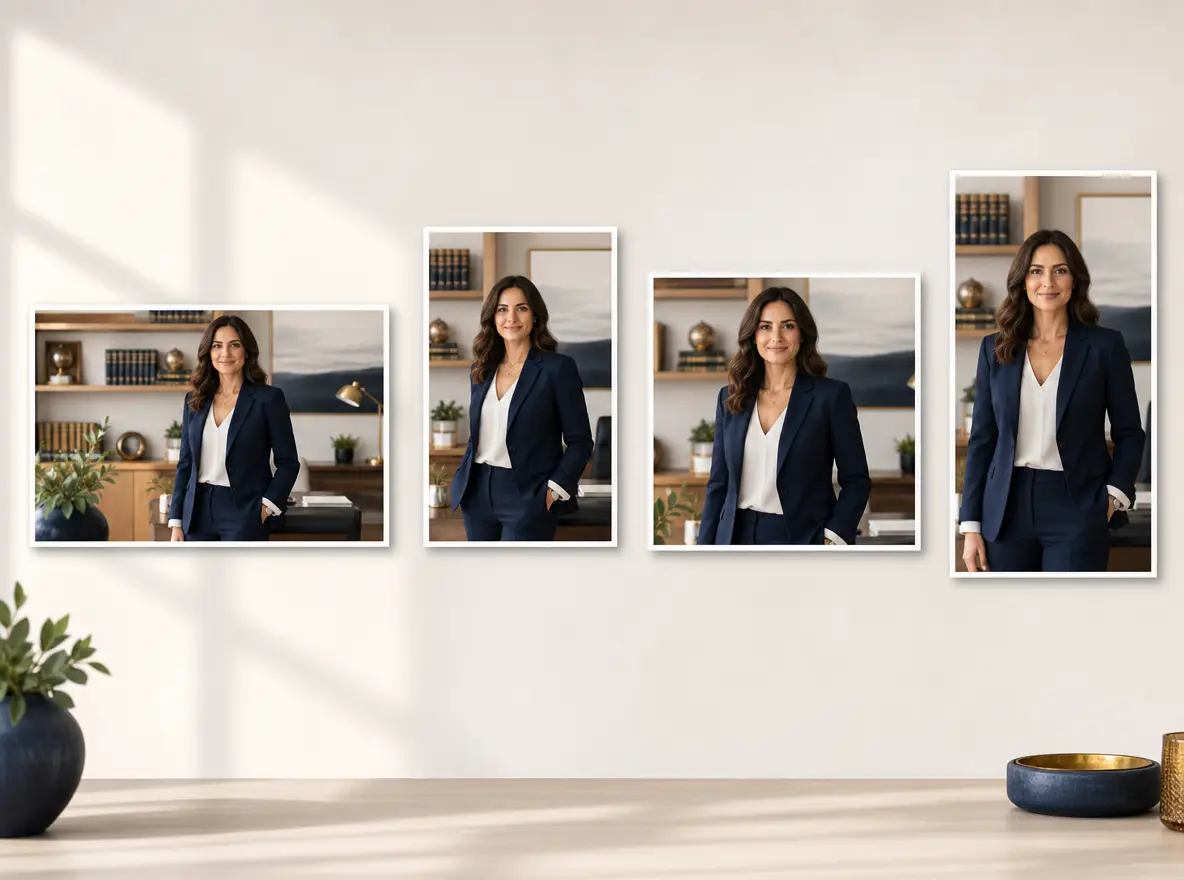
Get a downloadable draft framed for its intended placement. Choose 16:9, 9:16, 1:1, or 4:5, with MP4 output up to 4K and no visible watermark.
A clear message gives video production for lawyers a useful starting point. Carry that message through your references, scene directions, and final review.
Step 01
Start with a text brief for an attorney introduction, explainer, or client process video. Add approved image, video, or audio references that show the people, setting, or sound you want.
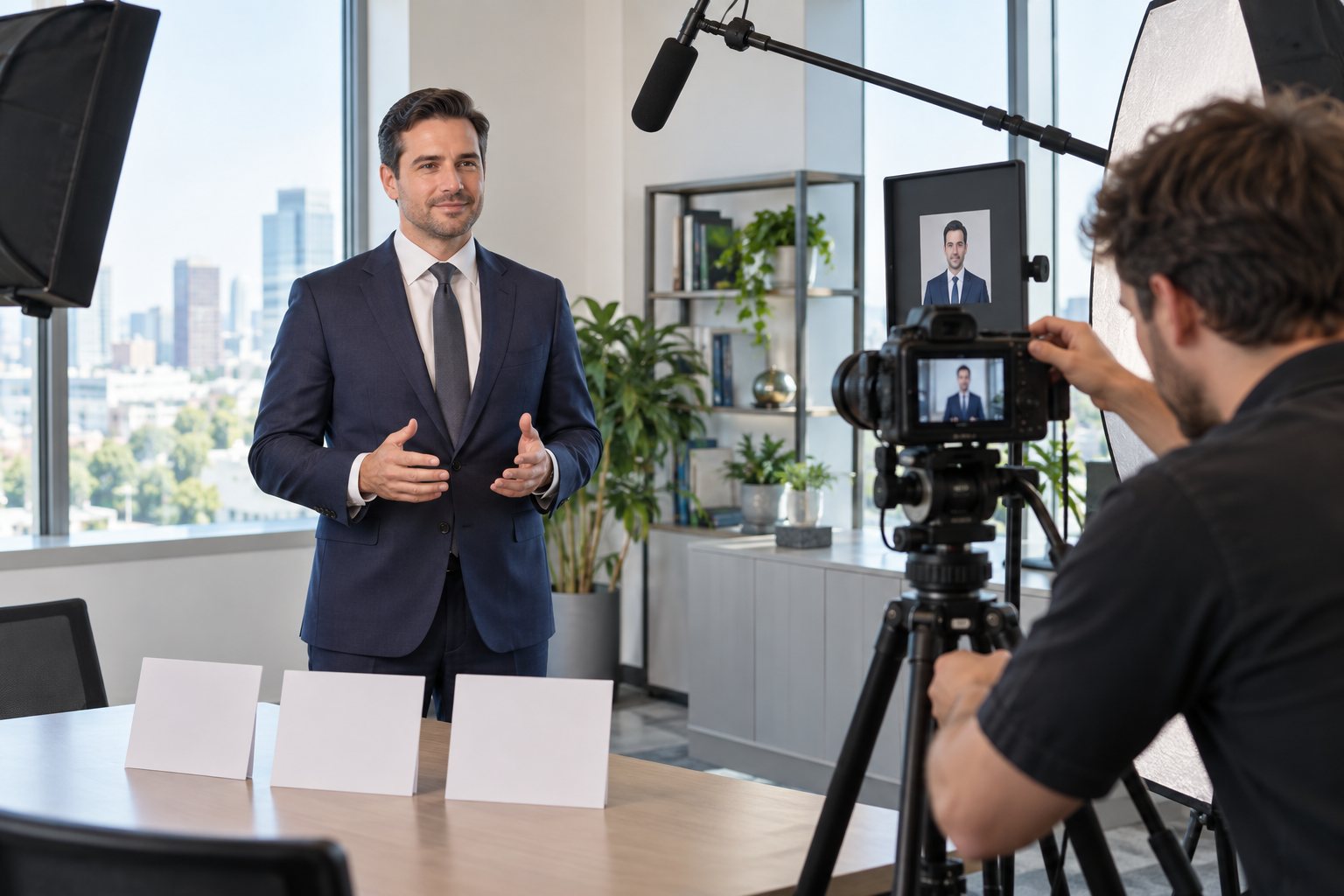
Step 02
Assign each reference a role, such as subject, scene, voice, or music. Describe the message, framing, movement, scene order, and timing, then choose a supported ratio for the intended placement.
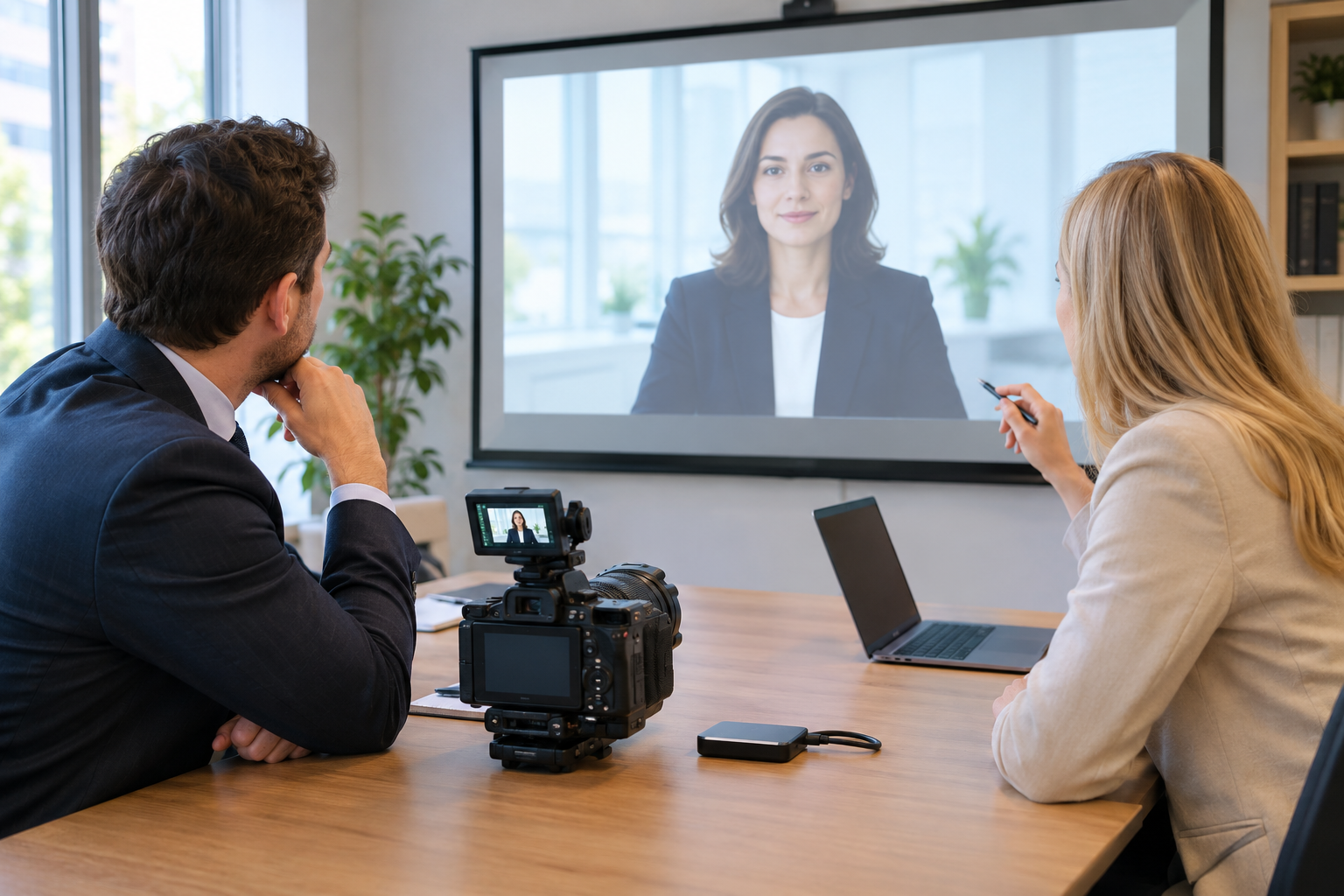
Step 03
Generate your law firm video production draft and check names, facts, likenesses, pacing, and visual artifacts. Describe any changes in a new instruction, regenerate, and download the selected MP4 version.
Bring one approved message and your reference media, then shape your law firm video production draft scene by scene.
Get Started