
Step 01
Start with Your Opening Idea
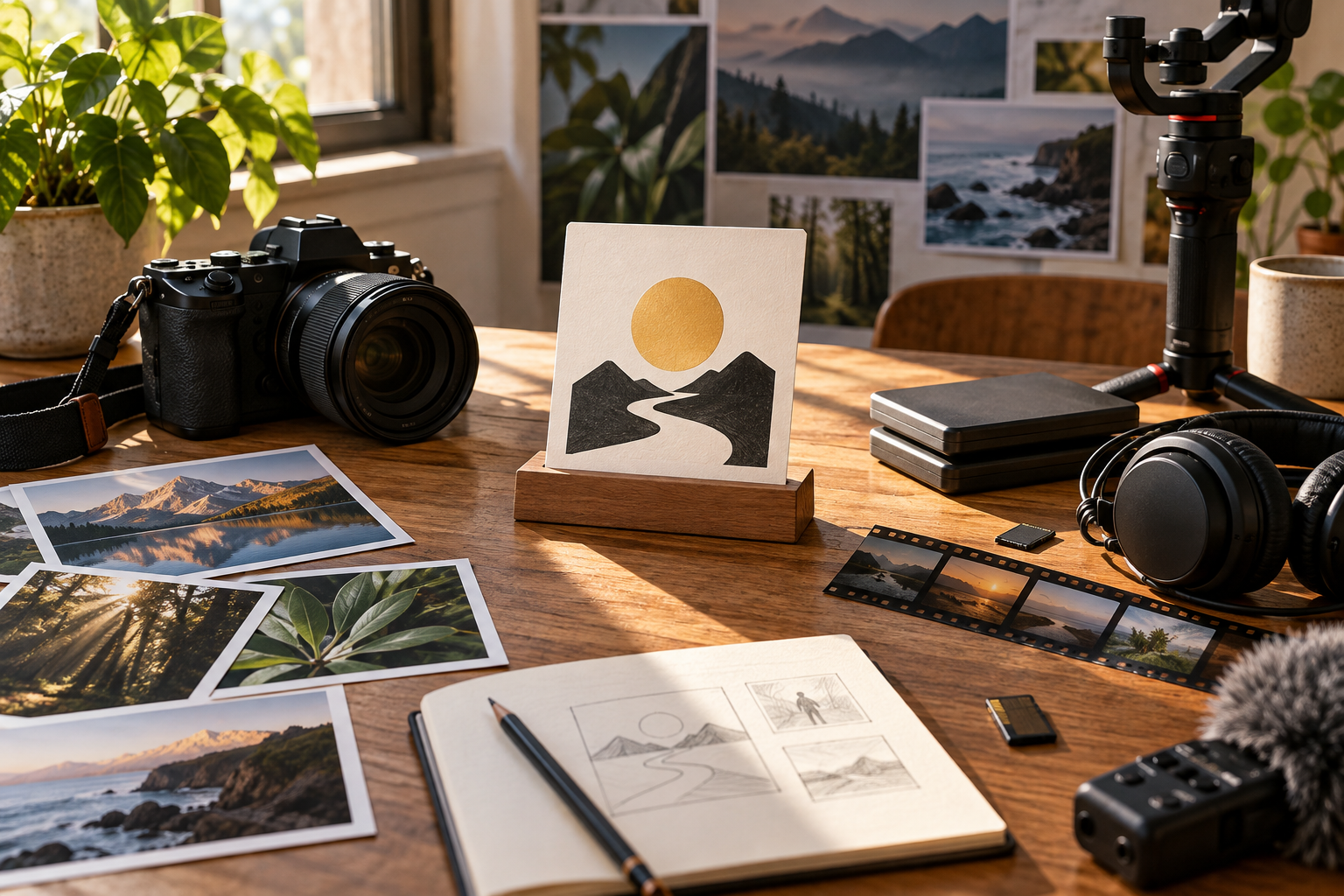
Sign in and describe the logo intro you want, or choose a preset video template as a starting point. Upload your logo image and any image, video or audio references that should guide the result.

Your Logo Intro Maker
Create a logo intro in VideoAI with your logo and title, while you choose the timing and visual direction.

Decide what appears, when it appears and what needs another pass before you use the finished opening.

Give the opening, title and ending their own time ranges. Your written sequence directs the logo intro, so a title can have time to register before the next action begins.
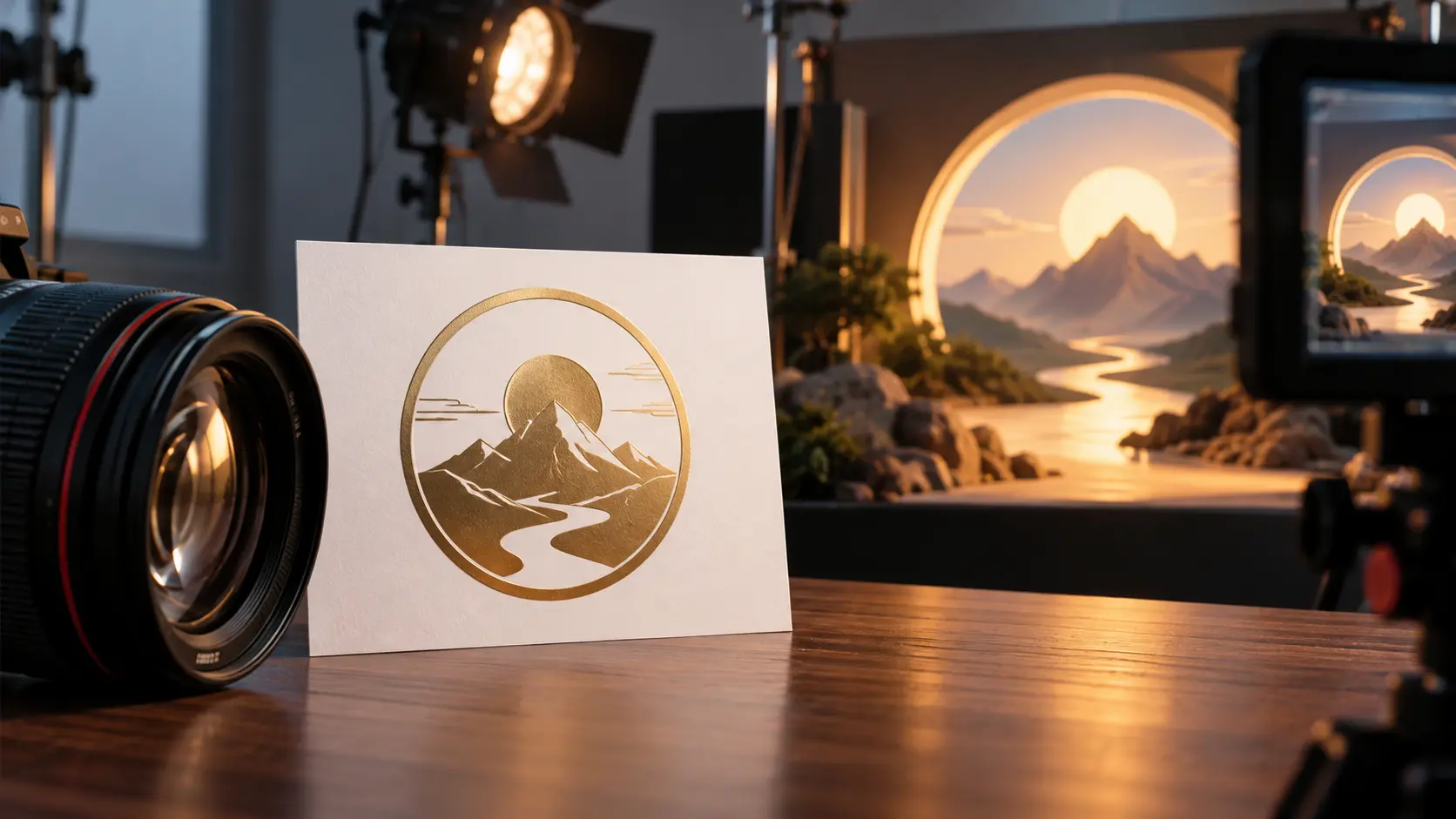
Bring your intro logo into the generated scene with an uploaded logo image as a reference. Use @ to tell VideoAI how you want that reference used in the opening.

Introduce the channel or topic in the opening itself. Name your channel or short title in the description, and VideoAI can generate that text together with the logo intro visuals.
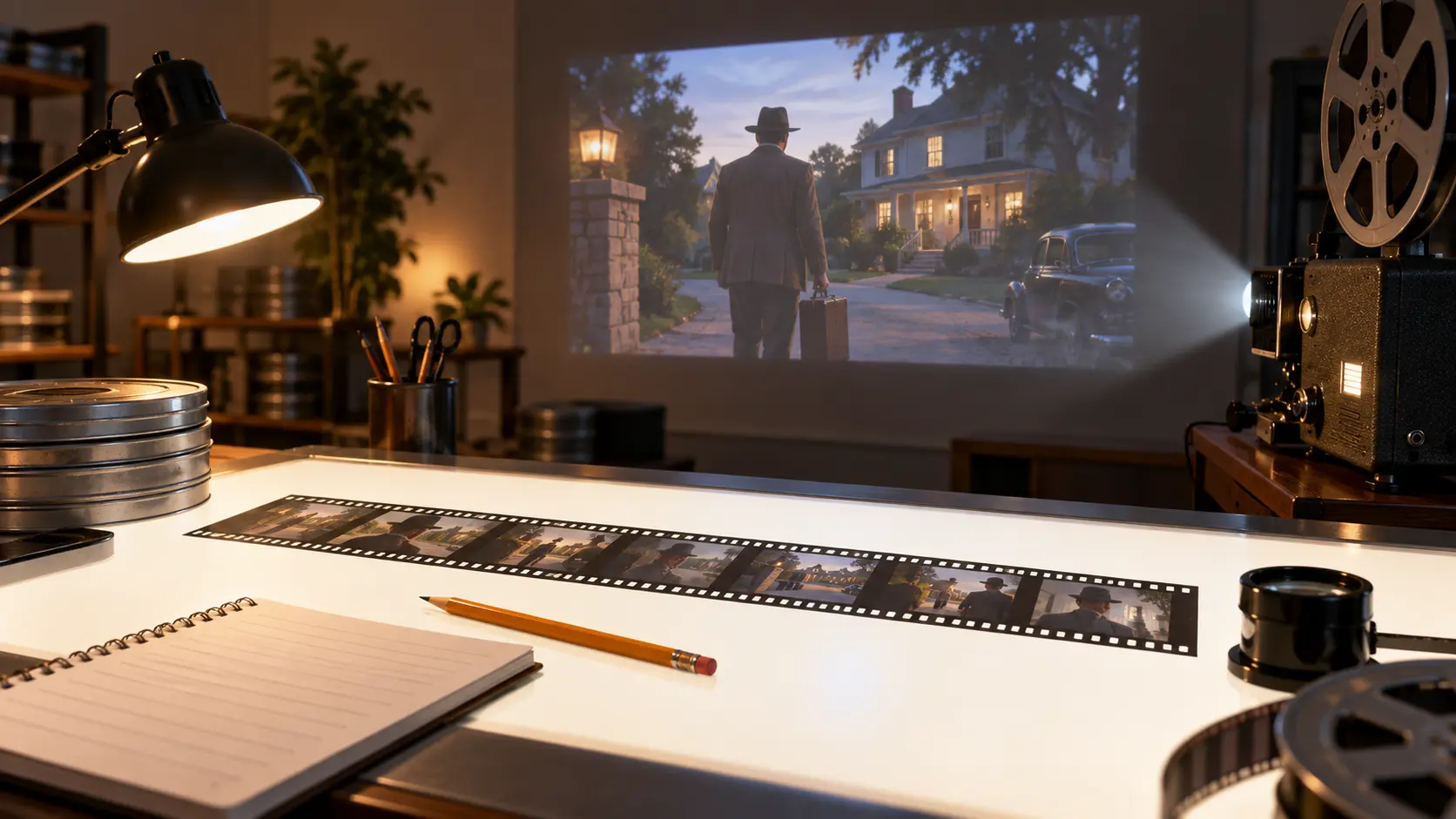
Adjust the first draft after you see it play. Describe changes to the pace, title or visual direction, then generate a revised logo intro and review the result.
Move from an opening idea to an MP4 through a sequence you write and a result you review.
Step 01
Sign in and describe the logo intro you want, or choose a preset video template as a starting point. Upload your logo image and any image, video or audio references that should guide the result.
Step 02
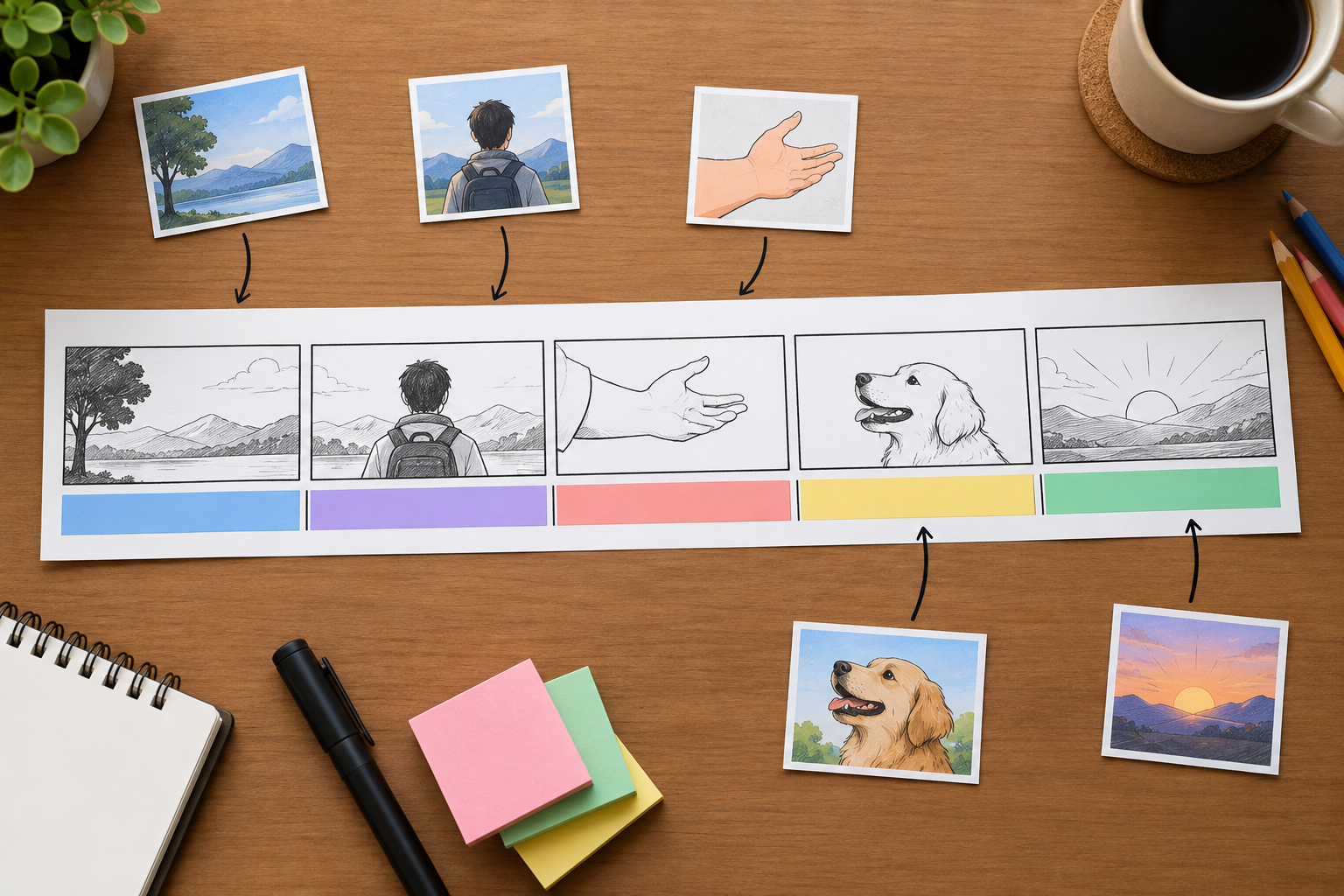
Specify the opening scene, title appearance, actions and ending in time ranges. Use @ to assign a purpose to each reference, and choose the aspect ratio for your logo intro.
Step 03
Generate the video and preview the sequence. Use text instructions to request changes and review the revision. When the logo intro is ready, download the finished video as an MP4.
Choose what viewers should see first, then shape the opening around the video that follows.
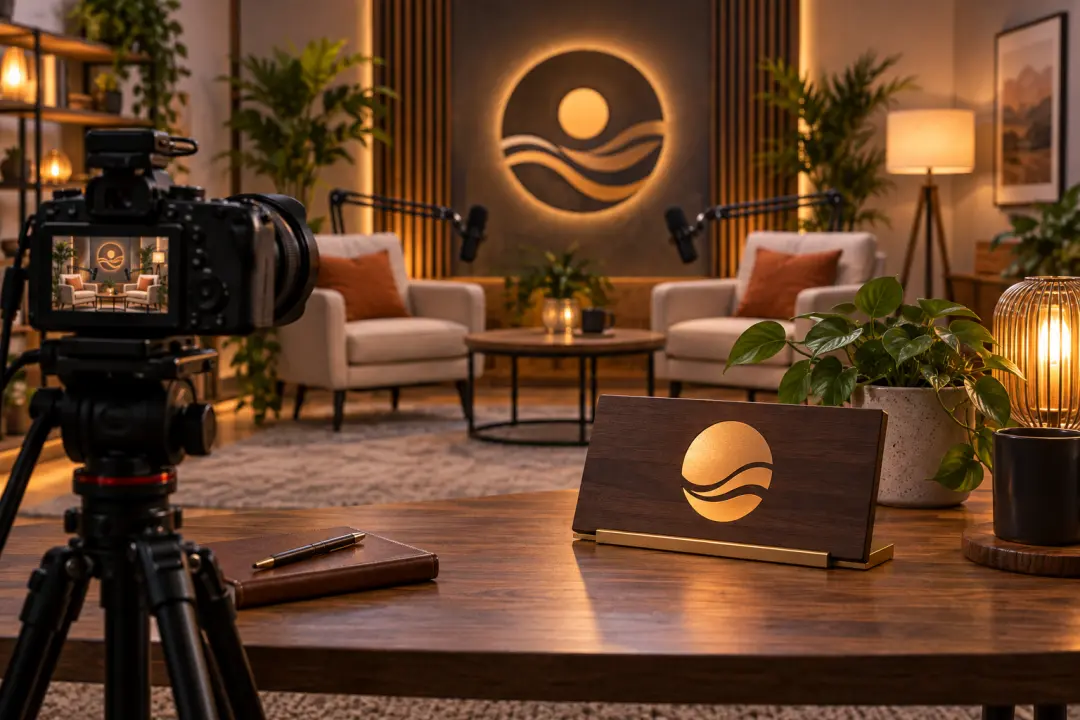
A new channel episode needs an opening viewers can recognize. Build a logo intro around your logo and channel name, then reuse the finished video from your workspace to give the series a consistent opening.

Before a lesson begins, viewers need to know the topic. Write a short title and specify when it appears in your logo intro, so the opening leads clearly into the explanation.

For a campaign launch, the first scene needs to introduce the theme. Combine your logo with a reference clip and a short campaign title to generate an opening that sets up the message.
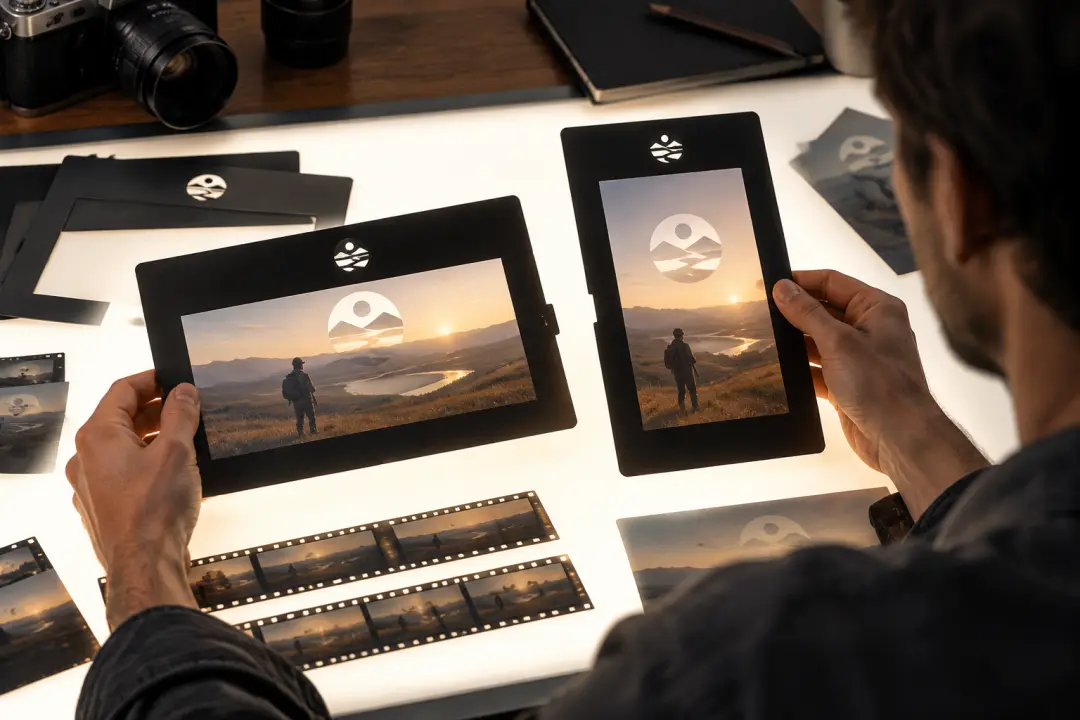
An episode teaser may need a vertical opening while the full video uses a wide frame. Choose the target aspect ratio for each logo intro version to prepare both placements around the same theme.

Build an opening that gives your channel name room to register. Decide when the title appears and how the scene ends, so your logo intro leads into the episode.

Set the tone before the campaign message begins. Use a logo, reference footage and a short title to direct the first scene, then review whether the opening matches your campaign idea.
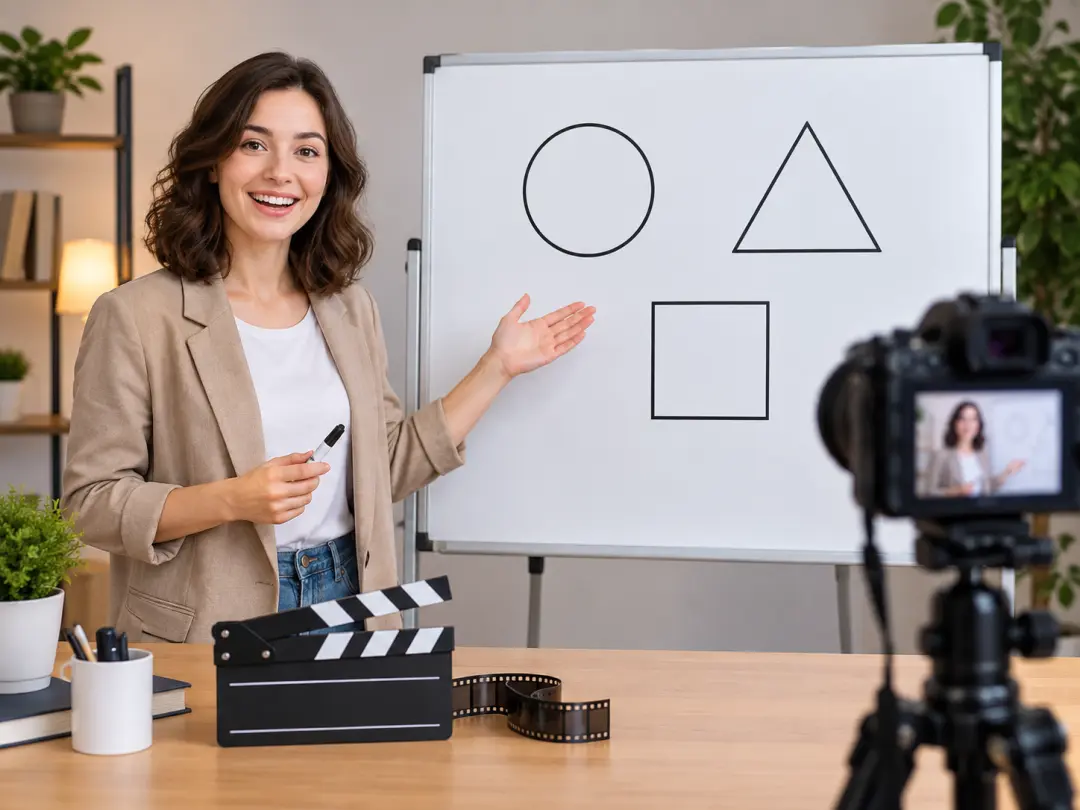
Make the subject clear before the detail arrives. Plan the title and opening action by time range, then refine the pace so your logo intro gives the explanation a clear starting point.

Bring your logo and opening idea to VideoAI, then shape a logo intro with the timing and visual direction you choose.
Get Started