
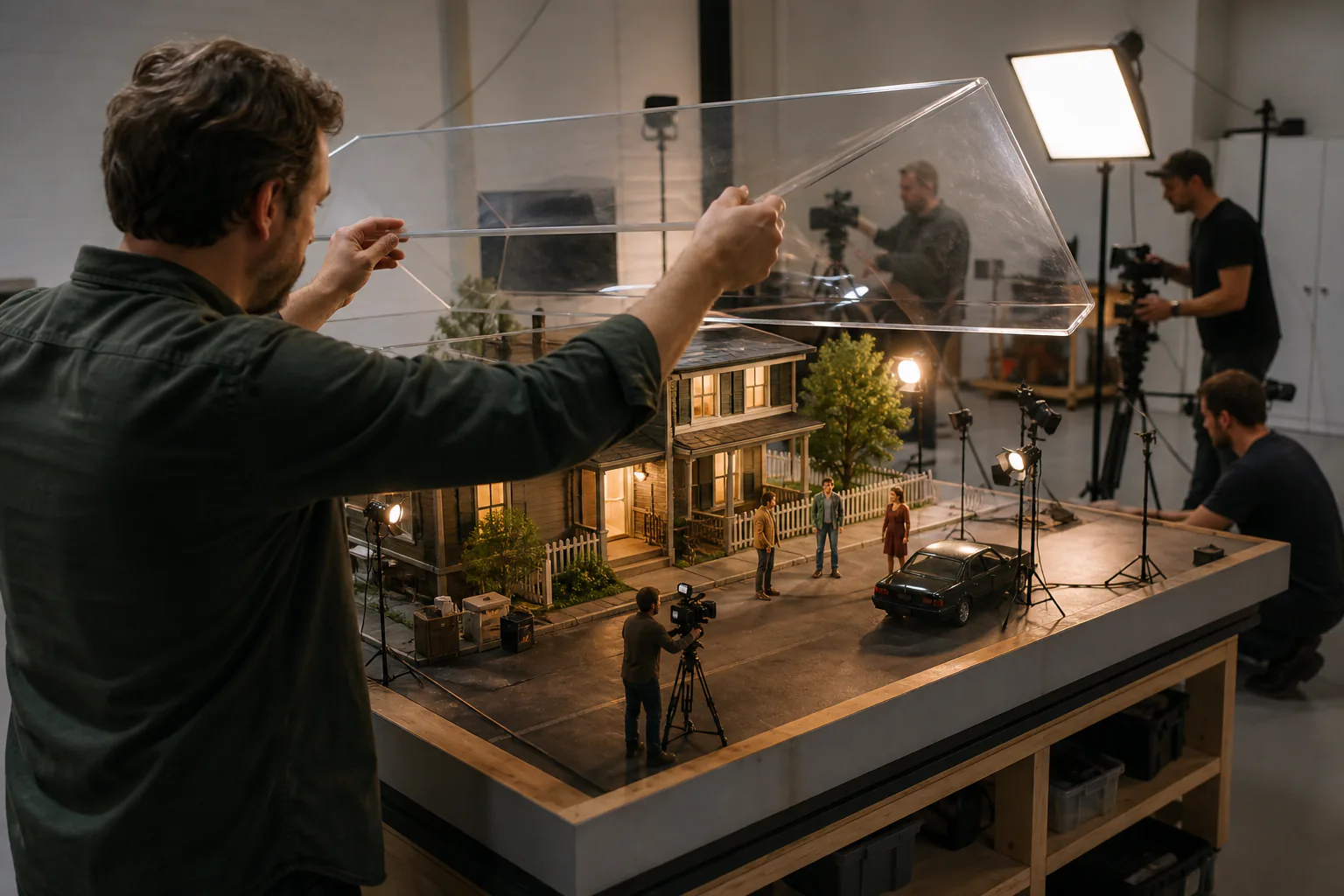
Step 01
Open the saved project
Choose a generated or saved video from your workspace. Add image, video, or audio references when the subject, scene, action, or sound needs clearer direction.

Use VideoAI as an online movie editor to revise a generated project with text, references, pacing notes, and a new preview version.
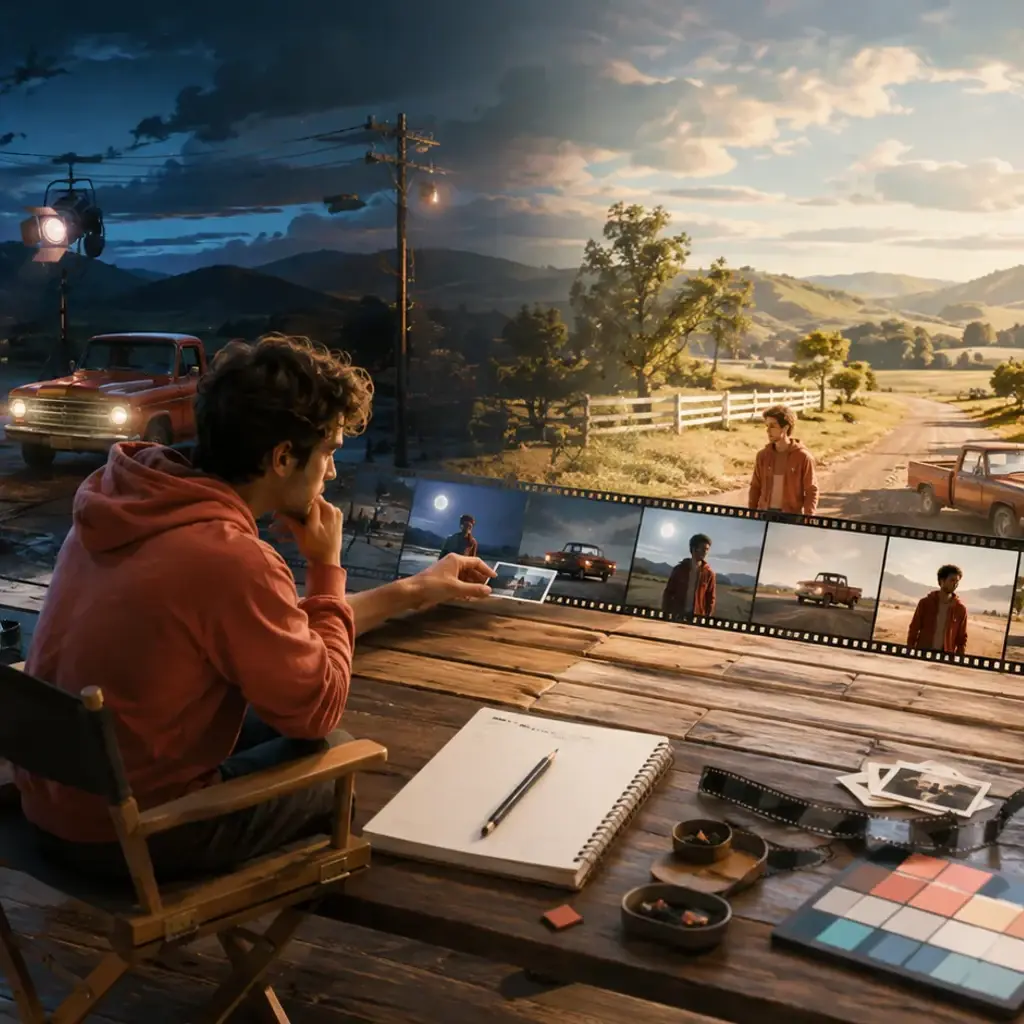

When a hook, scene, or aspect ratio needs a different take, this movie editor lets creators reopen a VideoAI project, describe the change, and review a new version for the next post.

A campaign can keep one visual direction while the team adjusts scene motion, sound prompts, and aspect ratio. The same references guide each VideoAI version.
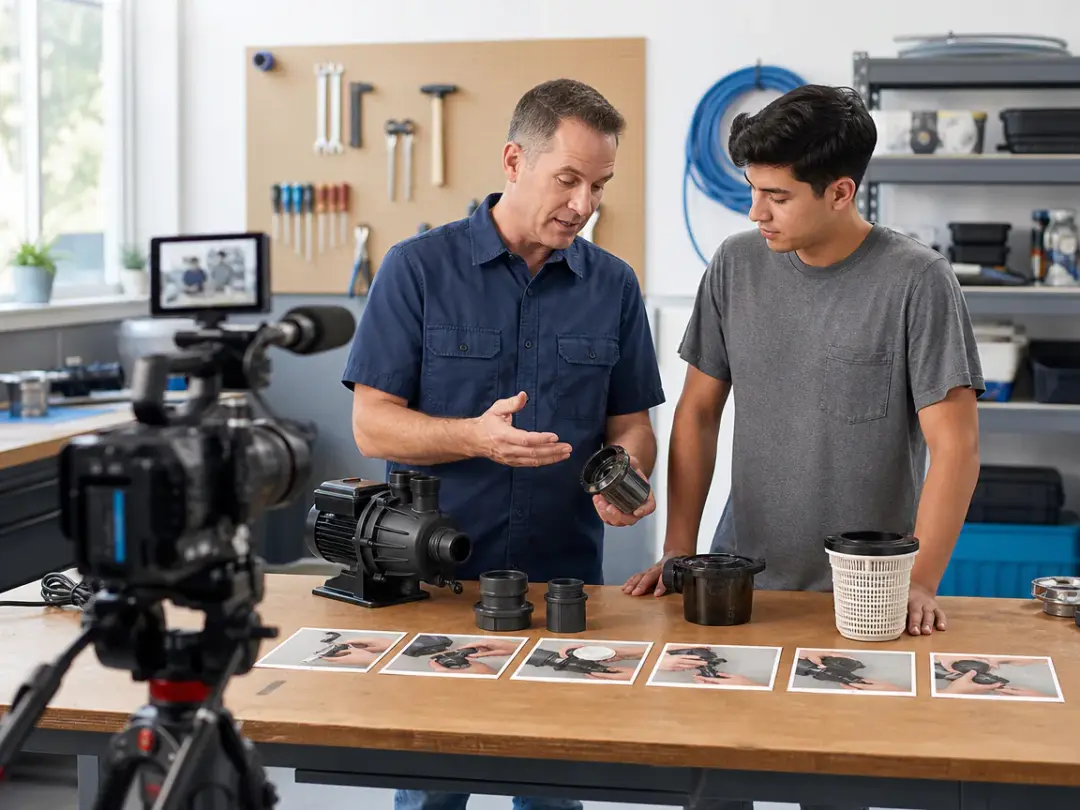
For explainers and lessons, film editing starts with sequence. Plan each second, set the action that supports the point, and generate a clearer sequence.
VideoAI works as a film and video editor for creators who know what should change and want a new generated version without rebuilding the project.
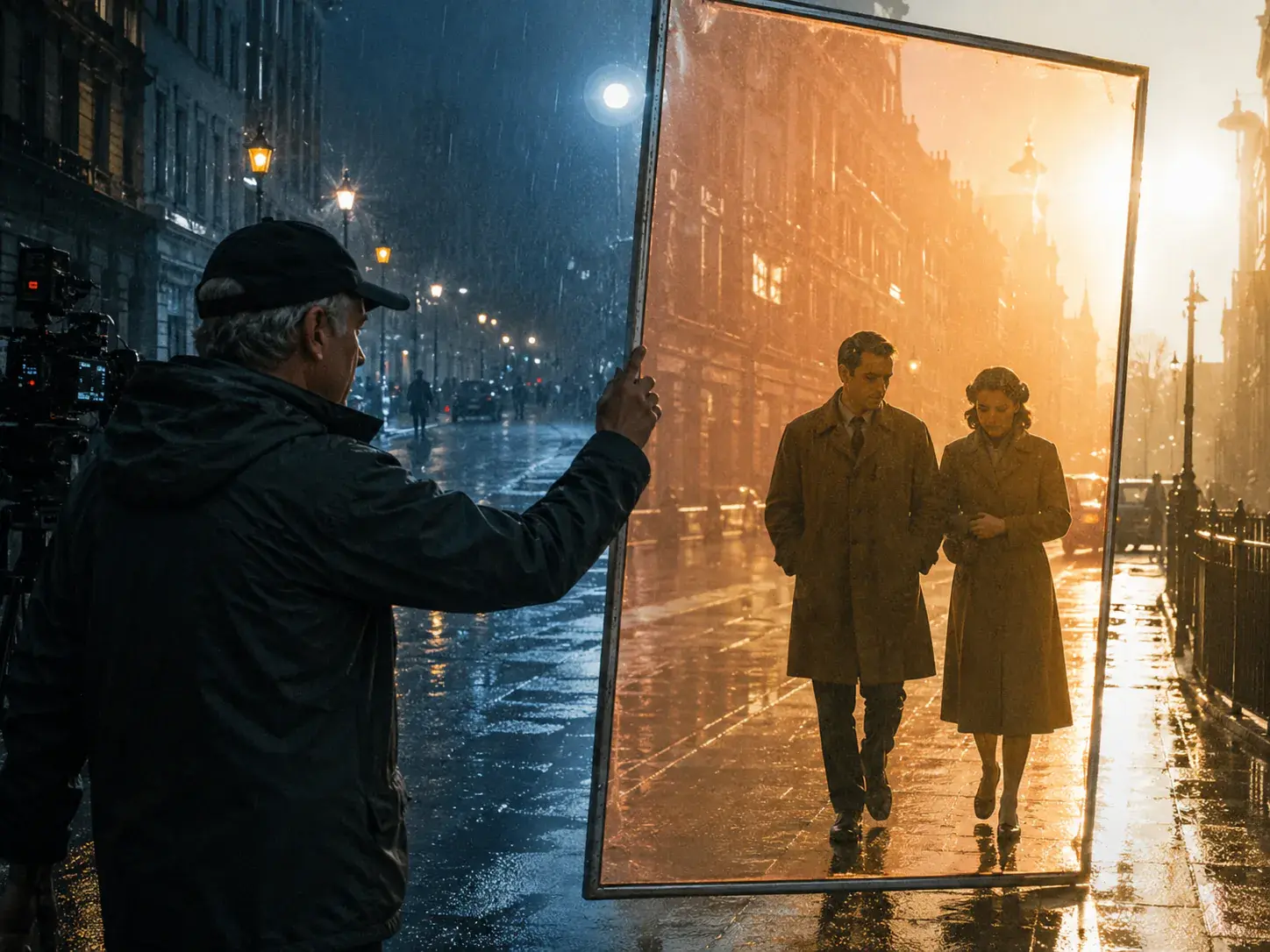
Change the scene, motion, pacing, or sound in plain language. The movie editor uses your instruction to create a new VideoAI version from the saved project.
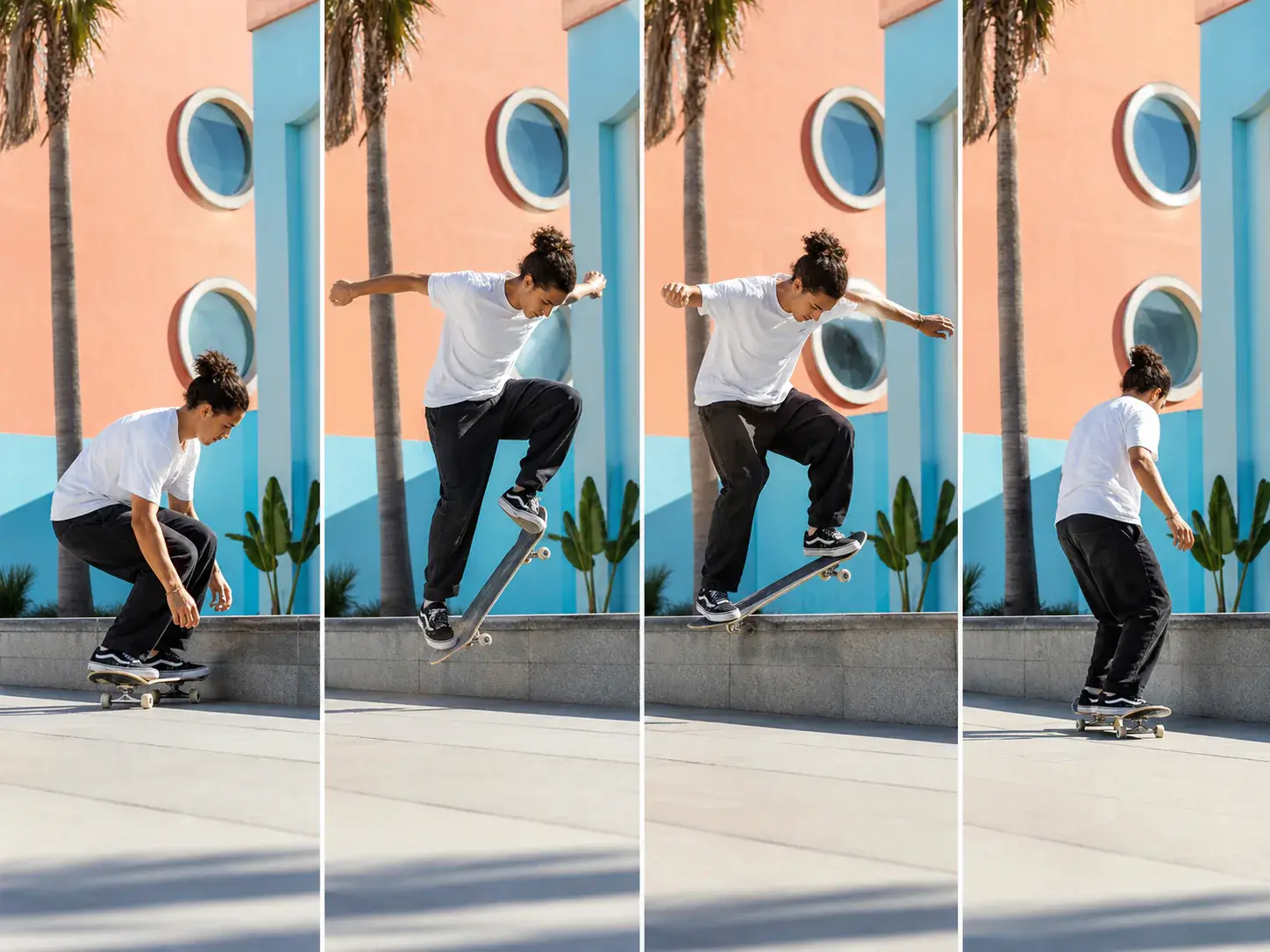
Write what happens in each time range so the action matches your intent. This ai movie editor follows your planned beats instead of guessing the story shape.
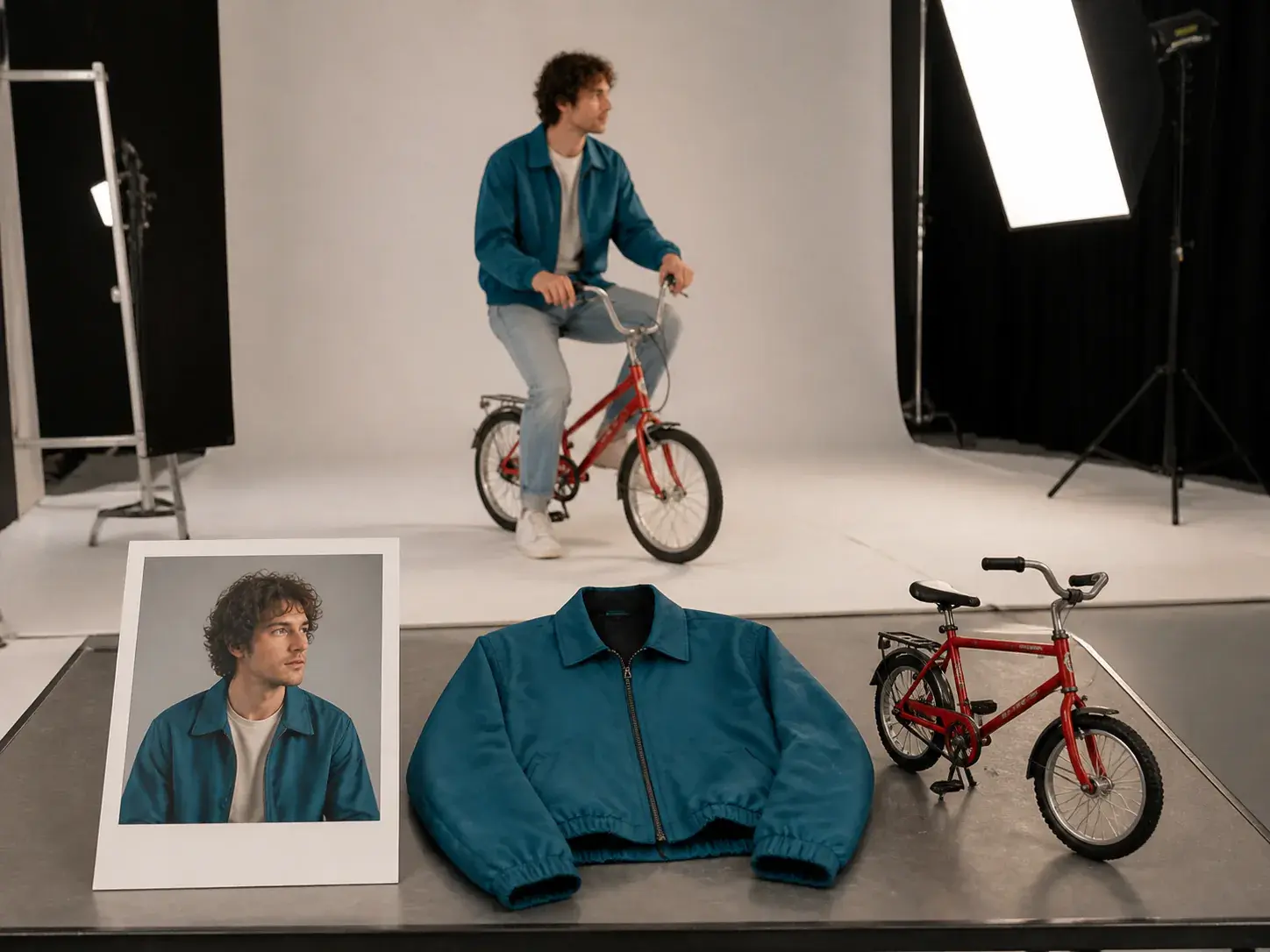
Add text, images, video, and audio as creative input, then use @ to assign each reference to a subject, scene, action, camera move, or sound direction.
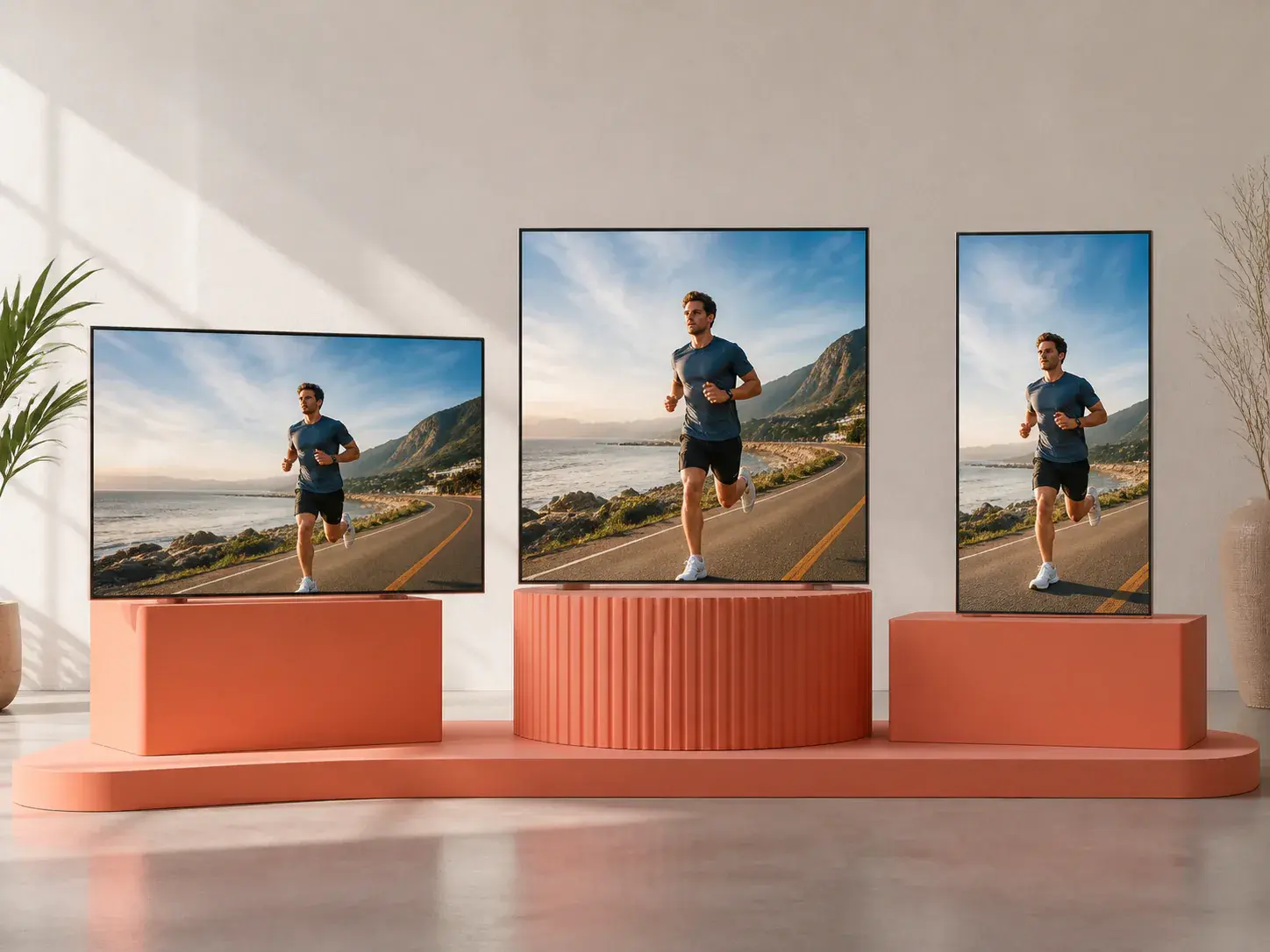
Download MP4 up to 4K in 16:9, 9:16, 1:1, or 4:5. Finished videos have no watermark, can be used in commercial projects, and VideoAI also supports batch generation.
Start from a saved VideoAI project, make the creative decision in words, then generate and review the next version.
Step 01
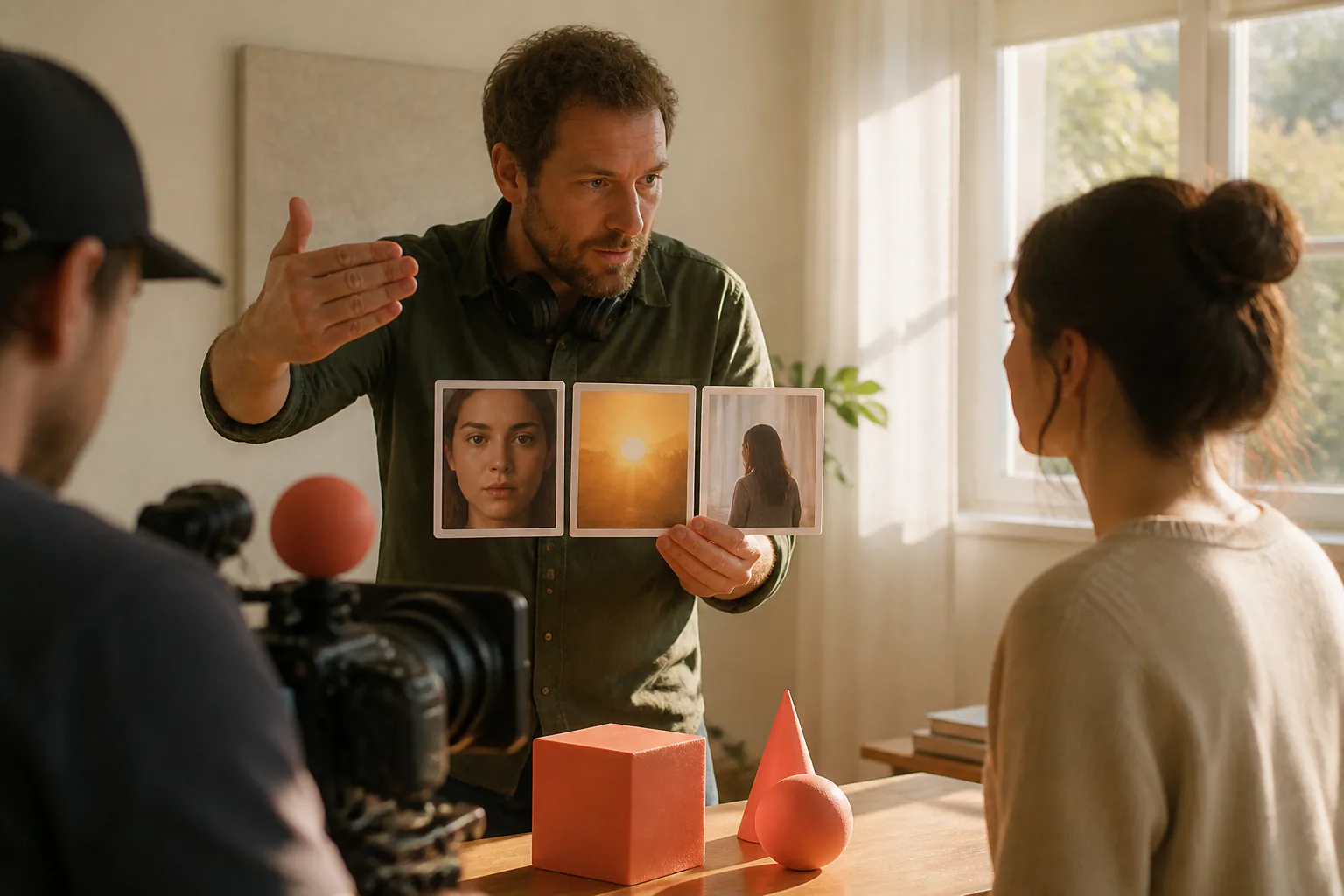
Choose a generated or saved video from your workspace. Add image, video, or audio references when the subject, scene, action, or sound needs clearer direction.
Step 02
Describe the scene, time range, result, pacing, or sound you want. Use @ references for specific roles, and plan complex scenes second by second when timing matters.
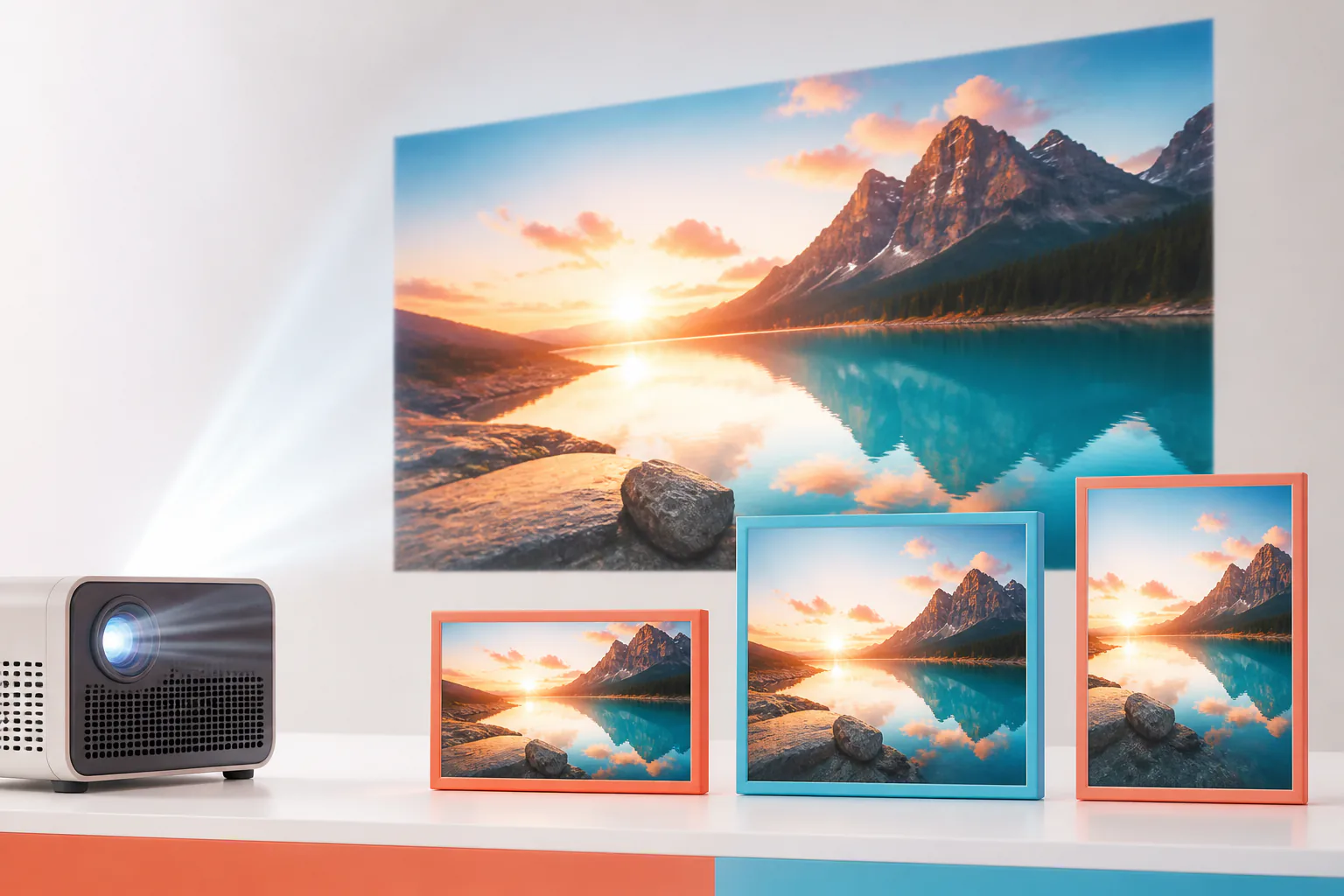
Step 03
Preview the new version, then keep refining with text until the direction fits. Choose a confirmed aspect ratio and download the final MP4 up to 4K.
Use VideoAI when the next version needs a clear creative decision, not a full production setup.
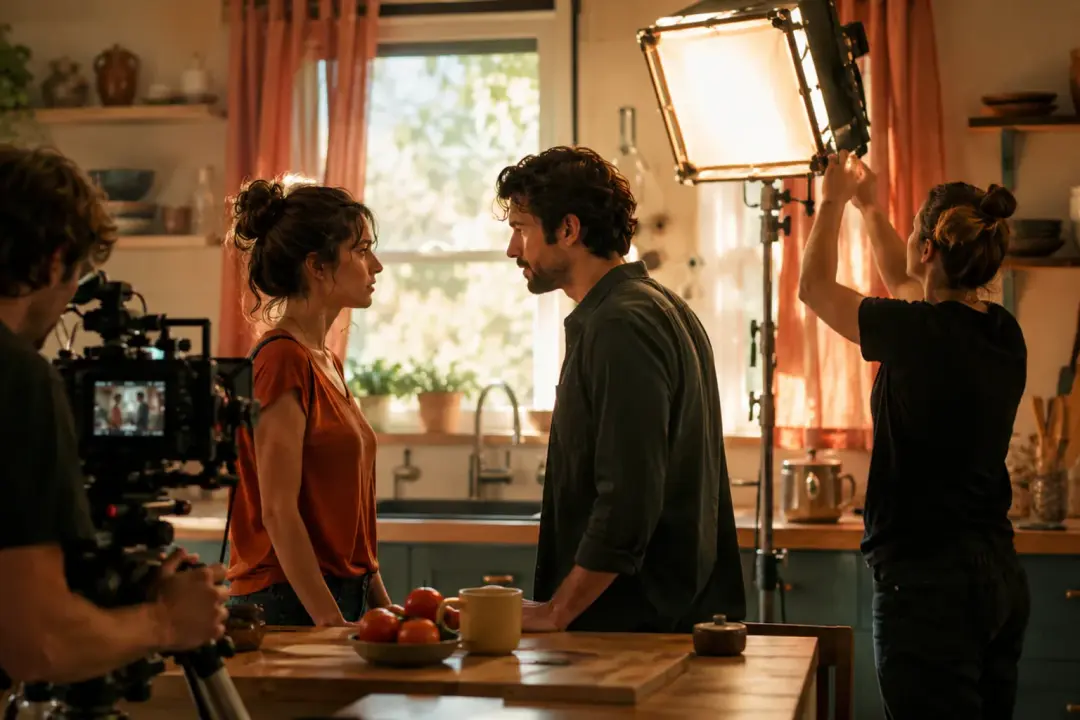
A scene has the right idea but the movement feels off. Reopen the project, describe the new action, and review a tighter movie edit.
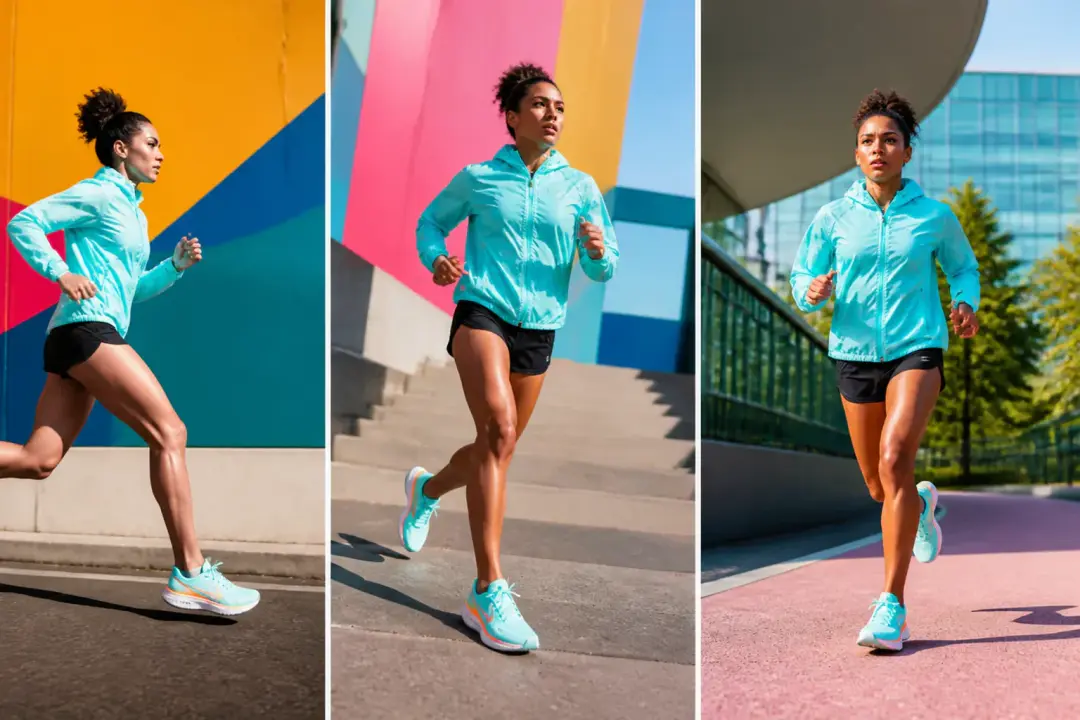
A brand clip needs different shapes for different placements. Keep the references and direction consistent, then export in 16:9, 9:16, 1:1, or 4:5.
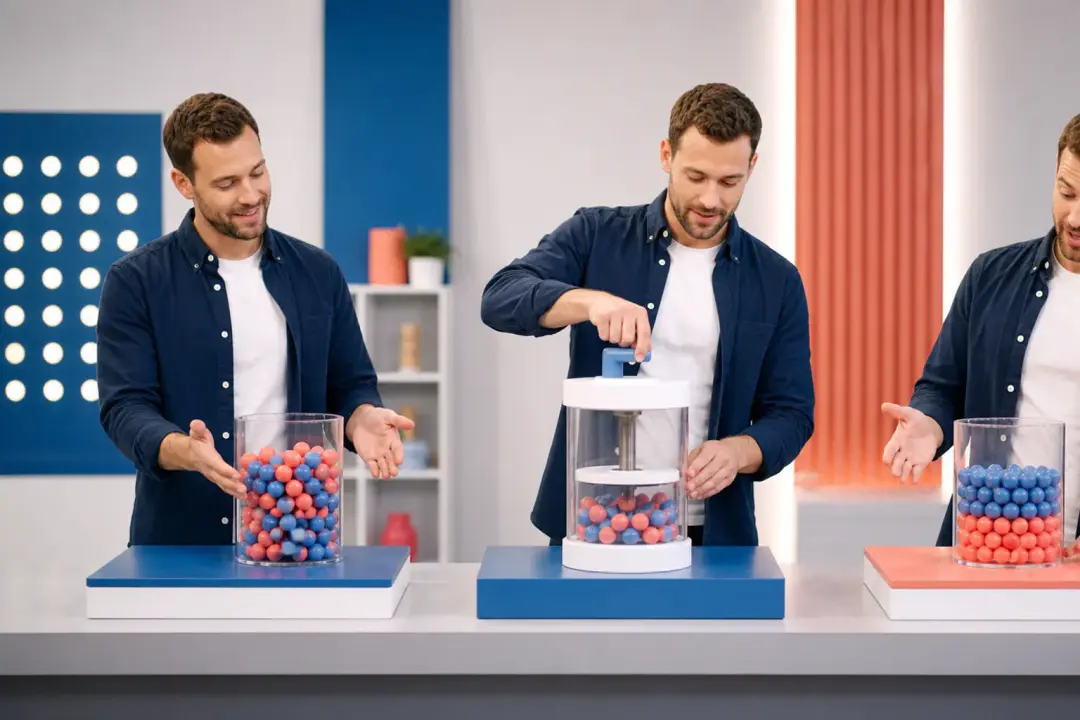
When the visual order must support a lesson, arrange the scenes by second. The movie editor helps the preview follow the explanation step by step.

A client asks for a different setting, motion, or sound direction. Continue from the same VideoAI workspace project and generate a controlled revision.
Open a VideoAI project, write the scene change, and generate a version ready to preview and export.
Get Started