

Step 01
Add your real project story
Sign in to VideoAI and describe your project, audience and goal. Upload authorized photos, clips, your logo or audio. Provide verified facts so AI can help draft a script grounded in your actual work.

Your mission, directed by your team
Use VideoAI's nonprofit video maker to tell your project's real story, with your team choosing the facts, scene order and call to action.
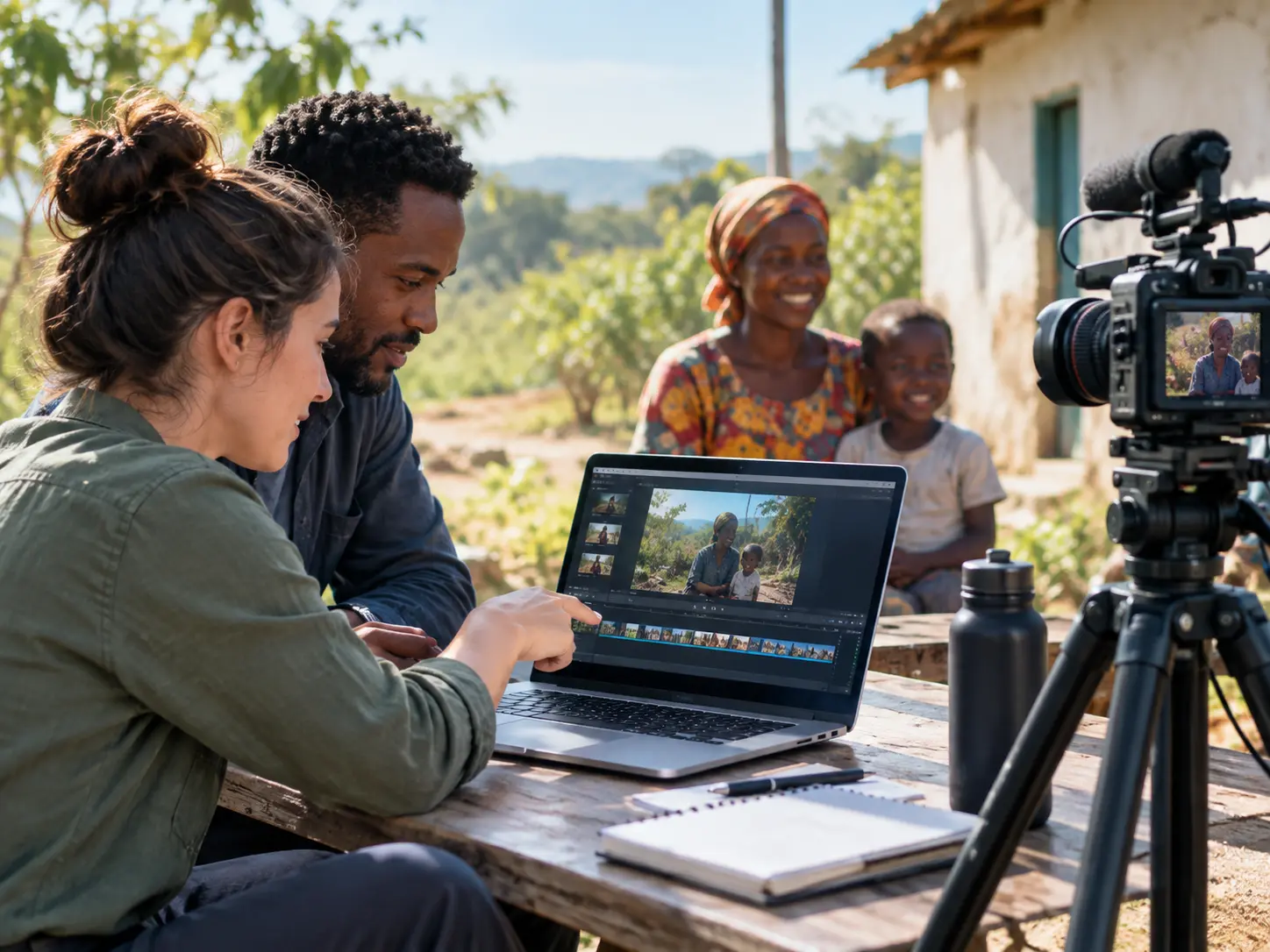
Start non profit video production with a clear audience and purpose, then arrange the moments that explain your project.
Step 01
Sign in to VideoAI and describe your project, audience and goal. Upload authorized photos, clips, your logo or audio. Provide verified facts so AI can help draft a script grounded in your actual work.
Step 02
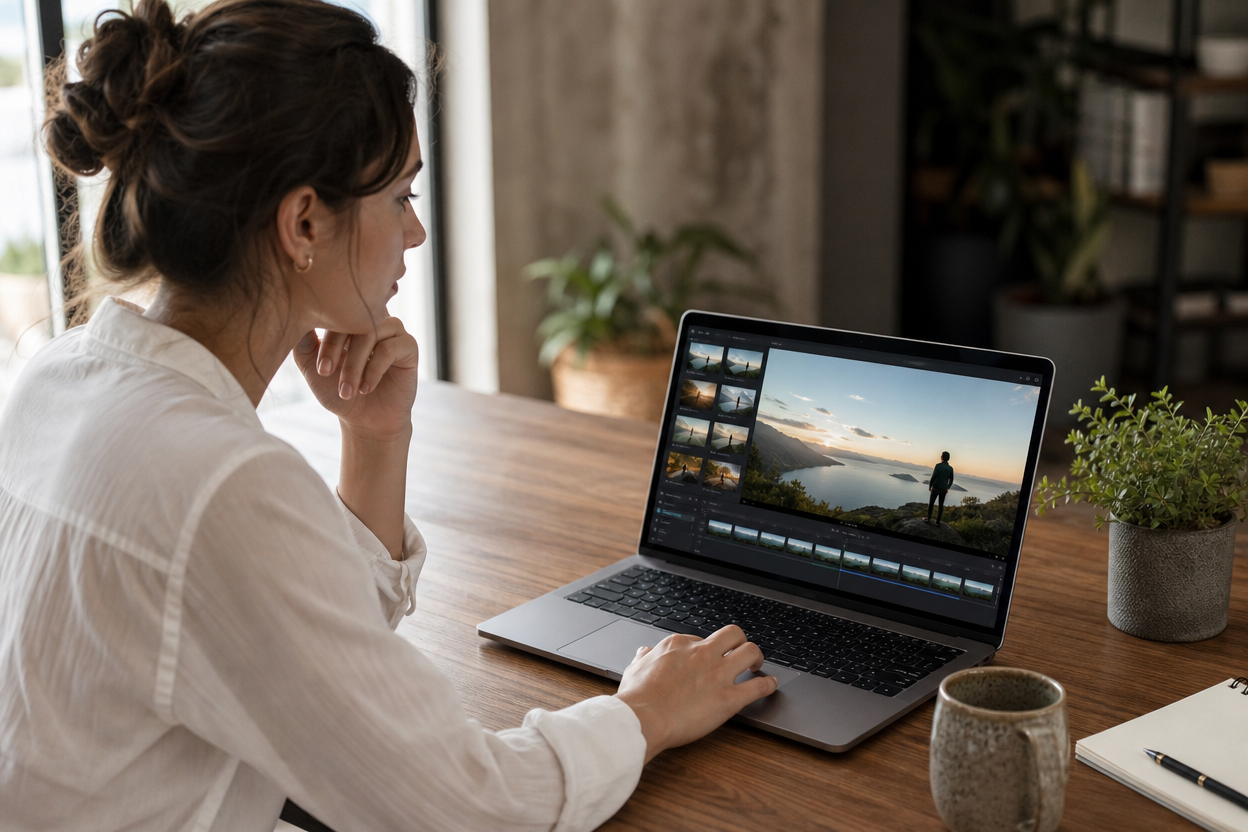
Choose 9:16 for a vertical social video or 16:9 for a presentation. Arrange the problem, action, verified result and call to action by time segment. Assign references with @, then describe the narration and music you want.
Step 03
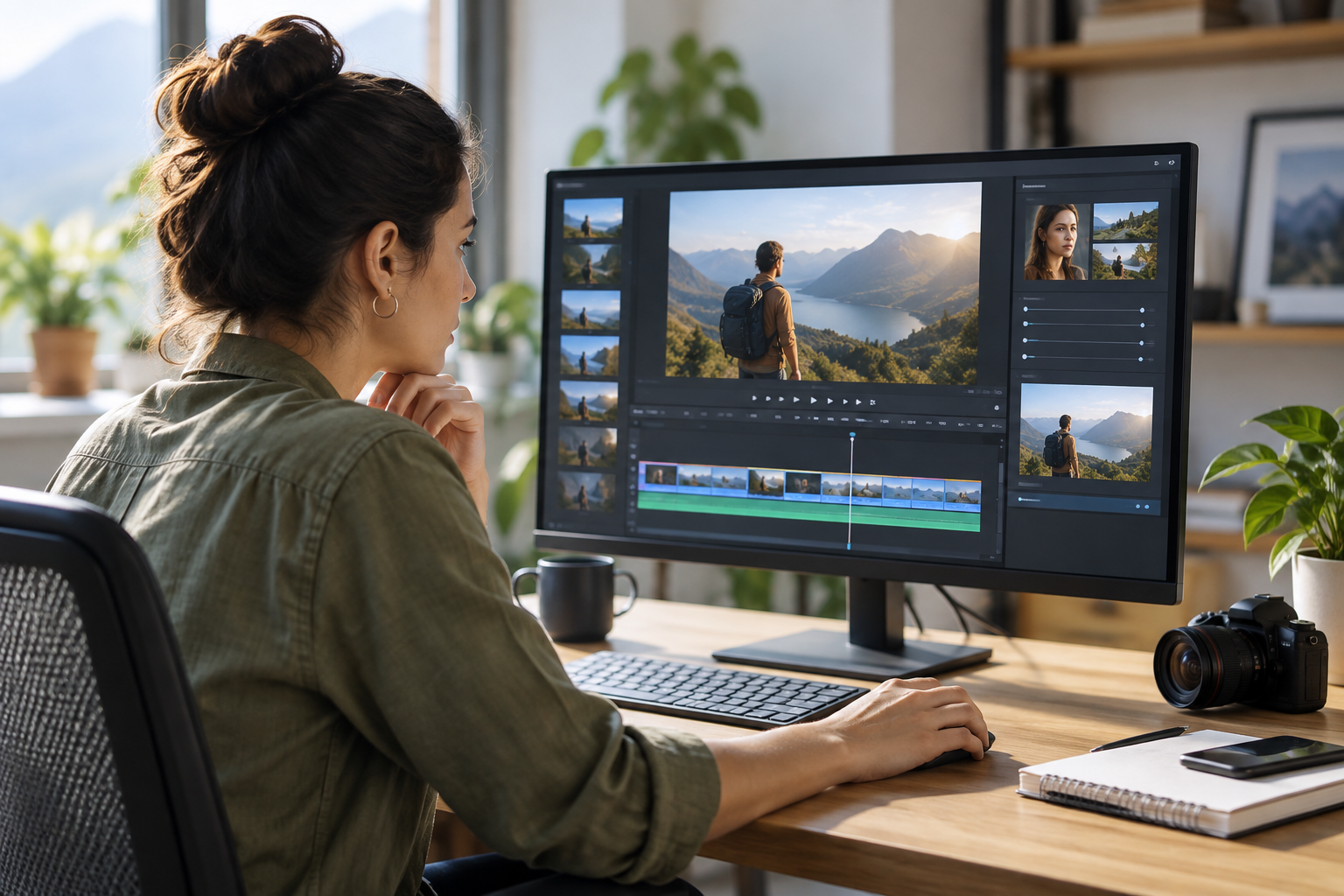
Generate a version and review identities, data, quotes and action details. Describe changes to scenes or pacing in text, then regenerate. Download the approved video as an MP4, choosing up to 4K when your presentation calls for higher resolution.
Choose a purpose for non profit video production, from an individual account to a project review.
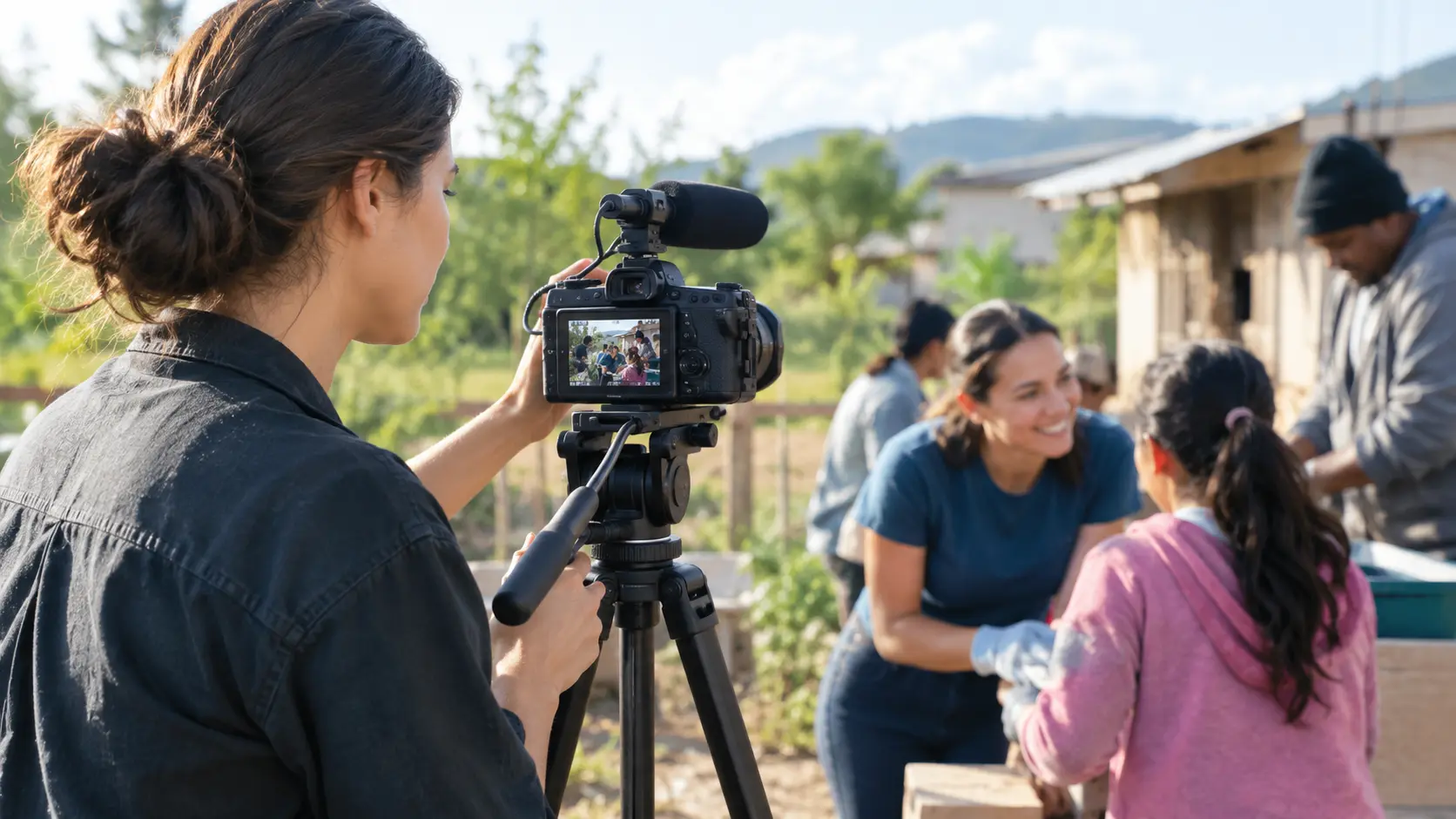
Quarterly updates often draw on approved photos and clips from several project sites. Choose one point for each scene to create a concise overview for your next presentation.
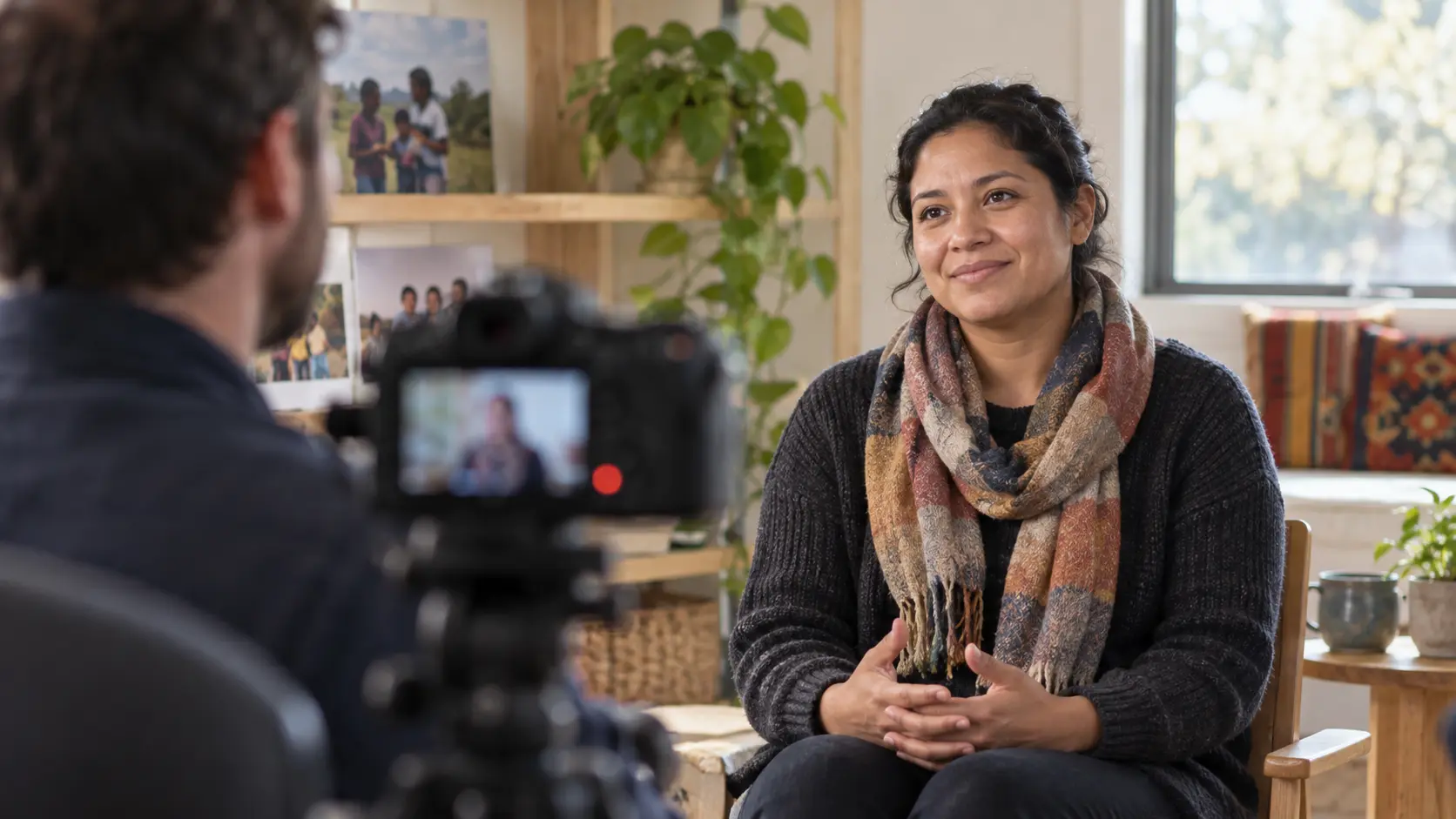
For a participant's story, begin with authorized portraits and approved quotes. Arrange scenes around that person's account, using narration you have checked against their words to communicate the experience they agreed to share.
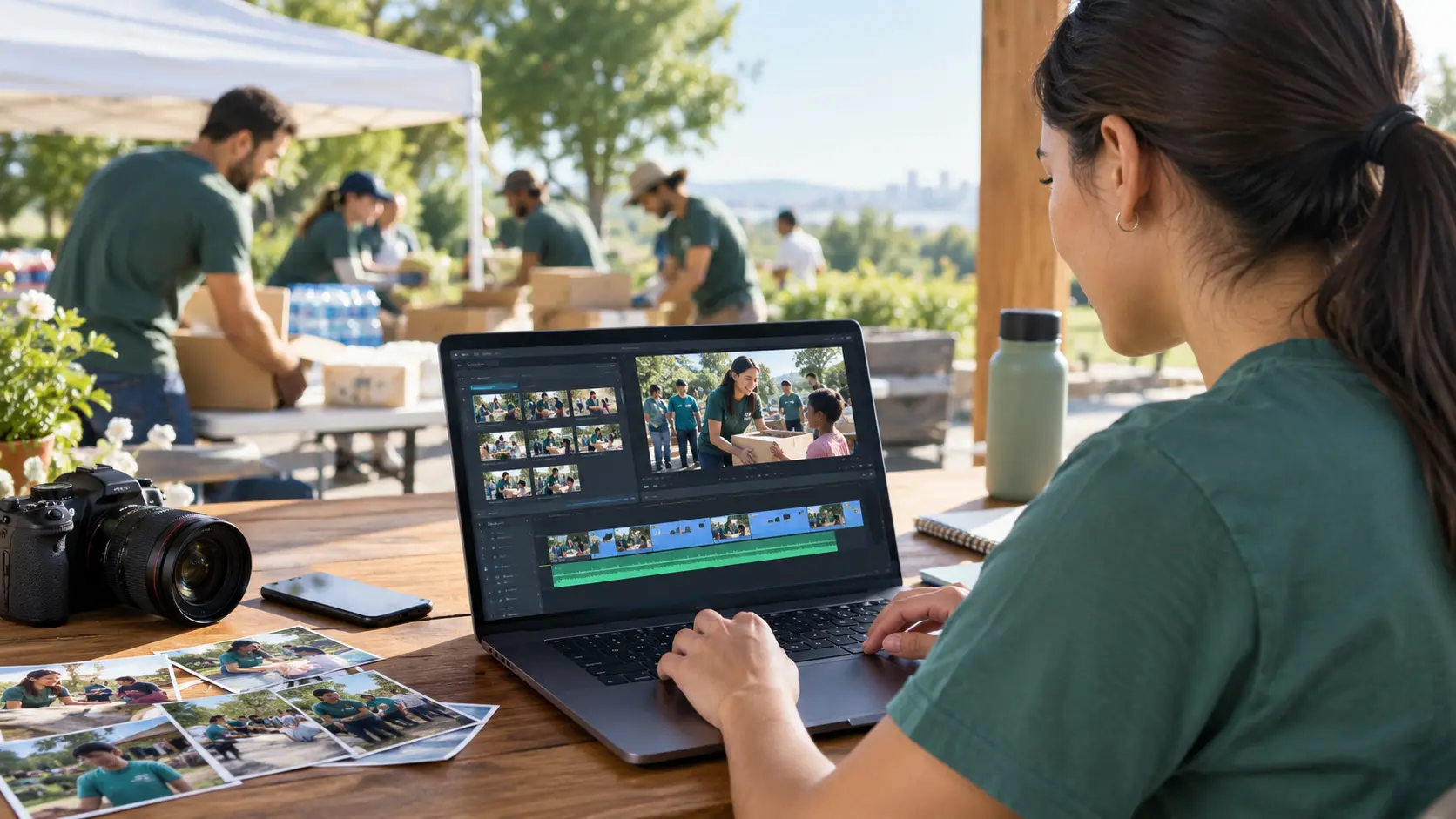
A volunteer day leaves a mix of event photos and clips. Turn those authorized materials into a chronological recap, with narration connecting preparation, activity and the closing moment, for volunteers who want to revisit the day.
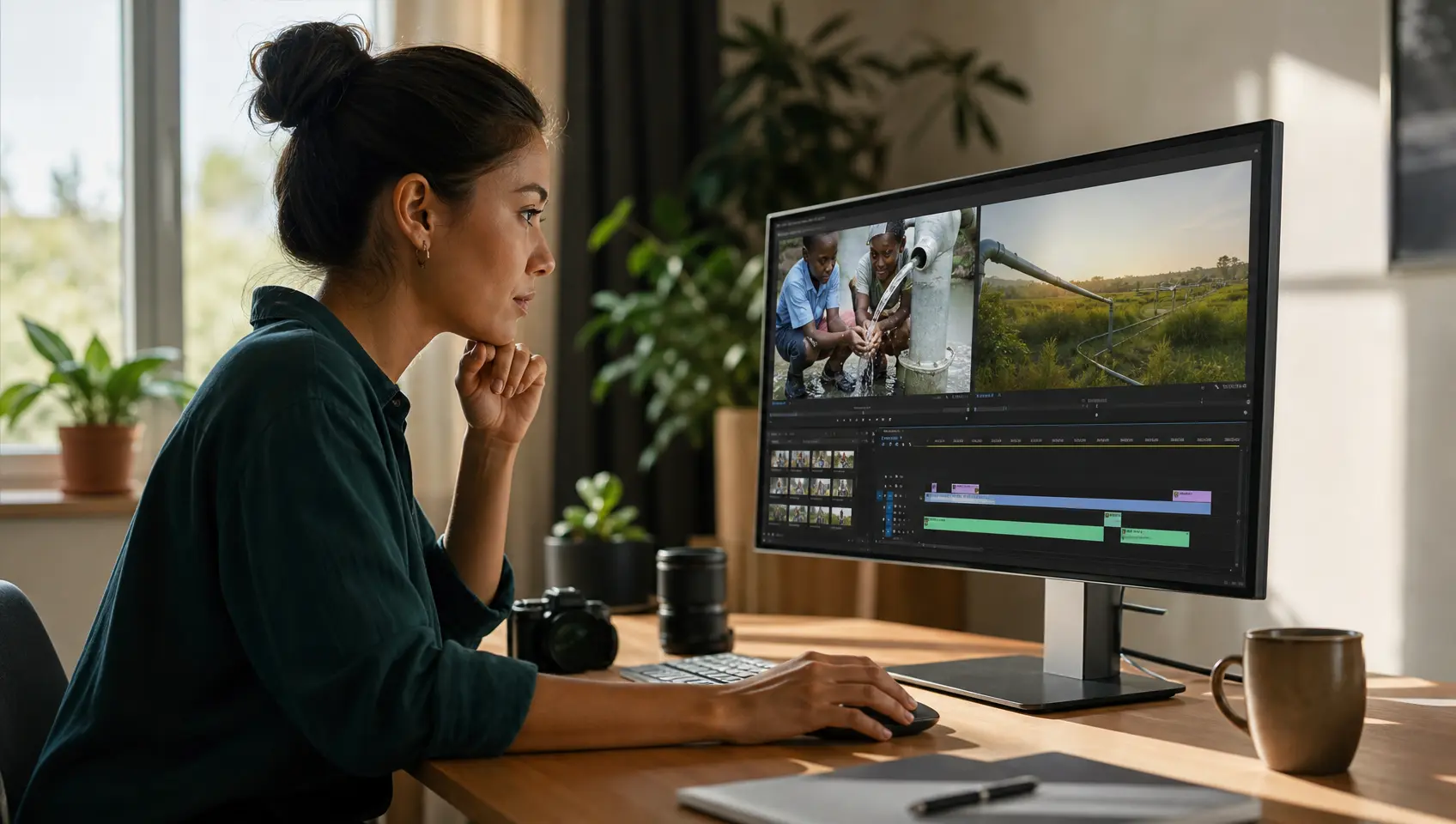
An upcoming appeal needs to explain what the funding will support. Build scenes around approved project material, the intended use of funds and a concise call to action. Verify the details before sharing the finished appeal.
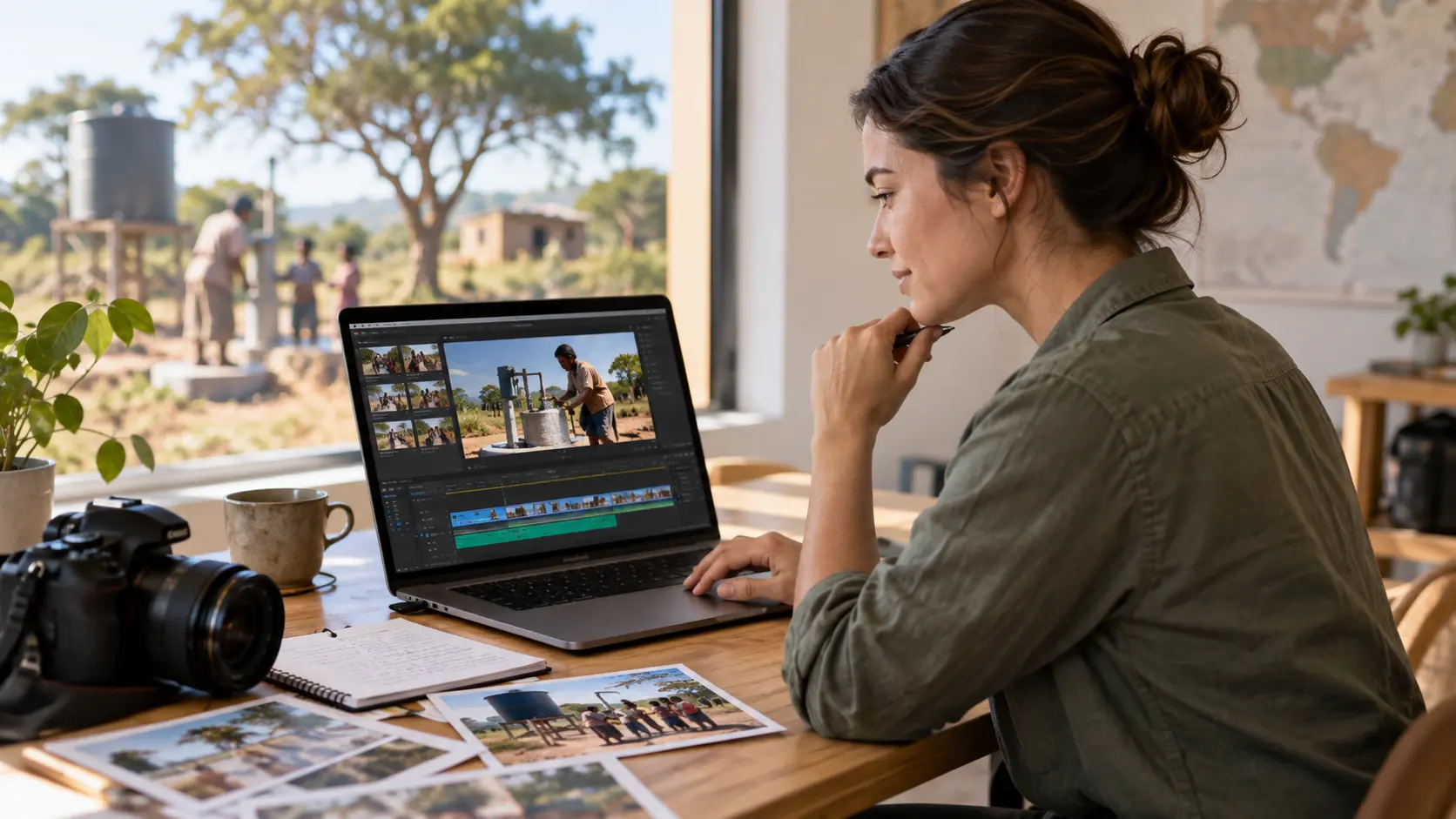
When verified project results need context for a partner review, pair authorized field photos with short factual statements. If a figure is complex, split it into smaller passages for separate scenes. When the draft is ready, check every generated statement before presenting the video.

When a new program needs more helping hands, turn approved activity photos and a clear role outline into a focused recruitment video. Show what volunteers can expect, explain where their time matters and end with one verified next step for joining.
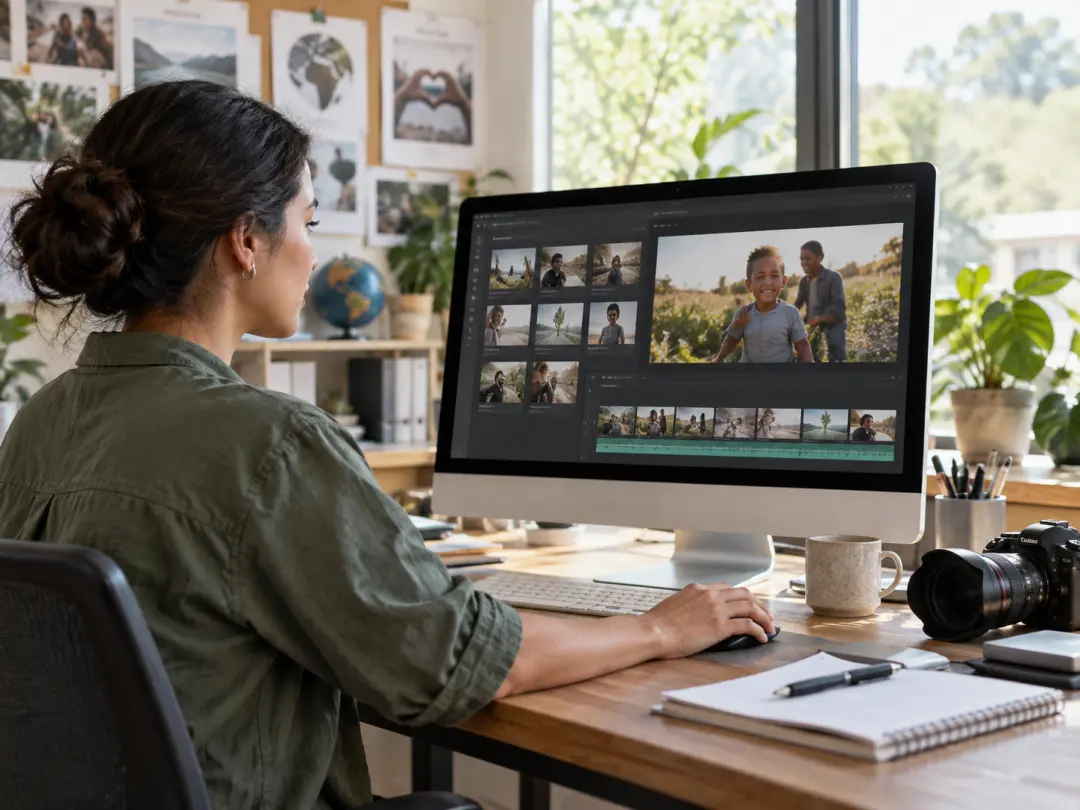
Regular project updates call for a repeatable approach to nonprofit video production. Save authorized materials and videos in your VideoAI workspace so you can return to them when the next campaign needs a revised story.

Your appeal needs a clear explanation of what the funding will support. Give the project purpose, intended use and next action their own moments, then check the wording before sharing the finished video.

You know which project facts need context. Pair approved field photos with short, verified results, then direct the narration so partners can follow what happened and why it matters to the people involved.
Decide what each scene should show, how it should sound and what needs another pass before sharing.
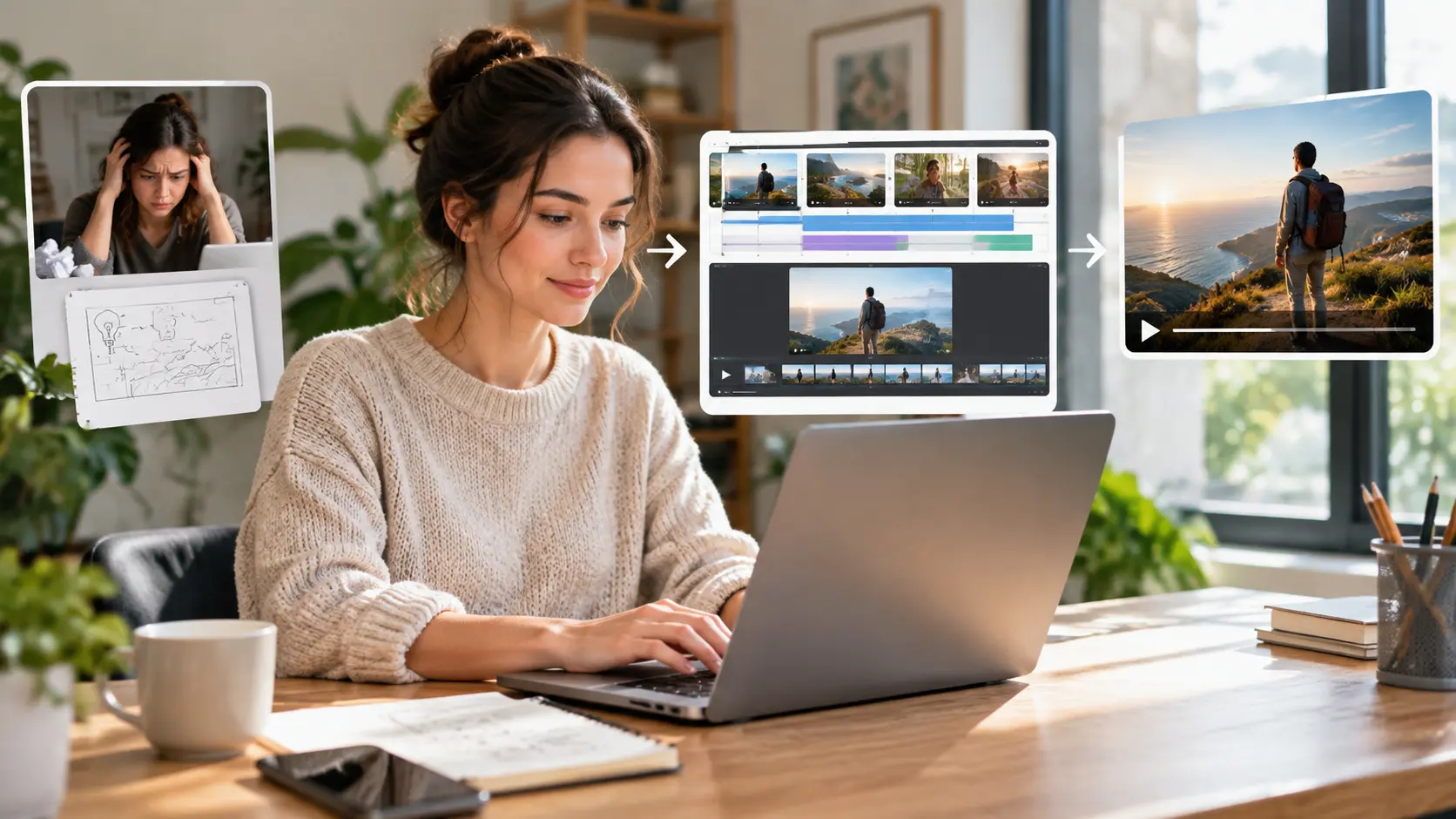
Give the problem, project action and verified result room to make sense. VideoAI can expand your idea into script text, while you confirm the facts and arrange the visuals and action for each time segment.

Guide a scene with the project setting or subject you want viewers to see. Combine authorized images, clips and audio, using @ to assign roles such as subject, scene, first frame or music.
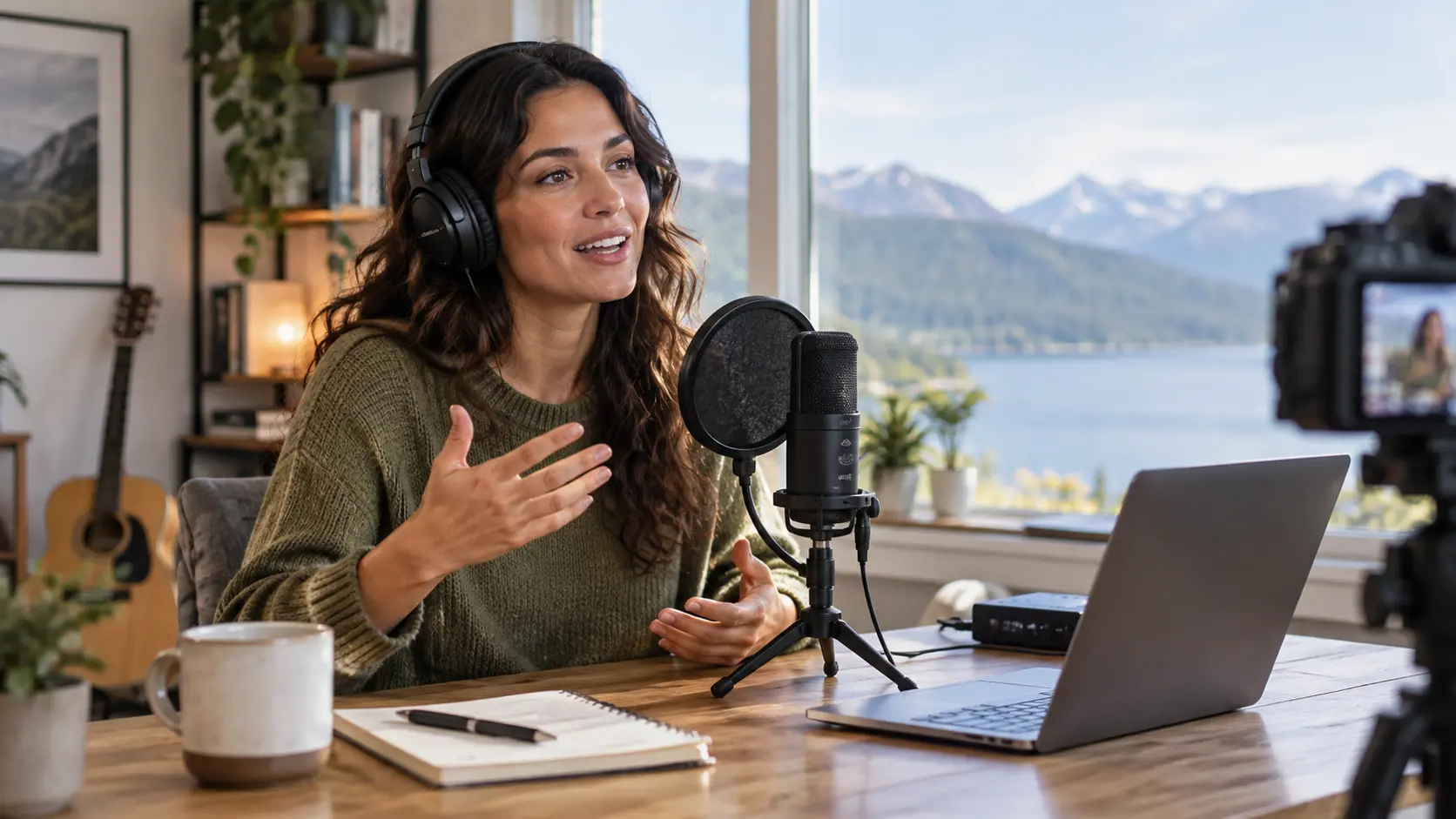
Give a personal account room to breathe or set a quicker rhythm for an event recap. Add voiceover, authorized audio and music direction to guide the sound and pace of your scenes.

Keep a saved project story useful when the campaign message changes. Describe the updated facts, scenes or call to action in text, then regenerate and review the new version before you download it.
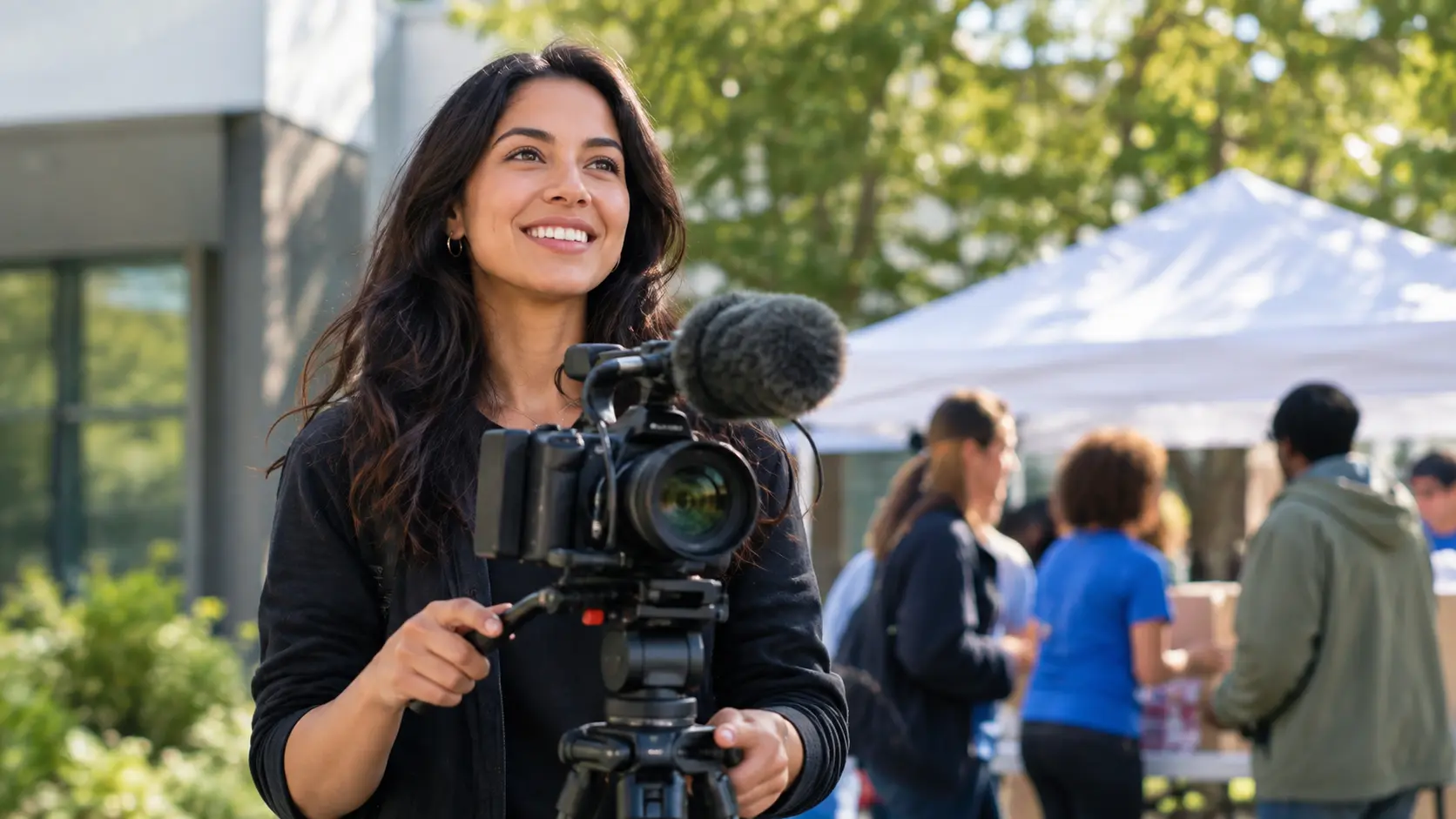
Start non profit video production in VideoAI with your approved photos and project facts, then shape the scenes around your message.
Get Started