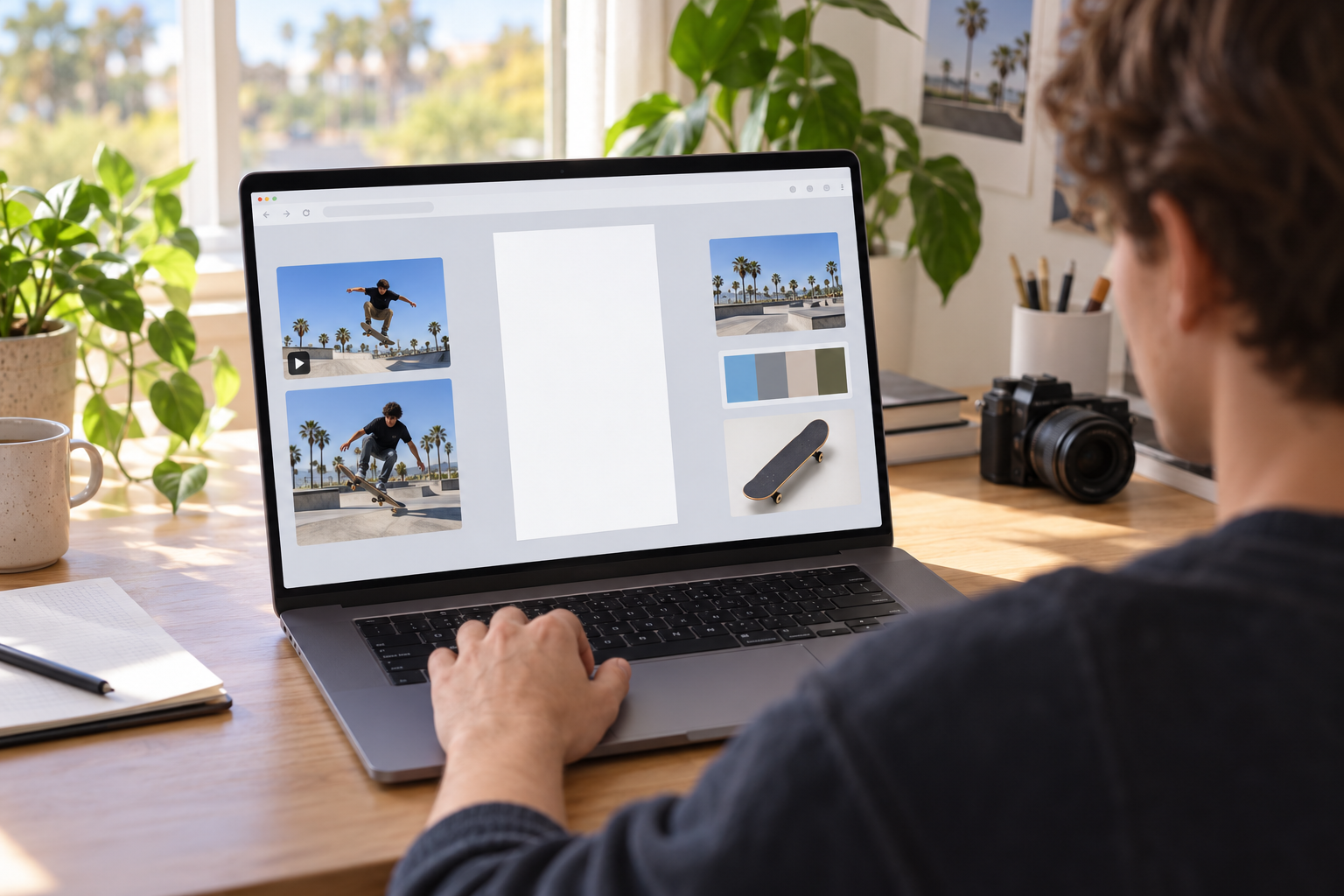
Step 01
Describe The Video Goal
Write the short video outcome you want, then add reference images, video, audio, or a logo to your workspace so VideoAI can use the right material.

Plan Every Vertical Scene
VideoAI helps you shape a vertical video from your goal and reference media while keeping control of every scene, action, and pace.
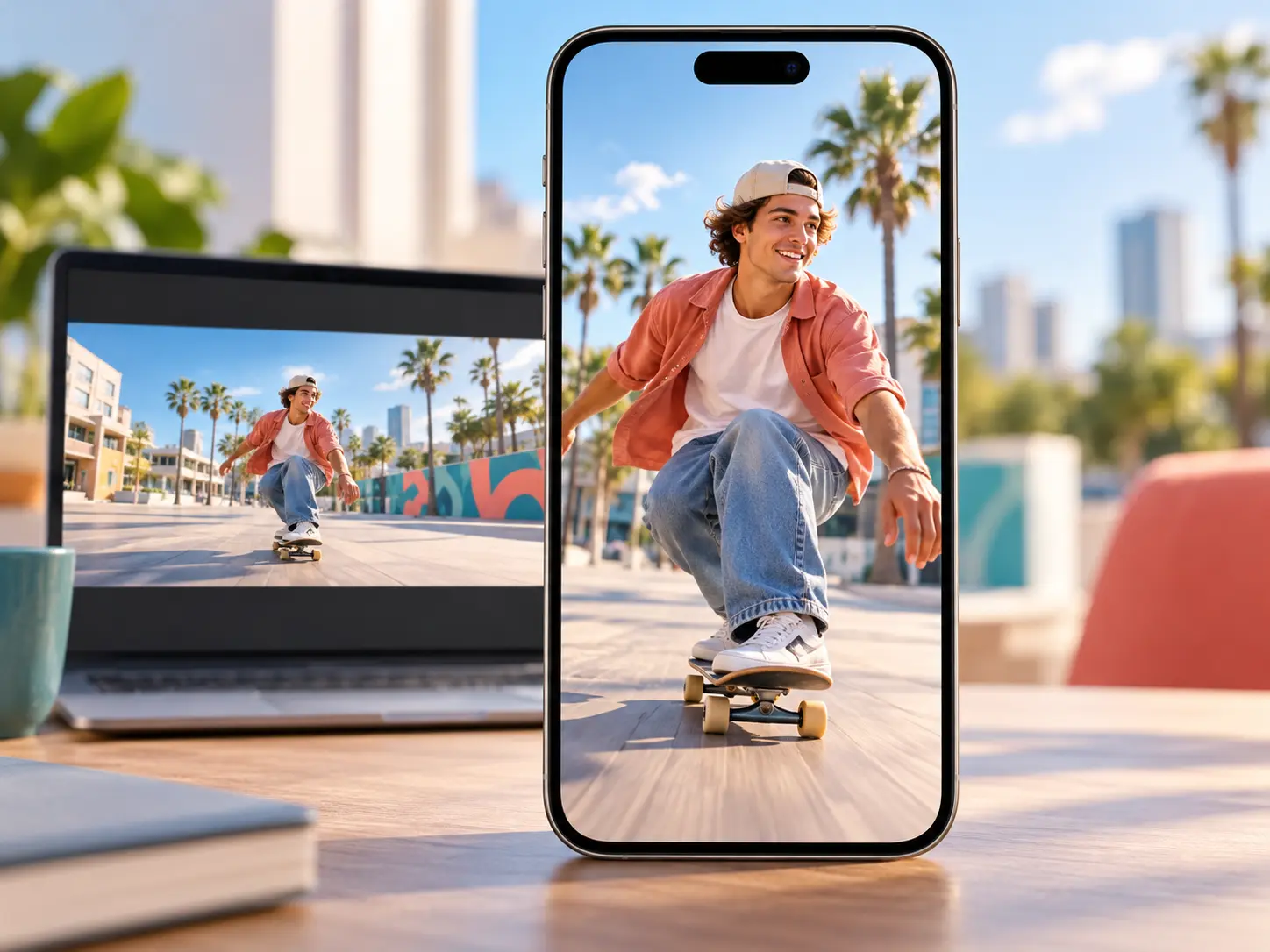
Move from a short video goal to a timed vertical result, with reference media and written revisions under your direction.
Step 01
Write the short video outcome you want, then add reference images, video, audio, or a logo to your workspace so VideoAI can use the right material.
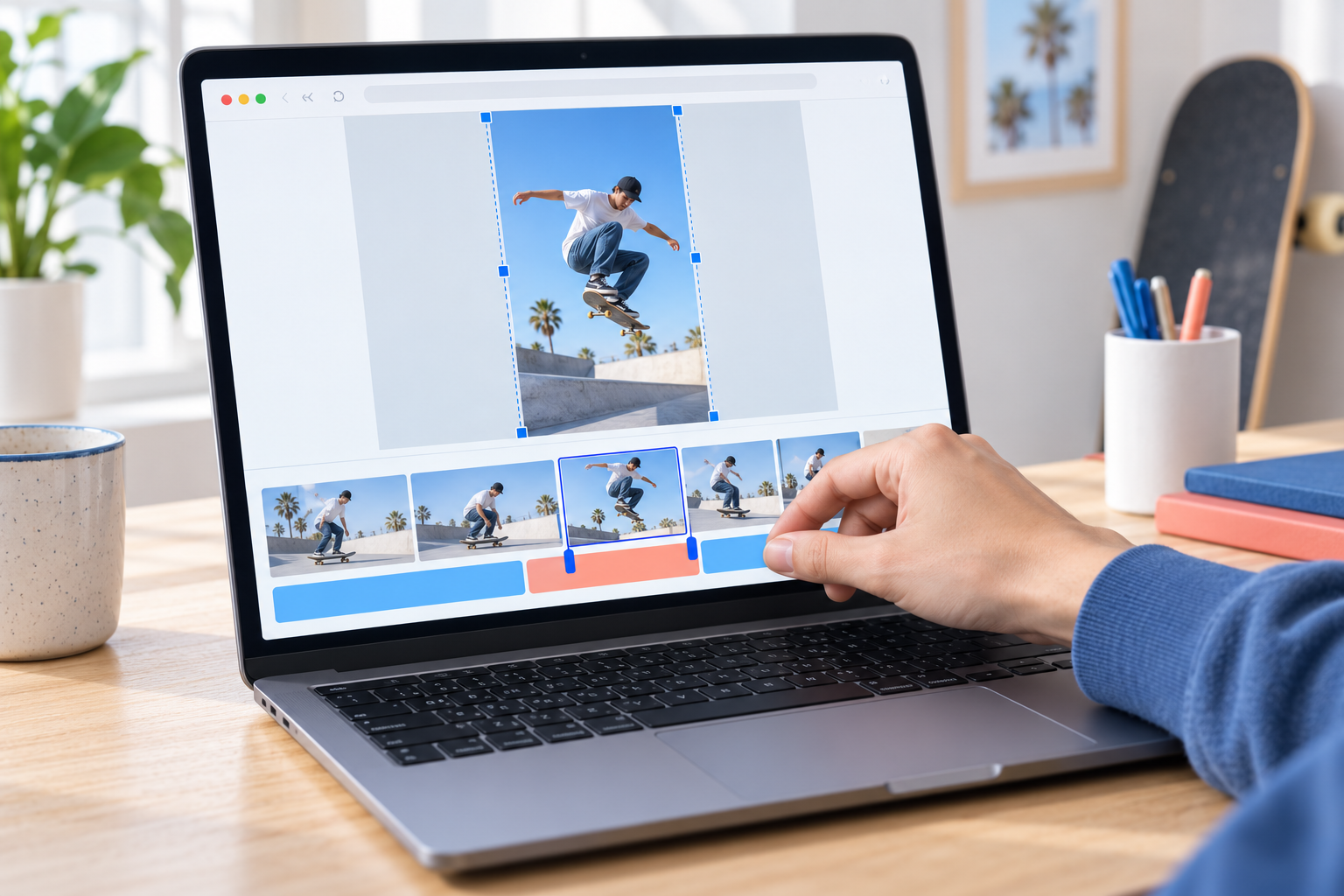
Step 02
Plan the picture, action, and pacing by second. Use @ to assign each reference asset a clear purpose within the scene you are shaping.
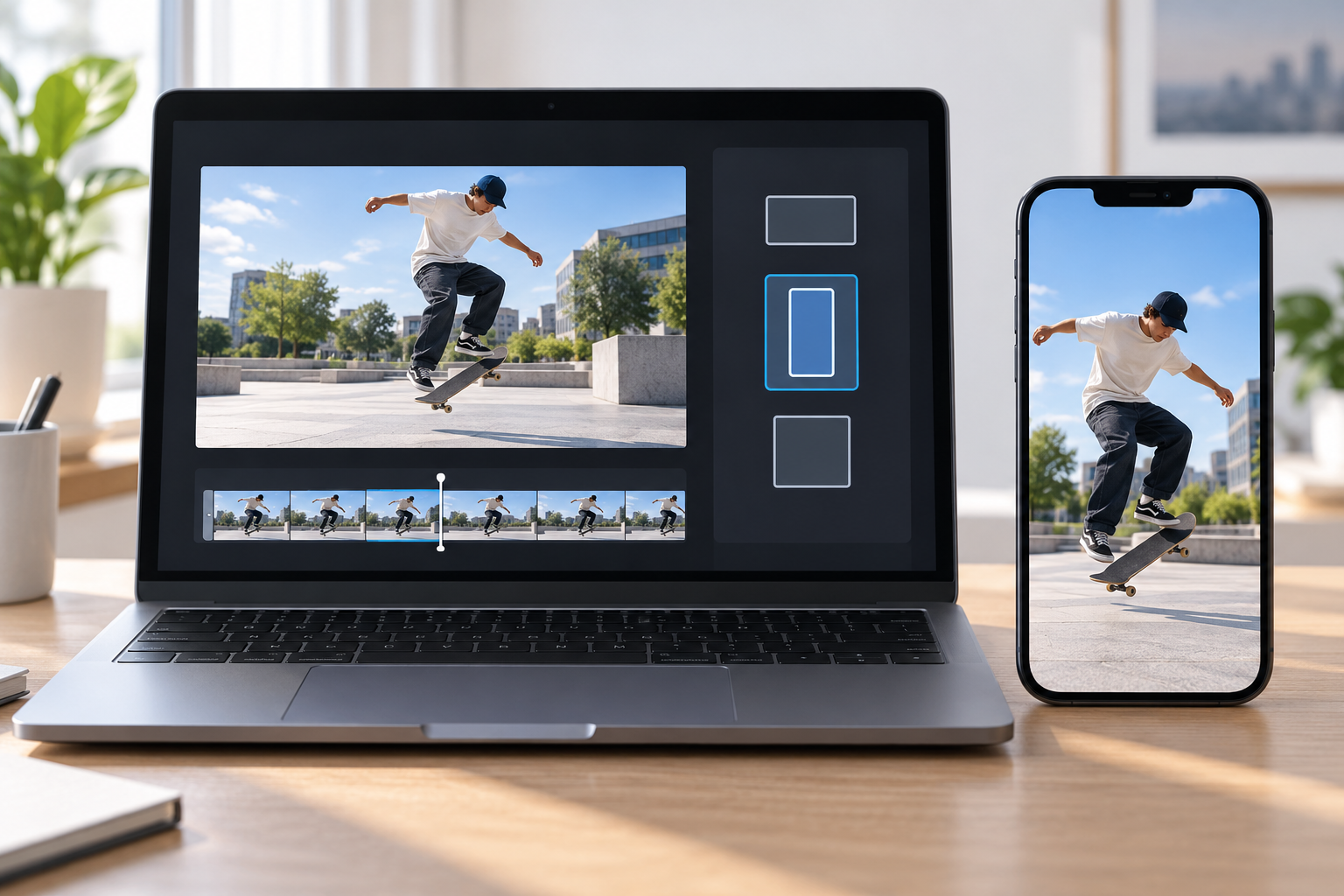
Step 03
Select the 9:16 output, generate the video from your prompt and scene plan, preview the result, then use a written instruction to refine it before downloading the MP4.
Build around the decision each placement requires, from a focused short clip to several versions of one campaign idea.
You have a new idea for a daily channel post and a few reference assets. Describe the goal, arrange each 9:16 scene by second, and leave with a focused vertical clip ready for its slot.
A product launch needs a logo, setting, and clear movement for a mobile placement. Add those references, write the timed direction, and download a 4K MP4 that matches the planned frame.
A campaign concept must serve vertical, square, and landscape placements. Build the scenes once, then select 9:16, 1:1, or 16:9 for the version you need.
A client changes the opening after the first preview. Send a written instruction for the adjustment, review the updated result, and keep the approved direction moving toward export.
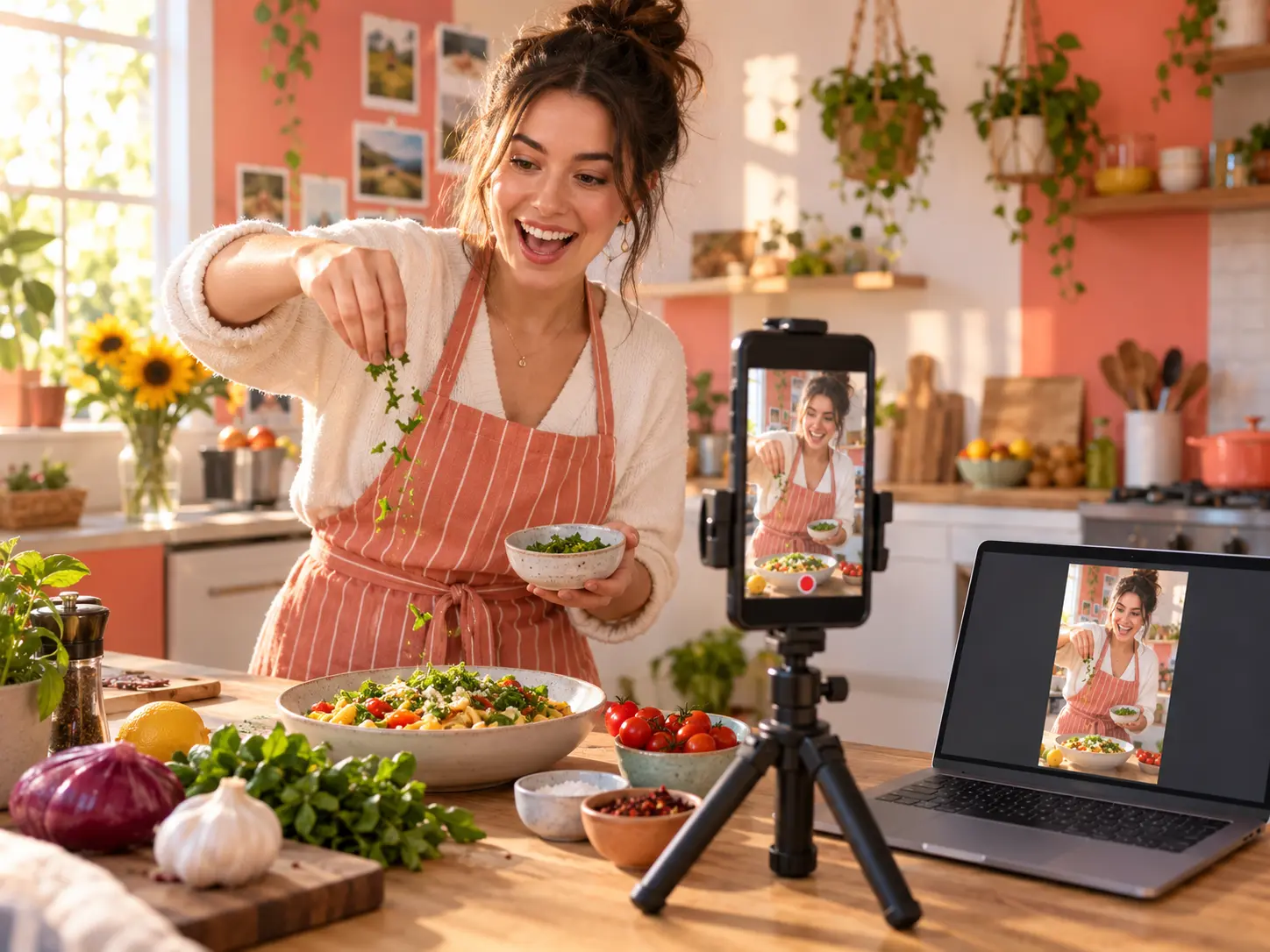
When a short post needs a clear hook and controlled pacing, VideoAI lets you describe the goal, place reference media, and shape a 9:16 result scene by scene.
Keep the important creative decisions visible, from the first reference asset to the final output ratio.
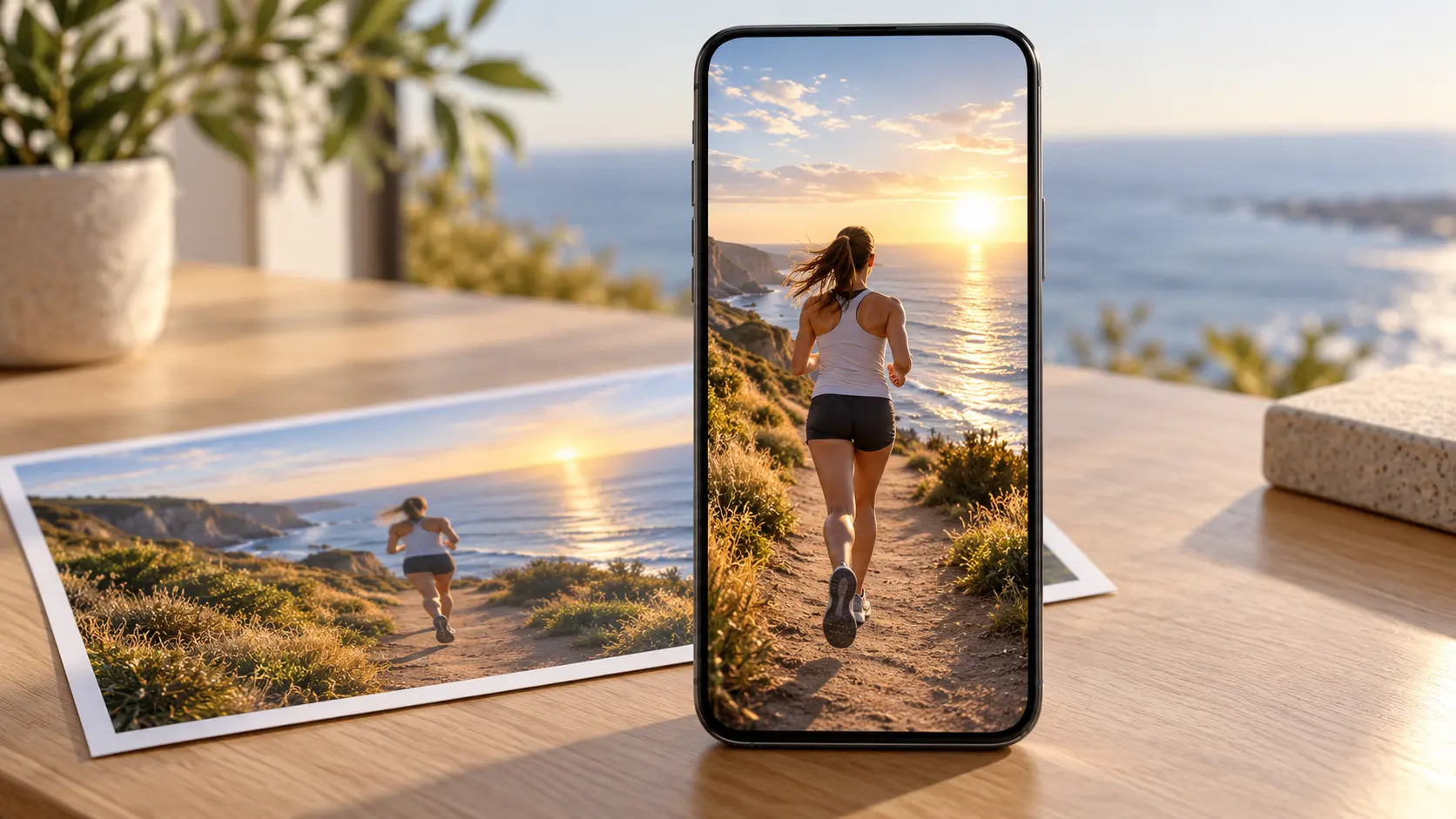
The online vertical video maker uses 9:16 as an explicit output choice, so you can plan the frame, movement, and pacing around a vertical placement from the first prompt.
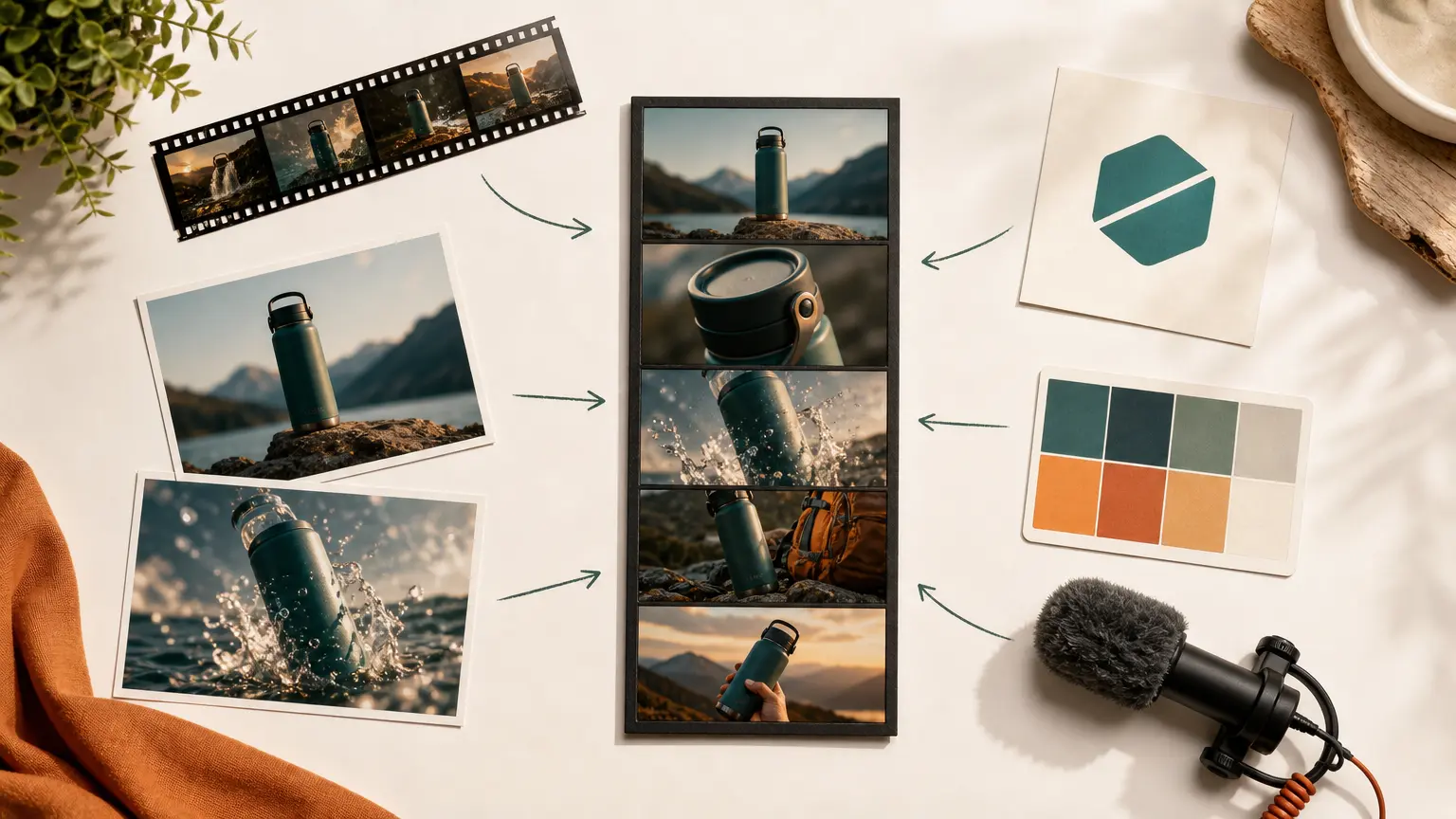
Add text, images, video, audio, or a logo to the workspace, then use @ to assign each reference a purpose within the scene you are shaping.

Start from a video template or stock media when you already know the direction, or describe the short video from zero when the idea is still taking form.
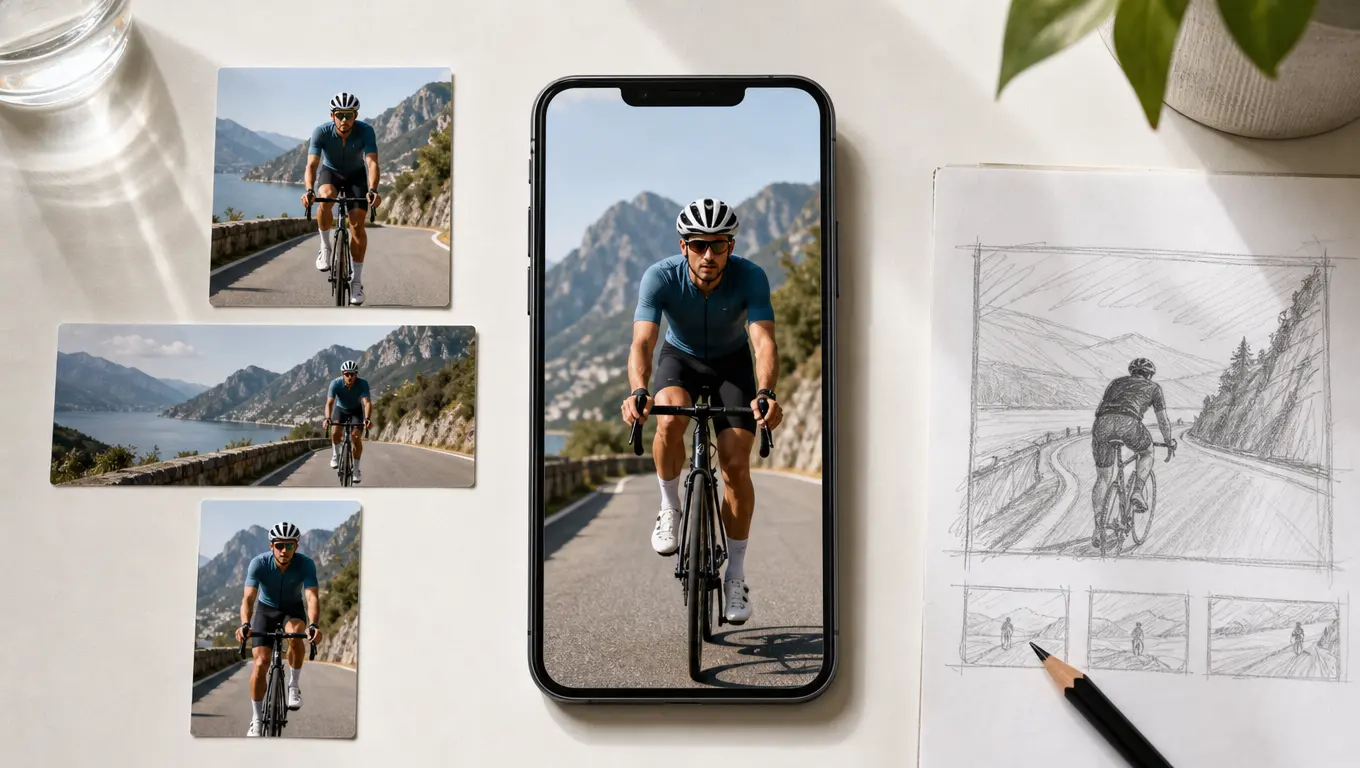
After previewing, send a written instruction to adjust the result, then download MP4 in up to 4K or prepare 16:9, 1:1, and 4:5 versions for other placements.

Describe the goal, add your references, and shape the first cut with VideoAI.
Get Started