
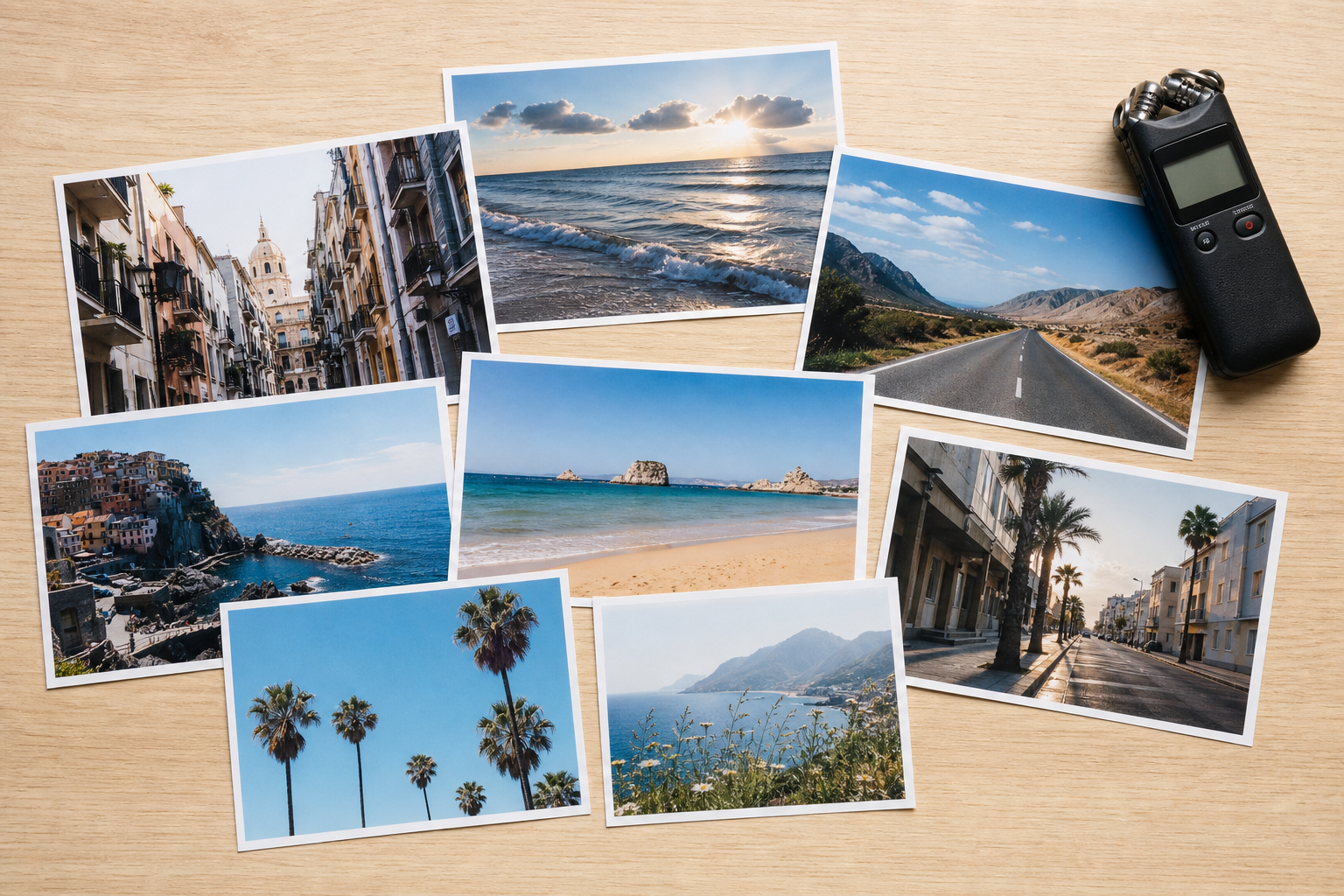
Step 01
Gather Photo and Media References
Upload several photos to the workspace, and add text, video or audio references when they help explain the scene. Use @ to name what each reference should guide in the photo slideshow.

Use an online slideshow maker to turn your photos into a directed MP4, with scene timing, transitions, music, narration, and revisions shaped by you.
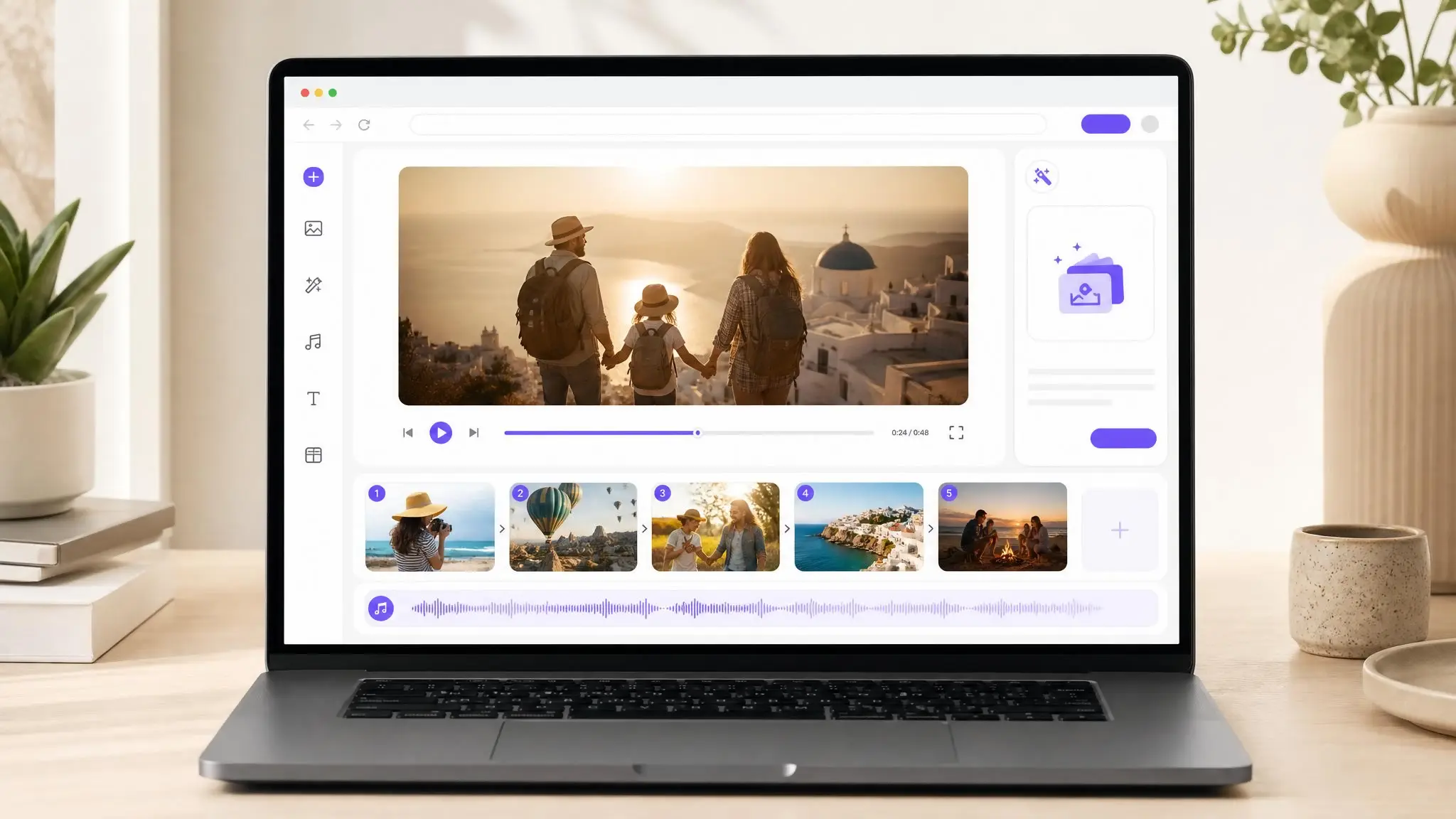
Each photo slideshow maker project starts with decisions about story order, scene focus, transition feel, and sound.
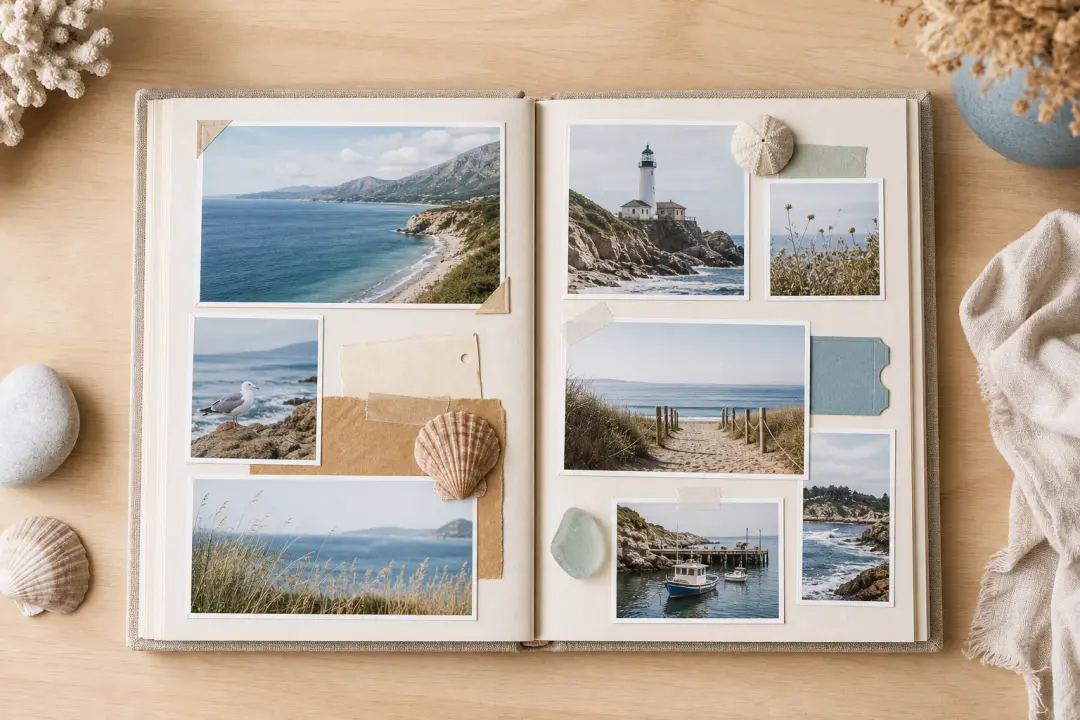
A digital photo album slideshow often starts as a folder of favorites without rhythm or sound. Pick the album moments, assign them to scene ranges, and let VideoAI generate an MP4 with transitions and music.
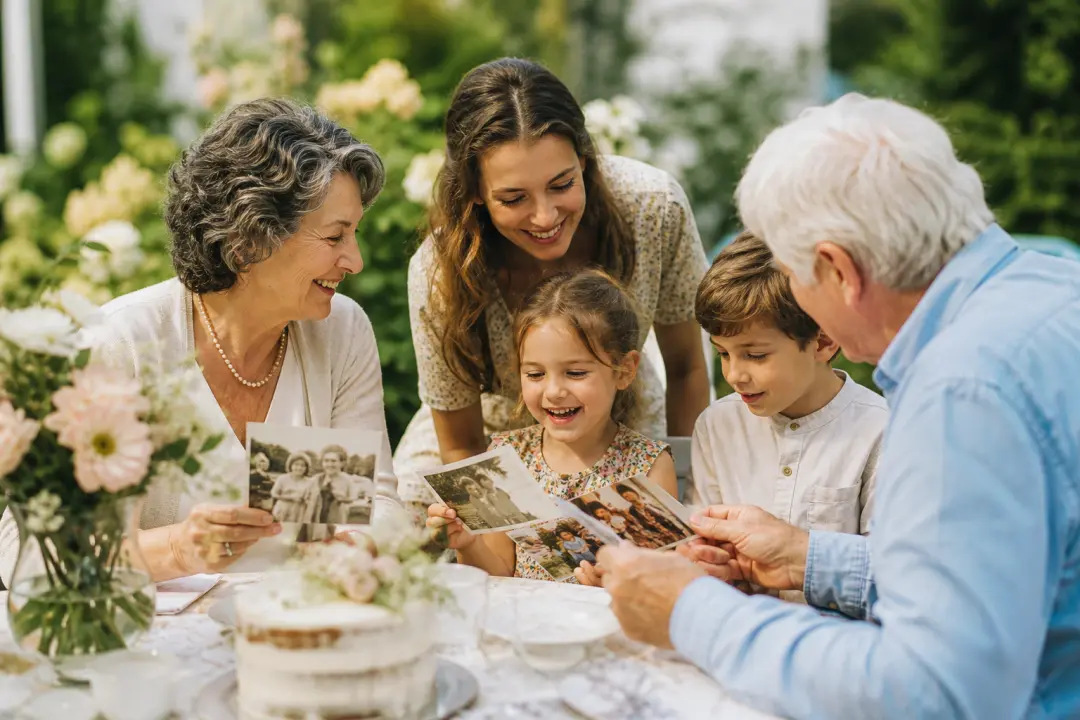
A family photo slideshow needs a clear path through birthdays, reunions or graduations. Write the order you want by time range, add transition notes and narration, and get a connected review video.

Travel photos can jump across places and days. Use key shots as references, describe the camera movement between scenes, and shape a photo slideshow with music that follows the route.
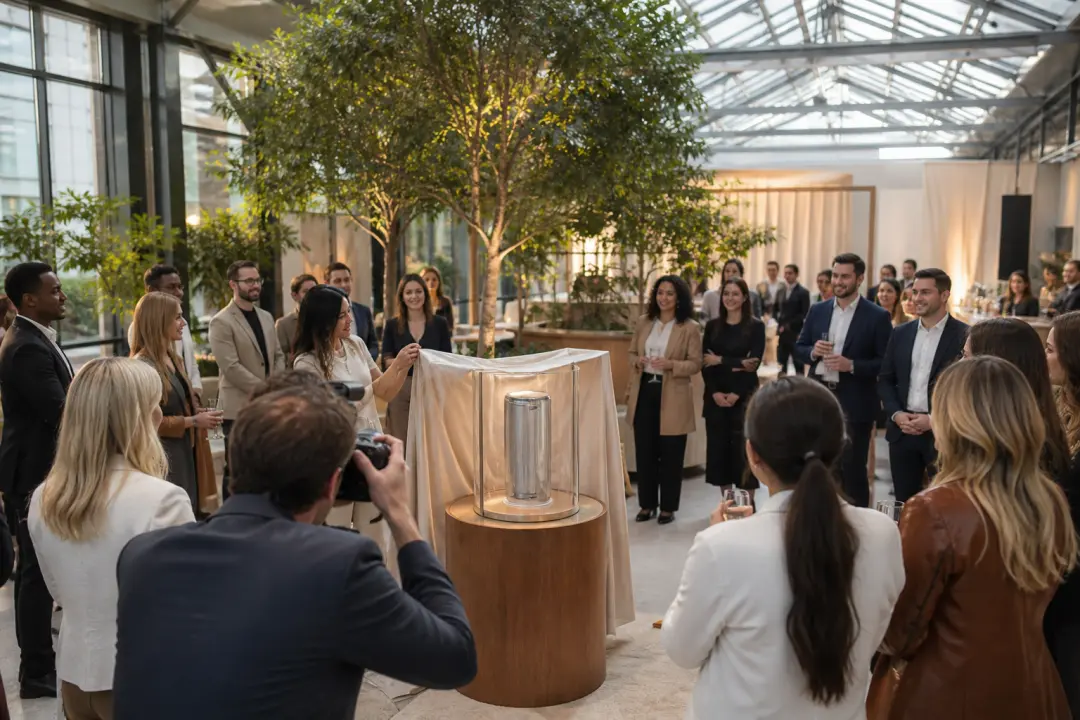
Client events usually need a concise result from product shots, team photos and venue images. Build scene ranges around the moments that matter, then create a picture slideshow MP4 for review or posting.
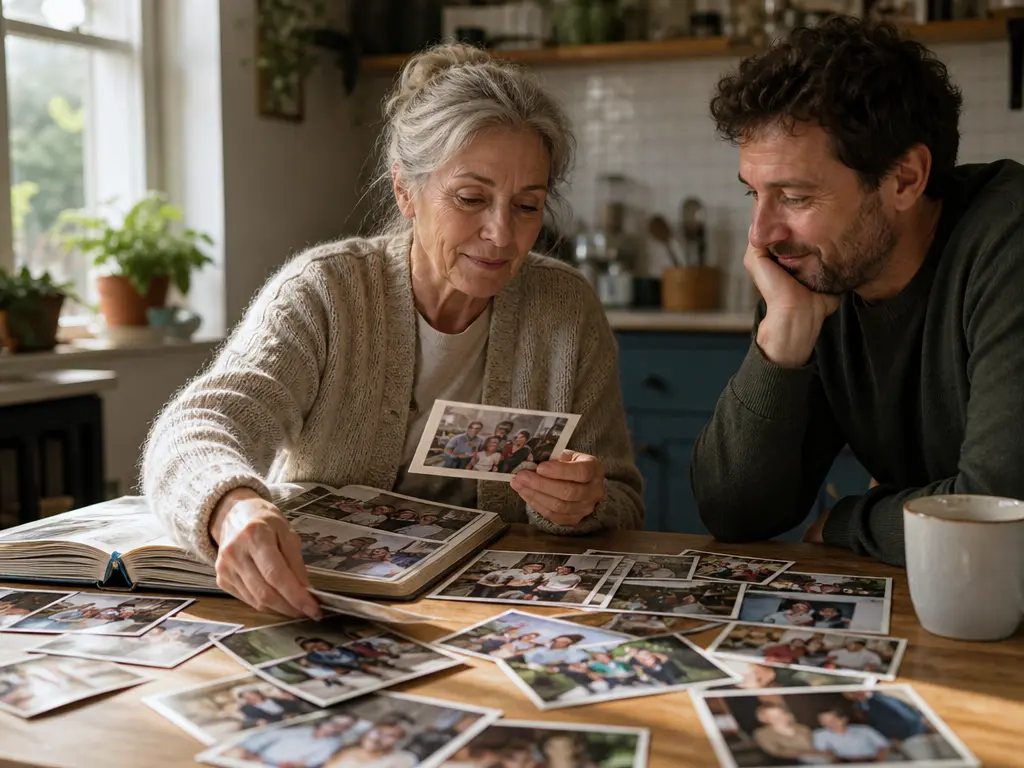
They have albums from several moments and need a photo slideshow with rhythm, transitions and a sound layer. VideoAI keeps the planning in their words, from scene ranges to narration.
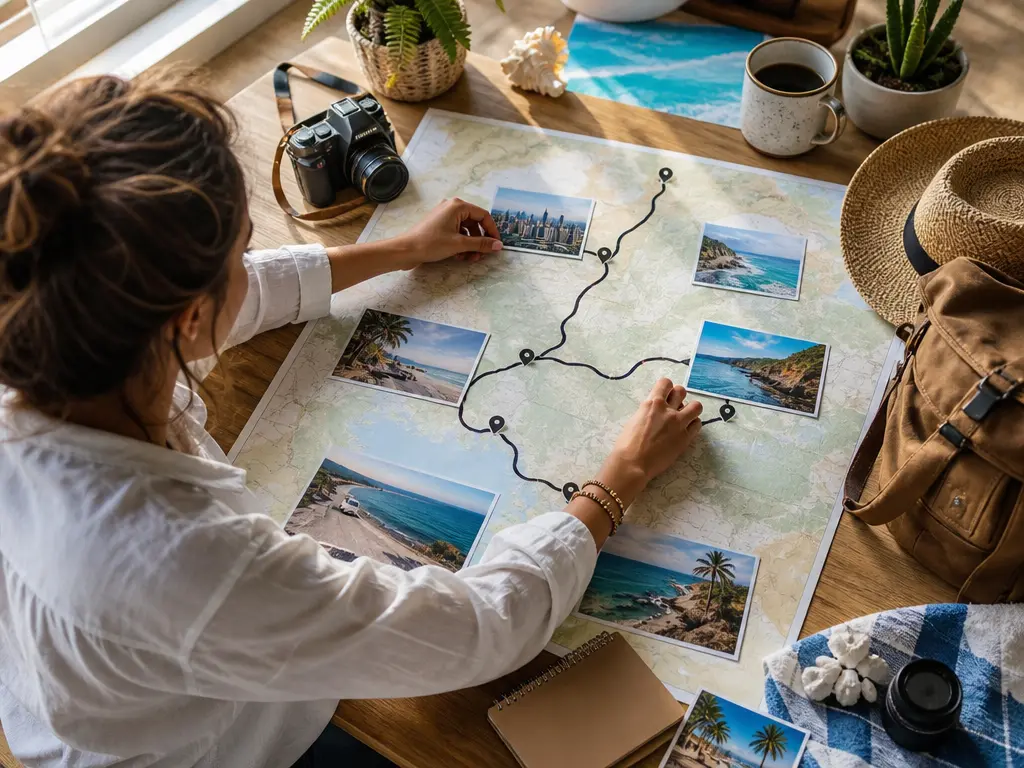
Trip photos cross places and days, so they need a route with pacing. In VideoAI, each location can become a timed scene with a chosen ratio and music direction.

They turn product and event photos into short campaign clips while still deciding scene focus, transition direction and MP4 format. A photo slideshow gives the team a review ready result with less production overhead.
VideoAI starts from your creative intent: which photos matter, what should happen, how scenes connect, and where sound belongs.
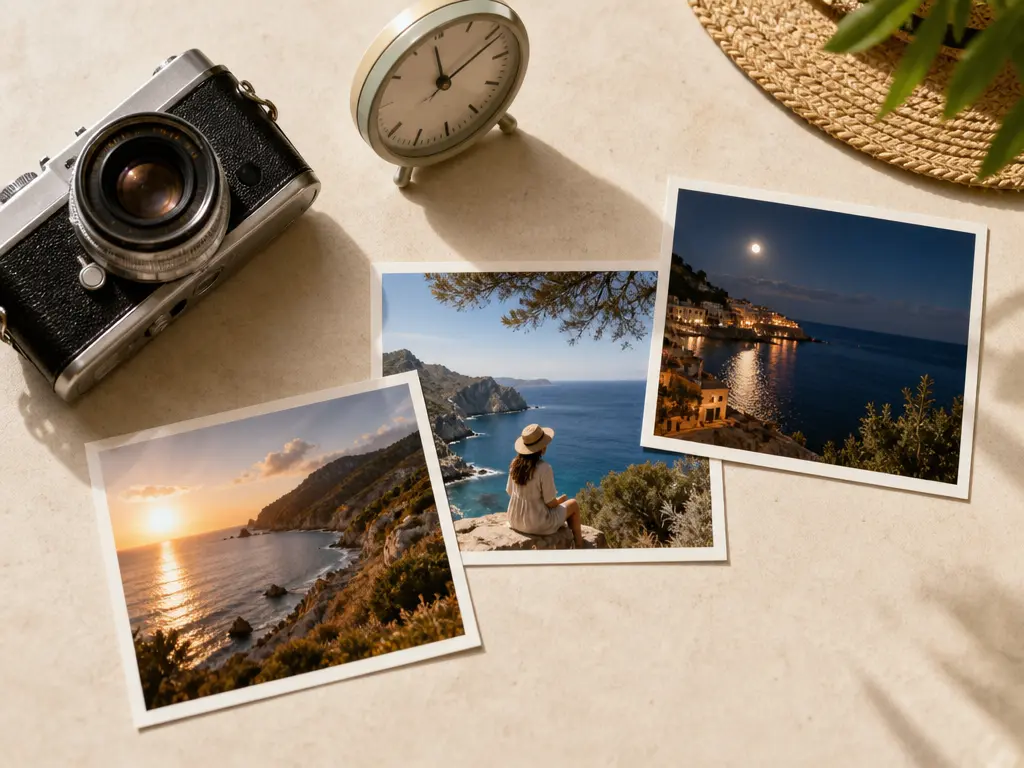
A clearer photo slideshow begins with scene ranges and action notes. Write what happens in each segment, attach the matching photo reference, and keep the pace aligned with the story you want.
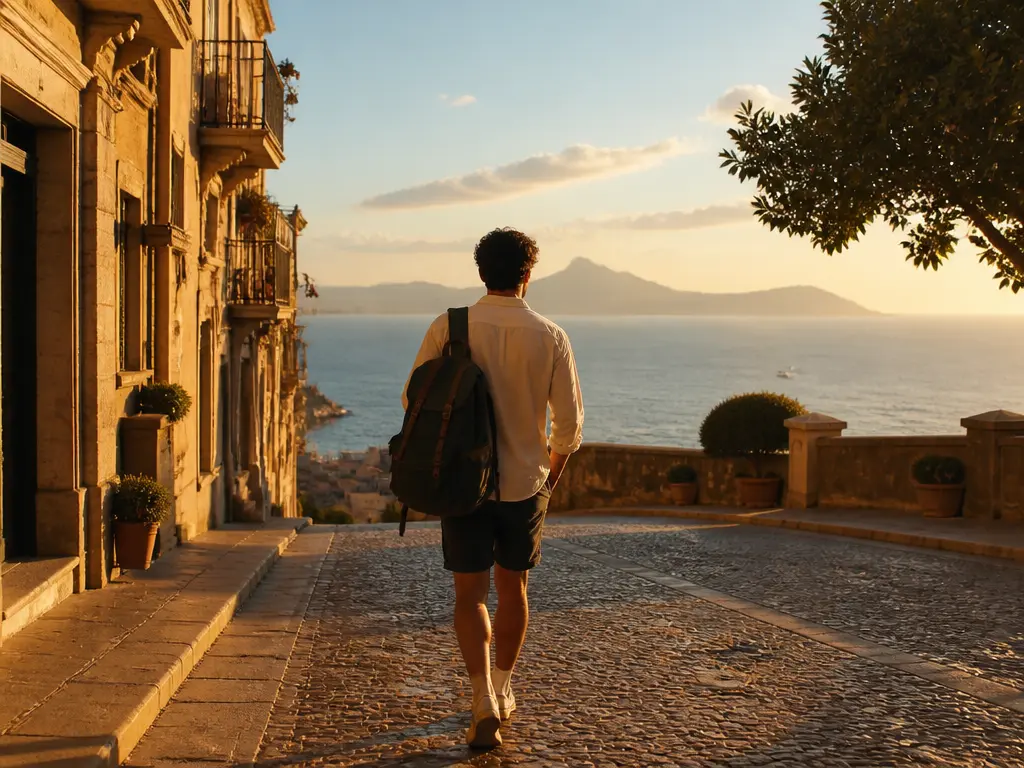
Continuous generated footage replaces a static stack of images. VideoAI uses multiple photo references with your storyboard, transition notes and continuity guidance to create one video. The result is an AI photo slideshow video shaped by your references.
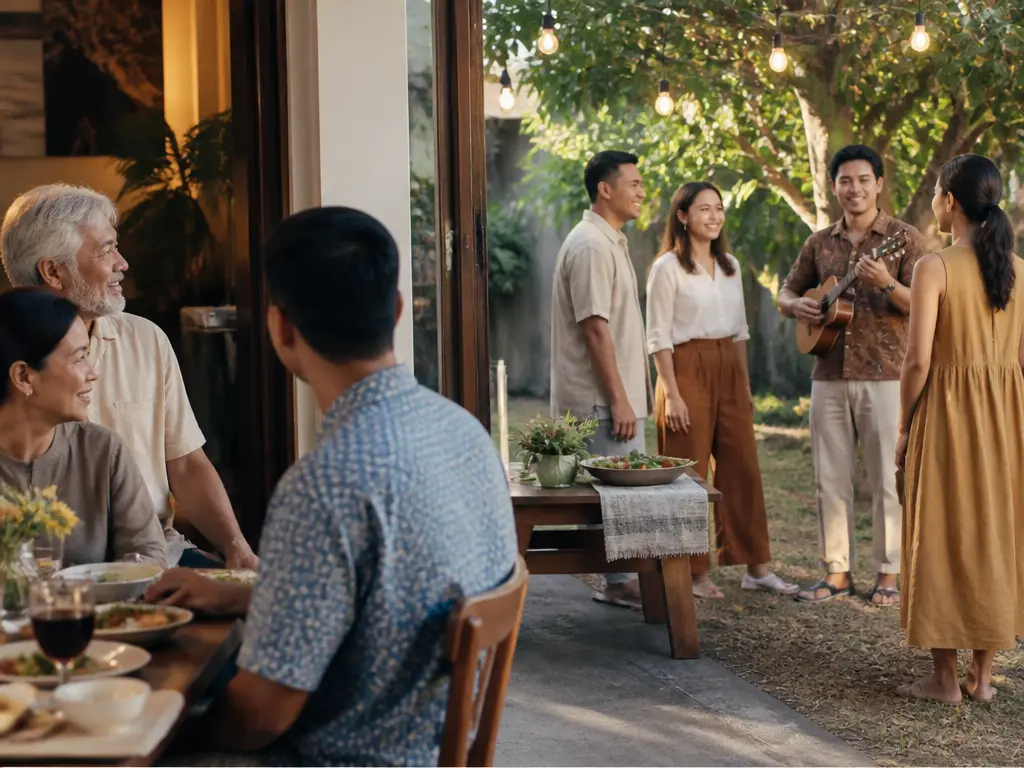
Scene changes feel clearer when the camera move, transition style and beat are described together. Add background music, uploaded audio, sound effect style or narration so the photo slideshow has a planned sound layer.
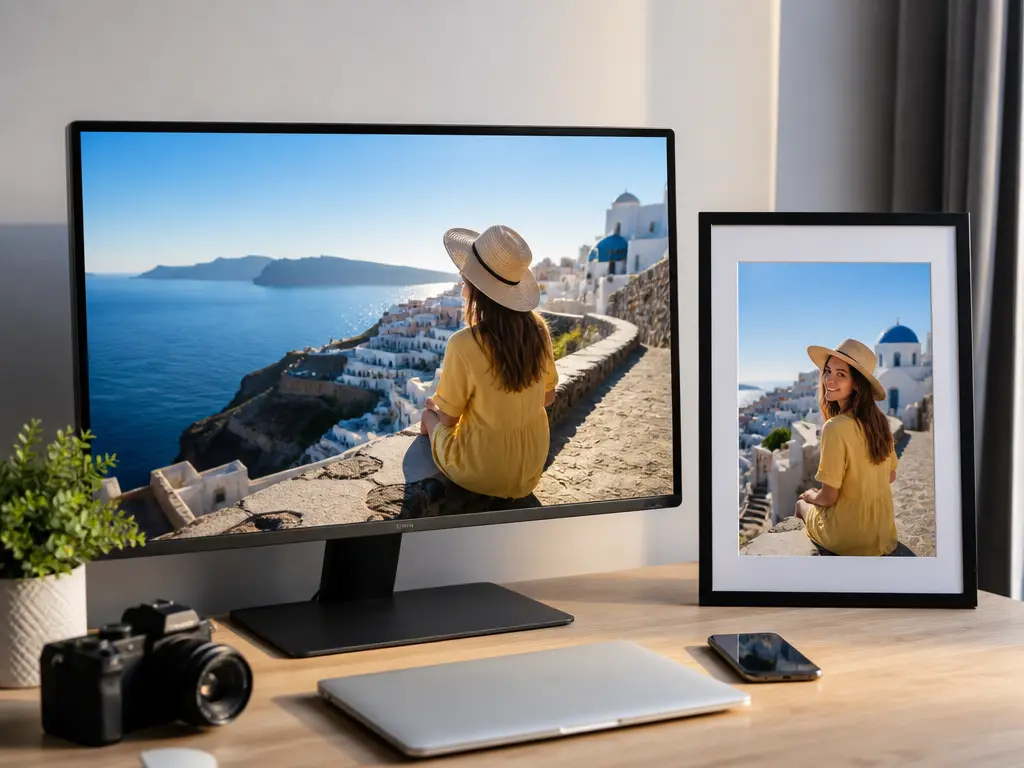
The downloadable result is an MP4 up to 4K, with 16:9, 9:16, 1:1 and 4:5 options. The exported video includes no watermark, supports commercial use and can be generated in batches. After preview, tell VideoAI what to adjust and regenerate. A single generation can run up to 30 seconds, which keeps the photo slideshow focused before you extend it.
Keep control in the plan, then let VideoAI generate the connected video from your references and words.
Step 01
Upload several photos to the workspace, and add text, video or audio references when they help explain the scene. Use @ to name what each reference should guide in the photo slideshow.
Step 02
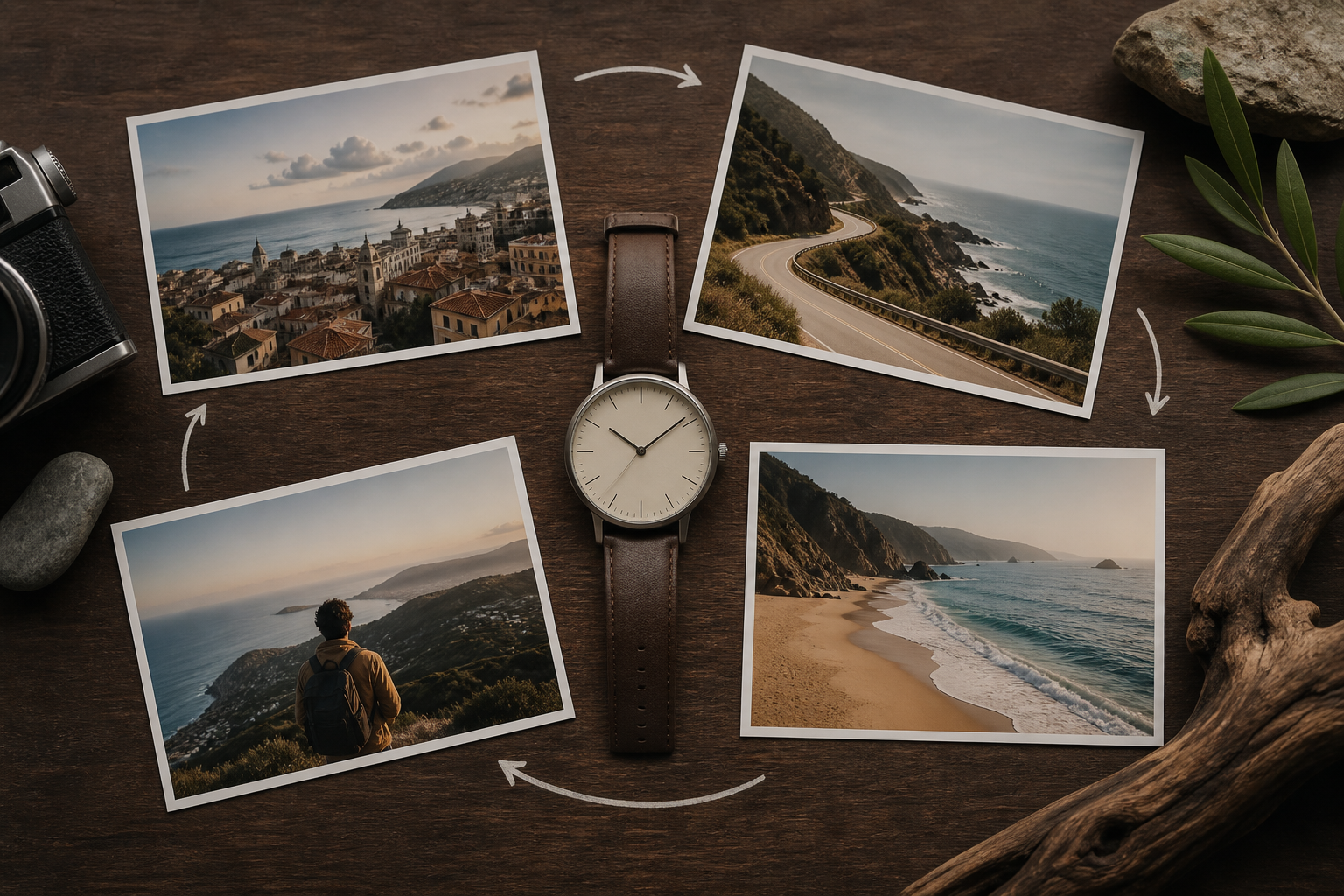
Choose the duration and ratio, then write each section of the photo slideshow as a time range with the image, action and motion you want. Add transition direction so the next scene has a clear handoff.
Step 03
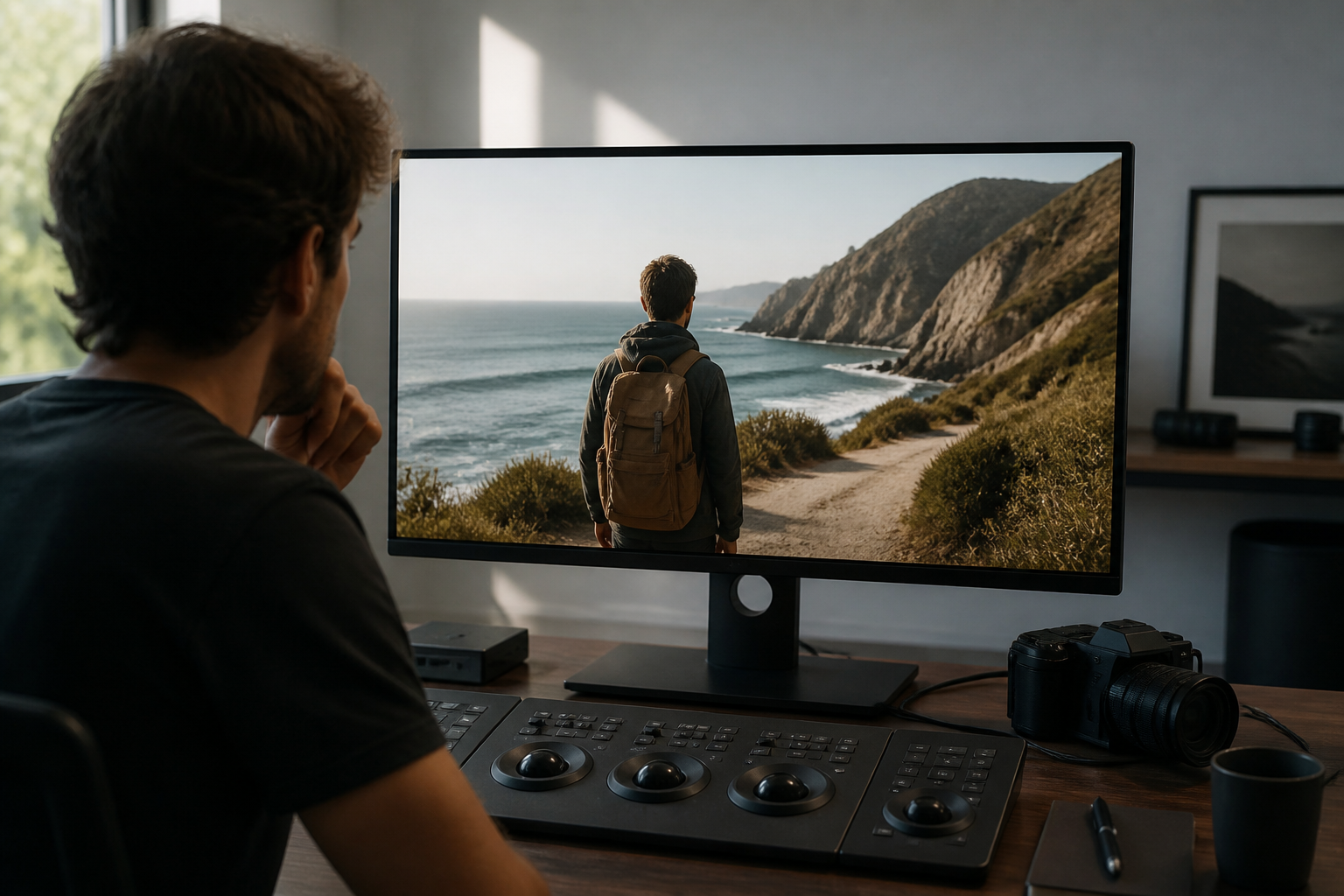
Generate the video, review the result, and tell VideoAI what to change in plain text. Download the final MP4 up to 4K, or extend from the created photo slideshow when the story needs more room.
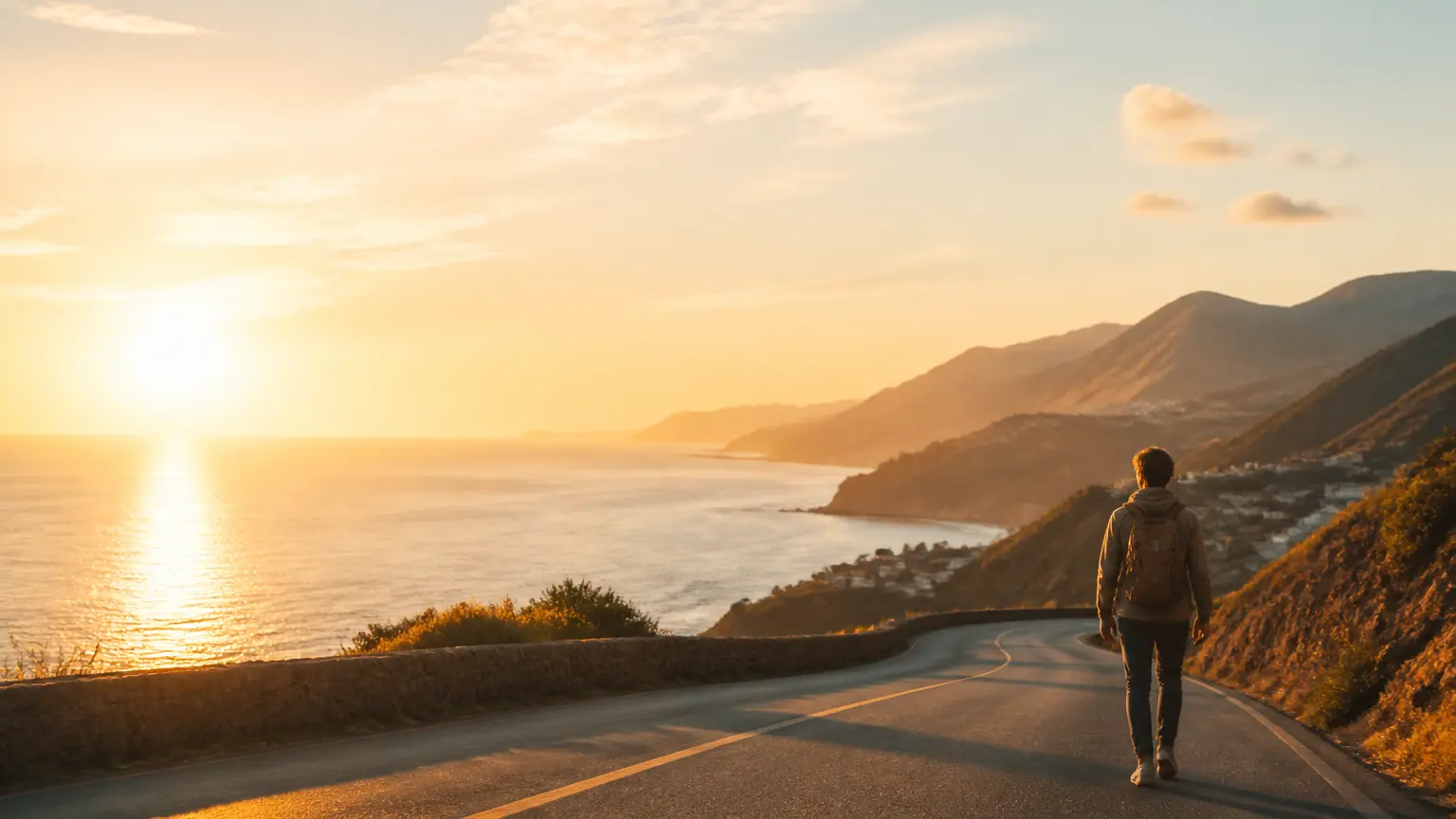
Upload photo references, direct the scenes and transitions, and create a slideshow online that you can preview, revise, and download as an MP4.
Get Started