
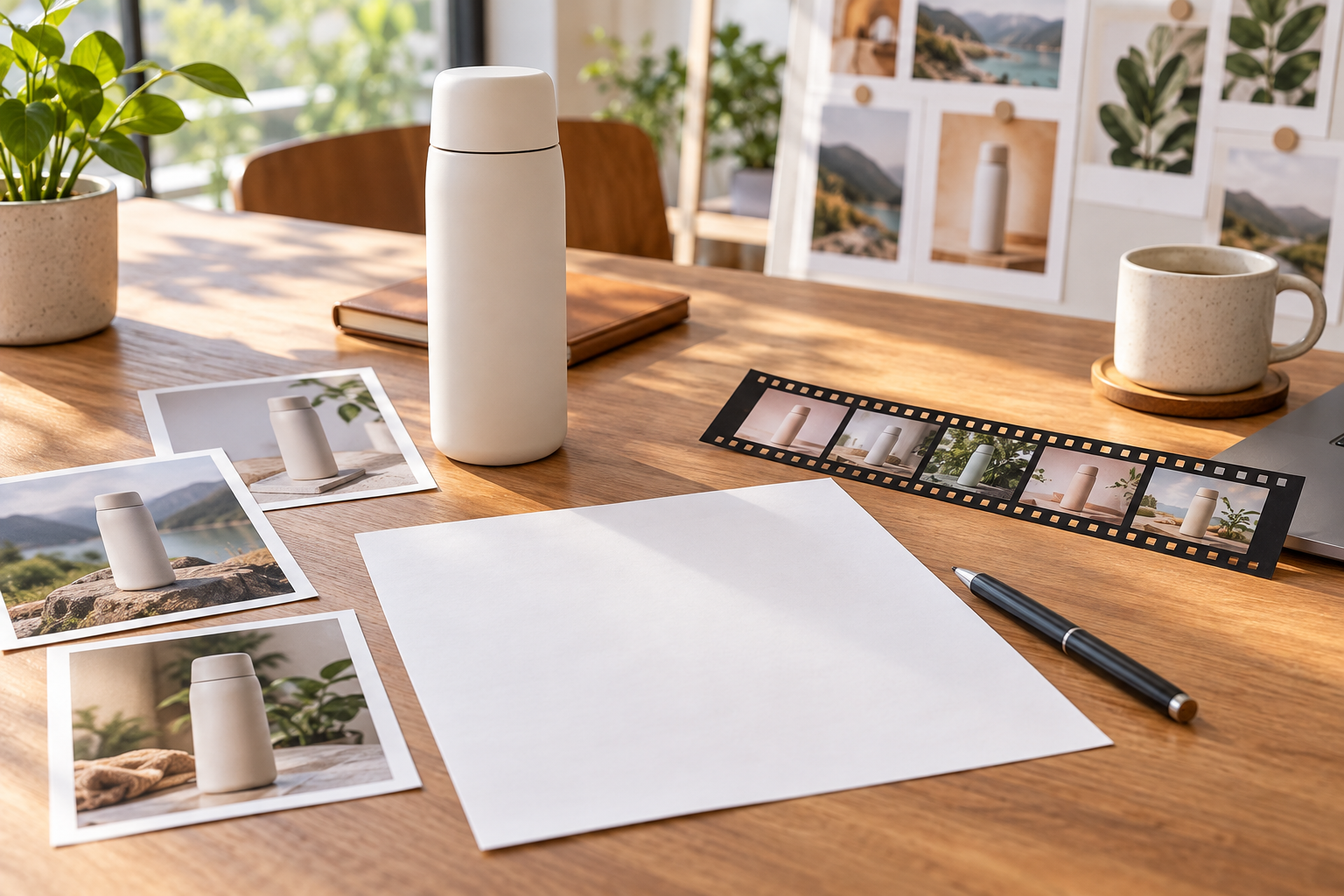
Step 01
Add Your Pitch and References
Sign in to VideoAI and enter a sales pitch, product idea, or script. Add product images, demo clips, or audio references to give your sales video a visual and sound direction.

Your Pitch, Scene by Scene
Use an AI sales video generator to turn your pitch and product references into a sales video with VideoAI, keeping control of each scene and every revision.

Decide which product detail leads, how the demonstration moves, and what the viewer should read.
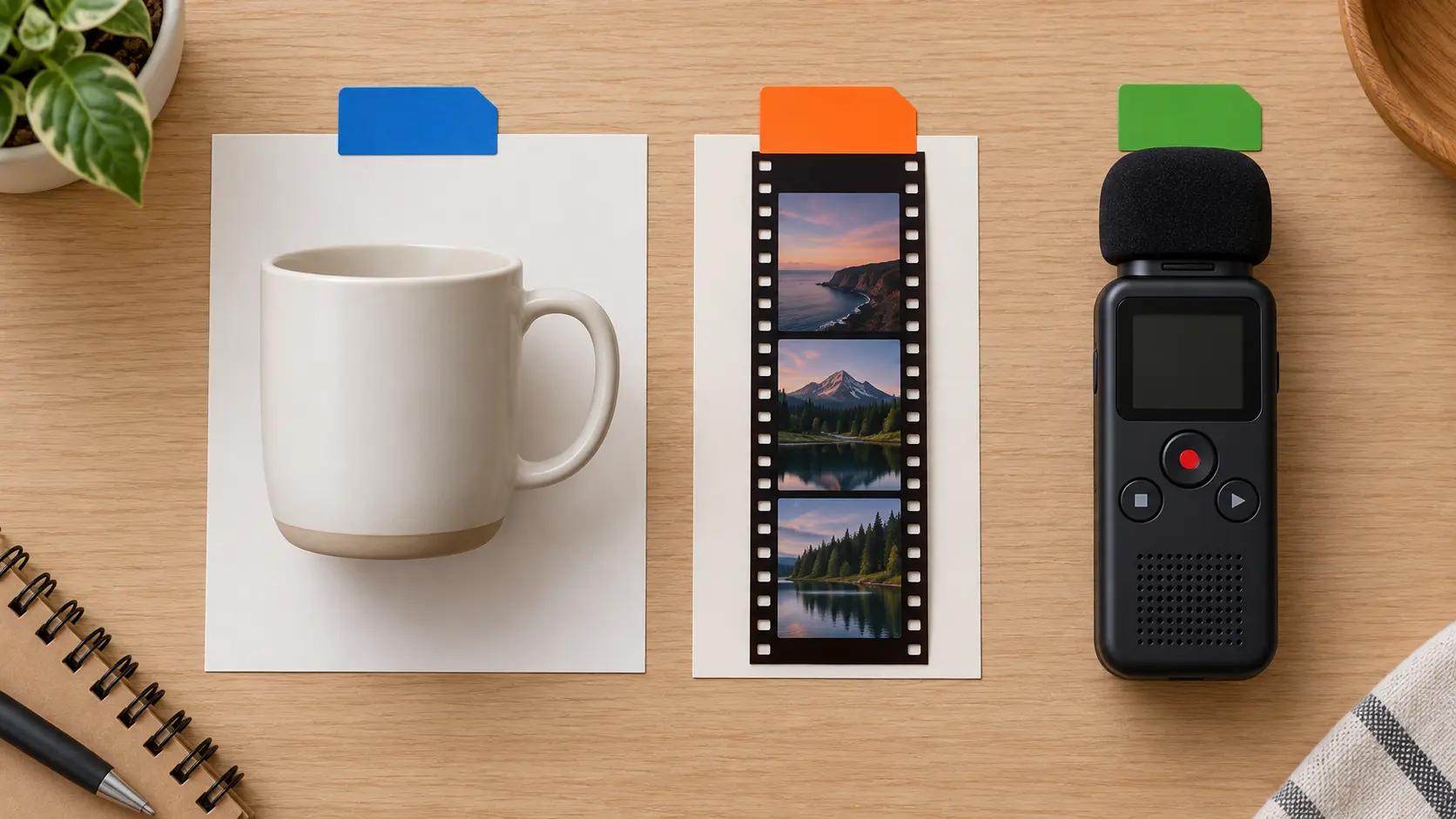
A product shot can guide the appearance while a demo clip guides the movement. In VideoAI, combine text, images, video, and audio references, then use @ to assign each material its role.

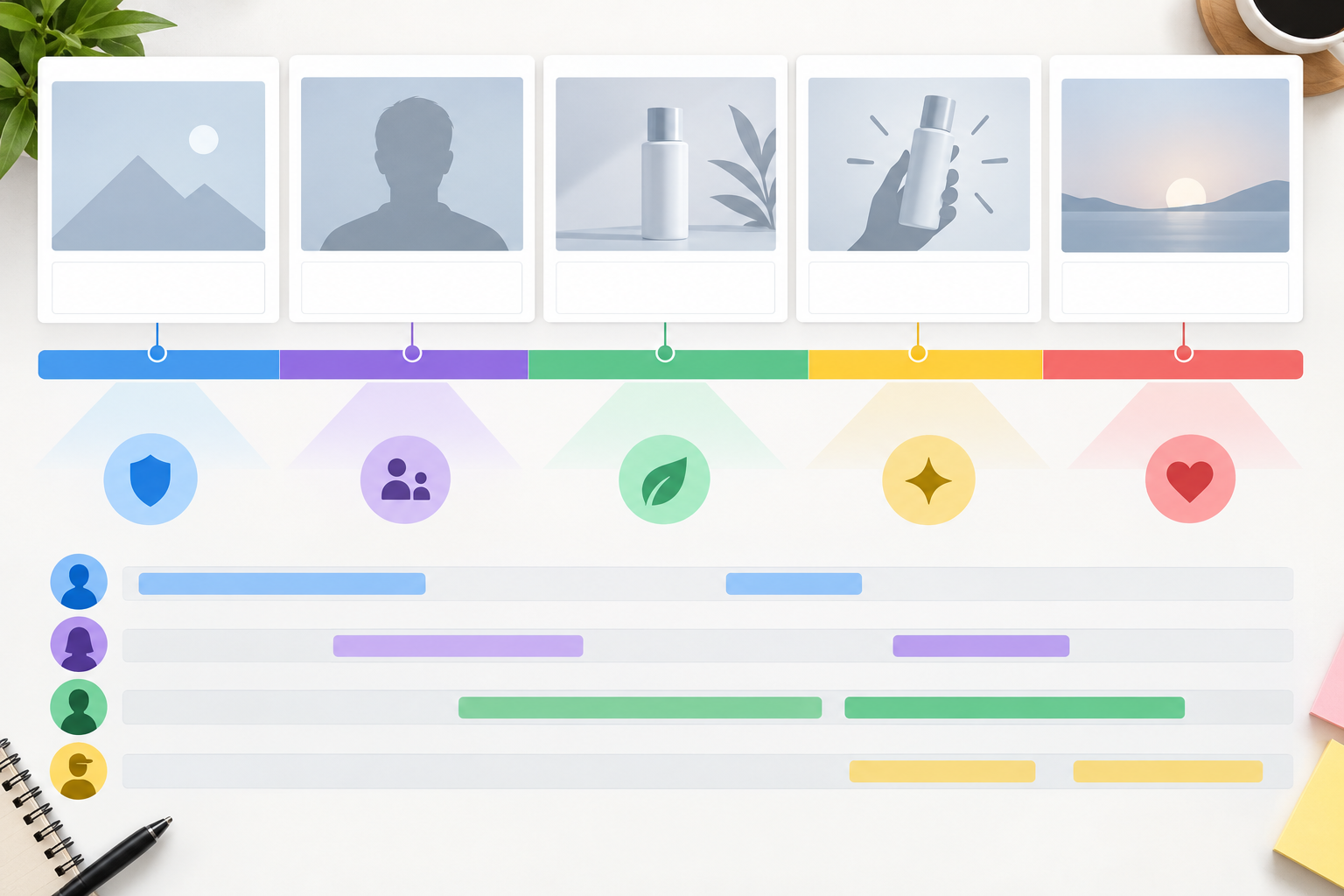
Each selling point gets its own moment. Write time ranges for your sales video, then specify the visuals, actions, and pace for each segment.

Your product name and a short benefit headline can appear within the generated scene. Include the exact wording in your description to guide the text in your sales video.
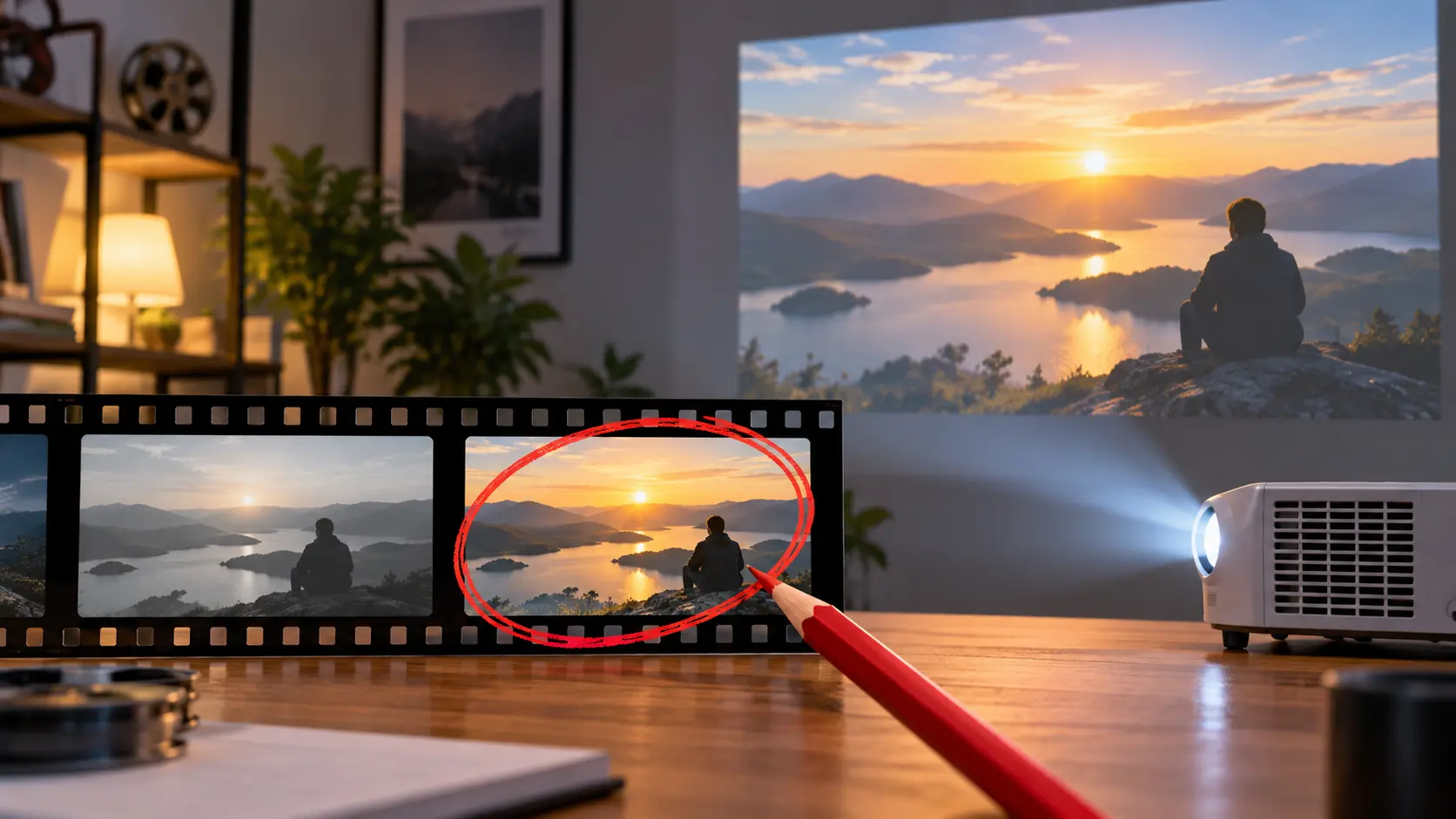
An opening that needs more emphasis can take a new direction. Preview your sales video, describe the change in text, and generate a revised version with VideoAI.
Choose the message and scene sequence before generating, then review the result before downloading.
Step 01
Sign in to VideoAI and enter a sales pitch, product idea, or script. Add product images, demo clips, or audio references to give your sales video a visual and sound direction.
Step 02
Write each segment by time range, including its product benefit, visual action, and wording to show on screen. Use @ to assign reference roles, then choose the aspect ratio for your intended layout.
Step 03
Generate your sales video and preview the emphasis, wording, and pace. Request changes with text instructions and generate again as needed. Once satisfied, download the result as an MP4.
Start with the question your viewer needs answered, then choose the scenes that make the product relevant.

Complex products need room for explanation. Shape a B2B sales video from your script and demo references, giving each product benefit a separate scene for a structured buyer introduction.

A customer's product question gives your next pitch a clear focus. Combine talking points, product photos, and reference clips into video for sales that puts the requested detail at the center.

A product process can be shown as an animated sales video. Describe each stage and its motion in timed segments to make the sequence visible when a still image needs more explanation.

Campaign concepts often start with different hooks. Reuse product footage from your workspace to generate versions with distinct openings, choosing the frame shape that suits each placement.

Give colleagues a visual explanation of the pitch they need to present. Arrange customer context, product demonstrations, and benefit headlines into a sales video they can review scene by scene.

Lead with the detail that makes your product relevant to the campaign. Use product images and demo references to shape an opening, then choose a vertical, square, or landscape composition.

Turn a client's script into a reviewable sales video draft. VideoAI lets you define each scene and revise its emphasis through text instructions as the creative direction develops.

Start with your pitch in VideoAI, describe the scenes, and generate a draft you can refine and download.
Get Started