

Step 01
Provide Your Starting Material
Upload images, video, or audio, or provide a topic and script. These materials give the short video its subject, source content, and starting structure.

Shape Ideas Into Video
Turn images, video, audio, or a script into a short video while choosing its direction, style, and output settings.
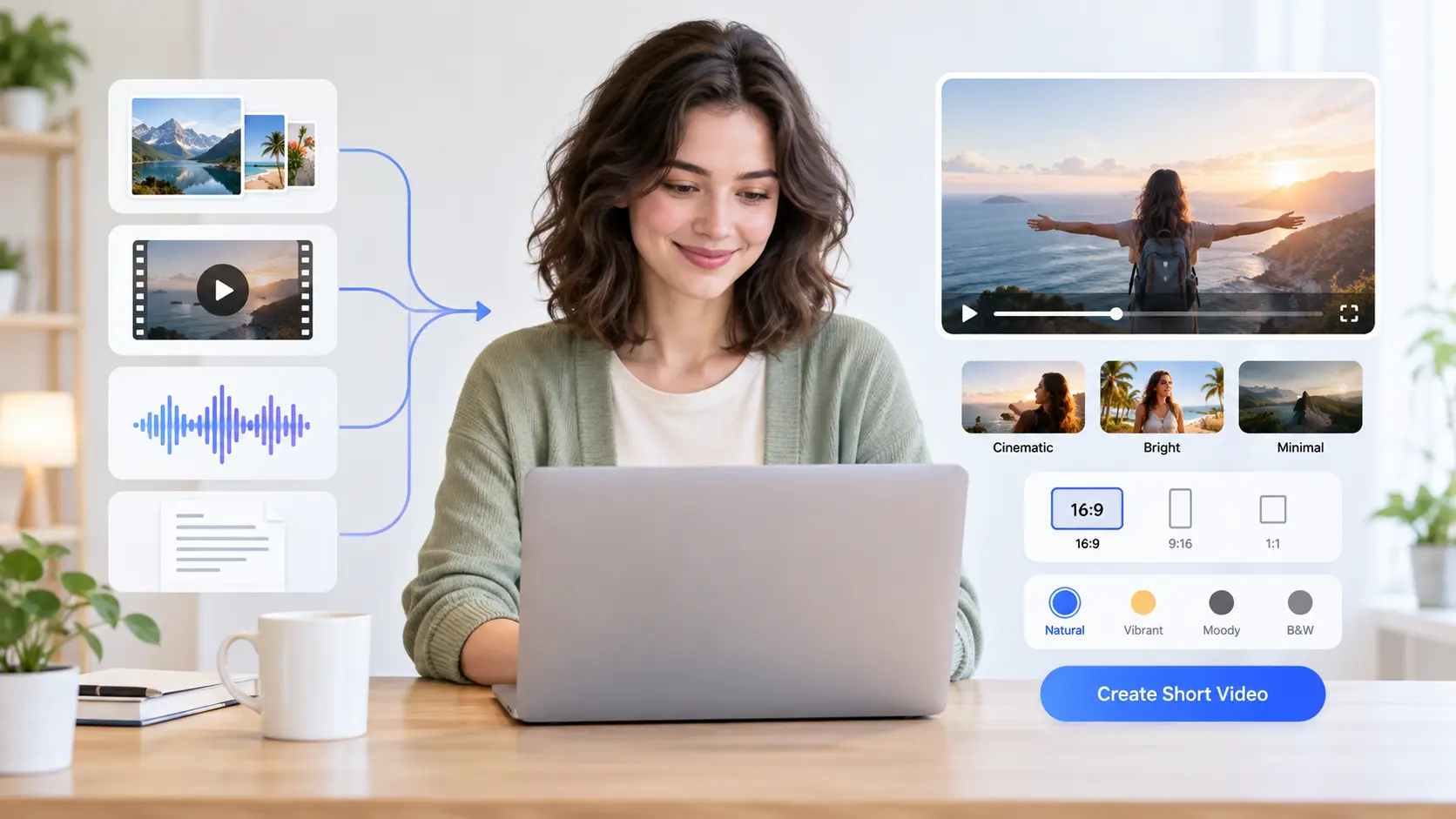
Start with the result you want to show, then guide the visuals, pacing, and overall style with VideoAI.
A focused campaign idea needs a clear visual sequence and a defined message. Provide your topic, script, images, or video, then describe the direction and style you want. VideoAI turns those inputs into a concise result suited to video shorts.
A day of moments can feel scattered when the story has no visual order. Combine several images or clips, guide the mood with a specific prompt, and create a mini vlog with a more coherent flow for short form video.
A track or audio idea calls for visuals that follow its intended feeling. Add audio with supporting images or video, select the look you want, and let VideoAI arrange a music led short video for sharing.
A product explanation works best when each visual supports the point being made. Supply a script and relevant media, describe the scene direction, and create an AI shorts concept that keeps the message easy to follow.
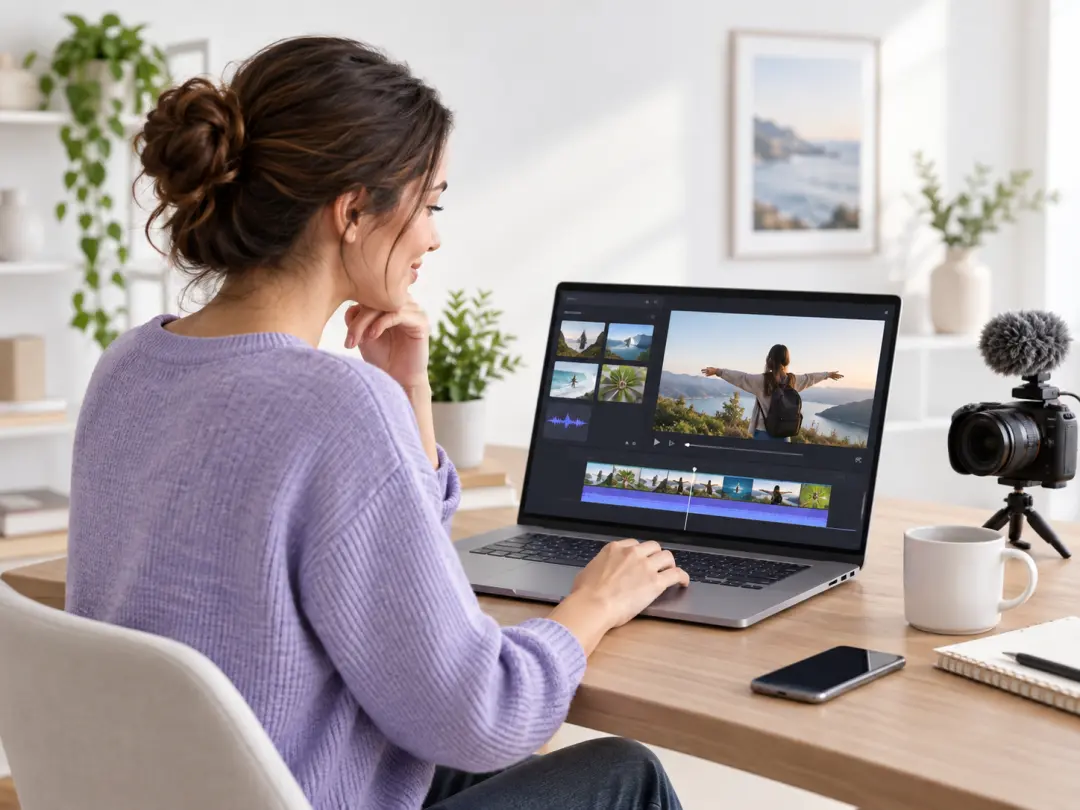
Social video creators can move from an idea to a short video by combining a prompt with images, video, or audio. They choose the direction and style first, then preview the generated result before downloading it.
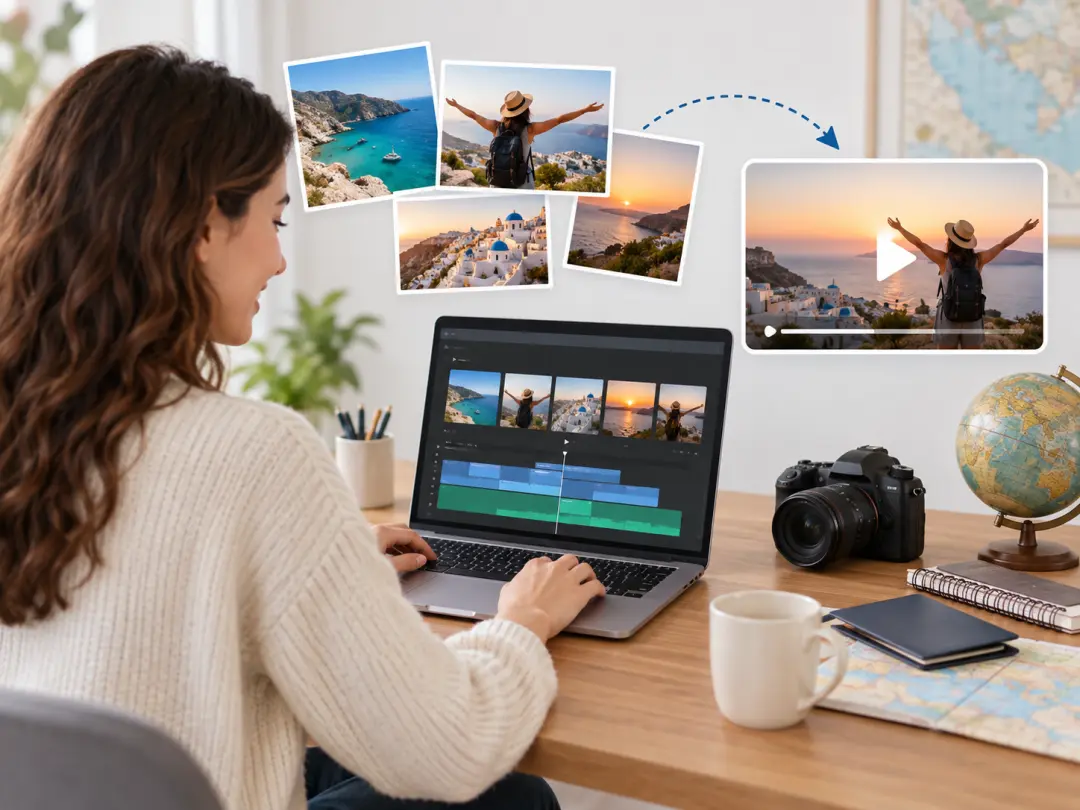
Mini vlog makers can bring several moments together into one visual sequence. VideoAI helps organize the supplied media around the chosen prompt, giving the creator a practical way to shape the final short video.

Campaign content teams can test a visual direction from a script, topic, or set of reference assets. They control the intended style and output settings, then review the short video as an MP4.
Select the controls that matter to the result you need, from visual direction to final export.

The scene, mood, and visual treatment begin with your description. Explain the desired result in specific terms, then guide VideoAI toward a short video that reflects your creative intent.
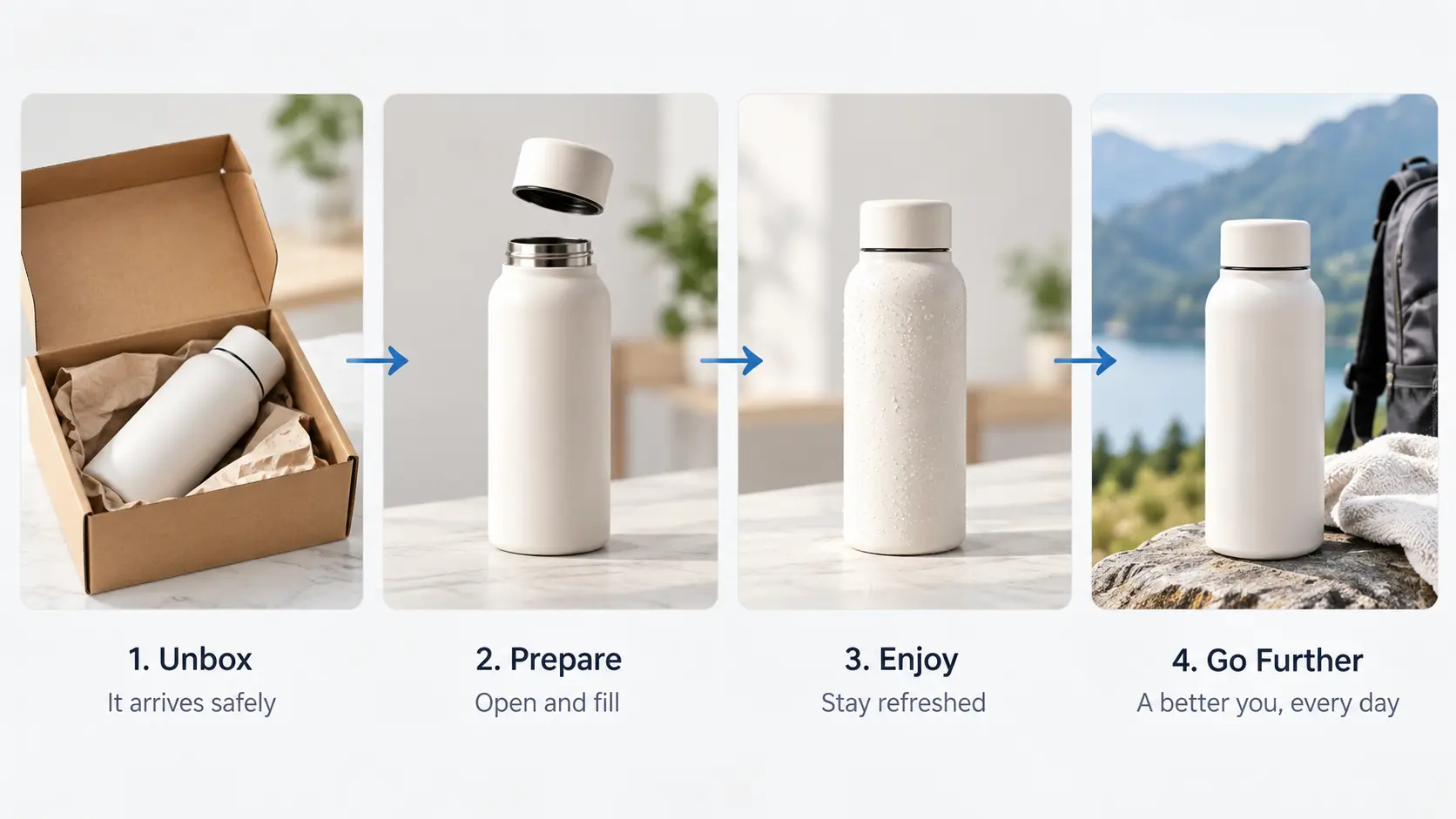
Several images can become one connected visual sequence. Add the images you want to use, describe how they should relate, and shape a short video with a defined progression.

A reference template gives your starting idea a visual frame. Choose the template that matches your intended style, add the supporting inputs, and refine the short video around that direction.

The finished result is available as a 4K MP4 with no watermark. Preview the video first, confirm the direction works, and download the export for your next publishing step.
Give VideoAI the right inputs, make the important creative choices, and review the result before export.
Step 01
Upload images, video, or audio, or provide a topic and script. These materials give the short video its subject, source content, and starting structure.

Step 02
Describe the result you want in a specific prompt, then choose the video direction, visual style, and output settings that fit your goal.
Step 03
VideoAI generates and arranges the content into a video. Preview the result, review its visual choices, and download the final 4K MP4 when it is ready.
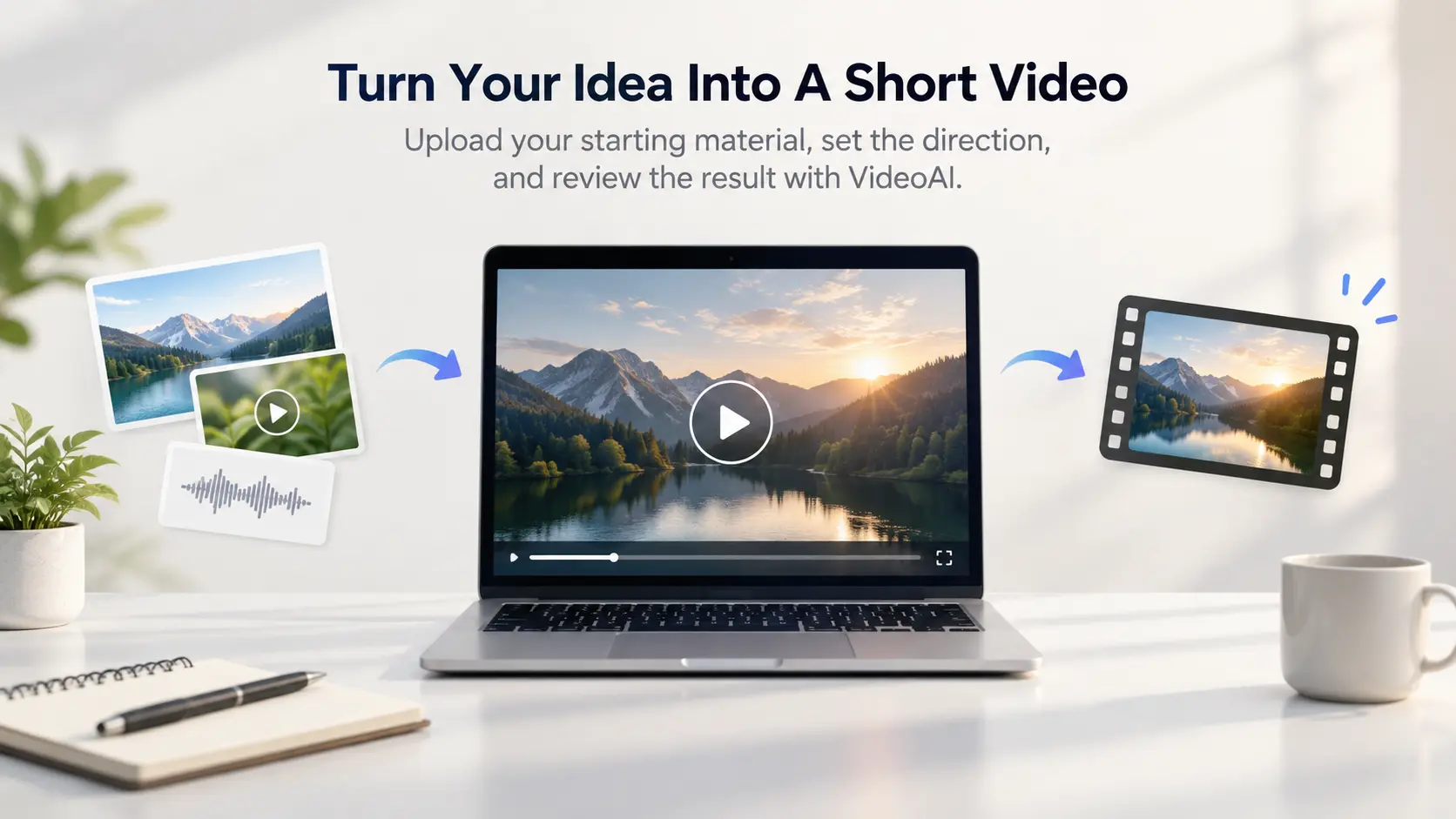
Upload your starting material, set the direction, and review the result with VideoAI.
Get Started