

Step 01
Set The Direction And Inputs
Describe the video you want, or upload text, images, video, and audio references. Select 1:1 as the target output so the square video maker begins with the composition you need.


Create For Square Formats
Turn your creative direction and reference media into a new 1:1 video, with control over each scene, action, and final MP4 output.
Partnering with global industry leaders to power your creativity output



Plan the subject, movement, and visual balance for a square social post from the beginning. VideoAI helps you create a 1:1 composition that matches the space your content needs.
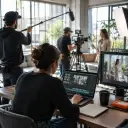
Combine brand visuals, written direction, voice, and music references into square campaign videos. VideoAI supports commercial output and batch video generation for teams building several versions.

When a project needs a square edition, start with the intended composition and write the scene around it. The square video maker gives you a new generation path shaped by your direction.
Choose the frame first, then decide what viewers see, hear, and follow from scene to scene.
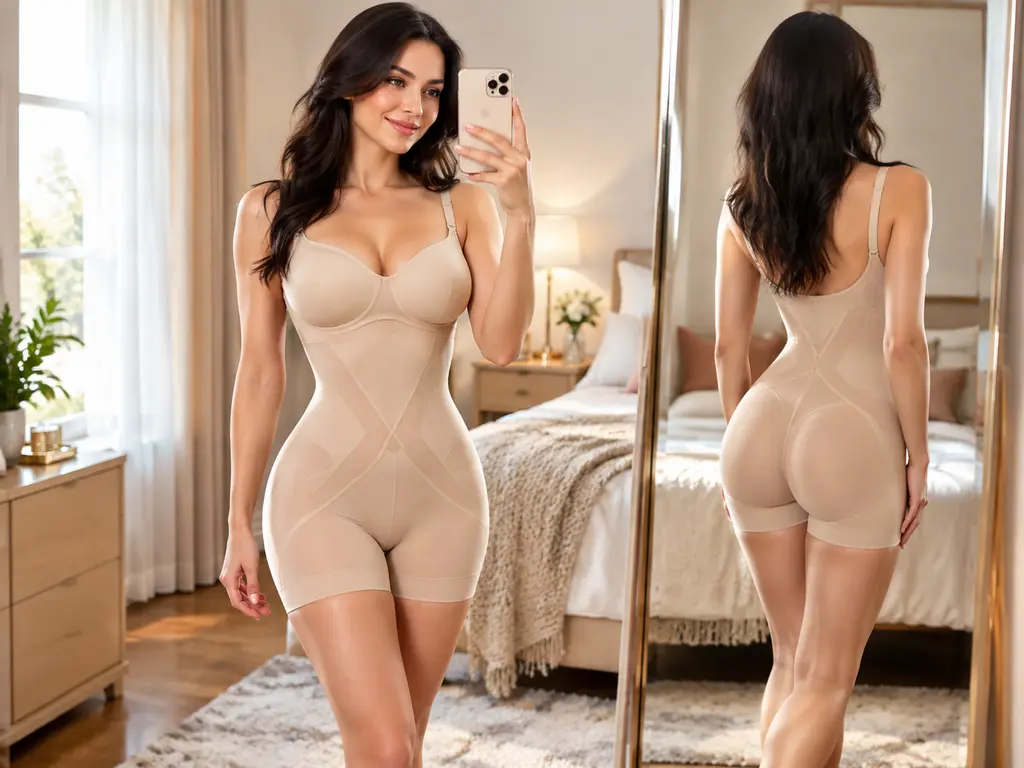
A square frame is selected at the start of generation, so your composition is planned for 1:1 from the first scene. The square video maker also supports 16:9, 9:16, and 4:5 when the project needs another layout.
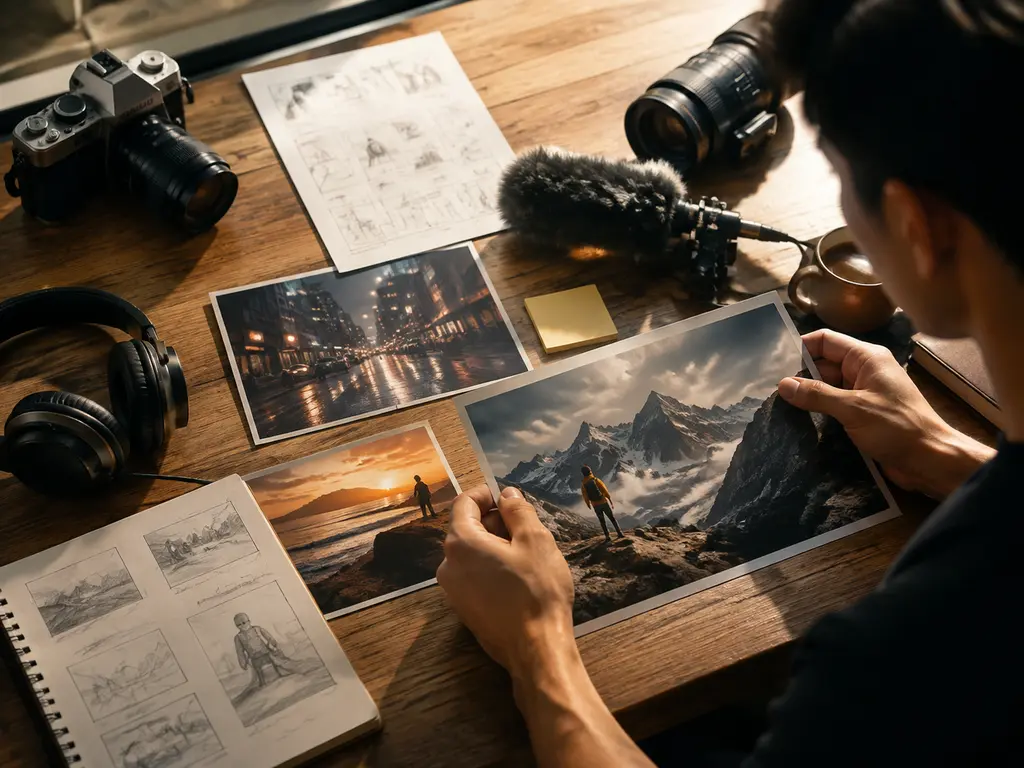
Start with a written idea or combine text, images, video, and audio as reference material. Use @ to assign each input a purpose, giving the square video maker clear context for the scene you want.

Write what happens in each time segment, including the subject, action, and visual pace. This keeps the square composition tied to your creative decision instead of leaving the arrangement undefined.
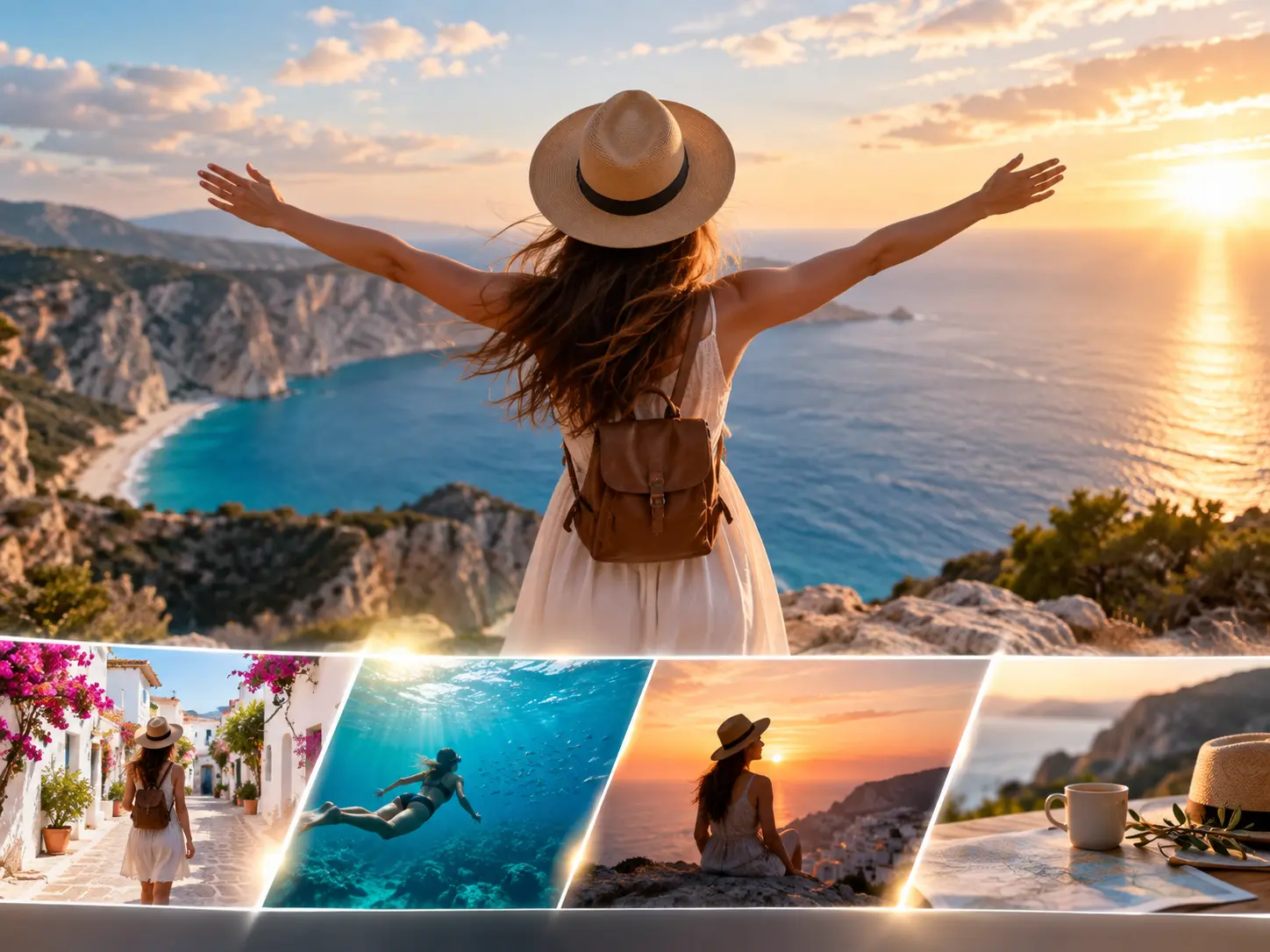
Use templates, voiceover, background music, camera movement, and transition references to establish a direction. After generation, continue editing with text instructions, then export an MP4 up to 4K with no watermark for commercial use.
Move from creative intent to a finished 1:1 video in three focused actions.
Step 01
Describe the video you want, or upload text, images, video, and audio references. Select 1:1 as the target output so the square video maker begins with the composition you need.
Step 02
Arrange the square video scene by scene. Write the visual action for each time segment and use @ to tell VideoAI how each reference should support the shot.
Step 03
Generate the square video, review the result, and use a text instruction when the scene needs a change. Download the finished MP4 with output up to 4K.
Start with the situation your audience will see, then build the frame around the message.
Your social team needs a consistent 1:1 layout for a series of posts. Plan the subject and movement inside the square video maker, then generate a set of videos with a shared visual direction.
A product launch needs clear visuals, supporting text, and a considered audio bed. Combine those references in VideoAI and shape a square story that keeps the product central.
A short explanation has several ideas to connect. Use timed scene instructions to control the order of the visuals, actions, and spoken direction in one square video.
A content team is preparing several placements for one campaign. Build the square version first, keep the creative direction clear, and use the other supported aspect ratios when the campaign calls for them.

Bring your direction and reference media to VideoAI, choose 1:1, and create an MP4 built for the frame you need.
Get Started