
Step 01
Write The Story
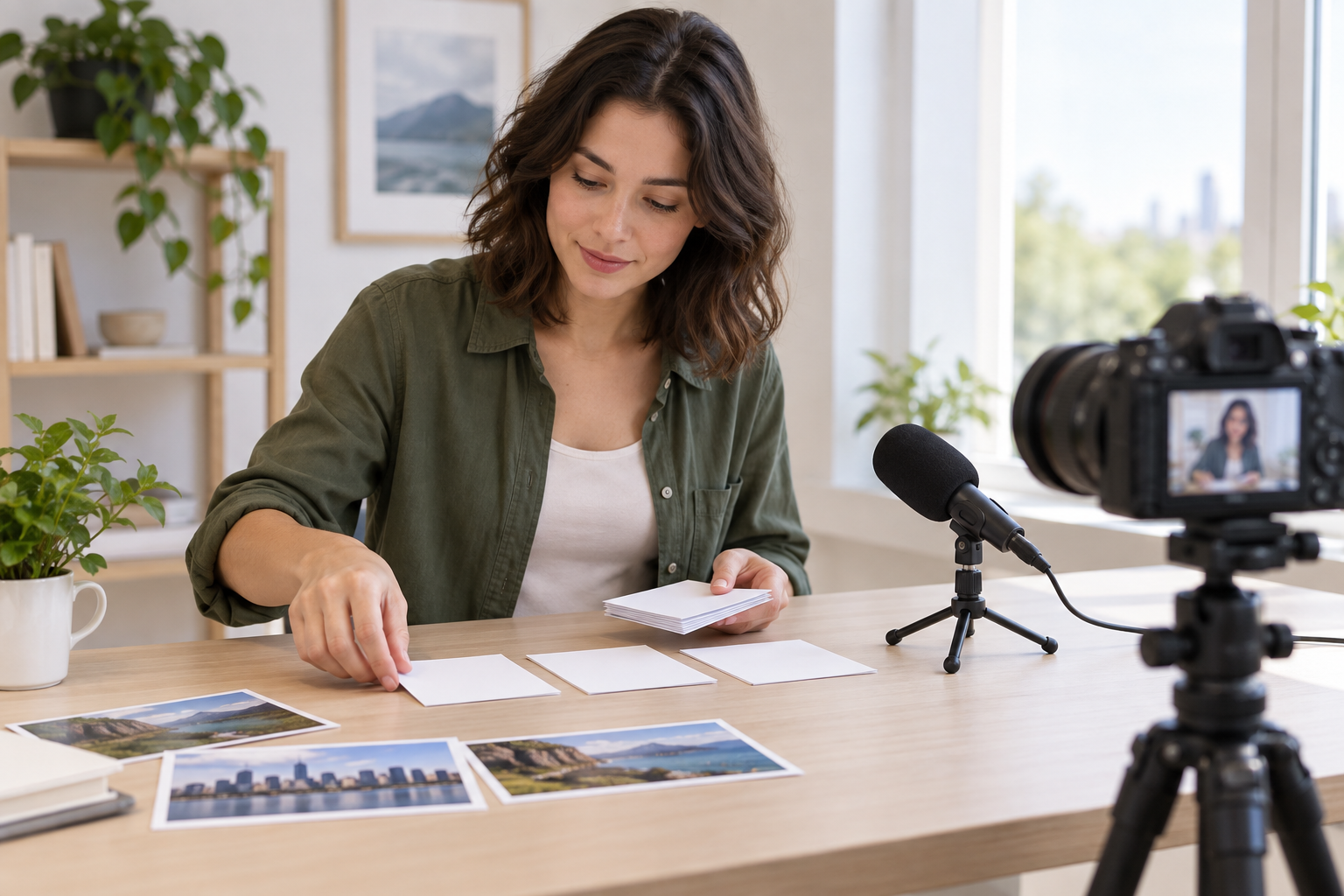
Enter your own news topic or script. Add image, video, or audio references when they help define the scene, subject, movement, or sound.

Creator controlled news video
Turn your topic or script into a complete news style video while you decide each scene, voice, reference asset, and output format.
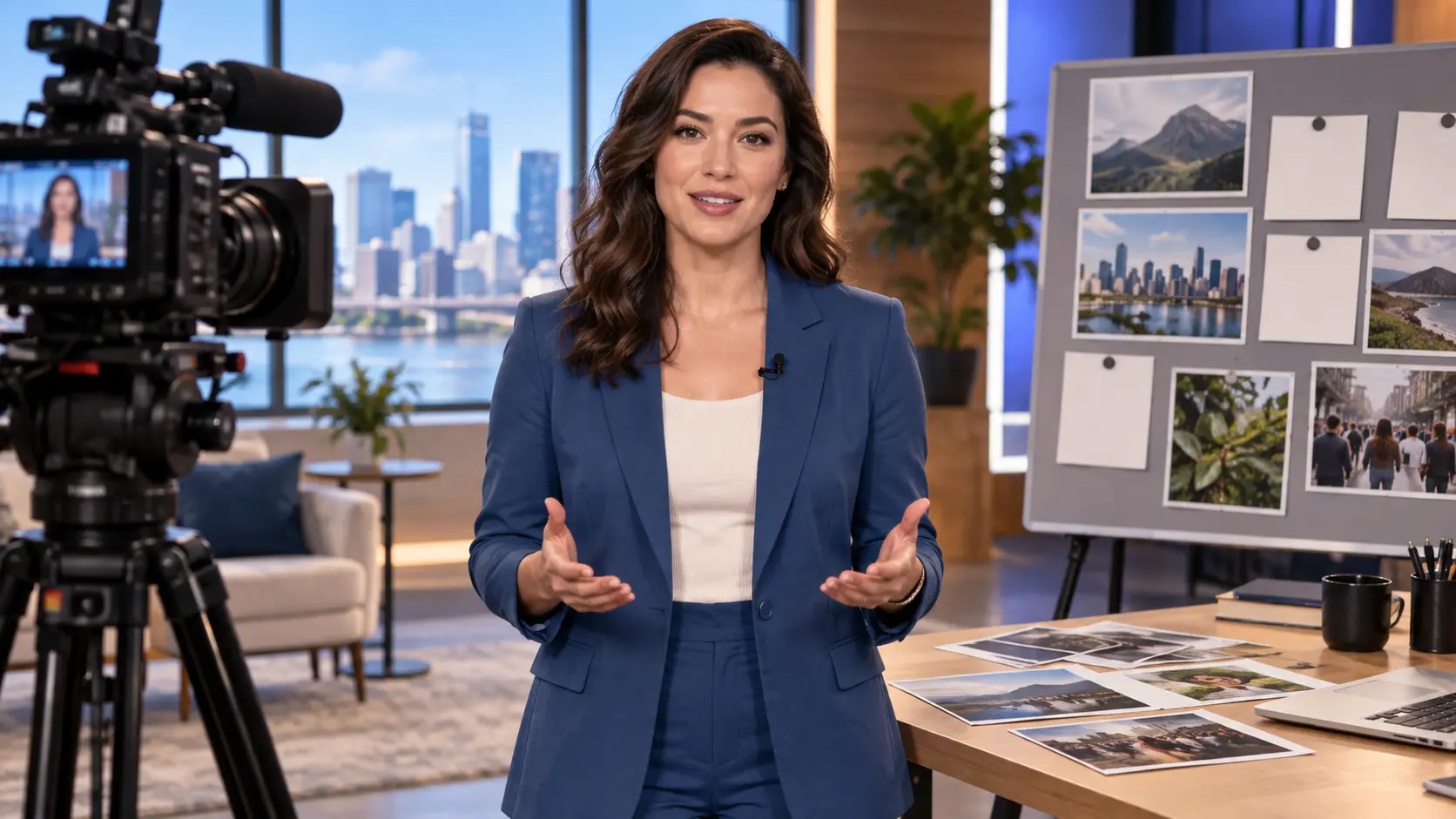
VideoAI keeps the creative decisions with you, from the opening image to the final export.
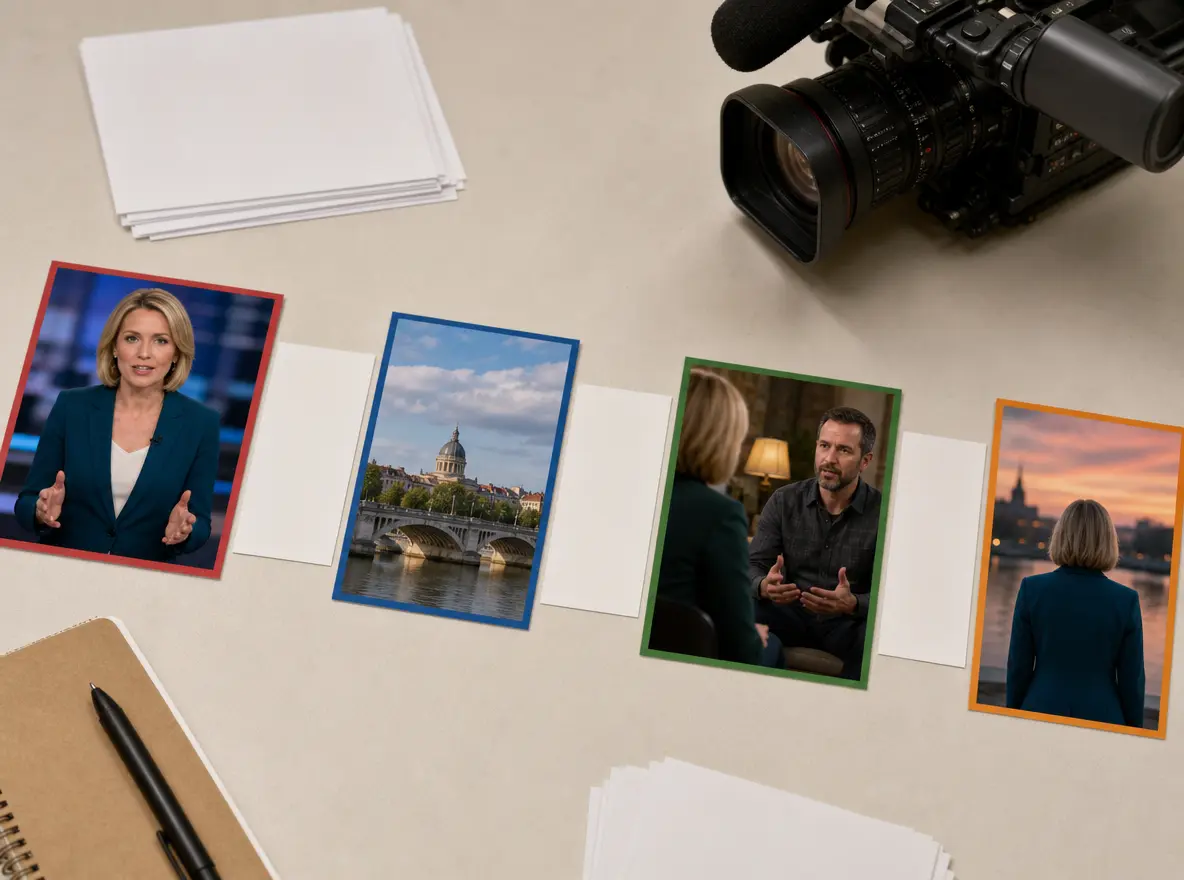
Arrange the opening, key information, and closing by time segment. Add reference images to guide the look and action of each part.
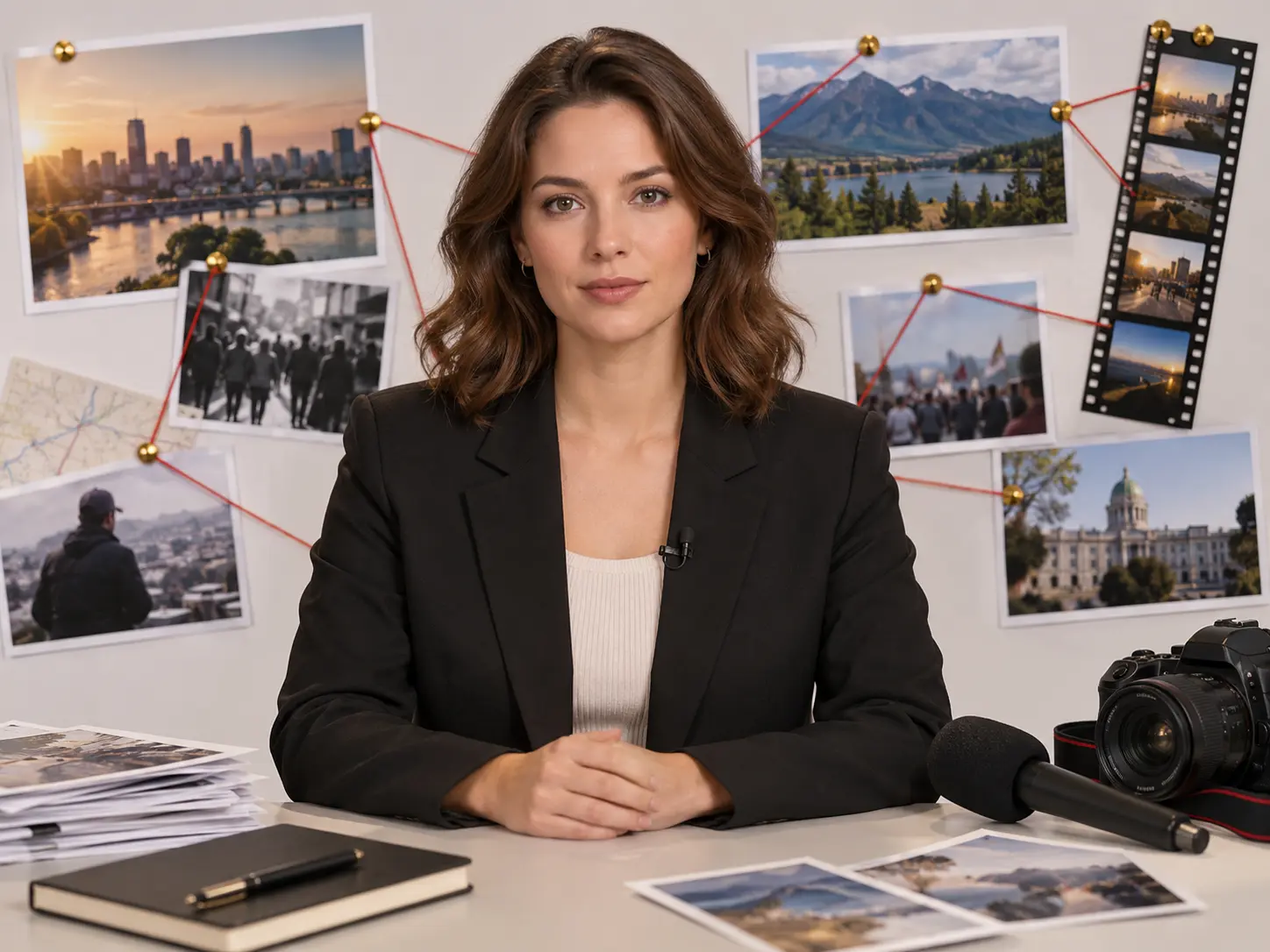
Start with a written topic or script, then add image, video, and audio references. Use @ to explain whether each asset guides the scene, subject, movement, or sound.
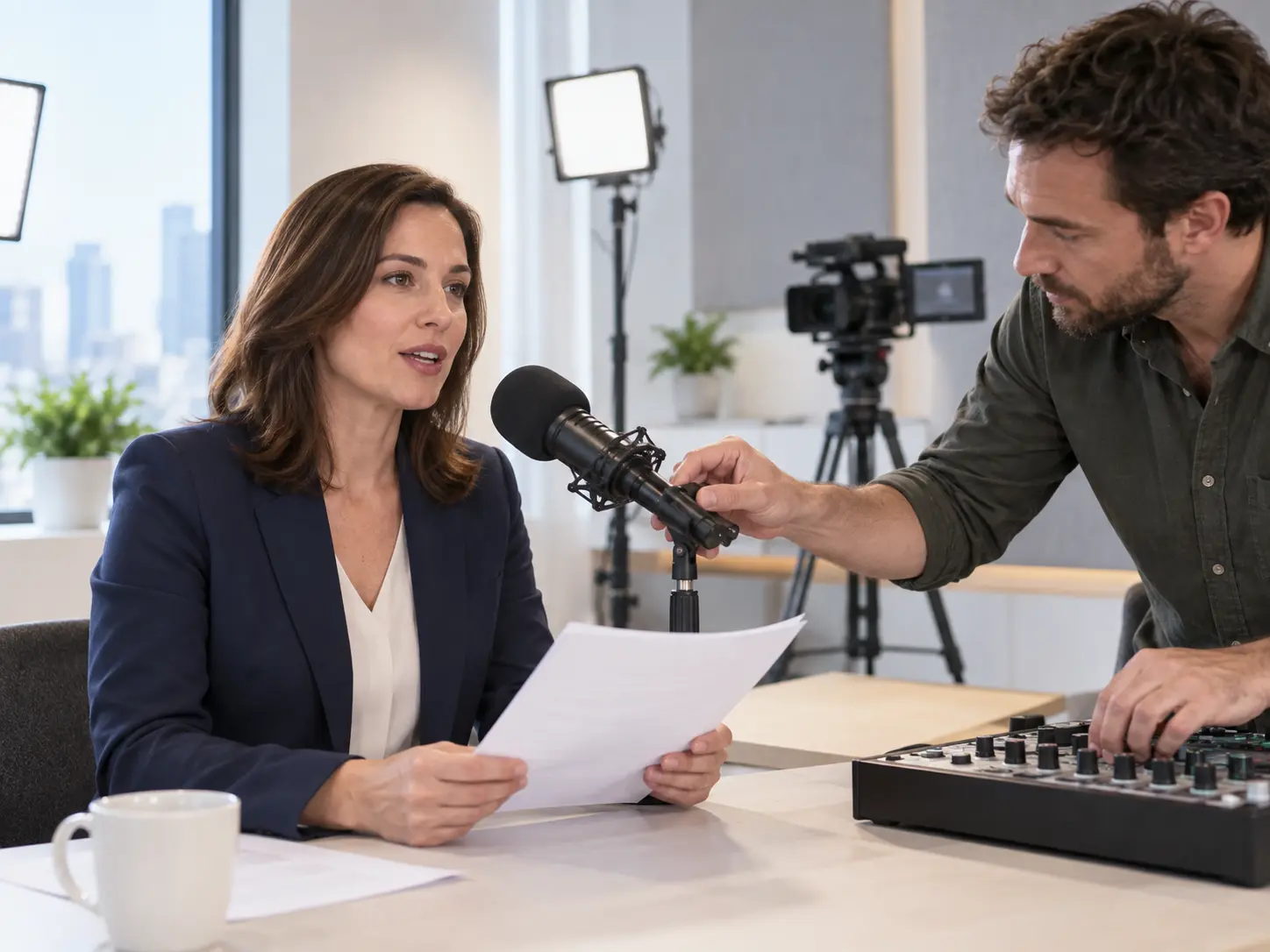
Choose a voice reference for narration and specify a background music or sound style so the pacing supports the story you want to tell.
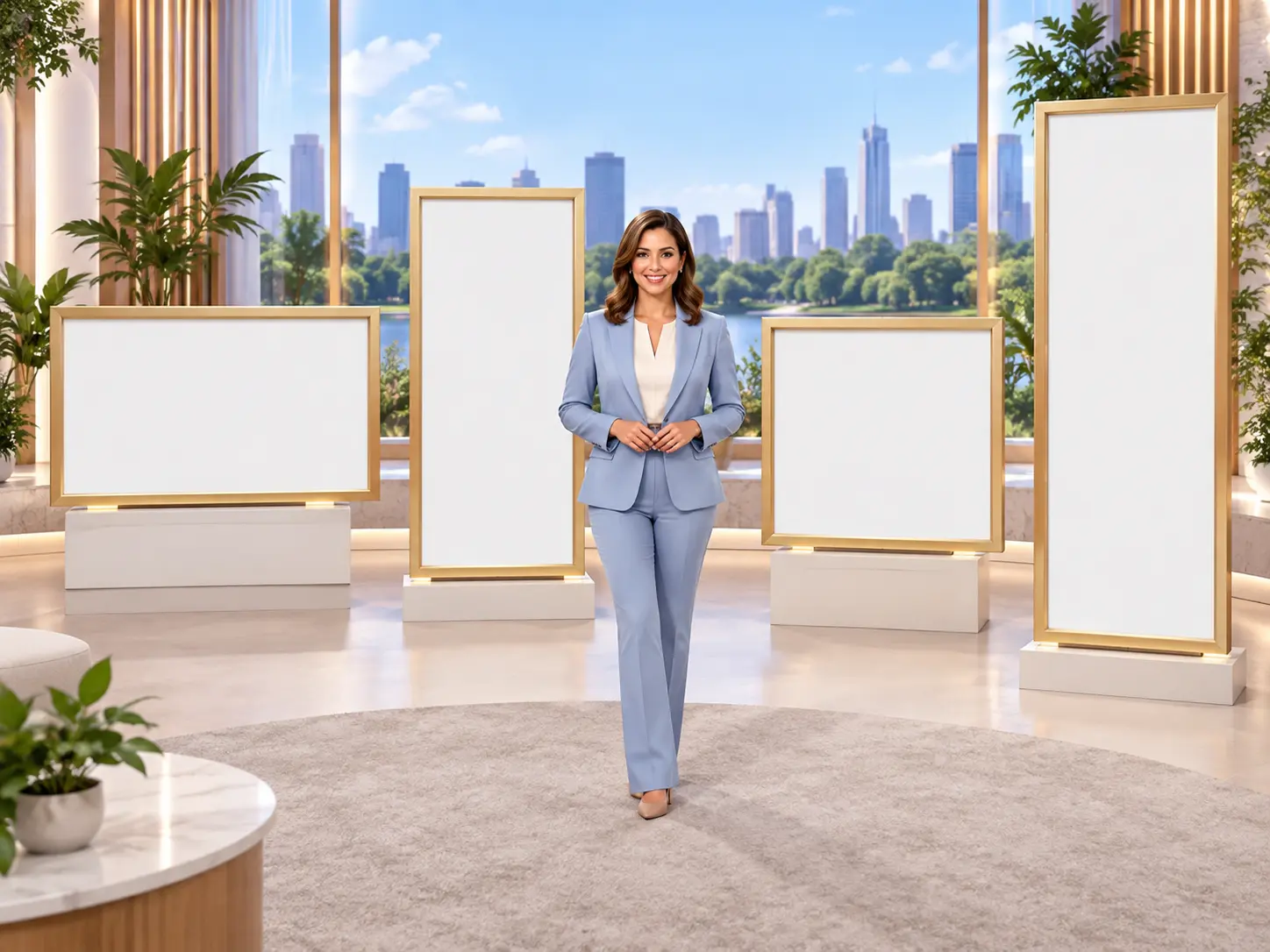
Select landscape, portrait, square, or 4:5 portrait framing for the channel you are making. VideoAI can output the finished video in 4K.
Move from your source material to a planned clip, then refine the result with clear text directions.
Step 01
Enter your own news topic or script. Add image, video, or audio references when they help define the scene, subject, movement, or sound.
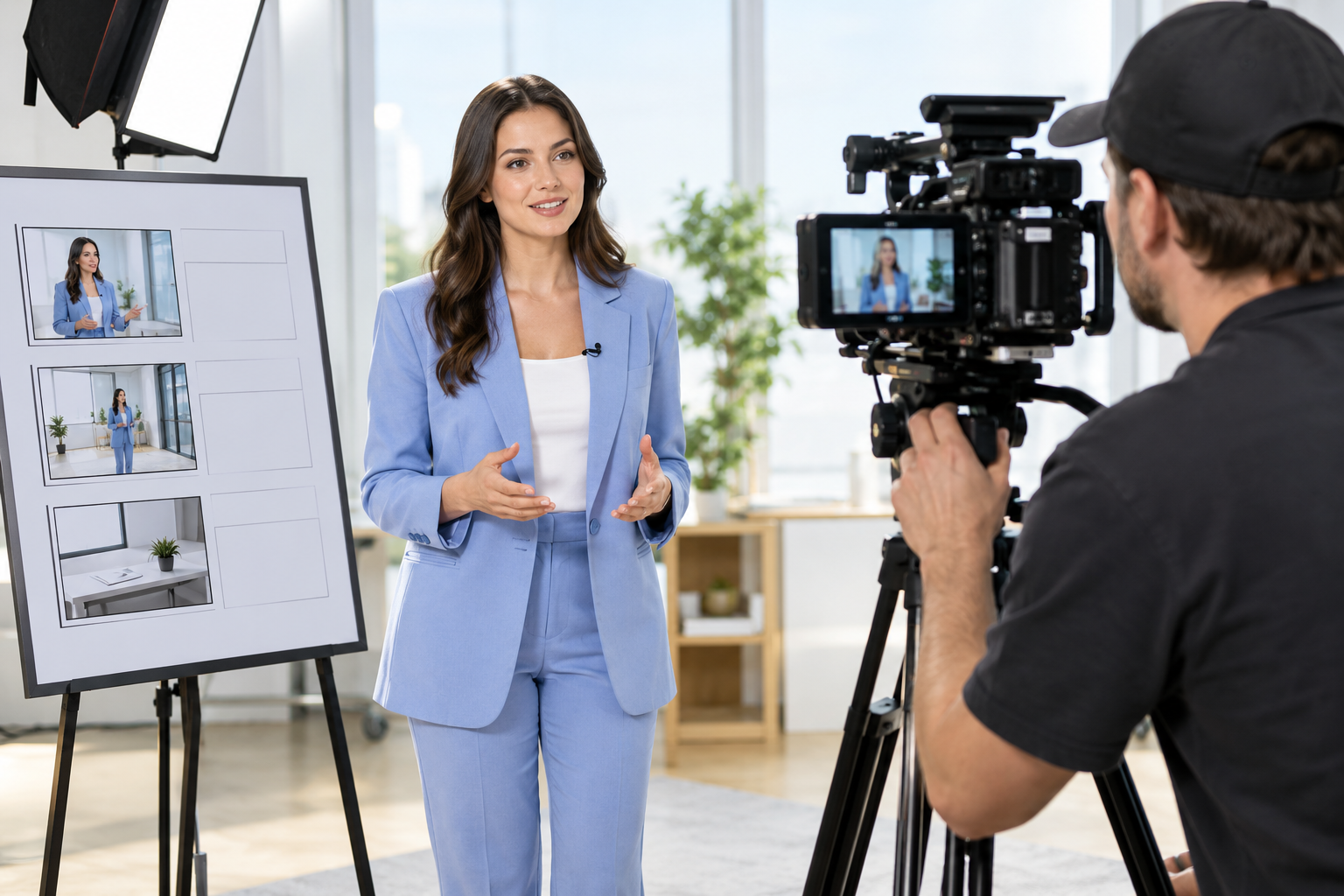
Step 02
Choose the clip length and frame ratio, then describe the visuals and actions for every time segment. Set narration, music, and an optional presenter.
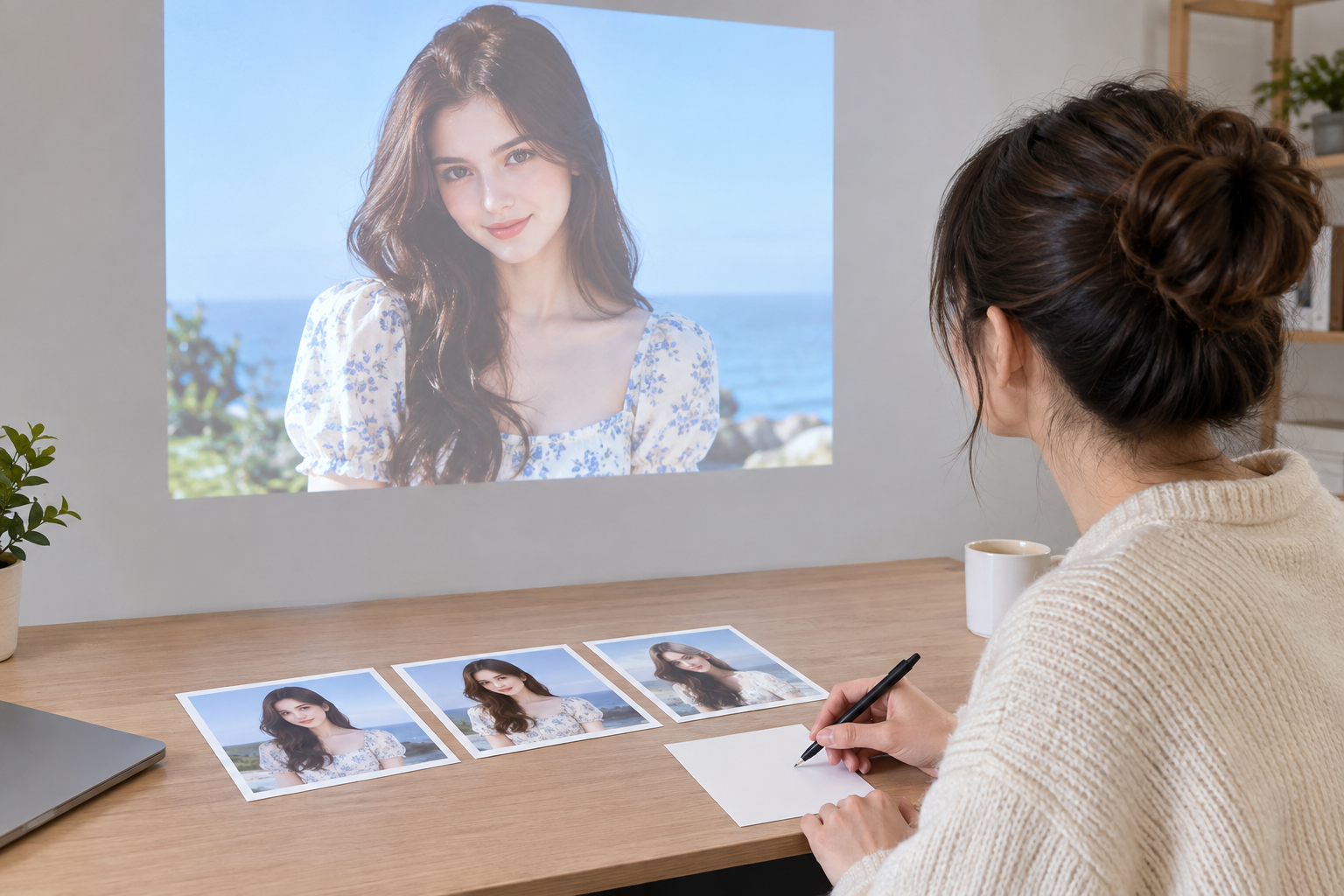
Step 03
Generate a clip up to 30 seconds, describe any changes in text, and generate another version or continue the video before downloading MP4.
Give each update a clear angle, sequence, and destination.
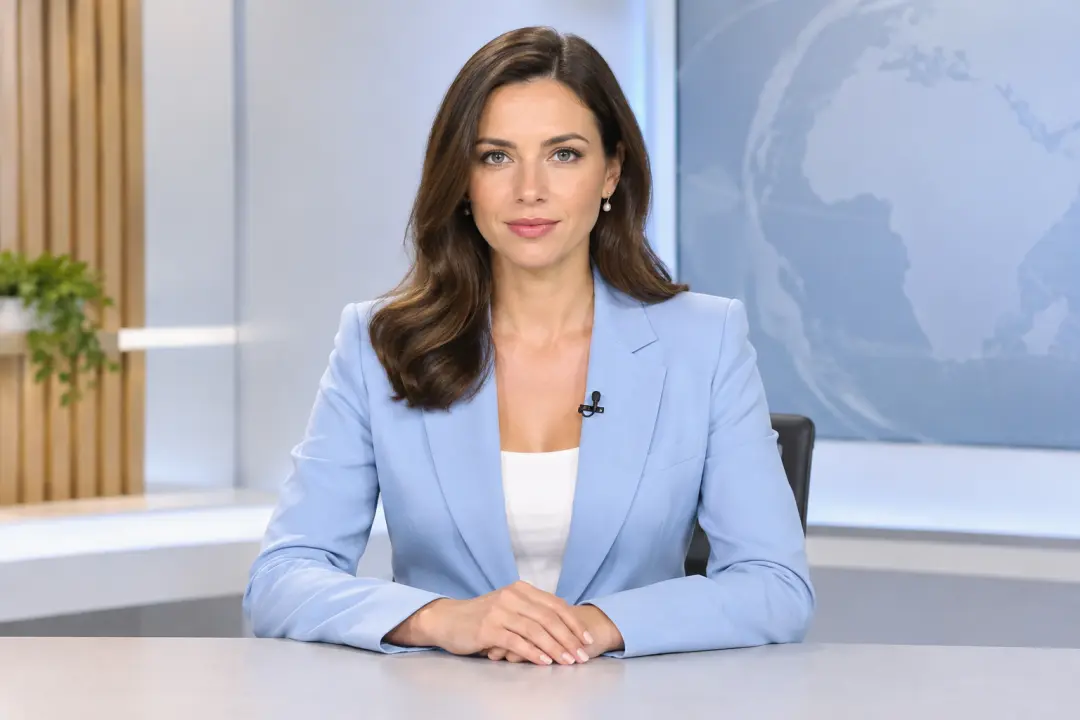
When you already know the reporting angle, plan a coherent opening, main point, and closing. Arrange each beat in VideoAI to produce a focused short segment.

If a communications team has a defined update, plan the visual order for the message. Pair the announcement script with chosen scenes, voice direction, and music style.
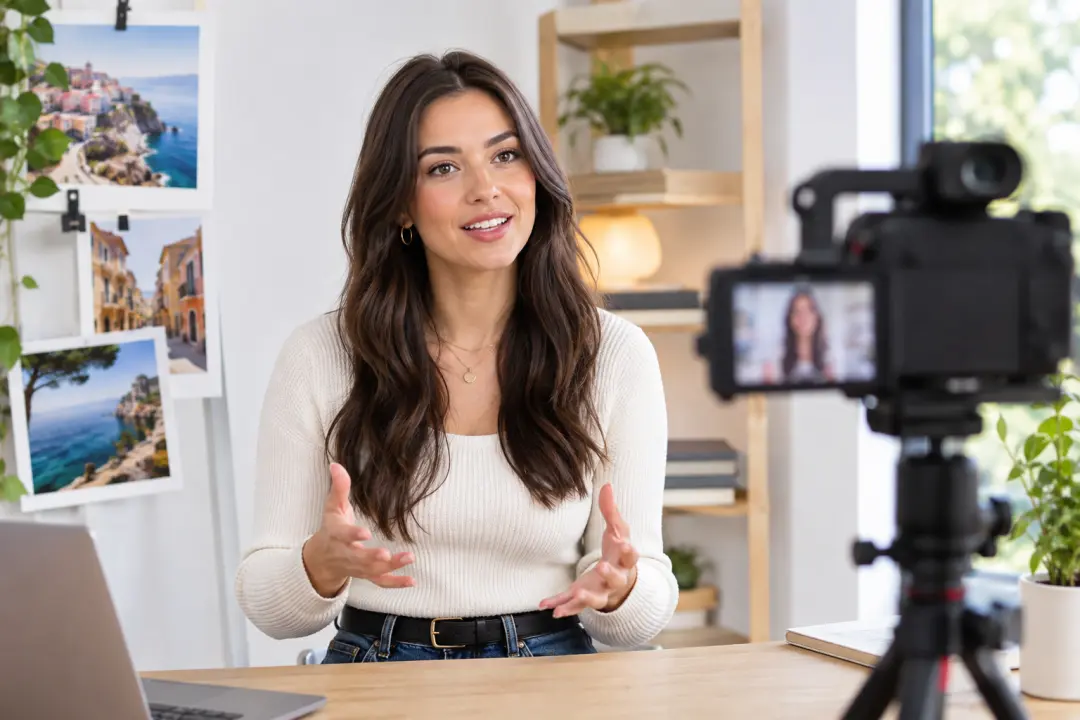
When a social editor has one topic for a vertical feed, choose the key visuals and narration with the breaking news video maker, then generate a news style clip for the post.

A teacher brings a supplied script, planned scenes, and lesson theme examples to shape a current topics explanation. Use the news video maker to turn those choices into a concise classroom style clip.

Independent news video creators choose the topic and narrative angle, then organize a complete clip around the update they want to share.

Brand and public relations teams can start with approved announcement text and decide which visuals, narration, and sound best express the update.
Social media editors set the scene order and duration for a platform format, then use VideoAI to create a news style clip ready for review.

Bring your topic, script, and creative direction to VideoAI, then shape the finished story one segment at a time.
Get Started