

Step 01
Describe the learning goal
Sign in to VideoAI and write who the lesson is for, what they should understand, and the points to cover. Add images, video clips, or audio as references. Ask AI to draft script text if you need a starting point.

Your lesson, your direction
Use VideoAI's training video maker to turn a lesson goal into video segments, direct each scene, and refine the result with text instructions.
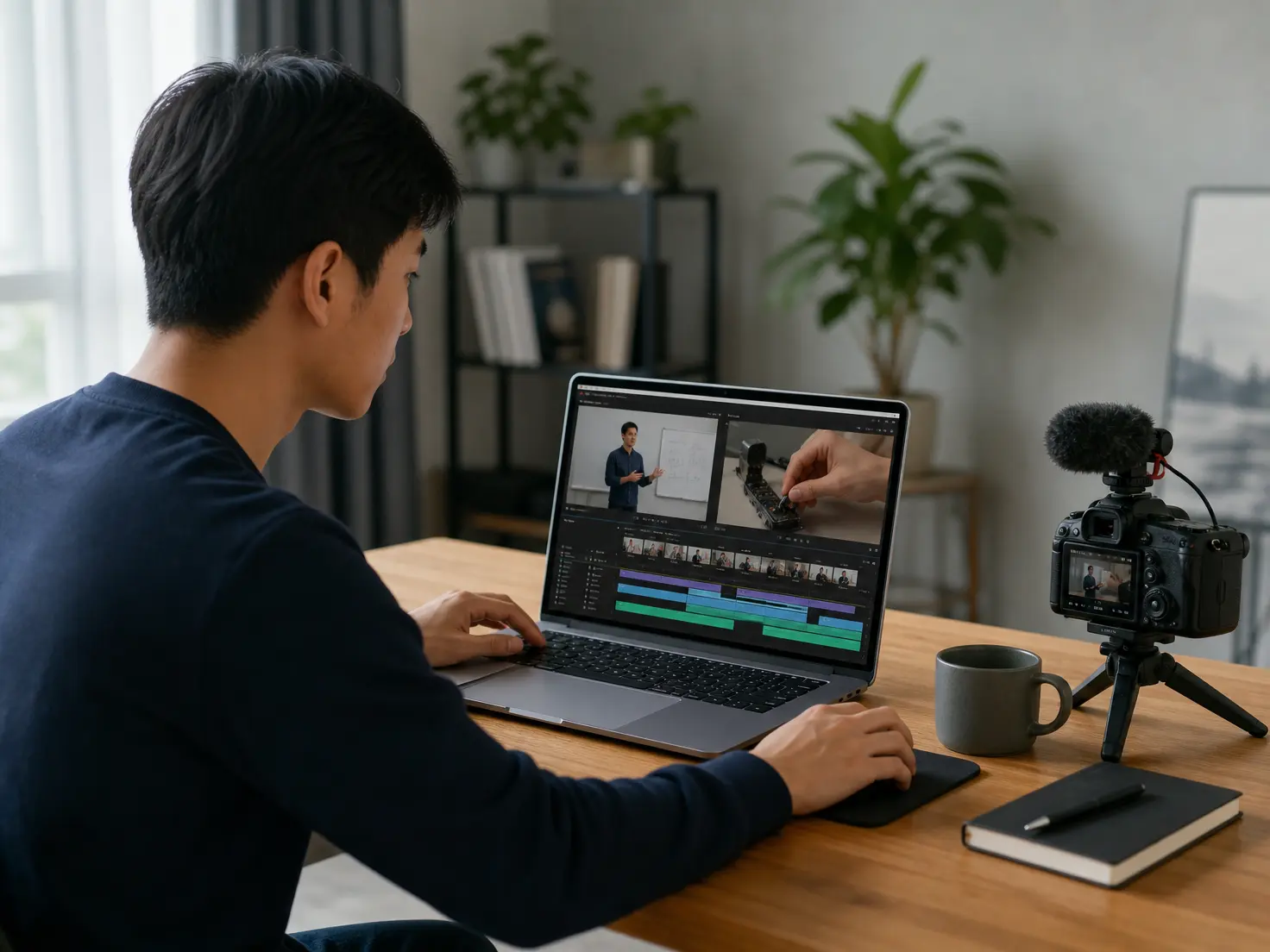
Decide what viewers need to see, how the explanation should sound, and what to revise when a process changes.

Keep each procedure focused on one visible action. For instructional video production, you set the visuals and timing for every segment and attach reference images to guide how it looks.

A draft script gives your training video production a starting point. Describe the learning goal in a sentence and let VideoAI expand it into script text, then arrange the scenes and timing yourself.

Give a product explanation a visible presenter or a narrated demonstration. Choose a built in digital presenter, add voiceover, or upload audio to shape how the lesson sounds.

A changed process can become a revised segment. Reopen saved work in VideoAI, describe the adjustment in text, and regenerate a version that you can review before download.
A focused training video production workflow starts with the action you want someone to understand.
Step 01
Sign in to VideoAI and write who the lesson is for, what they should understand, and the points to cover. Add images, video clips, or audio as references. Ask AI to draft script text if you need a starting point.

Step 02
Choose the aspect ratio and duration to suit where the video will appear. Specify the visuals, actions, and explanation for each time segment. Attach reference images where appearance matters. Use @ to assign references to a subject, scene, first frame, camera movement, or music. Select a presenter or voice direction.
Step 03
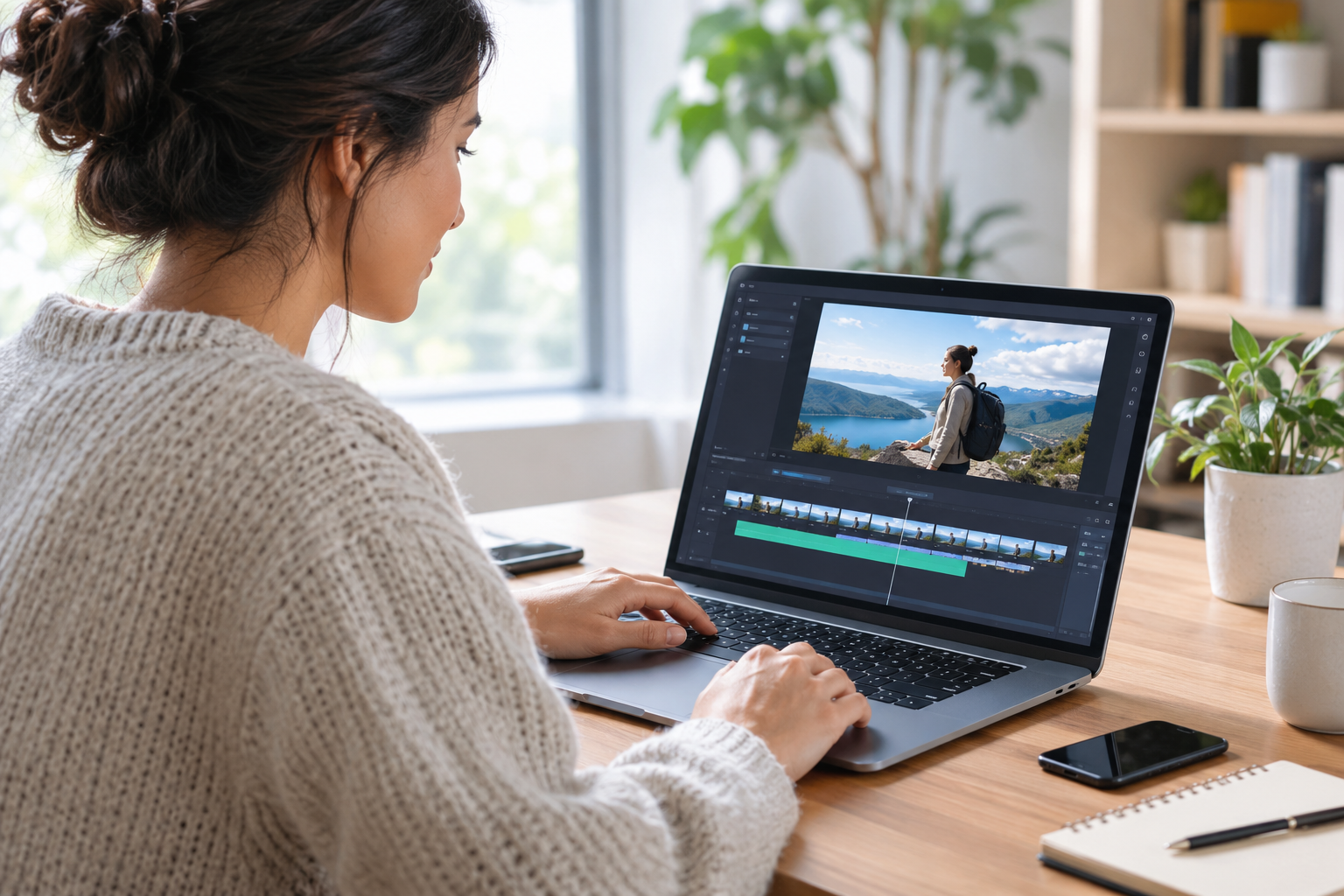
Generate a segment of up to 30 seconds, giving one training point a defined scope. Review the result, then use text instructions to revise or extend it. Download your chosen version as an MP4 in up to 4K for a high resolution copy.
Choose the references and presentation style that make sense for the concept, routine, or task you want to explain.

A difficult concept needs a visual example. Pair your explanation with a reference image and voiceover to create a focused lesson segment when a spoken definition needs something concrete on screen.
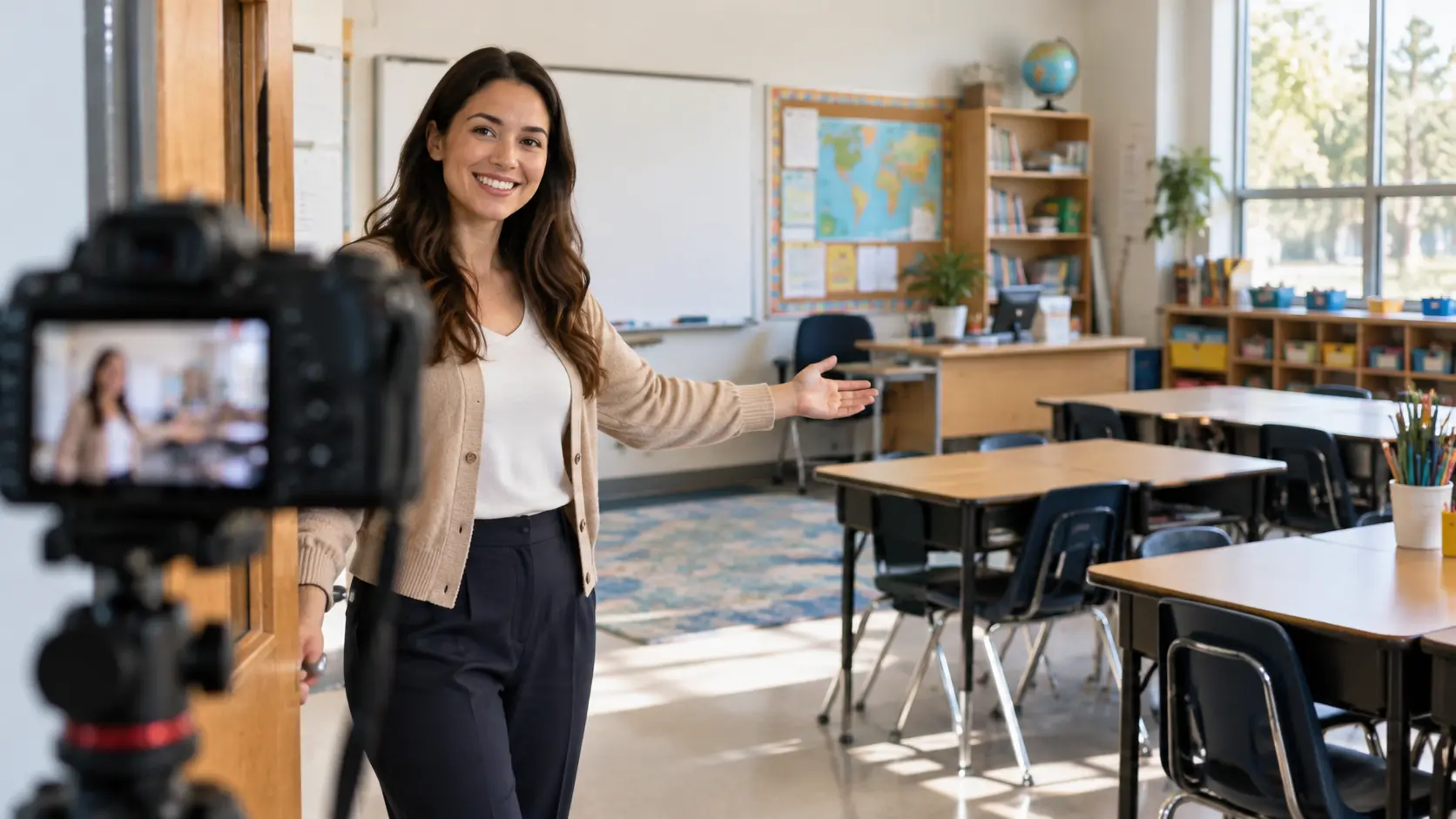
A school orientation can introduce a classroom routine before the first lesson. Use room photos as visual references and specify the order of actions to generate a short introduction with simple step text.
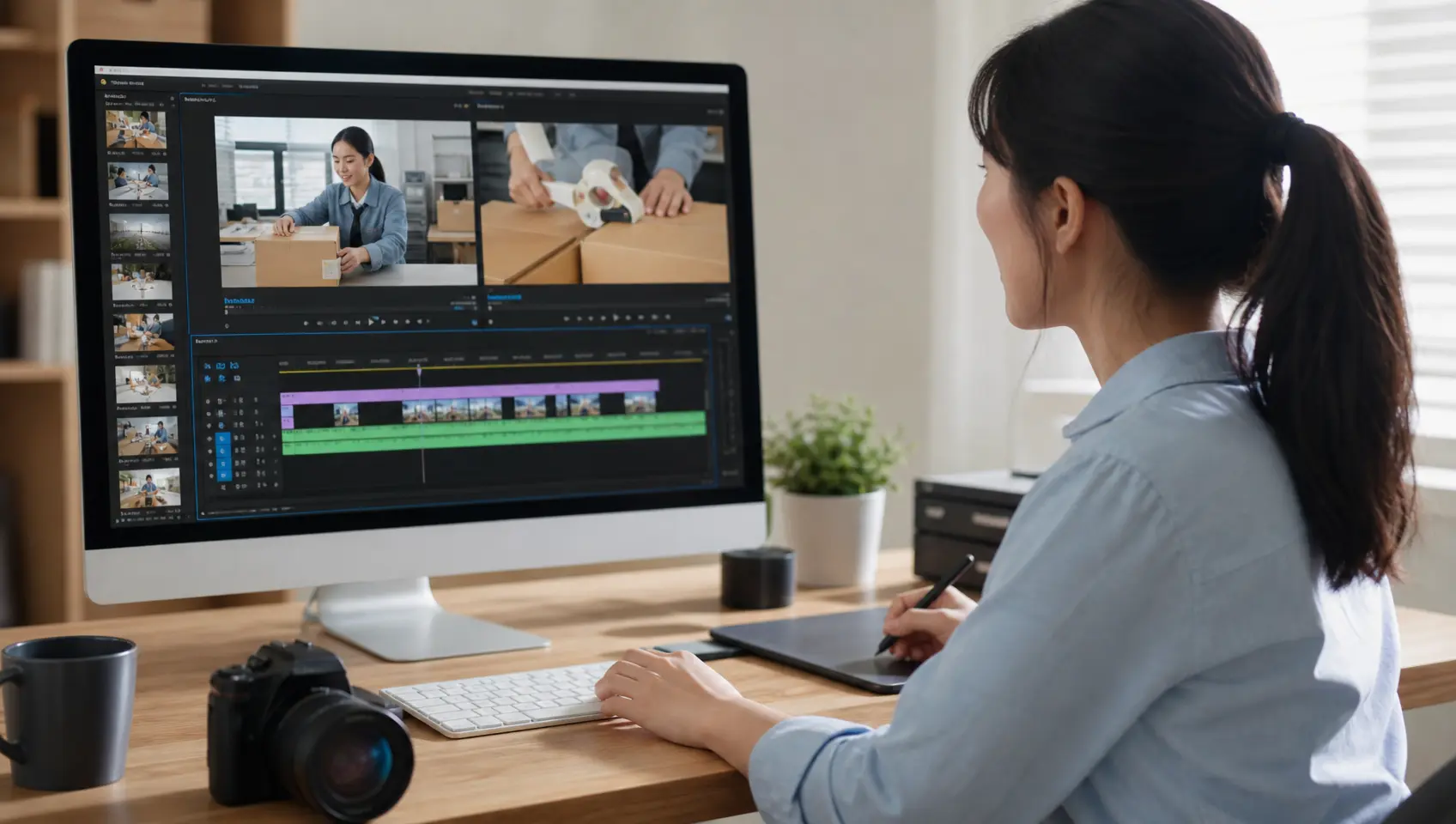
When new employees need a clear introduction to an everyday process, arrange tool images, task instructions, and narration into focused onboarding segments. If the process changes, reopen the saved work and describe the updated scene or wording. When the revision is ready, regenerate and review it before export.

An online course introduction sets expectations for what comes next. Start with the course goal and a video template, then direct a narrated overview that introduces the topic before the detailed lesson.
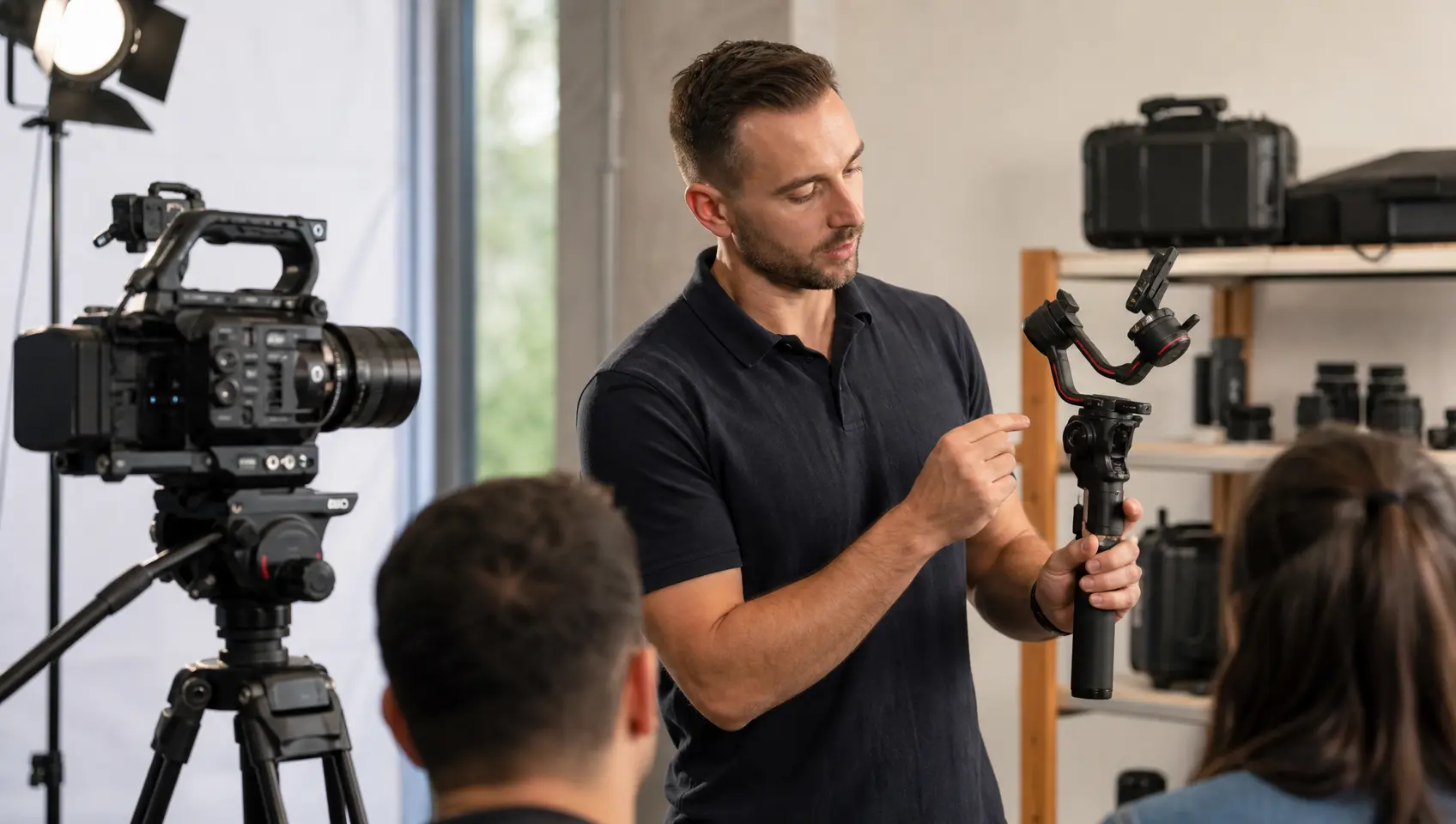
An equipment demonstration needs the controls and actions in a deliberate order. Assign equipment images as references and specify each action's timing to create a focused procedure clip for professional training video production.

A university lab introduction can show the setup before a practical session. Combine equipment photos with your explanation, choose a built in presenter, and export a narrated MP4 to accompany the course's existing materials.

For learning and development managers, corporate training video production often involves recurring process updates. Keep uploaded references and saved work in your workspace so the next lesson can build on material you already use.

Course creators can shape training video production around a teaching sequence. Turn a lesson goal into draft script text, then choose the visuals and narration for each segment so the video follows your explanation.

Operations managers know the order a task requires. VideoAI lets you specify each action and its timing for training video production, then use text instructions to revise the video when that order changes.

Bring one learning goal to VideoAI, direct the scenes, and refine your first segment into a downloadable training video.
Get Started