Flux 3 - Video And Sound In One Take

Start from a prompt, a photo, a clip or a keyframe pair, and get Flux 3 video with native audio, up to 20 seconds per generation.

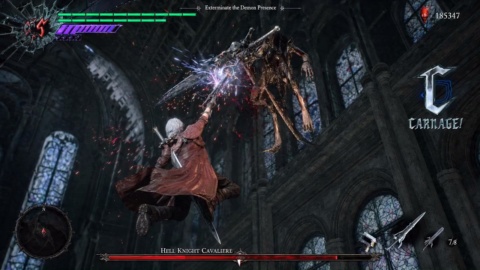
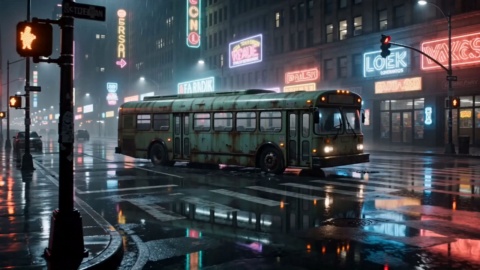
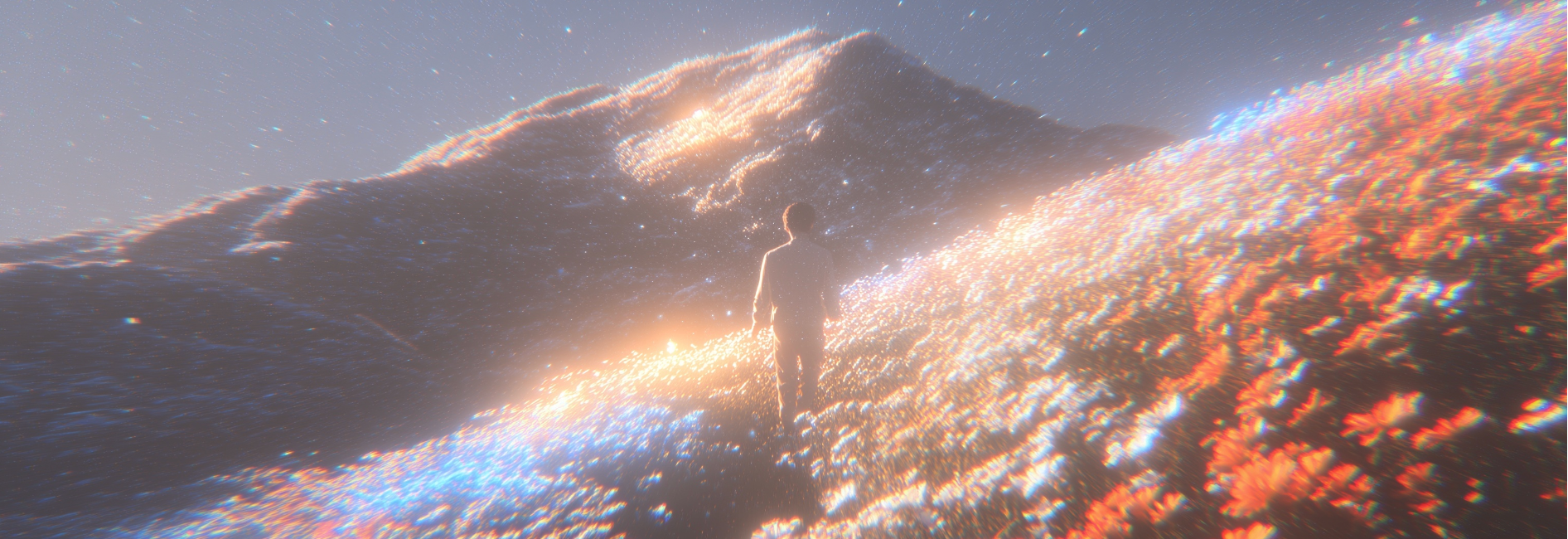
Shots Made With Flux 3, Sound On

Play these with audio: every Flux 3 beat here came from a prompt, a still photo, an existing clip or a keyframe pair.

Neon Horizon Reveal

Brand Promo

Cherry Cake Teaser

Product Film

Cyber City Launch

Brand Promo

Golden Field Encounter

Cinematic Promo

Action Hero Reveal

Entertainment Promo

Convenience Store Smash

Brand Promo

Helmet Close-Up

Product Film

Sunset Cafe Promo

Lifestyle Promo

What Flux 3 Puts In Your Shot

Four capabilities behind the Flux 3 ai video generator that decide how your Flux 3 footage turns out.

Video With Native Audio

Dialogue, sound effects and room tone are generated with the picture and land on the events you see, so a 20 second Flux 3 video with audio is postable straight out of the Flux 3 generator without a voice session or a sync pass. Native Flux 3 audio stays optional, so you can also take the picture alone and lay your own track over it.

Four Ways To Start

Write a Flux 3 prompt when nothing exists yet, upload a photo or character render for Flux 3 image to video, feed an existing clip to carry it forward, or hand over a start and end keyframe when the shot is already boarded. The starting point you choose becomes the source of the shot, which is why Flux 3 fits the pipeline you already work in.

Chained Multi Shot Sequences

One Flux 3 generation gives you a shot, not a whole piece. Individual Flux 3 clips chain into longer multi shot sequences, so a teaser cut, a sponsor read or an explainer segment gets built beat by beat instead of squeezed into a single render.

Multilingual Dialogue And Text

Spoken lines can be written in more than one language, faces carry the expression that goes with the line, and in frame text renders accurately across languages. A title card stays legible for viewers scrolling muted, and one script can be reviewed as two language reads in the same round.

How To Use Flux 3 On VideoAI

Three steps from a blank prompt box to a sequence you can post.

STEP 01

Bring Your Starting Point

Pick Flux 3 on VideoAI and describe the shot you want, or upload what you already have: a photo or character render to animate, a clip to continue, or your start and end keyframes. Nothing needs to be ready in advance, since a written description on its own is a valid start, and anything you upload is treated as the source of the shot rather than a style preset.
STEP 02

Describe Action And Audio

In the same prompt, say what happens on screen and what it sounds like: the line of dialogue and who speaks it, the effects, the ambience behind them. Dialogue can be written in another language, and any words meant to appear in frame should be spelled out exactly as they should read. Audio is optional, so leave it out when you want a silent shot to score yourself.

STEP 03

Generate Then Extend The Cut

Run the Flux 3 generation, listen back to a clip of up to 20 seconds with its audio, and download what works. When the piece needs more, continue from the Flux 3 shot you just made or generate the next beat, then chain them into a multi shot sequence ready for YouTube, Shorts, TikTok, Reels or X.

Explore Other Models

Browse additional AI models for image and video creation.

Direct Your First Clip Today

Make Your First Flux 3 Shot

One prompt, one listen, and you will know whether this belongs in your edit.

Start Now

Flux 3 Questions Creators Ask First

What is Flux 3?

Flux 3 is a multimodal model released by Black Forest Labs on 23 July 2026, trained on images, video and audio inside one unified architecture the lab calls Self-Flow. This page covers its video generation, which is what Flux 3 ai powers on VideoAI: you give it a starting point and it returns moving picture with sound.

How to use Flux 3 if I have never made an AI video before?

Choose Flux 3 in the model list on VideoAI, then either type the shot you want or upload a photo, a clip or a keyframe pair. Describing the action and the sound in plain sentences is enough to get a first result back, and you can regenerate with a clearer description once you have seen what the first take gives you.

Is Flux 3 free to try, and do I need an account?

New accounts on VideoAI get 10 credits at no cost, and that allowance covers generating with this model right away. Signing in is required before you can generate. Once the credits run out, you can top up with a credit pack or move to a subscription plan.

How long can a single Flux 3 video be?

Up to 20 seconds comes out of one generation. Longer pieces are built by chaining individual clips into multi shot sequences, so think of each generation as a shot and the sequence as the finished cut.

Does the Flux 3 video generator make the audio, or do I add my own?

Sound is generated together with the picture, so dialogue, effects and ambience are already synced to what happens on screen. Native audio is optional, which means you can also take the visuals alone and drop your own voice track or music bed over them in your editor.

Can I turn a photo into a video?

Yes. A photo or character render can be animated or used as a reference for the shot, which is the Flux 3 image to video mode. Text, an existing clip and keyframes are the other three starting points, and all of them produce video rather than still images.

Can it speak languages other than English and put readable text in the frame?

Multilingual dialogue is supported, so a line written in another language is spoken in that language with the facial expression to match. In frame text also renders with high accuracy across languages, which is what keeps a title card readable when the clip plays muted.

Can I download my clips and use them in client or monetised work?

Downloads on VideoAI come without a watermark, including the ones made on your starter credits, and the results are cleared for commercial use in client projects and monetised channels. Save the file and take it straight into your edit.

Flux 3 Video Generator - Clips With Native Audio - VideoAI