



How the AI Video Generator Works
Three steps from source material to finished video clip using this AI Video Generator.
Upload or Describe
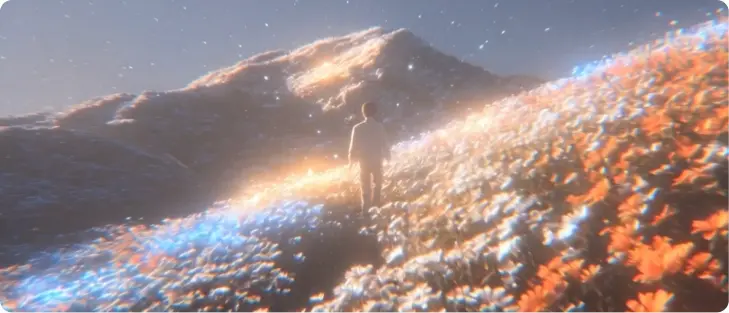
Start by uploading a photo or typing a text prompt that describes the scene you want. The AI Video Generator reads your input and prepares a draft based on the motion cues you provide. If you use the image to video ai workflow, your uploaded photo becomes the first frame and the tool builds movement from there. Review the draft preview before moving to the next step.
Set Motion and Style
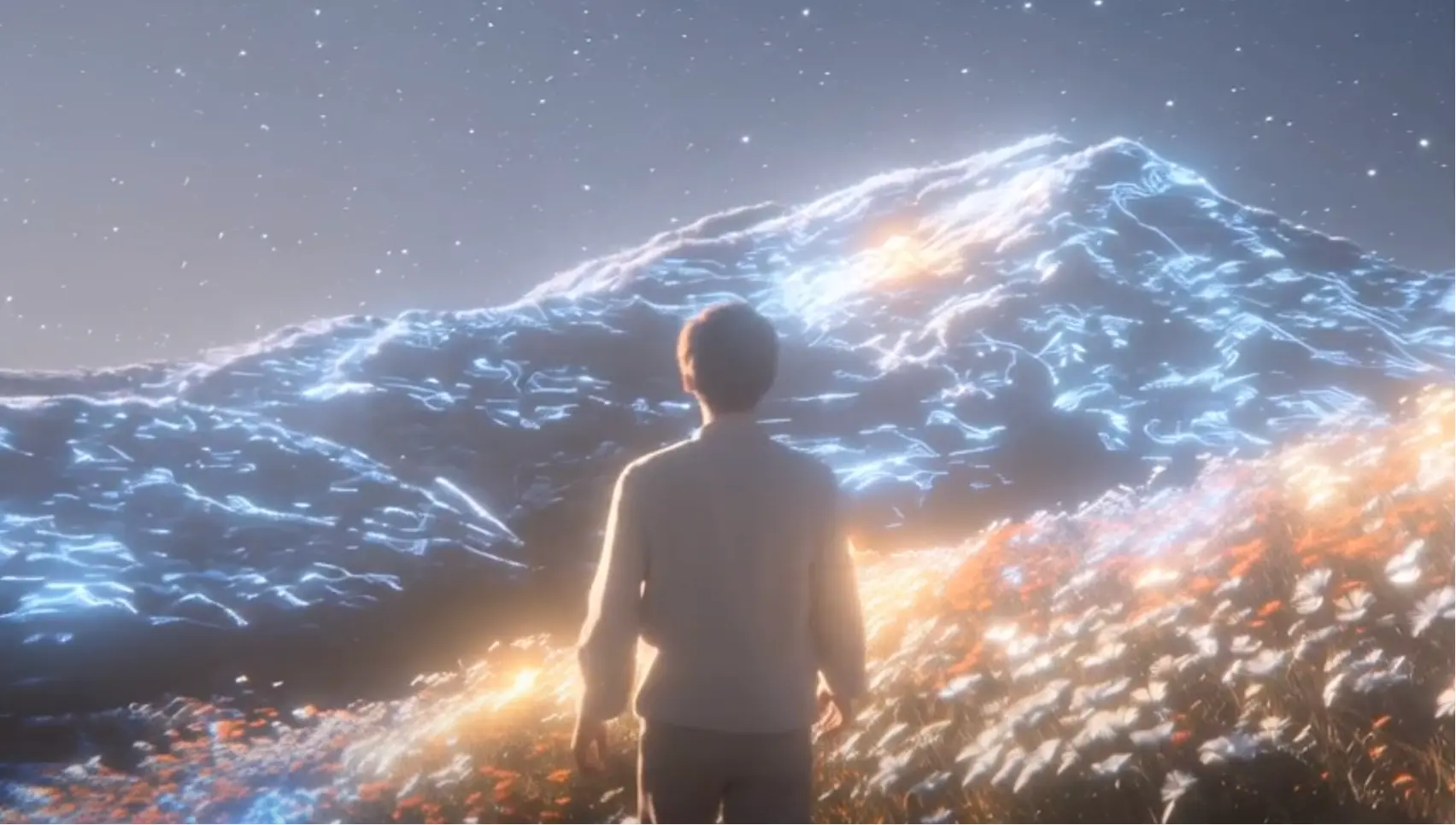
Choose a visual style and define how the camera should move through the scene. The AI Video Generator offers panning, zoom, and rotation controls so your output matches the pacing you need. When you pick an anime look, the AI anime generator mode applies consistent line work and color across every frame. Confirm your settings and let the tool render the sequence.
Preview and Export
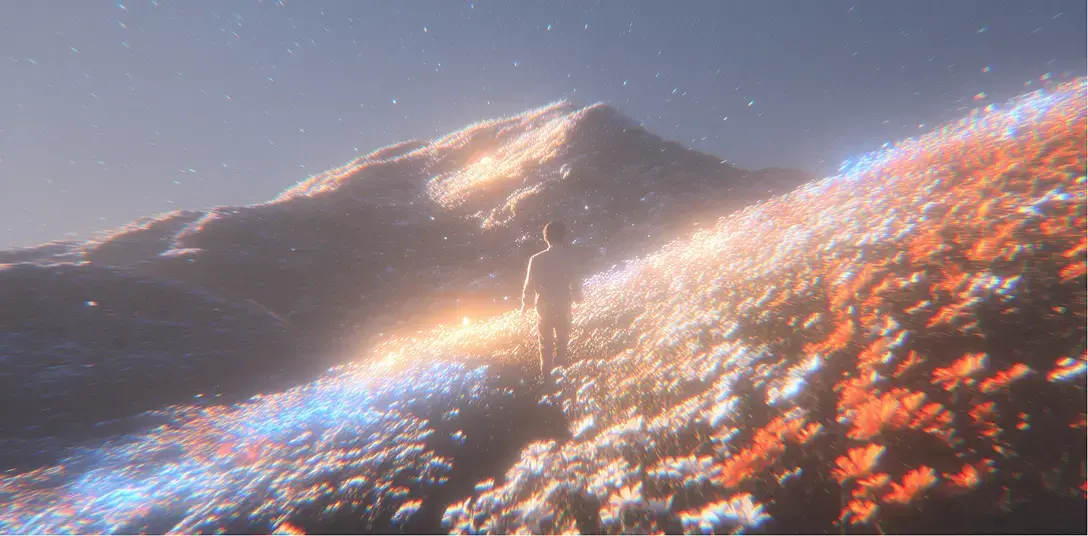
Watch the rendered clip in the preview player and check timing, color, and motion. The AI Video Generator lets you adjust the duration or regenerate specific sections without restarting the full render. Once the output looks right, export in your target resolution. The final AI generated video file is ready to post or hand off to your editing timeline.
What This AI Video Generator Does
Four core capabilities that make this AI Video Generator practical for real production work.
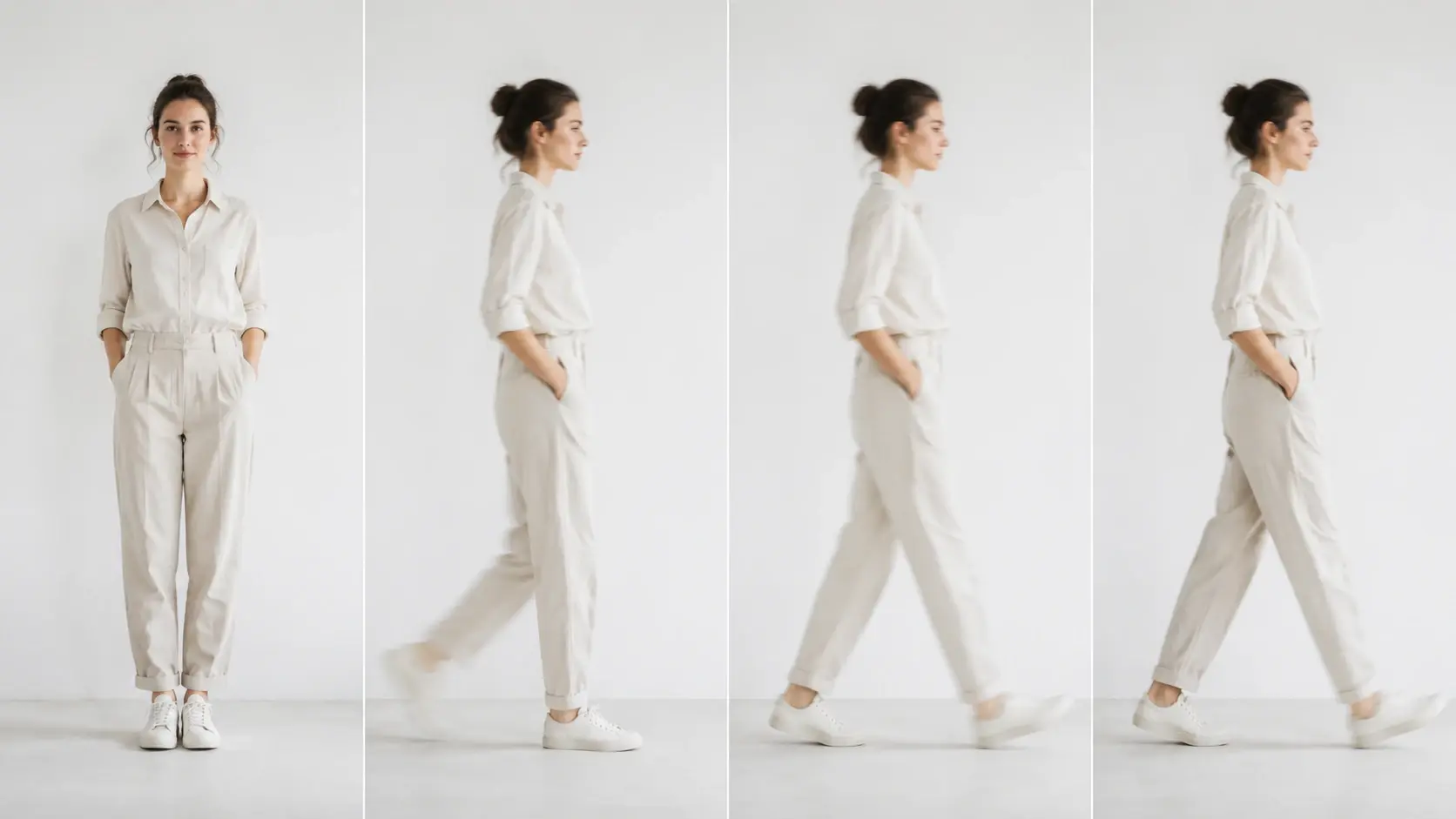
Photo to Motion Clips
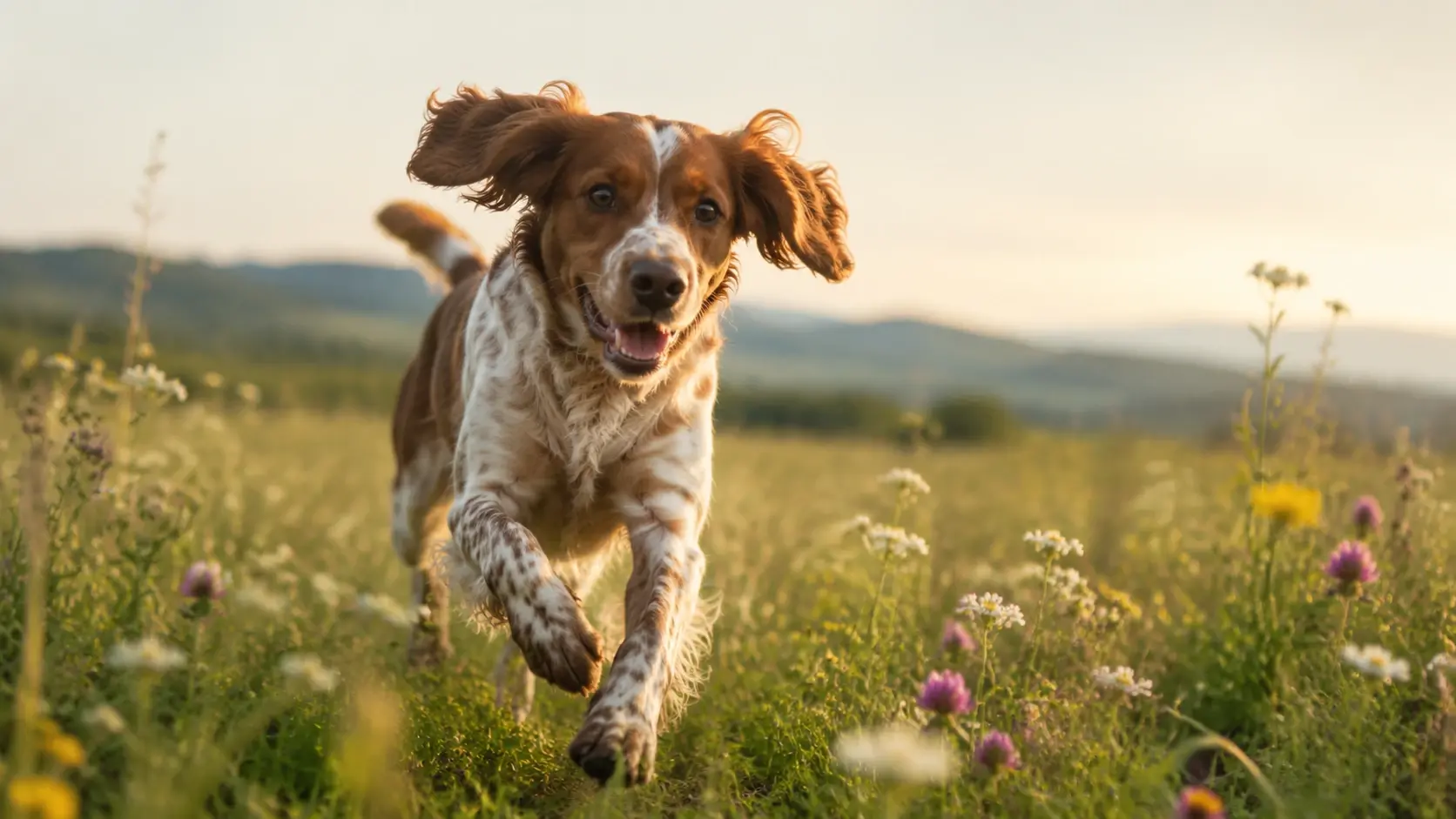
Upload a still image and the AI Video Generator builds a moving clip from it. The photo to video ai mode analyzes depth and subject placement to decide where motion looks natural. You control direction and speed before the render starts. Works best with clear subjects and defined foreground layers.
Text Controlled Action
Type a scene description and the AI Video Generator produces a clip that follows your prompt. The text to video ai workflow interprets action words, camera angles, and lighting notes in one pass. When your concept changes, update the prompt and regenerate rather than rebuilding from scratch. Each output reflects the specific language you provide.
Multi Style Output
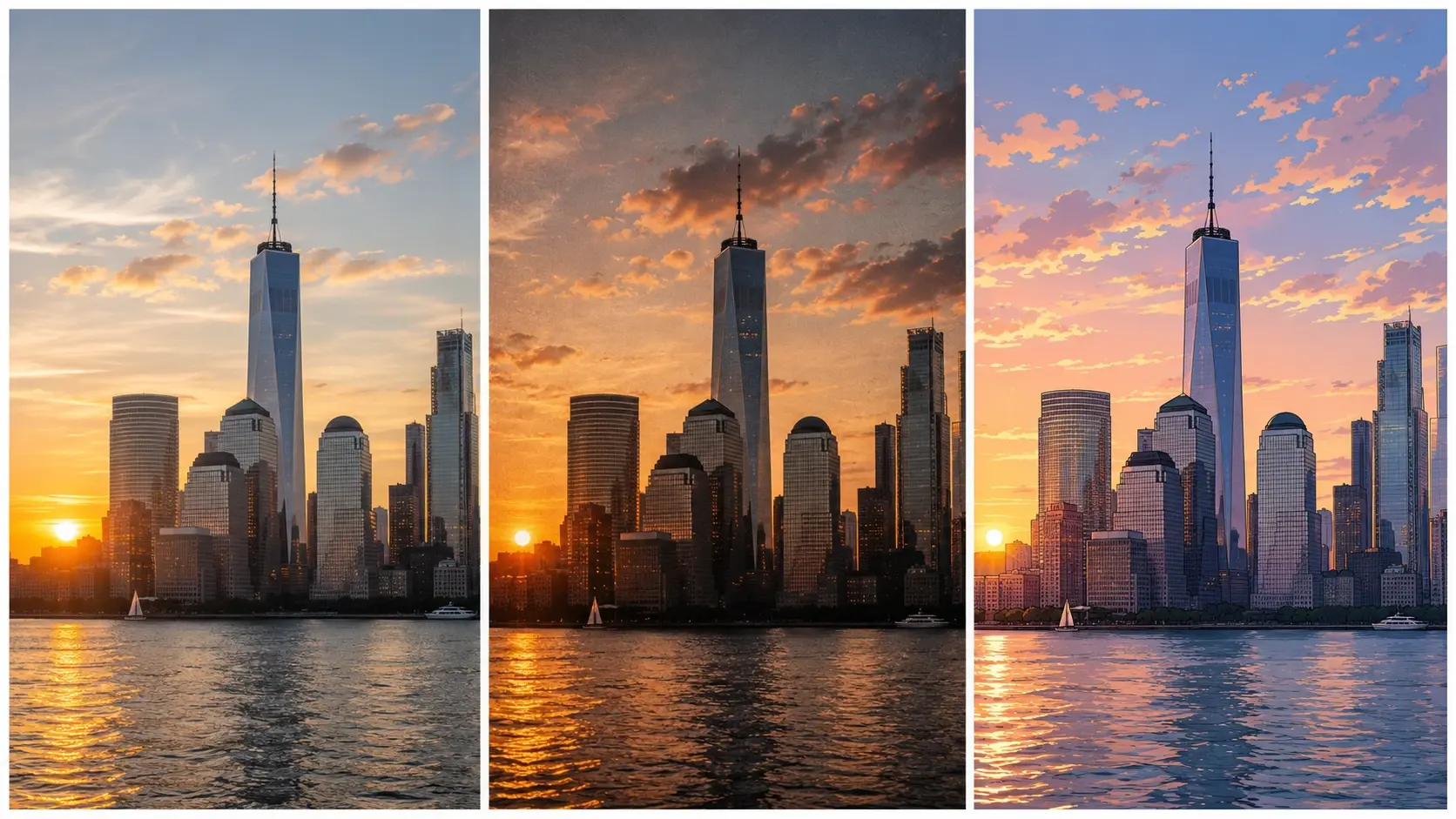
Select from realistic, cinematic, anime, or illustrated styles and the AI Video Generator applies your choice across the full clip. The AI animation generator mode produces frame consistent movement that holds the selected look from start to finish. Switch styles between projects without adjusting other settings. Color temperature and line weight stay uniform within each style.
Camera Path Control
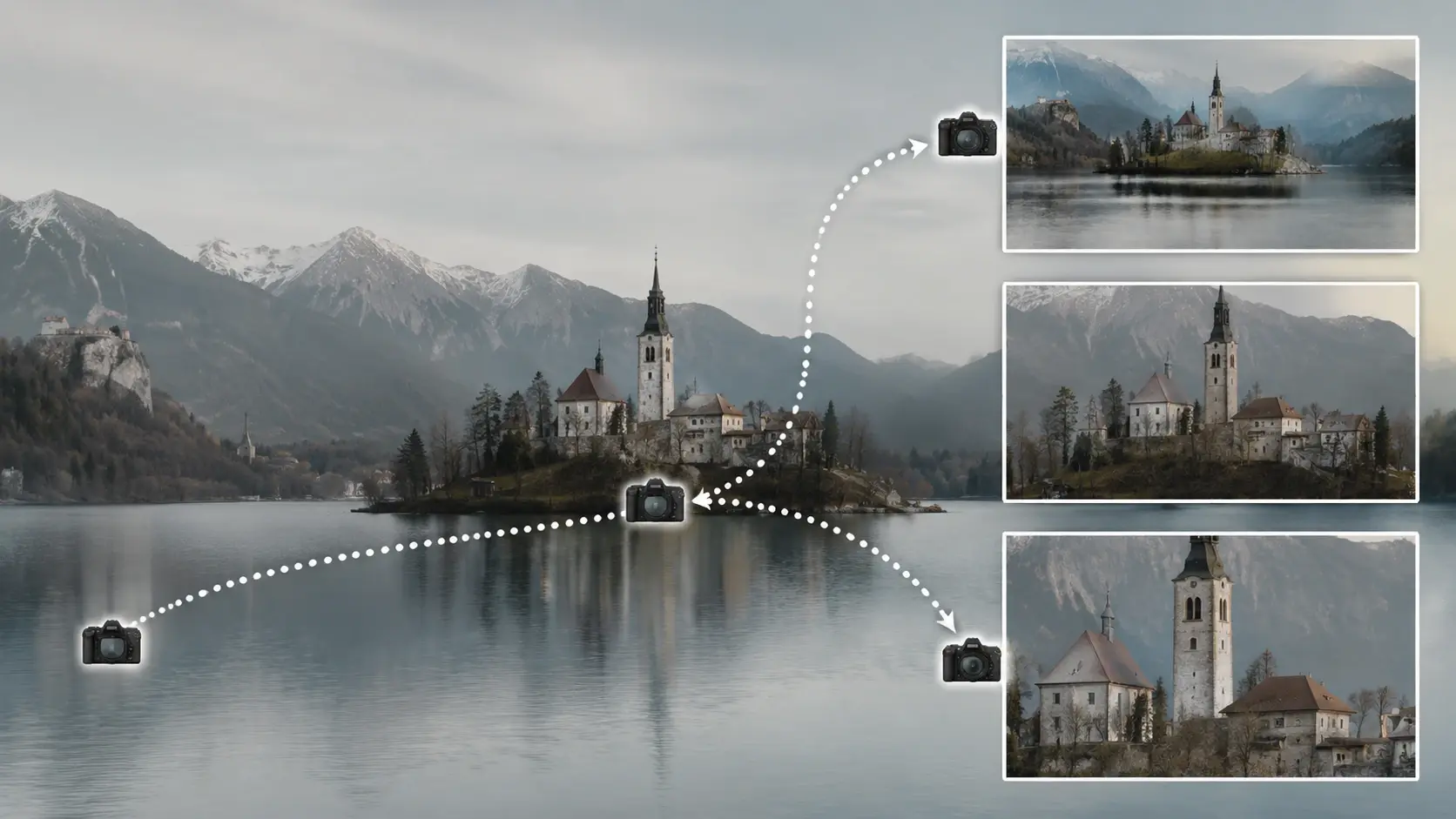
Define pan, tilt, zoom, and orbit paths before rendering and the AI Video Generator follows your camera plan exactly. This AI video maker feature gives you director level control over how the viewer moves through the scene. If you need a slow push in on a product, set the path and the tool handles the rest. Preview the camera movement before committing to the full render.
Videos You Can Create
Four example outputs that show what this AI Video Generator produces from different source material.
Product Showcase Clip
Upload a product photo and the AI Video Generator creates a rotating showcase clip with controlled lighting and background. The ai image to video generator workflow preserves product detail while adding smooth rotation. Brand teams use this for social ads and listing videos that need a consistent look across dozens of SKUs.
Anime Character Scene
Describe a character and setting in your prompt and the AI Video Generator renders an anime style clip with consistent line work. The AI anime generator mode holds color and proportion across every frame so characters stay on model. When you need a short loop for social content, set the duration and export a ready file.
Explainer with Motion
Start from a Text to Image Generator output or your own illustration and the AI Video Generator adds controlled motion to support your narration. Pacing stays steady so the visual matches your voiceover timing. Educators and course creators use this to turn static slides into watchable sequences without a full video production setup.
Social Ad With Zoom
Type a prompt describing your ad concept and the AI Video Generator builds a short clip with a zoom that draws attention to your focal point. This free AI video generator workflow lets you test three or four ad directions in one session before picking a winner. Export at the aspect ratio your platform requires and post directly.
What Creators Say About It
Six users share how the AI Video Generator fits into their daily production workflow.
I use the AI Video Generator for every product listing clip. Upload a photo, set the rotation, and the output matches my brand look without reshooting.
Dana Okonkwo
Ecommerce Manager
The text to video ai mode cuts my concept phase in half. I type the scene, review the preview, and hand the clip to my editor in minutes.
Marco Pellegrini
Creative Director
Our team replaced two stock video subscriptions with this AI video maker. The output quality holds up for social and internal training reels.
Lin Xiaomei
Brand Content Lead
As a freelance animator, I use the AI animation generator for quick scene drafts. Clients approve faster when they see motion early in the project.
Jordan Abrams
Freelance Animator
The photo to video ai feature handles our weekly social clips. I upload a batch of product photos and get matching clips in one session.
Priya Venkatesh
Social Media Producer
I tested several tools before landing here. This is a solid free AI video generator for prototyping ad concepts before committing to a full production budget.
Carlos Mendez
Ad Campaign Strategist
Common Questions

Try Your First AI Video Generation
Upload a photo or type a prompt, choose a style, and see what the AI Video Generator produces. The result is ready to download and use in your next video project.
Get Started