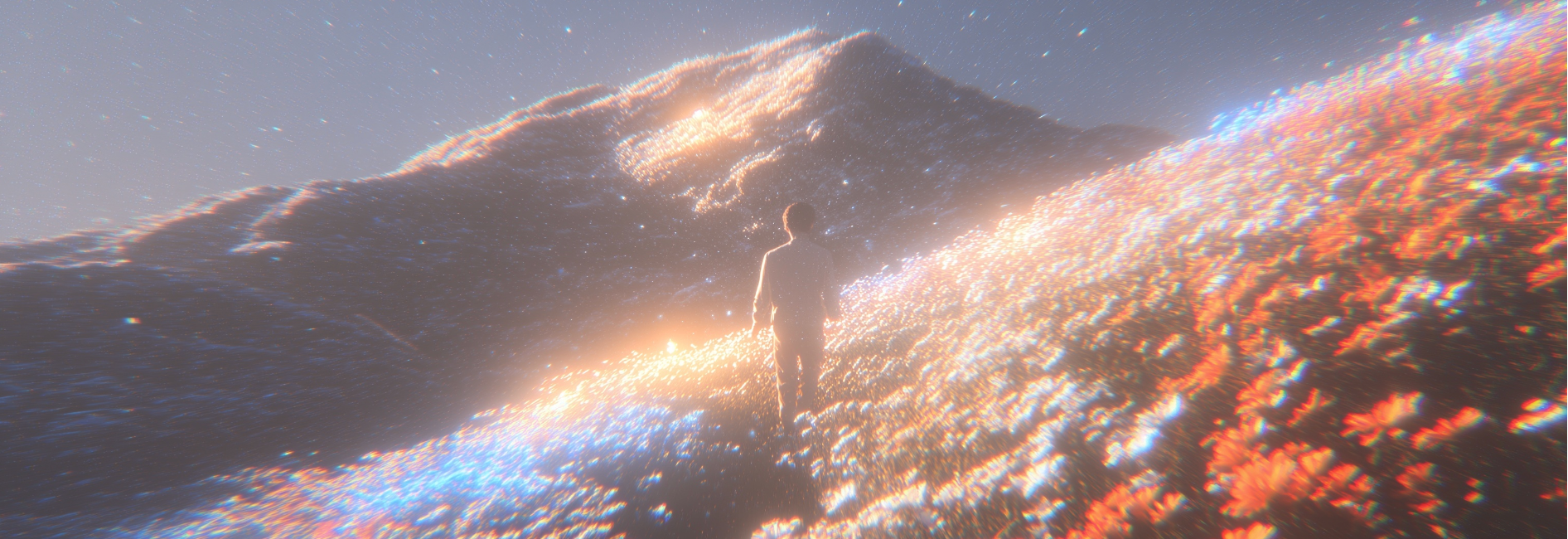
Make Videos That Talk Back With HappyHorse 1.0

Write a prompt or add a first frame image, and HappyHorse 1.0 returns a talking clip with synchronized audio right here on VideoAI.

Clips Made With HappyHorse 1.0

Every clip below is a single HappyHorse 1.0 generation that already carries its own audio.

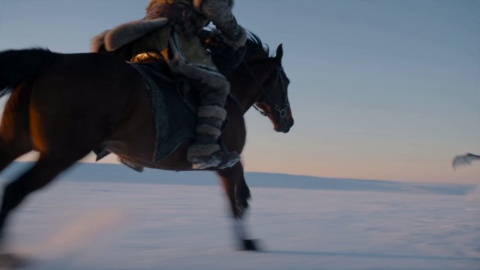
Neon Horizon Reveal

Brand Promo

Cherry Cake Teaser

Product Film

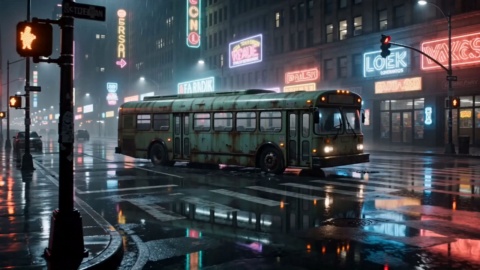
Cyber City Launch

Brand Promo

Golden Field Encounter

Cinematic Promo

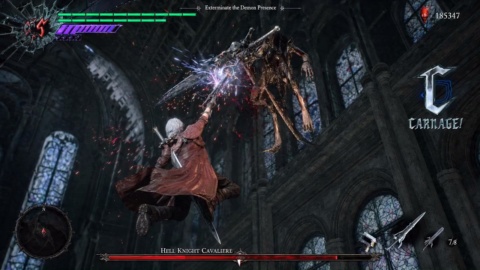
Action Hero Reveal

Entertainment Promo

Convenience Store Smash

Brand Promo

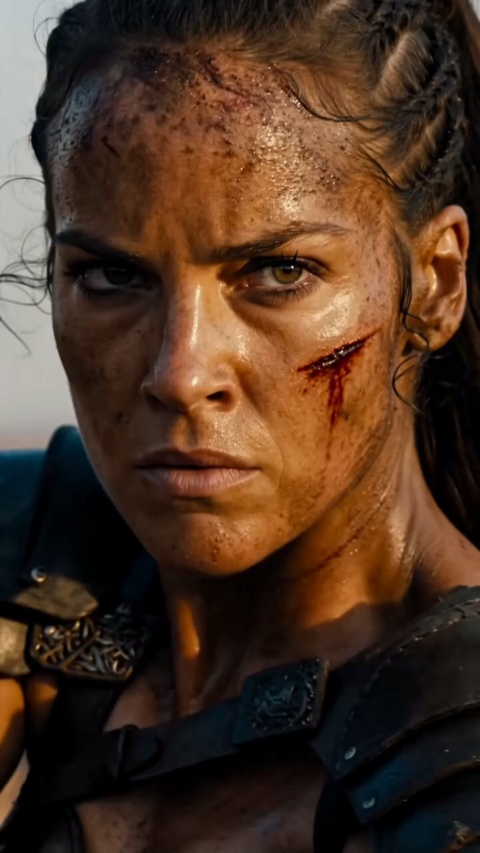
Helmet Close-Up

Product Film

Sunset Cafe Promo

Lifestyle Promo

What HappyHorse 1.0 Can Actually Do

Four capabilities carry most of the work on VideoAI, starting with the one that changes your edit list: HappyHorse 1.0 produces the voice and the picture at the same time, so the dubbing pass disappears from the pipeline.

Native Audio Video Generation

One HappyHorse 1.0 forward pass produces the picture and a synchronized audio track together: lip synced dialogue, ambient sound, and vocal performance with emotion in it. There is no separate audio post processing step, so on VideoAI the HappyHorse 1.0 clip arrives ready to listen to rather than as a silent take waiting for a voice over session.

Multilingual Lip Sync

HappyHorse 1.0 is documented to speak dialogue in seven languages: English, Mandarin, Cantonese, Japanese, Korean, German, and French. Treat that as a noted capability rather than a guarantee that every voice lands the same way, so on VideoAI run one line in your own language before you build a whole campaign on it.

Reference To Video

Supply 1 to 9 reference images and HappyHorse 1.0 locks a character, a subject, or a product so the same face or the same object holds across shots. On VideoAI this is also called Subject to Video. Reach for it from your very first HappyHorse 1.0 clip in a series, because identity is set at generation time rather than patched in afterwards. HappyHorse image to video is a different route: it takes exactly one first frame image plus a prompt.

Multi Shot In One Take

A single HappyHorse 1.0 generation runs up to 15 seconds at 1080p and may contain several shot changes rather than one continuous camera move, which is enough room to rough out a hook, a middle beat, and an end card. Fifteen seconds is the ceiling, so anything longer means generating more HappyHorse video clips and cutting them together yourself.

Three Steps To Your HappyHorse 1.0 Clip

The HappyHorse 1.0 workflow on VideoAI is short, and the one step people skip is the second: write the spoken line into the prompt, because the lip sync is generated around the words you give it.

STEP 01

Choose how you start

Pick your HappyHorse 1.0 input route: text alone for text to video, exactly one first frame image for image to video (JPEG, PNG, or WEBP, up to 10MB, with both sides at least 300px), or 1 to 9 reference images to lock a character for reference to video (reference images need a short side of at least 400px). Text alone is fastest, one first frame image sets your opening shot, and reference images keep the same face across every clip you generate on VideoAI.

STEP 02

Write the line, not just the look

Type the dialogue your character speaks straight into the HappyHorse 1.0 prompt, alongside the scene, the camera, and the mood. Most people arrive from picture only models, describe the visuals, and get back a clip with nobody talking. HappyHorse 1.0 prompts hold up to 5000 non Chinese characters (2500 for Chinese), which is far more room than a 15 second line of dialogue needs.

STEP 03

Set the frame and play it with sound

Choose 720P or 1080P (1080P by default), a whole number duration from 3 to 15 seconds (5 seconds by default), and an aspect ratio of 16:9, 9:16, 1:1, 4:3, or 3:4, with 16:9 as the default; these HappyHorse 1.0 aspect ratio options are the ones VideoAI offers you here. Go 9:16 for Shorts and Reels, 16:9 for YouTube, or 1:1 for feed posts, then play it back with sound.

Explore Other Models

Browse additional AI models for image and video creation.

Give HappyHorse 1.0 A Line To Say

Give HappyHorse 1.0 A Line To Say

Write one line of dialogue and watch a character say it back in a HappyHorse 1.0 clip, generated right here on VideoAI.

Start Now

Common Questions About HappyHorse 1.0

What is HappyHorse 1.0, and what can you make with it on VideoAI?

It is a HappyHorse Alibaba video generation model built by Alibaba ATH (Alibaba Token Hub), and its defining trait is that the picture and a synchronized audio track are generated together in a single pass: lip synced dialogue, ambient sound, and an emotive human voice, not a silent clip you score later. On VideoAI you work with this HappyHorse ai video generator right in the browser, and all four routes are open inside the site: text to video, image to video, reference to video, and video edit. Choose a route, describe the scene, write what the character says, and generate.

Does it really generate the audio on its own, or do I still have to dub it?

Picture and sound arrive from the same generation pass, so the lip synced dialogue, ambient sound, and vocal performance all come out at once. There is no separate dubbing or track syncing step sitting in the middle, and that joint pass is exactly what sets HappyHorse 1.0 apart from picture only video models. On VideoAI it means a talking clip is done the moment it finishes, with sound already carried on it.

How to use HappyHorse 1.0 on VideoAI for a talking clip?

Log in first, then choose your input: a prompt on its own, exactly one first frame image, or 1 to 9 reference images when a particular character has to stay consistent. Write the spoken line straight into the prompt, because the lip sync is built around the words you type. Set the resolution, duration, and aspect ratio, press generate inside the site, and play the result back with sound on. Every step of this happens on VideoAI.

What does HappyHorse pricing look like on VideoAI, and is there a free allowance to start?

New accounts open with 10 free credits, and that balance already covers HappyHorse 1.0, so you can start generating with it right away. Once those credits run down, you keep going with a credit top up pack or a subscription plan, whichever suits how often you make clips. VideoAI settles all of this in one place, so there is nothing to price up anywhere else.

Do I need an account, and do the clips carry a watermark or allow commercial use?

You do need to sign in with an account before anything generates, and there is no way around that step. The clips themselves come out with no watermark, ready to download, and cleared for commercial use, including the ones you make on your starter credits.

How long can a clip run, and can I export it in 4K?

Each clip runs 3 to 15 whole seconds, with 5 seconds as the default, at either 720P or 1080P, and 1080P is the default there. There is no 4K export. A single clip can still cut between several shots instead of holding one unbroken take, and anything past 15 seconds means generating a few clips and joining them together yourself.

Is HappyHorse 1.0 open source, and how is it different from 1.1?

No, it is not open source: there are no downloadable weights, no official code repository, and no lightweight local build for running it at home. Those stories, including the so called 5B mini version, are invented by copycat sites, and the real answer is that you generate on VideoAI instead. Version 1.1 is a separate, later release that landed after 2026 06 23, while this page and the model you use on VideoAI both mean HappyHorse 1.0, and there are no Pro, Fast, Turbo, or Lite tiers to pick from.