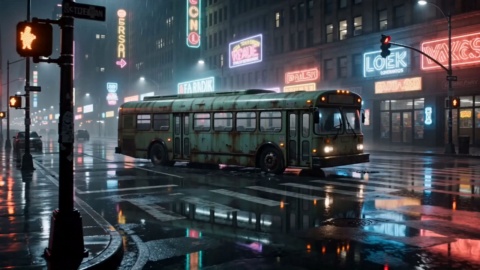
STEP 01
Pick the Model
To get started, select the Kling 3.0 AI video model as your starting point.

Turn one photo or a short prompt into smooth, controlled motion — set the pacing, watch the preview, and export only when the clip looks right.
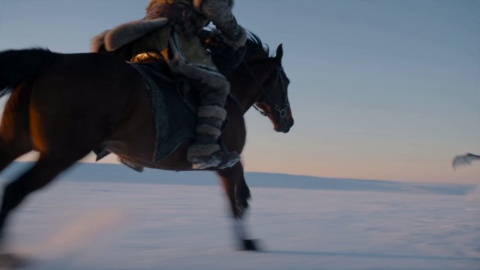
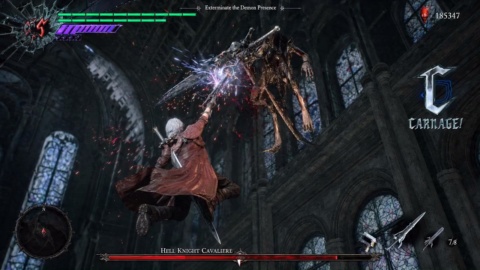
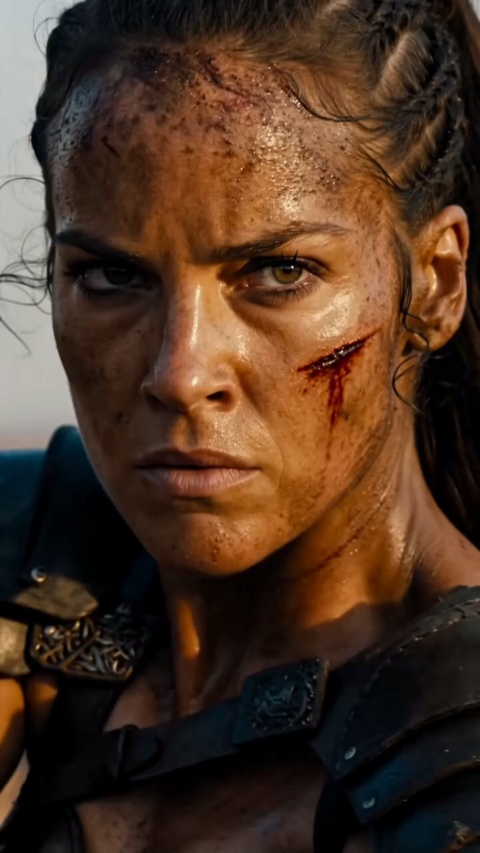
Real clips generated with Kling 3.0 — from social shorts to product promos and explainer b roll.
Neon Horizon Reveal
Brand Promo
Cherry Cake Teaser
Product Film
Cyber City Launch
Brand Promo
Golden Field Encounter
Cinematic Promo
Action Hero Reveal
Entertainment Promo
Convenience Store Smash
Brand Promo
Helmet Close-Up
Product Film
Sunset Cafe Promo
Lifestyle Promo
Kling 3.0 turns a still or a prompt into a finished clip, and keeps the creative call with you — from the subject in your photo to the pacing you preview before export.
Upload one photo and Kling 3.0 reads the subject, then builds motion that fits the frame. You pick a direction and the model holds the subject steady while the scene moves, so a single still becomes a clip without a sequence of shots.
Type what you want to see and Kling 3.0 shapes the scene from your words. When your prompt names a camera move, the render follows that path across the clip, so a short written brief is enough to set the shot.
Turn a photo or a prompt into a controlled clip with Kling 3.0 in three simple steps.
To get started, select the Kling 3.0 AI video model as your starting point.
Enter a detailed prompt or upload a reference photo to define the subject, motion, and look of your clip.
Review the preview, adjust the prompt or pacing to match your vision, and export when the clip looks right.
Browse additional AI models for image and video creation.
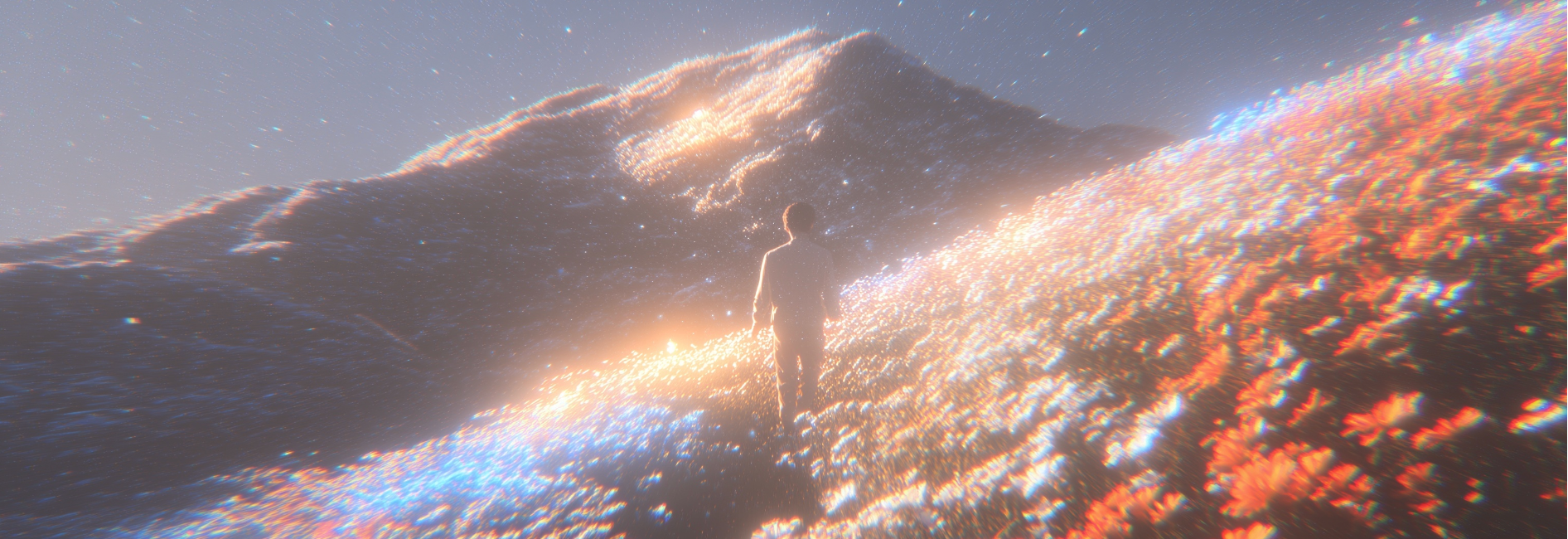
Upload one photo or write a prompt, set the motion, and see what Kling 3.0 produces before you export.
Start CreatingKling 3.0 is Kuaishou's AI video generation model that turns a text prompt or a reference photo into a short clip, with a focus on coherent motion you can preview before export. On videoai you run it as a hosted online tool.
You can start from a text prompt, a reference photo, or both. A still sets the subject and your prompt describes the motion, so image to video and text to video both work in the same creator.
No. You upload a still or type a line, pick a motion direction, and Kling 3.0 renders a preview you can approve or adjust before you export the clip.
Yes. Add a short prompt and Kling 3.0 follows it, so a named camera move or subject action matches what you describe in your words.
Many creators want to test the output before a real project, so videoai lets you preview a Kling 3.0 result and judge the clip before you commit a full render.
Open the video creator, select Kling 3.0 as the model, describe your scene or add a reference photo, and generate your first clip.