What Seedream 5.0 Pro actually does

Four capabilities the Seedream AI image generator brings to a working brief, described in plain terms so you can tell whether your job is one of them.

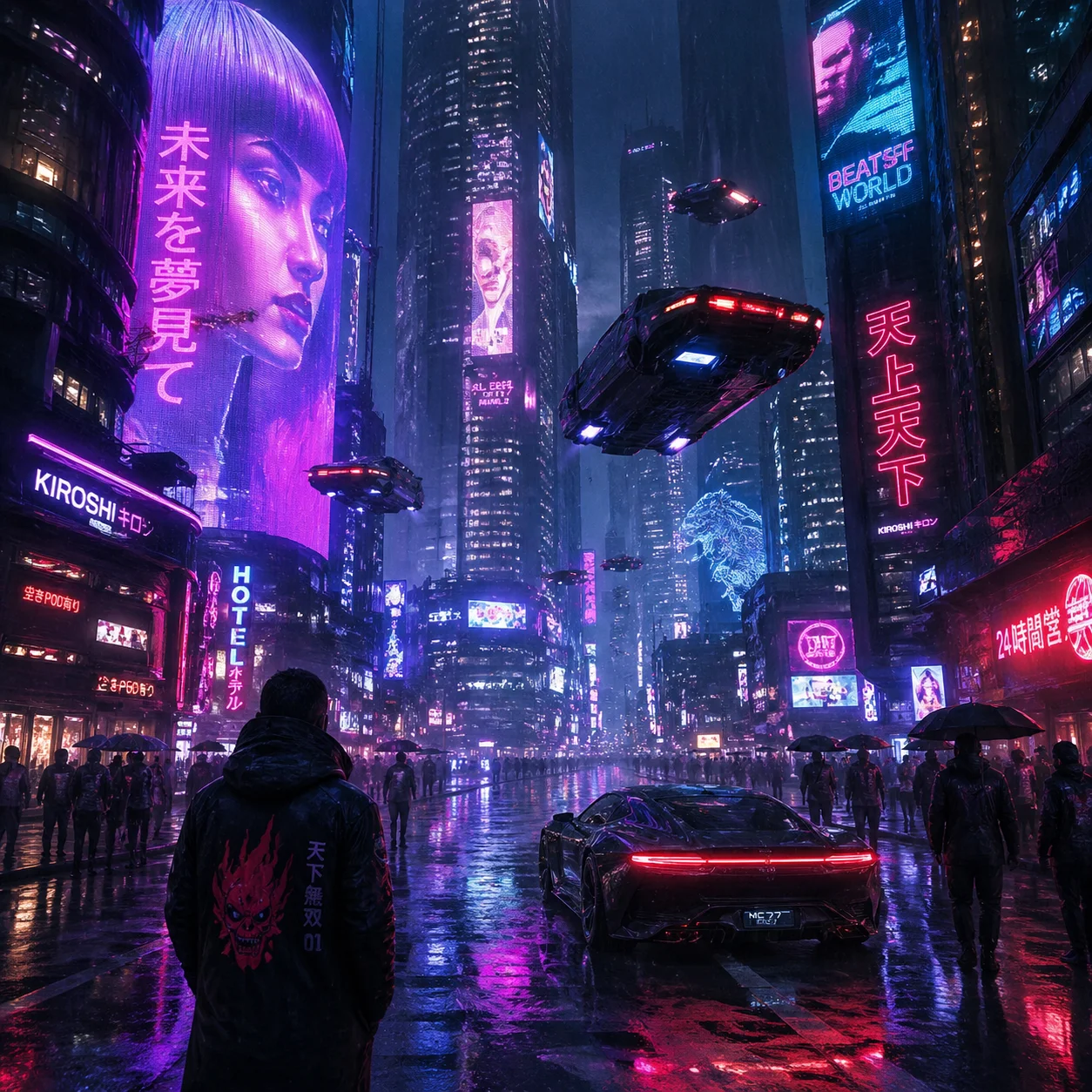
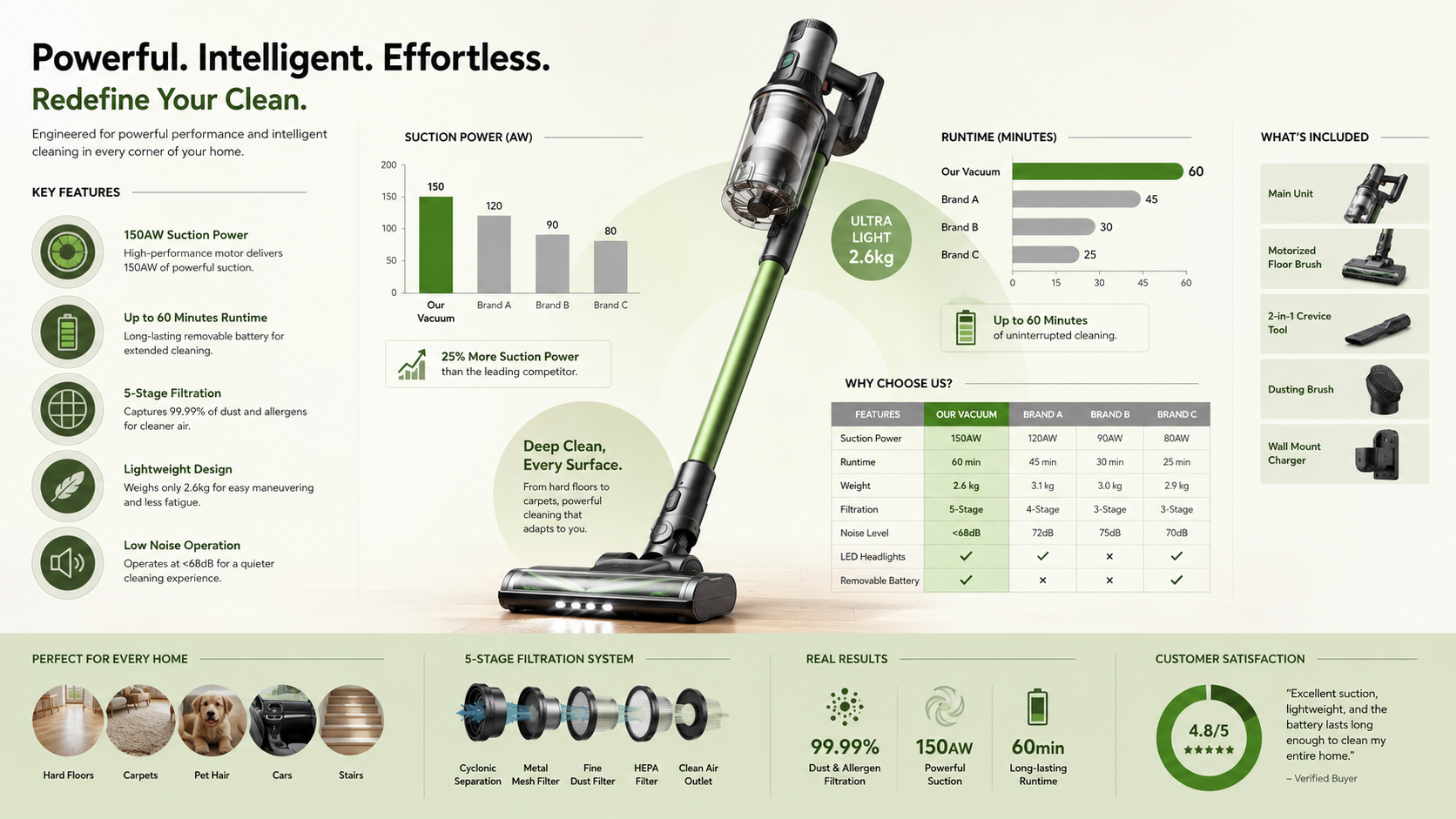
Seedream 5.0 Pro information visualization example

Information visualization

Paste your data, your concept, or a whole block of offer copy, and Seedream 5.0 Pro returns a professionally laid out design: an infographic, an ad board, a poster comp, a UI mockup. Seedream 5.0 Pro makes the design decisions you would otherwise hand to a designer, deciding hierarchy, spacing, and where the headline sits, so what comes back can sell something instead of just looking pretty.

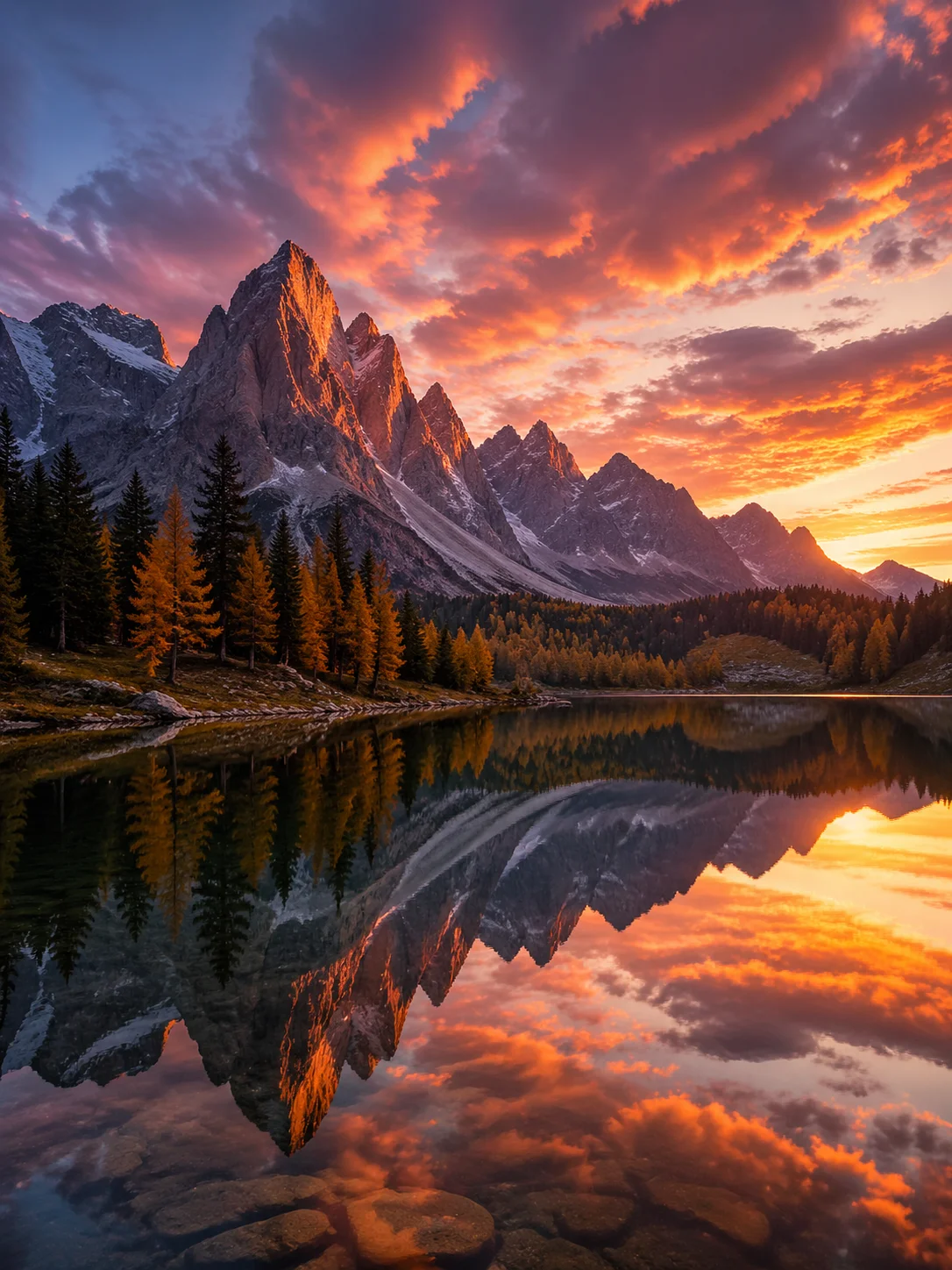
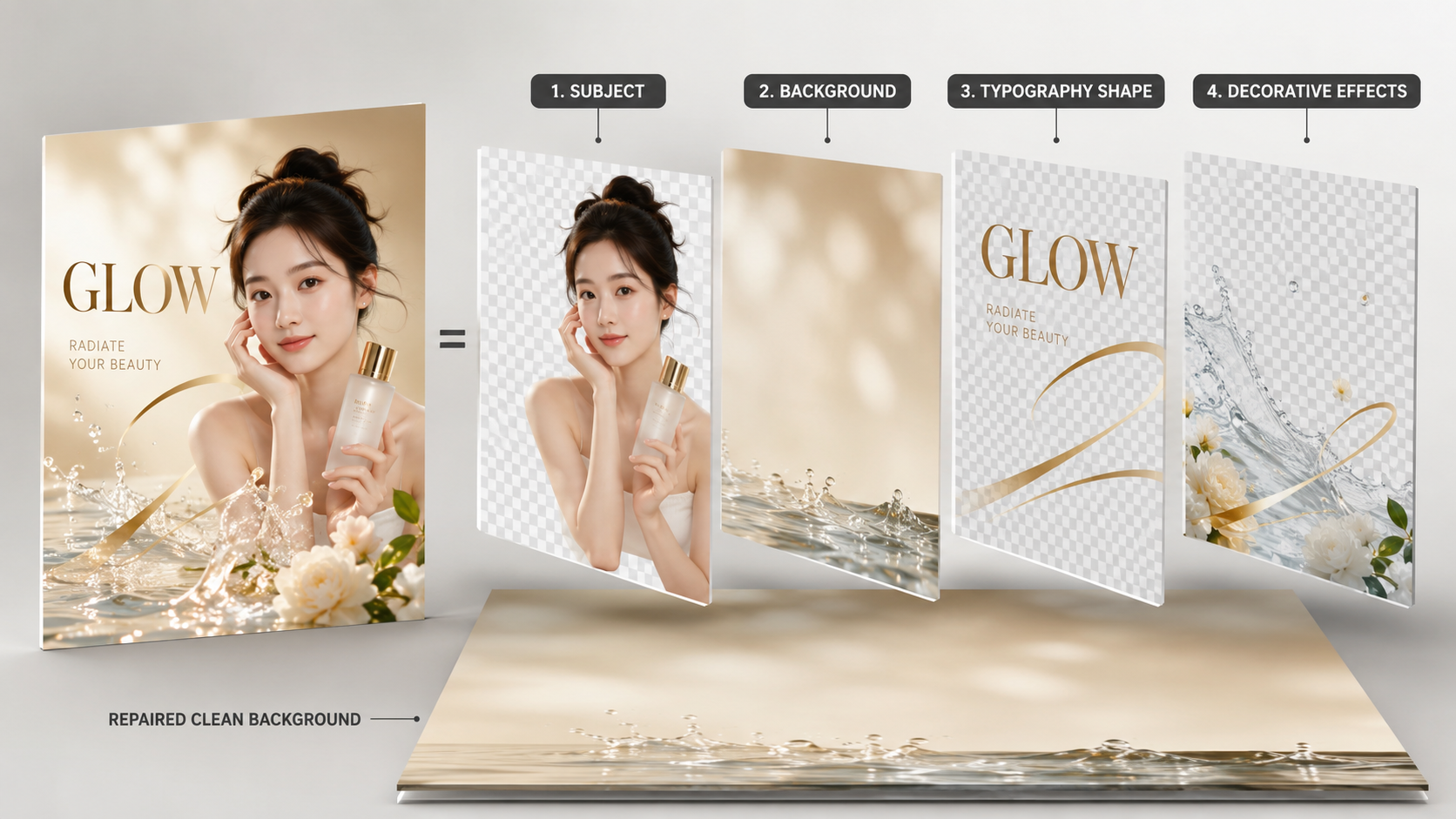
Seedream 5.0 Pro layer separation example

Layer separation

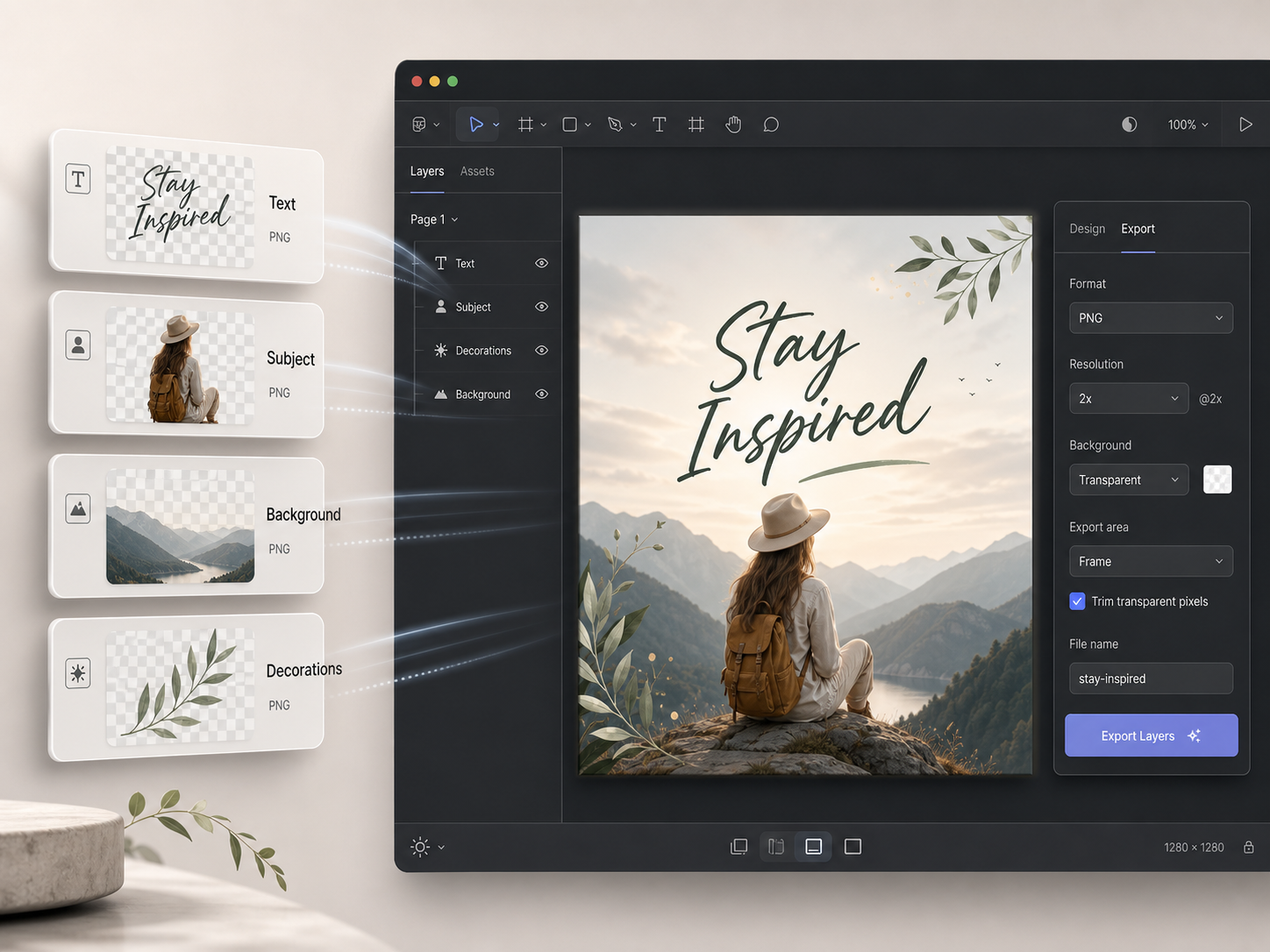
One Seedream 5.0 Pro image comes apart into independently editable layers for text, subject, background, and decorative elements, exported as transparent PNGs with the hidden background repaired behind whatever was sitting on top. A generation becomes a starting file rather than a dead end, so a client revision means swapping a single layer in Figma or Photoshop instead of rolling a fresh prompt and losing the composition you already got approved.

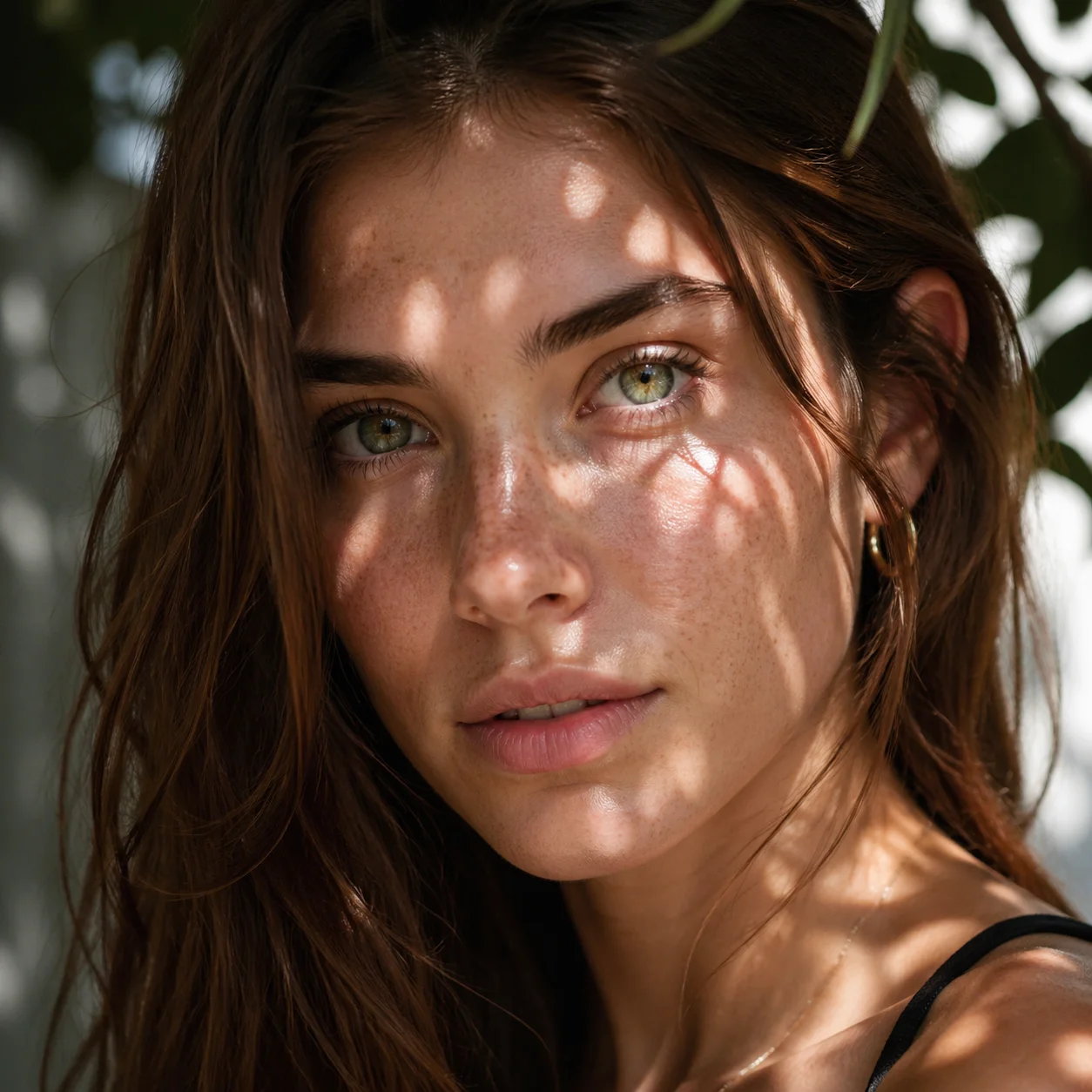
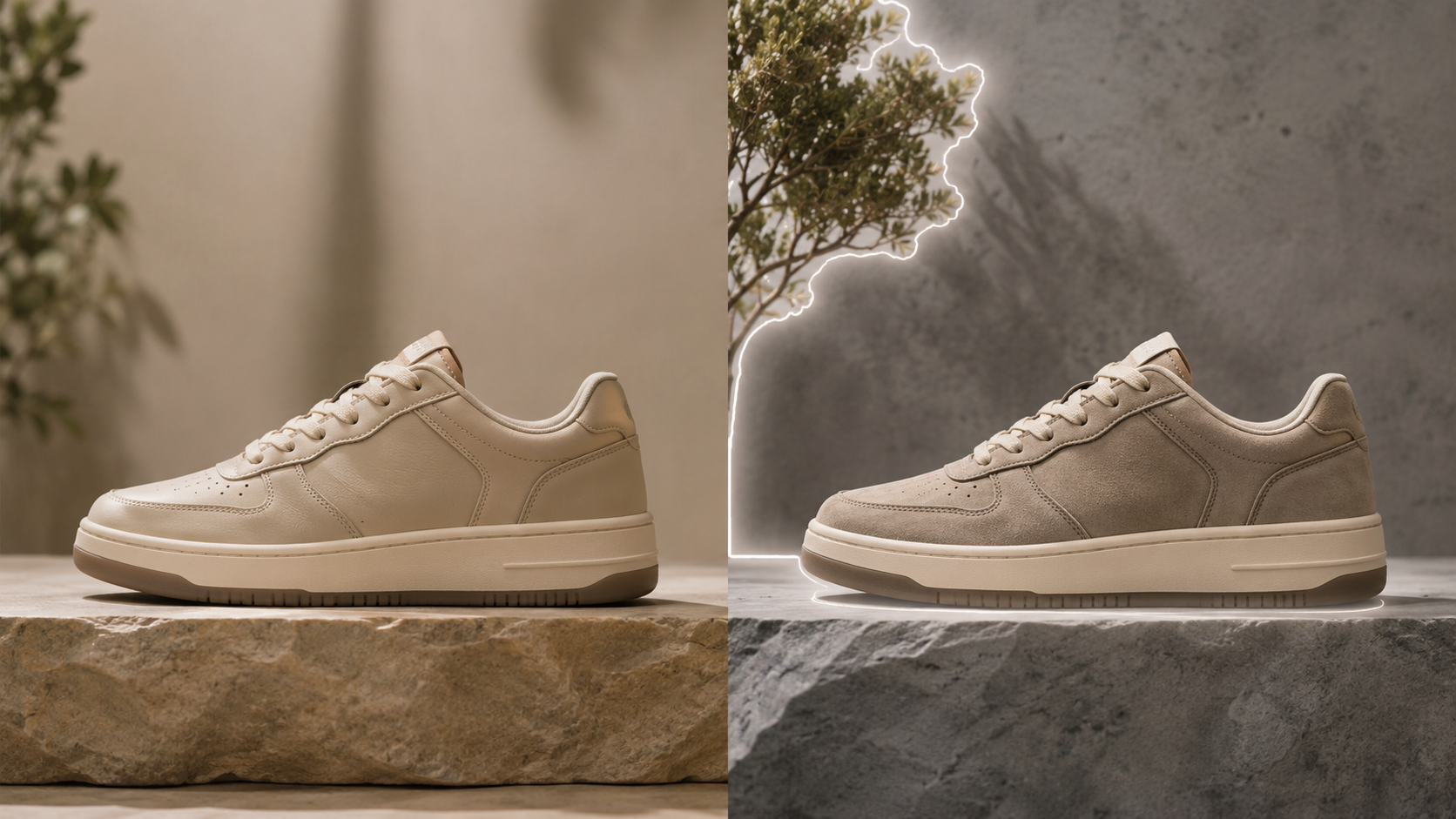
Seedream 5.0 Pro precision editing example

Precision editing

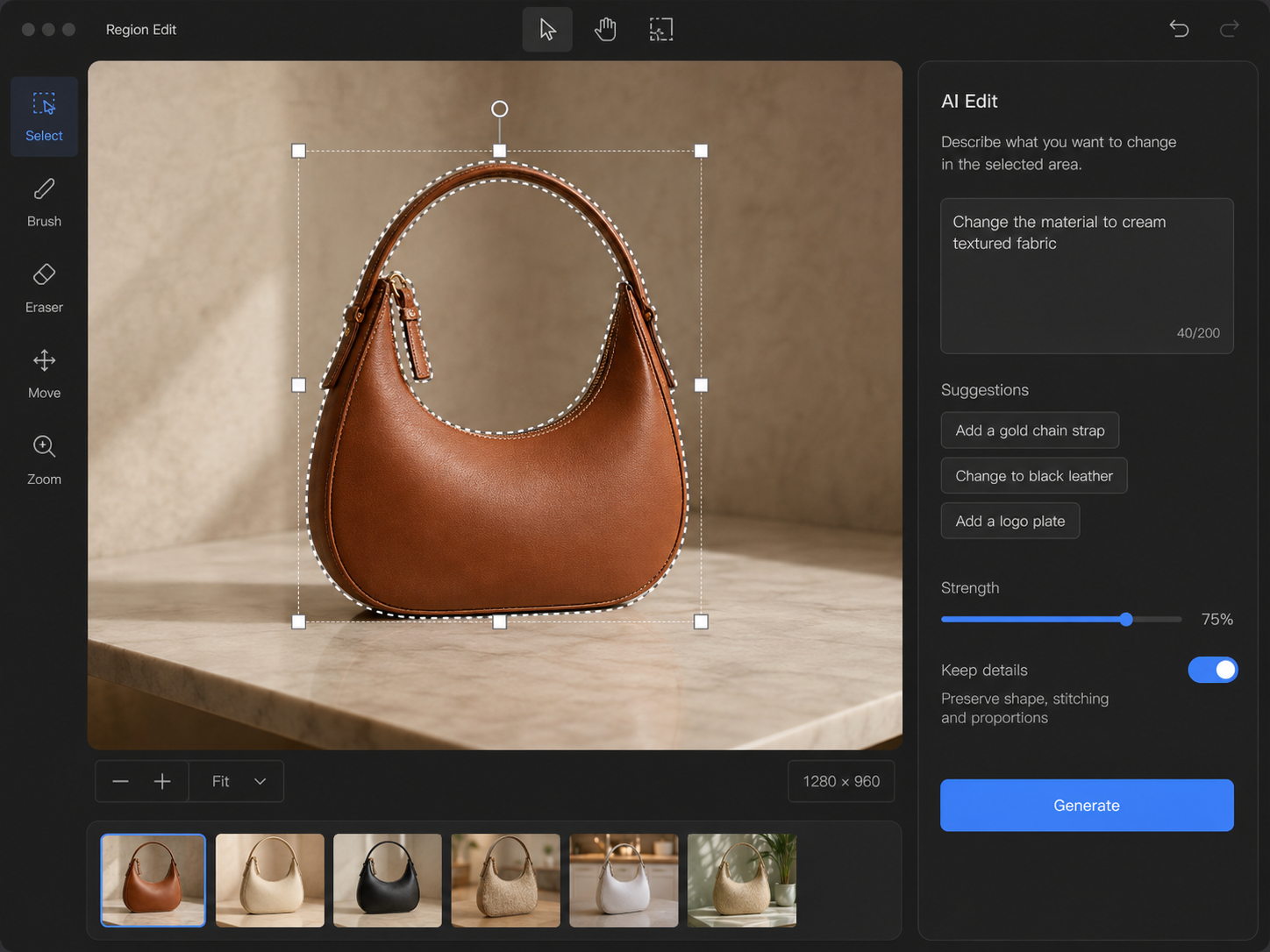
Click, lasso, or box select a region and change only that region: a new background, a different material, another colorway, or a hand drawn sketch rendered into a finished frame. Up to 10 reference images can be blended into a single Seedream 5.0 Pro edit, which is how a Shopify operator restyles a product photo while the product stays exactly the product the customer will receive.

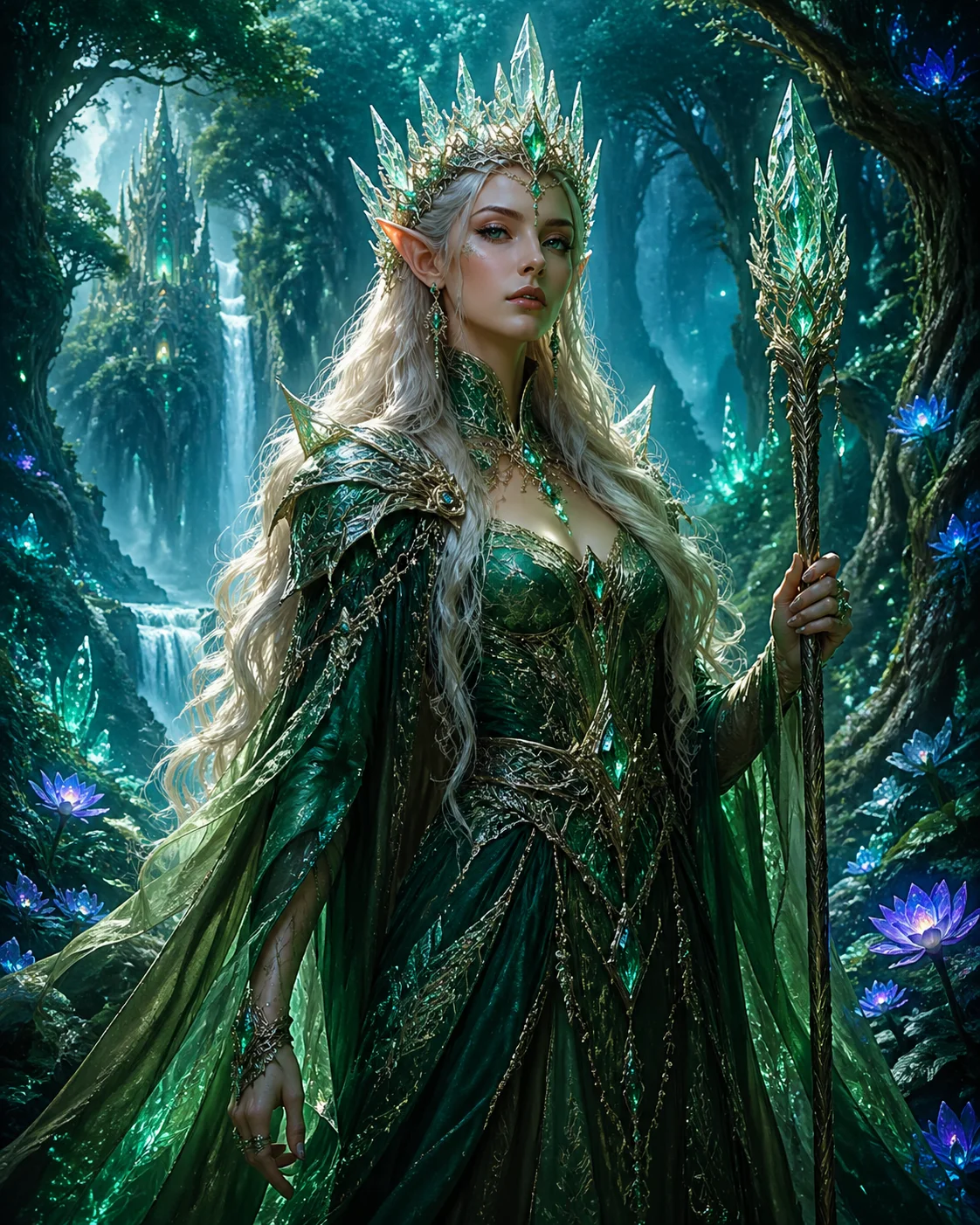
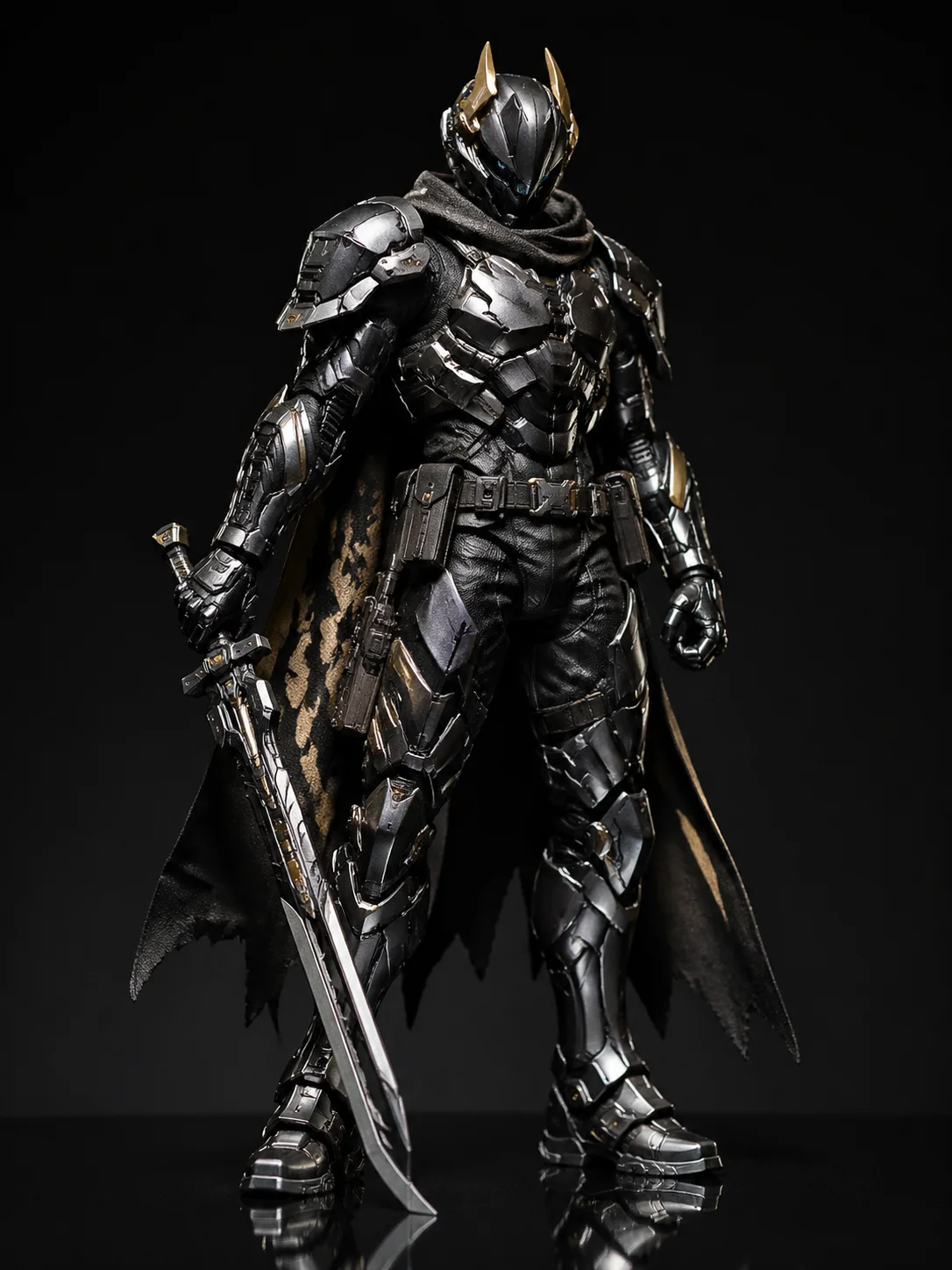
Seedream 5.0 Pro in-image text rendering example

In image text rendering

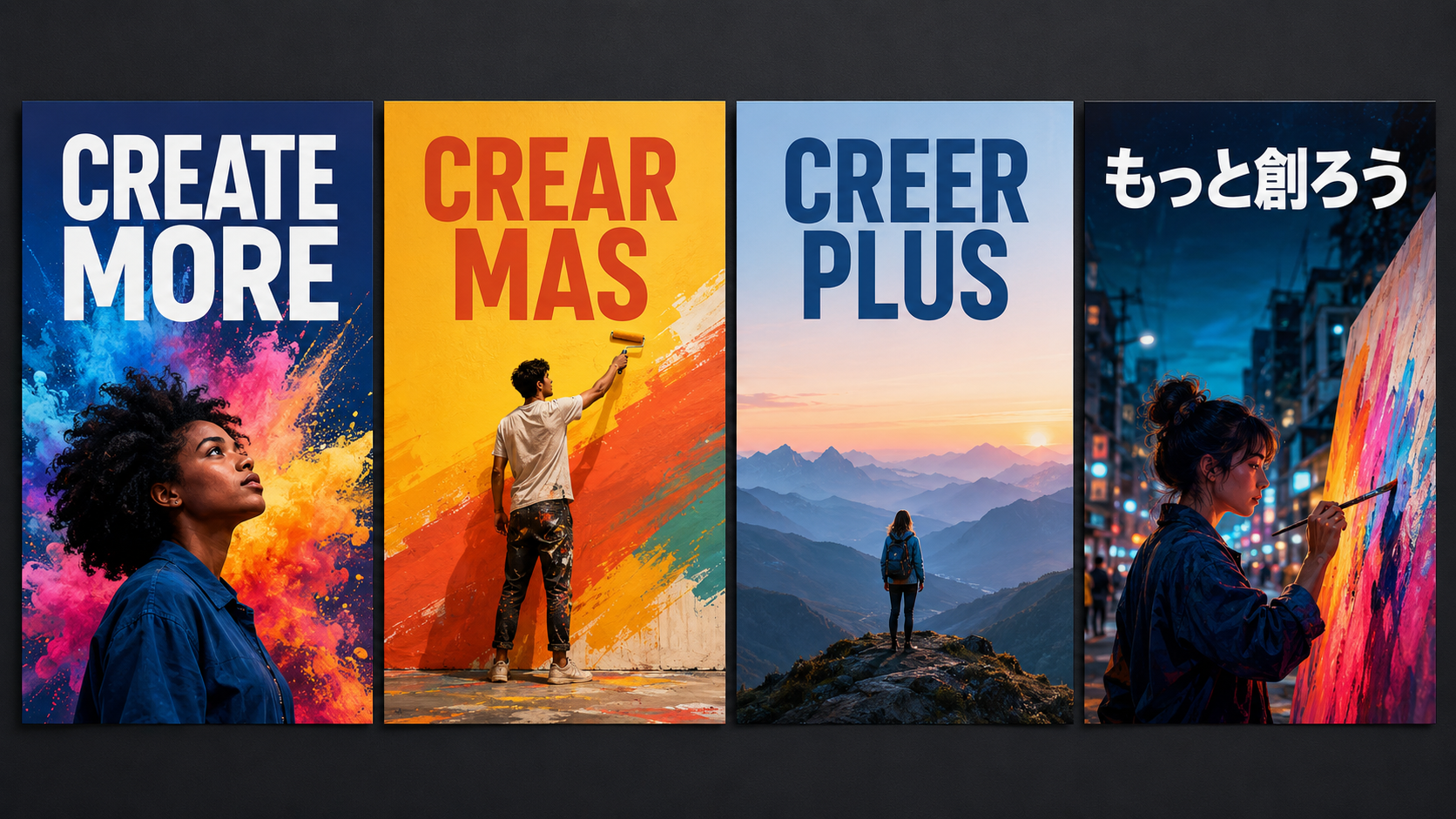
Seedream 5.0 Pro renders text natively inside the picture across 10+ languages, including right to left scripts such as Arabic alongside Japanese, Korean, and Spanish. English headlines on thumbnails, bullet copy on ad creatives, and quote typography on print designs come out readable instead of garbled, and a US or UK brand localizing the same creative for a global campaign does not have to rebuild the layout from scratch.

How to use Seedream 5.0 Pro

Three steps from the file you already have to an asset your team can keep editing.

Upload a prompt and source files for Seedream 5.0 Pro
STEP 01

Bring the prompt and the source file

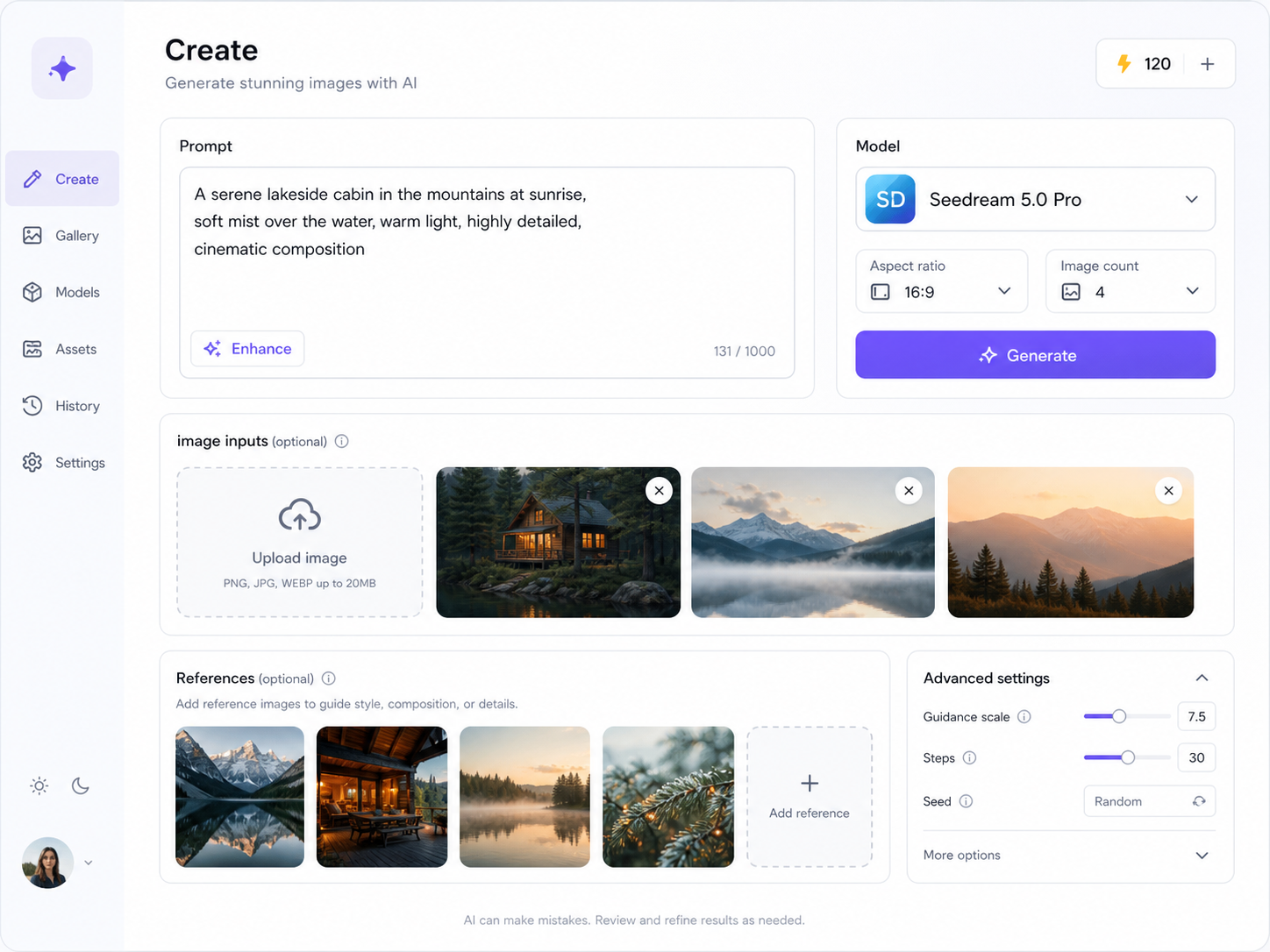
Pick Seedream 5.0 Pro on VideoAI, describe the shot in plain English, and upload what you are working from: a frame grab out of your edit, a product photo off your Shopify listing, a screenshot, or a rough sketch. Reference images steer the look, up to 10 in a single edit. Write the exact headline words you want inside the image rather than asking for a catchy title, because the model renders the string you give it.

Select and edit a region with Seedream 5.0 Pro
STEP 02

Direct the edit region by region

Rather than rolling the whole prompt again when one element is wrong, select the region you want changed by click, lasso, or box, and change only that: a new background, a new material, a different color. You can ask Seedream 5.0 Pro for the same layout to be re cut at another aspect ratio for a feed, story, or thumbnail placement, and generate up to 6 images per request, which is how an A/B set of headline variants arrives in one pass.

Export layered transparent PNG assets from Seedream 5.0 Pro
STEP 03

Take the layered asset, not just the picture

Export as JPEG or PNG at up to native 2K (2048x2048), or split the Seedream 5.0 Pro image into layers and pull down transparent PNGs for the text, the subject, the background, and the decoration, then keep working in Figma, Photoshop, or Canva. If you already know a client or a channel test will demand revisions, ask for the layered export up front, because that is what turns a one shot generation into something a team can maintain.

Explore Other Models

Browse additional AI models for image and video creation.

Run a live Seedream 5.0 Pro job

The idea for the thumbnail was never the bottleneck; the two hours of layout and type setting were, so bring the asset that is actually due this week to VideoAI and judge Seedream 5.0 Pro on whether the text is legible and the layers are usable.

Start Now

Questions before your Seedream 5.0 Pro run

What is Seedream 5.0 Pro, and what does it actually generate?

Seedream 5.0 Pro is the professional tier of the Seedream image generation family built by the ByteDance Seed team, released on July 8, 2026. It generates and edits still images, handling layout, in image text, and pixel level edits rather than raw picture making alone. VideoAI is an independent site that lets you run the model; we are not affiliated with, authorized by, or endorsed by ByteDance.

How to use Seedream is still unclear to me. Where do I start on VideoAI?

Start by selecting Seedream 5.0 Pro on VideoAI, writing a prompt that spells out the exact text you want rendered inside the image, and uploading a source photo or sketch if you are editing rather than generating from scratch. From there you select a region to refine it, or ask for the layered export. Most first runs are a thumbnail or an ad board, and both are a good way to see what the Seedream image generator does with a real brief.

Is Seedream 5.0 Pro free to try, and do I need to pay first?

Every new VideoAI account starts with 10 credits, and those credits cover the model, so you can generate before paying anything. Once the credits run out you can top up with a credits pack or move to a subscription plan, whichever fits how often you generate. A Seedream free first run is meant to be a real test, not a demo.

Do I need an account to generate on this page?

Yes, generating with Seedream AI on VideoAI requires a login, so create an account before your first run and the 10 starter credits come with it. There is no guest mode here, and we would rather say that plainly than have you write a prompt and hit a wall at the end of it.

What resolution does Seedream 5.0 Pro output, and can it do 4K?

Native output goes up to 2K, meaning 2048 by 2048 pixels, in JPEG or PNG. The model does not natively generate 4K images, and any 4K figure you have seen quoted comes from upscaling after the fact rather than from Seedream 5 itself, which is worth knowing before you plan a large print run.

Can it edit a photo I already have, or is it text to image only?

Both are supported. Upload an existing product shot, screenshot, or sketch, then click, lasso, or box select the area you want changed and replace a color, swap a material, redraw a background, or render the sketch into a finished frame. You can also split that edited image into layers, which is why ByteDance Seedream works for retouching a live listing photo where the product itself must stay unchanged.

How many reference images can I blend into one edit?

Up to 10 in a single edit on VideoAI. Please ignore the figure of 14 you may find quoted online, because it belongs to an earlier version of Seedream AI and does not apply to 5.0 Pro. Ten slots are usually enough to lock a style, a subject, and a background reference at once, and they are blended in one pass rather than applied one after another.

Will the text inside the image really come out readable?

Seedream 5.0 Pro renders text natively inside the picture across 10+ languages, including right to left scripts, which is the whole reason it suits thumbnails, ad boards, and quote posters. Give the model the exact string you want and check the result; legibility is what this model is built around, though no image model guarantees a perfect character every single time.

Are the images watermarked, and can I use them for client work?

Images generated with Seedream 5.0 Pro on VideoAI carry no watermark, download directly in common image formats, and are cleared for commercial use, so a thumbnail or an ad creative can go straight to a paying client. That applies to the images you make with your starter credits as well, which is what makes the first run worth doing on a real job.


Seedream 5.0 Pro - AI Image Generator - VideoAI