
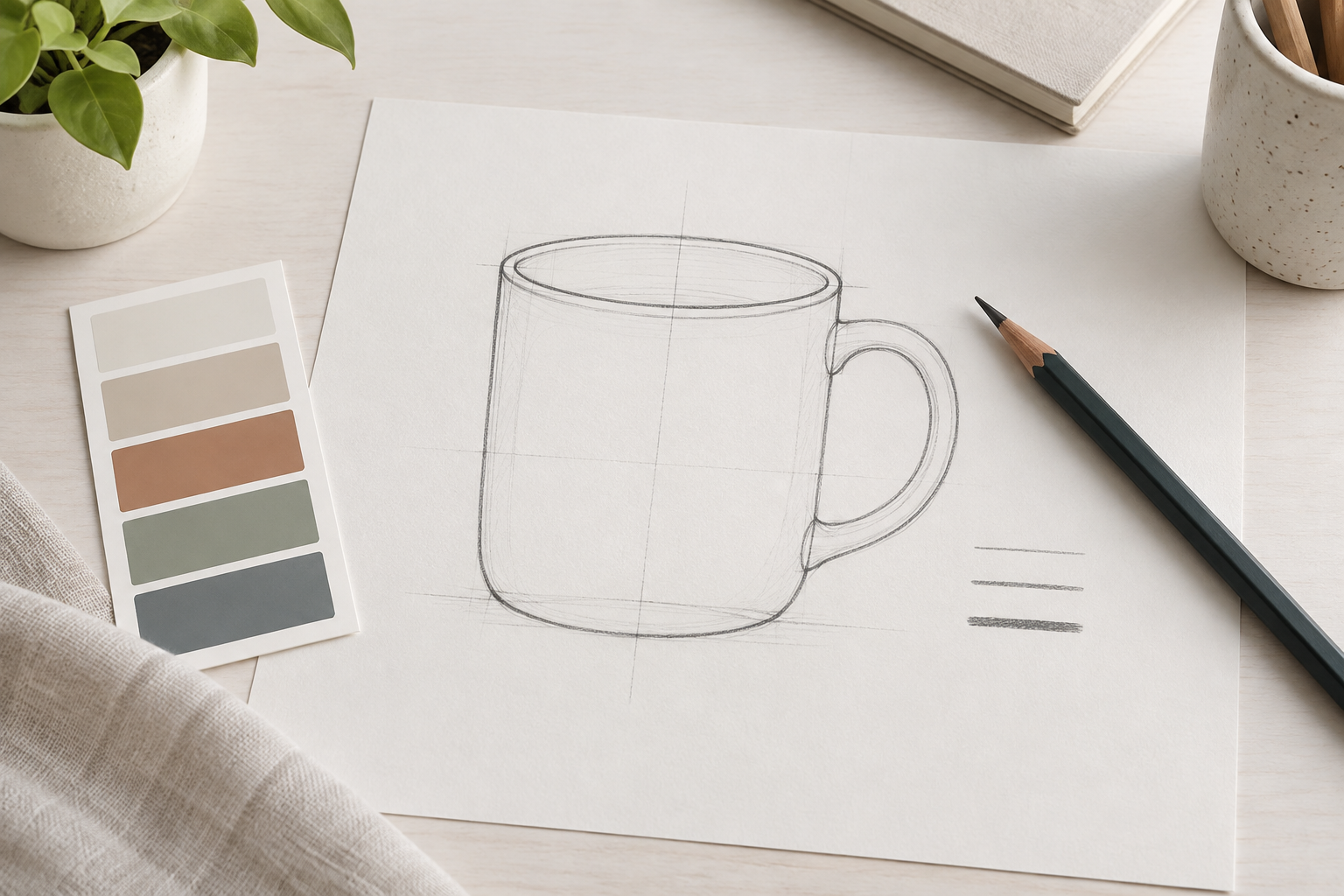
Step 01
Describe The Object
Name the subject, outline weight, fill style, and background. An AI clipart generator also needs the intended size so the level of detail matches the destination.

An AI clipart generator turns a short written idea into clean, reusable clip art you can place in a document, slide, worksheet, label, or social post. Describe the subject, outline weight, palette, and background, then generate a first set of directions with VideoAI. Compare the results, refine the detail you care about, and keep the version that stays readable at the size you actually need. The same AI clipart generator workflow covers classroom icons, sticker-style objects, simple illustrations, and decorative shapes.




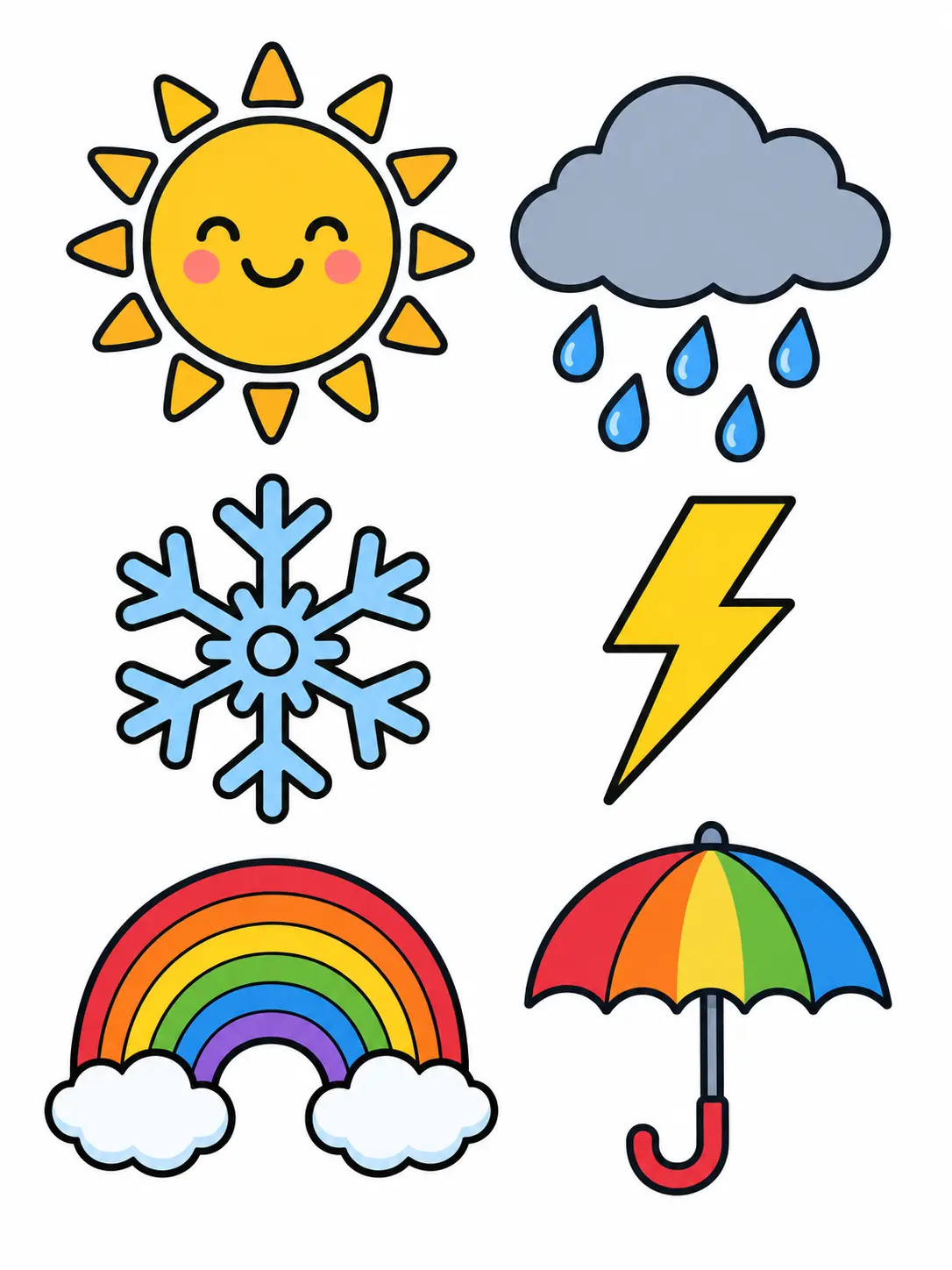
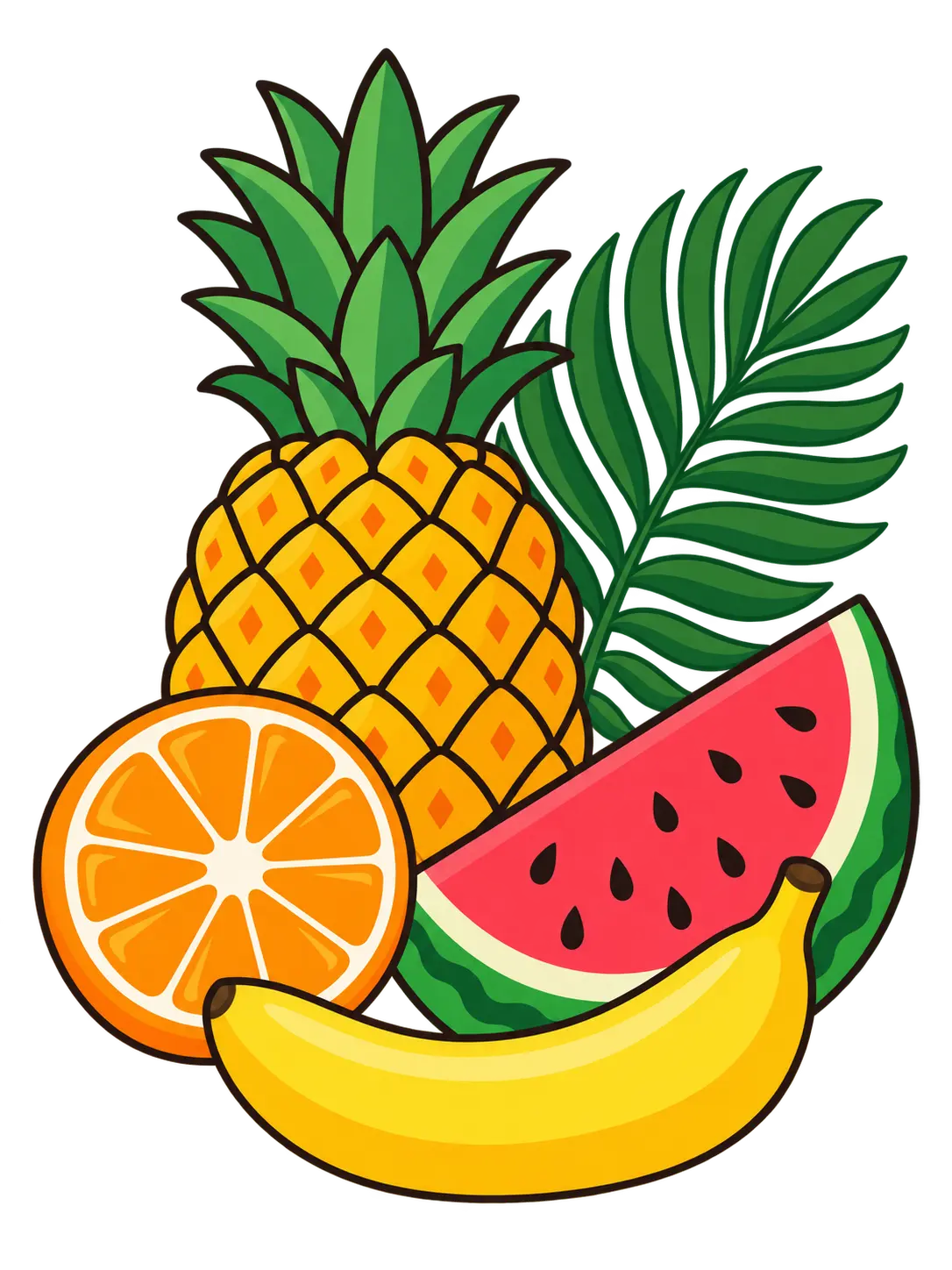
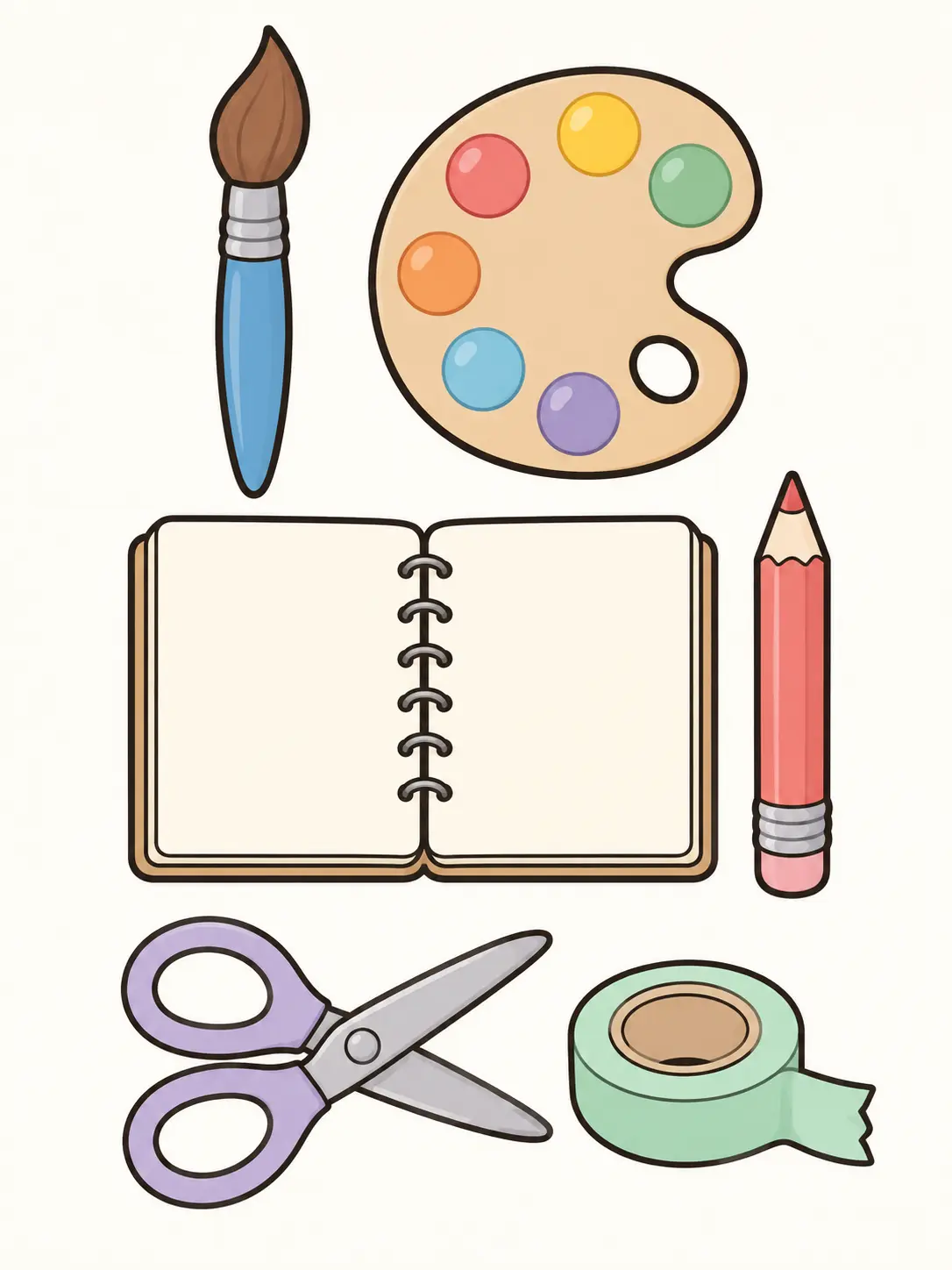

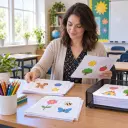
Teachers use an AI clipart generator to build worksheets, flashcards, reading handouts, and slide decks without hunting through mixed-license image sites. A clear outline and a plain background keep each object readable after it is scaled down inside a printed page. The same generated shape can be reused across a unit once the subject and palette are settled.

Small teams use the AI clipart generator for menu icons, price tags, care labels, packaging marks, and social posts that need to match one visual system. Describe the palette once, then generate the remaining objects so the set stays consistent. This keeps routine graphics inside one tool instead of sending every small asset to a designer.
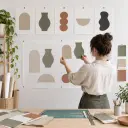
Designers use an AI clipart generator as a fast first pass for blog headers, email blocks, presentation themes, and printable template packs. Generate several directions, keep the shapes that match the layout grid, and refine the rest. The result gives a project a coherent starting set without pretending it replaces final brand artwork.
The useful controls in an AI clipart generator are the ones that decide whether a clip art shape still reads clearly once it is placed in a real document or layout.
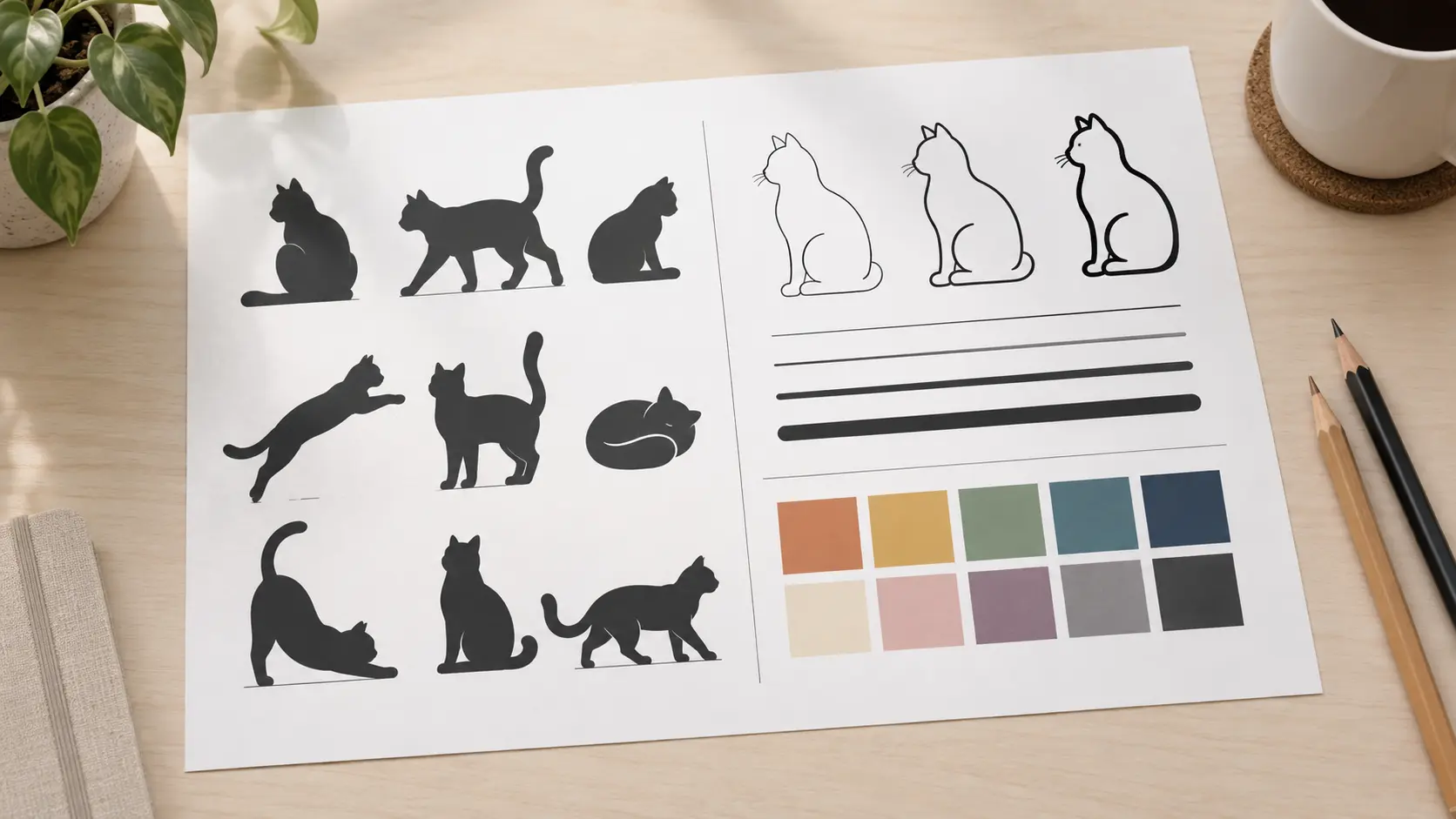
The prompt is where you decide the subject, silhouette, outline weight, fill style, and background. A short brief that names one object gives an AI clipart generator a better target than a request for a friendly design in general. State whether you need a single icon or a small set, and describe the intended size so the level of detail matches. Write it once, reuse it, and change only the element you want to test.
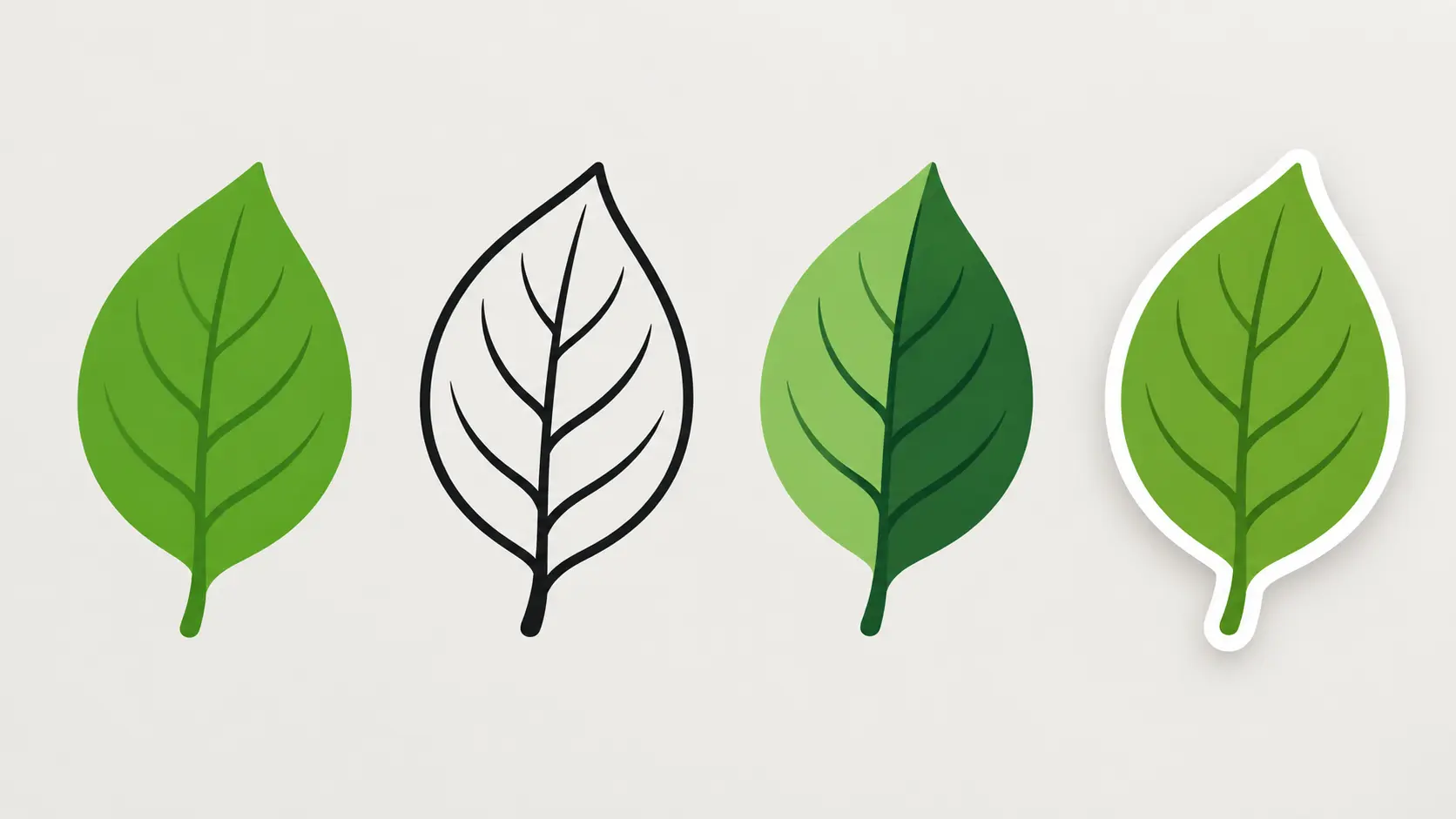
Flat fills, bold outlines, duotone shapes, and soft sticker borders each survive scaling differently. Ask for the clip art style that matches the destination, then check a small preview before adding fine texture. Simple shapes usually hold up better in a worksheet, a menu, or a slide than an illustration with many thin lines. When a style nearly works, adjust one attribute rather than rewriting the whole prompt.
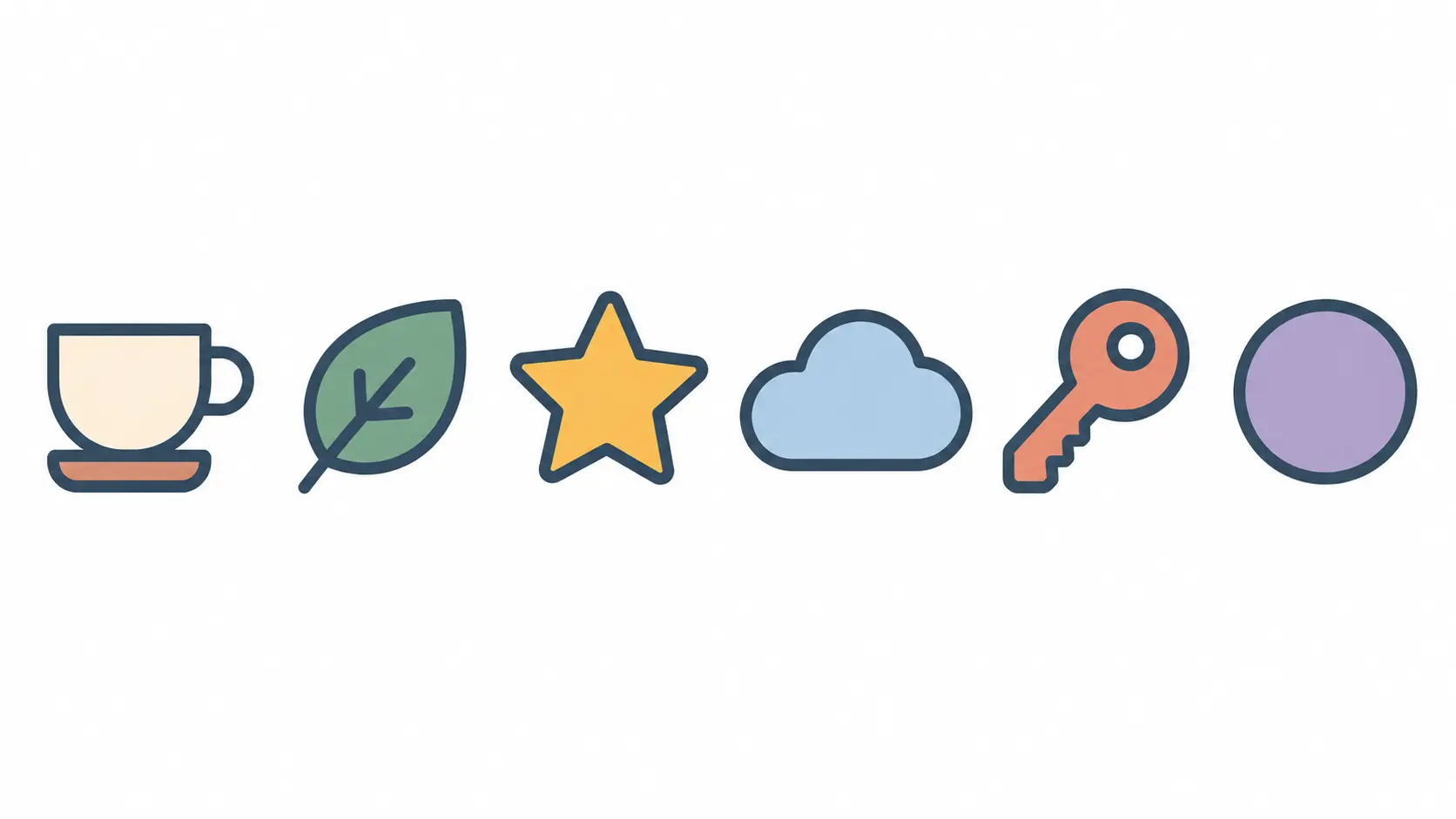
Once the first object looks right, reuse its palette, outline weight, and corner language for the rest of the set. A consistent set from one AI clipart generator looks intentional on a page, while mixed styles look collected from unrelated sources. Generate the remaining subjects one at a time and compare them side by side. Replace any shape that breaks the shared rules instead of forcing it into the layout.
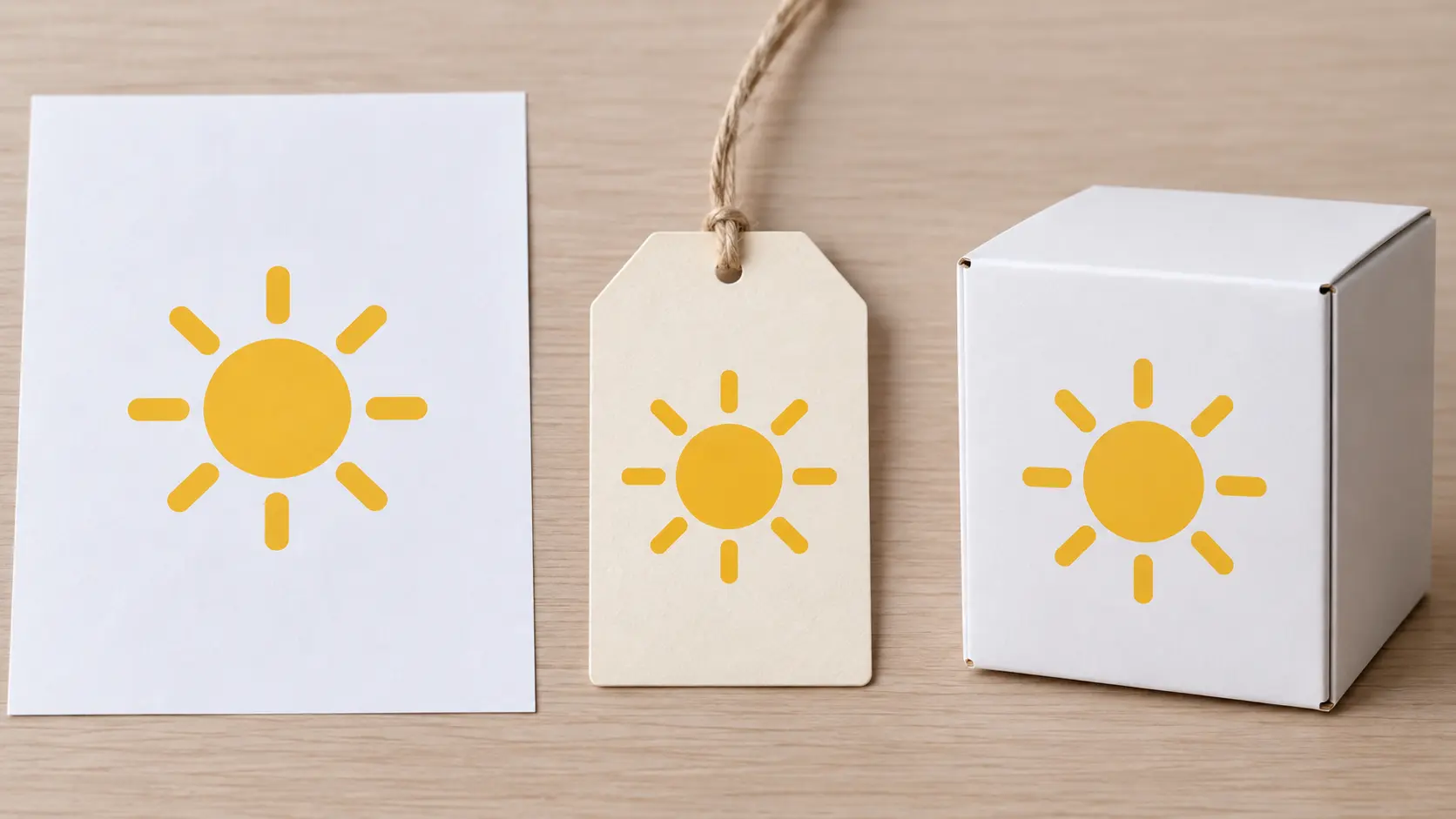
Check the shape against the background and size it will actually use. A plain background makes the outline easier to review, while a transparent or single-color version drops cleanly into a layout. If the object keeps an unwanted border or loses a thin detail, regenerate with a tighter description. This final AI clipart generator pass is what turns a promising image into something a template can actually use.
Three steps cover the whole path from a written idea to an AI clipart generator result you can place in a real document.
Step 01
Name the subject, outline weight, fill style, and background. An AI clipart generator also needs the intended size so the level of detail matches the destination.
Step 02
Let the AI clipart generator produce several candidates from the same brief in VideoAI, then compare how each shape holds up at small size. Keep the direction with the clearest silhouette and palette.
Step 03
Adjust one attribute at a time, ask the AI clipart generator to rebuild the family with the same rules, and export the version that fits the layout before placing it in the document.
Each use case starts with a real destination, so the shape, palette, and background are chosen for the place the artwork will land.
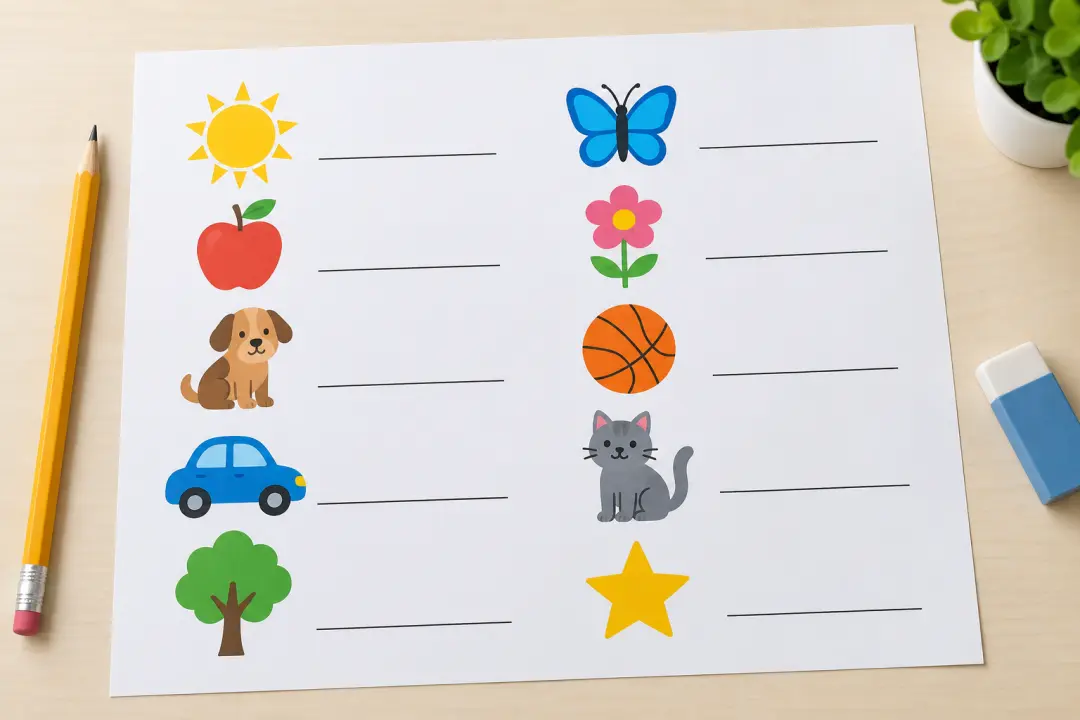
A teacher can generate simple objects for a reading passage, a math page, or a science handout. Ask the AI clipart generator for bold outlines so every shape stays legible after printing in black and white. Keep the same palette across the unit so the pages look related.
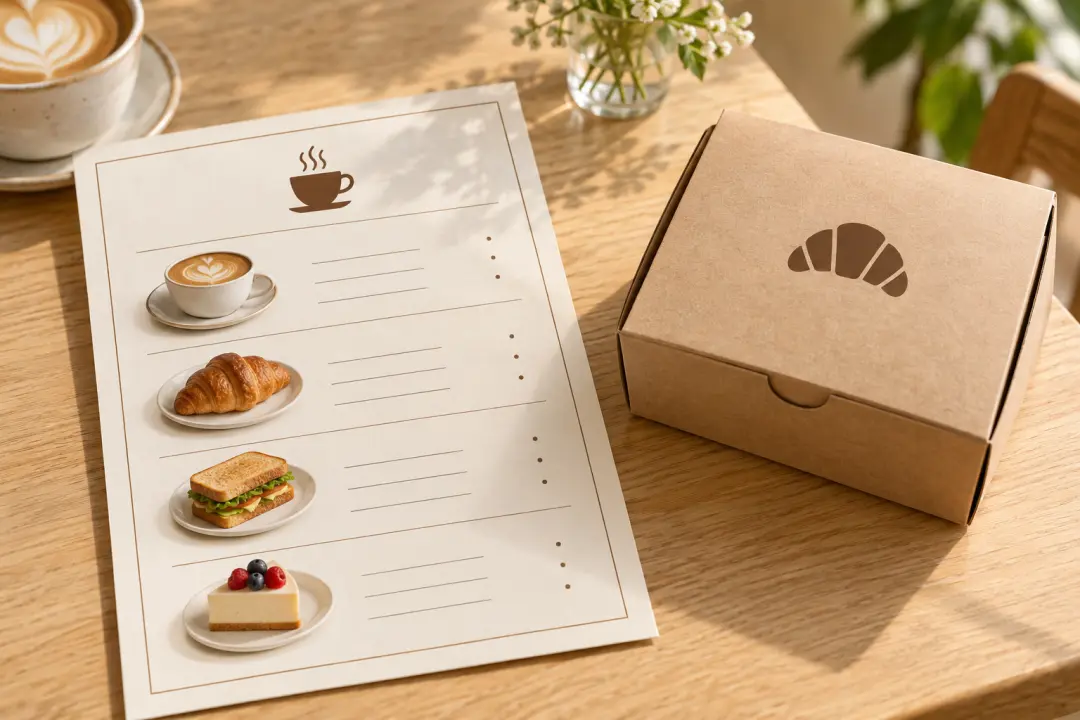
A cafe or small brand can build icons for menu categories, allergy notes, and packaging labels. Ask the AI clipart generator for flat shapes with a single accent color so the marks sit quietly beside type. Test the icon at the final print size before committing to the set.
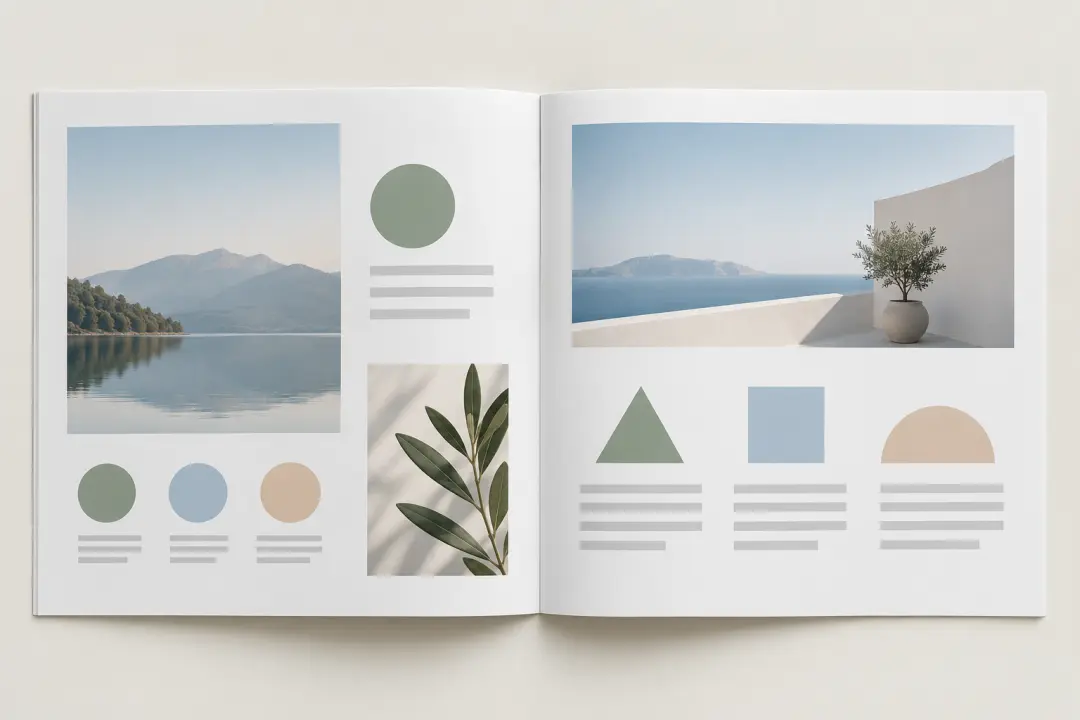
A presenter can produce a matching set of shapes for a deck cover, section dividers, and bullet accents. Generate one shape at a time with the same outline and palette rules, then place them where they support the message instead of decorating every slide.
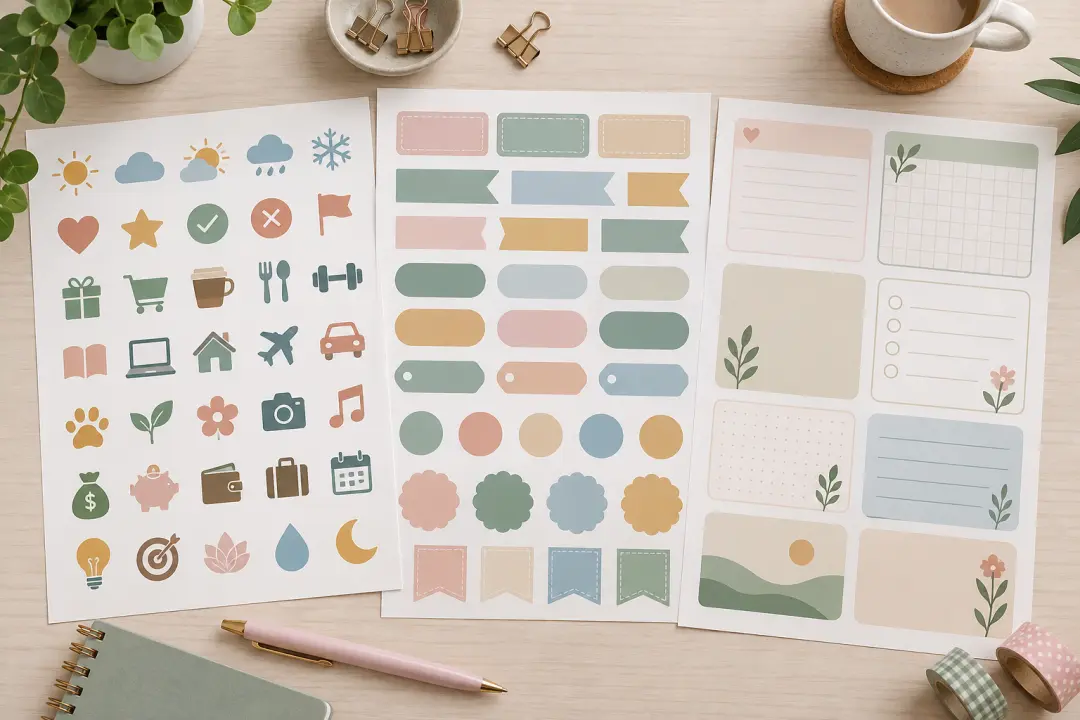
A template seller can assemble planner icons, label shapes, and journal elements into a themed pack. Start with the AI clipart generator for the first pass, then check that every shape shares a consistent line weight and background so buyers can combine them freely.
The workflow keeps the practical decisions close to the result, so a small graphic does not turn into a long production detour.
Generate a workable shape with the AI clipart generator in one pass, then spend the time on the one attribute that matters. This keeps routine graphics moving without lowering the bar for the final placement.
Reuse the palette, outline weight, and background rules from the AI clipart generator's first object. A shared visual language is what makes a generated set look deliberate.
Judge each AI clipart generator result at the size it will actually appear. A clean silhouette at thumbnail scale is usually worth more than a detailed illustration that disappears in print.
Describe one object, settle the outline and palette, then ask the AI clipart generator to build the rest of the family from the same rules.
Get Started