
Step 01
Choose a starting path
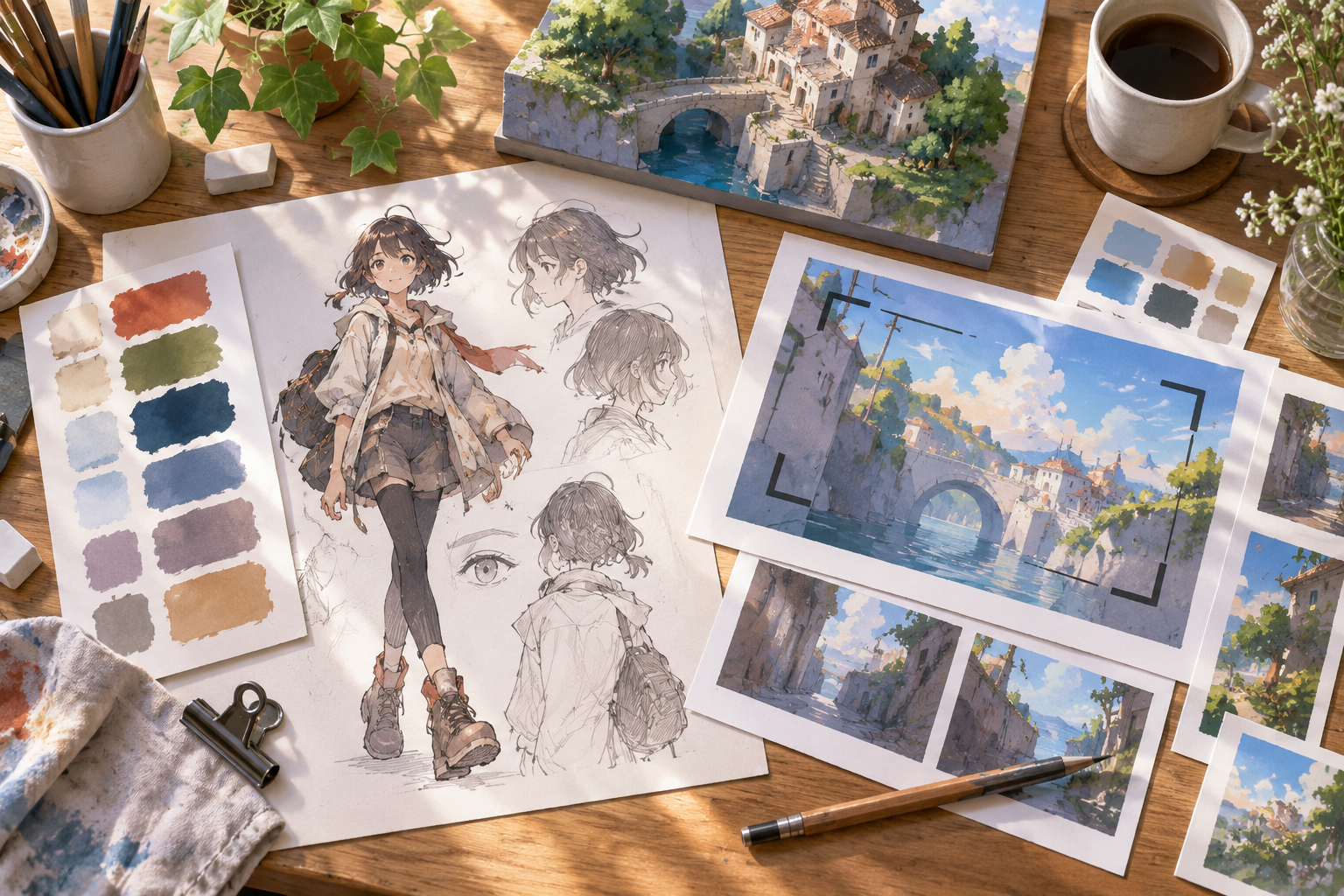
Pick a template, select a preset, or write the opening idea yourself. Describe the subject, visual direction, title treatment, and the kind of anime intro you want.

Anime styled channel openings
Use VideoAI to plan an anime intro maker project with scene timing, title text, logo placement, music, and export ratios under your control.

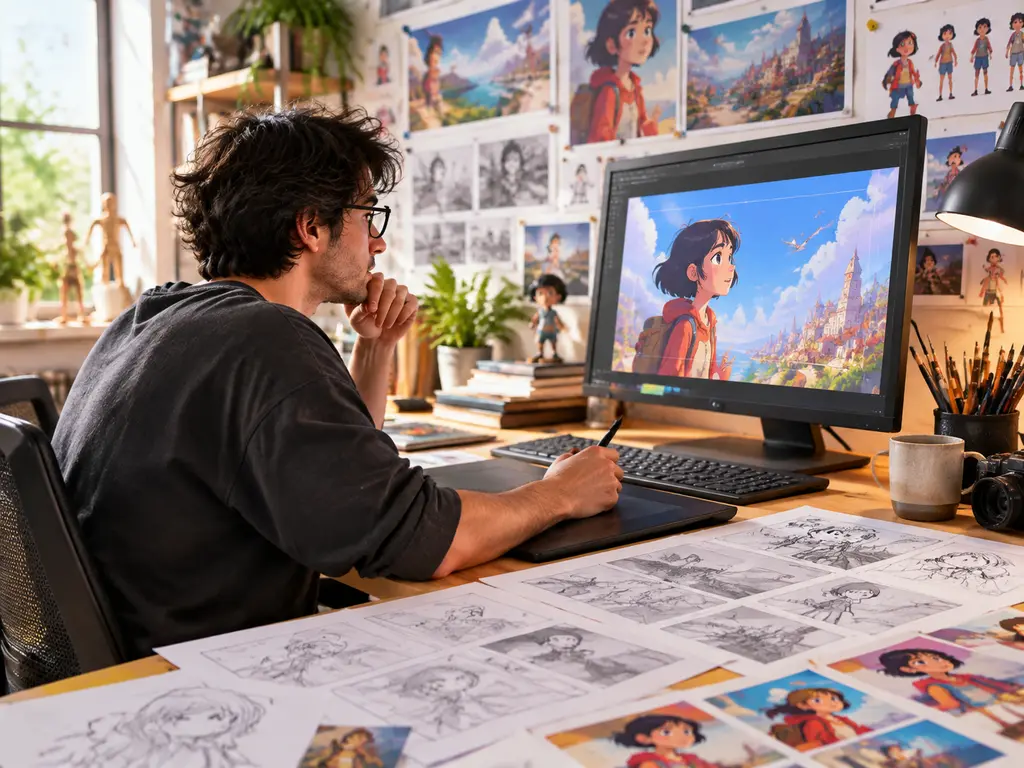
Set the title reveal, channel logo, and opening rhythm once, then keep refining the same anime intro maker project as your series style develops.

Start from a template or describe the opening from scratch, then use VideoAI to match the anime intro mood to the topic before export.

Bring logo, text, voice, music, and sound references into the workspace so each anime intro maker draft keeps the same visual and audio cues.
VideoAI gives creators practical control over what appears, when it appears, and how the anime intro moves from first frame to export.

Define each moment of the opening, including the scene, action, title text, and rhythm. The anime intro maker follows the structure you set instead of guessing the sequence.
Begin with a video template, choose a preset, or describe the anime intro from scratch. VideoAI uses that starting point to generate the planned opening.

Add your logo, on screen wording, voiceover, background music, and sound effect references, then assign their purpose with @ so the anime intro maker places them clearly.

Review the generated opening, then ask for text based changes while keeping the work as a new starting point. VideoAI supports repeated creative passes.
Move from idea to export by giving VideoAI the creative materials, timing choices, and ratio decision that shape the final intro.
Step 01
Pick a template, select a preset, or write the opening idea yourself. Describe the subject, visual direction, title treatment, and the kind of anime intro you want.
Step 02
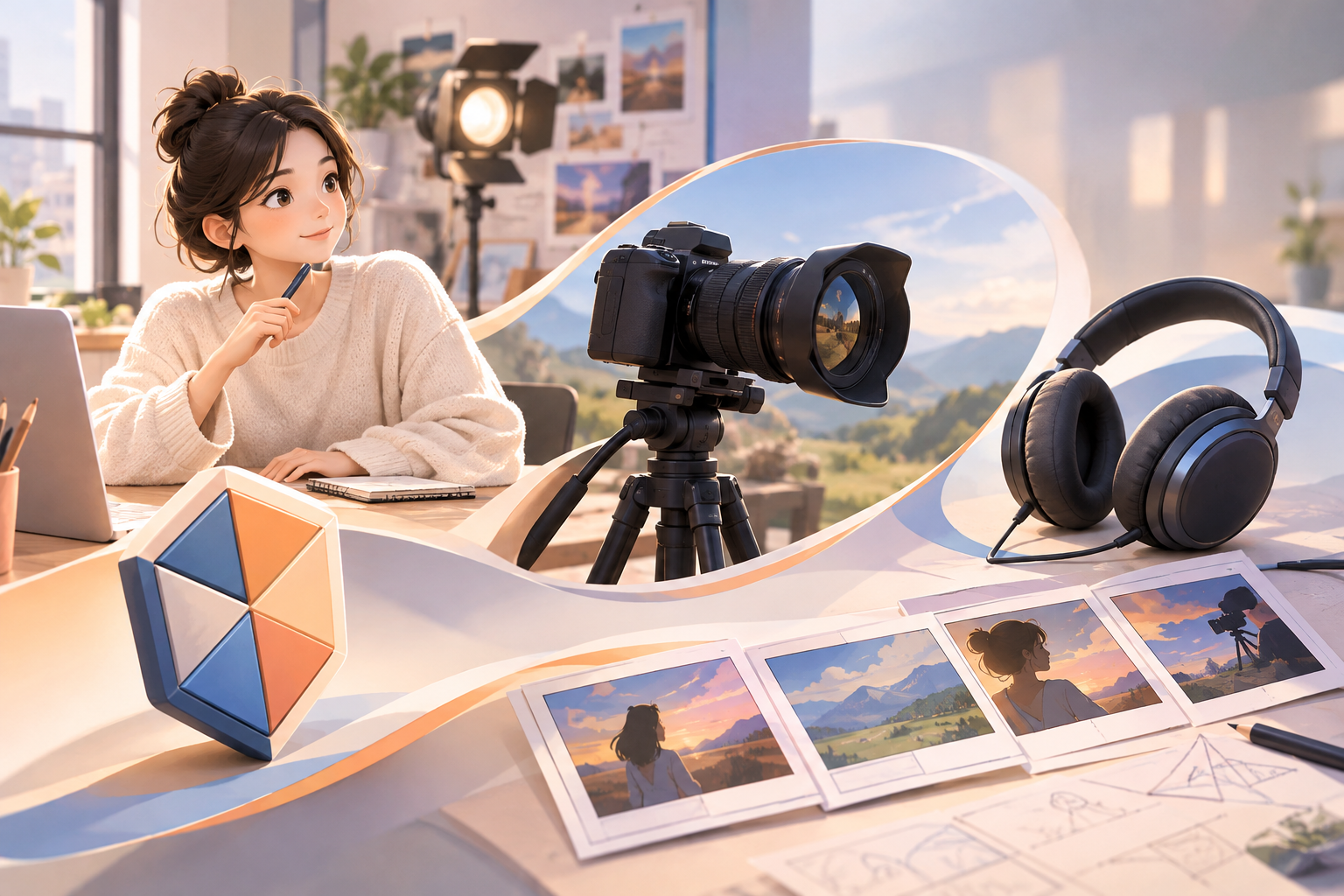
Upload reference images, video, logo, music, sound, or narration, then use @ to state each purpose. Arrange the opening by seconds so VideoAI knows the intended order.
Step 03
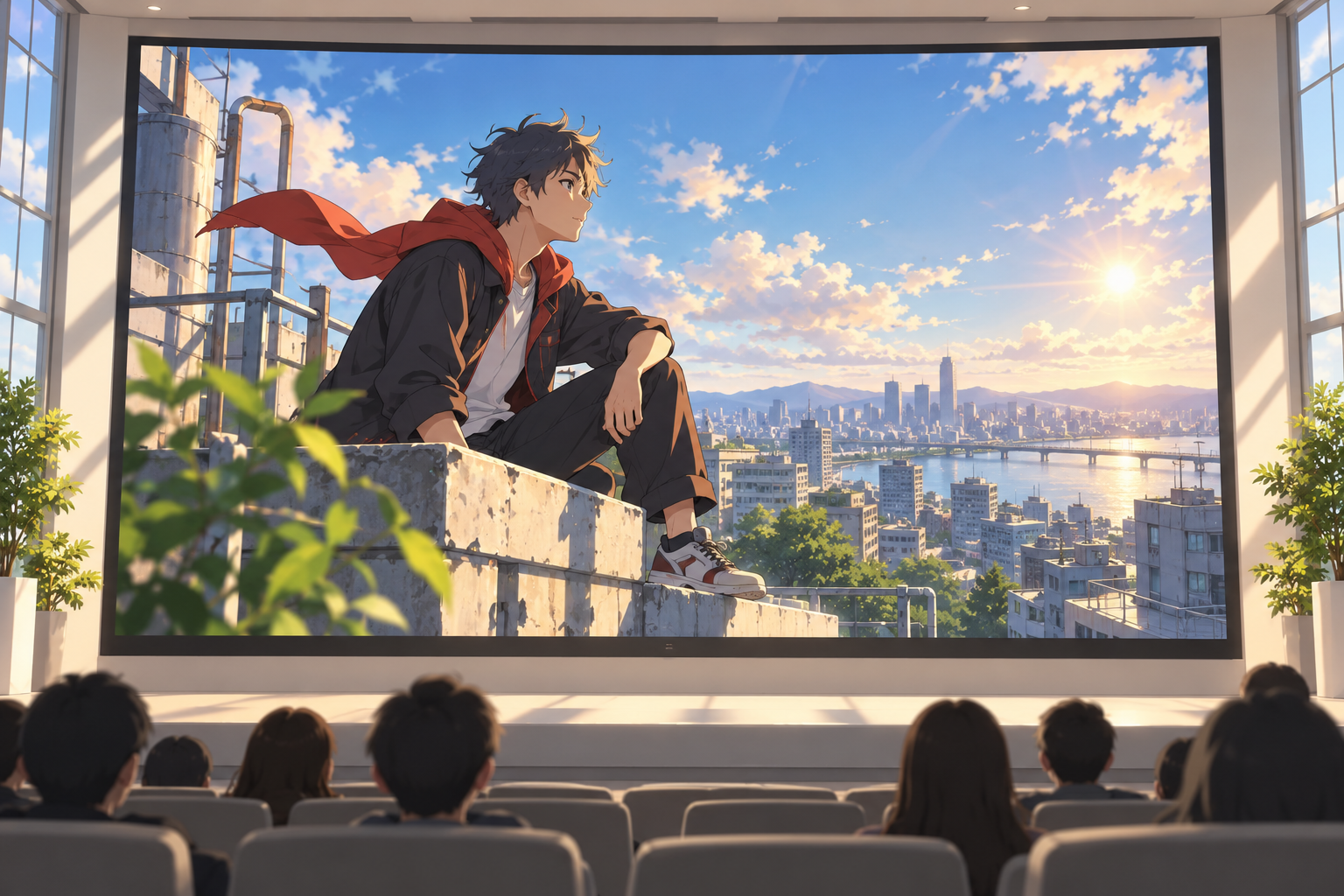
Check the generated result, request text instructions for changes, then choose 16:9, 9:16, 1:1, or 4:5 for the target placement and export with no watermark.
Use the anime intro maker when the opening needs a clear title, recognizable assets, and a rhythm that suits the video destination.
A channel needs the same recognizable start across new episodes. Build the logo reveal, title text, and music cue in VideoAI, then keep the work available as an iteration base.
A social video has little time to orient the viewer. Use an anime intro maker layout to show the theme, pace the first action, and export in the ratio the placement requires.
A tutorial or commentary video should introduce the subject without crowding the main content. Plan a short title moment, add supporting music, and preview before export.
A small team can reuse logo, text, and audio references across related videos. VideoAI helps keep those cues present while each anime intro matches its own topic.

Plan the opening, assign your materials, preview the result, and export an anime intro with no watermark.
Get Started