

Step 01
Describe the Lesson Opening
Write the course name, chapter title, and opening tone. Add a visual request so VideoAI can shape the first scene around the teaching goal.

Course intros with clear direction
Create a clear opening for a course, tutorial, or explainer with VideoAI while you control the titles, visuals, logo, narration, and pacing.

VideoAI turns your chosen references and timing plan into an opening you can review, revise, and reuse.

Set course and chapter titles alongside the visual direction for each scene. VideoAI brings the text and imagery together so learners understand the lesson context at the start.

Choose the seconds for each shot, then arrange motion, text, music, and rhythm around the teaching point. Your timing plan gives the opening a deliberate pace.

Begin with a template, select a preset, or describe your own storyboard from the ground up. Each route lets you decide how the opening should look and move.
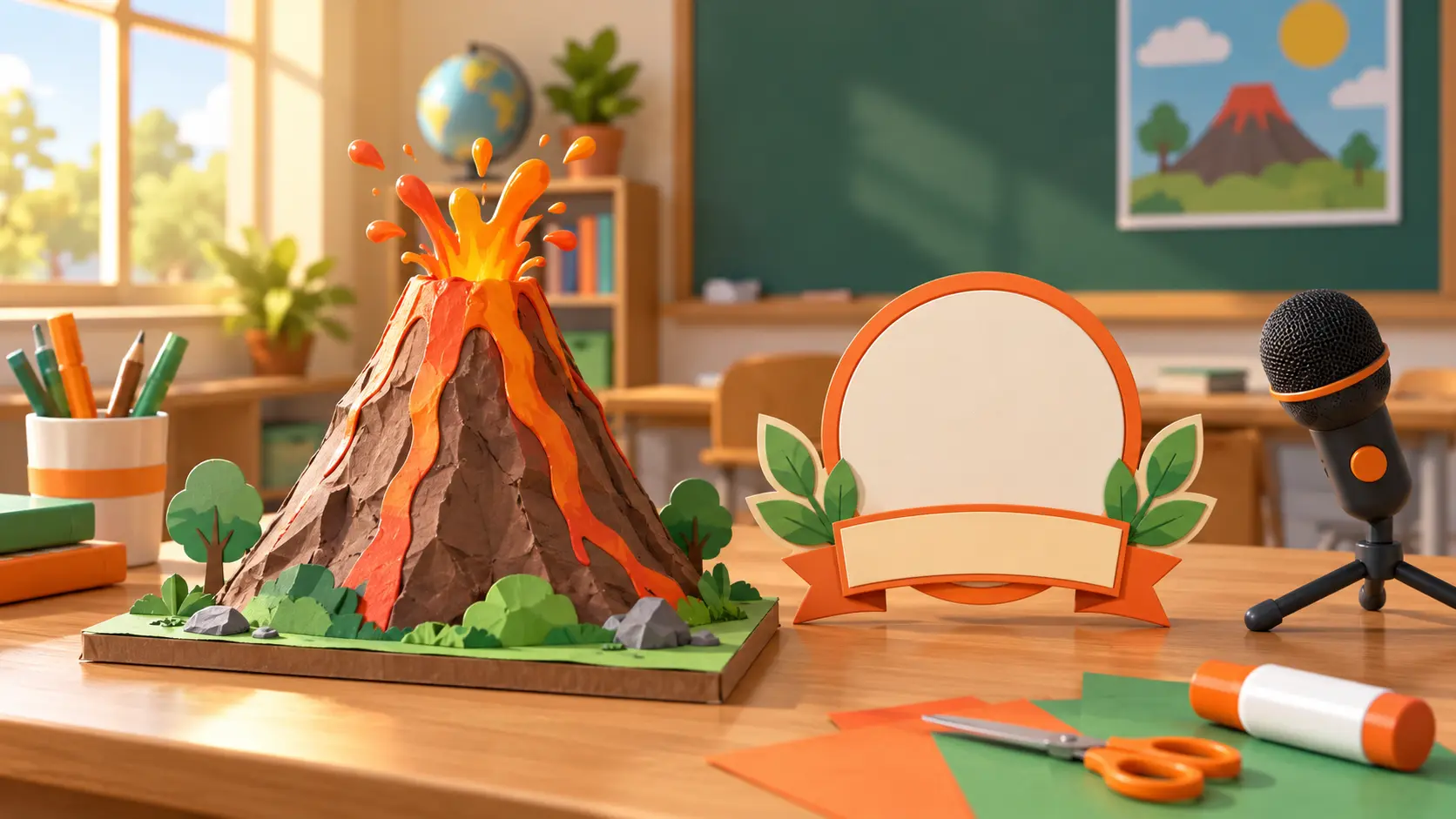
Add a logo, on screen text, voiceover, background music, and sound effect references. These inputs help shape an introduction that matches the lesson and its identity.
Move from the lesson idea to a timed preview by giving VideoAI the content, references, and decisions that define the opening.
Step 01
Write the course name, chapter title, and opening tone. Add a visual request so VideoAI can shape the first scene around the teaching goal.

Step 02
Upload a logo, reference image, reference video, music, or voiceover, then use @ to set each item’s purpose in the workspace.

Step 03
Arrange seconds, titles, visuals, motion, and audio, generate a preview, refine it with a text instruction, then choose 16:9, 9:16, 1:1, or 4:5 and export. Each video can run up to 30 seconds and continue as an extension.
Give every opening a defined purpose, from naming the lesson to setting the visual and audio context.
When an online lesson needs a quick sense of place, set the course and chapter titles, choose the opening rhythm, and export a consistent introduction that prepares learners.
If a tutorial creator wants viewers to understand the topic before the first instruction, build the opening from a template or storyboard and keep the visual context visible.
When a training team needs the program name and project mark on every lesson, add the logo, title, and voiceover references for a recognizable starting point.
One campaign needs a course version and a social preview. Plan the same message for 16:9 and 9:16, then export each placement with its own frame and pacing.

Online course teachers can set the course name, chapter title, and opening tone, then shape a repeatable introduction that gives learners context before the lesson begins.

YouTube tutorial creators can combine a reference image, video, voiceover, and music with timed text to set the subject before the explanation starts.

Small training teams can reuse a logo, audio, or reference material across introductions, then refine each generated video with a text instruction.

Bring your topic, references, and timing plan into VideoAI, then preview the opening and refine it before export.
Get Started