From Brief to Finished Visual

Image Design Maker

The image design maker turns a written brief into a finished visual you can review, refine, and export. Describe the layout, the message, and the mood, then add a logo, a product image, or a color reference when the result needs to match a brand. This image design maker workflow is built for posters, banners, covers, brand graphics, and print-on-demand art, so you can move from a rough idea to a presentable design image without starting from a blank canvas.

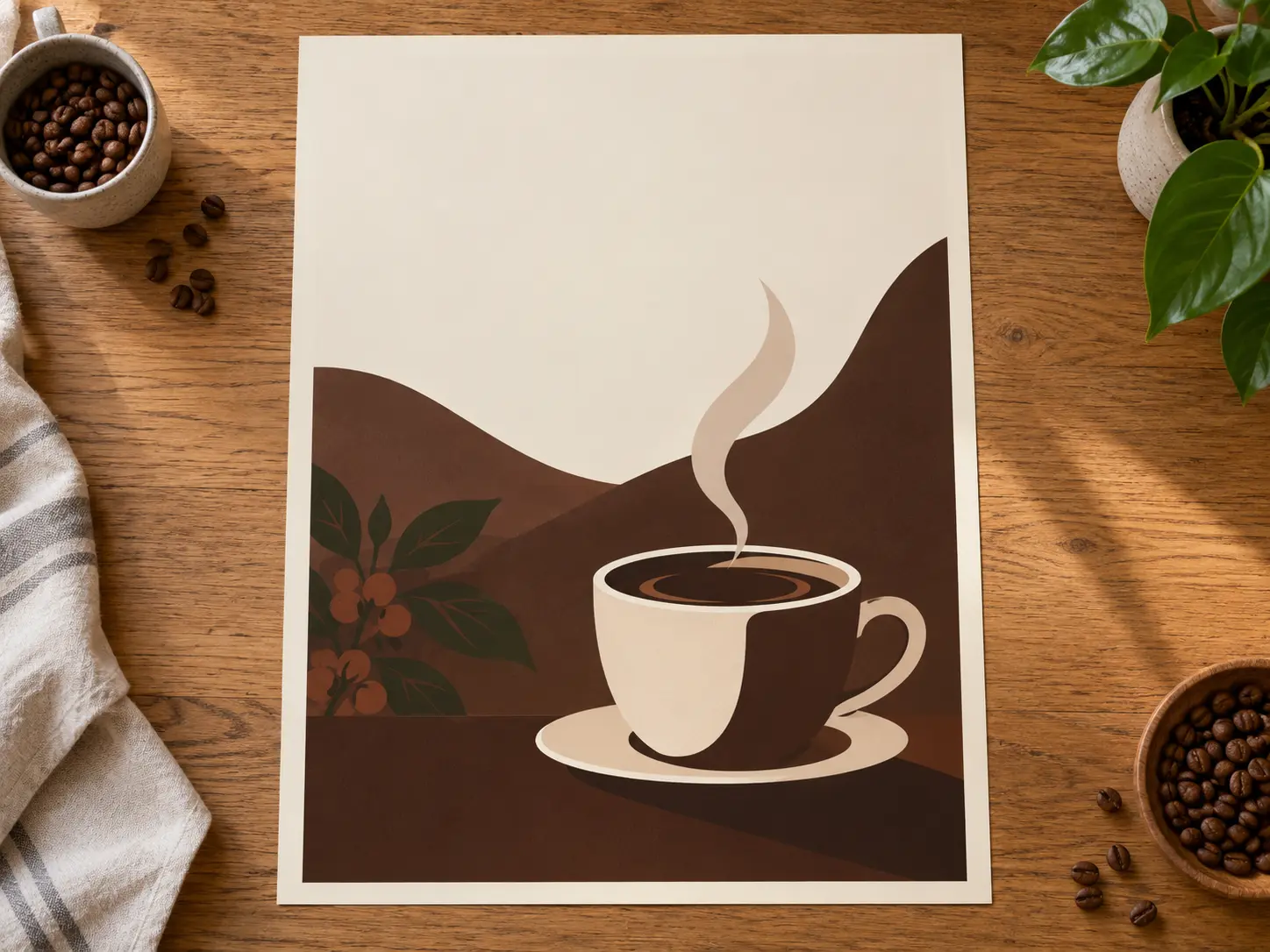
AI image design tool output showing a finished brand poster with a warm coffee palette and a clean layout

What the Image Design Maker Helps You Control

Three practical decisions shape a usable design image: how clearly the brief becomes a layout, how closely the result fits a brand, and how much control you keep over the background and export.

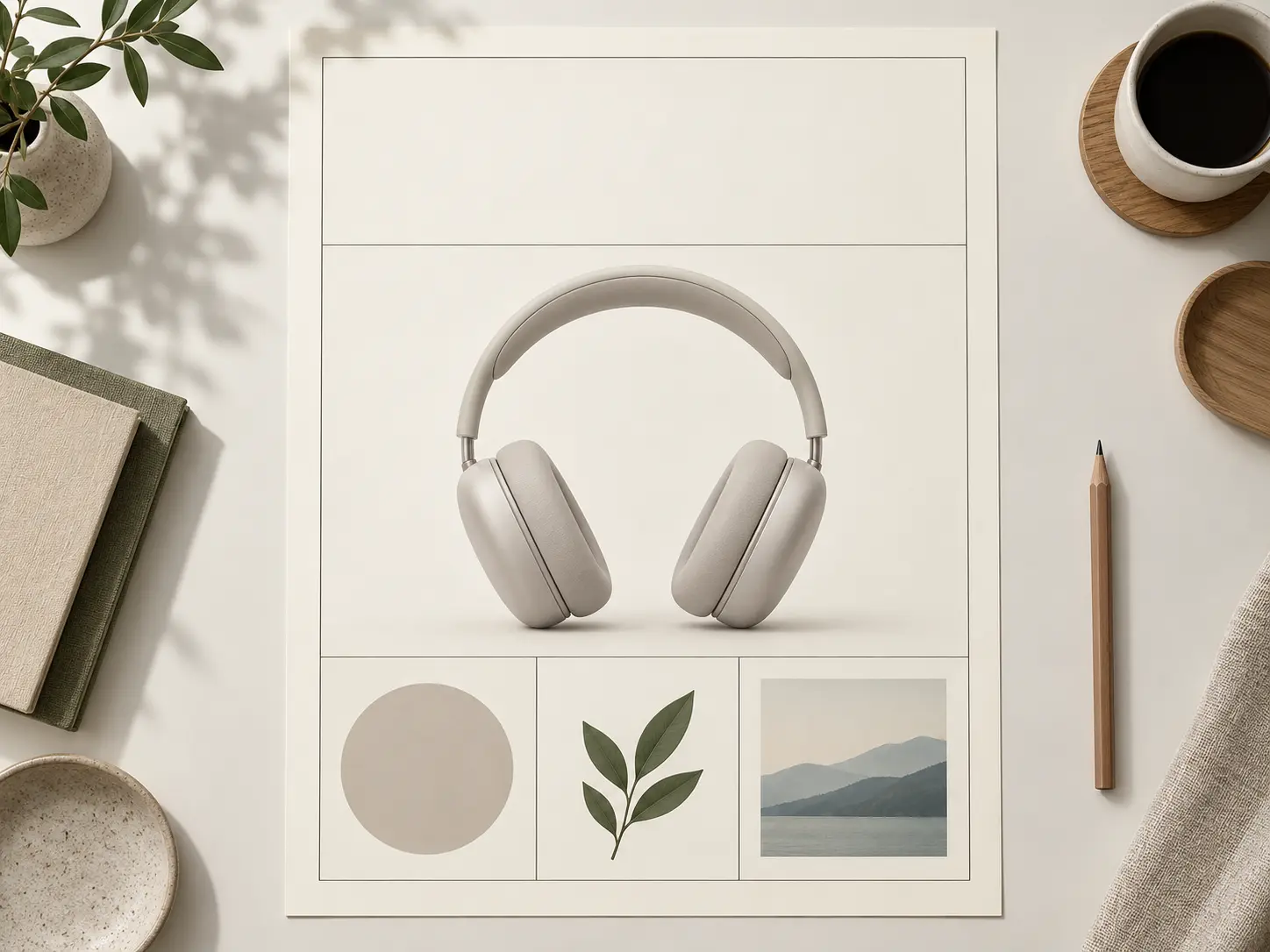
Design brief turning into a structured poster layout with clear headline space and a product area

Turn a Brief Into a Layout

Start with the job the visual has to do. Say whether it is a poster, a cover, a banner, or a promo graphic, then describe where the main subject, the message, and the empty space should sit. The image design maker reads that brief as a composition rather than a single object, so it can place a headline zone above a product, keep a logo clear of busy texture, and hold a clean margin for text you will add later. Review the layout at thumbnail size first, because a strong structure should read before any small detail does.

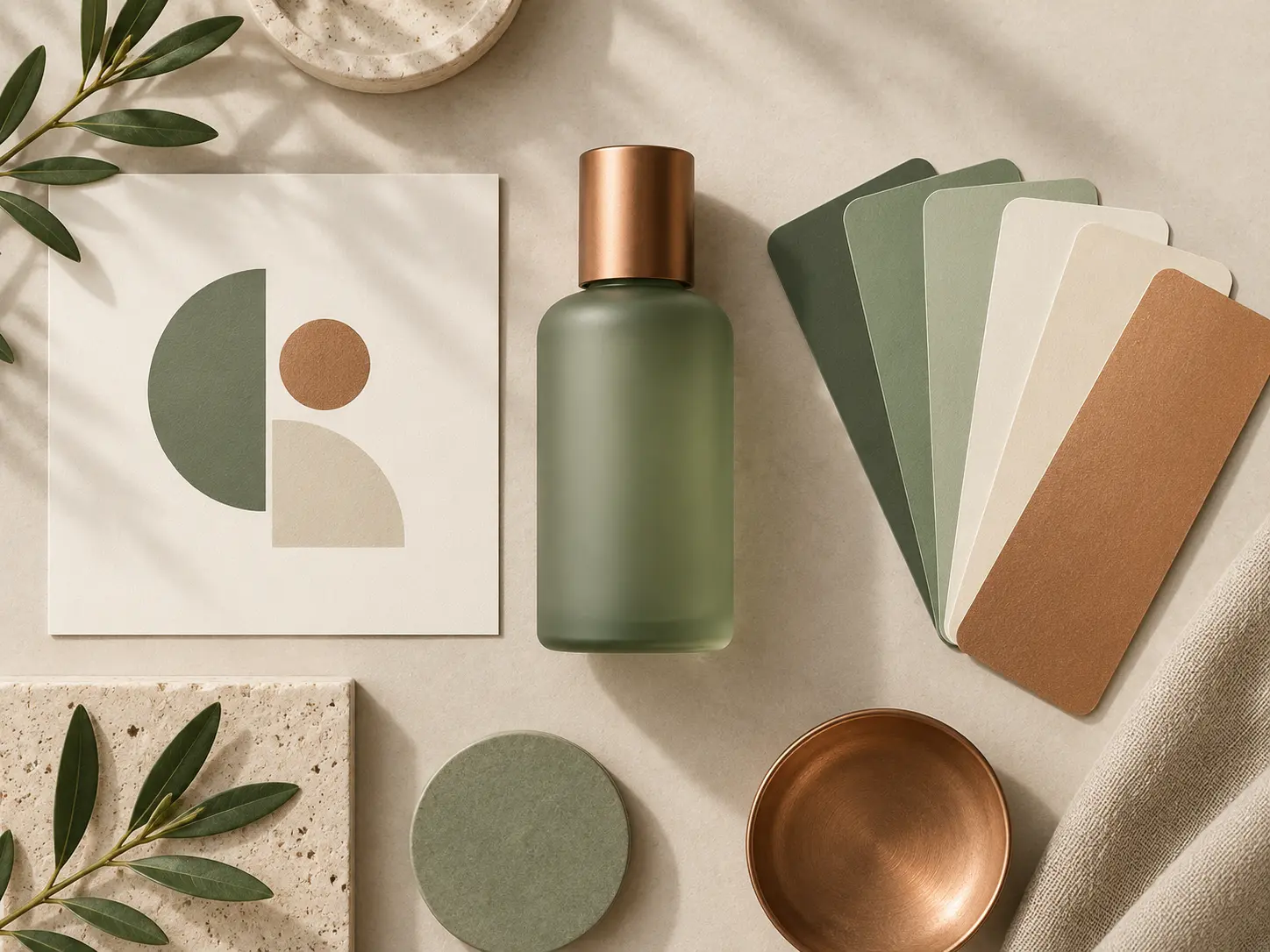
AI picture design workflow using a logo, product photo, and color reference to keep a layout on brand

Match Brand Colors and References

Upload a logo, a product photo, or a mood board when the design needs to sit inside an existing brand. Reference images help the image design maker hold the palette, the lighting, and the general tone steady, so several visuals can belong to the same campaign. Describe the exact color direction in words as well, for example soft sage and warm cream or deep navy and copper, and keep the description consistent across the set. This is how a small team produces a coordinated batch instead of a group of unrelated pictures.

Design image with a controlled plain background next to export and aspect ratio options

Control Background and Export

The background often decides whether a design is usable. Ask the image design maker for a plain studio backdrop when text has to stay readable, a transparent-style cutout when the image will be placed on a product, or a scene when the graphic needs depth. Keep the main subject clear of the frame edge so the layout still works after cropping. When the direction looks right, choose the aspect ratio closest to the final placement, then export and drop the result into a social post, a print layout, or a print-on-demand mockup.

How Image Design With AI Works

The image design maker workflow stays practical: write the brief, generate and compare directions, then refine one detail and export the version you need.

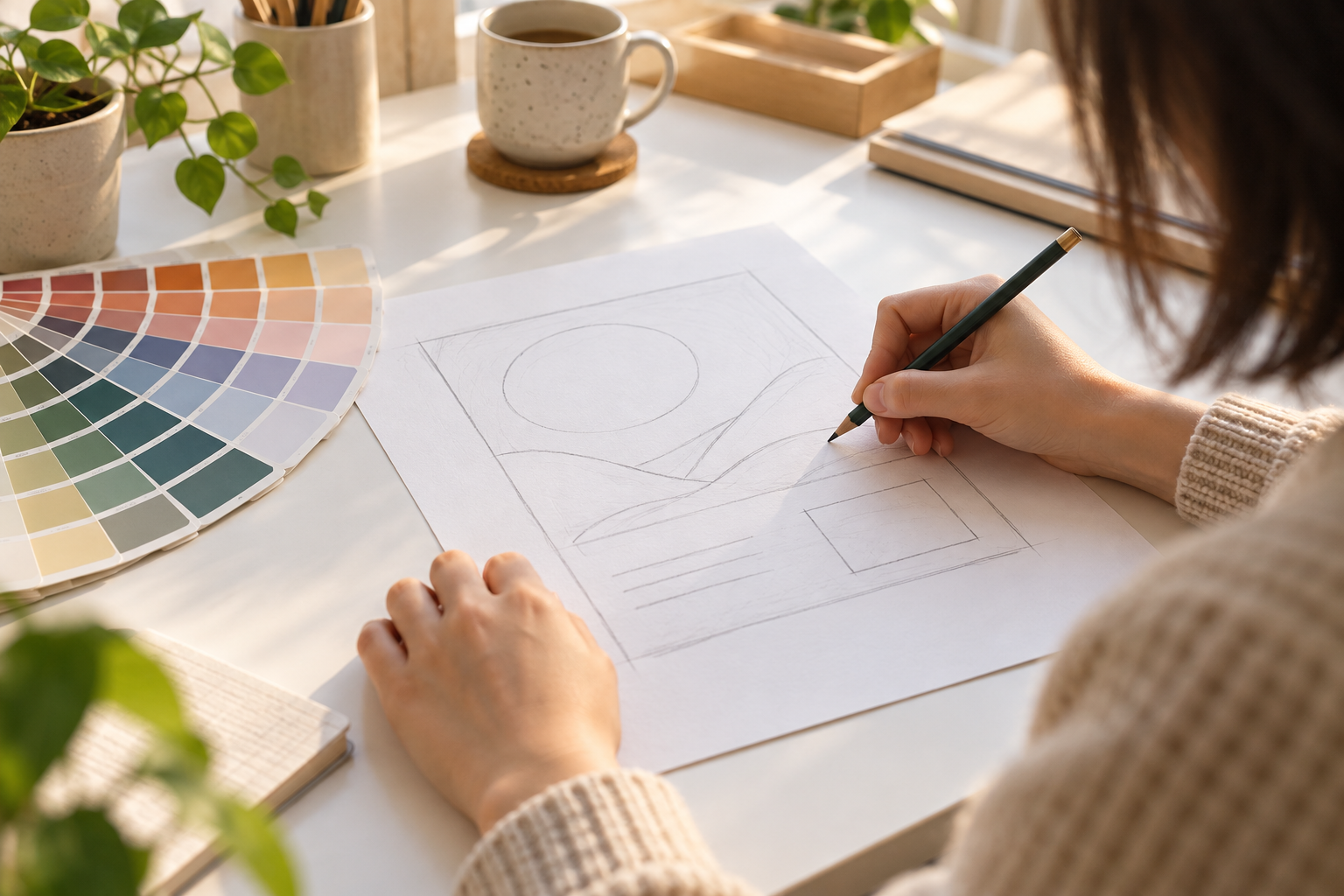
Designer writing an image design brief with a layout sketch and color swatches

Step 01

Write the Design Brief

Name the deliverable, the audience, the message, and the mood. Add the palette, the layout idea, and any logo or reference, then choose the aspect ratio closest to the final use, and let the image design maker turn that brief into a first layout.
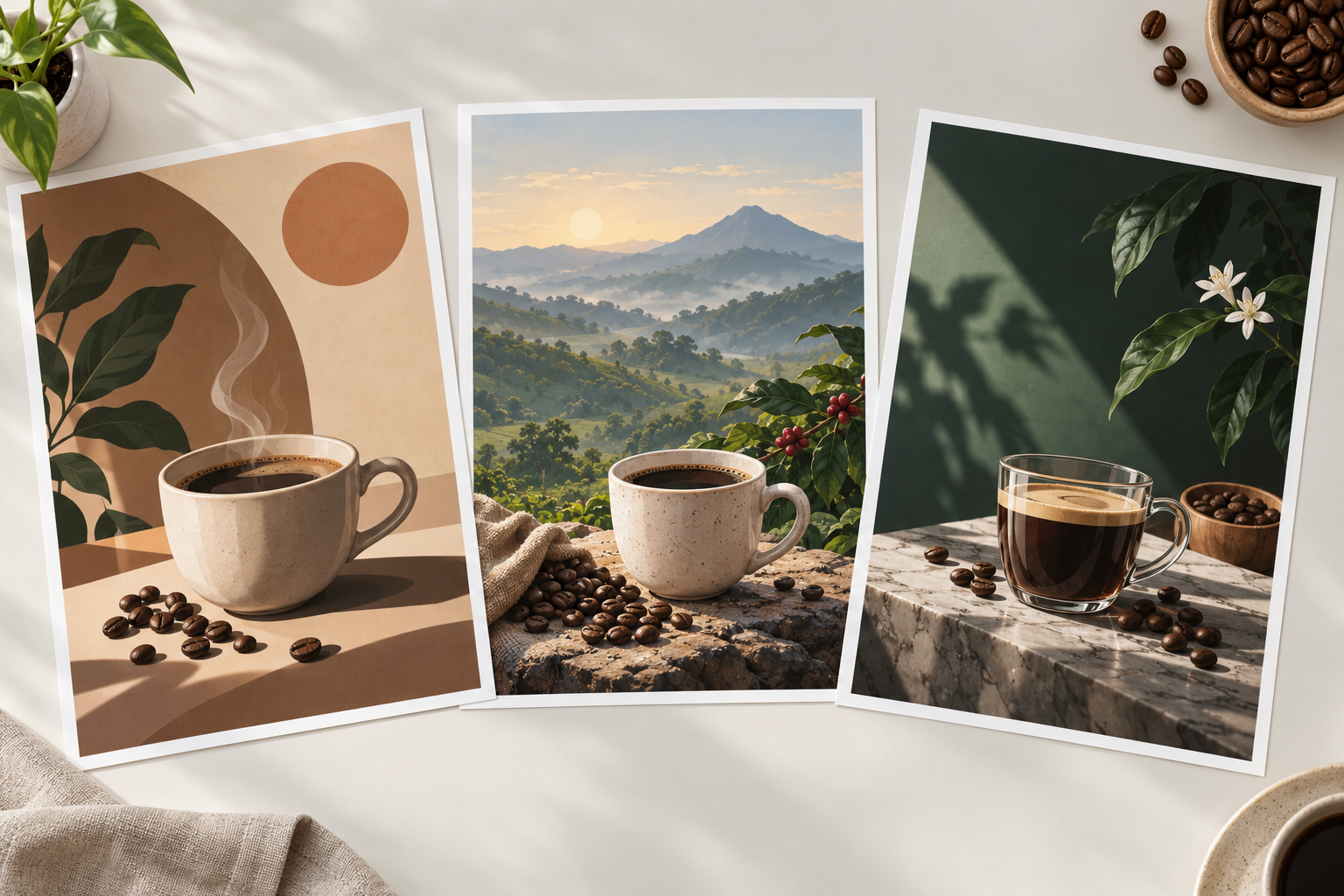
Comparing several AI image design directions side by side before choosing one

Step 02

Generate and Compare

Create a few image design directions and judge them at full size. Check the composition, the contrast, and the empty space first, then look at the smaller details before you choose a direction to keep.

Refining a design image layout and exporting the finished graphic

Step 03

Refine and Export

Change one thing at a time, such as the headline area, the background, or the palette, until the layout works. When the design reads clearly, export the finished image in the format you need.

Where Image Design Fits

Use the image design maker whenever a clear visual will carry the message better than a paragraph, or when a campaign needs several graphics that still feel related.

Promo and Launch Graphics

Design a poster, a launch banner, or a sale graphic with a strong focal point and clear space for the headline you will add later.

Brand Visuals and Lockups

Turn a logo, a product shot, and a color direction into a brand-consistent visual for a website banner, a profile, or a pitch deck.

Print-on-Demand Art

Create art for shirts, cards, and posters, then keep the composition and background simple so it reproduces cleanly on a product.

Social and Cover Images

Produce a coordinated set of covers and post graphics by holding one palette and swapping only the subject or the format.

FAQ

Image Design FAQ

You can create posters, launch banners, covers, promo graphics, brand visuals, and print-on-demand art from a written image design brief. The output is a still design image, not an editable template file, so use it as a finished graphic or as a strong visual direction. If you need a specific deliverable such as a logo or a business card, the related design tools on this site cover those narrower jobs.

Yes. Add a logo, a product photo, or a color reference to the brief, and describe the palette in words as well. An image design maker holds those references steadier when several visuals have to belong to one campaign. Keep the color direction identical across the batch, then change only the subject or the format so the set still reads as one brand.

You can ask for a plain studio backdrop, a solid color, or a clean cutout style that is easy to place on another surface. Describe the background separately from the main subject so it stays simple. If a graphic will be layered over another image or added to a product mockup, keep the edges clean and leave a margin around the subject.

The workflow produces a finished raster image rather than a layered source file, so plan for the final use before you generate. Choose the aspect ratio closest to the destination, then add exact text in a separate layout tool when it must stay perfectly legible. This keeps the generated image as a strong visual base while the precise typography stays under your control.

VideoAI offers a free tier with limited generations so you can test the brief before you commit. Start with one clear direction, check the composition and palette, then generate a refined version once the layout works. For heavier use or advanced options, review the plans available on the platform.
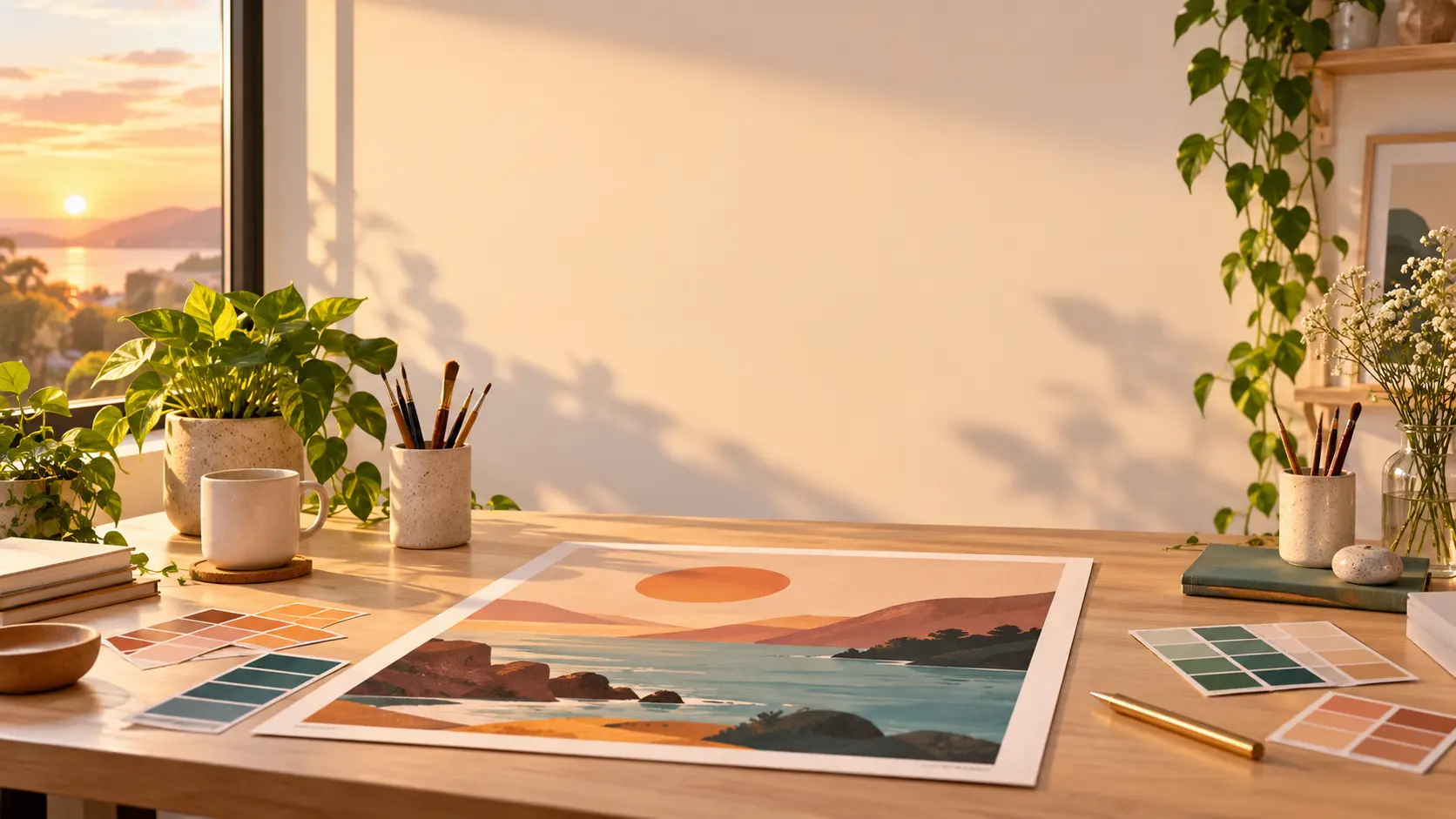
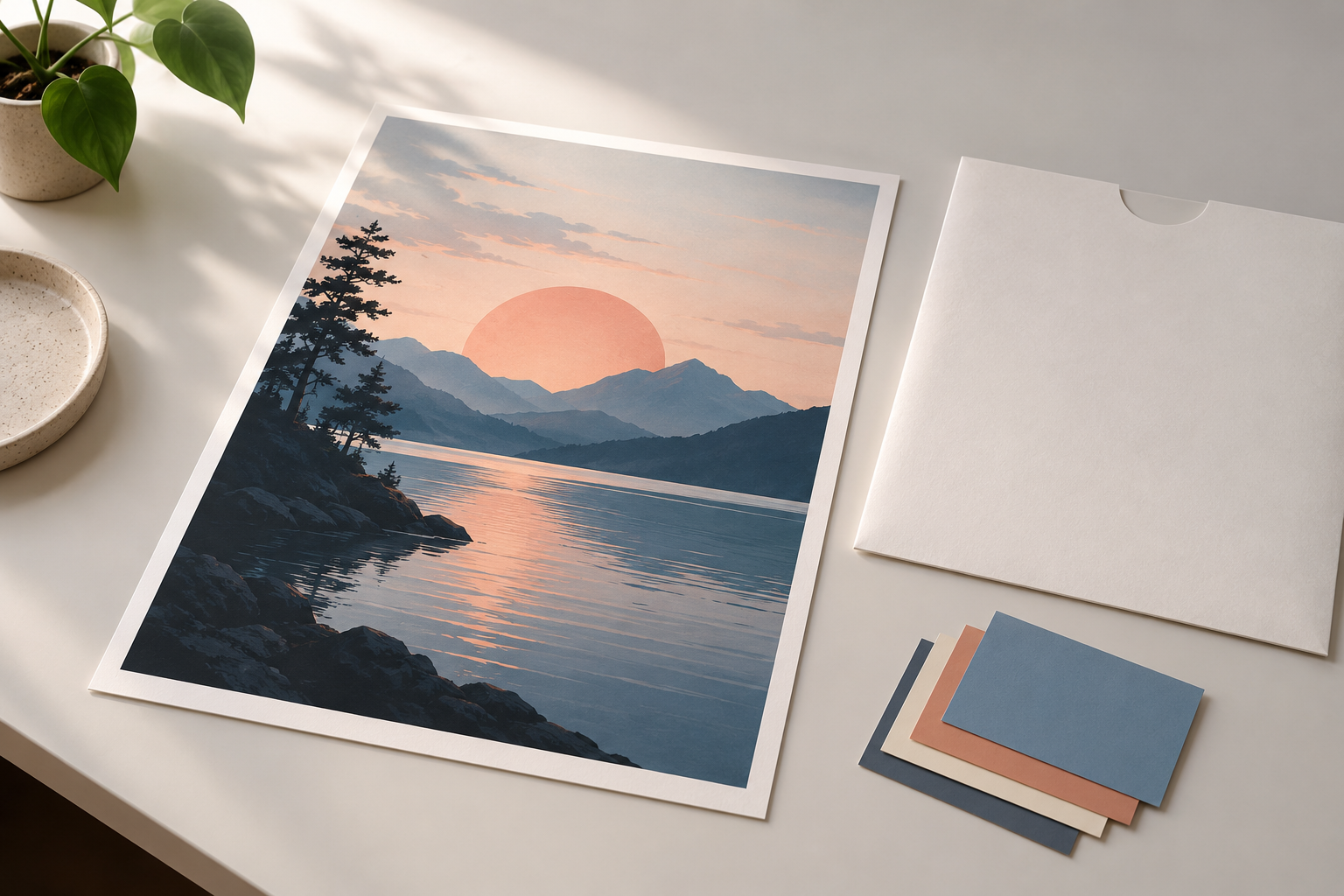
Clean design workspace with a finished poster and color swatches at golden hour

Turn Your Next Brief Into a Design Image

Describe the layout, add a logo or reference, and export a finished visual for your campaign, cover, or product.

Get Started
Image Design Maker | Create Posters, Logos & Graphics