Step 01
Give the ai thumbnail maker something to work from
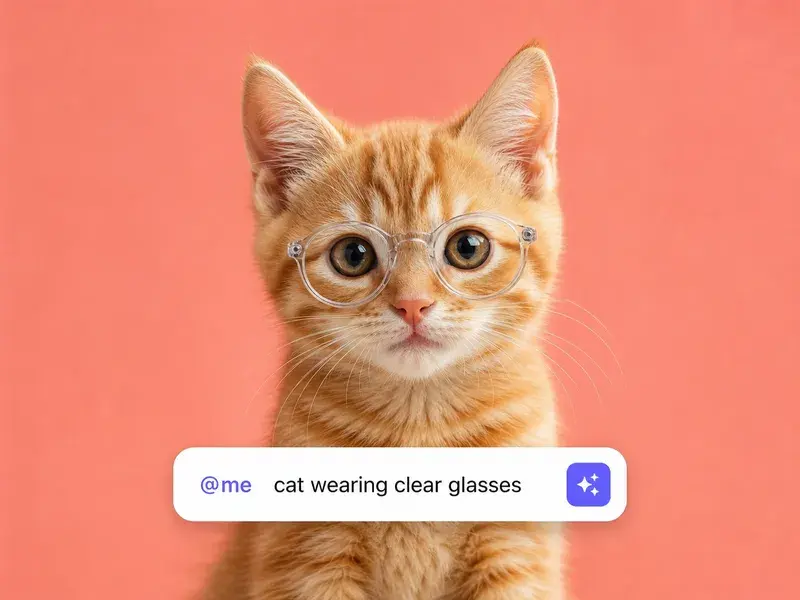
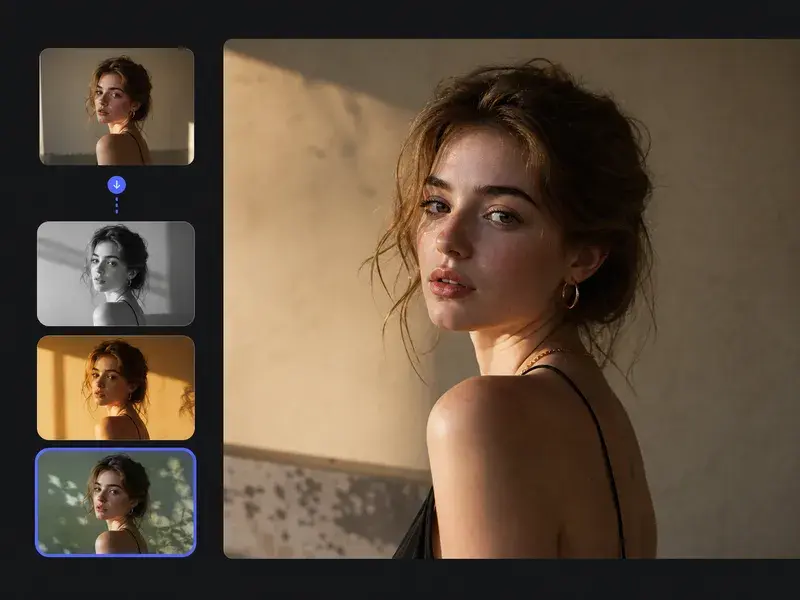
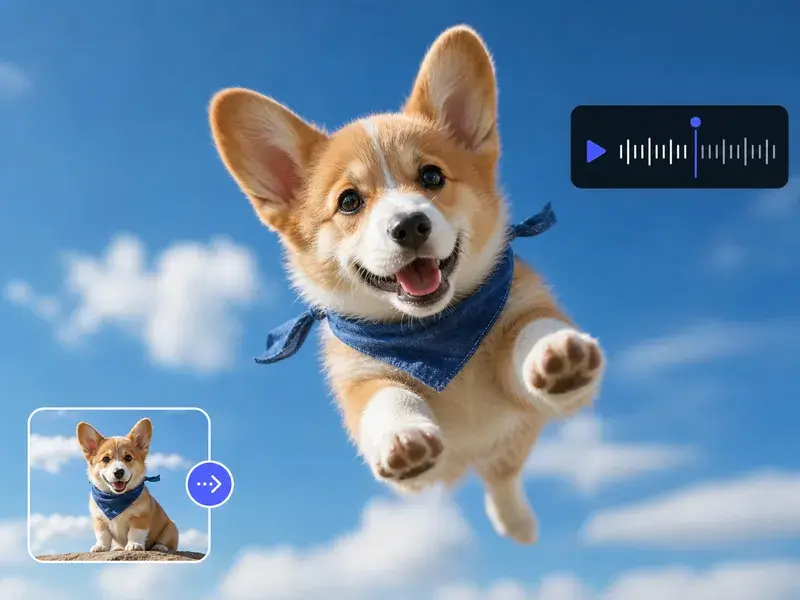
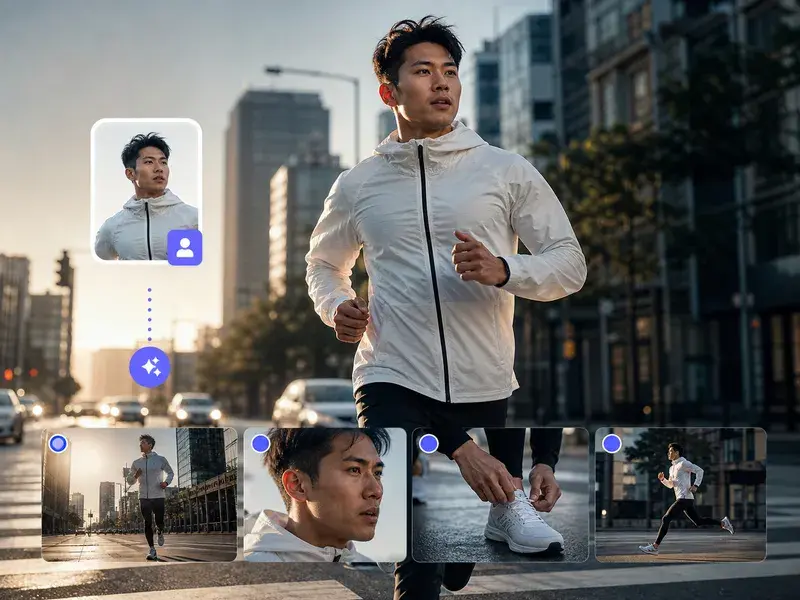
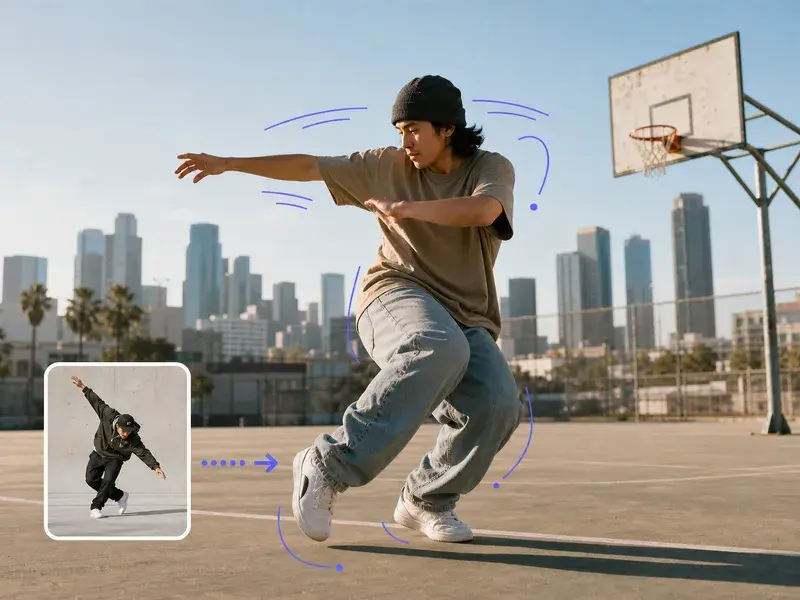
Choose one of the starting points: write a prompt naming the subject, the background and the exact headline words, upload a selfie or reference frame to steer style and composition, or select a preset style outright. You can also upload your channel logo so it can be worked into the design. Being specific about the headline copy matters most, since those words are drawn into the image.
Step 02
Let VideoAI generate the frame
The ai thumbnail maker generates the cover from what you supplied, with the headline rendered into the picture and your logo and brand colors carried into the design. Nothing is assembled from a stock layout, so a second run with an adjusted prompt gives you a genuinely different frame rather than the same template with new colors.
Step 03
Adjust, then download what you keep
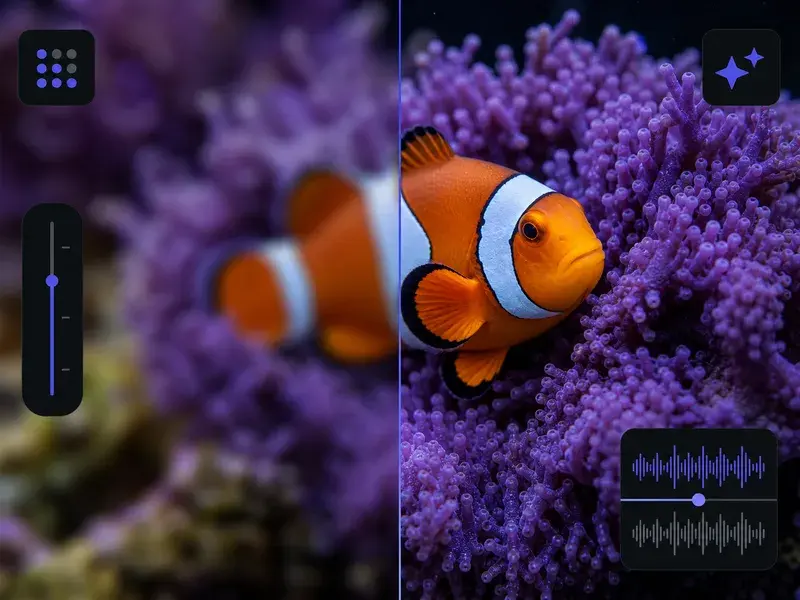
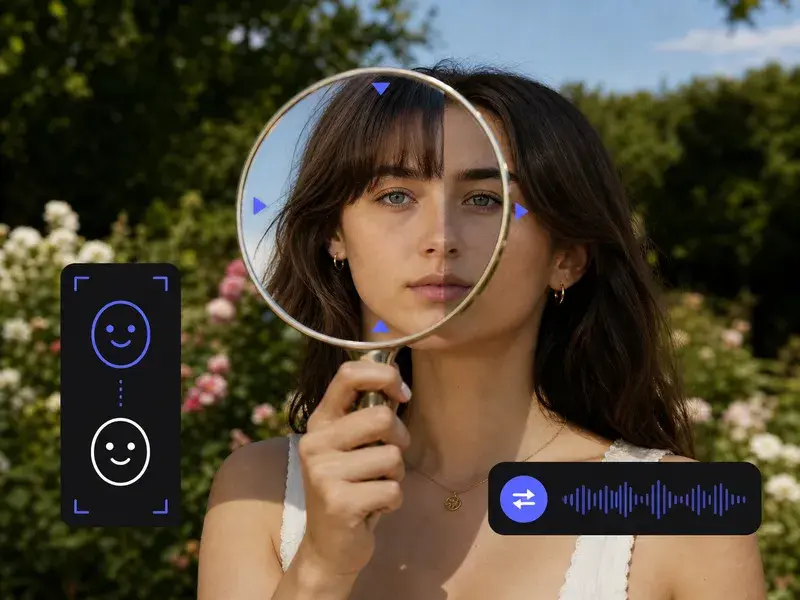
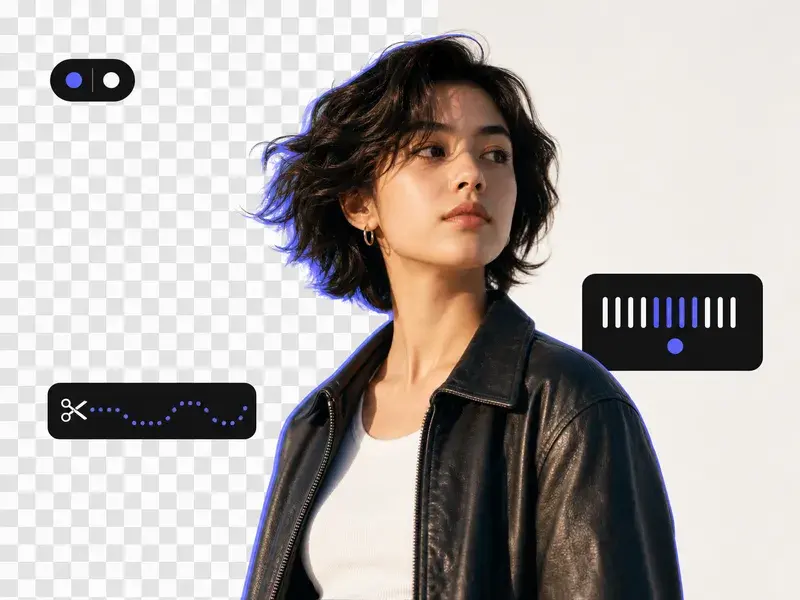
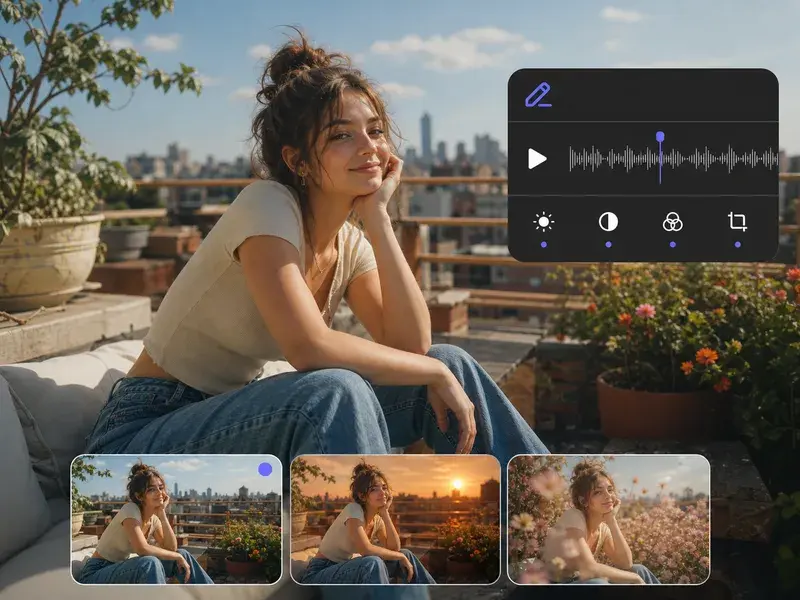
Open the ai thumbnail maker result in the visual editor to change wording, fonts, colors or the arrangement of elements. If you need the subject on its own, one click removes the background and exports a transparent PNG you can place over any backdrop. Covers from the generation path download at up to 4K, and every file you keep is saved in your workspace for later reuse.