
AI Background Remover

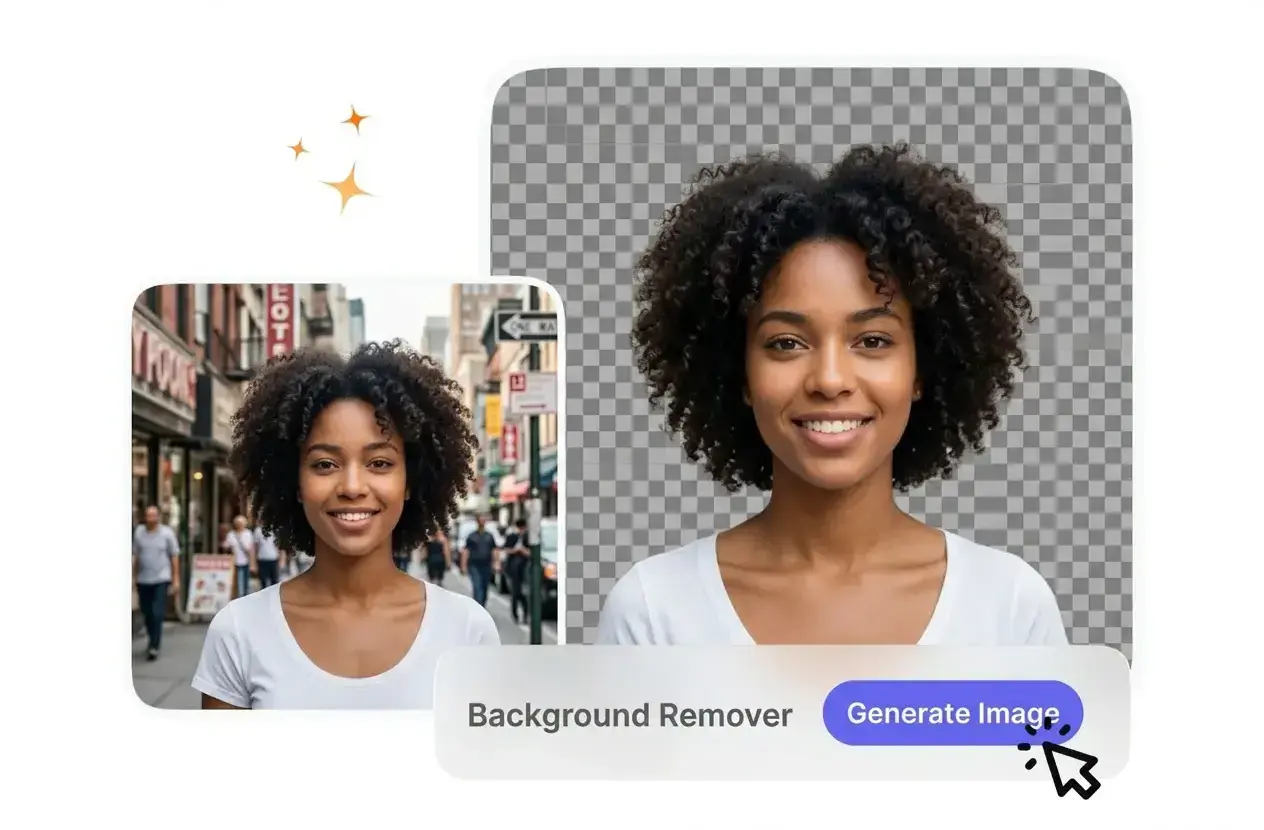
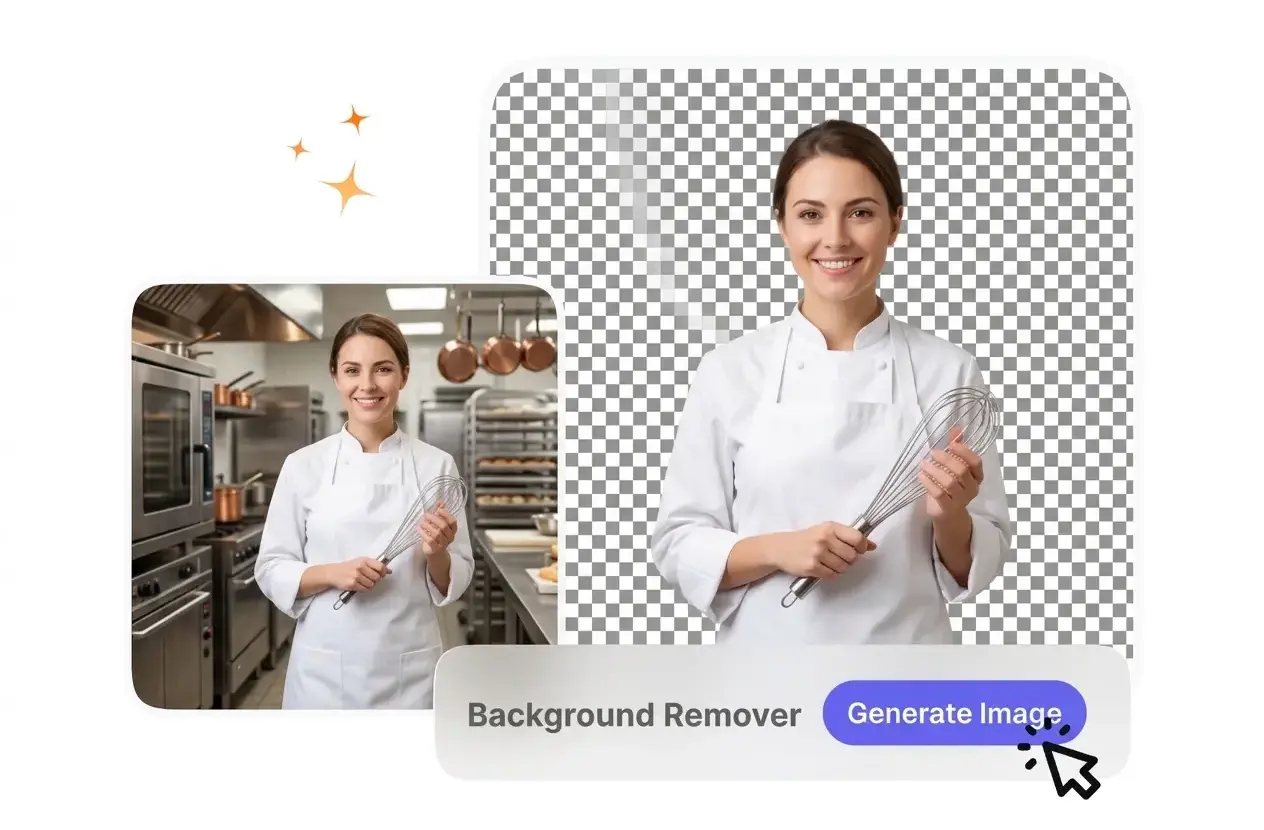
This background remover isolates your main subject and exports a clean transparent image. For best results, use photos with sharp focus and good lighting.

Banner preview

Online Background Remover for Clean Image Cutouts

VideoAI isolates the main subject in your photo and drops the backdrop. This Background Remover provides a transparent image ready for new layouts.

Who Uses This AI Background Remover

E-commerce managers, content creators, and designers use this Background Remover to clear clutter. Clean cutouts keep the viewer focused on your actual subject.

Store owner using background remover for products

E-commerce Store Owners

Product photos need clean white backdrops to meet marketplace standards. You upload your raw product shots, and VideoAI extracts the item cleanly. This Background Remover free workflow saves hours of manual masking for your weekly catalog updates.


Manager applying image background remover to portraits

Social Media Managers

Campaign graphics often require isolating people or objects to place over branded templates. You drop the photo into the image Background Remover, verify the edges, and export. The transparent file drops right into your layout software.

Instructor using photo background remover for slides

Online Course Instructors

Educational slides look better when your headshot does not have a distracting room behind it. You process your portrait through the Background Remover to remove background from image files. The resulting cutout keeps student attention on your text.

How to Use the Background Remover

Upload your reference image and let the Background Remover detect the main subject. You review the cutout preview before saving the final transparent file.

Step 1

Upload Your Image

You drag a clear photo into the workspace. VideoAI scans the file to identify the primary subject and the surrounding environment. High contrast between the subject and backdrop yields the cleanest initial detection.

Step 2

Review the Cutout

The engine masks the subject and hides the original setting. You inspect the edges around complex areas like hair or clothing. After that, you can decide if the automatic selection meets your needs.

Step 3

Export Transparent File

If the preview looks accurate, you click export to download a transparent PNG. This format preserves the empty space, so you can easily layer the subject over a new background later.

Core Background Remover Capabilities

The VideoAI Background Remover provides specific tools to handle complex edges and tricky lighting. You control the output quality before downloading the isolated image.

Smart Edge Detection

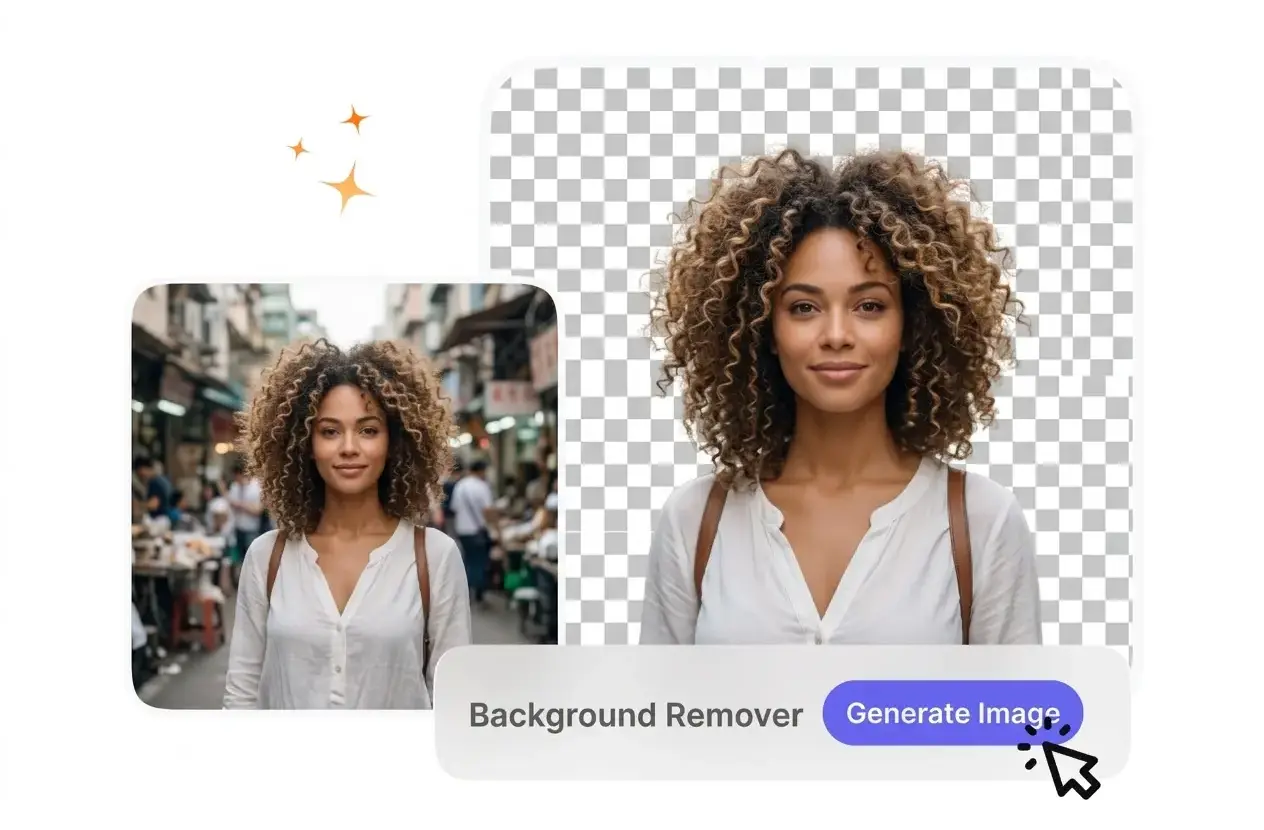
When you upload a portrait, VideoAI detects fine details like hair and preserves them. You do not have to manually trace every strand with a brush. This works best with high resolution source files and decent lighting.

Background remover detecting fine hair edges accurately

Transparent PNG Export

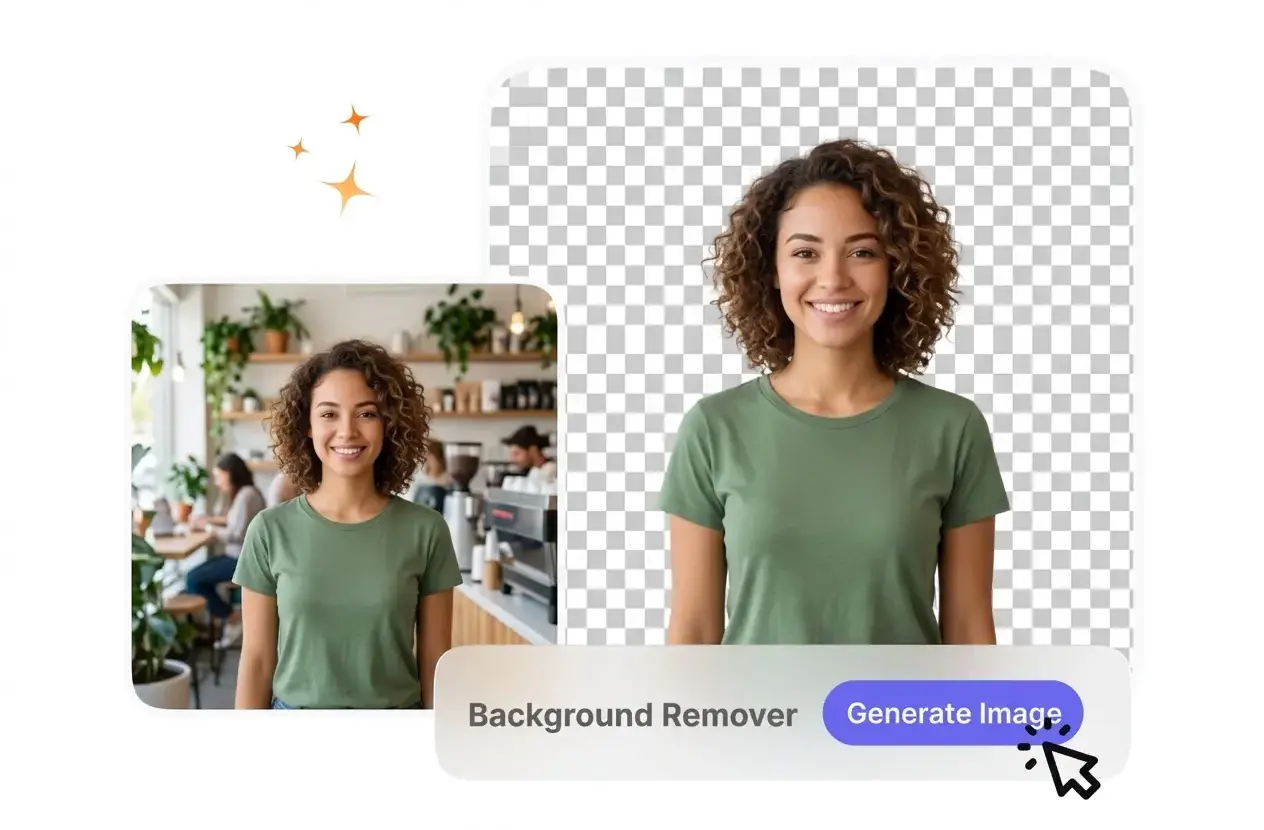
The system generates a clean alpha channel for your isolated subject. You download the result as a standard PNG file ready for immediate use. Transparent exports ensure your subject blends naturally into any new design layout.

Transparent PNG export from the background remover

Batch Background Remover

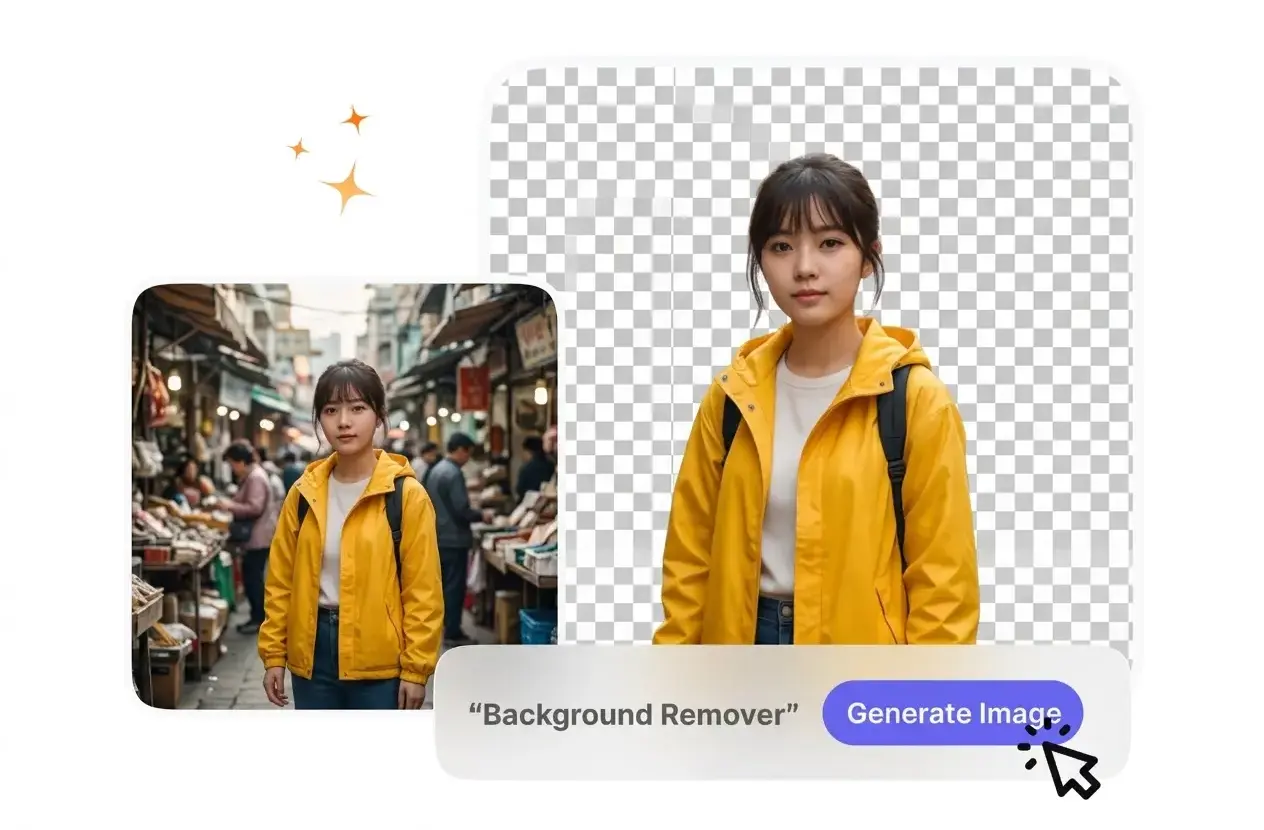
VideoAI processes multiple product photos sequentially using the Background Remover to ensure consistent masking. You queue up your catalog shots and let the engine handle the isolation. Consistent lighting across your batch helps the tool maintain accurate edge detection.

Batch processing multiple images to remove background

Solid Color Replacement

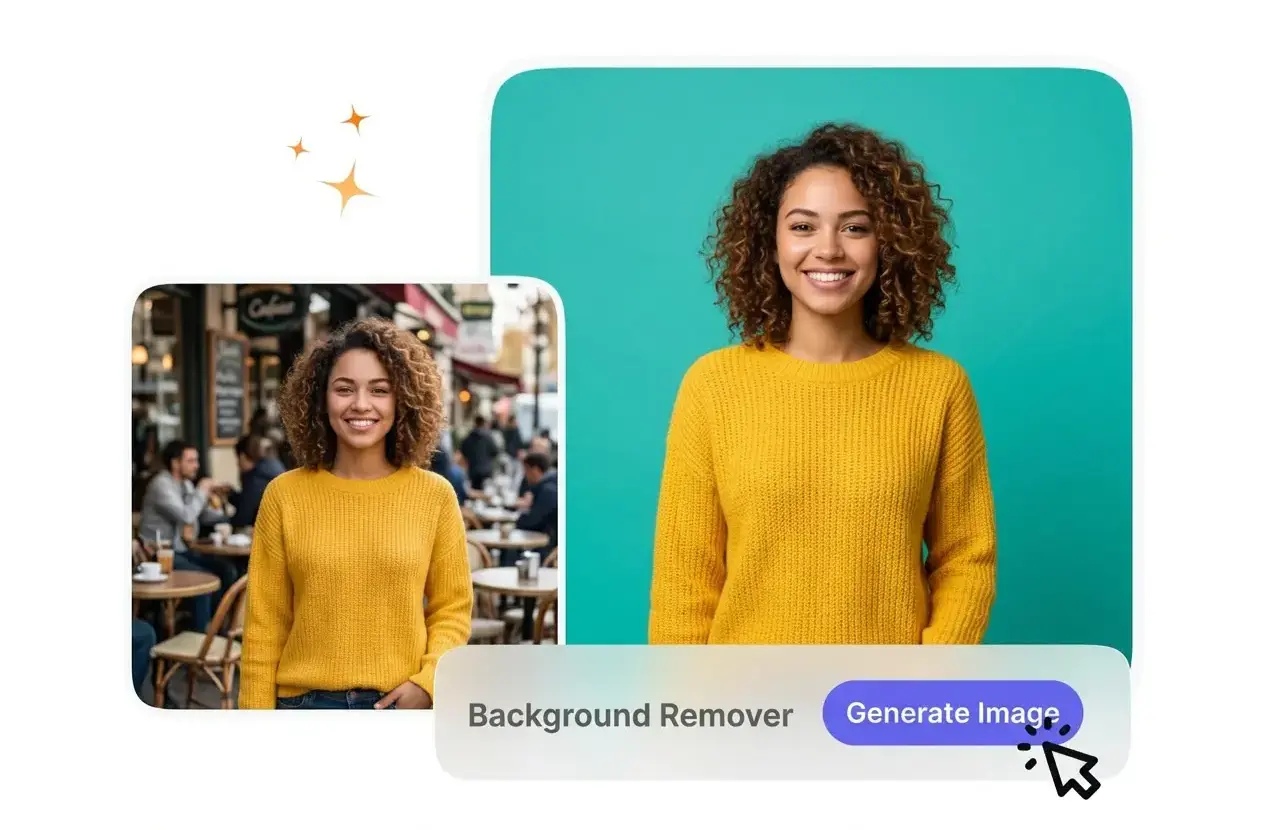
The editor lets you swap the original scenery for a flat color fill instantly. You select a brand color from the palette to unify your product shots. This feature requires a clean initial cutout from the Background Remover to look professional.

Replacing image background with solid brand colors

Common Background Remover Questions

If the subject blends into the original backdrop, the cutout might need manual refinement. You get the best results when there is clear contrast. Most users find the automatic detection handles standard portraits and products quite well.

Try the Background Remover Today

Upload a test photo to see how this Background Remover handles your subject. You can review the cutout quality before exporting your transparent image.

Get Started