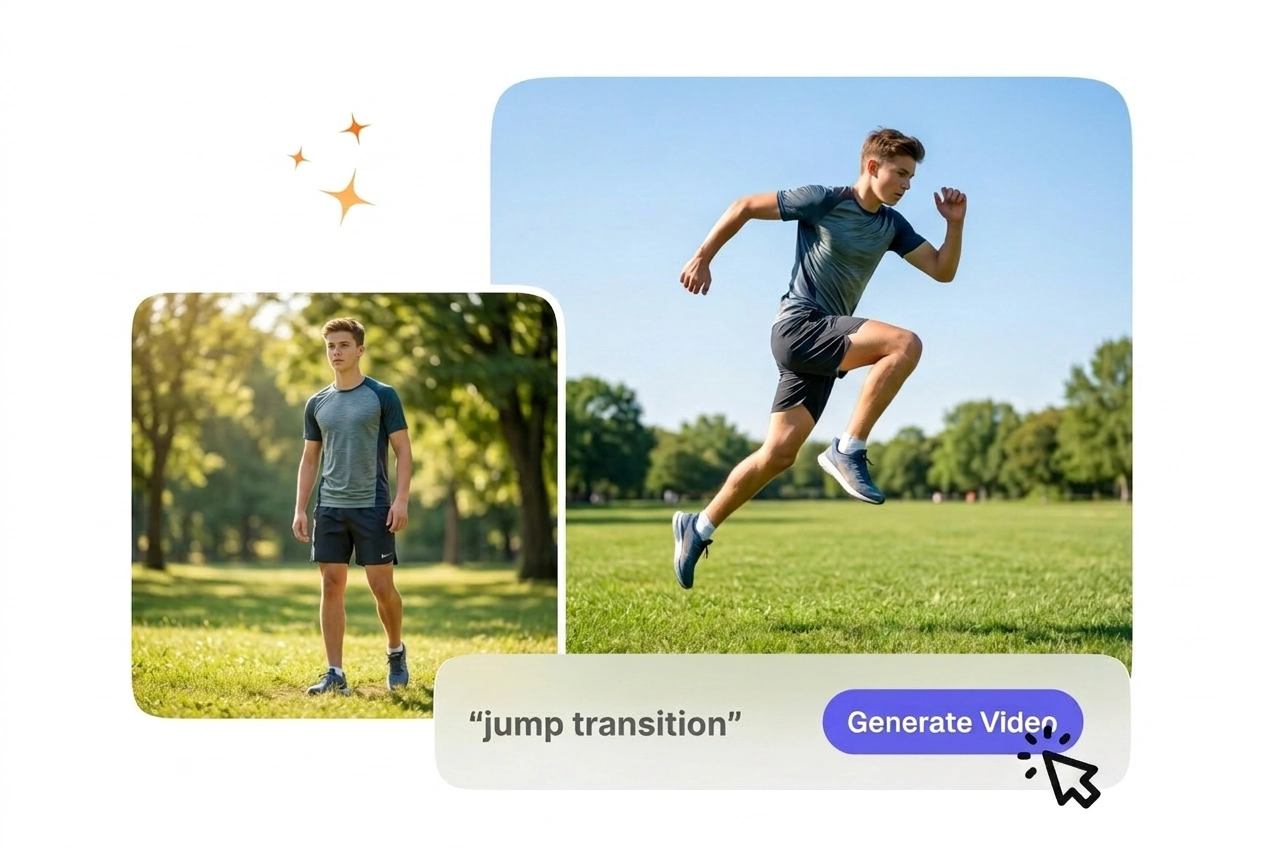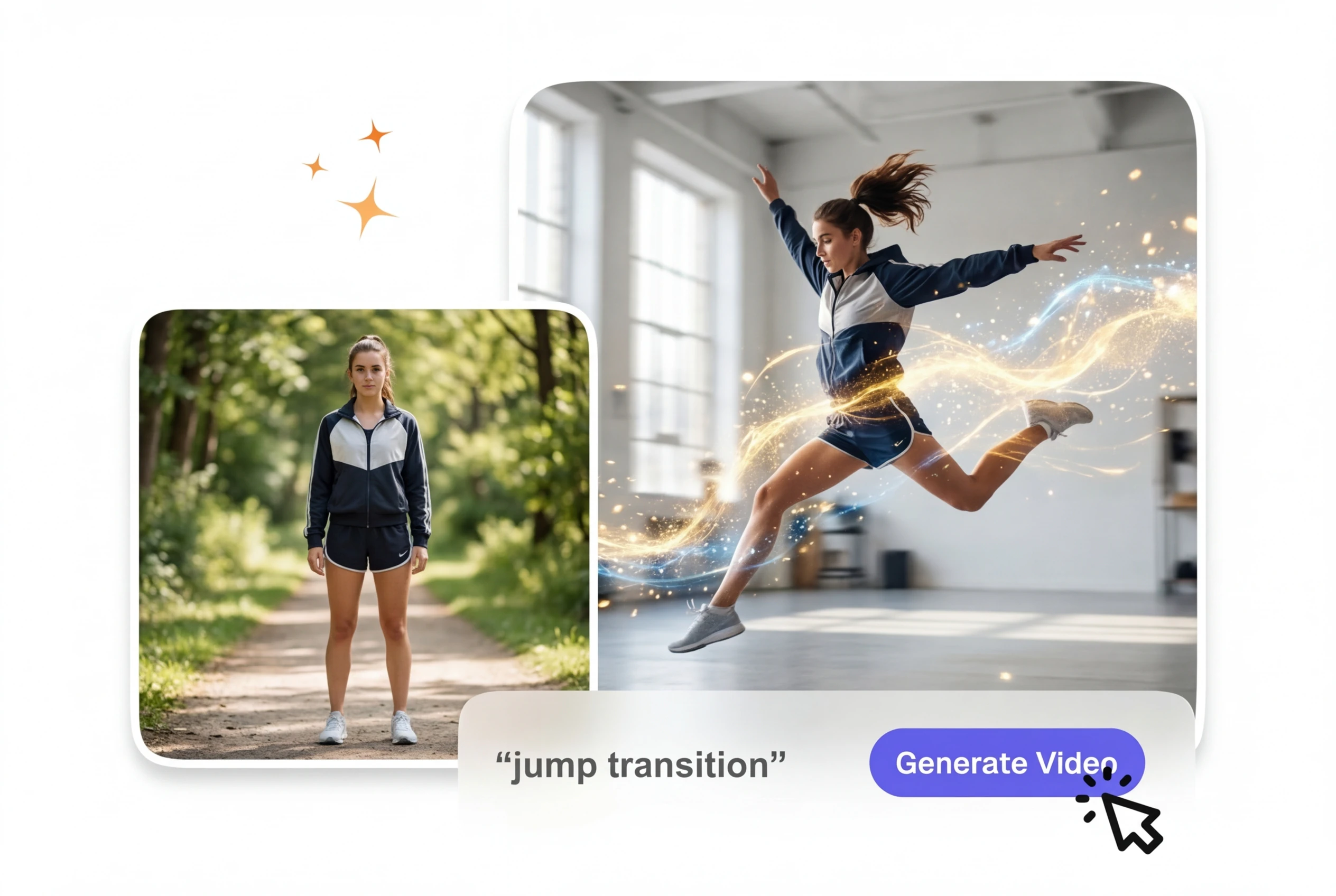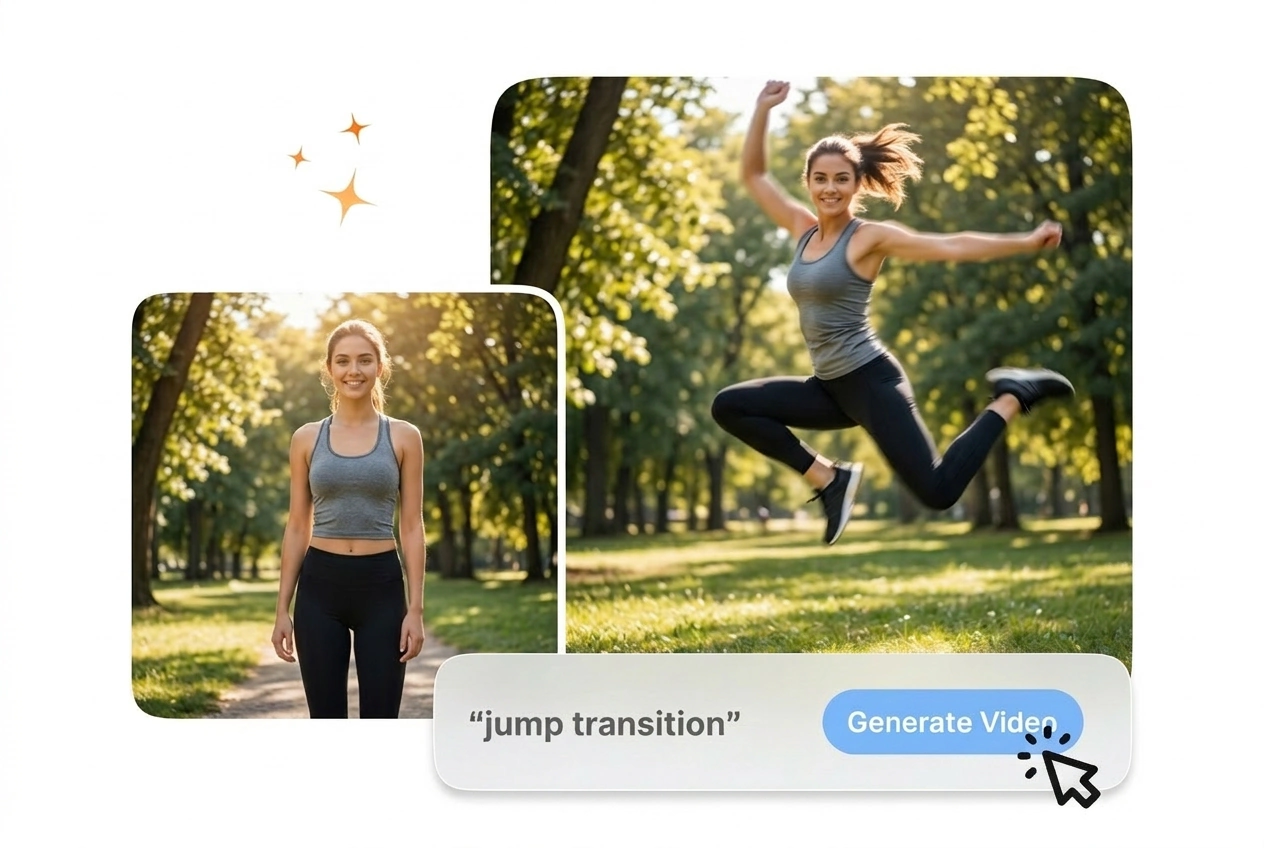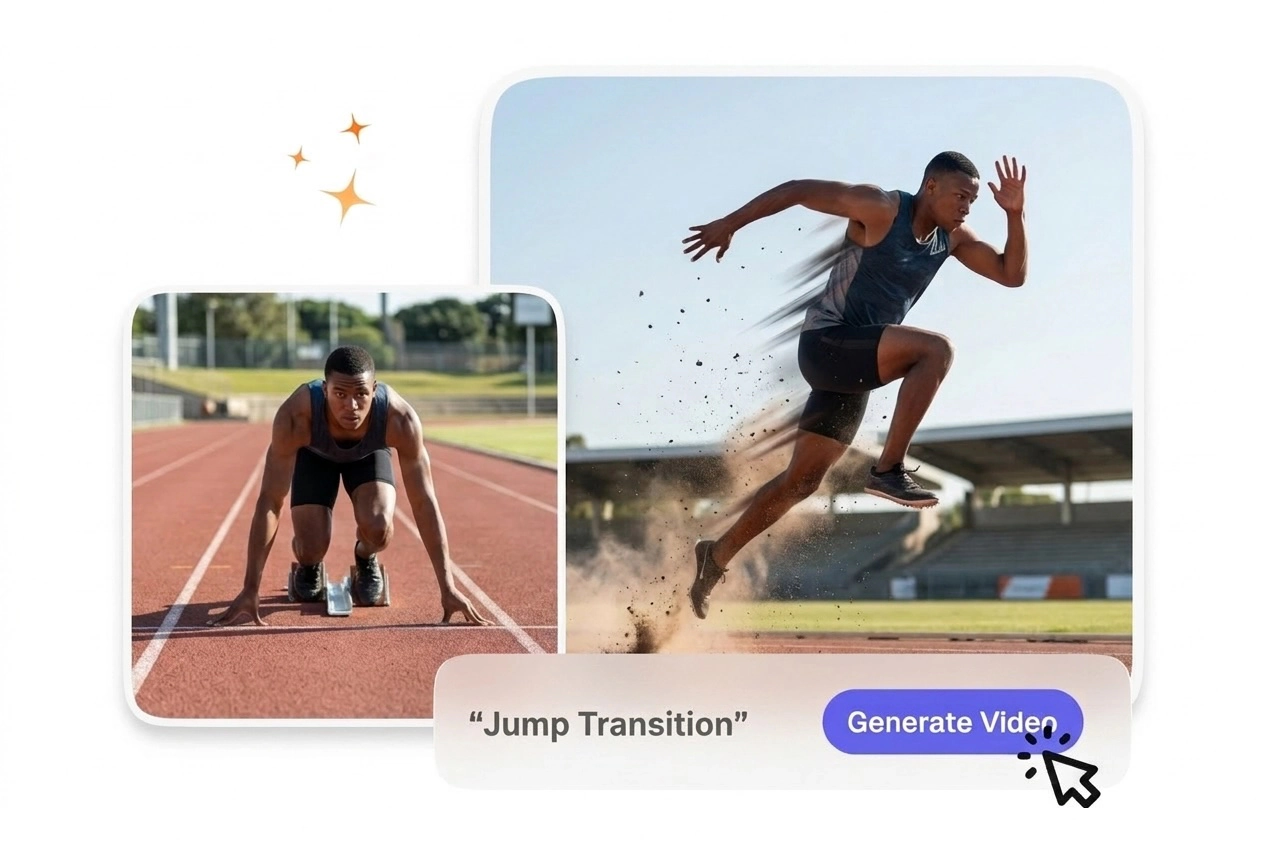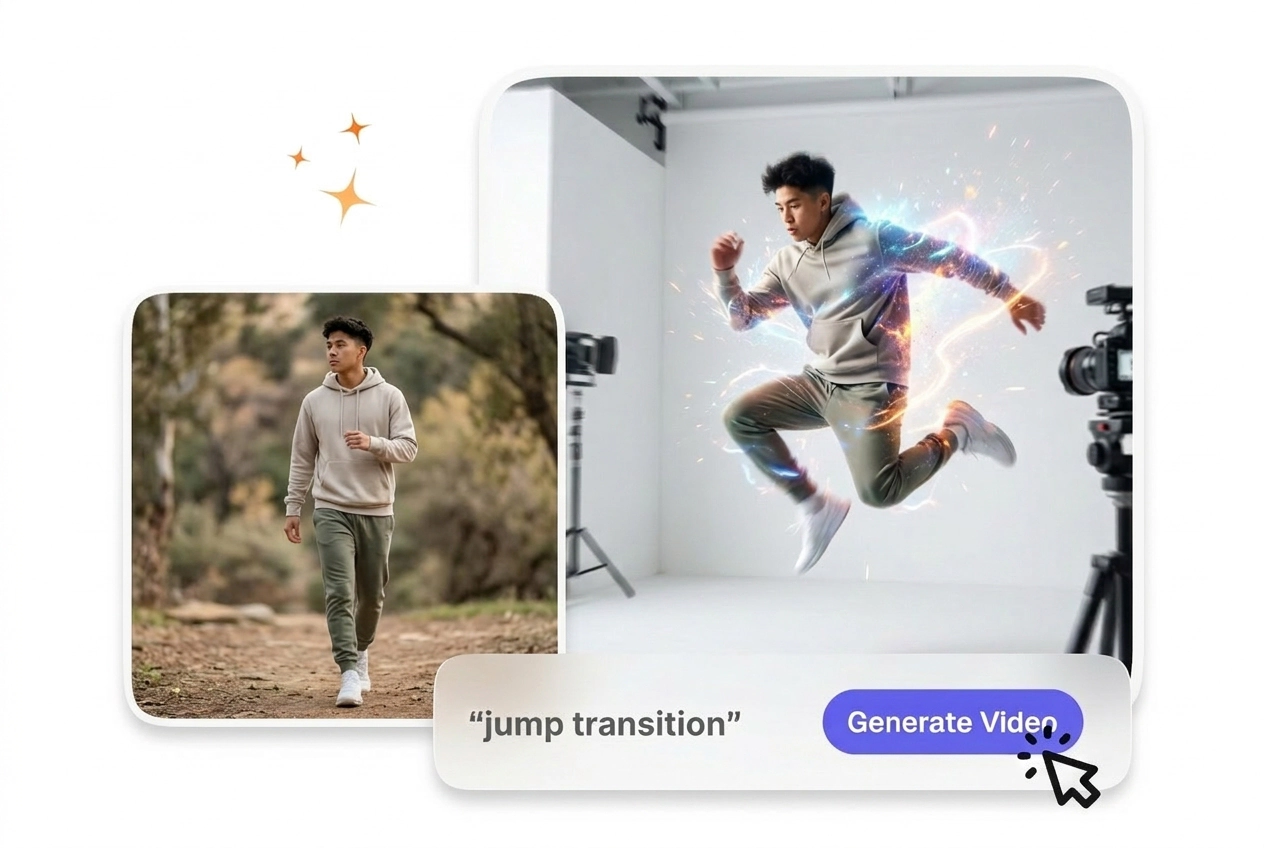
Free Jump Transition Video Generator

Jump Transition adds a sharp scene change to your footage while keeping the original clip timing clear and easy to follow. Short clips with steady framing usually preview more accurately and export with cleaner transition output.

Create Jump Transition Motion Easily

VideoAI builds energetic jump transition motion between your uploaded frames. You get a clean cut that keeps viewers focused on your subject without manual editing.

Jump transition tiktok example by VideoAI
Who Uses This Visual Effect

Different creators need reliable motion to connect their scenes. VideoAI provides structured control so your final export matches your original vision perfectly.

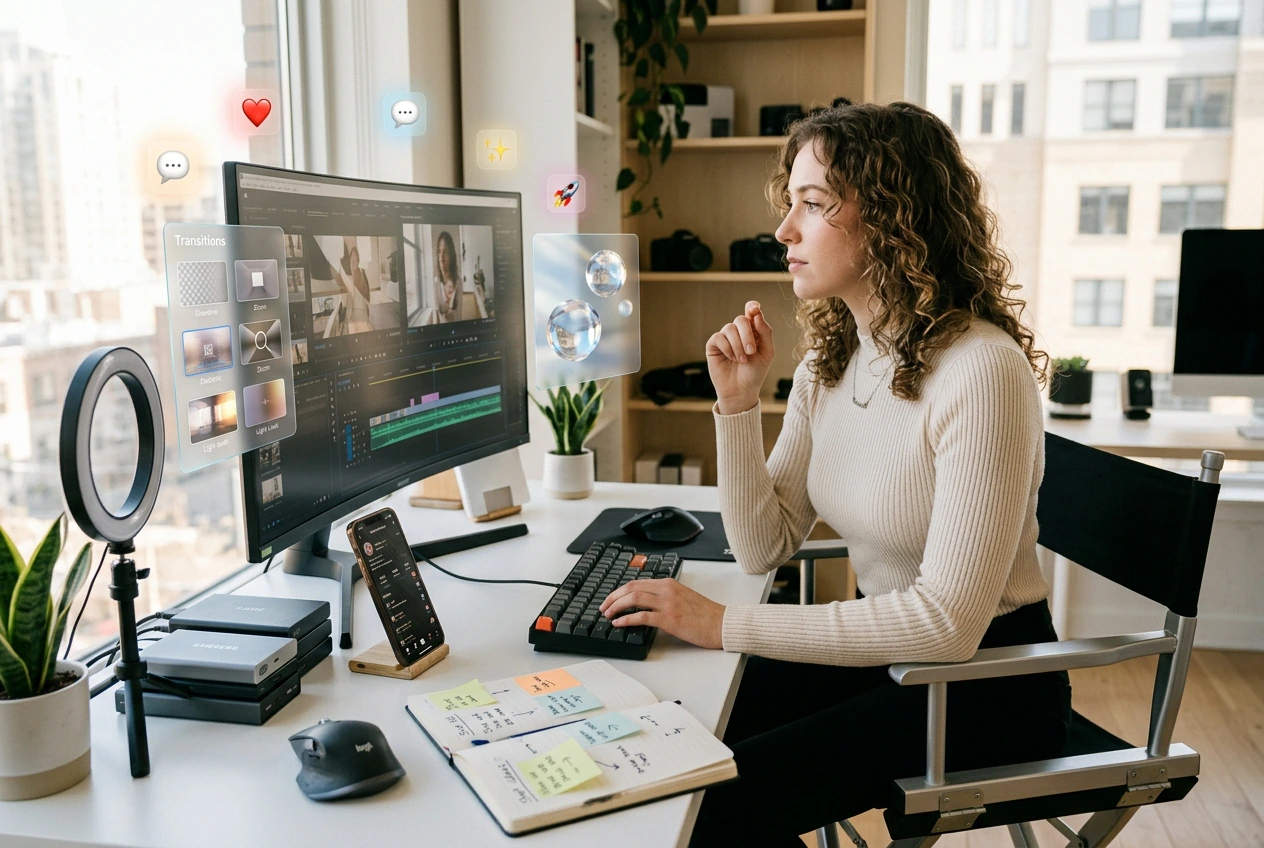
Creator making an Instagram reel transitions video
Social Media Beginners

Learning complex editing takes valuable time. VideoAI handles the intricate motion generation directly from your still frames. You simply type a descriptive prompt and receive a clean sequence ready for your next social media post.

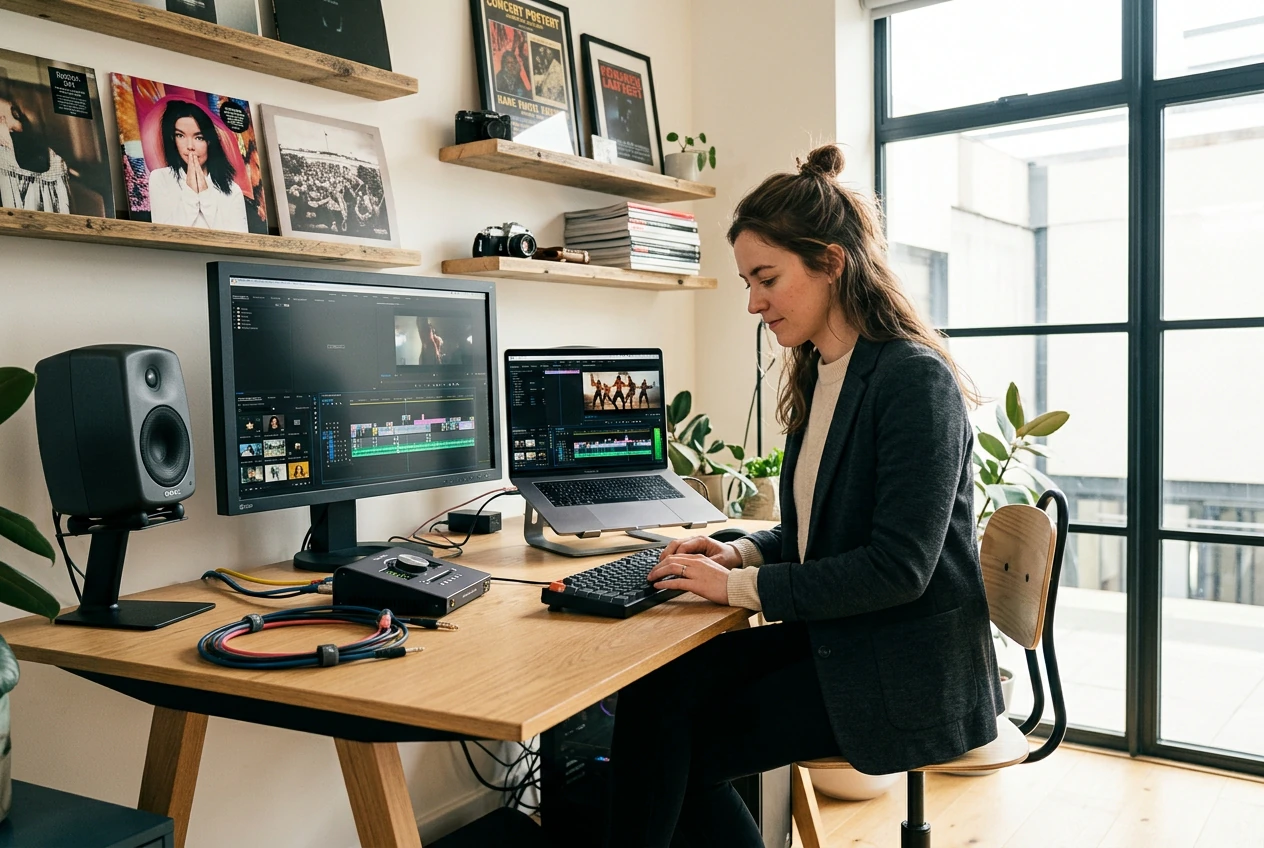
Small business owner using AI transition tool
Small Business Owners

Product showcases require engaging visuals to hold viewer attention. You upload two product photos and let the AI transition free your daily schedule. The resulting clip looks professional and keeps your overall brand aesthetic consistent.

Educator recording a Jumping transition tutorial video
Tutorial Course Creators

Explainer channels need motion that supports the lesson. A clear visual guide requires distinct steps. VideoAI maintains steady pacing across the generated sequence, so viewer attention stays on your teaching beat instead of distracting effects.

How to Generate AI Motion

The setup process requires just a few clear inputs. You provide the visual anchors, and VideoAI generates the connecting motion for your project.

Step 1

Upload Your Frames

You start by uploading a clear start and end image. VideoAI reads these visual anchors to understand your scene. After that, the system prepares the baseline for your dynamic social media post.

Step 2

Write Your Prompt

Your text prompt tells the AI video transition generator exactly what motion to build. VideoAI processes this instruction to calculate the trajectory. The engine then drafts the movement between your two uploaded images.

Step 3

Review and Export

When the preview finishes, you export the file or adjust the prompt for different pacing. VideoAI delivers a high quality file ready for download. You get a clean result without manual keyframing.

Core Jump Transition Video Features

VideoAI gives you predictable control over your generated sequences. Each feature helps you align the final output with your specific project requirements.

Motion path for Best AI jump transition

Motion Path Calculation

If your uploaded frames have clear subjects, the engine calculates a precise trajectory. You simply type your desired speed in the prompt. The resulting video connects the scenes smoothly, though complex backgrounds might require simpler text instructions.

Prompt pacing for Free AI jump transition

Prompt Driven Pacing

The text input directly controls how fast the subject moves. You describe the energy level, and VideoAI adjusts the generated frames accordingly. This works best for dynamic action shots, while subtle movements need very specific descriptive words.

Subject consistency for Jump transition capcut edits

Subject Consistency Lock

VideoAI analyzes your reference images to maintain character details throughout the movement. You do not need to upload multiple angles. The output retains your original subject identity, provided your starting and ending frames share similar lighting conditions.

Export options for Jump transition instagram posts

Format Export Options

The free ai transition video generator provides standard file types for immediate use. You select your preferred resolution before downloading. The final export drops easily into your timeline, making it simple to finish your overall video project.

Common Visual Effect Questions

Can I use my jump transition export on Instagram, TikTok, Shorts, and other social platforms?

Absolutely, you can export files perfectly sized for mobile platforms. Vertical formats require matching source images, so ensure your uploaded frames share that aspect ratio. This helps creators publish engaging content quickly without learning complex editing software.

Why does my jump transition motion look blurry or smeared, and how do I improve it?

When your subjects lack clear contrast against the background, the generated motion might blur. You should upload well lit images with distinct outlines. This ensures the system accurately tracks the subject for a crisp final result.

Do I need to film or upload an existing video clip to create this effect?

No, VideoAI generates the movement entirely from your still images and text prompts. You only need to upload a starting frame and an ending frame. This saves you from filming actual footage while still delivering dynamic visual connections.

How do I control how fast or dramatic the jump transition feels in the final clip?

You manage the pacing directly through your text prompt instructions. Words like fast or sudden create energetic cuts, while gentle descriptions yield slower movements. This gives editors precise control over the rhythm of their final video sequence.

Is there a free way to try the jump transition, and are watermarks or usage caps part of that?

Sure, you can test basics on free access, often with standard exports and a watermark. Free use is personal testing only, not commercial client work. Open the pricing plan page for paid membership and commercial rules—we do not list package names in this FAQ.

Start Your Jump Transition Reel

Upload your frames and see how VideoAI handles your sequence. You get clear motion and predictable results for your next creative project.