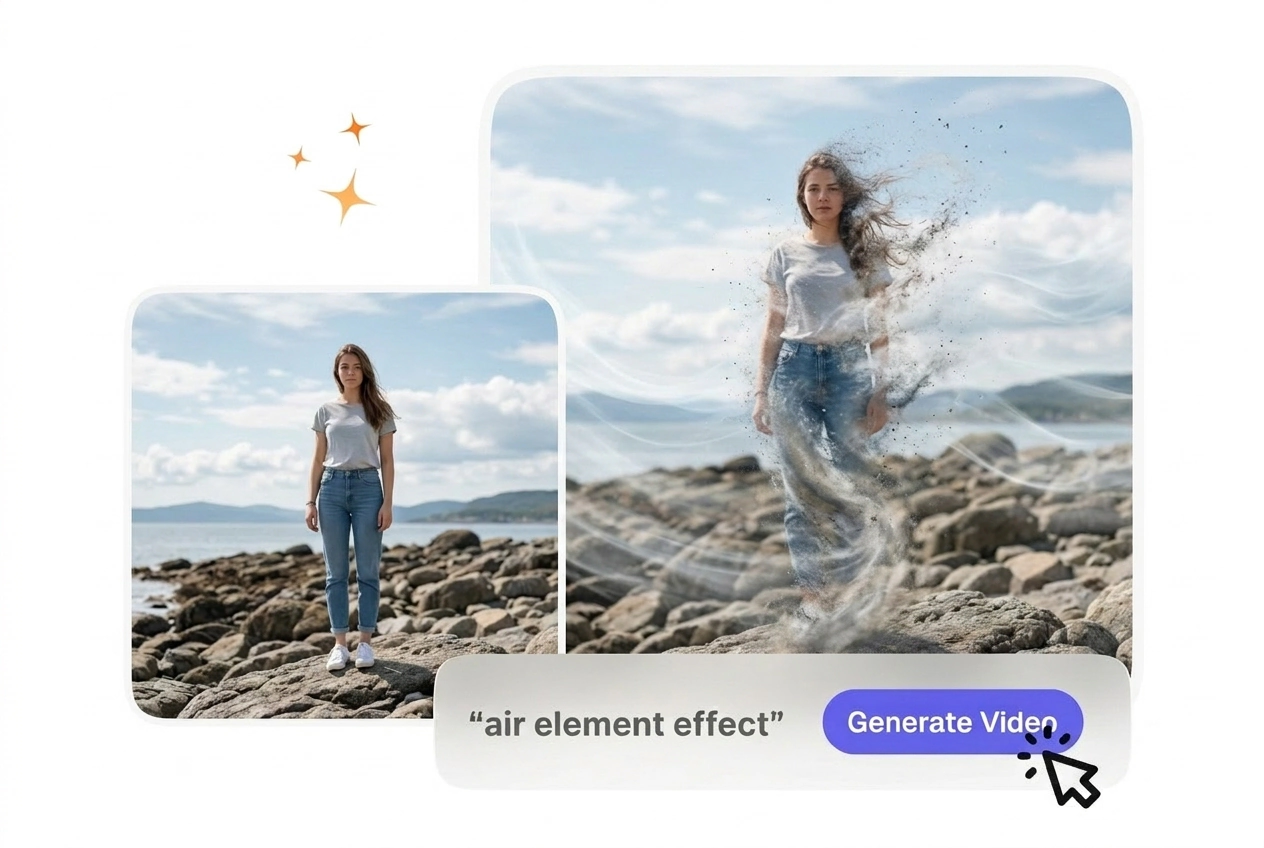
Free Air Element Video Generator
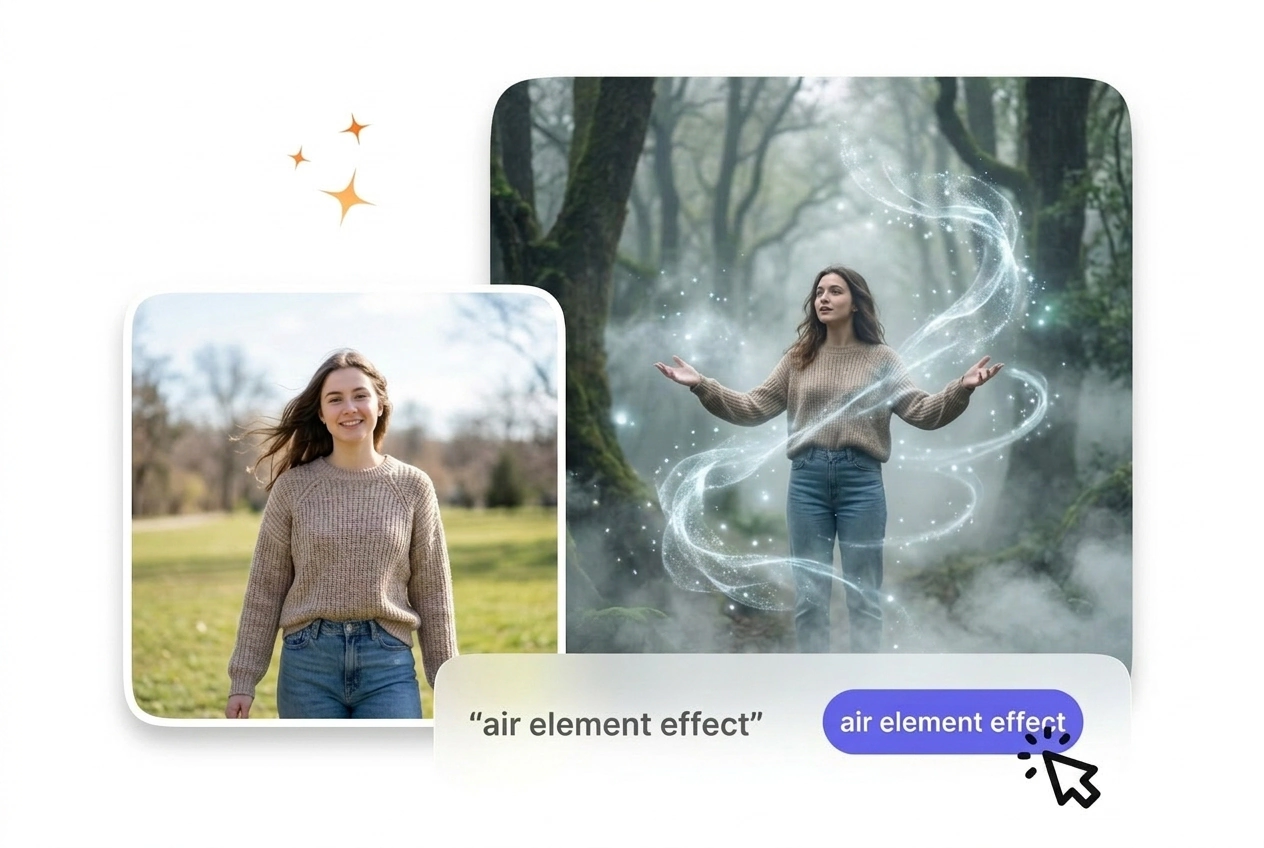
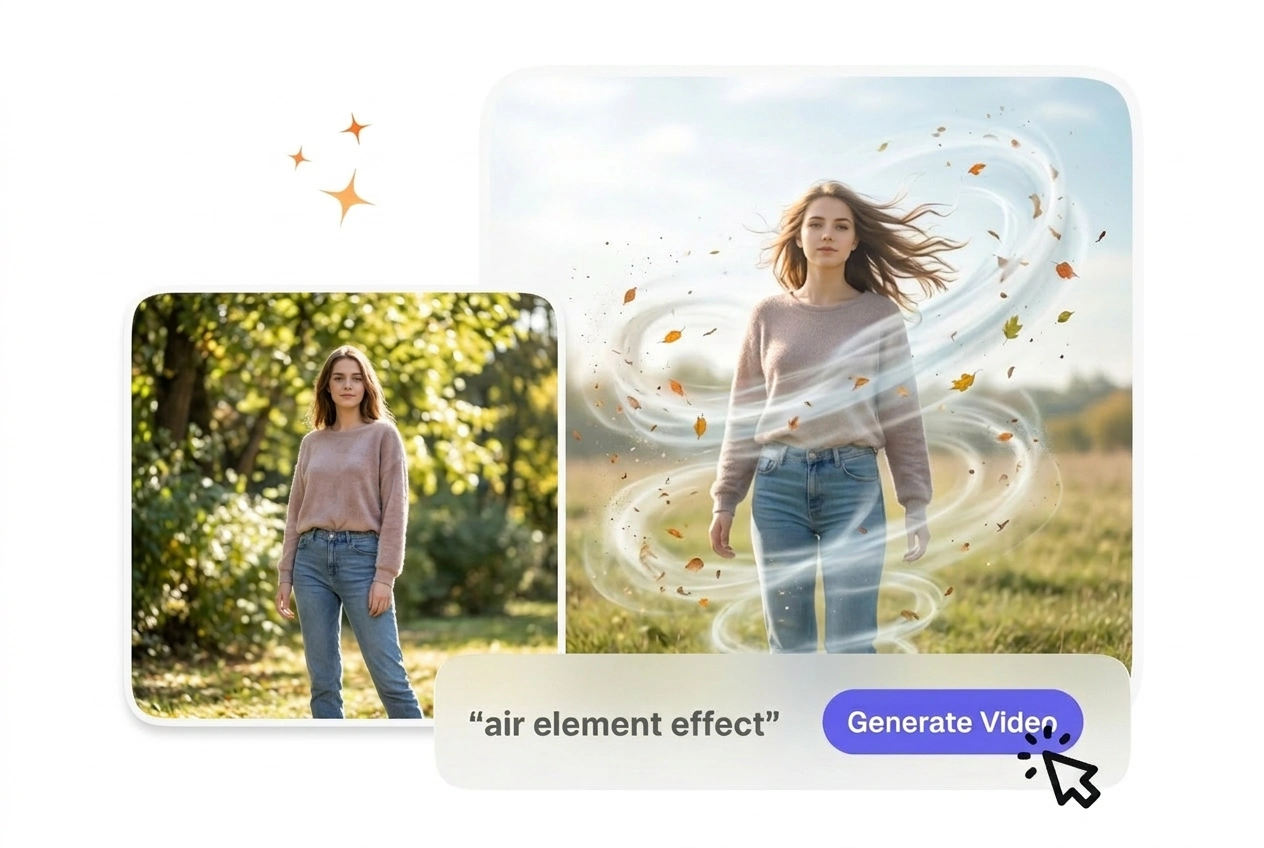
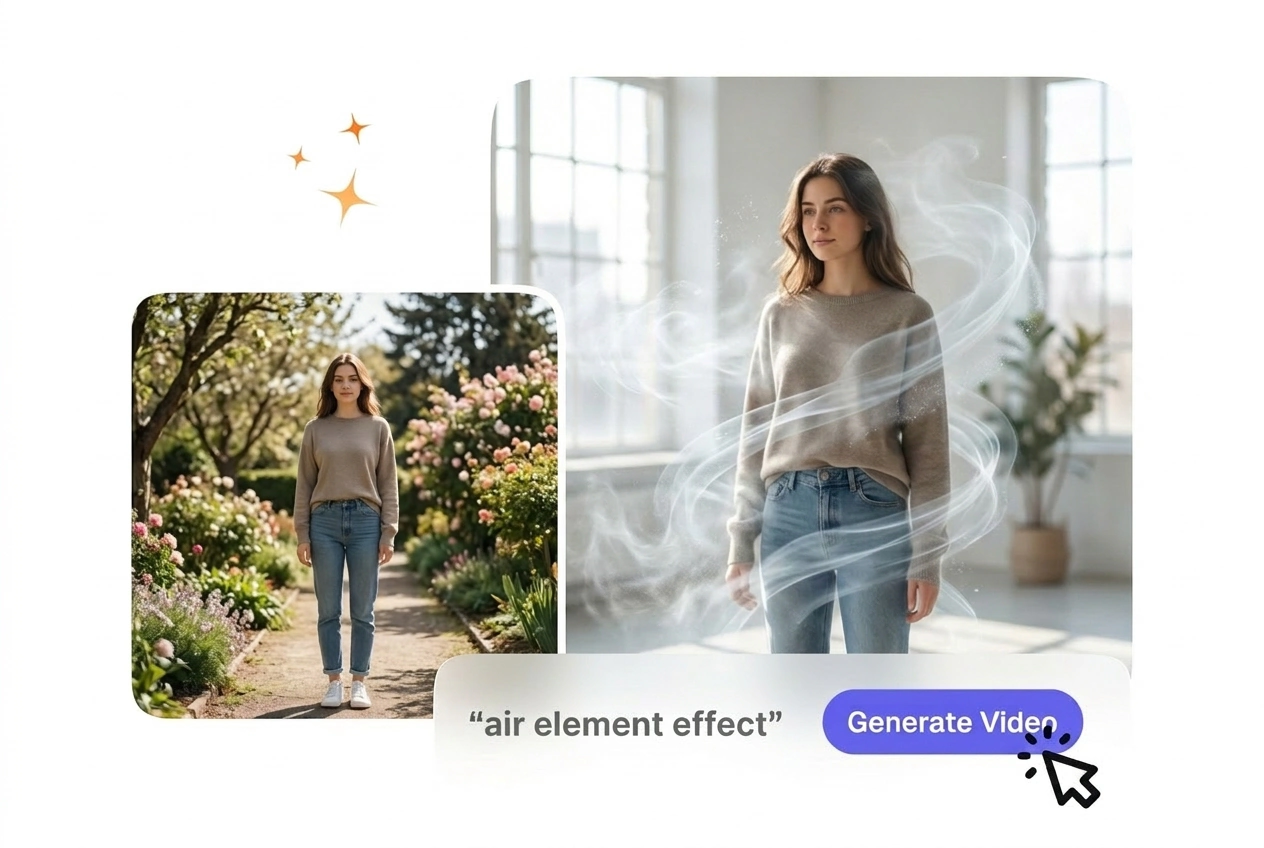
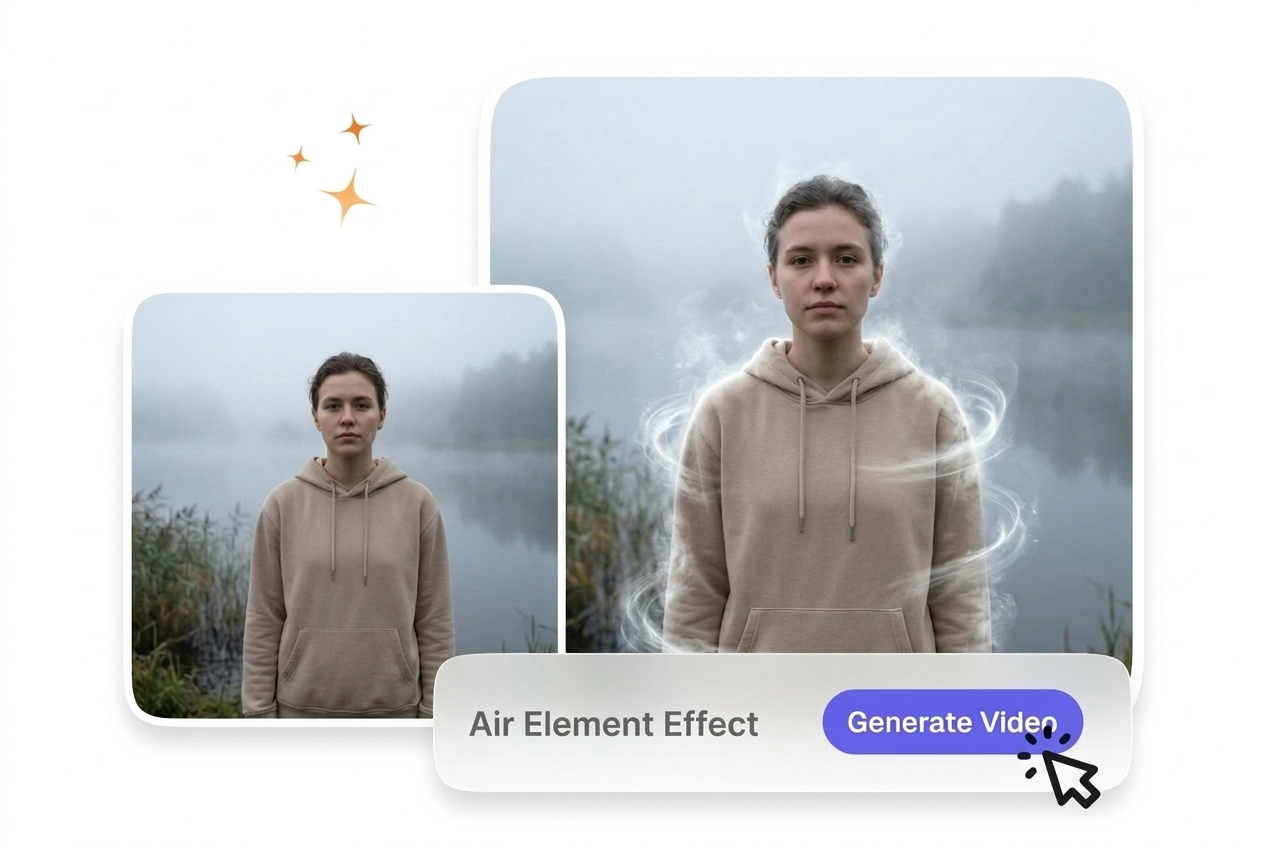
Air Element Effect turns a source clip into a lighter, wind driven visual treatment by layering controlled motion across the frame. Footage with simple backgrounds and moderate movement usually renders more predictably and makes preview output easier to assess.
Generate Your Air Element Effect
VideoAI turns your static frames into an elemental air video AI sequence. You get a clean air particle dissolve effect ready for download.

Educators, small business owners, and first-time creators use this tool. VideoAI provides structured export settings for a predictable air element transition.

New users often struggle with complex timeline markers. VideoAI simplifies the process by reading your prompt and frames directly. You receive a free AI air element effect without needing prior experience in heavy editing software.


Product promotions require clean visuals that do not distract the viewer. You upload a reference image, and VideoAI applies the AI Air Effects. The final output matches your brand style for quick online social posting.

Tutorial channels need motion that supports the core lesson structure. VideoAI keeps the Air Element motion steady across your scene. This ensures audience attention stays on the teaching beat rather than the visual transition process.
Create an Air Element Effect
Follow these steps to build your sequence. VideoAI processes your text and images to generate a clean output file for your account tier.
Step 1
Upload Your Frames
You start by uploading a clear reference image or a start frame. VideoAI analyzes the visual data, so the system understands the subject boundaries before applying any AI Air Transition.
Step 2
Set the Prompt
If your subject is complex, tighten the text prompt to guide the generation. VideoAI then maps the particle flow, giving you a preview of the best AI air element video.
Step 3
Export the Sequence
You confirm the clip length and select your preferred final export settings. After that, VideoAI renders the final file, delivering a smooth result ready for your timeline or social feed.
Air Element Effect Features
VideoAI provides specific tools to control your generation. These features help you manage the visual quality and pacing of the final output.

Particle Density Control
When you need a thicker fog, this setting increases the visual volume of the effect. You adjust a simple slider before rendering the file. This works best when your source image has a clean, uncluttered background.

Motion Speed Adjustment
VideoAI lets you speed up Air Element Effect pacing or slow it down to match your audio. You select a timing preset from the menu. Slower speeds require high-resolution input frames to maintain clear details.

Directional Flow Mapping
The engine reads your prompt to determine where the particles should drift. You specify a direction like left or upward in your text. The output follows this path, though complex angles might need a second generation.

Subject Isolation Mask
VideoAI identifies the main figure in your uploaded frame to keep the face clear. You do not have to draw manual masks. This ensures the dissolve effect wraps around the character rather than obscuring important features.
Air Element Effect Questions
Can I slow down the pacing of the Air Element transition before I generate the clip?
Absolutely, you can adjust the timing before you generate the sequence. Slower pacing works best when your starting image has high contrast. This helps educators keep the visual transition smooth without distracting from the main lesson.
Do I need to upload a full video file, or only still images plus a text prompt?
No, VideoAI generates the sequence entirely from your text prompts and static reference frames. For best results, ensure your uploaded image is well-lit. This approach gives creators a predictable AI transition free from existing motion blur.
Can I use my exported Air Element video for commercial client work, paid ads, or resale?
Commercial use requires an active paid membership under our terms. Free access is for personal testing only, not for client work, paid ads, or resale. Open the pricing plan page for current commercial allowances—we do not list specific package names in this FAQ.
Why does my Air Element effect look soft or blurry, and how can I get a sharper result?
If the output lacks detail, try tightening your text prompt and uploading a sharper starting frame. The AI video transition generator relies heavily on clear input data. This adjustment helps users achieve a professional, crisp look.
Can I change the direction of the air particles by editing my text prompt?
Of course, you can guide the flow by adding directional words to your prompt. Complex angles might require a few iterations to land perfectly. This gives editors precise control over how the elemental air video AI behaves.
Upload your first frame and see how VideoAI handles the generation. You can export a clean sequence in just a few minutes.