Step 01
Add A JPG, PNG, Or WebP
Bring in a JPG, PNG, or WebP file and it stays saved in your workspace, so you can pick the edit back up next time instead of losing it when the tab closes.

Upload a photo, let VideoAI erase the words on it, and watch the background fill back in so the cleaned area looks like it was never there.

Upload a picture, mark or describe the words you want gone, then erase and export the clean result at up to 4K.
Step 01
Bring in a JPG, PNG, or WebP file and it stays saved in your workspace, so you can pick the edit back up next time instead of losing it when the tab closes.

Step 02
Draw a box around the words you want gone, or type a prompt that names which letters or which area to clear, so the tool targets the exact spot you mean.

Step 03
Hit erase, preview the cleaned picture, and once it looks right export and download the finished image at up to 4K resolution.
Each pass keeps the original resolution while it clears words, marks, and stray graphics from your picture.

VideoAI scans the picture and highlights printed words, handwriting, and captions on its own, so you can clear a busy sign or a caption bar without hunting for every character by hand.
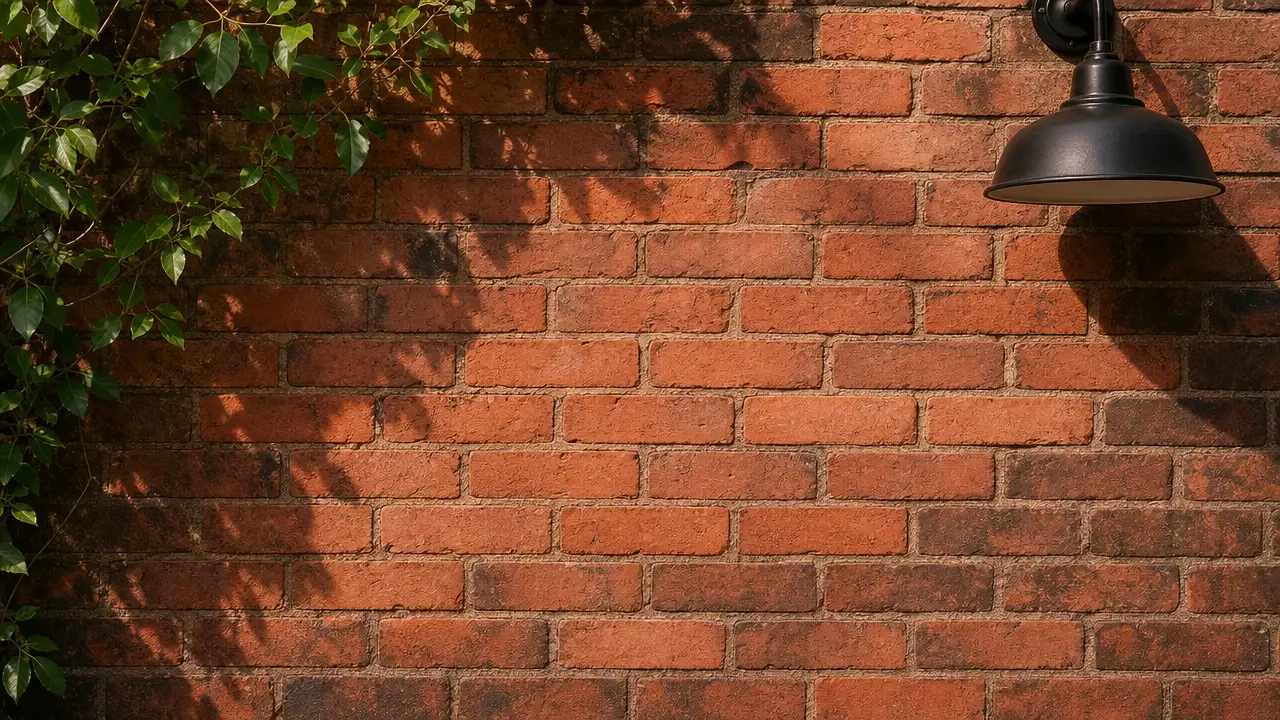
After the words come off, the tool paints the gap back in using the colors and texture around it, so a cleared logo on a wall leaves brick rather than a blank patch.
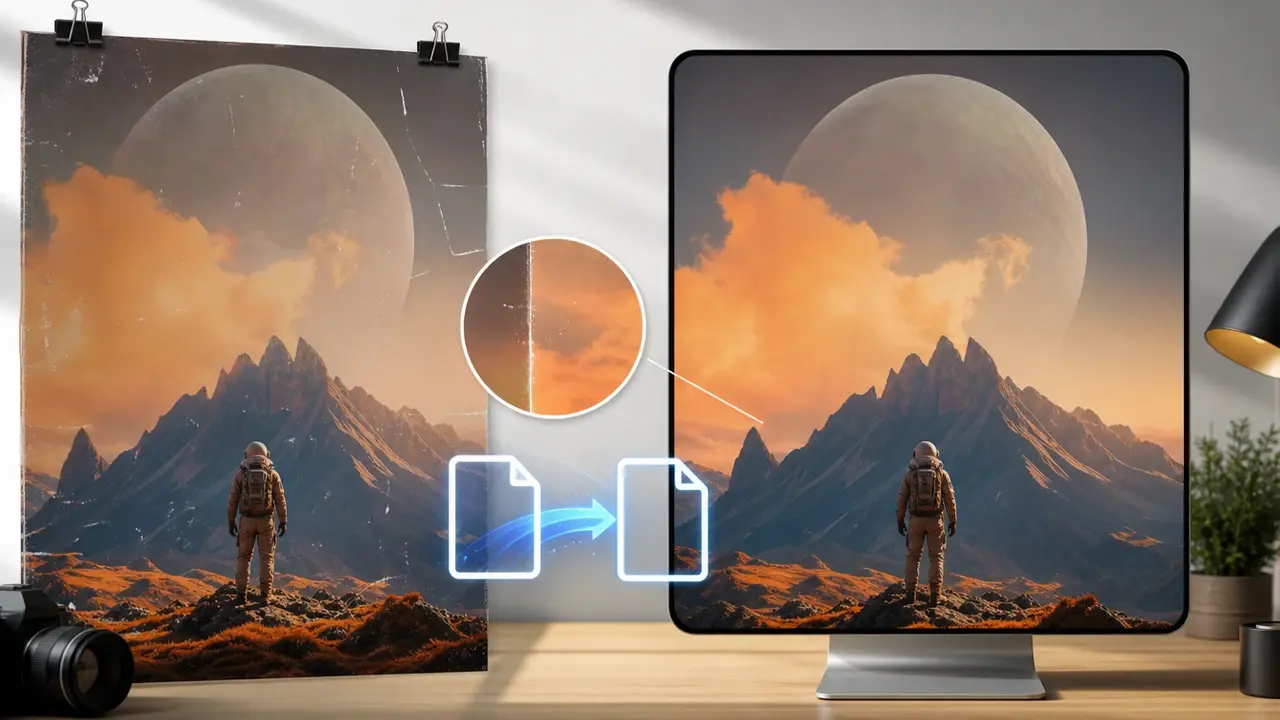
The cleaned picture holds its detail and exports at up to 4K, so you can remove text from image hd scans meant for print and still read fine lines at full size.

Printed type, handwriting, dates, and subtitles all lift off, and to remove logo from image corners you can draw a box around the mark and clear only that area.
Watermarks, date stamps, and captions people clear off every day.

Supplier photos sometimes include distracting overlays or old sales marks that pull attention away from the product. Mark the area you want cleaned, then let the background rebuild so the listing image looks tidy and ready for your shop.
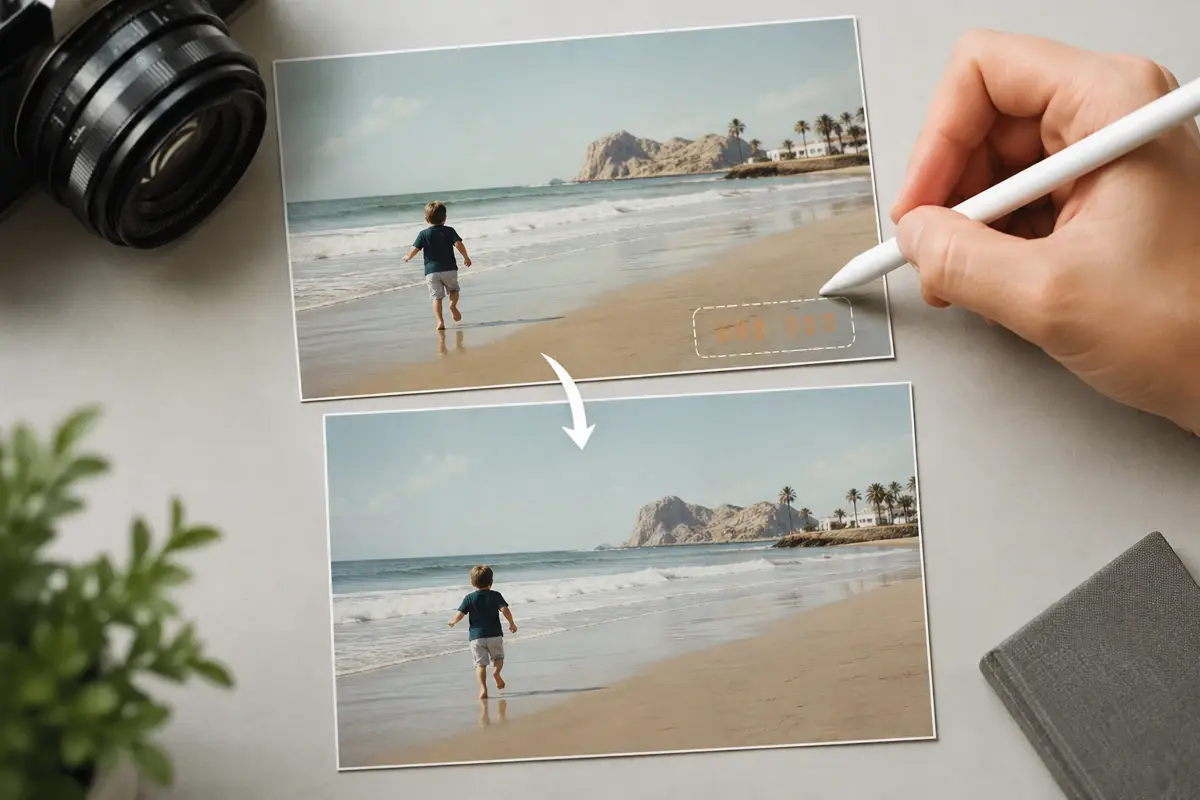
Old camera photos sometimes burn an orange date into the lower corner. Point the selection at those digits or name them in a prompt, then sky or sand fills back in where the numbers sat, and the finished shot still exports at up to 4K.
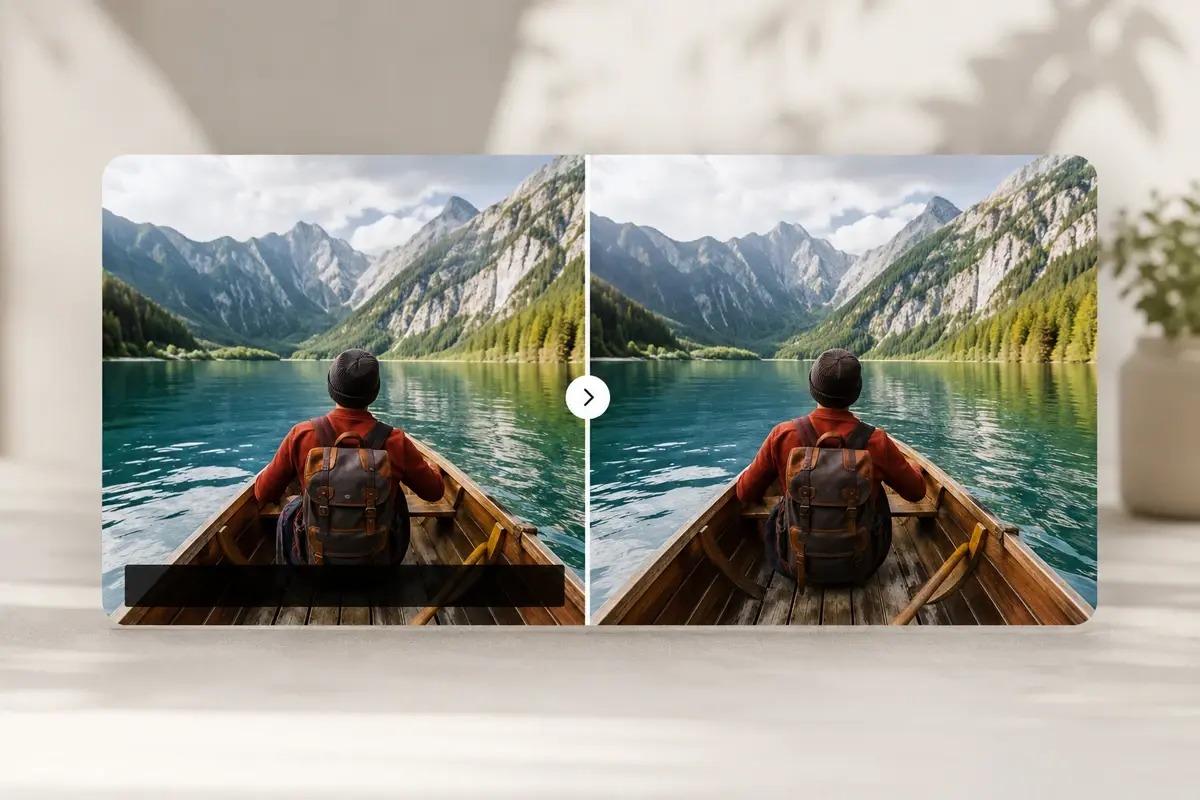
Frames saved from a video usually keep a caption line running along the bottom. Once you mark that strip, the words lift off and the gap blends into the surrounding scene, leaving a plain still that holds its sharpness so you can reuse it.

Sellers who pull images from suppliers can take off a supplier watermark or an old price tag and post a clean product photo that matches their own store.

Social teams often want a still from a past clip, so lifting the caption bar and channel logo off leaves a frame they can repost with new wording.

Designers who need a background plate can erase text from image references and keep a clean surface to lay fresh type over.
Explore

Bring in a photo and let VideoAI take the words off while the background fills back in.
Get Started