

make a video with pictures
VideoAI lets you upload your photos and pictures, arrange them in the sequence that tells your story, and generate a finished video output ready to share. Picture order stays exactly where you set it.
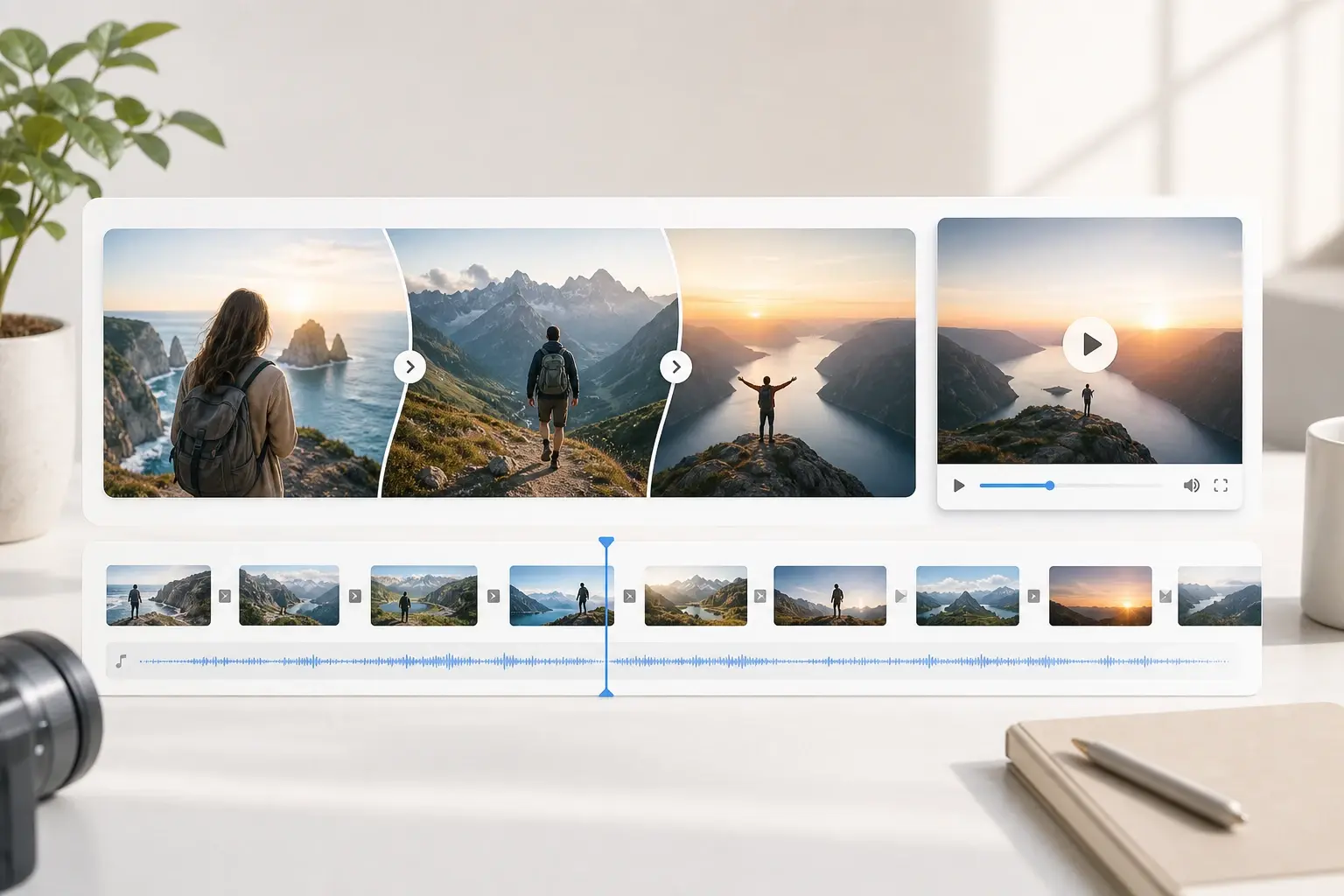
Three Steps to Make a Video with Pictures
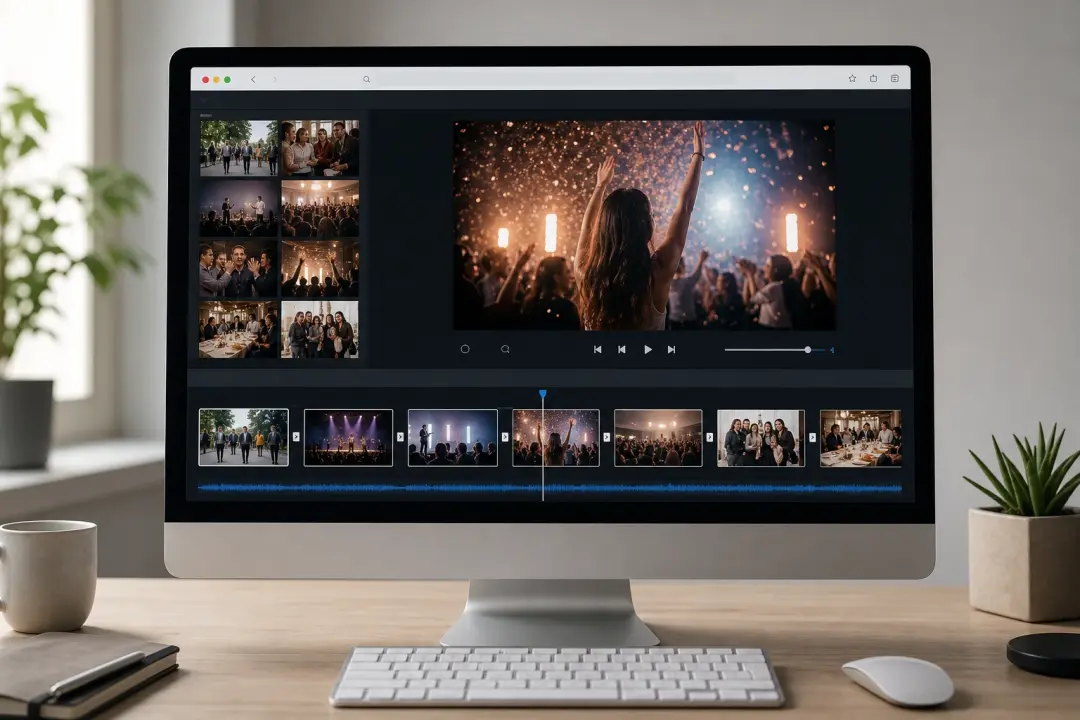
The workflow keeps your pictures in the order you choose and moves you from upload to finished video without detours. Use this workflow when you want to make a video with pictures without learning timeline editing.
Upload Your Photos and Pictures
Select the photos or pictures you want to include and upload them to VideoAI. You can drag files from your desktop or import directly from your phone photo library. The upload step supports common image formats so your pictures load cleanly and the quality carries through to the final video output. When your source pictures are well framed and clearly lit, the output reads more cleanly on any screen. This planning step keeps it easier to make a video with pictures that has a clear beginning.
Set the Picture Sequence
Arrange your pictures in the order that shapes your story. This is the creative decision that determines whether your video reads as a memory, a product walkthrough, or a simple event recap. Move any picture to a different position before you confirm, and VideoAI holds that exact order through generation. The first picture establishes the opening moment, so placing your strongest image there sets the tone for everything that follows. Use preview to make a video with pictures that flows before you export.
Generate and Export Your Video
Once you confirm the sequence, VideoAI generates the video output from your pictures. Review the result, check that the pacing across each picture feels right, and export the finished file. If the subject in each picture is clearly framed, the output reads more consistently from the first picture to the last. The final check helps you make a video with pictures that feels complete.
Scenes Where You Make a Video with Pictures
The same sequencing workflow applies across personal, creative, and small business contexts. Each scenario shows where picture order and story structure matter most. Each scenario starts with a simple reason to make a video with pictures.
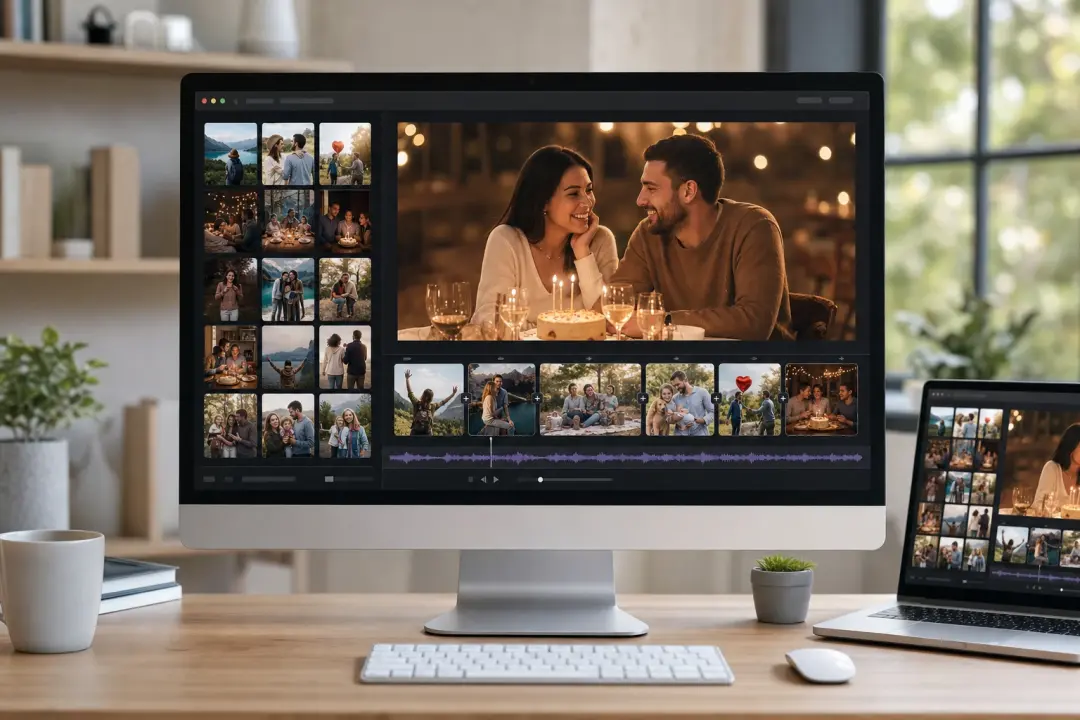
Birthday and Anniversary Memory Video
Gather the photos from a birthday trip, a celebration dinner, or an anniversary day and arrange them in the order the moments happened. VideoAI turns that picture sequence into a shareable video that follows the event from start to finish. You can make a video with pictures from a single celebration and send it to family the same evening. The result works as a recap post or a personal keepsake. This is one of the most common reasons people search how to create a video with pictures for the first time. Families often make a video with pictures for a quick recap after a trip.
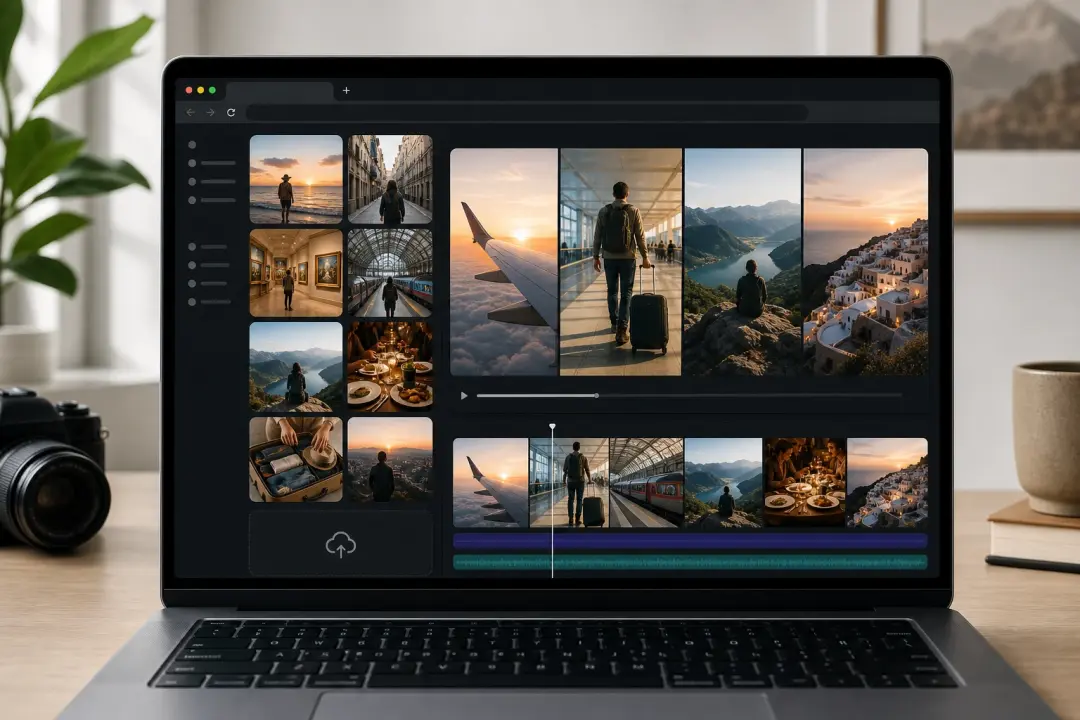
Travel Story Video from Phone Photos
Phone cameras capture dozens of pictures on any trip, but a folder of photos is not a story. Arrange the pictures by location or day, upload them to VideoAI, and make a video from photos that moves through the journey in sequence. If your phone pictures are portrait orientation, confirm the aspect ratio before generating so the output fits your intended platform. This is one of the most common reasons people search how to make a video with pictures on iPhone rather than relying on built in phone tools.
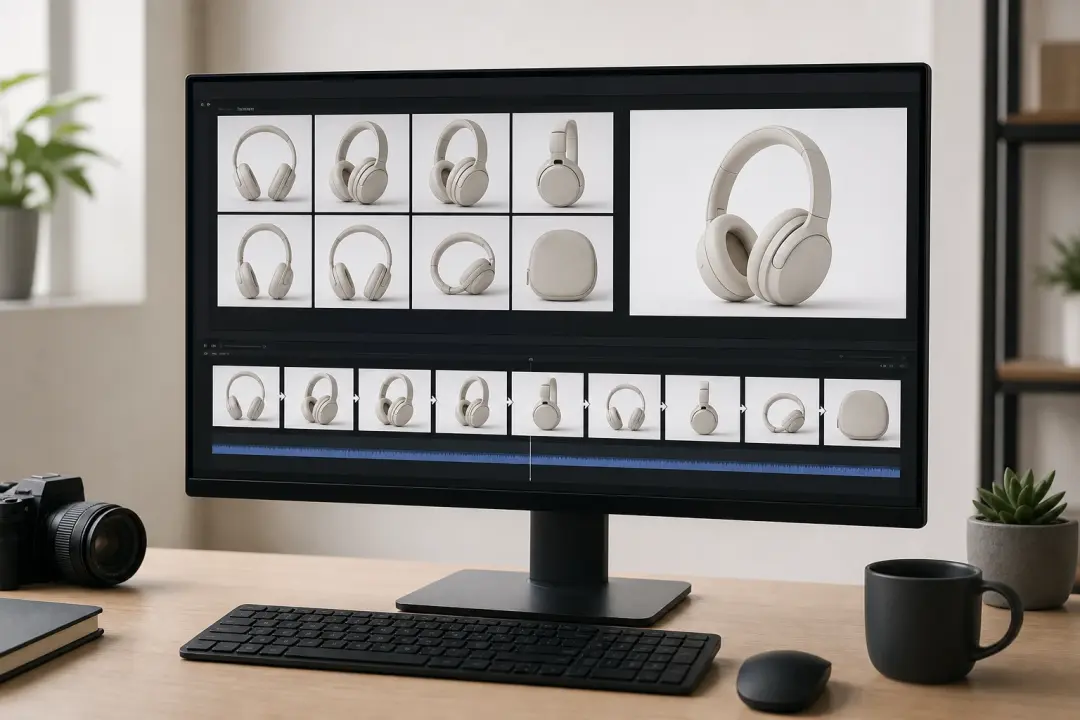
Product Picture Clip for a Listing
A static product page shows one angle at a time. Arrange your product pictures to show the item from multiple perspectives in a deliberate order, then make a video with pictures that moves through each angle as a short clip. Small business owners and independent sellers use this workflow to create videos from photos without a full production setup. The video output can sit on a product page or go into a social campaign post.
Event Recap for Same Day Social Sharing
After a company event, school performance, or community gathering, photos accumulate quickly. Select the pictures that capture the arc of the event, sequence them from arrival to close, and make a video of pictures that serves as the official recap. VideoAI generates the video output so the organizer can turn photos into a video and share it the same day the event ends, rather than editing the next morning. People searching how to make video from photos for social posts often have this exact scenario in mind.
VideoAI vs Other Ways to Make Video with Pictures
Understanding the differences helps you pick the right starting point, whether you are sequencing multiple pictures or working with a single photo. VideoAI keeps the steps focused when you make a video with pictures from a small set.
VideoAI vs Manual Slideshow Editors
Traditional slideshow editors ask you to set transition duration, export codec, and audio sync before you can preview anything. VideoAI generates the video output from your picture sequence and lets you review before committing to an export. The difference shows up most clearly when you need to reorder pictures mid session: in a manual editor that means resetting transitions; in VideoAI it means moving a picture and regenerating. People searching how to make a video out of pictures often start with a slideshow editor and switch tools when the setup takes longer than expected. If you want to make video with pictures quickly, skipping the manual codec setup matters. Choose this path when you need to make a video with pictures faster than a full editor allows.
VideoAI vs Single Photo AI Animation
Single photo AI animation tools take one picture and add motion to it, generating a short clip from that one image. That workflow differs from sequencing multiple pictures into a video with a beginning, middle, and end. VideoAI handles multi picture sequencing so you can make a video from pictures that tells a story across several moments. For one picture with AI motion effects applied, the animate photos approach is the better fit and is covered on a separate page. This page focuses on how to make a video with pictures when you have a set of images, not just one. VideoAI keeps that choice visible as you make a video with pictures.
VideoAI vs Phone Auto Generated Memories
Most phones include a built in feature that auto generates a memories video from your camera roll. Those outputs give you no control over picture order, pacing, or which photos are included. VideoAI keeps picture selection and sequence in your hands. When the story you want to tell does not match what the phone auto generates, uploading your chosen pictures to VideoAI and setting the order yourself produces the result you actually intended. This is why many users who ask how to make a video with pictures on iPhone end up using a browser based tool rather than the built in memories feature.
Questions About How to Make a Video with Pictures
Explore
Discover our AI design tools






Explore related tools

Start with Your First Picture Sequence
Upload the photos or pictures you have, set the order that tells your story, and make a video with pictures that is ready to share. You can turn pictures into a video from any event, trip, or product shoot and keep full control of the sequence from first picture to final export. Make a video from photos the same day you take them, without a manual editing setup.
Get Started