

photo to video ai
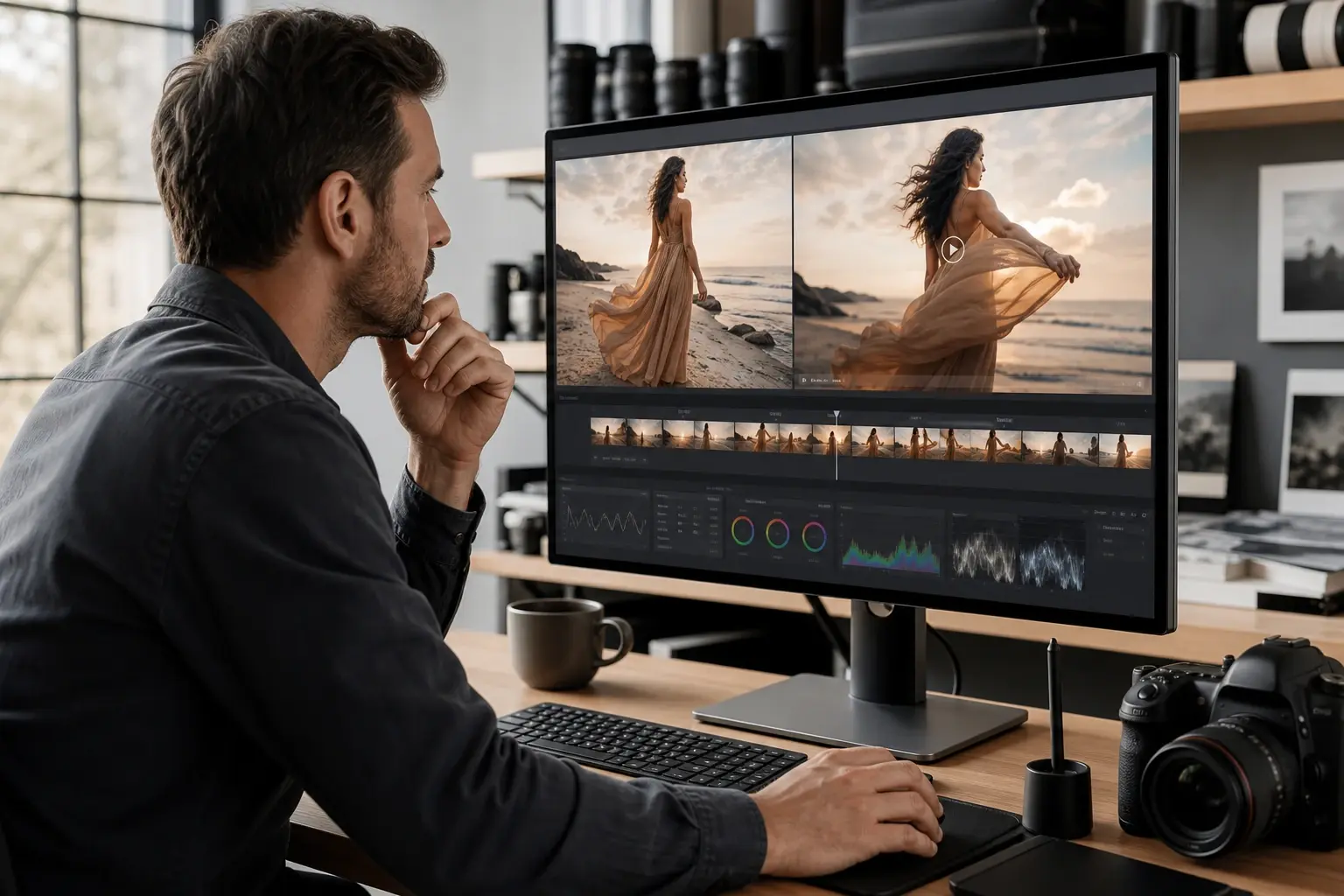
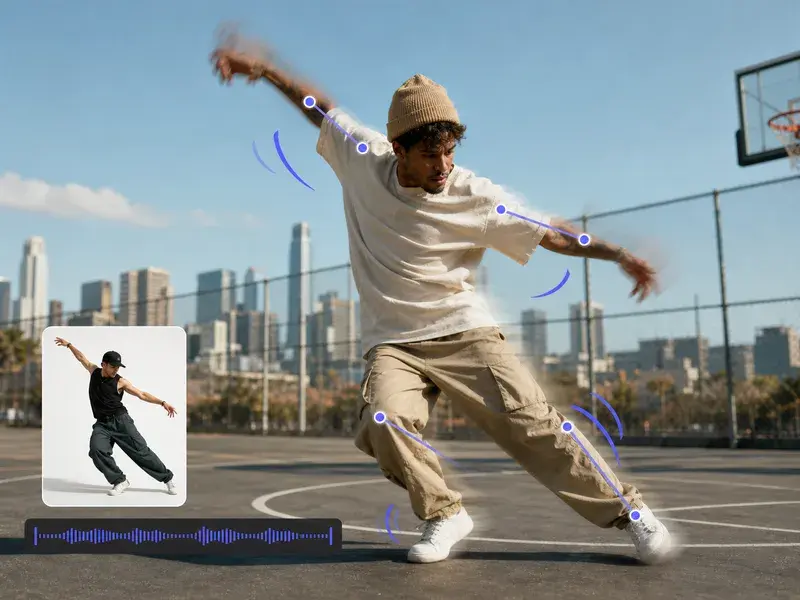
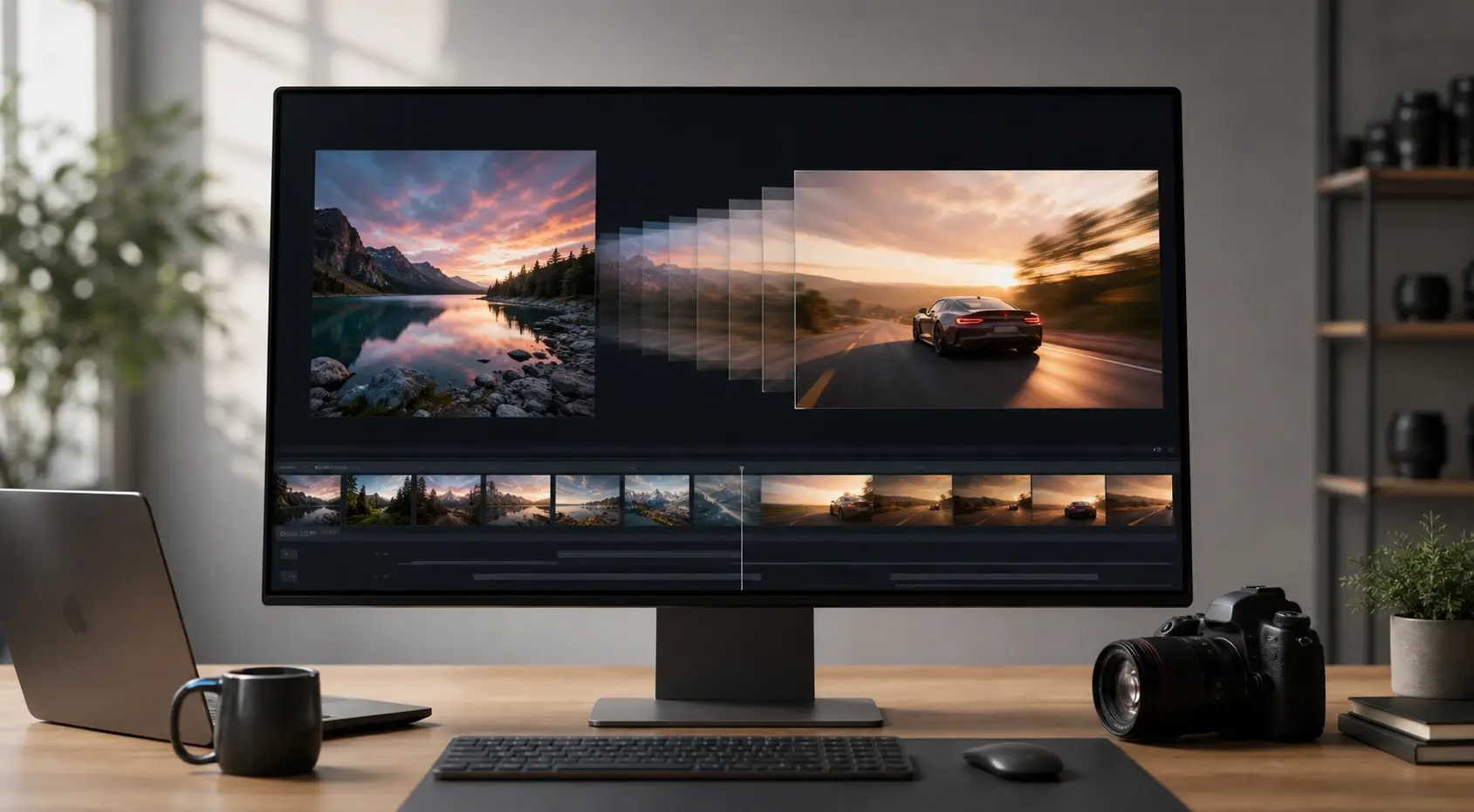
Upload a real photograph and VideoAI generates a short clip with natural motion that follows the light, depth, and subject detail already in the image. Turn photo to video in your browser, preview the result, and export when the clip reads as intended.
Who Uses Photo to Video AI
Portrait Photographer
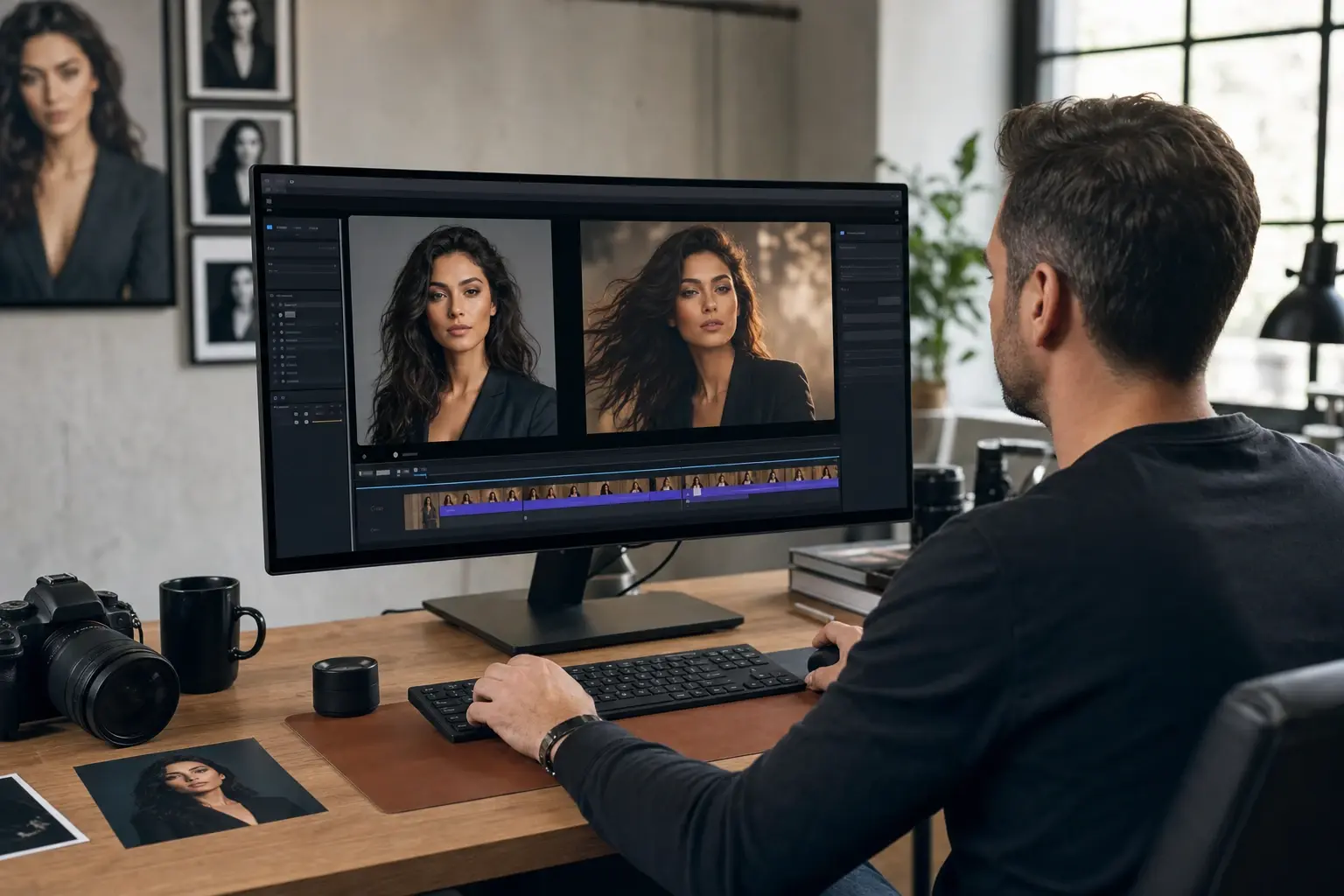
Your shoot produced one strong frame and a client wants motion content from it. The photo to video ai workflow adds a gentle camera move and subtle subject animation while keeping the face, hair, and skin detail intact. The deliverable goes from a static file to a usable social clip without a reshoot.
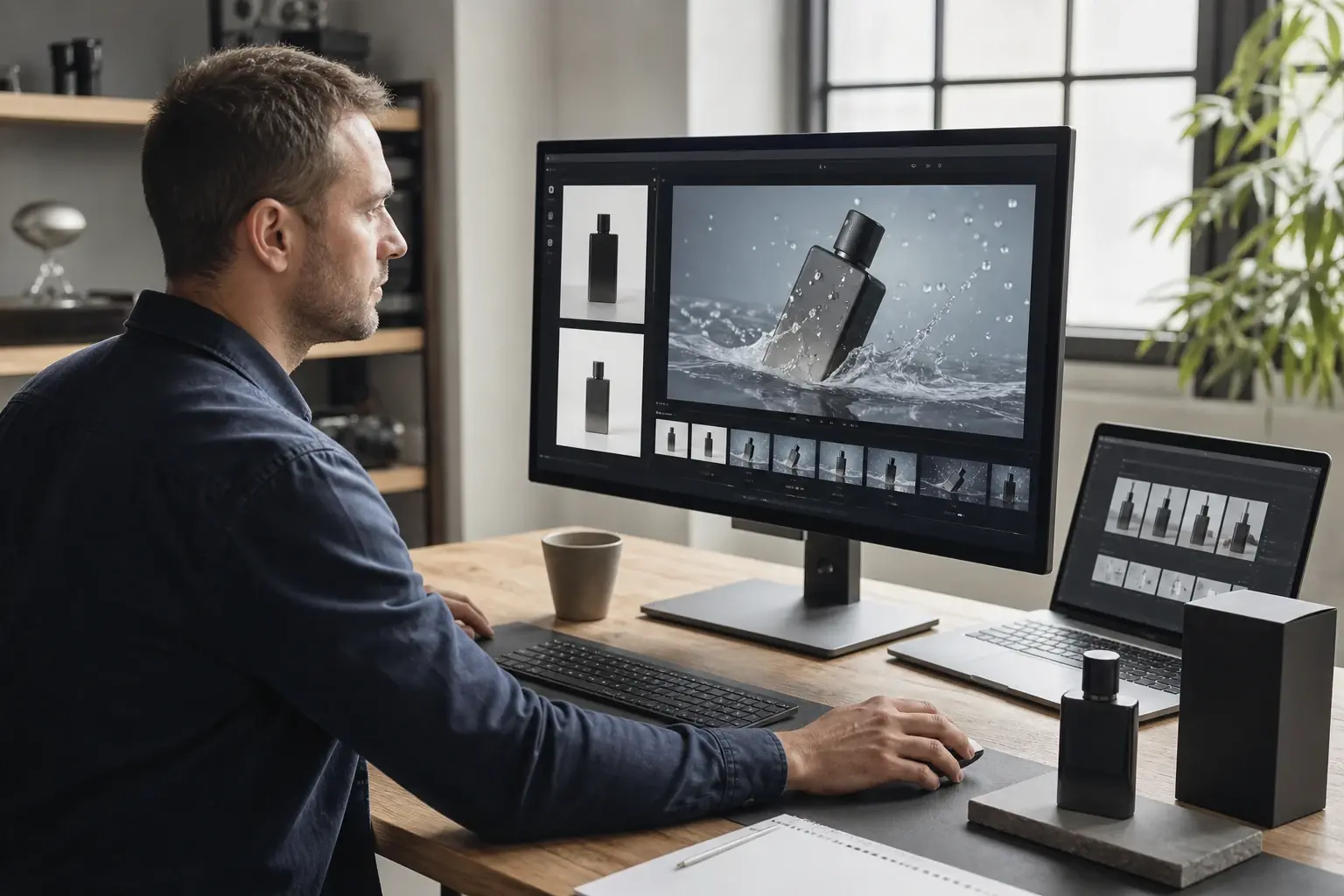
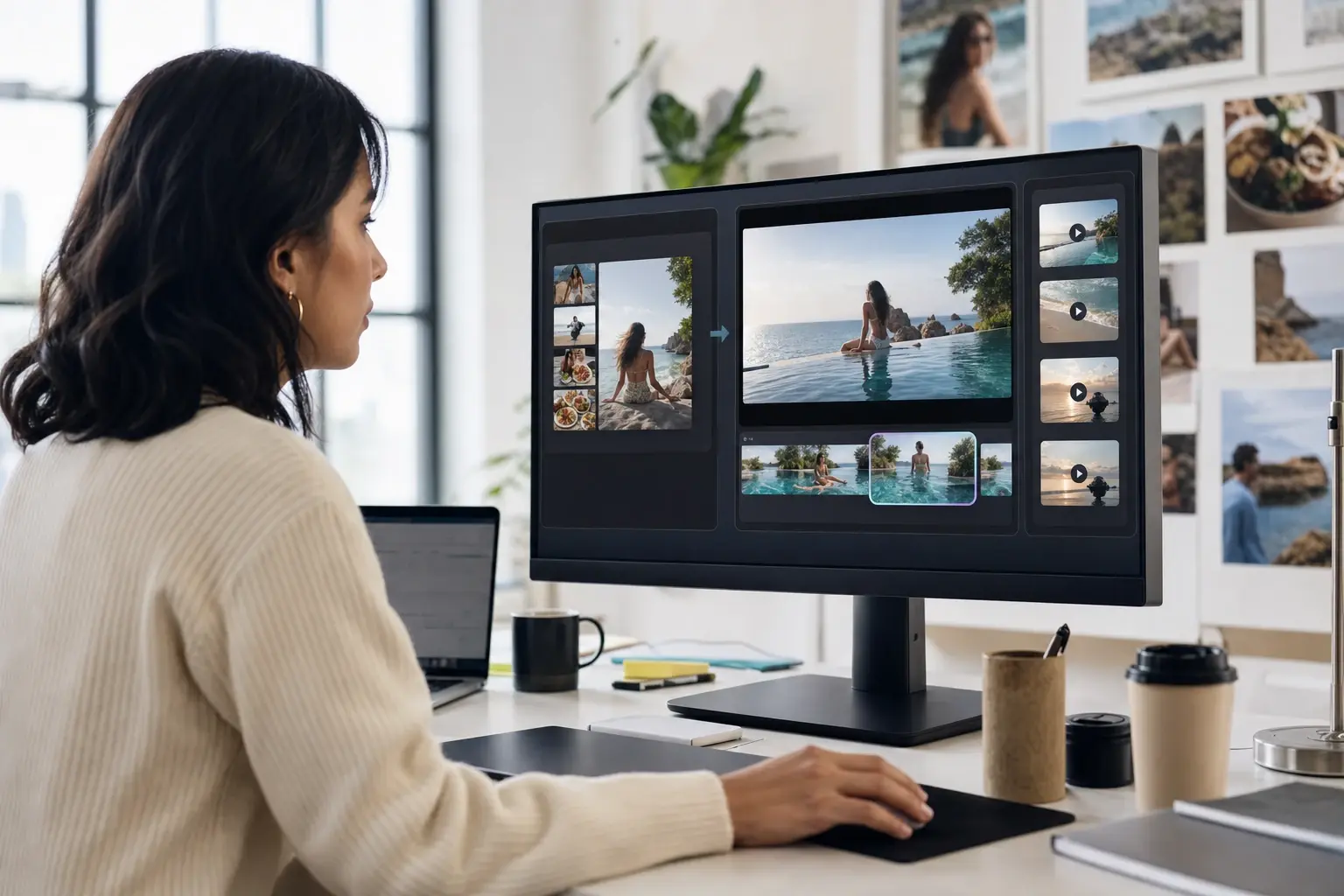
Photo to Video AI Source Protection
Each capability in VideoAI's photo to video ai generator is built around what a real photograph contains, not what an AI generated image assumes.
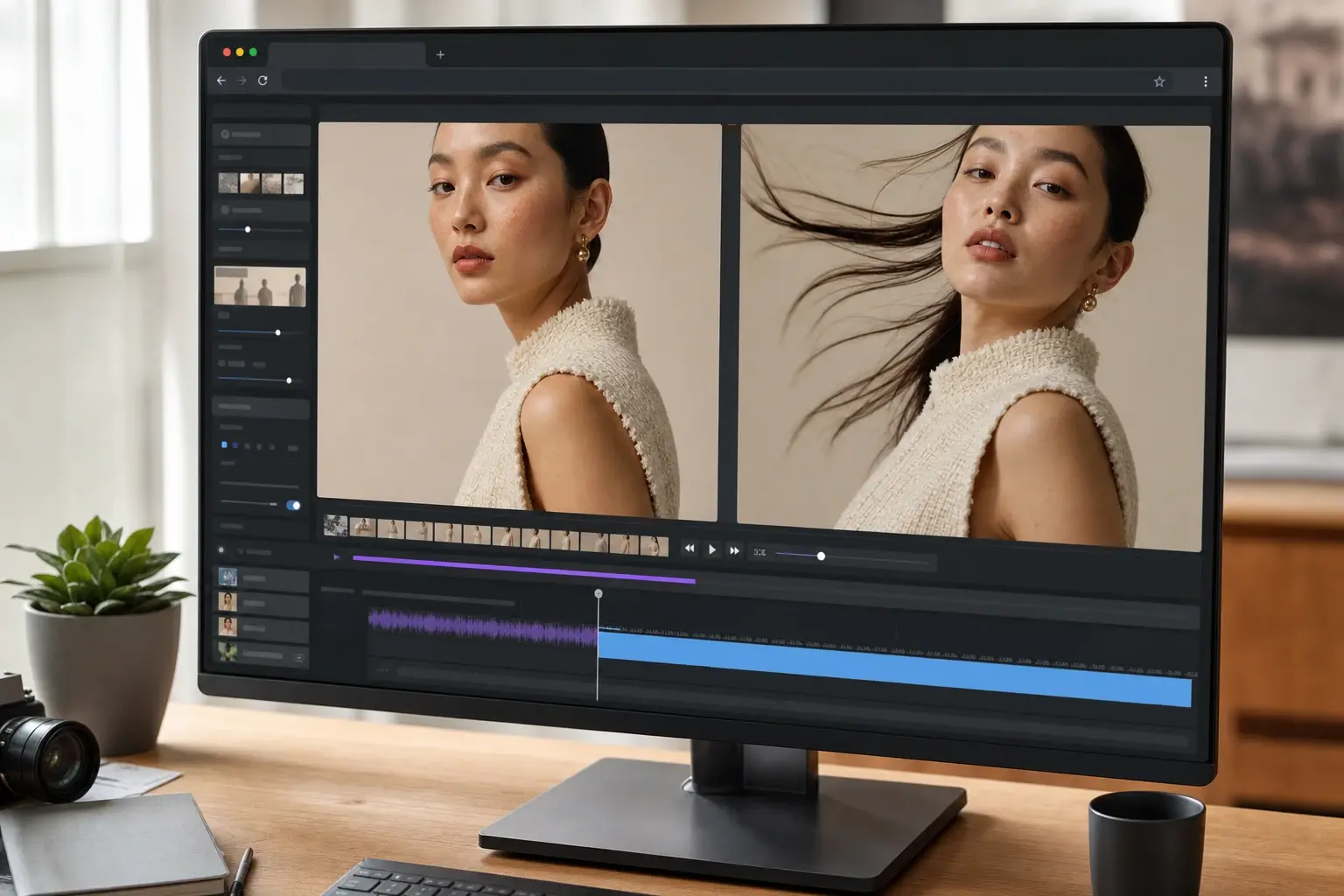
Photographic Texture Retention
VideoAI reads the surface detail in your uploaded photo and carries it through the generated motion frames, so fabric, skin, and product materials do not flatten into a rendered look. You do not need to adjust any texture setting manually. Works best with photos shot at full resolution with consistent lighting across the subject surface.
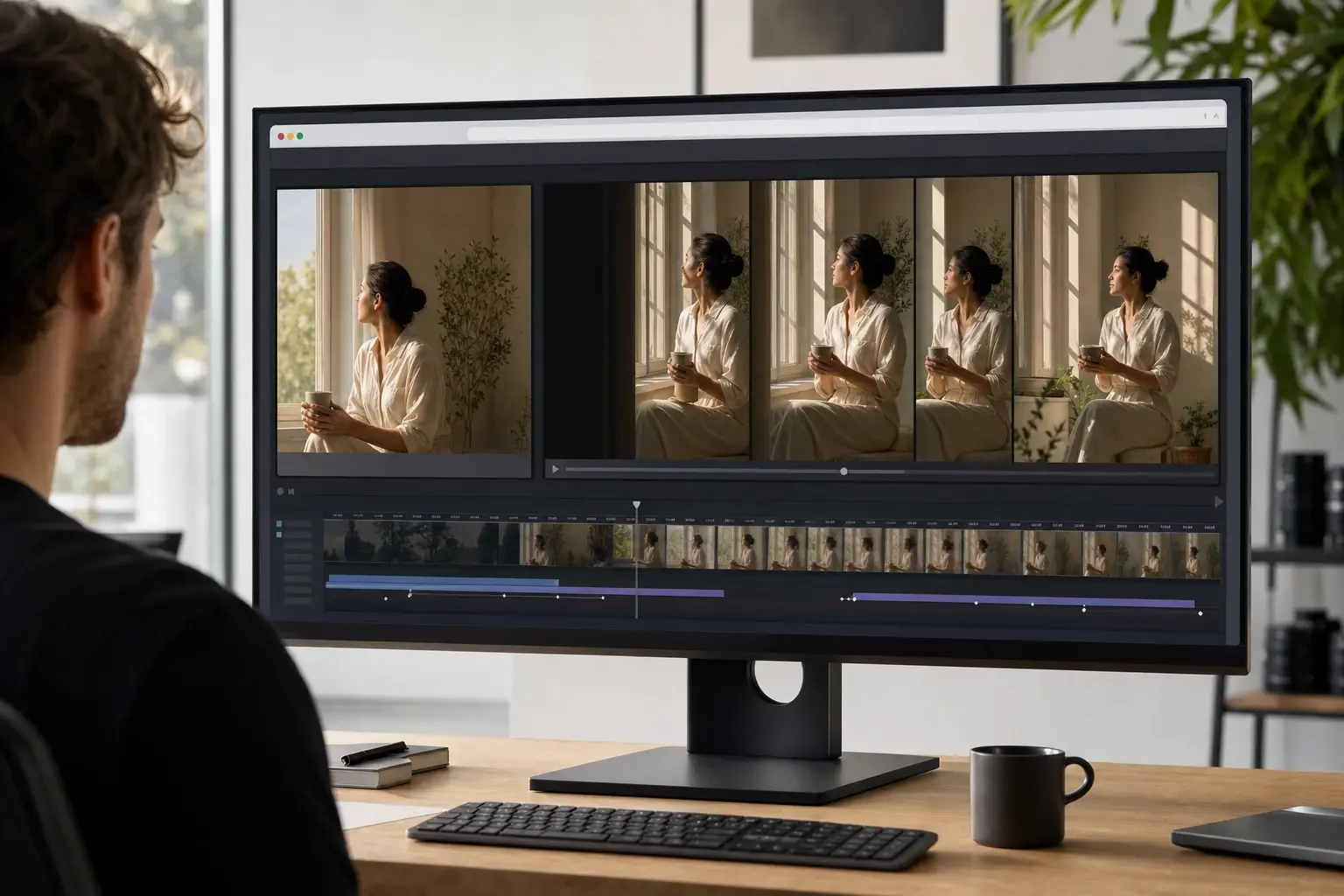
Lighting Continuity Across Frames
The photo to video ai generator maps the light direction and shadow relationships in the source image and maintains them as the scene animates, so the clip does not shift color temperature mid motion. Review the preview for any shadow drift before exporting. Photos with mixed or uneven light sources are more likely to show inconsistency in the output.
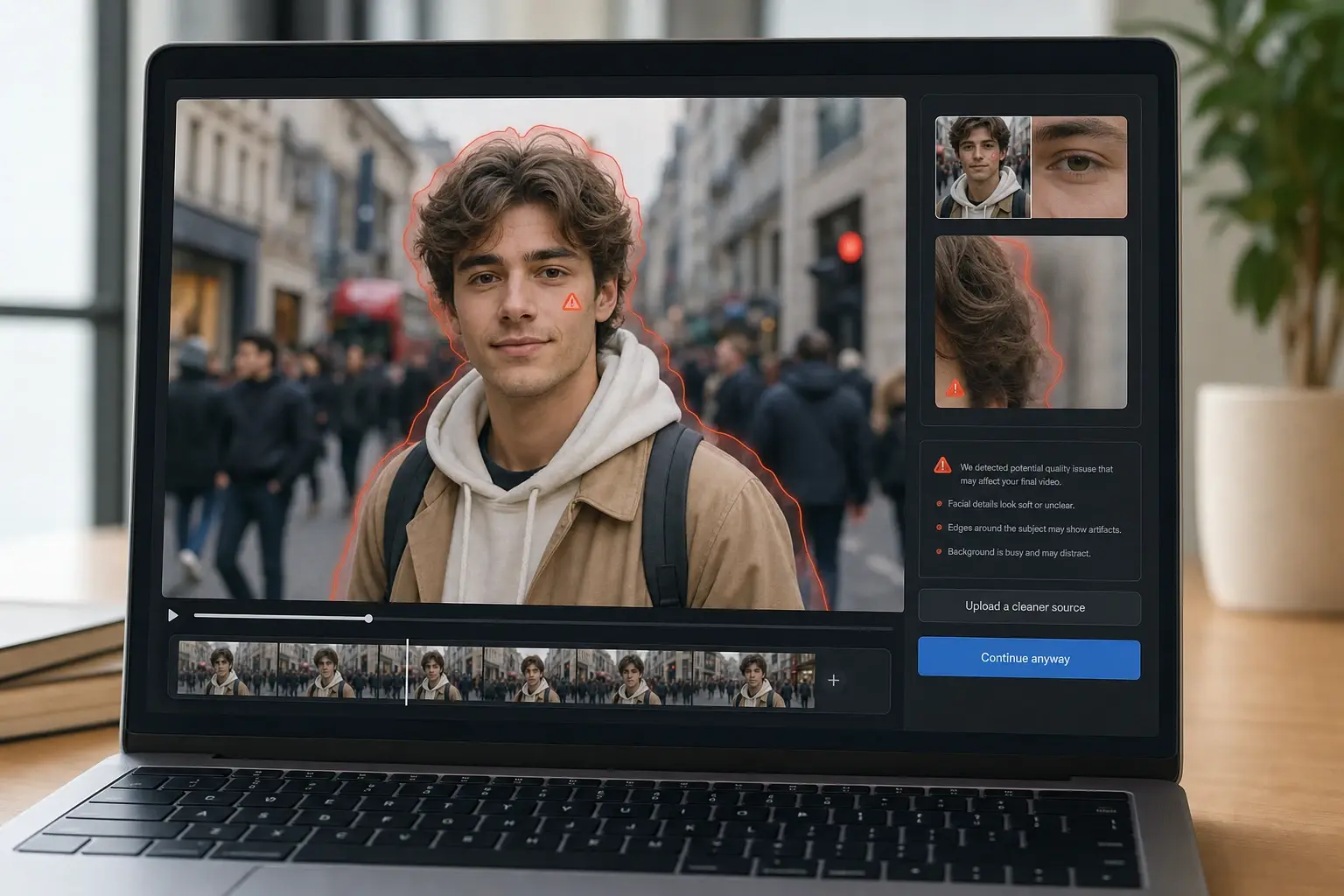
Face and Edge Fidelity Check
VideoAI flags areas in a portrait or people photo where facial detail is low or where the subject edge meets a busy background, so you can decide whether to proceed or upload a cleaner source. The flag appears in the preview stage before the final clip is generated. This review step is specific to photos with people and does not apply to product or landscape inputs.
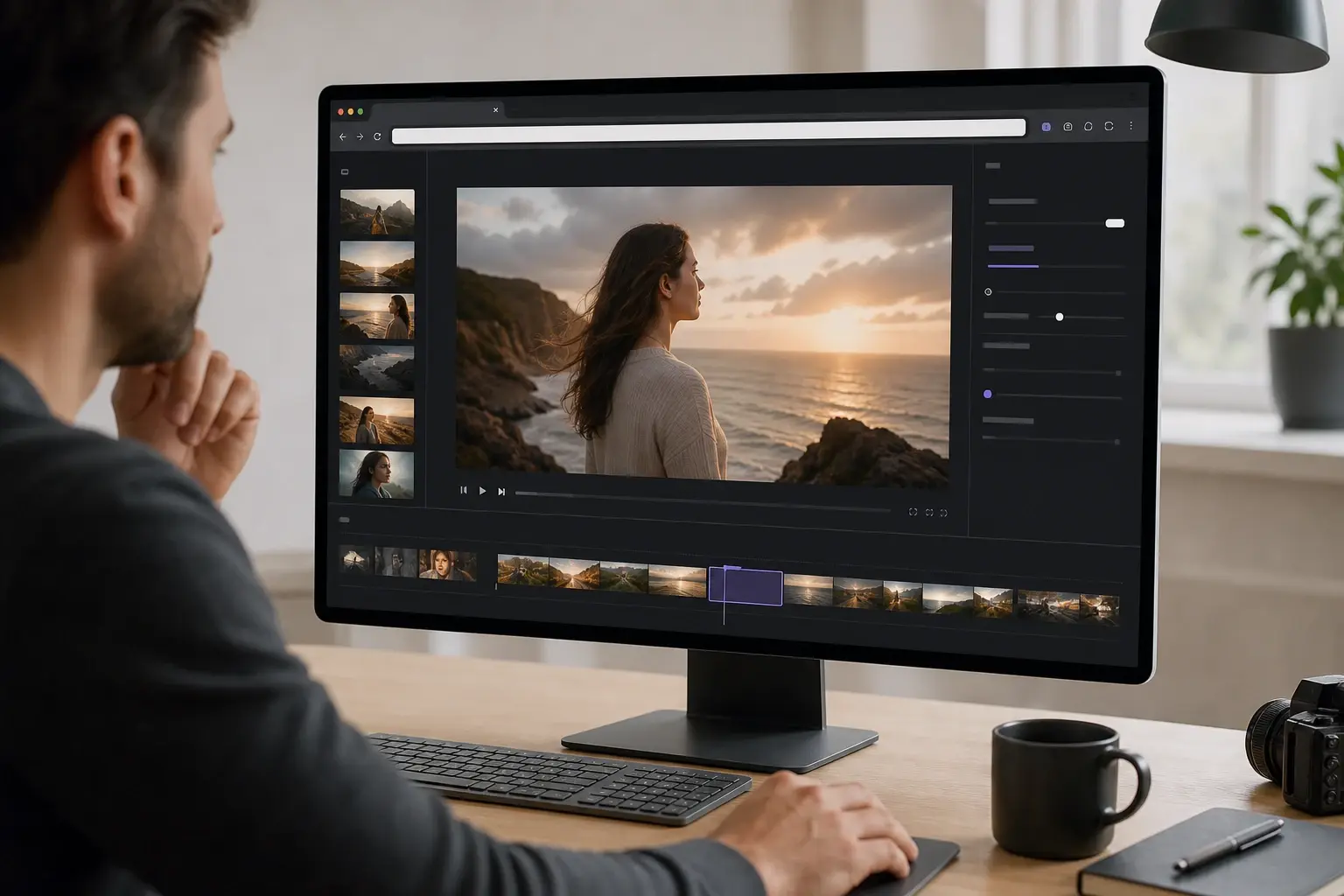
Browser Based Export Review
The generated clip plays in a browser preview at output resolution before any file is produced, so you can assess whether the photo to video ai result reads as realistic or needs a different source image. No software installation is required to reach this stage. The export step is available once the preview confirms the motion and fidelity meet your standard.
Photo to Video AI vs Earlier Approaches
Real photographs have qualities that earlier motion workflows were not built for. Here is how the photo to video ai approach differs in practice.
vs Manual Video Editing from Stills
Assembling a Ken Burns style pan or zoom in a traditional editor requires manual keyframing, separate depth masking, and export rendering outside the browser. The photo to video ai generator reads the depth and subject position in the uploaded photo and generates motion automatically, with a preview available before any file is produced. The editing session that used to take an hour is now a review step.
vs Generic Image Animation Apps
Many photo to video app tools apply a fixed motion template to every upload regardless of what the photo contains. VideoAI reads the specific light direction, depth cues, and subject position in each photograph and generates motion that follows those properties. The result is closer to the original photographic intent rather than a preset loop applied uniformly.
vs Requesting a New Motion Shoot
Commissioning new footage to match an existing approved photograph adds cost, scheduling, and continuity risk. Using a photo to video ai workflow with the original image keeps the approved creative intact and delivers a usable clip without a production day. The limitation is that complex multi subject action still benefits from real footage; a single photo with clear subject and stable light is the strongest input.
Photo to Video AI: Common Questions
Explore
Discover our AI design tools



Explore related tools
Turn Your Best Photo Into a Video Worth Sharing.
Upload a real photograph, preview the photo to video ai generated clip, and decide whether the output meets your standard before you export. VideoAI keeps the photographic quality of the source at the center of every step. When your photo has sharp detail and consistent light, the result reads as intended from the first preview.
Get Started