

image to video ai
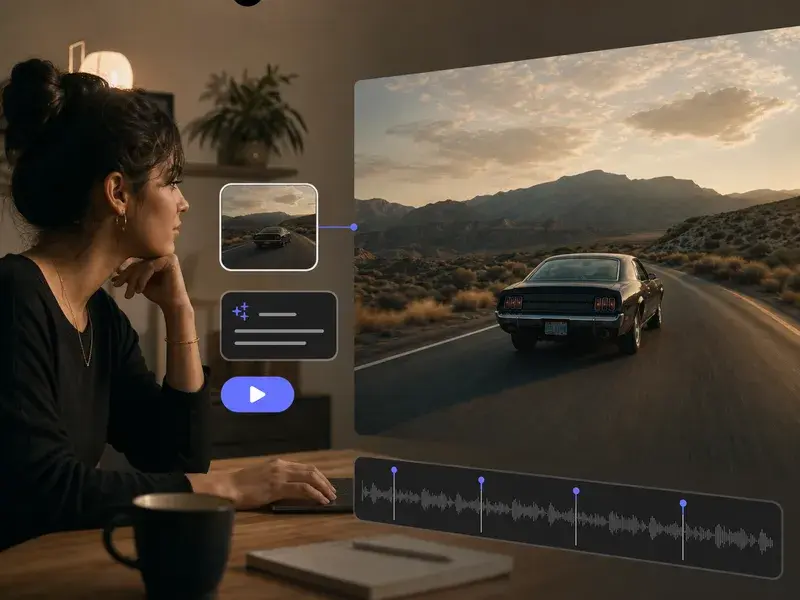
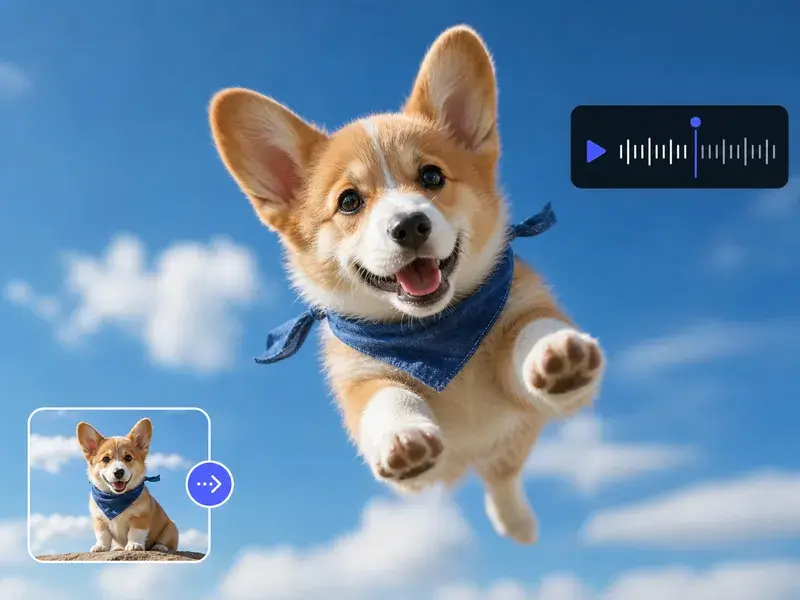
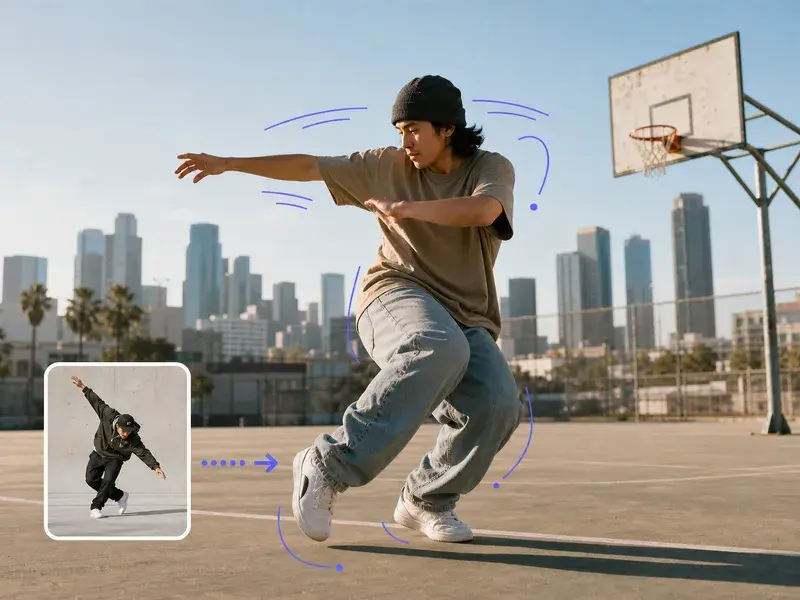
VideoAI's image to video ai workflow reads your uploaded image, interprets the prompt you write, and outputs a generated video with smooth, directed motion. No timeline editing required. The result is a real video file, not a slideshow.
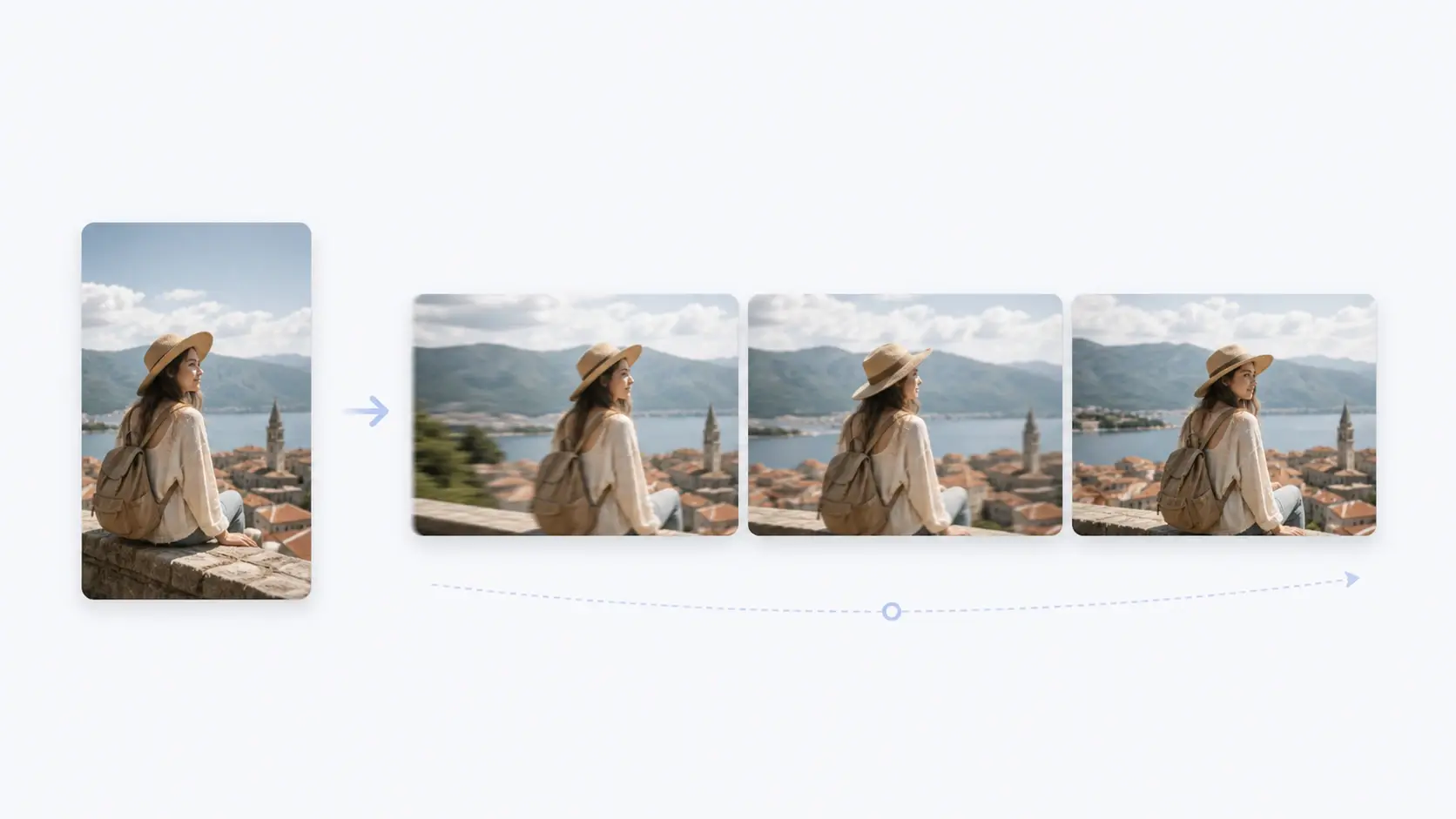
Who Uses Image to Video AI
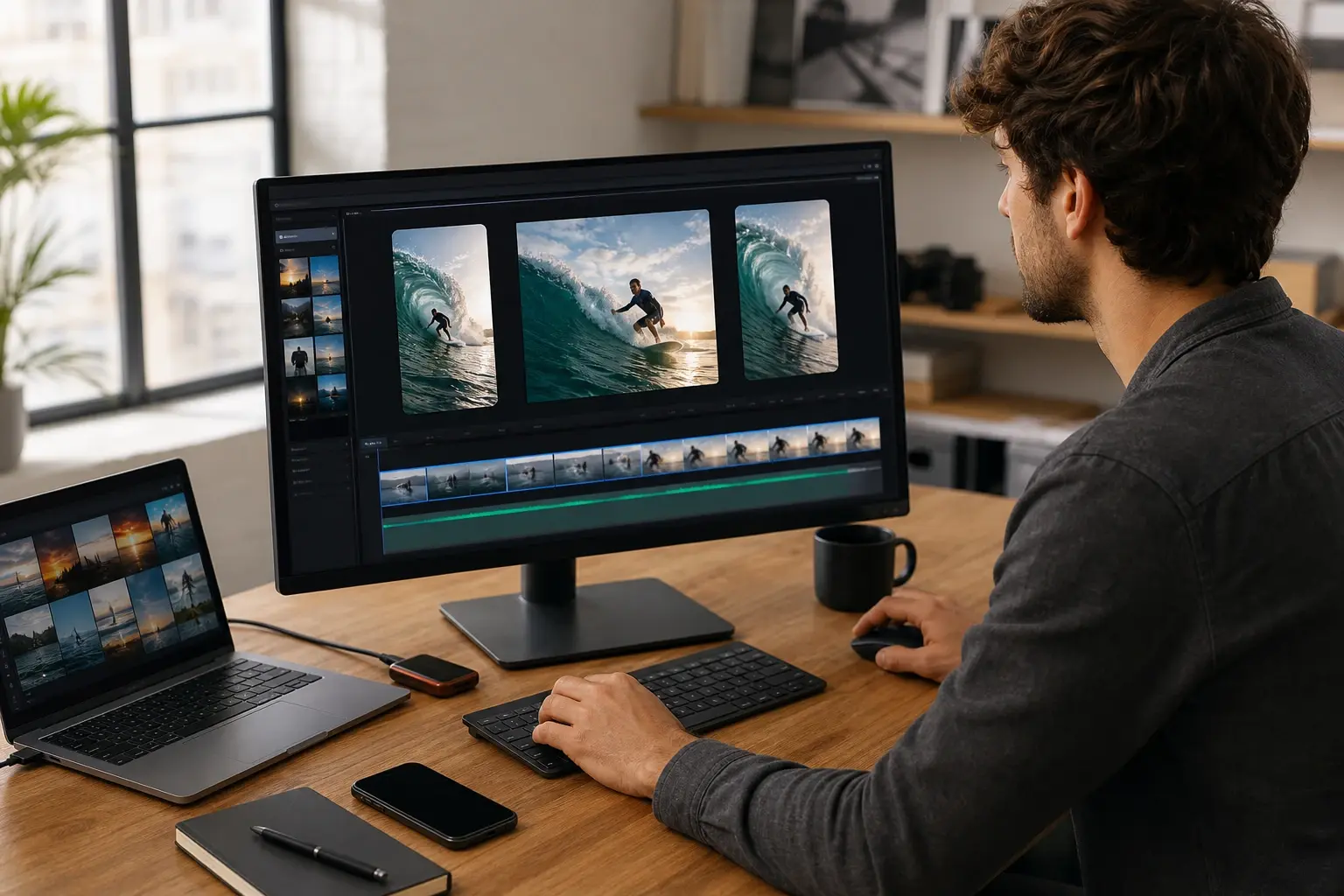
Fast Social Video Planner
Your feed moves fast and a static post loses attention before the scroll stops. When your best visual is a still image, the image to video ai workflow turns it into a looping clip ready for Reels or Shorts. The motion is generated from the image itself, so the output stays on brand without extra production. When your content schedule is tight, this image to video generator removes the gap between having a great image and publishing a video.
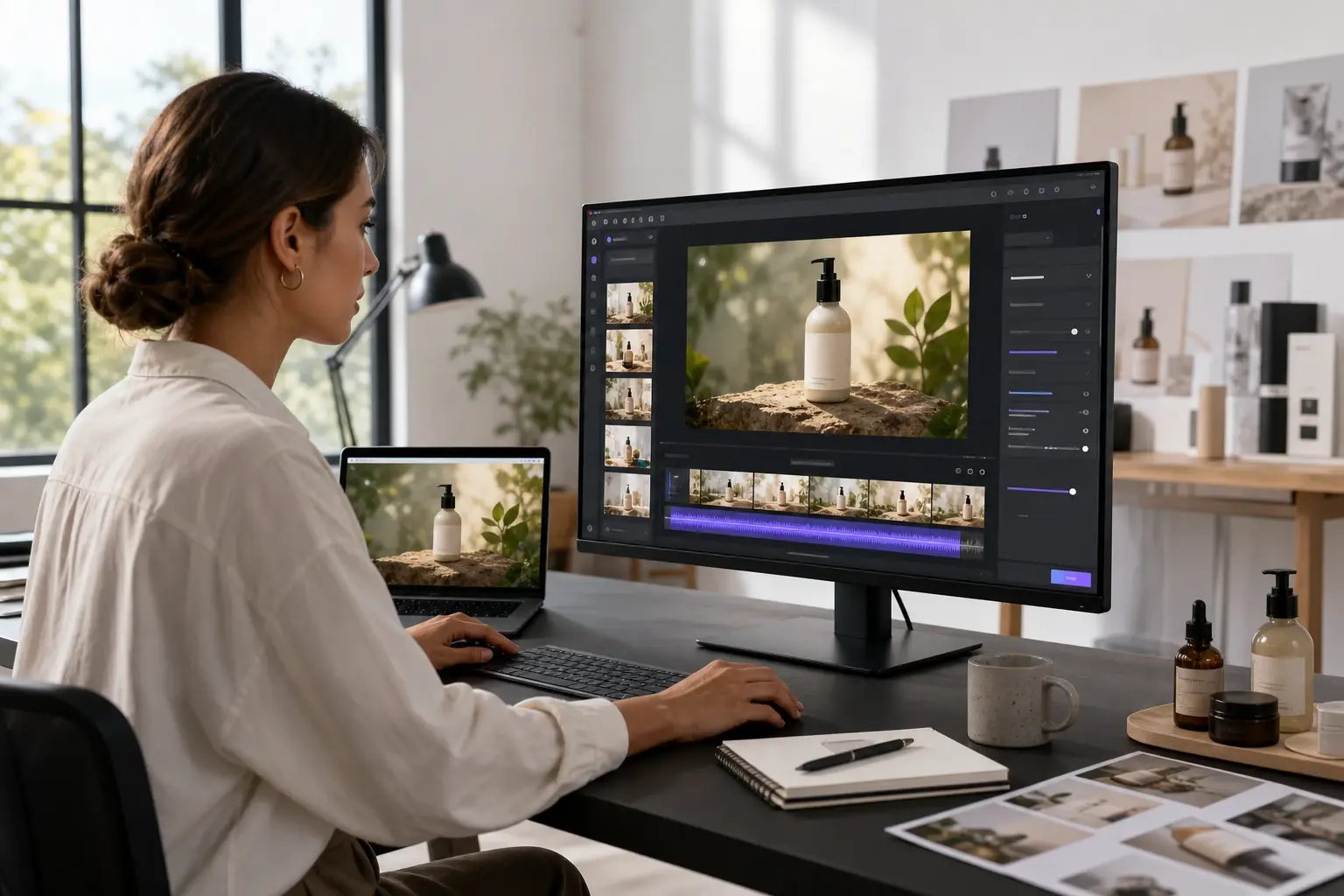
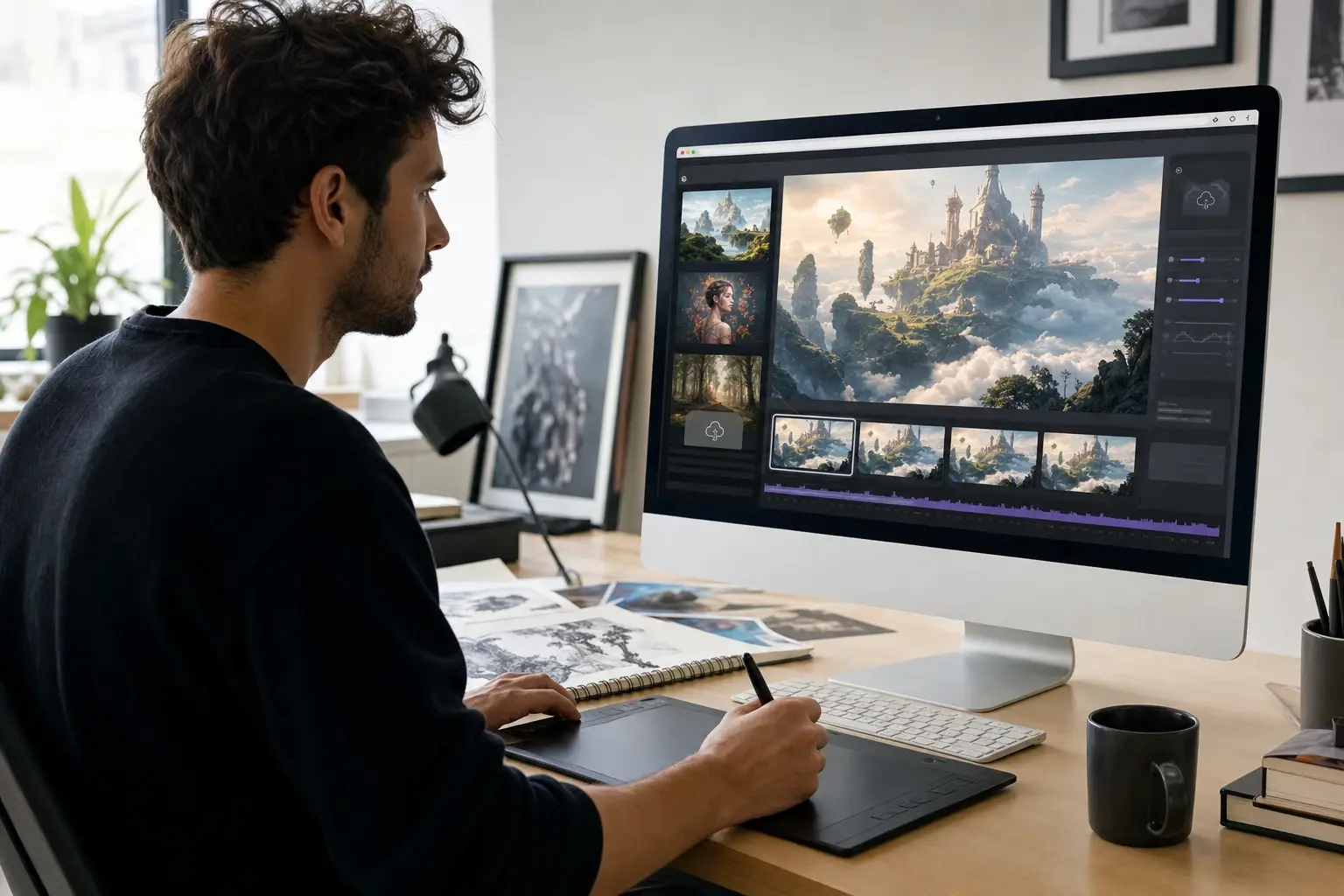
Image to Video AI in Three Steps
The image to video ai process follows a consistent sequence: upload, prompt, and export. Each step involves one clear creative decision that shapes the generated video output.
Choose the Category Source
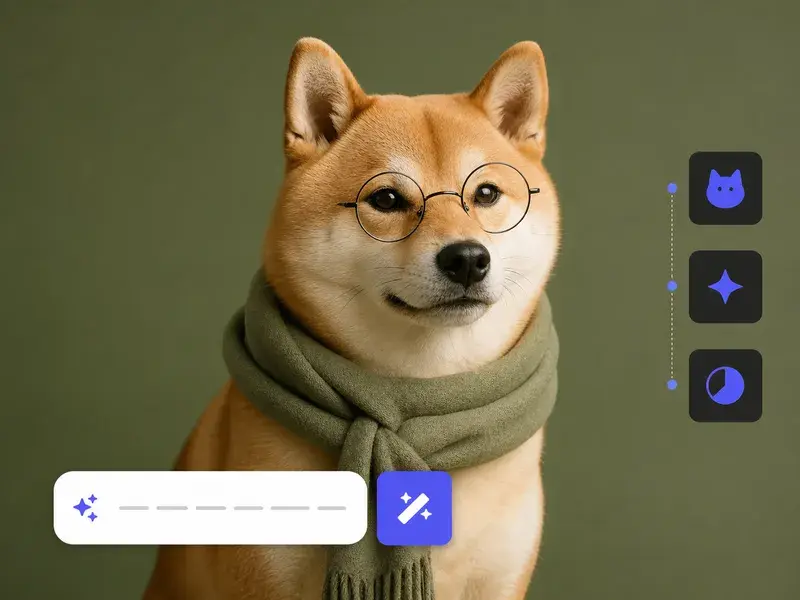
Start by uploading a JPG or PNG to the image to video ai generator. VideoAI reads the image structure, identifies the subject and background depth, and prepares the generation context. The upload is the creative starting point; the image content shapes what motion the ai image to video model can produce.
Guide the AI Motion
Type a prompt that describes the motion direction, atmosphere, or camera behaviour you want in the output video. The image to video ai model uses the prompt alongside the image to guide the generation. A specific prompt describing camera movement or subject action produces more directed output than leaving the field empty.
Preview and Export the Video
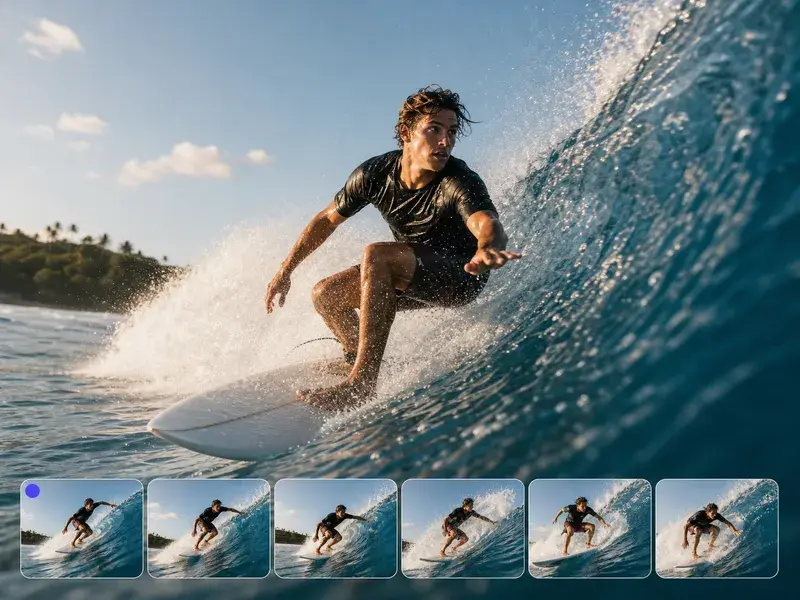
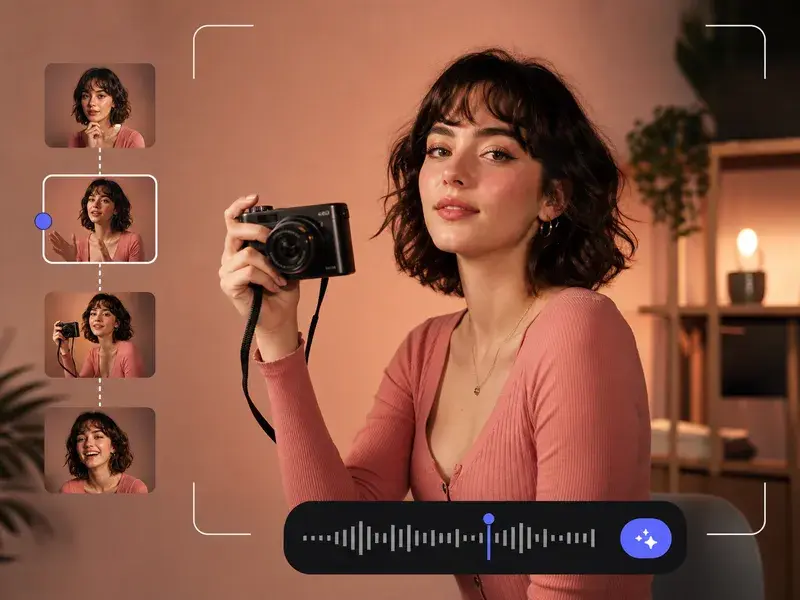
VideoAI renders the generated clip and shows a preview before the final file is created. Review the motion against your prompt intent, confirm the output matches the image to video ai result you need, and export in MP4 format suitable for social platforms and standard editing software.
Image to Video AI Features That Shape Output
Each feature in the image to video ai generator addresses a specific point in the creation workflow, from how the uploaded image is read to how the final video is confirmed before export.
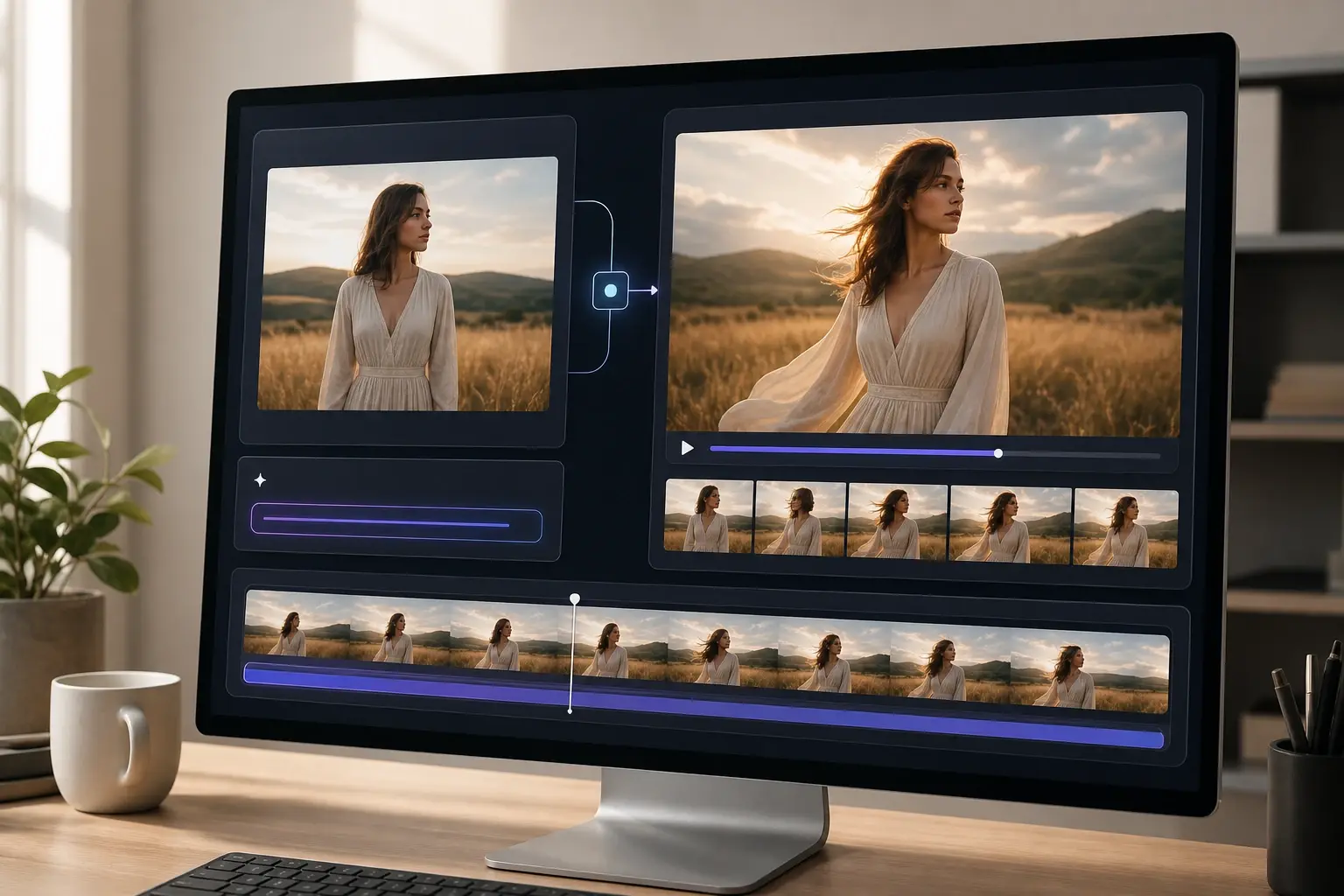
Prompt Guided Motion
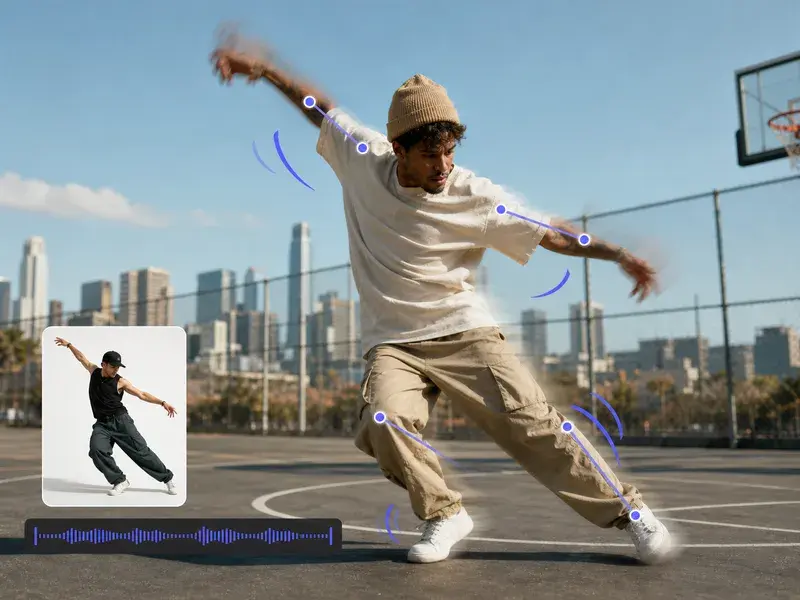
VideoAI reads the text prompt alongside the source image and uses both inputs to determine the direction and quality of the generated motion in the video. You do not need to set keyframes or draw motion paths manually. Works best when the prompt names a specific movement or atmosphere rather than a general style word, giving the ai image to video model a concrete direction to follow.
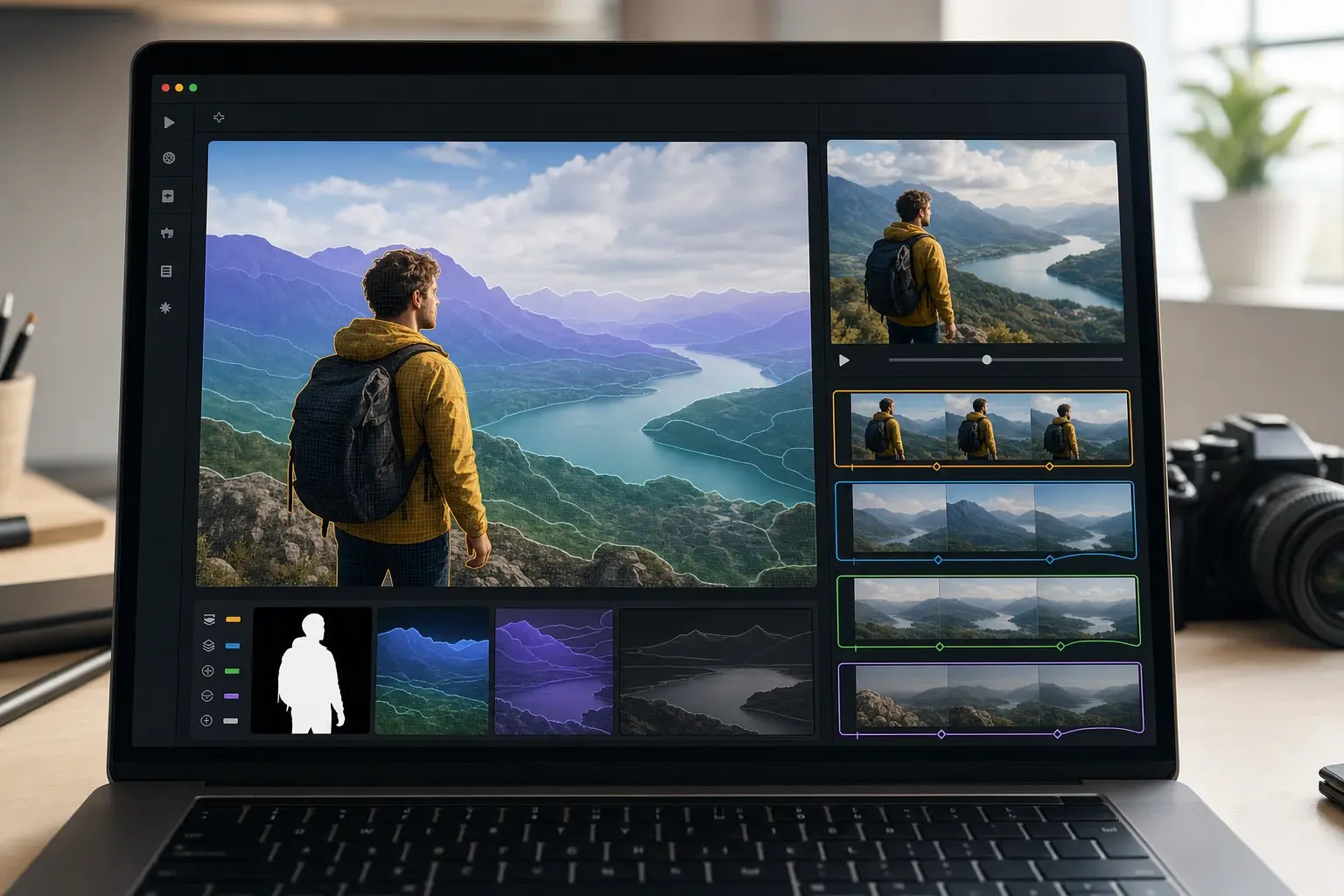
Subject and Depth Recognition
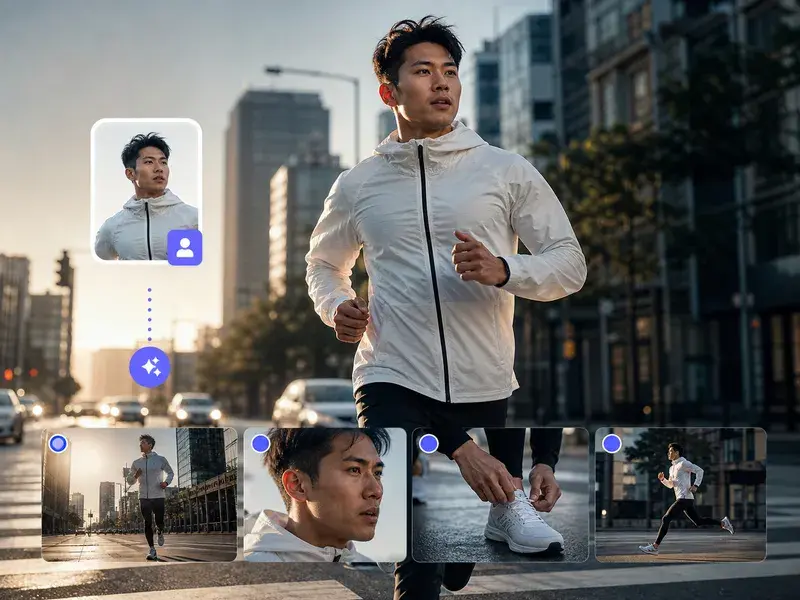
The image to video ai model identifies the main subject, the background layer, and the spatial depth in the uploaded image before generating motion. This recognition guides which parts of the scene move and how they relate to one another in the output clip. Images with a clearly separated subject and background produce more coherent generated motion than flat or heavily compressed files.
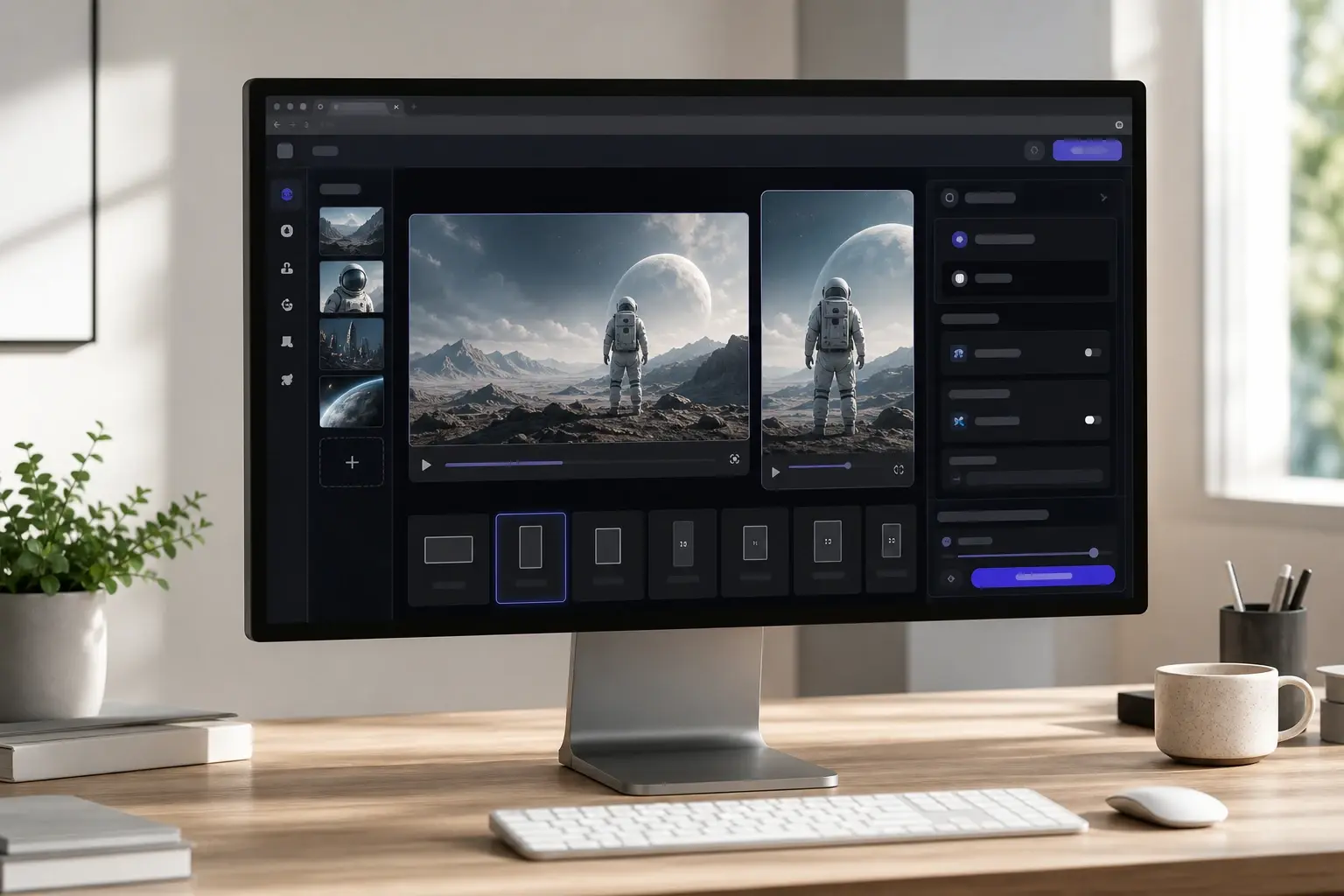
Social Ratio Output
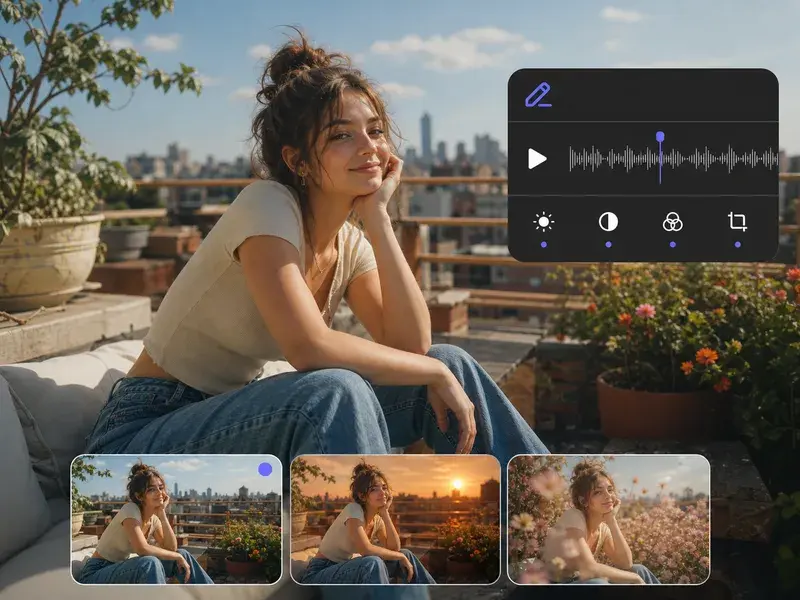
VideoAI generates the video in aspect ratios that match common social media placements, including horizontal and vertical orientations relevant to pic to video ai and image to video use cases on short form platforms. Choose the ratio before generation so the output is ready to post without cropping. The ratio selection applies to the full generated clip rather than just a preview frame.
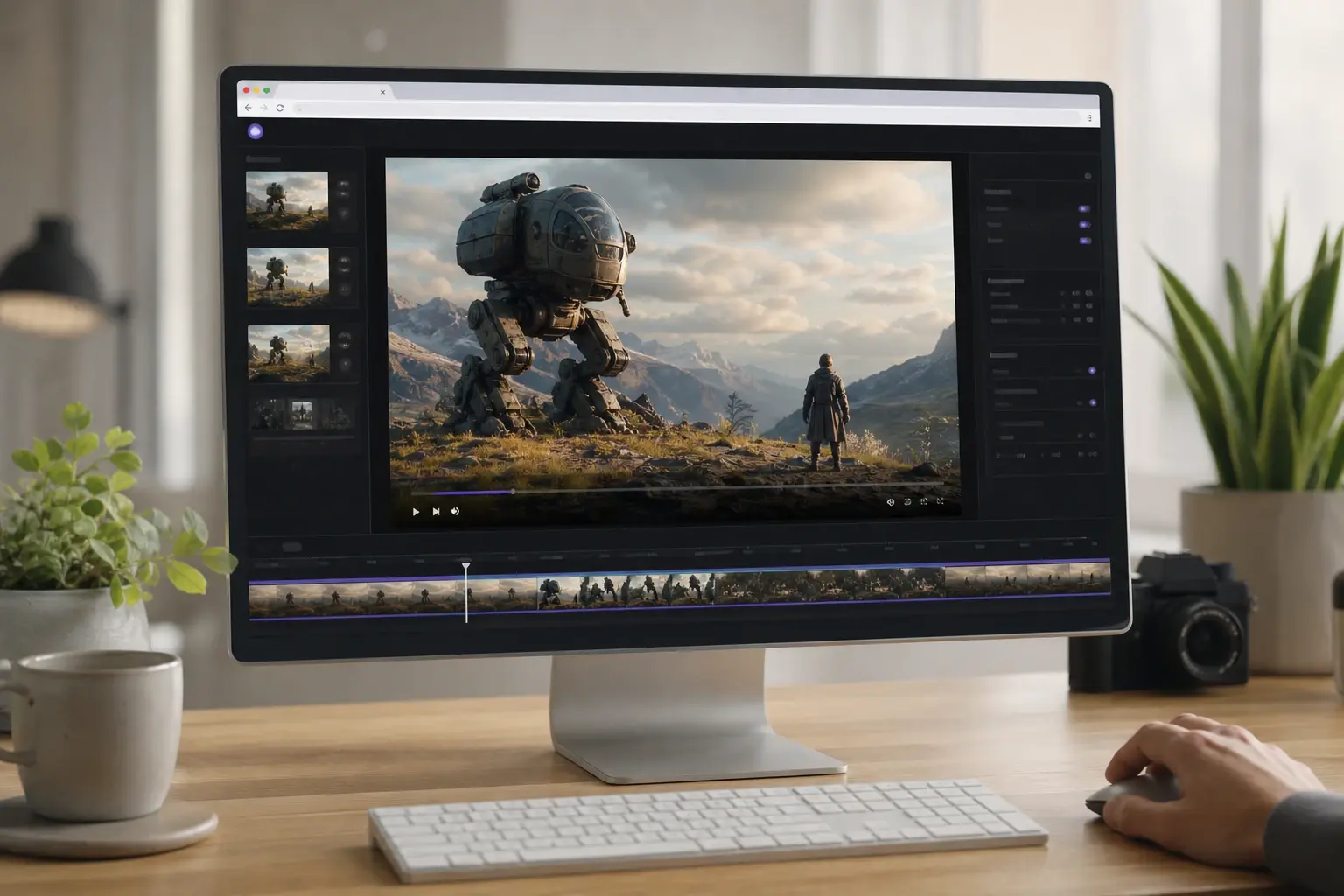
Pre Export Video Preview
Before the final MP4 is generated, VideoAI plays the image to video ai output in a preview player at the intended output resolution. Review the motion quality, pacing, and how well the result matches your prompt before committing to the export. If the preview does not match what you intended, revise the prompt and regenerate without losing the original source image.
Common Questions About Image to Video AI
Explore
Discover our AI design tools
Explore related tools

Upload an Image and See What VideoAI Generates.
Try the image to video ai generator with your own image. Write a prompt, preview the motion, and export a video file ready for social or production use. When the source image is clear and well composed, the generated output is closer to final on the first attempt.
Get Started