

Remove Object From Photo
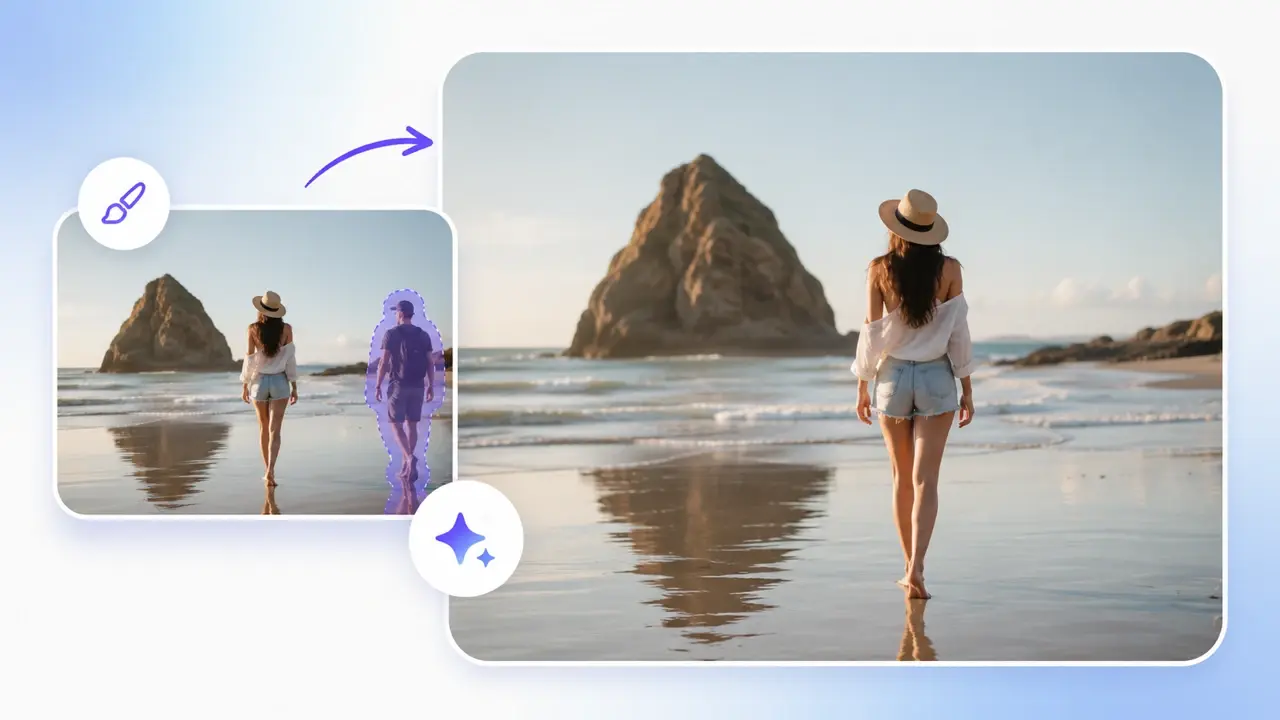
Brush over the object you want gone or describe it, and VideoAI erases it while rebuilding the background so the edit stays invisible.
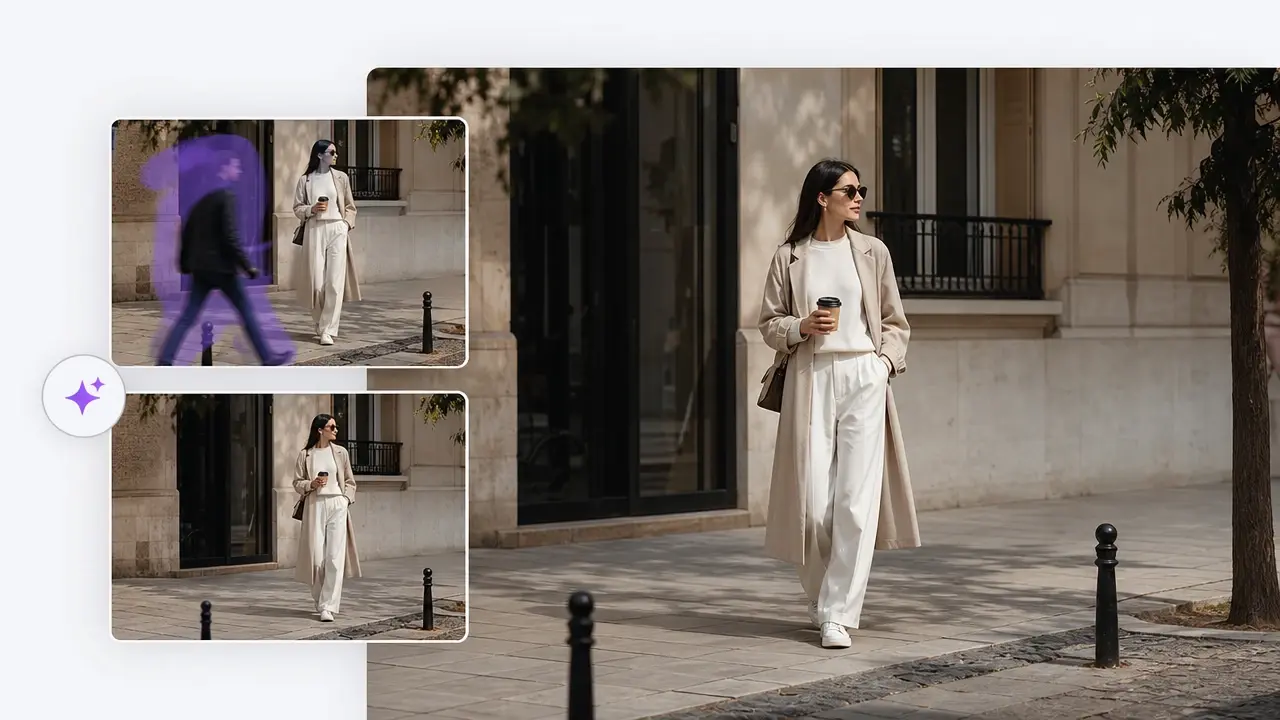
Remove Object From Photo In Three Steps
The path from upload to a clean download stays short, and you can refine before you save.
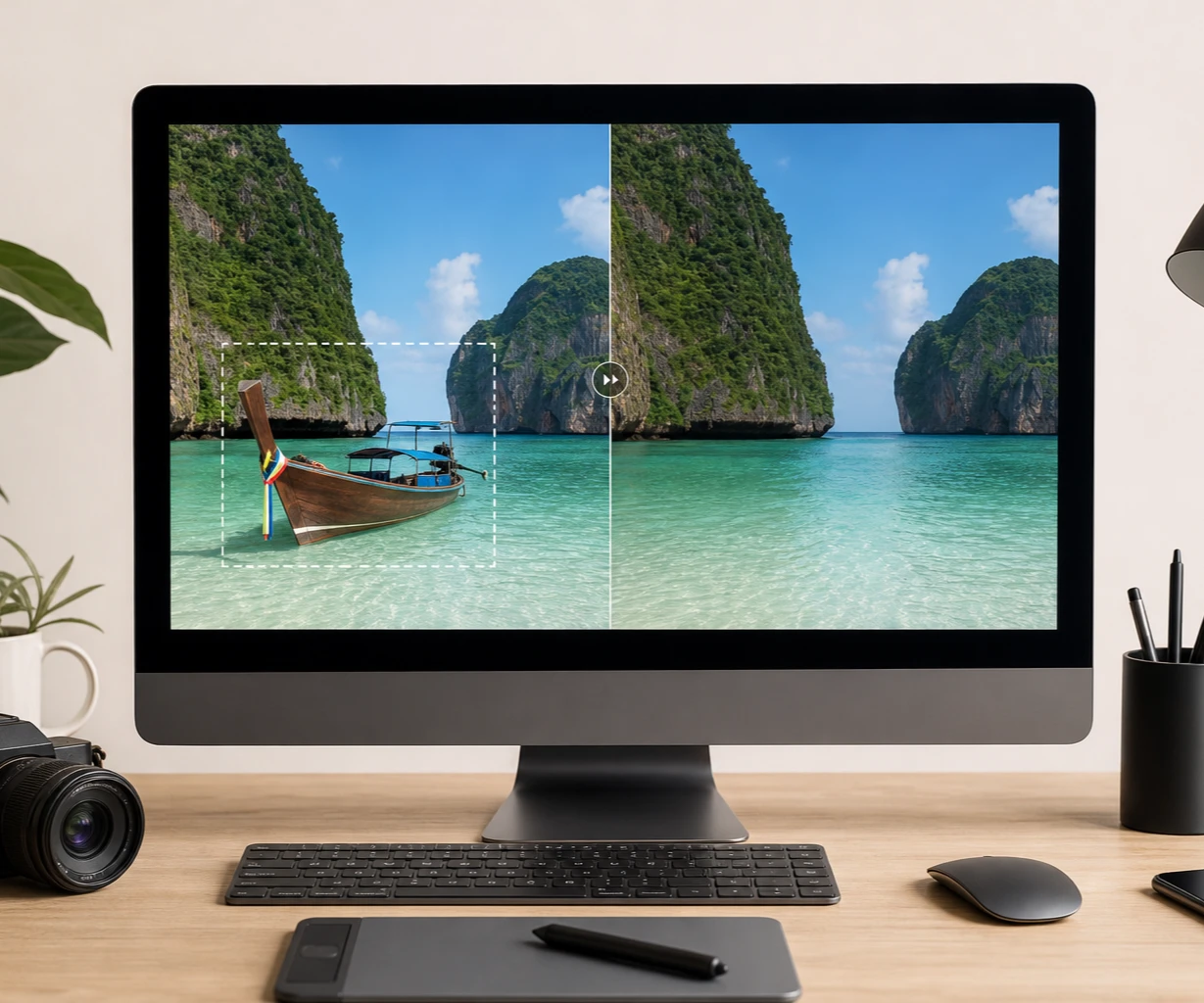
What The Photo Object Remover Delivers
Each tool in VideoAI targets a different cleanup, from a quick magic eraser pass to smart background fill and sharp 4K export.
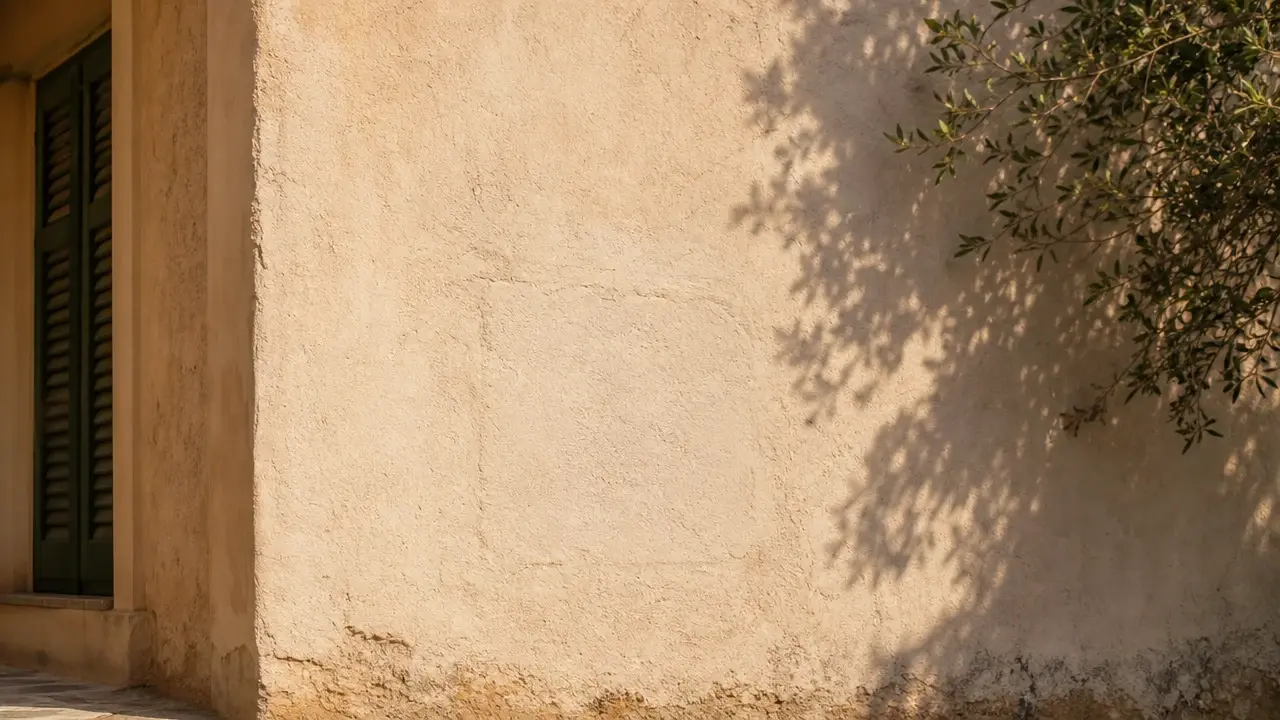
Smart Background Fill
Inpainting rebuilds the empty spot from the pixels right around it, reading the nearby light and texture so the fill settles into the scene. The patched area keeps the same tone and grain as everything beside it, so the edit never looks touched.
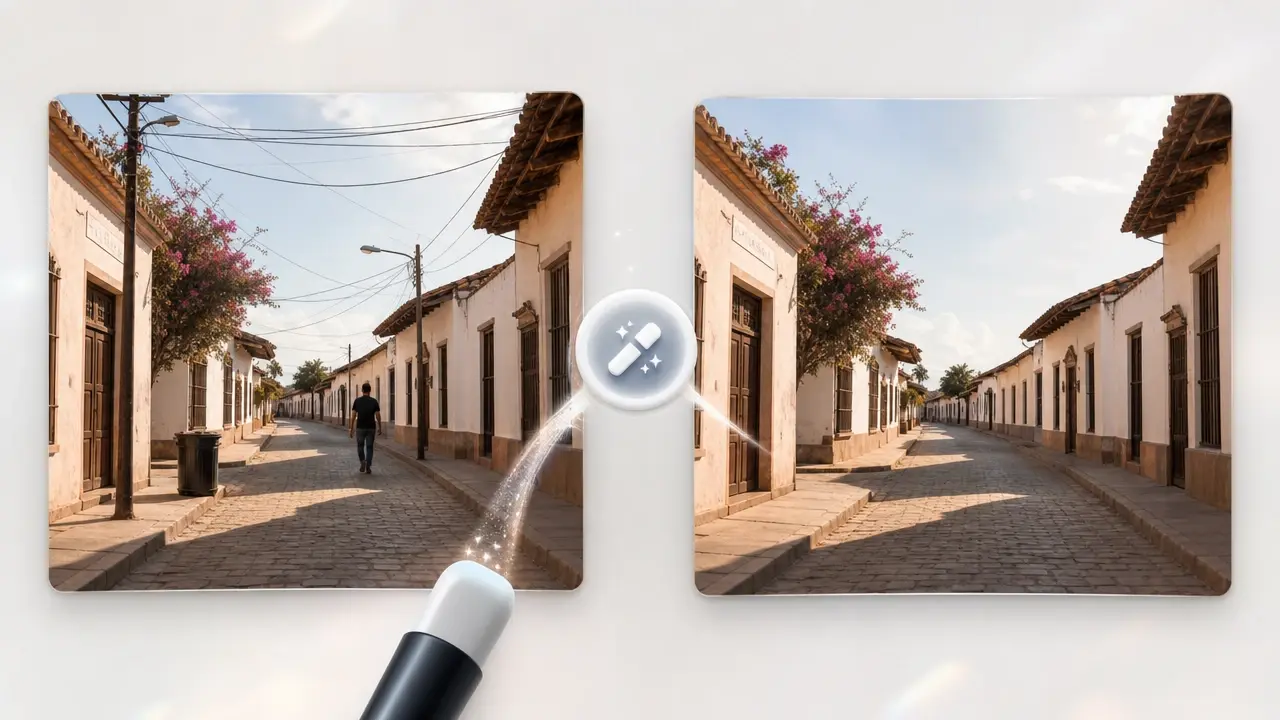
Removes Many Kinds Of Clutter
The eraser works on more than one target, so you can lift out a passerby, a trash can, overhead wires, a stray sign, or a small blemish in the same shot. As a photo object remover it treats each mark the same way once you brush it.
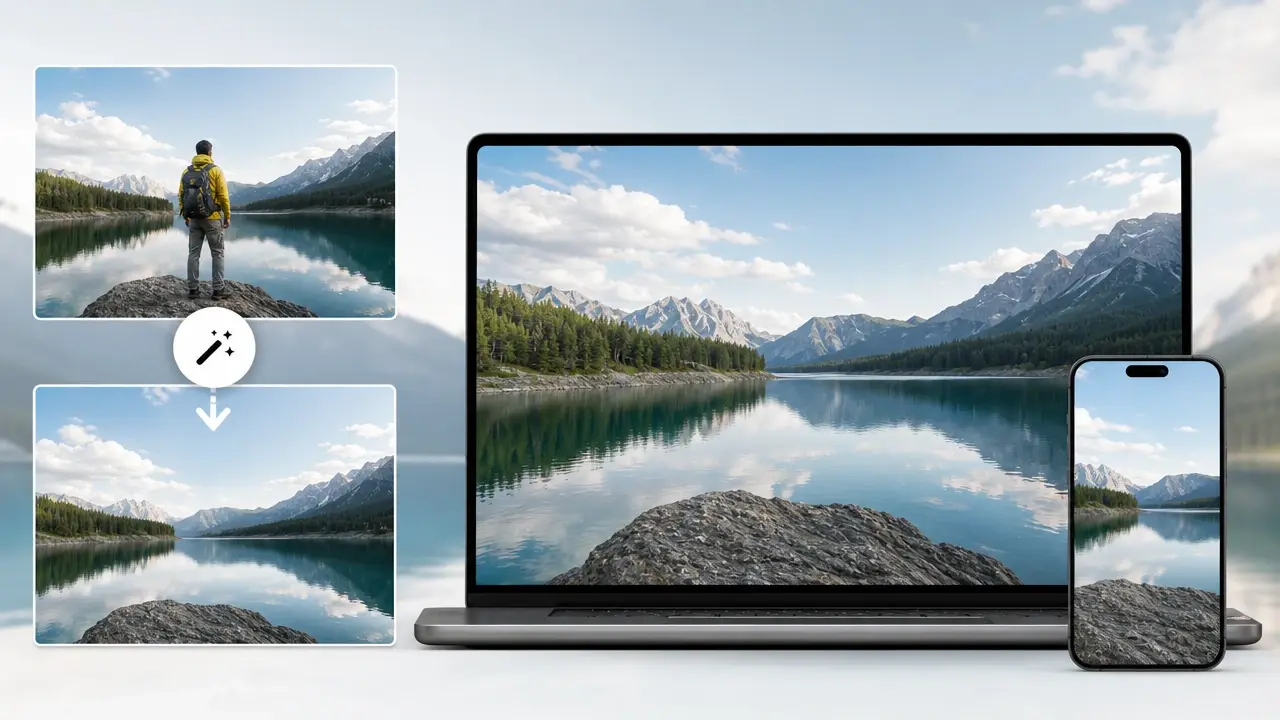
Full Quality And 4K Export
Edits hold the original resolution and detail, with no compression that softens the frame. When you need the finished image for print or a large screen, you can export it up to 4K.
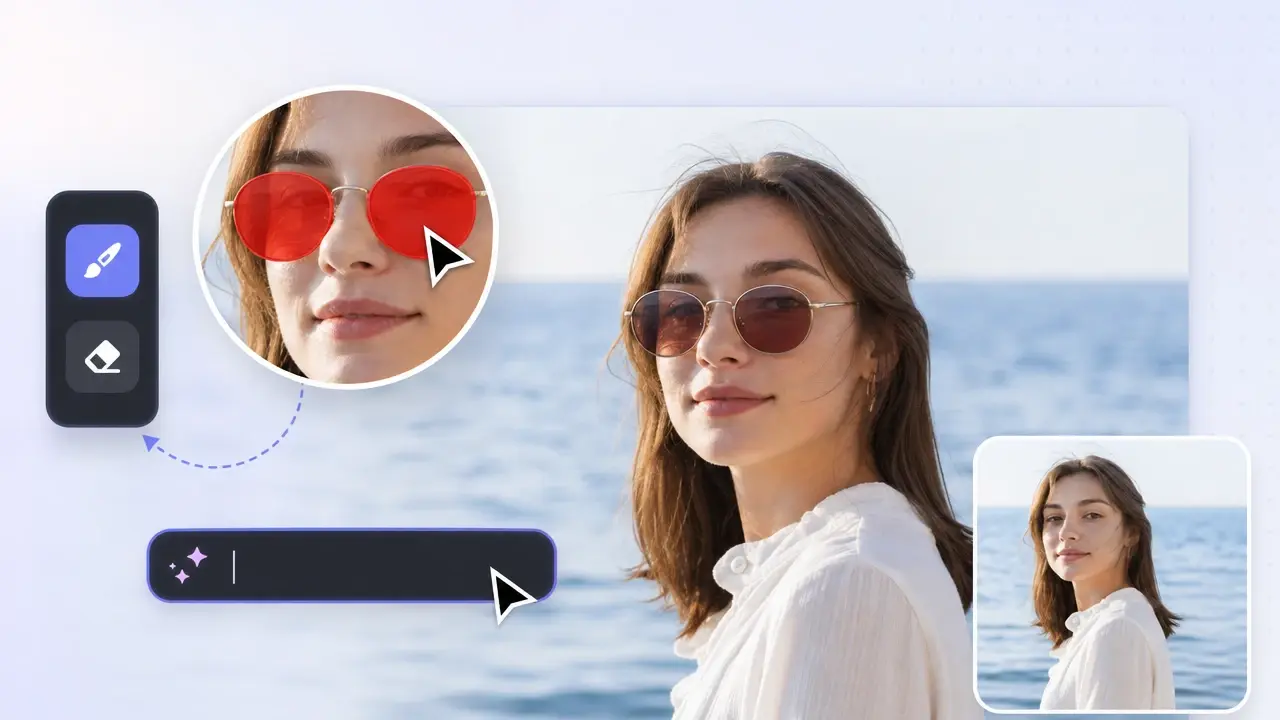
Brush Or Prompt Control
You stay in charge when you remove object from photo: paint over the exact object, or type a prompt naming the item or area to delete. Your upload is kept in your workspace, so you can reopen the same photo and keep editing later.
Common Things People Erase From Photos
Four common cleanups, each with its own kind of subject to lift out.
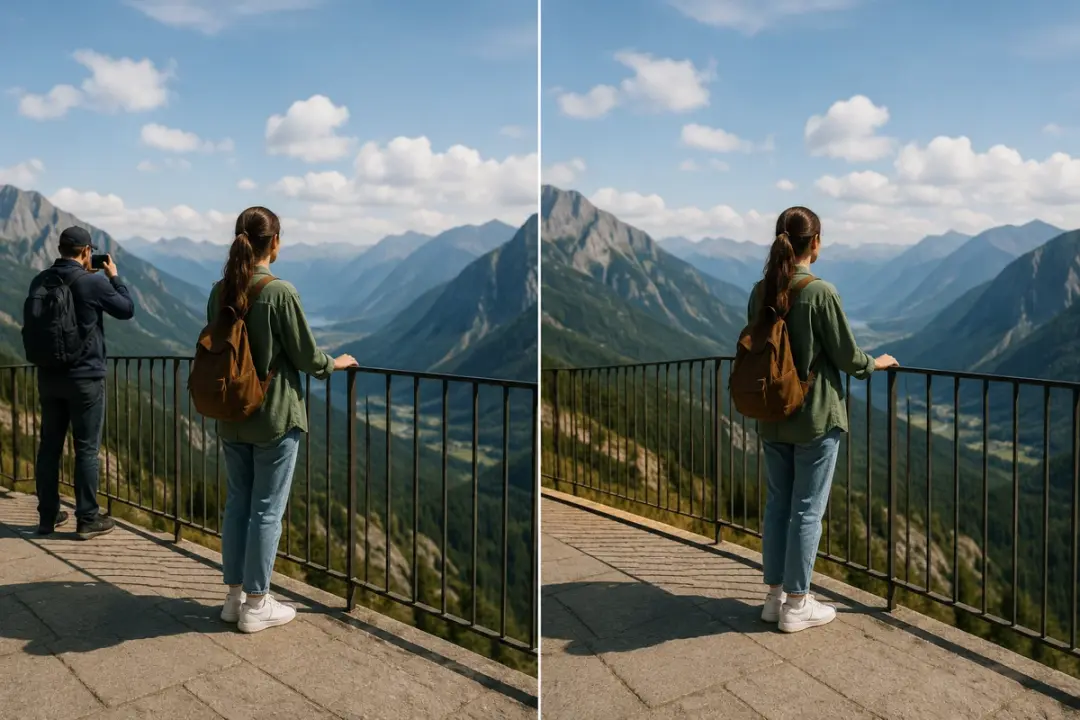
remove person from photo
A stranger wandered into your vacation shot right as you pressed the shutter. Paint over the figure and the space behind them, from railings to sky, and the background rebuilds so the frame reads like they were never there. It suits group and travel photos where you need to remove people from photo backgrounds too.
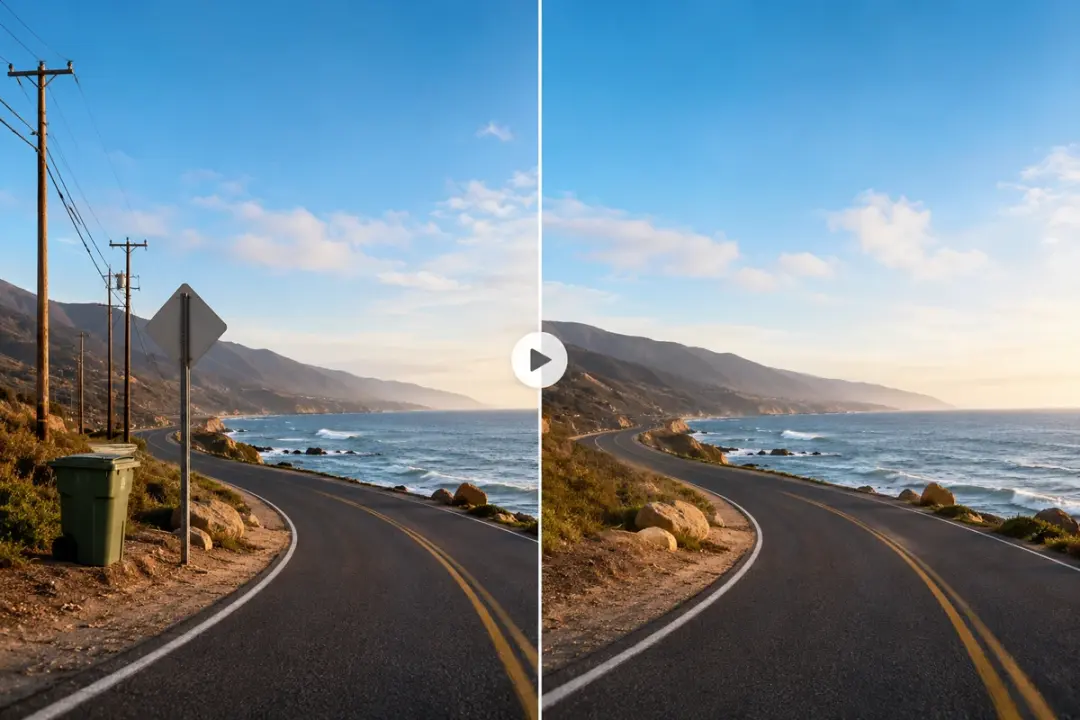
remove unwanted object from photo
Trash cans, overhead wires, and roadside signs quietly drag down an otherwise good landscape. Brush across each distraction and the tool patches the space with matching scenery, so the eye lands on your subject instead of the mess. Pick this when several small objects, not a person, are the problem.

remove glasses from photo
Glare on a pair of lenses or a frame that hides someone's eyes can spoil a portrait. Select the glasses, and the area fills back to skin and eyes that sit naturally with the rest of the face. This one fits headshots and profile pictures where the eyes carry the shot.
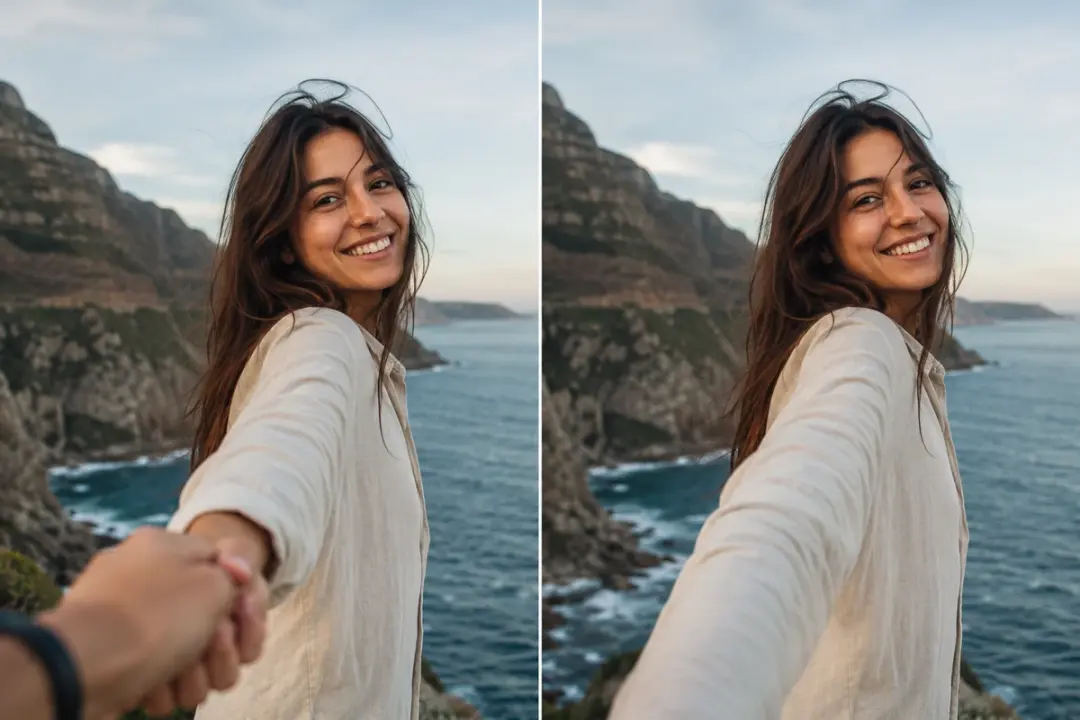
remove hand from photo
Sometimes an extra hand or a stray finger creeps into the edge of a shot from someone just out of frame. Mark that limb and the background closes over it, whether it sat against a wall or a busy backdrop. Reach for this when a single body part, rather than a whole person, is all that needs to go.
Who Uses The Photo Object Remover

Cleaner Frames Without A Reshoot
Photography enthusiasts use VideoAI to lift the one distraction a careful composition could not avoid, then export at full quality up to 4K for a print. It saves setting up the shot again just to remove object from photo once.


Questions Before You Remove Object From Photo
Explore
Discover our AI design tools





















Explore related tools
Remove Object From Photo Right Now
Upload a shot, brush the part you want gone, and preview a clean result in VideoAI.
Get Started