Free Ice Rose Video Generator

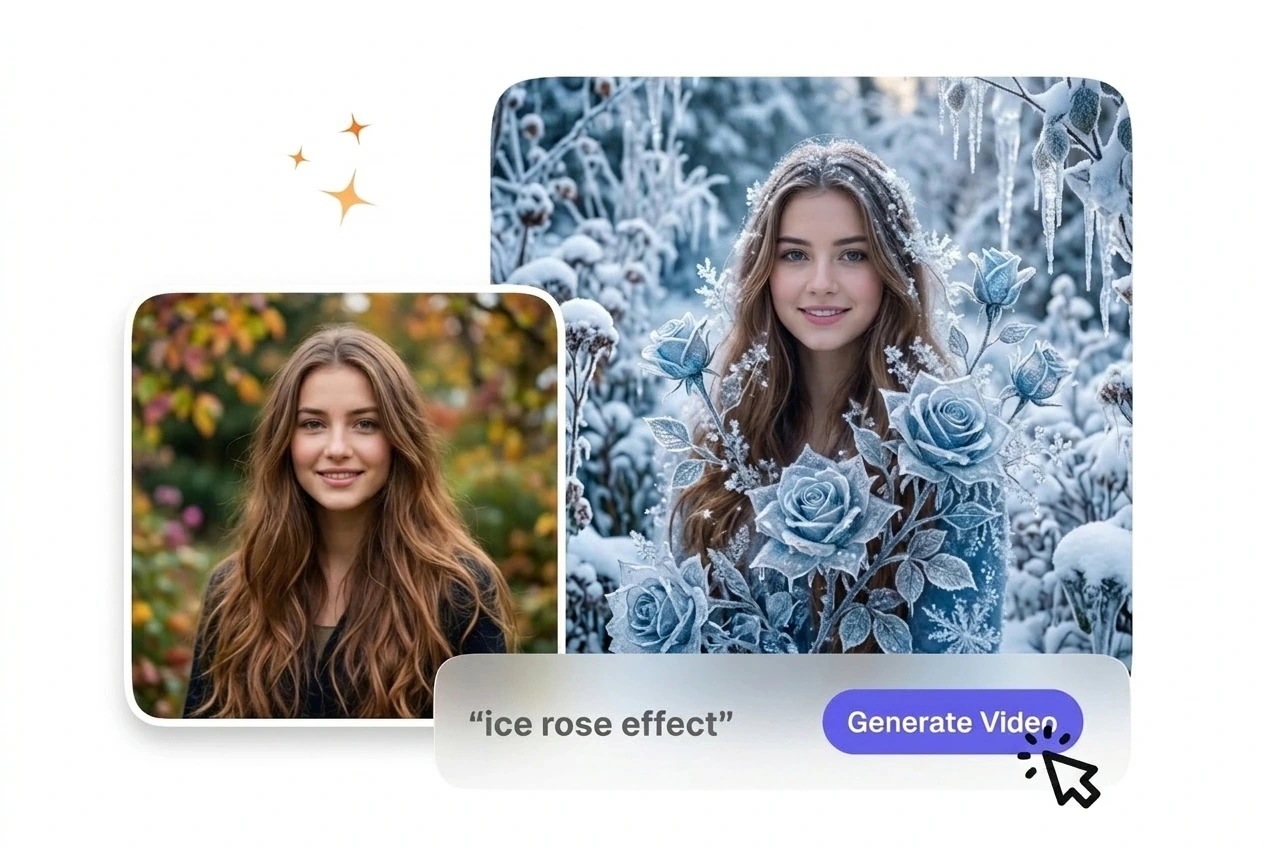
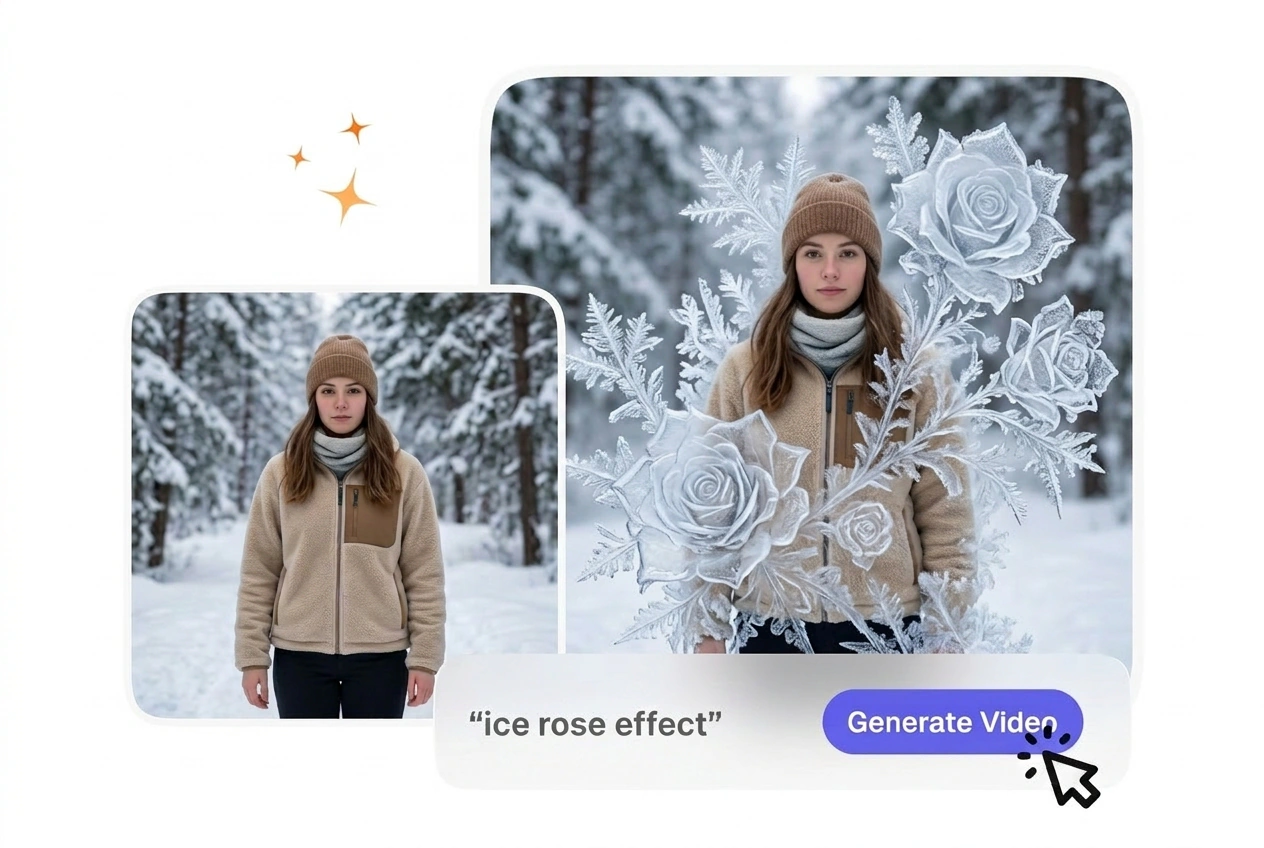
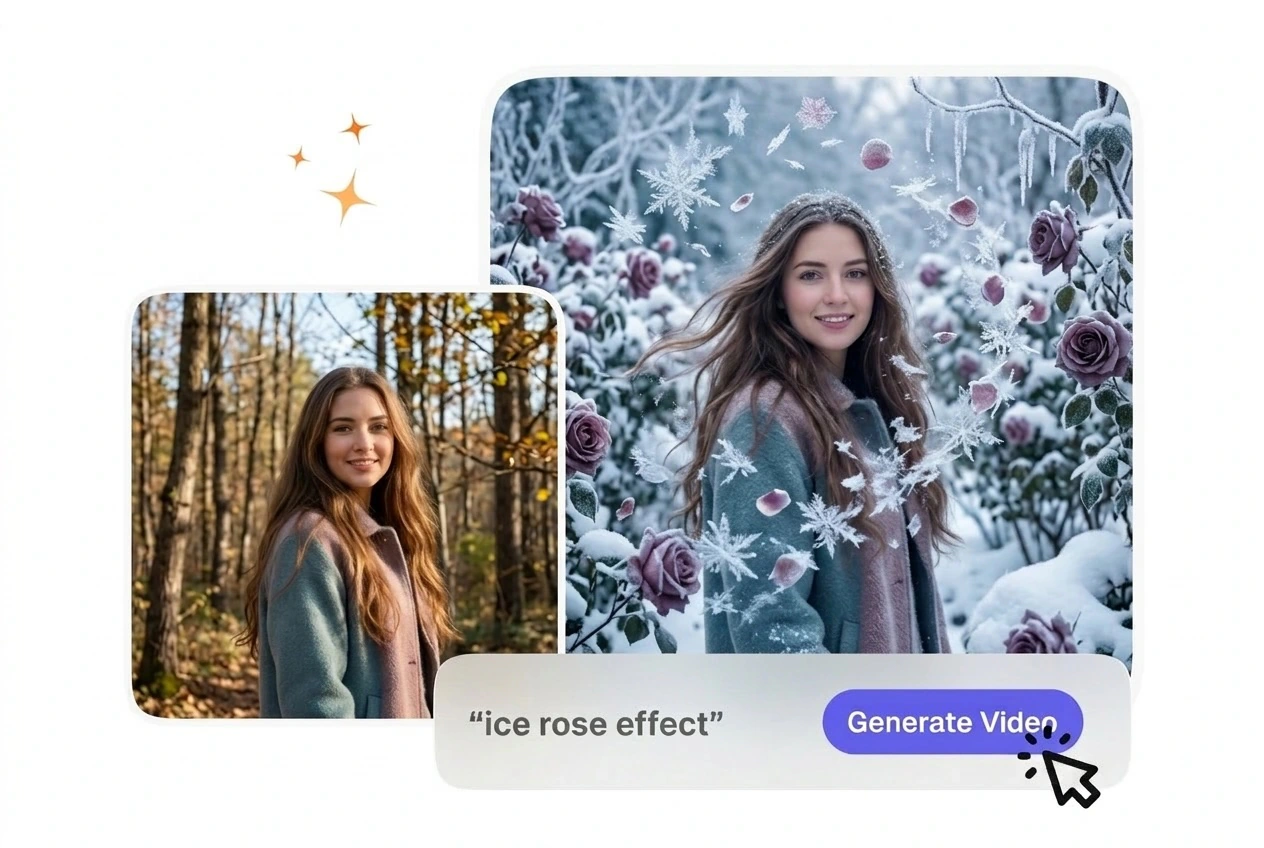
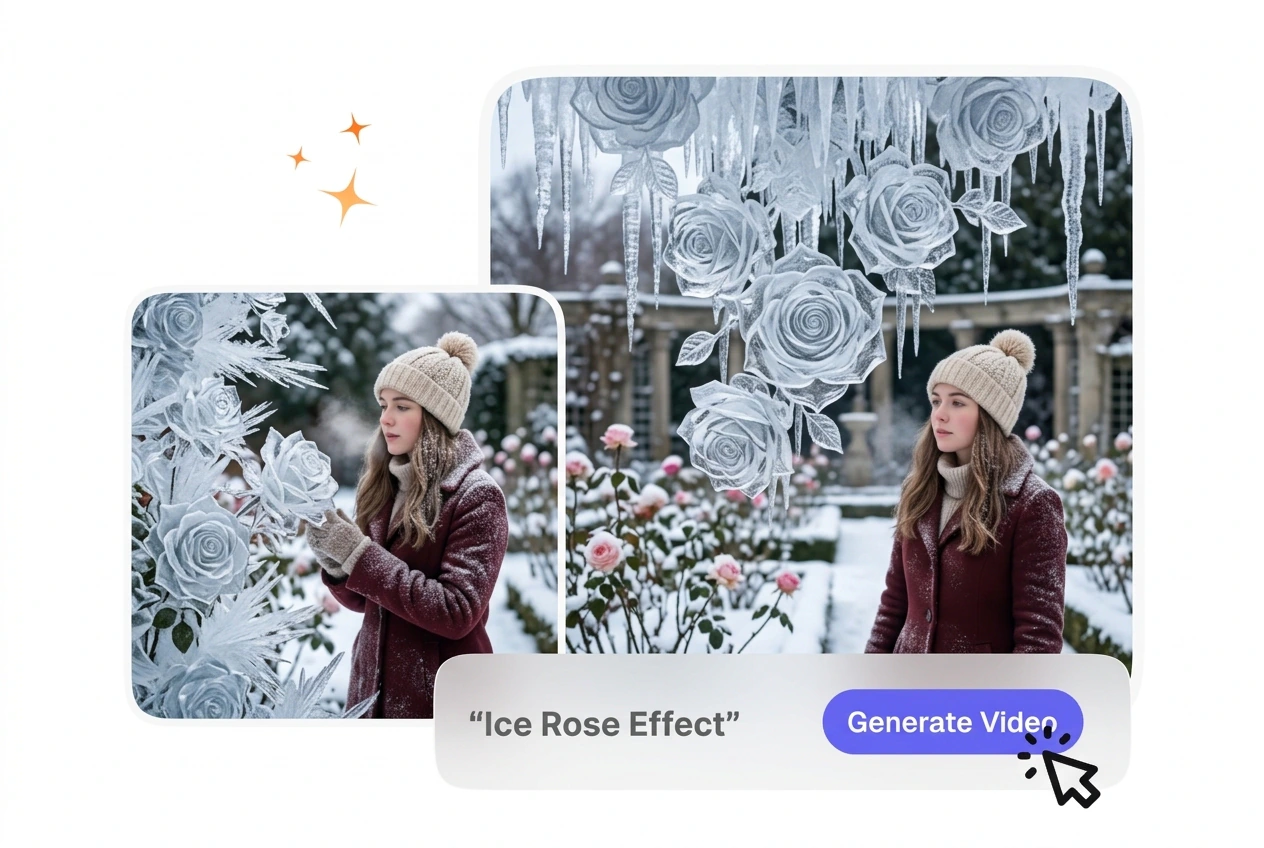
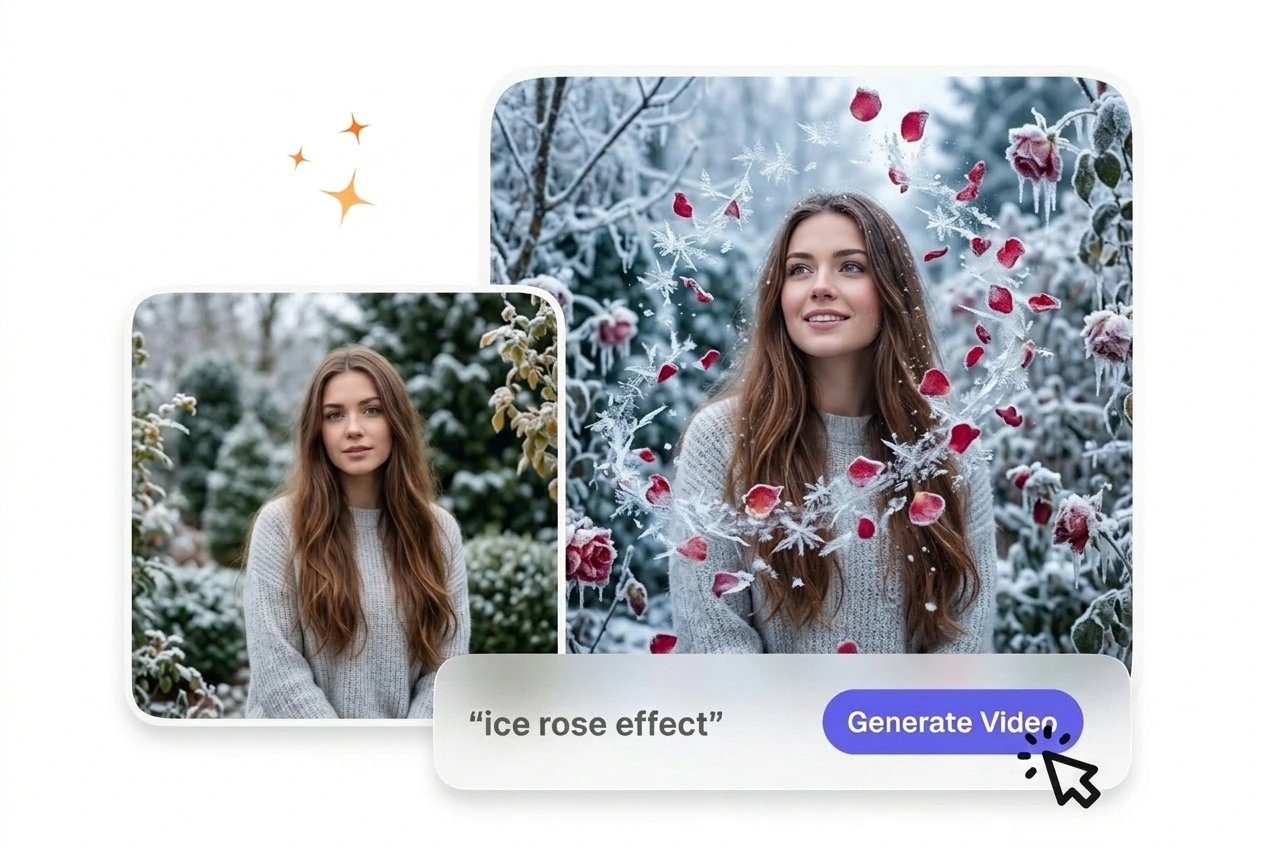
Ice Rose Effect uses your clip as a base and builds a frozen rose style layer that changes the mood without replacing the footage. Cleaner edges and centered framing usually help the render stay balanced from preview to export.

Generate the Ice Rose Effect Online

VideoAI builds the Ice Rose Effect from your starting frame. You get a clean frozen bloom transition without needing complex editing software.

Ice Rose Effect VideoAI hero showcase example
Who Uses This Ice Rose Transition

Different creators use this AI video Transition generator to add visual interest. Predictable settings help you match the Ice Rose Trend quickly.

New creator using Ice Rose Effect online
New Video Creators

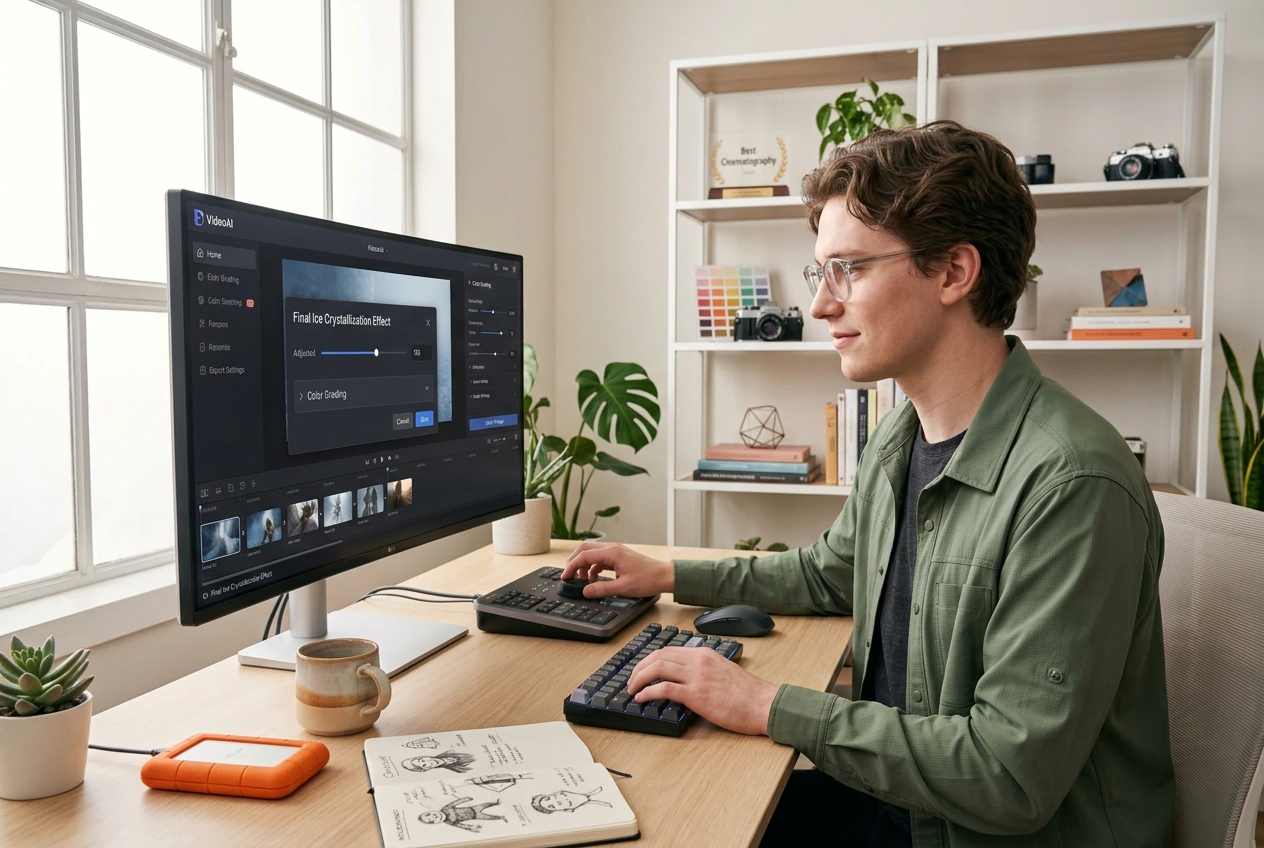
Beginners often struggle with complex timeline settings. VideoAI provides a straightforward prompt interface to create an Ice Rose video. You adjust the intensity baseline, export the media file, and review the final ice crystallization easily.


Business owner applying Ice Rose Effect transition
Small Business Owners

Product promotions need engaging visuals without high production costs. You upload a product image and apply the Frozen Rose Effect to catch attention. The output looks professional, provided your original product photo has good lighting.

Educator teaching with Ice Rose Effect visuals
Explainer Channel Editors

Educational content requires clear visual shifts between topics. This AI transition keeps movement steady across your sequence. Your viewers stay focused on the lesson because the animation follows a predictable, structured path every single time.

How to Build Your Ice Rose

Follow these steps to generate your Free AI Ice Rose Effect. VideoAI processes your inputs to create a clean, predictable animation sequence.

Step 1

Upload Reference Frames

You upload a starting image and type a descriptive prompt. VideoAI reads the visual data to prepare the initial scene. After that, the system sets up the baseline for the freezing animation.

Step 2

Adjust Generation Settings

When you select the transition duration, VideoAI calculates the required frame count. You review the preview settings, so the final render matches your intended pacing without requiring manual frame adjustments later.

Step 3

Export the Video

You click generate, then VideoAI renders the final Ice Rose video effect. The output file is ready to download, giving you a complete asset to drop into your main project timeline.

Core Ice Rose Effect Features

VideoAI gives you specific tools to control the Free Ice Rose Effect. These features help you manage the animation style and ensure consistent visual quality.

Subject anchor detection for Ice Rose Effect

Subject Anchor Detection

VideoAI scans your uploaded image to find the primary subject before applying the Ice Rose AI generator. You simply confirm the focal point. The resulting frost blooms outward naturally, provided your subject has clear contrast.

Pacing control slider for Ice Rose Effect

Crystallization Pacing Control

If your scene requires a slower reveal, this setting adjusts the frost expansion speed. You drag a slider to set the duration. The animation stays smooth, though extremely slow settings might reveal minor texture artifacts.

Color palette matching in Ice Rose Effect

Color Palette Matching

The engine samples colors from your reference frame to tint the ice crystals. You do not need to manually grade the output. The final render blends well, assuming the original image lacks heavy color grading.

Direction selection tool for Ice Rose Effect

Transition Direction Selection

VideoAI lets you choose whether the frost grows inward or outward. You pick a direction from the dropdown menu. This creates a logical visual flow, but works best with centrally framed subjects for maximum impact.

Common Questions About the Effect

Can I run the ice rose effect on any photo, or do some images work noticeably better than others?

Sure, you can upload most standard image formats to start the process. When your photo has high contrast, the Best AI Ice Rose Effect anchors more accurately. Creators use this to ensure their social posts look crisp and professional.

How long does it usually take VideoAI to finish rendering an ice rose effect clip?

The rendering process typically finishes in under two minutes. Complex prompts or longer durations will increase the processing time slightly. This predictable speed helps editors plan their workflow and meet tight publishing deadlines without waiting around.

Do I need a long, technical prompt, or will a short plain-language description work?

No problem, a simple description works perfectly fine for most basic needs. Highly detailed prompts are only necessary for specific stylistic variations. This straightforward approach allows beginners to generate a clean AI Transition free from frustration.

Can I control where frost and ice crystals appear on my subject or background?

Absolutely, the tool detects the main subject automatically to anchor the frost. Manual adjustments are required only for abstract or cluttered background images. This ensures your product or character remains the clear focus of the scene.

Is the exported ice rose file sized and formatted so I can post it to social platforms right away?

Of course, the exported file is fully formatted for immediate online sharing. Very low resolution source images might result in slightly softer output quality. Most users drop the file directly into their feed to engage viewers.

Try the Ice Rose Effect Today

See how VideoAI handles your starting frame. Upload an image, adjust your prompt, and export a clean animation sequence for your next project.