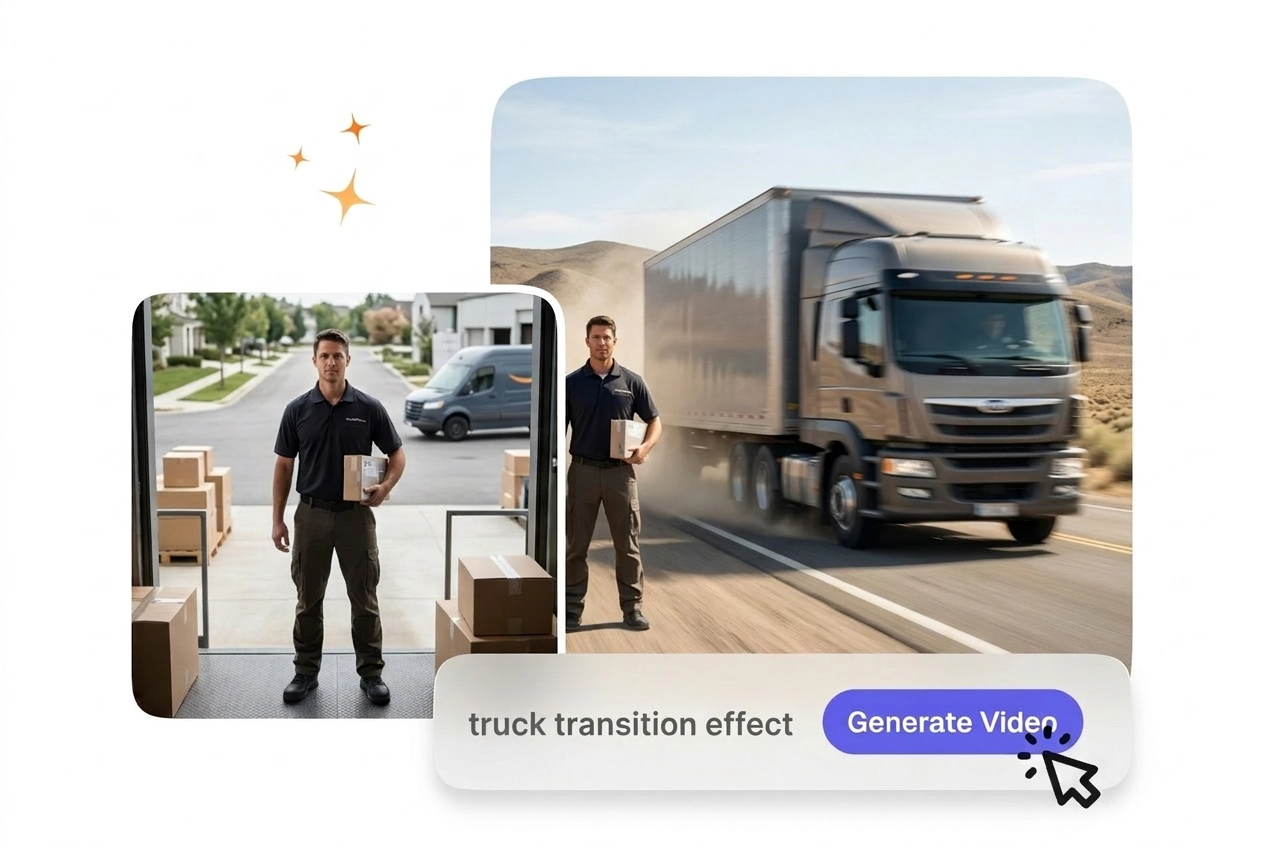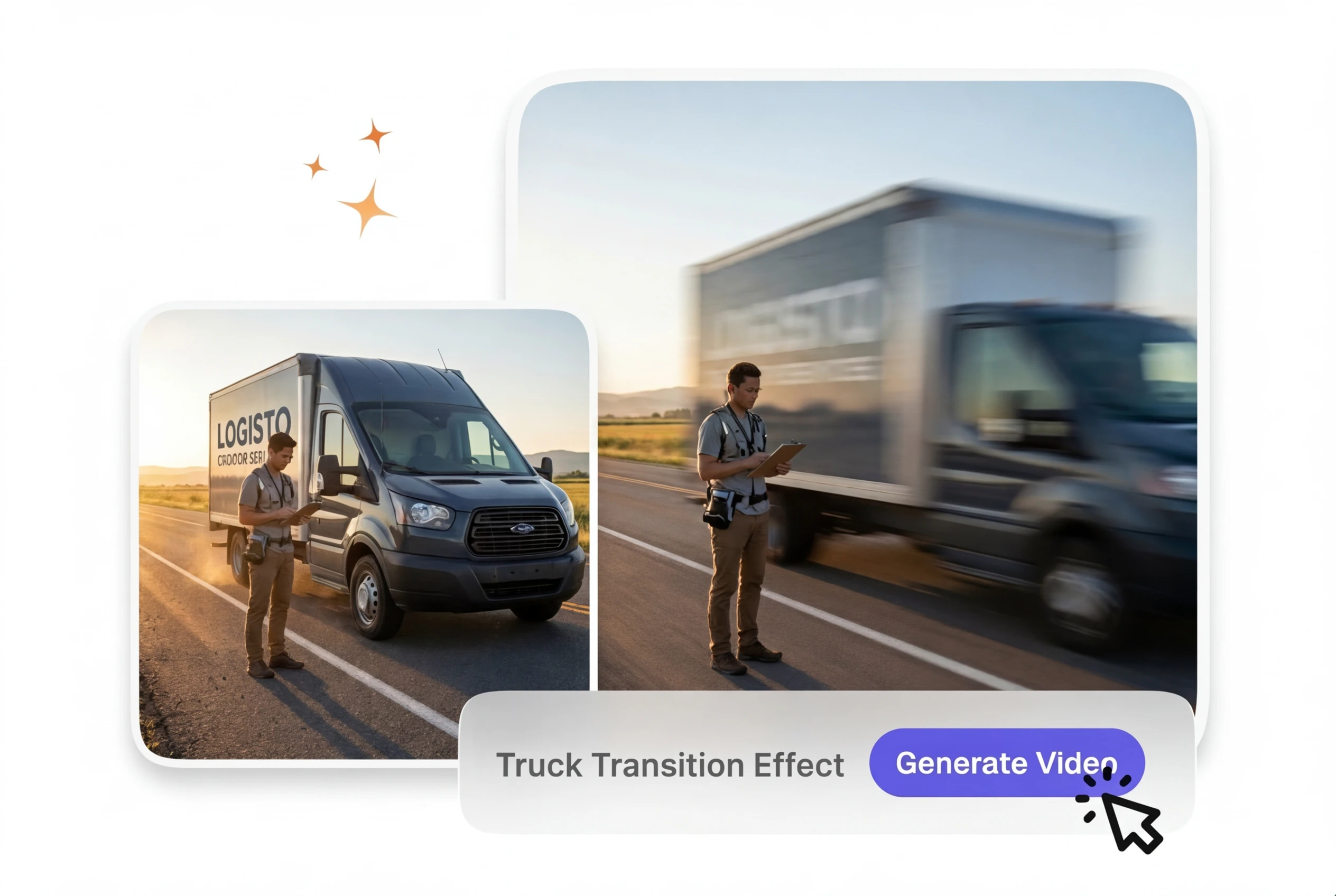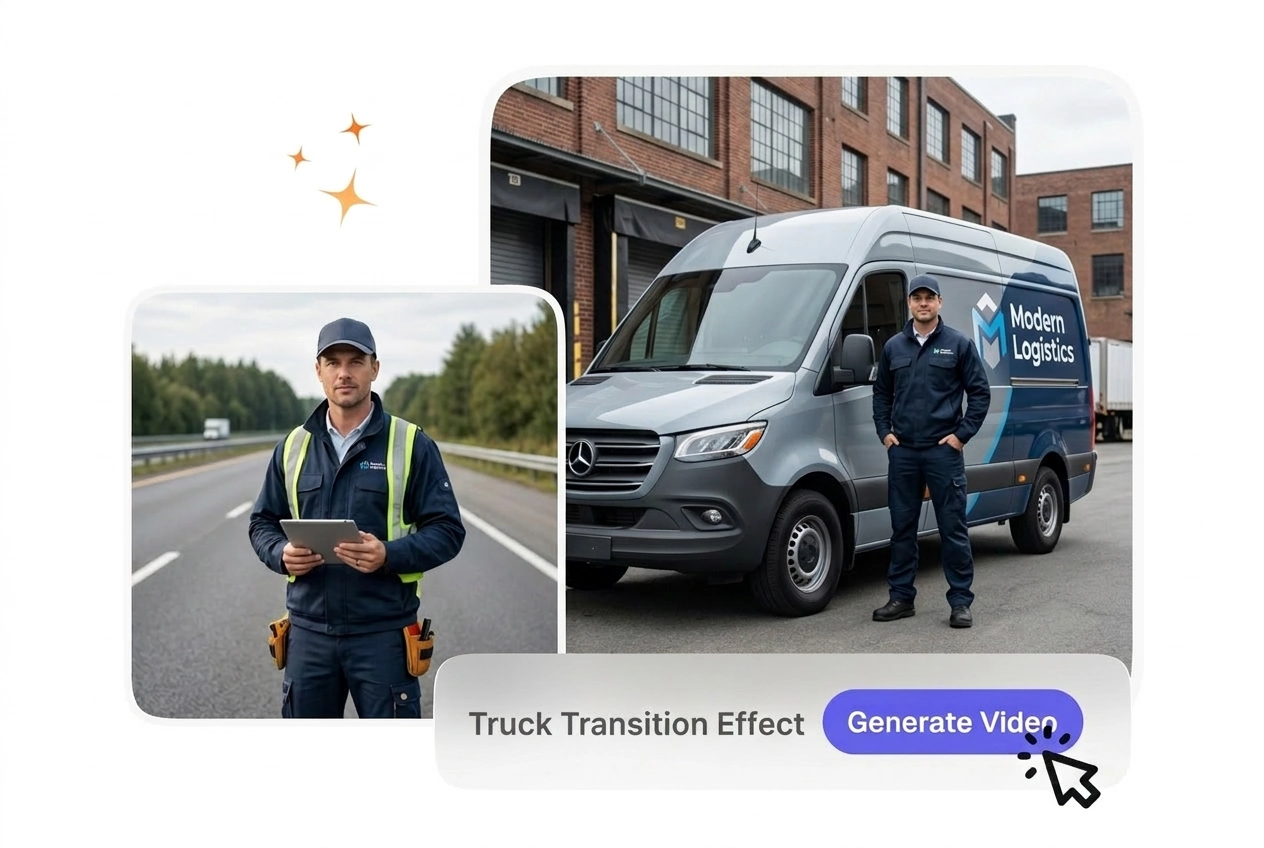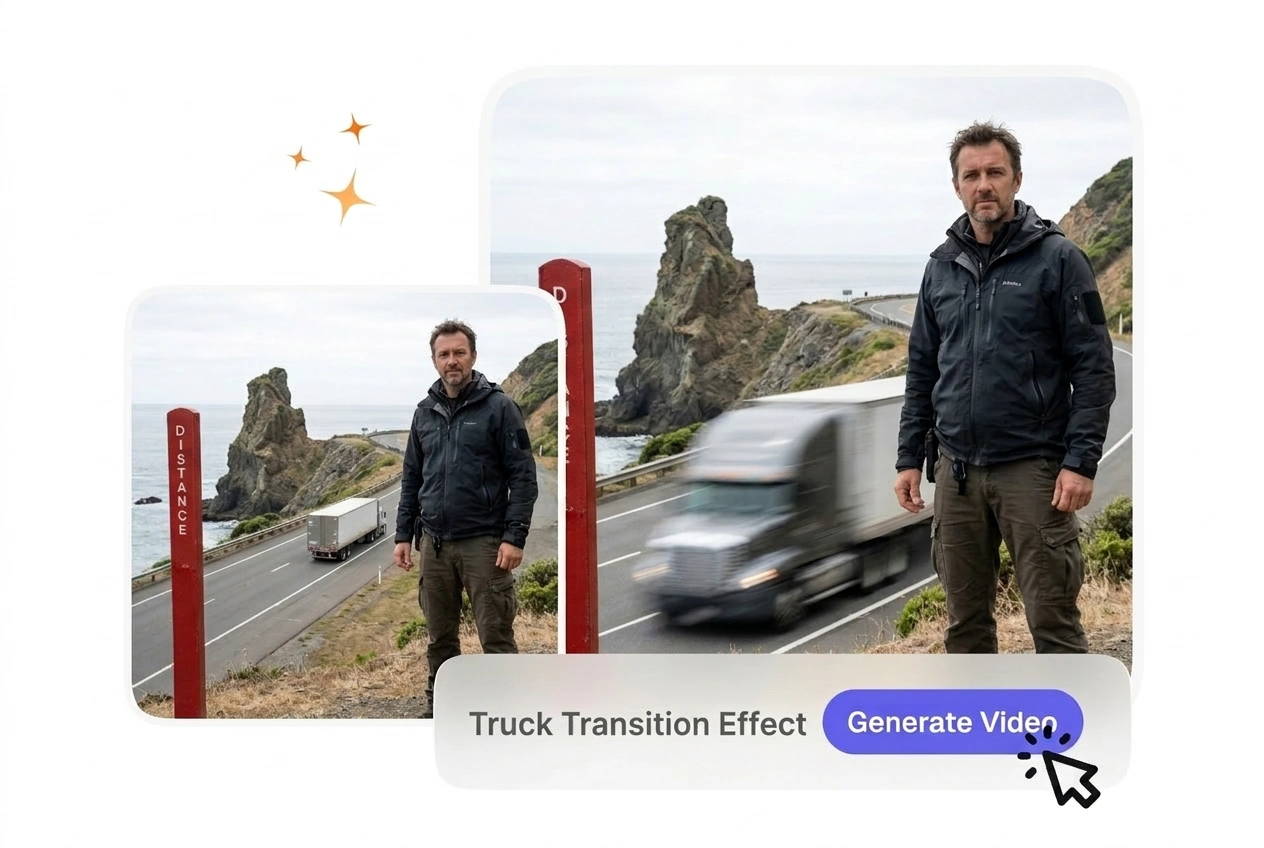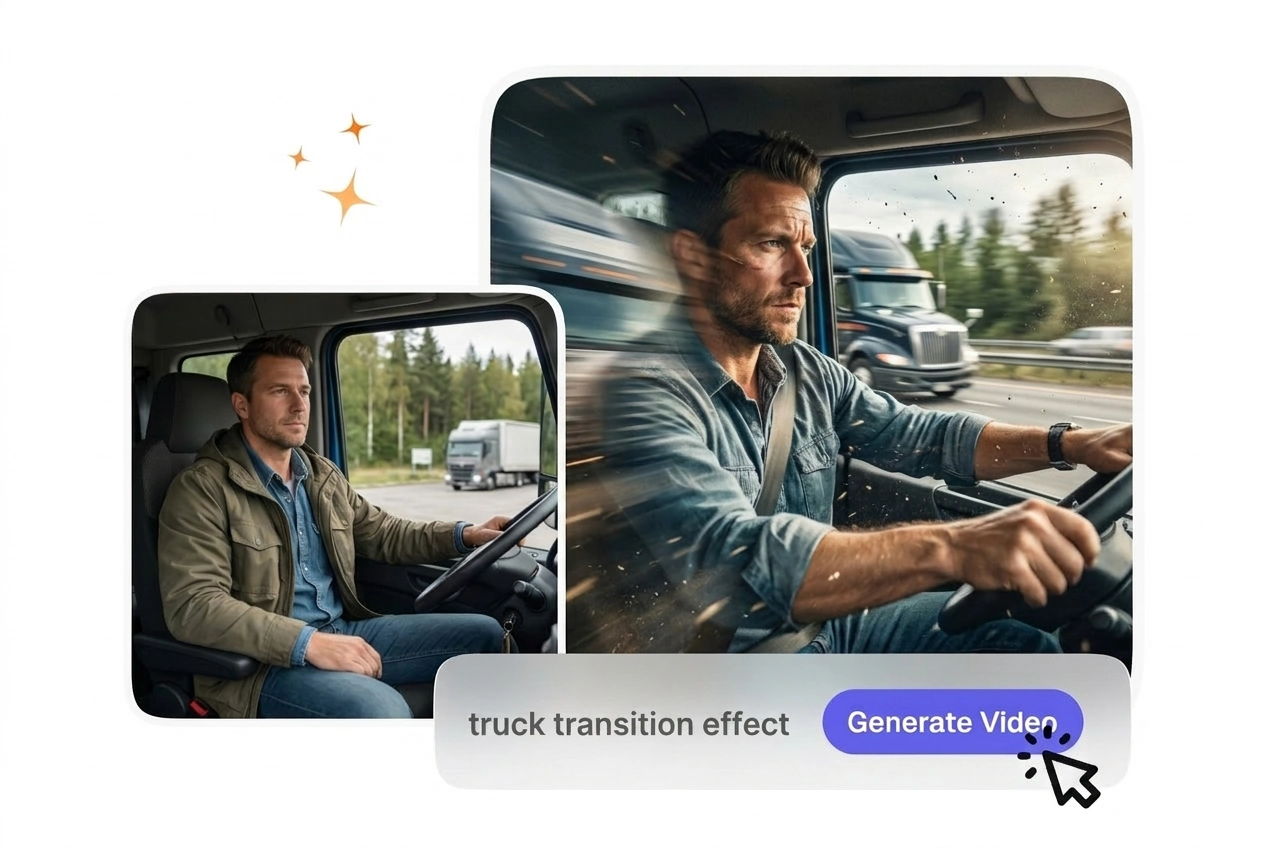

Free Truck transition Video Generator

For footage that needs a stronger sense of forward movement, Truck Transition Effect creates a transition that pushes the scene across the clip. Shorter clips with limited camera shake usually produce cleaner preview output and more stable export results.

Best Truck Transition Effect Online

VideoAI generates a cinematic truck wipe from your start and end frames. Your text prompt controls the vehicle speed and motion blur direction.

Truck Transition Effect VideoAI hero showcase online
Who Needs This Truck Transition Effect Video

Explainer editors and small business owners use this AI transition to connect distinct scenes. The heavy motion keeps viewers focused on the narrative.

Beginner using Truck Transition Effect for video
New AI Creators

Beginners often struggle with complex editing timelines. VideoAI builds the truck transition motion directly from your uploaded images and text prompt. You get a clean cut without needing to learn keyframes or manual masking techniques.

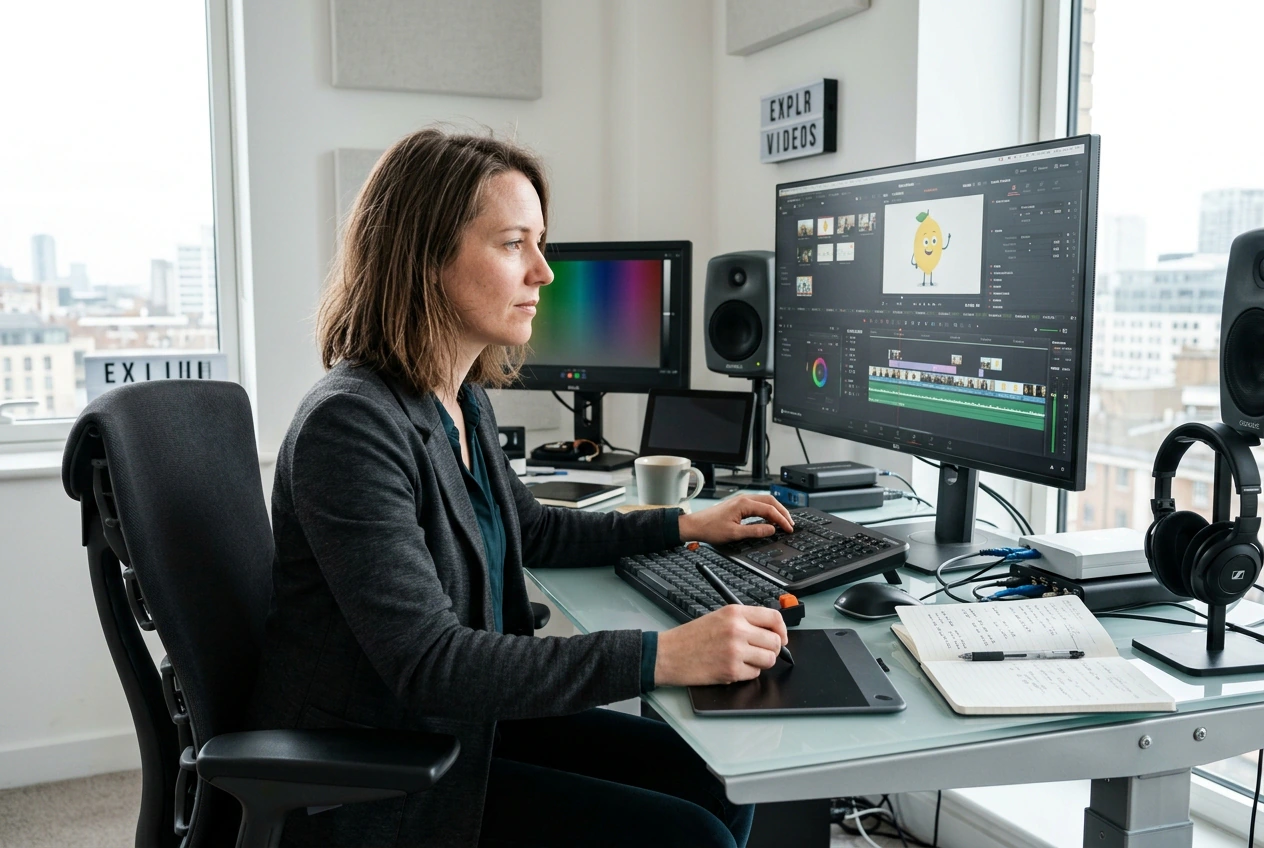
Owner applying Truck transition effect free online
Small Business Owners

Retailers need fast ways to showcase different products in one social post. You apply this free truck transition video between product photos to create dynamic movement. The resulting file looks professional and exports in minutes.

Educator rendering Free Truck transition Effect tutorial
Explainer Video Editors

Tutorial channels require clear visual shifts to indicate a completely new topic. The trucksition video style provides a definitive wipe that resets viewer attention. This keeps your audience engaged without distracting from the core lesson.

Create Your Free Truck Transition Effect

Upload your reference frames and type a descriptive prompt. VideoAI processes these inputs to generate a smooth vehicle wipe between your chosen scenes.

Step 1

Upload Reference Frames

You provide a starting image and an optional ending image. VideoAI uses these visual anchors to plan the movement, so the final output connects your specific scenes logically and accurately.

Step 2

Write Your Prompt

Describe the vehicle direction and desired speed in the text field. VideoAI reads this exact instruction to generate the AI truck transition effect, then applies the correct amount of blur.

Step 3

Generate and Export

Click the generate button to process your inputs into a final video file. After that, you review the completed trucksition motion and download the result for your main editing timeline.

Control Your Vehicle Wipe

VideoAI gives you precise control over vehicle speed and blur intensity. You adjust the text prompt to match the exact pacing of your project.

Directional control for Truck Transition Effect generation

Directional Motion Control

VideoAI maps the vehicle path based on your text prompt. You specify whether the wipe moves left or right across the frame. This AI truck motion transition requires a slightly slower speed setting for highly complex backgrounds.

Adjusting blur for Truck Transition Effect output

Adjustable Blur Intensity

The engine applies motion blur to simulate realistic camera movement. You type your desired blur level directly into the prompt field. This truck transition effect works best when your starting image has clear lighting to help separate subjects.

Custom vehicle styling in Truck Transition Effect

Custom Vehicle Styling

VideoAI generates different vehicle types depending on your text description. You request a delivery van or a heavy rig to match your brand. The final render aligns with your prompt, provided you keep the description relatively simple.

Scene anchor matching for Truck Transition Effect

Scene Anchor Matching

The system reads your uploaded start and end frames to calculate color transitions. You simply upload the two images before generating. If the two scenes have vastly different lighting, the wipe might show a brief color shift.

Truck Transition Effect Video Questions

Can I try the truck transition Effect for free or on a trial, and what happens when my credits run out?

Yes, you can often try this transition on free or trial access with in-product caps. When credits run out, continue with paid membership, see the pricing plan page; we do not name plans in this FAQ. That lets new users test before upgrading.

Do I need a full truck video clip as input, or only still images of the start and end moments?

No, VideoAI only requires static images and a text prompt to build the sequence. You upload a starting frame instead of a full video file. This saves rendering time and helps creators who only have still photos available.

How do I tell VideoAI how fast the truck should move during the wipe transition?

You dictate the pacing directly through your text prompt before generating. If you request a fast motion, the AI applies heavier blur to the vehicle. This gives editors precise control over the energy of their final cut.

Can I use my truck transition effect in paid client work, advertising, or other commercial distribution?

Commercial use requires an active paid membership under our terms. Free access is for personal testing only, not for client work, paid ads, or resale. Open the pricing plan page for current commercial allowances—we do not list specific package names in this FAQ.

What makes this AI truck transition effect different from dropping a preset template on generic footage?

VideoAI builds the movement specifically around your unique starting image rather than using a generic overlay. Complex backgrounds might take slightly longer to process cleanly. The result is a highly customized wipe that matches your specific project aesthetic.

Try the Truck Transition Effect

Upload your first frame and see how VideoAI handles the motion. You can test the prompt settings and export a clean file today.