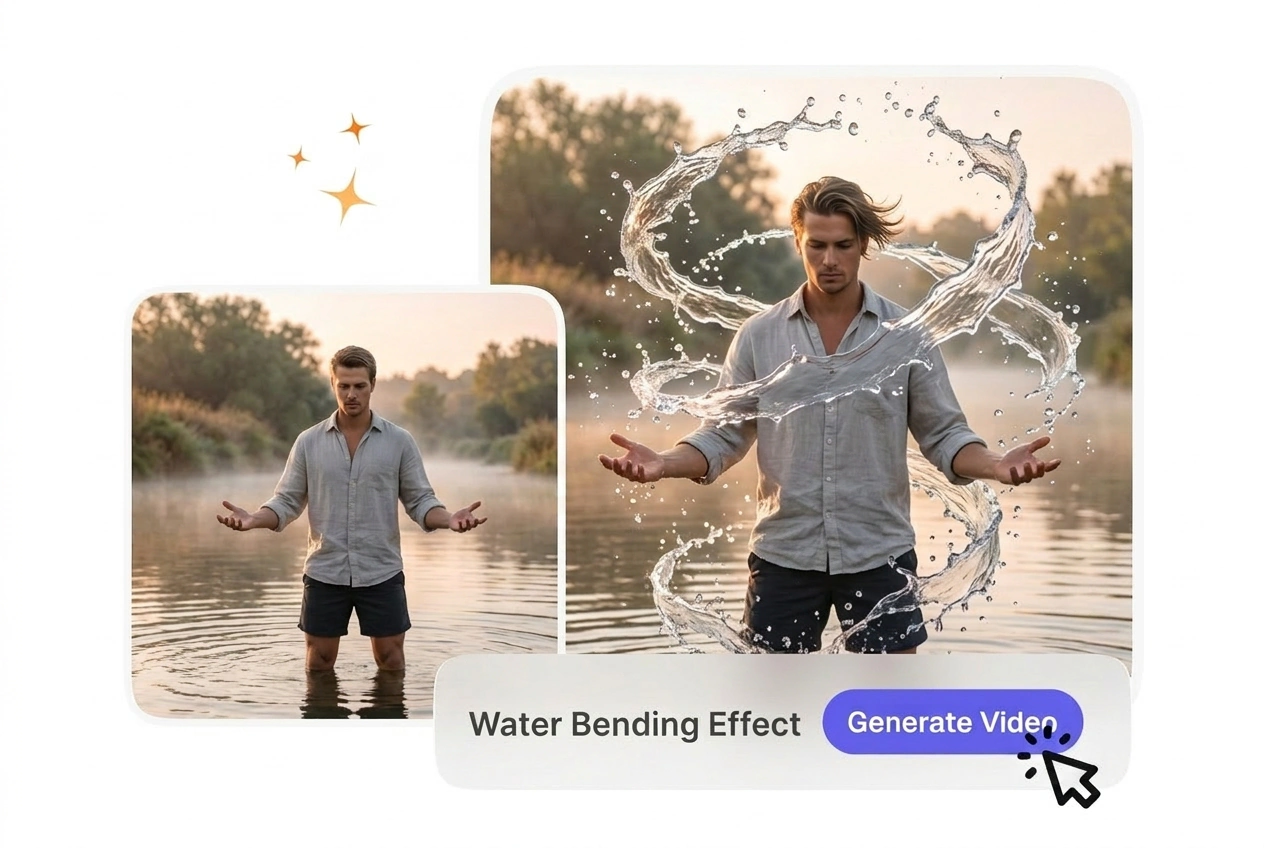

Free Water Bending Video Generator

Water Bending Effect turns a source clip into flowing visual motion by adding controlled water like warping across the frame. Steady footage and moderate settings usually render more predictably and make preview results easier to judge before export.

Create Your Water Bending Effect

VideoAI generates a fluid Water Bending Effect from your start frames. You control the liquid motion, so the final output matches your creative vision.

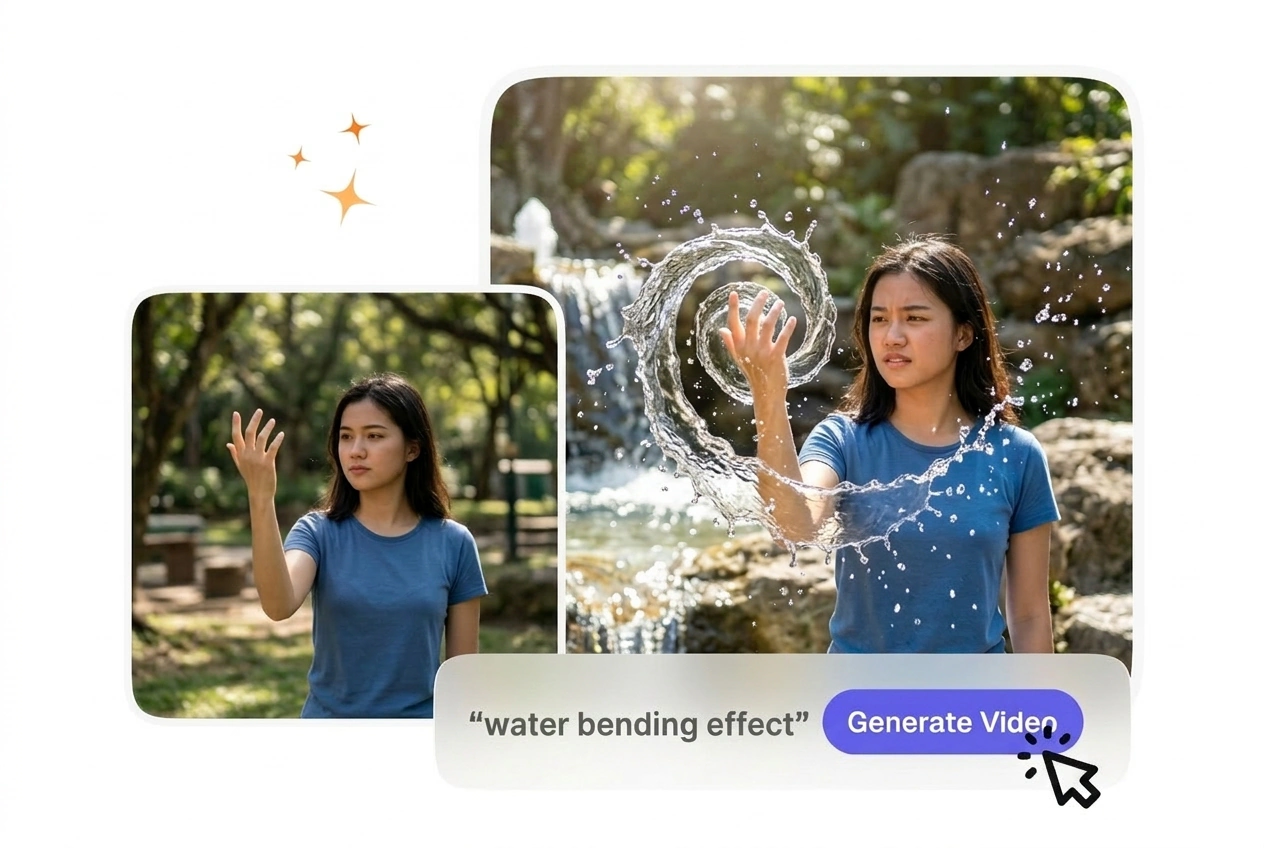
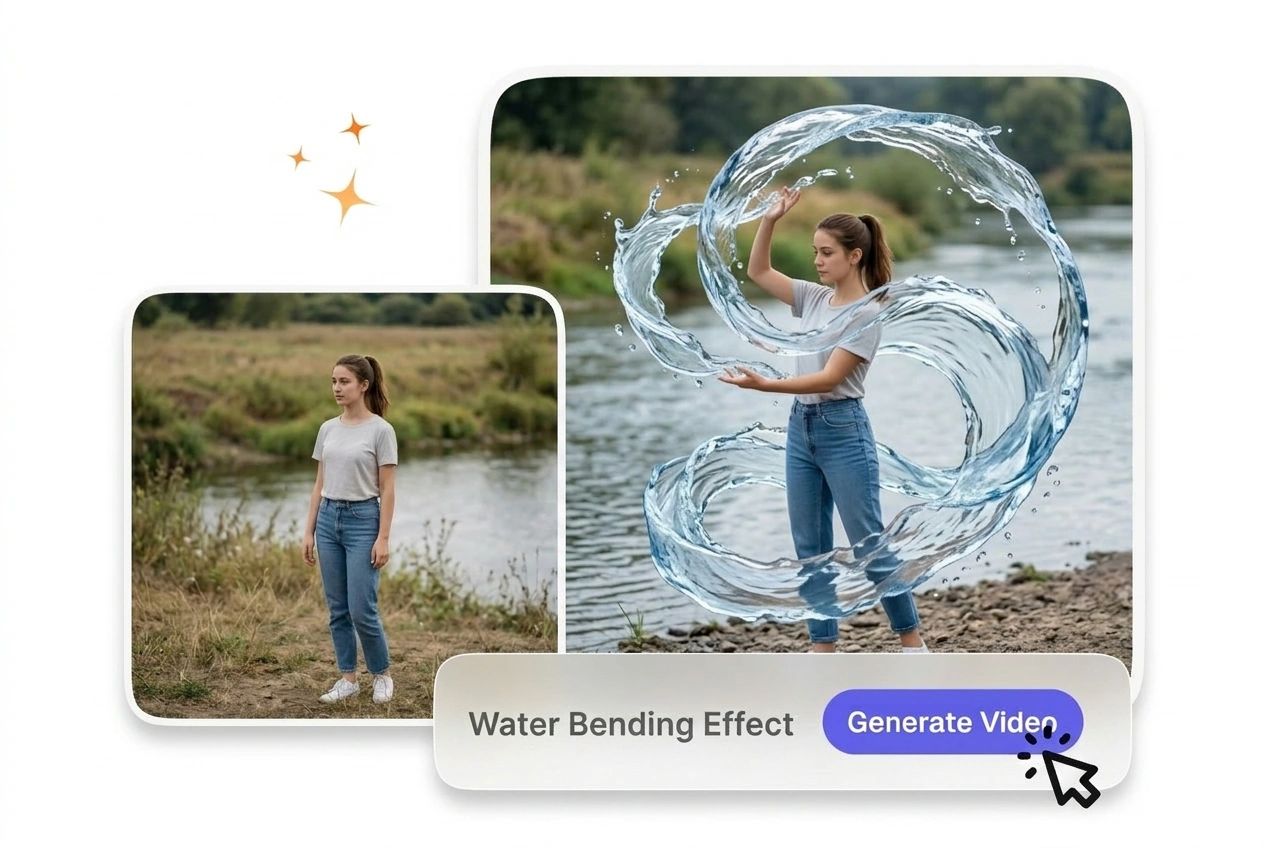
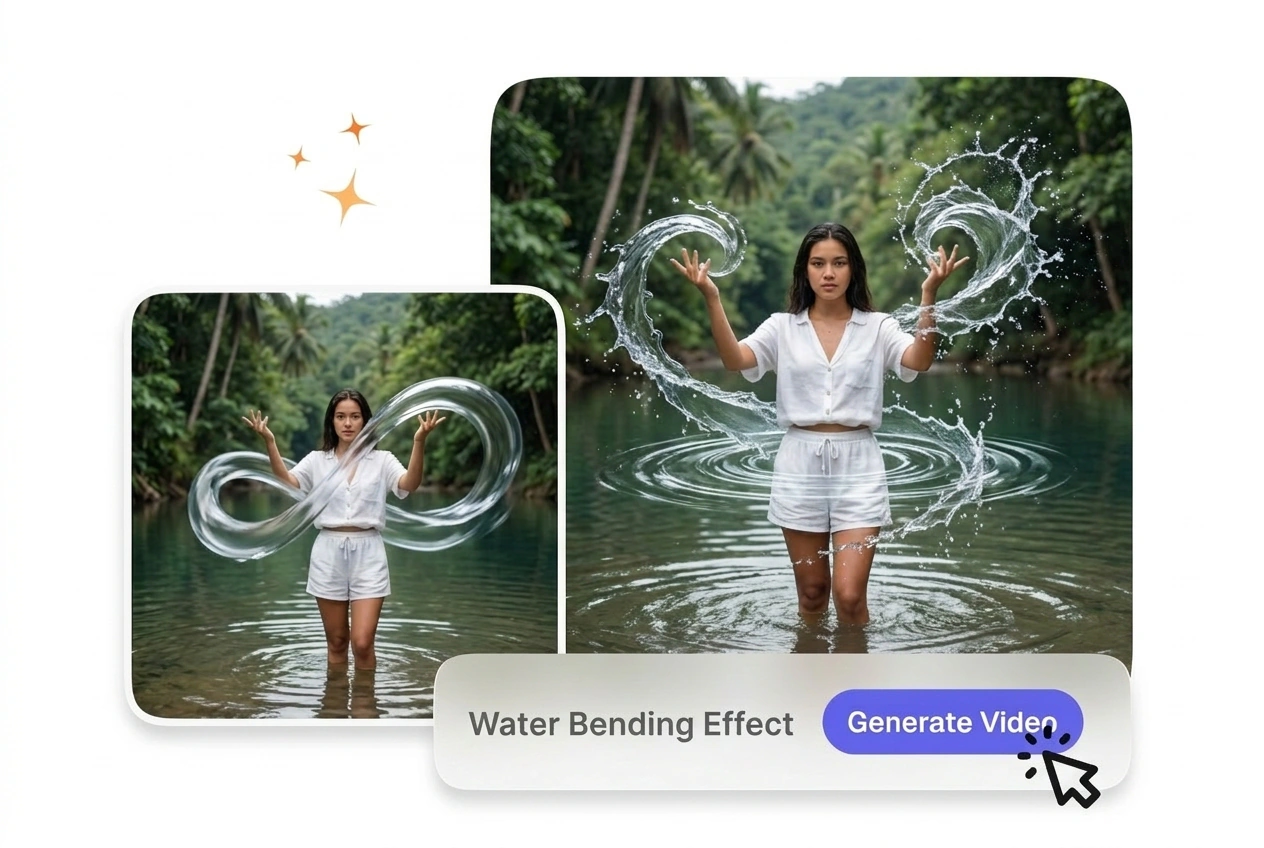
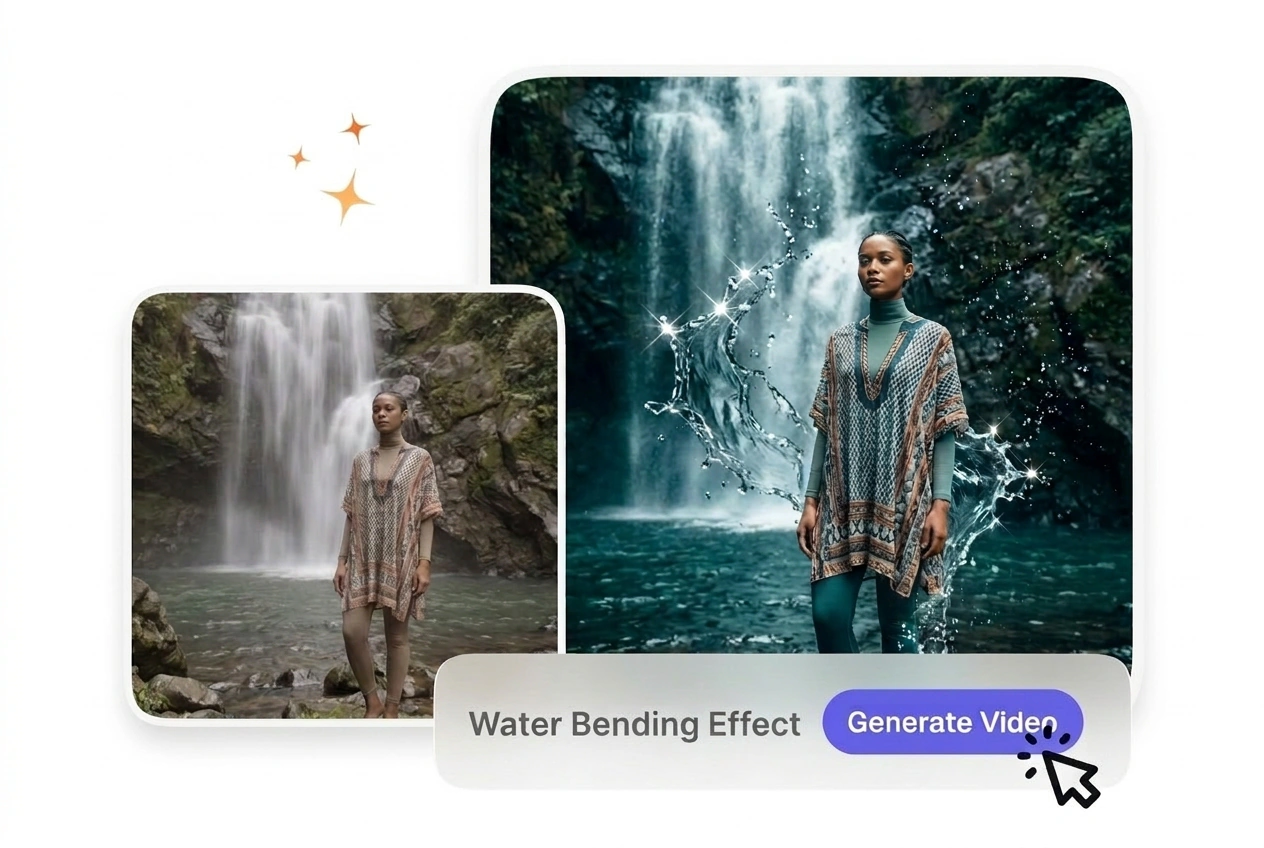
Water Bending Effect VideoAI hero showcase example
Who Uses This Water Bending Transition

Different creators need predictable fluid motion for their projects. You set the parameters, and the tool handles the complex liquid animation between your frames.

New user trying Water Bending Effect online
New AI Users

New users often struggle with complex animation settings. You upload two frames and select a preset water bending effect style. The system generates the connecting motion, giving you a clean result without requiring manual keyframe adjustments.


Educator applying Water Bending Effect to lesson
Explainer Channel Editors

Educational content requires visual changes that maintain viewer focus. You apply a water bending effect between lesson segments to keep the pacing steady. The resulting motion guides the eye naturally without distracting from your core message.

Business owner using Water Bending Effect tool
Small Business Owners

Product showcases need engaging visuals to stand out on social feeds. You input your product images and a text prompt to create dynamic liquid motion. This workflow delivers professional quality quickly, keeping your weekly posting schedule intact.

How the Water Bending Effect Works

You provide the visual boundaries, and the engine calculates the fluid path. Follow these steps to set up your sequence and export a clean file.

Step 1

Upload Your Frames

You upload a start frame and an optional end frame to define the scene. VideoAI reads these images to establish the spatial boundaries, so the liquid motion knows exactly where to begin.

Step 2

Define the Motion

You type a text prompt describing the fluid behavior and select your preferred speed. If your prompt is highly detailed, the engine maps the water dynamics more accurately across the generated sequence.

Step 3

Review and Export

VideoAI processes the inputs and provides a preview of the generated clip. You review the water bending effect, then adjust the export settings or download the final file for your timeline.

Water Bending Effect Features

Our water bending effect AI generator gives you specific controls over the animation. You adjust the settings to ensure the output matches your project requirements perfectly.

Water Bending Effect fluid dynamics control panel

Fluid Dynamics Control

VideoAI shapes the water flow based on your text prompt and selected parameters. You adjust the intensity slider to dictate how aggressively the liquid moves. Works best when your start frame features a clearly defined central subject.

Water Bending Effect motion speed preset selection

Motion Speed Presets

The system offers different velocity options for the generated animation. You select a preset to match the pacing of your overall project. When you choose a slower speed, the engine renders more detailed ripples and splashes.

Water Bending Effect directional flow mapping preview

Directional Flow Mapping

This feature guides the liquid from the start frame toward the end frame. You define the path using simple text commands before generating the clip. Complex backgrounds can sometimes confuse the mapping, requiring a tighter text prompt.

Water Bending Effect resolution upscaling quality comparison

Resolution Upscaling

VideoAI enhances the final output to maintain crisp details in the water texture. You choose your desired export quality before downloading the file. High-resolution exports take slightly longer to process but deliver a much cleaner final image.

Common Water Bending Effect Questions

Can I start from an uploaded video clip, or does water bending effect only work from still start and end frames?

No, VideoAI requires static images like a start or end frame to generate the sequence. This ensures the hydro motion video AI accurately calculates the fluid path. Creators use this to build precise transitions between two distinct static scenes.

How do I control whether the water bending motion feels slow and dramatic or fast and energetic?

You select a specific velocity preset before generating the final clip. A Slow Water Bending Transition works well for dramatic reveals, while faster settings suit high-energy sequences. This flexibility helps editors match the exact pacing of their larger projects.

What should I change if the water bending effect looks messy, splattery, or hard to read?

If the generated liquid motion appears messy, your text prompt might be too vague. You should refine your description to specify the exact flow direction and volume. Clearer instructions help the engine produce a much cleaner ripple bend transition.

Is there a maximum length for a single water bending clip VideoAI will generate in one pass?

Yes, the system generates short clips optimized for transitions rather than long continuous scenes. Keeping the duration brief ensures the fluid animation remains stable and realistic. This length is perfect for quick social media cuts or brief explainer segments.

Do I need an expensive GPU or workstation, or does rendering happen in the cloud on VideoAI's servers?

Absolutely not, because all the heavy processing happens on our cloud servers. You only need a stable internet connection to upload your frames and download the result. This setup allows anyone to create complex animations from a standard laptop.

Start Your Water Bending Effect

Upload your frames and see how our AI video Transition generator handles your concept. You can test the settings and export your first clip today.