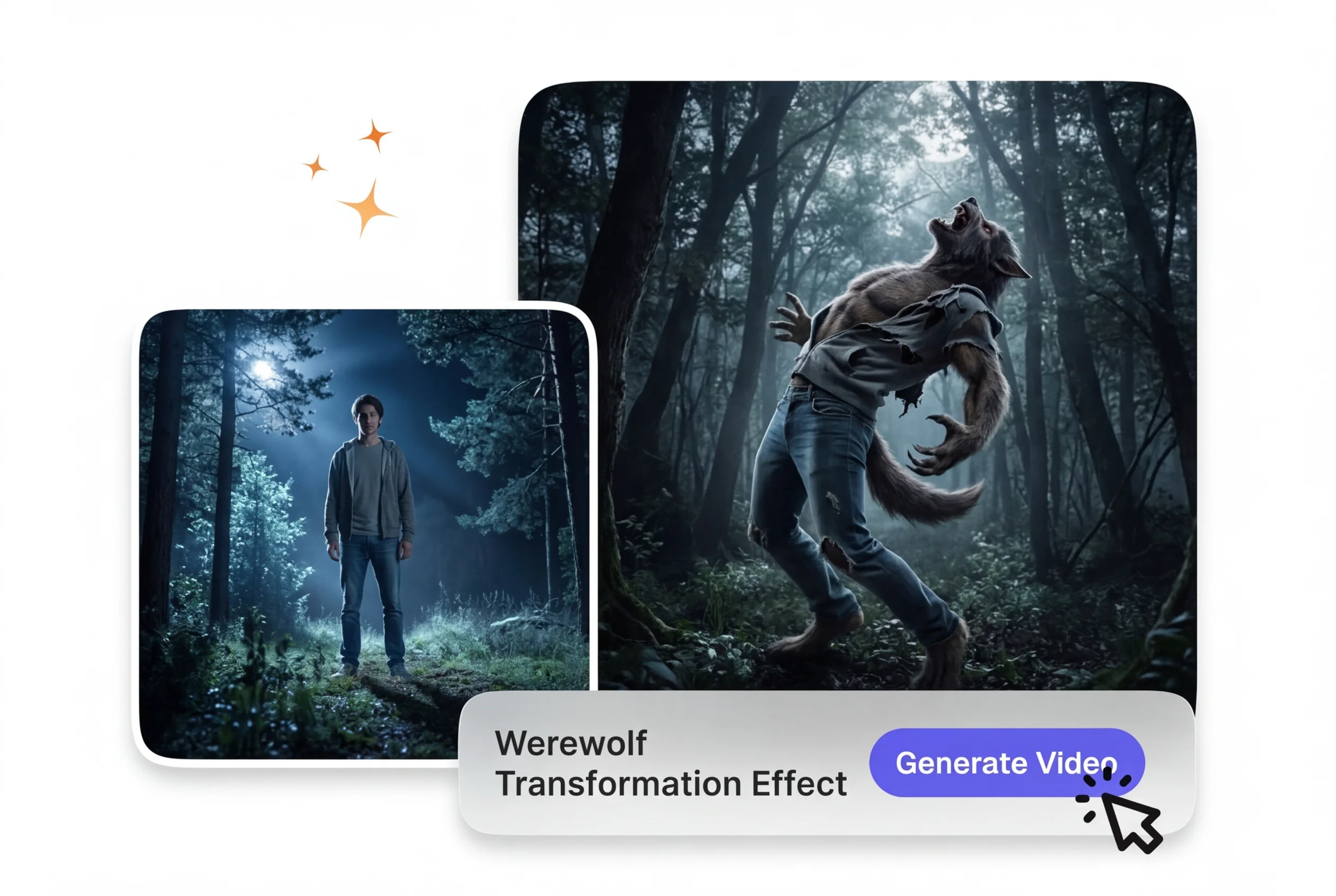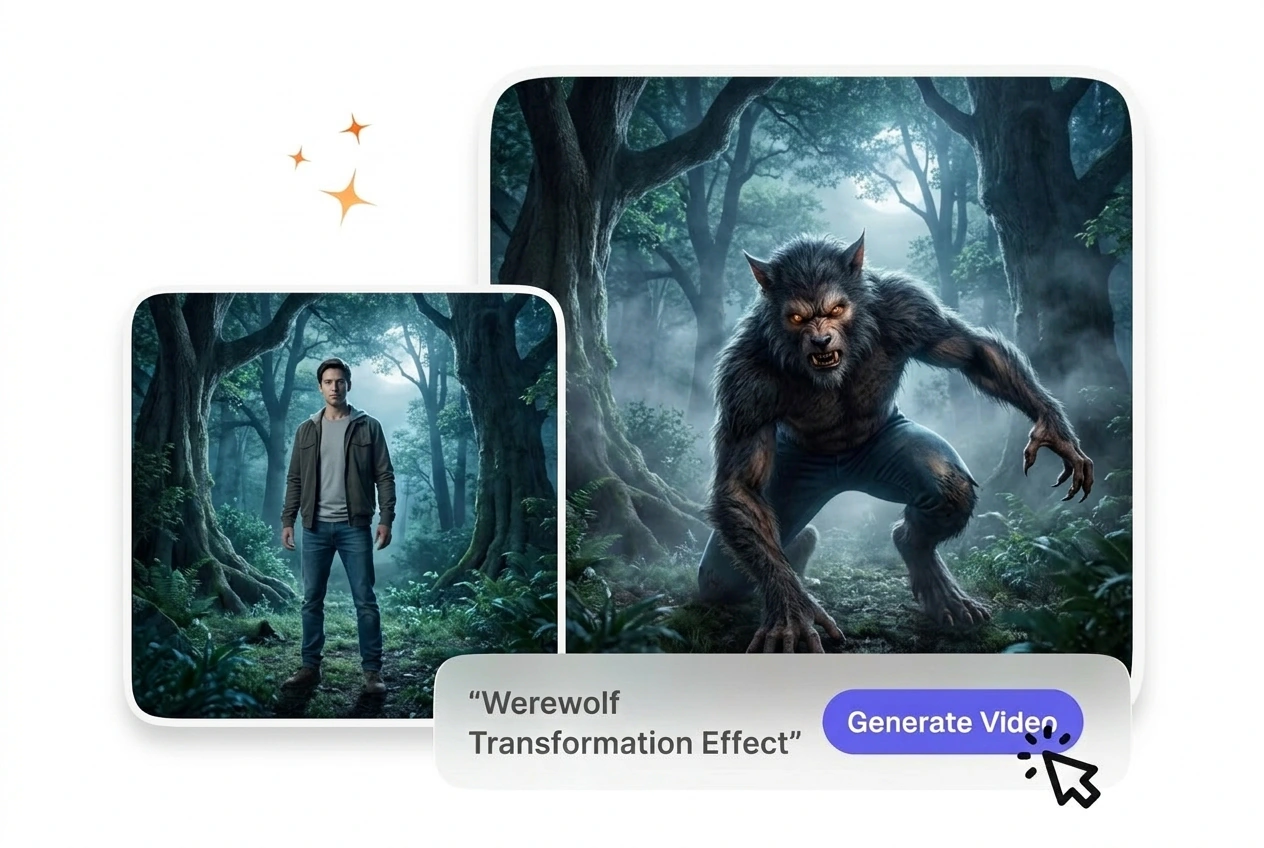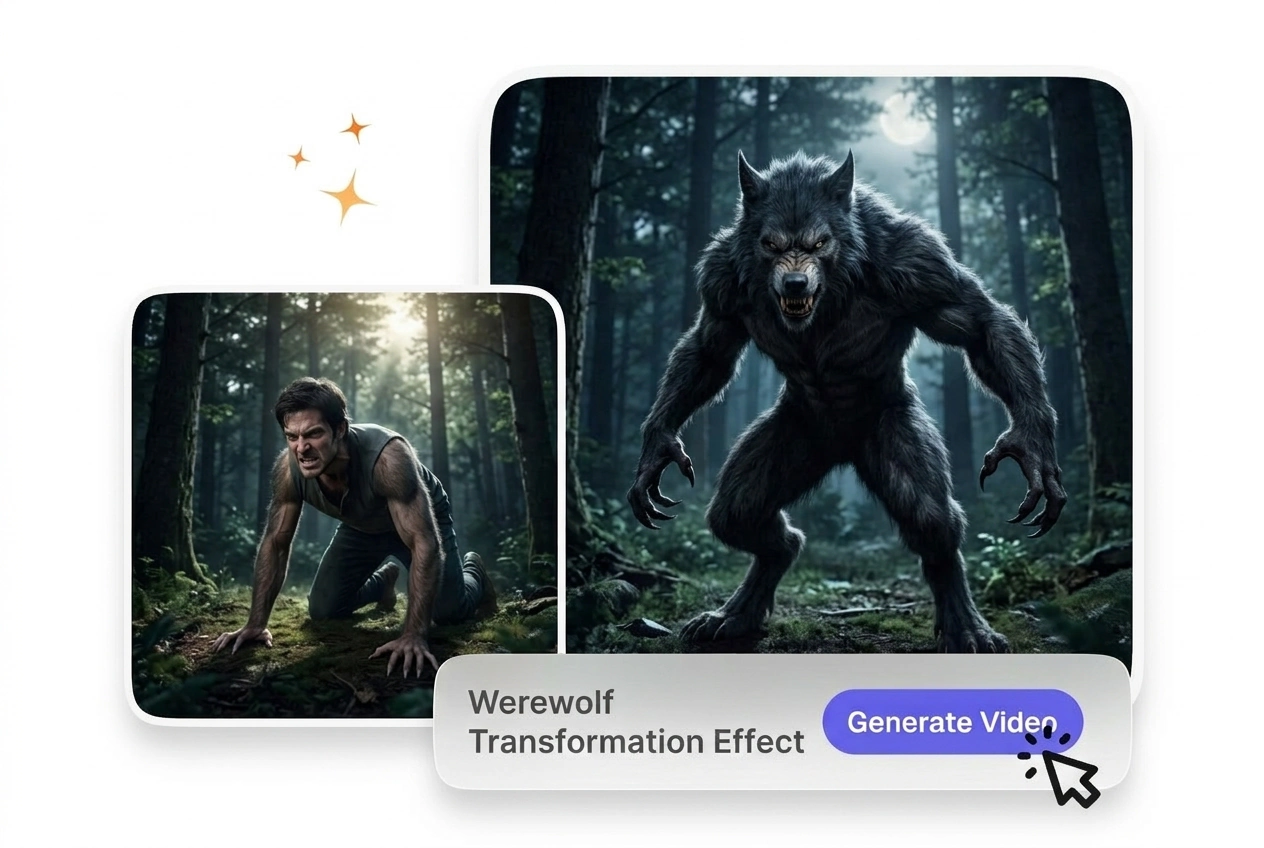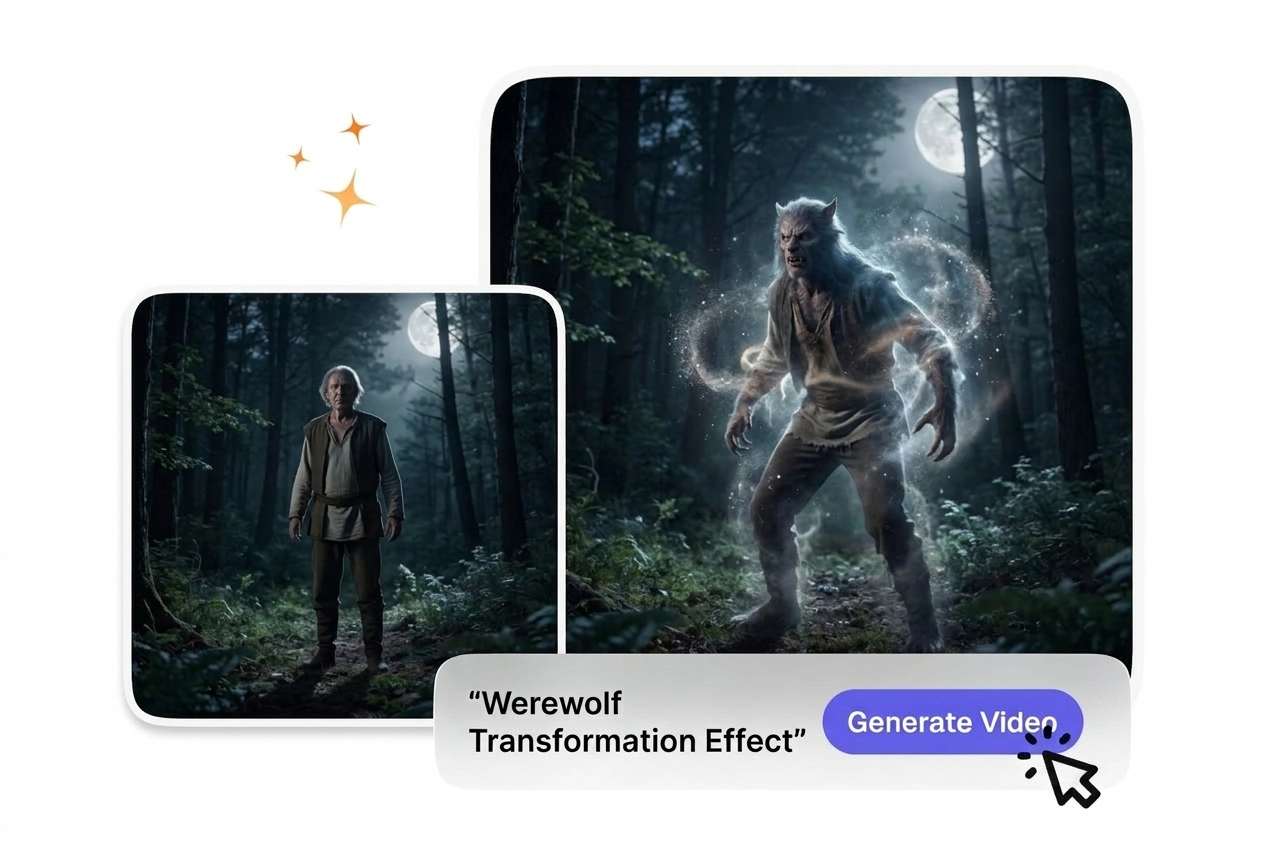
Free Werewolf Transformation Video Generator
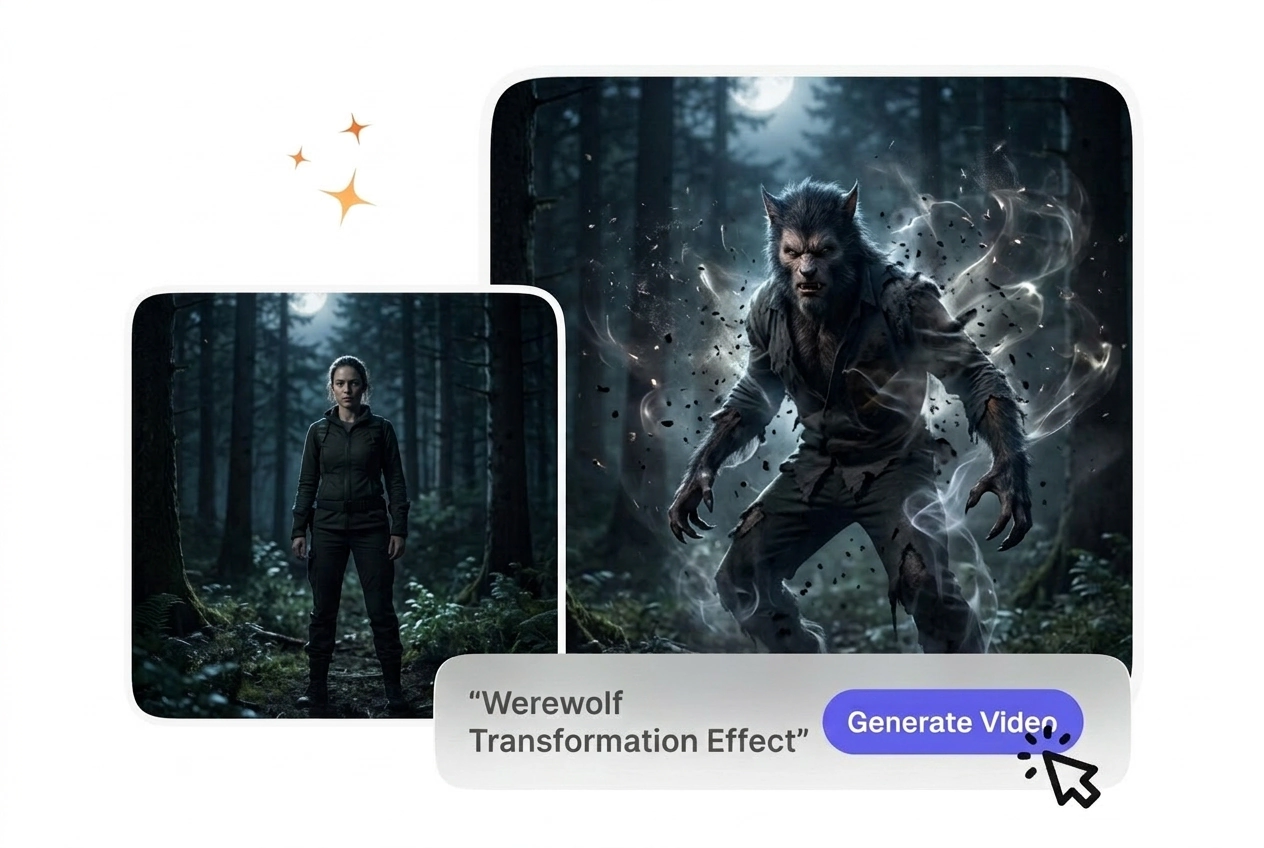
Werewolf Transformation Effect turns a source clip into a staged creature change while keeping the original subject and motion as the base. Front facing footage with clear facial detail usually previews more accurately and exports with more stable transformation output.
Werewolf Transformation Effect Generator
VideoAI builds a realistic Werewolf Transformation Effect from your starting frame and text prompt. Clear facial features yield the most predictable morphing results.

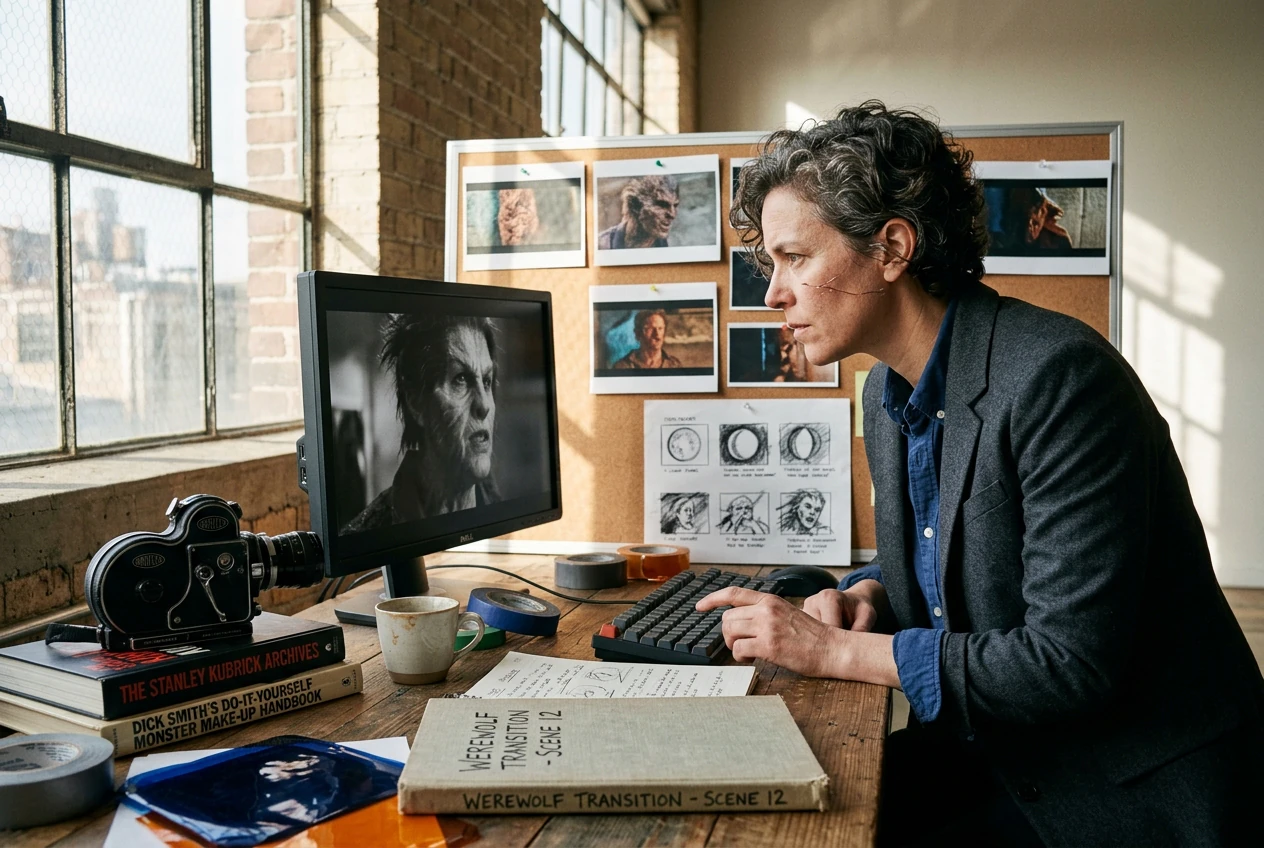
Horror short directors, indie game marketers, and fantasy content creators use this tool to generate predictable creature morphs without complex 3D rigging software.

Independent filmmakers need practical looking creature changes on tight budgets. You upload a well lit actor frame, and VideoAI generates the sequence. This keeps your production moving while maintaining a consistent visual tone across your scary scenes.
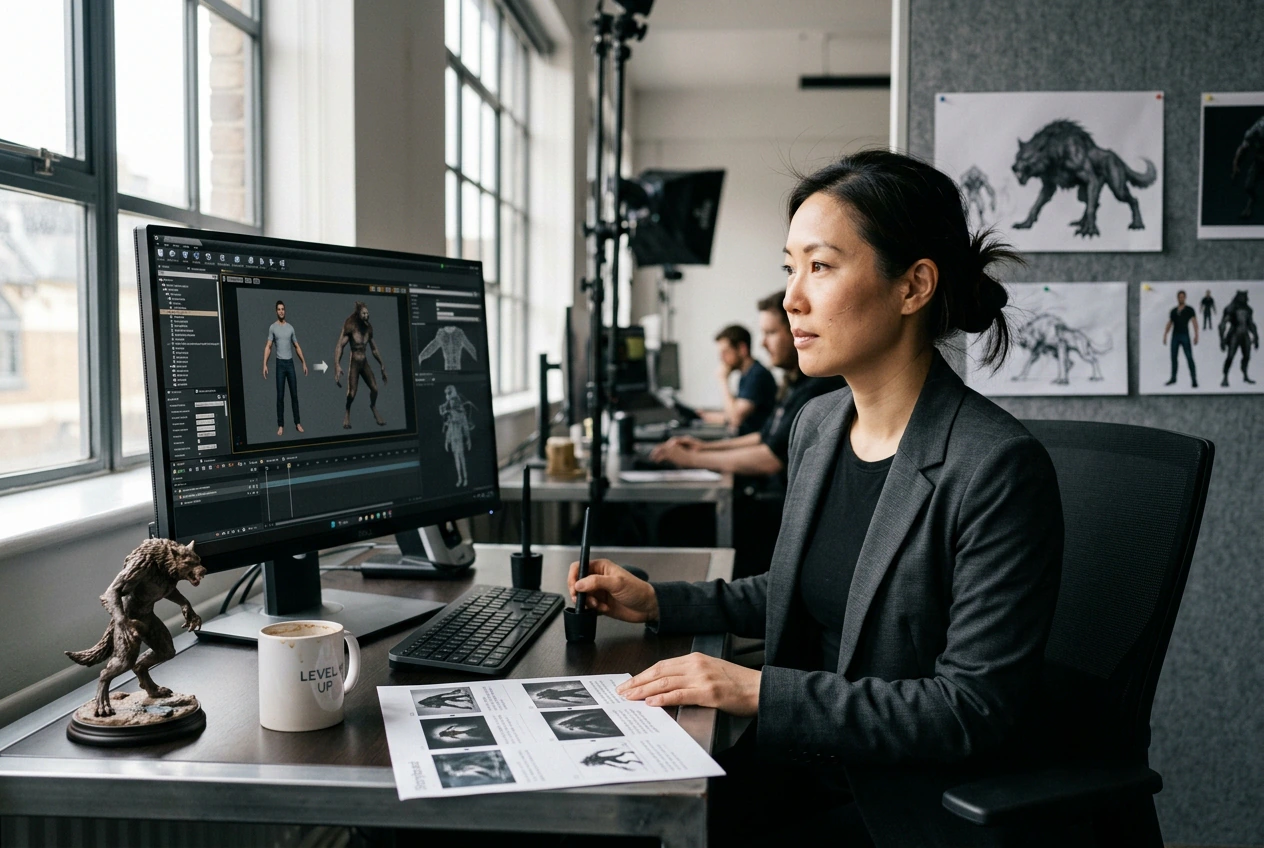

Promotional campaigns require eye-catching assets that explain character mechanics quickly. When you need a fast promotional clip, this generator provides a reliable wolf morph transition. The resulting video clearly demonstrates your character abilities to potential players.

Social media channels thrive on engaging visual hooks and lore explanations. You type a descriptive prompt detailing the moonlit environment, so VideoAI matches the mood. This approach delivers a high-quality full moon werewolf video for your audience.
How to Make a Werewolf Transformation Effect Video
Upload your starting human portrait, define your desired creature traits in the prompt, and let VideoAI render the complete morphing sequence for you.
Step 1
Upload Starting Frame
You provide a clear portrait image as the base reference. VideoAI analyzes the facial structure and lighting, then prepares the exact foundation needed for a smooth lycanthrope transition AI sequence.
Step 2
Write Your Prompt
If you want specific fur colors or glowing eyes, describe them clearly in the text field. VideoAI reads these detailed instructions so the final generated output matches your exact creative vision perfectly.
Step 3
Generate and Export
You click generate, and the system processes the morphing animation based on your inputs. After that, you simply download the finished file to use in your preferred video editing software.
Features of the Werewolf Transformation Effect AI
VideoAI provides specific controls to shape your creature design. You adjust the pacing and visual details to match your exact storytelling requirements.

Customizable Fur Generation
VideoAI reads your text prompt to determine the length and color of the creature hair. You type your preferences, and the engine applies them during the morph. Werewolf Transformation Effect works best with highly descriptive text inputs.

Bone Structure Morphing
The system maps the facial landmarks of your starting human portrait to guide the anatomical changes. You do not need to manually plot tracking points. The resulting AI Werewolf Transformation Effect looks natural, provided the source face is clearly visible.

Adjustable Morph Pacing
When you need to match a specific audio beat, you can speed up Werewolf Transformation Effect sequences or slow them down. You select the duration before generating. Extreme slow-motion may require higher resolution source images for optimal clarity.

Atmospheric Lighting Control
VideoAI adjusts the environmental lighting based on your text prompt to simulate moonlight or dark forests. You describe the setting, and the tool blends the subject into that environment. Complex lighting works best with neutral starting portraits.
Werewolf Transformation Effect FAQ
Can I use a video file as my starting point, or do I need a single still image frame?
No, VideoAI requires a still image as the starting frame to generate the animation. For the cleanest results, upload a high-resolution portrait with clear lighting. This ensures the AI video Transition generator accurately maps the facial features.
How do I make the Werewolf Transformation Effect play more slowly or dramatically before I export?
Sure, you can adjust the duration settings before you click generate. Longer durations create a slow Werewolf Transition, which requires more processing time. This helps creators match the visual pacing to slower, more dramatic audio tracks.
Can I download a werewolf transformation video for free, and will free exports show a watermark?
You can export to your device for review; free access often shows a watermark and tight caps. Free output is not cleared for commercial client work or paid distribution. Open the pricing plan page for paid membership and commercial terms.
Can I control fur, teeth, and other creature details using my text prompt?
Yes, your text prompt dictates the final look of the creature. Vague prompts yield unpredictable results, so describe the fur and teeth explicitly. This gives you the precise control needed for a professional AI Transition free of random artifacts.
Does VideoAI add sound effects or music to the werewolf transition, or is it video-only?
No problem, but VideoAI focuses entirely on the visual generation process. You must add your own sound effects in your editing software later. This ensures your Free Werewolf Transformation Effect Video matches your specific audio mix perfectly.
Upload your starting frame and see how VideoAI handles your creature concept. You can adjust the prompt and export your final file quickly.